Install Windows 10 Home if the PC is for gaming, browsing and Microsoft 365, and Windows 10 Pro only if you need BitLocker, Remote Desktop hosting, Hyper-V, Windows Sandbox, Group Policy or a work Microsoft Entra ID sign-in.
Both editions reached end of support on October 14, 2025, so this guide also covers Extended Security Updates, how to check your edition, the Home to Pro upgrade and the free move to Windows 11.
Windows 10 Pro vs. Home: which one to install
Home and Pro share the same core, the same Microsoft Defender Antivirus and the same monthly security updates. Pro is Home plus a set of business and power-user tools, so the choice comes down to whether you will use one of those tools.
Install Windows 10 Home for a personal or gaming PC, and install Windows 10 Pro when you need full BitLocker drive encryption, to connect to the PC with Remote Desktop, to run Hyper-V or Windows Sandbox, to use Group Policy, or to join a work or school Microsoft Entra ID. None of the Pro-only features are gaming or everyday-app features, and Home can be upgraded to Pro later from Settings without reinstalling.
Because Windows 10 no longer gets free security updates, a new install only makes sense on a PC that cannot run Windows 11. If you still need to install Windows 10 on such a PC, plan to enroll it in Extended Security Updates straight away.
Windows 10 Home
Windows 10 Home is the edition most consumer laptops and desktops ship with. It covers what a home user, student or gamer needs day to day.
| What Windows 10 Home includes | Details |
|---|---|
| Security | Windows Security with Microsoft Defender Antivirus, firewall and network protection, and Windows Hello sign-in |
| Encryption | Device encryption on hardware that meets its requirements; no full BitLocker management |
| Family features | Parental controls through a Microsoft account |
| Apps | Microsoft Edge, Photos, Calculator and the other inbox apps, plus apps from the Microsoft Store or the web |
| Remote Desktop | Can connect out to another PC, but cannot be the PC you connect to |
| Memory limit (64-bit) | 128 GB of RAM |
| Memory limit (32-bit) | 4 GB of RAM |
Device encryption turns on BitLocker-based encryption for the system drive and fixed drives automatically when the PC qualifies. It does not encrypt USB drives, and you can see whether your PC qualifies under Device Encryption Support in System Information (msinfo32).
Windows 10 Pro
Windows 10 Pro includes everything in Home and adds the tools small businesses, IT staff and developers use. Microsoft documents these features for Pro and higher editions, not for Home.
| What Windows 10 Pro adds | What it does |
|---|---|
| BitLocker Drive Encryption | Full-volume encryption you turn on and manage yourself, with optional PIN or startup-key protection at boot |
| Remote Desktop host | Lets you sign in to this PC from another device with the Remote Desktop app |
| Hyper-V | Built-in virtual machines on a 64-bit CPU with SLAT and at least 4 GB of RAM |
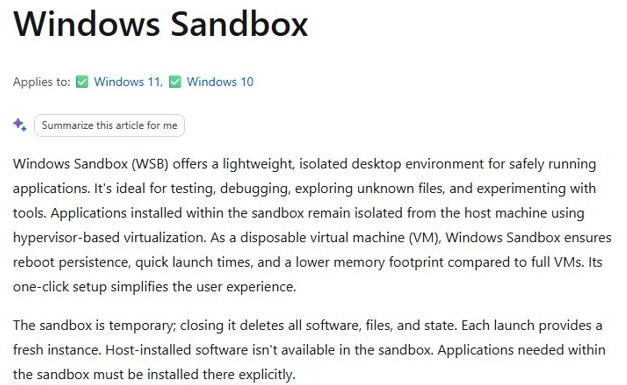
| Windows Sandbox | A disposable desktop that deletes everything when you close it, for testing unknown files |
| Group Policy | Policy-based control of Windows settings, locally or from a domain |
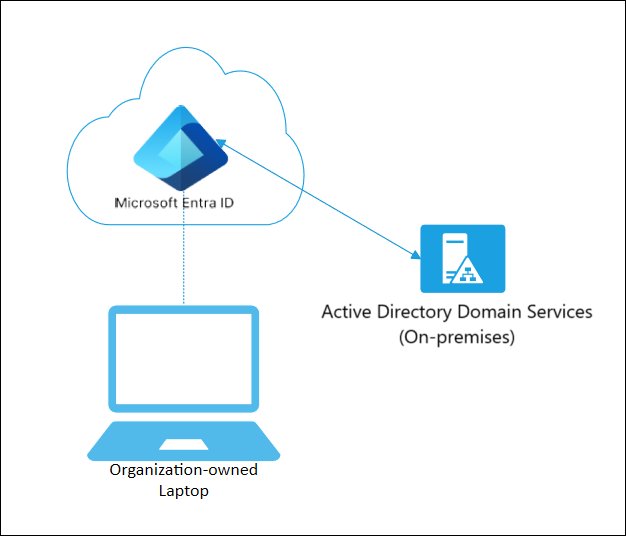
| Microsoft Entra join | Sign in with a work or school account and enroll in Intune or other device management |
| Assigned Access | Locks the PC to one app or a short list of apps for kiosks and shared devices |
| Memory limit (64-bit) | 2 TB of RAM |
Windows 10 Pro for Workstations is a separate edition built on Pro for high-end workstation hardware, first released with version 1709. Its 64-bit memory limit is 6 TB, against 2 TB for Pro. Most people never see it unless it came preinstalled on a workstation.
Windows 10 Pro vs. Home features comparison
| Feature | Windows 10 Home | Windows 10 Pro |
|---|---|---|
| Microsoft Defender Antivirus and firewall | Yes | Yes |
| Windows Hello sign-in | Yes | Yes |
| Device encryption (qualifying PCs) | Yes | Yes |
| BitLocker Drive Encryption | No | Yes |
| Remote Desktop client (connect out) | Yes | Yes |
| Remote Desktop host (connect in) | No | Yes |
| Hyper-V | No | Yes |
| Windows Sandbox | No | Yes |
| Group Policy | No | Yes |
| Microsoft Entra join | No | Yes |
| Assigned Access kiosk mode | No | Yes |
| Maximum RAM (64-bit) | 128 GB | 2 TB |
| Consumer ESU through October 12, 2027 | Yes | Yes |
| Commercial ESU up to three years | No | Yes, in commercial use |
| Free upgrade to Windows 11 | To Windows 11 Home | To Windows 11 Pro |
Both editions receive the same monthly security fixes, so Home is not a less secure build of Windows. The gap is in management and encryption control, not in protection against malware.
Windows 10 Home or Pro for gaming, school and work
| Your situation | Install this | Why |
|---|---|---|
| Gaming PC | Windows 10 Home | None of the Pro-only features are gaming features |
| Family or student laptop | Windows 10 Home | Parental controls, Windows Hello and device encryption are already included |
| Laptop that carries client or company files | Windows 10 Pro | BitLocker adds full drive encryption you manage, with an optional PIN at startup |
| You want to reach the PC from another device | Windows 10 Pro | Only Pro can be a Remote Desktop host |
| You run virtual machines or test software | Windows 10 Pro | Hyper-V and Windows Sandbox are not available on Home |
| The PC signs in with a work or school account | Windows 10 Pro | Microsoft Entra join excludes Home editions |
| A business PC that must stay on Windows 10 past October 2027 | Windows 10 Pro | Commercial ESU covers Pro in commercial use for up to three years |
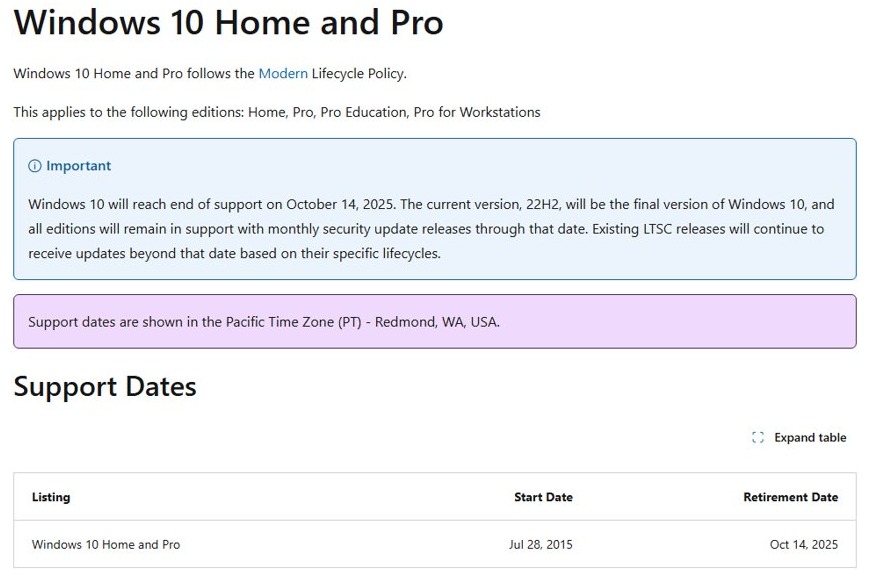
Windows 10 Home and Pro end of support and ESU
Windows 10 Home and Pro, including Pro Education and Pro for Workstations, stopped receiving free updates on October 14, 2025. Version 22H2 is the final version, and a PC must run 22H2 to get Extended Security Updates (ESU).
| ESU route | Editions | Cost | Coverage ends |
|---|---|---|---|
| Consumer ESU | Home, Pro, Pro Education, Pro for Workstations (22H2) | Free if you sync PC settings, 1,000 Microsoft Rewards points, or a one-time $30 USD | October 12, 2027 |
| Commercial ESU | Pro, Enterprise and Education in commercial use | $61 USD per device for year one, doubling each year | Up to three years, to October 10, 2028 |
One consumer ESU license covers up to 10 devices. To enroll a home PC in ESU, go to Settings > Update & Security > Windows Update and select Enroll now when the link appears. ESU delivers critical and important security fixes only, with no new features.
How to check if you have Windows 10 Home or Pro
- Select Start > Settings.
- Select Update & Security > Activation.
- Read the line next to Edition under Windows. It shows Windows 10 Home or Windows 10 Pro.
- Read the line next to Activation to confirm Windows is activated.
- Or go to Settings > System > About and check Edition under Windows specifications.
How to upgrade Windows 10 Home to Pro
Microsoft supports two routes on an activated copy of Windows 10 Home: enter a Pro product key, or buy the upgrade in the Microsoft Store. Your PC restarts into Pro when it finishes.
- Select Start > Settings > Update & Security > Activation.
- If you have a 25-character Windows 10 Pro key, select Change product key under Windows and sign in with an administrator account if asked.
- Enter the key and select Next to start the upgrade.
- If you have no key, select Go to the Store under Windows instead.
- Sign in with your Microsoft account in the Store and follow the prompts to buy Windows 10 Pro.
- When the purchase is confirmed, install Windows 10 Pro and restart when prompted.
On Windows 11 the same upgrade lives under Settings > System > Activation, and you can upgrade Windows 11 Home to Pro the same way after you move to Windows 11.
Windows 10 Home and Pro free upgrade to Windows 11
The free upgrade from Windows 10 keeps your edition. Home moves to Windows 11 Home and Pro moves to Windows 11 Pro, so the edition you pick now carries forward.
| You have | Free Windows 11 upgrade | To end up on Windows 11 Pro |
|---|---|---|
| Windows 10 Home | Windows 11 Home | Upgrade to Windows 10 Pro first, or buy Windows 11 Pro in Settings > System > Activation after upgrading |
| Windows 10 Pro | Windows 11 Pro | Nothing extra to buy |
| Windows 10 Pro for Workstations | Same edition on Windows 11 | Already above Pro |
The same split applies on the newer release, and the Windows 11 Home vs Pro differences follow the lines in the comparison table above.
How to enable Remote Desktop on Windows 10 Pro
Remote Desktop is the Pro feature most people upgrade for. The PC you connect to must run Pro; the device you connect from can run Home, Pro or another operating system.
- On the PC you want to reach, select Start > Settings > System > About and confirm Edition shows Windows 10 Pro.
- Select Remote Desktop in the left pane under System.
- Turn on Enable Remote Desktop and confirm the prompt.
- Note the PC name shown on the page.
- On the other device, open the Remote Desktop app, enter that PC name and connect.
Enable Hyper-V on Windows 10 Pro with PowerShell
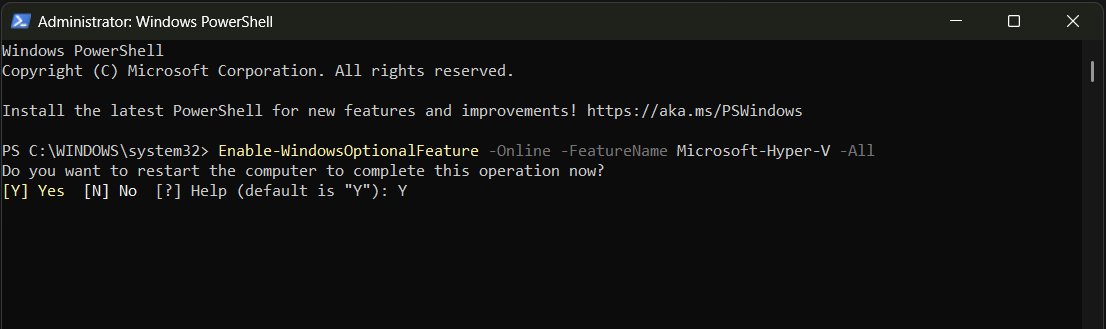
Hyper-V is built into Windows 10 Pro as an optional feature, so there is nothing to download. It cannot be installed on Windows 10 Home. Open Windows PowerShell with Run as administrator before you run the command.
Enable-WindowsOptionalFeature -Online -FeatureName Microsoft-Hyper-V -AllTurns on the Hyper-V platform and its management tools on the running copy of Windows. It needs a 64-bit processor with Second Level Address Translation (SLAT) and at least 4 GB of RAM.
You should see: PowerShell asks to restart the computer; enter Y to finish the installation.
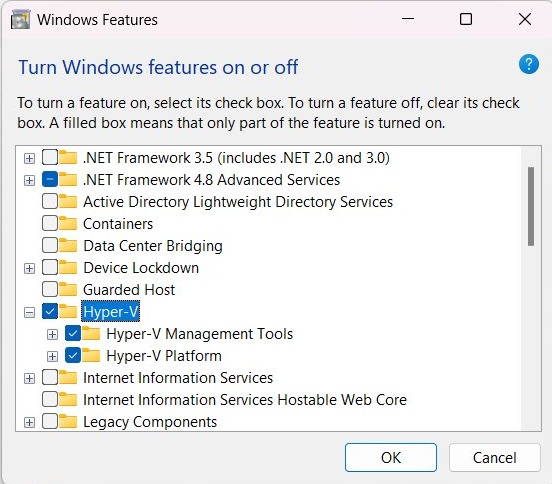
Without PowerShell, go to Settings > Apps > Apps & features > Programs and Features > Turn Windows features on or off, tick Hyper-V, select OK and restart.
Windows 10 Home to Pro upgrade not working
The Go to the Store link is missing on the Activation page
The PC already runs Pro, or the Store upgrade is not offered for this copy of Windows.
- Check the Edition line on Settings > Update & Security > Activation.
- If it already reads Windows 10 Pro, no upgrade is needed.
- If it reads Home, use Change product key with a Windows 10 Pro key instead.
The upgrade will not start on an unactivated PC
The manual Home to Pro steps apply only to an activated copy of Windows 10 Home.
- Check the Activation line on the same page.
- Activate Windows 10 Home first.
- Run the upgrade again once Activation shows Windows is activated.
Hyper-V is missing from Turn Windows features on or off
The PC runs Windows 10 Home, where the Hyper-V role cannot be installed.
- Confirm the edition under Settings > System > About.
- Upgrade to Windows 10 Pro, then enable Hyper-V.
- If the PC already runs Pro, check that the CPU is 64-bit with SLAT and VM Monitor Mode Extensions (VT-c on Intel CPUs).
Enable Remote Desktop does not appear in Settings
Windows 10 Home cannot act as a Remote Desktop host.
- Confirm the edition under Settings > System > About.
- Upgrade the PC to Windows 10 Pro to host sessions.
- Keep using Home on devices that only connect out to other PCs.
Windows 10 Pro vs. Home answers
Can I upgrade Windows 10 Home to Pro?
Yes. On an activated copy of Windows 10 Home, go to Settings > Update & Security > Activation and either enter a Windows 10 Pro product key with Change product key or buy the upgrade through Go to the Store. The PC restarts into Pro without a reinstall.
Is Windows 10 Pro faster than Home?
No. Both editions share the same core and receive the same updates. Pro adds features such as BitLocker, Hyper-V and Remote Desktop hosting, and those do nothing to speed up apps or games.
Is Windows 10 Home good for gaming?
Yes. Windows 10 Home runs the same games as Pro, and none of the Pro-only features are gaming features. Pick Pro for a gaming PC only if you also need BitLocker, Remote Desktop hosting or virtual machines.
Does Windows 10 Home have BitLocker?
No. Windows 10 Home does not include full BitLocker Drive Encryption. It does include device encryption, which encrypts the system drive and fixed drives automatically on PCs that meet its hardware requirements, but it does not cover USB drives.
Can Windows 10 Home use Remote Desktop?
Only as a client. A Windows 10 Home PC can connect to another PC with Remote Desktop, but it cannot be the PC you connect to. Hosting a Remote Desktop session needs Windows 10 Pro or a higher edition.
Can I run virtual machines on Windows 10 Home?
Not with Hyper-V, which Microsoft does not support on Home editions. Windows Sandbox is also Pro-only. Third-party virtualization apps such as VirtualBox or VMware Workstation are the option on Home.
How much RAM does Windows 10 Home support?
The 64-bit edition of Windows 10 Home supports up to 128 GB of RAM. Windows 10 Pro supports 2 TB, and Pro for Workstations supports 6 TB. All 32-bit editions are limited to 4 GB.
Does Windows 10 Home still get security updates?
Only through Extended Security Updates. Free updates ended on October 14, 2025. Consumer ESU covers Home and Pro on version 22H2 through October 12, 2027, either free with settings sync, for 1,000 Microsoft Rewards points, or for a one-time $30.
Can Windows 10 Home join a work or school account?
Not as a Microsoft Entra joined device. Microsoft supports Entra join on all Windows 10 and Windows 11 editions except Home, so a PC that must sign in with a work or school account needs Pro.
Do Windows 10 Home and Pro upgrade to Windows 11 for free?
Yes, on PCs that meet the Windows 11 requirements, and the upgrade keeps the same edition. Windows 10 Home becomes Windows 11 Home and Windows 10 Pro becomes Windows 11 Pro.