To make the Weather app read 1, 2, 3 PM instead of 13, 14, 15, open Settings on your iPhone, tap General > Date & Time and turn off 24-Hour Time.
The Weather app takes its time format from that system switch, so the same change also fixes the Lock Screen and widgets; Apple Watch and Mac each have their own switch, covered below.
How to change 24-hour time to 12-hour time on iPhone
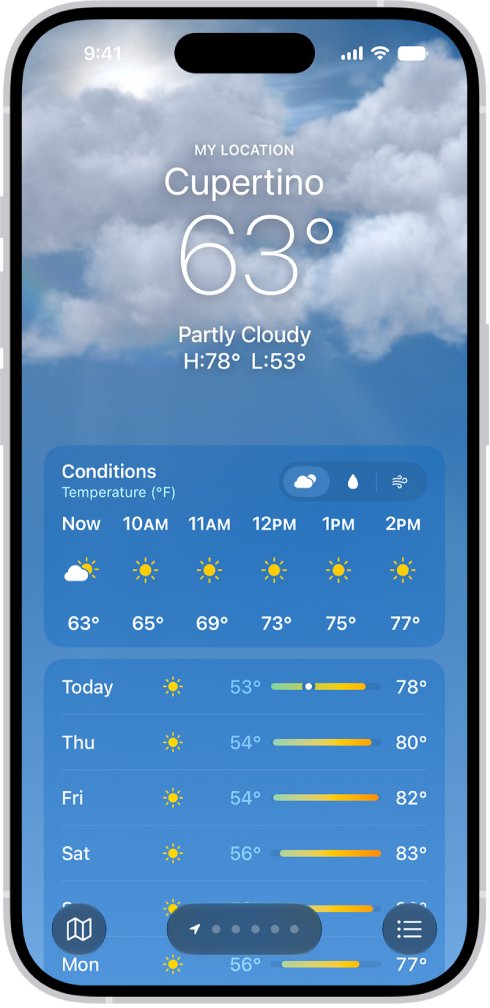
The hourly forecast in Weather shows hours such as 18 and 19 when the iPhone clock is set to 24-hour format. Switching the clock format changes those labels to PM times.
- Open the Settings app on your iPhone.
- Tap General.
- Tap Date & Time.
- Turn off 24-Hour Time.
- Open Weather again and swipe through the hourly forecast. Evening hours now show as 6 PM, 7 PM and so on.
There is nothing to change inside the Weather app itself. If Weather was open in the background, close it and open it again.
What 18 and 19 mean in the iPhone Weather hourly forecast
In 24-hour time, afternoon and evening hours run from 13:00 to 23:59, so 8:00 PM appears as 20:00. Subtract 12 from any hour above 12 to get the PM time.
Morning hours from 1 to 11 read the same in both formats. Only noon, the afternoon, the evening and midnight look different.
| 24-hour label | 12-hour label | Time of day |
|---|---|---|
| 0 or 00 | 12 AM | Midnight |
| 1 to 11 | 1 AM to 11 AM | Night and morning, unchanged |
| 12 | 12 PM | Noon |
| 13 | 1 PM | Early afternoon |
| 14 | 2 PM | Afternoon |
| 15 | 3 PM | Afternoon |
| 16 | 4 PM | Late afternoon |
| 17 | 5 PM | Late afternoon |
| 18 | 6 PM | Evening |
| 19 | 7 PM | Evening |
| 20 | 8 PM | Evening |
| 21 | 9 PM | Night |
| 22 | 10 PM | Night |
| 23 | 11 PM | Night |
Weather app showing 24-hour time on iPhone, Apple Watch or Mac
Each Apple device keeps its own clock format. Find the device where you see 18 and 19, then change the switch in that row.
| Where you see 24-hour times | Setting that controls it | Where to change it |
|---|---|---|
| Weather app, Lock Screen or widgets on iPhone | 24-Hour Time on the iPhone | Settings > General > Date & Time |
| Weather app or watch face on Apple Watch | 24-Hour Time for the watch | Apple Watch app on iPhone > My Watch > Clock |
| Menu bar clock on a Mac | 24-hour time on the Mac | System Settings > General > Date & Time |
| Dates and times inside Mac apps | The region's formats | System Settings > General > Language & Region > Region |
How to turn off 24-hour time on Apple Watch
Apple Watch has a separate 24-Hour Time switch, so the watch can still show 18 and 19 after the iPhone is fixed. Change it from the iPhone you paired with the watch.
- Open the Apple Watch app on your iPhone.
- Tap My Watch.
- Tap Clock.
- Turn off 24-Hour Time.
- Raise your wrist and open Weather on the watch.
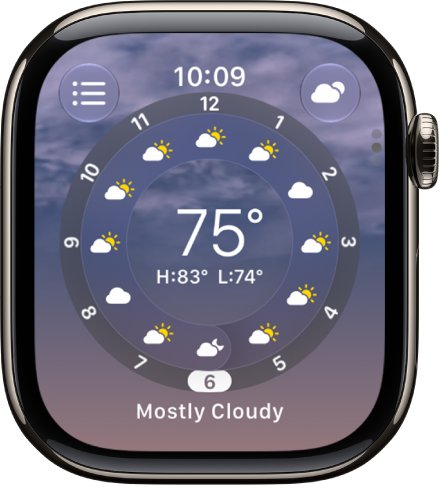
- Tap the display to cycle through the views and check that the hourly view now uses AM and PM.
The same Clock page in the Settings app on the watch holds Speak Time and Chimes, which announce the time aloud or play a sound on the hour.
How to change the Mac clock from 24-hour to 12-hour time
On a Mac, the 24-hour time switch sets the menu bar clock, and the Region setting sets the formats that Mac apps use for dates and times.
- Choose Apple menu > System Settings.
- Click General in the sidebar, then click Date & Time. You may need to scroll down.
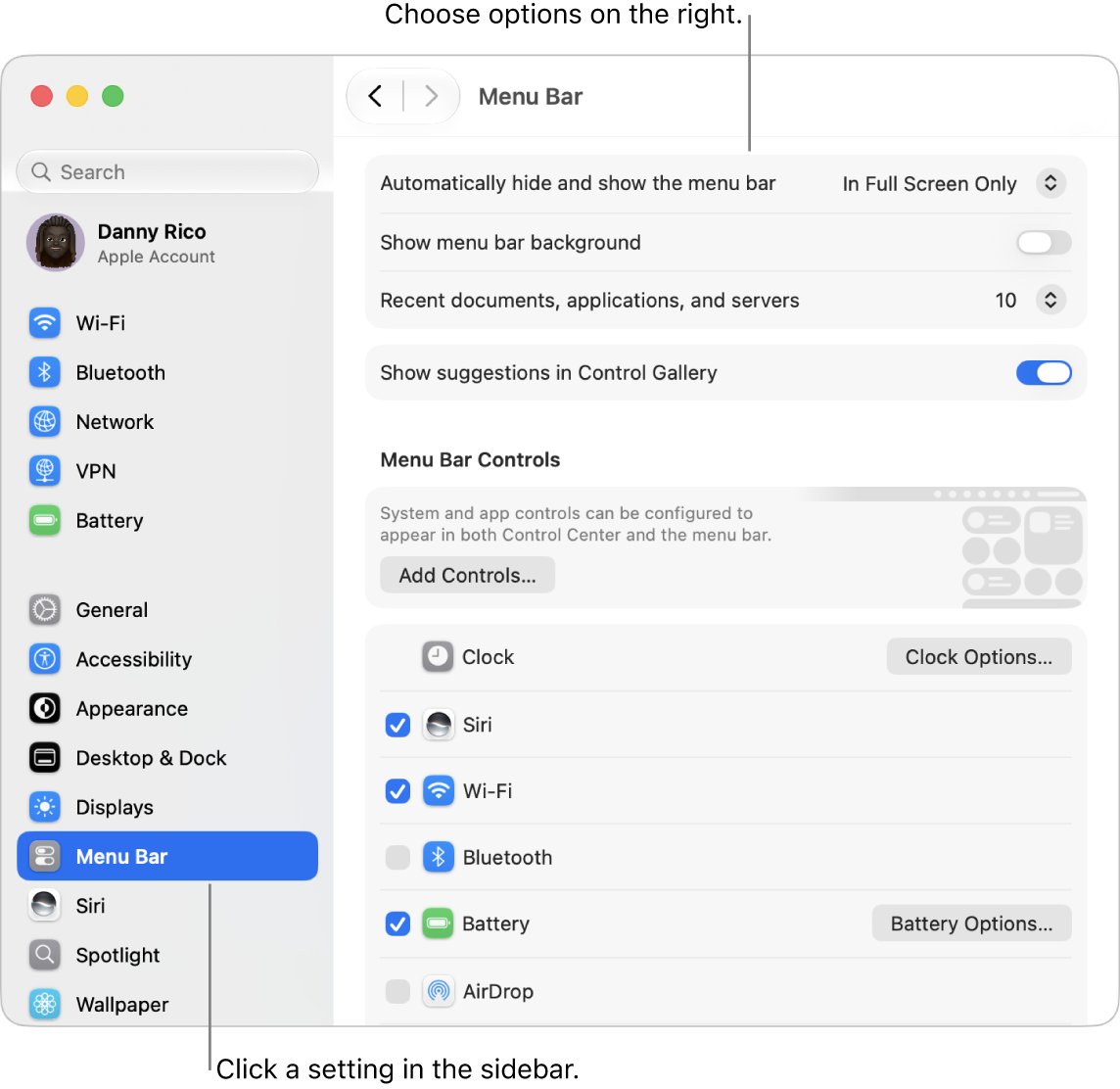
- Turn off 24-hour time. The menu bar now shows 3:00 PM instead of 15:00.
- To show AM and PM after the time, click Menu Bar in the sidebar, go to Menu Bar Controls and click Clock Options.
- Turn on Show AM/PM, then close the dialog.
- If times inside apps still use 24-hour format, click General > Language & Region and choose your country from the Region pop-up menu.
The Show AM/PM option is unavailable when the clock Style is set to analog. Switch the style to digital first.
How to tell if the Weather app is using 12-hour time
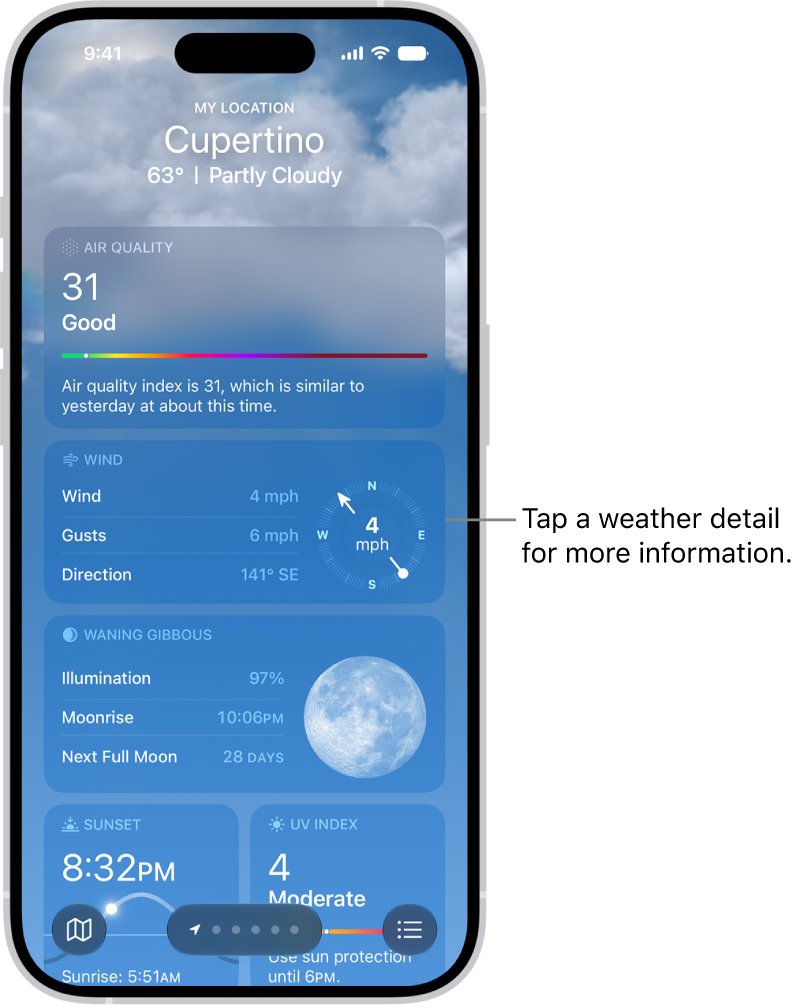
- Open Weather on your iPhone and look at the hourly forecast under the current temperature.
- Swipe left along the hourly row until you reach the late afternoon and evening.
- Check that the labels read 5 PM, 6 PM and 7 PM rather than 17, 18 and 19.
- On Apple Watch, open Weather and tap the display until an hourly view appears, then check the same hours.
- On a Mac, look at the clock in the top-right corner of the menu bar. It should read 3:00 PM style times, not 15:00.
If one device still shows 24-hour labels, that device has its own switch. Use the table above to find it.
How to change the time and time zone on iPhone
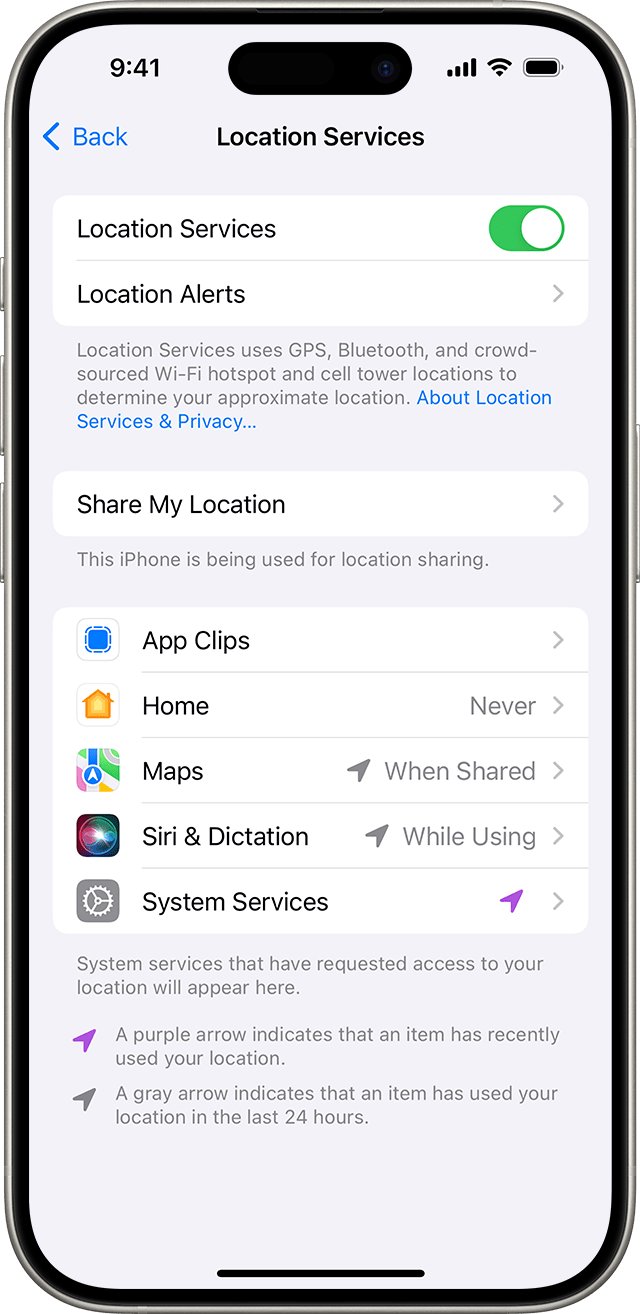
Your iPhone sets its time zone automatically. If Location Services is off or there is no service, the Weather app can show forecast hours for the wrong zone, and you can set it by hand.
- Open Settings and tap General > Date & Time.
- To pick a time zone, turn off Set Time Zone Automatically.
- Tap Time Zone City and search for a city in the zone you want.
- To use an offset instead, tap Set By, tap Time Zone Offset, then tap + or –.
- To set the clock by hand, turn off Set Time Automatically, then enter the date and time.
Turn both automatic switches back on when you return home, so the clock follows your location again.
How to switch iPhone back to 24-hour time
Some readers prefer 24-hour labels for travel or work schedules. The change is a single switch and takes effect straight away.
- On iPhone, open Settings > General > Date & Time and turn on 24-Hour Time.
- On Apple Watch, open the Apple Watch app on your iPhone, tap My Watch > Clock and turn on 24-Hour Time.
- On a Mac, open System Settings > General > Date & Time and turn on 24-hour time.
- Reopen Weather on each device to see the hours as 13 to 23 again.
iPhone Weather app still showing 24-hour time
Apple Watch Weather still shows 18 and 19
The watch has its own 24-Hour Time switch, separate from the iPhone.
- Open the Apple Watch app on your iPhone.
- Tap My Watch > Clock.
- Turn off 24-Hour Time, then reopen Weather on the watch.
Mac menu bar clock still shows 15:00
The Mac menu bar clock follows the Mac's own Date & Time setting.
- Open System Settings > General > Date & Time.
- Turn off 24-hour time.
- Open Menu Bar > Clock Options and turn on Show AM/PM if the suffix is missing.
Weather hours read correctly but start at the wrong time
The time zone is wrong, usually because Location Services is off or the zone was set by hand.
- Open Settings > Privacy & Security > Location Services and make sure Location Services is on.
- Go back to Settings > General > Date & Time.
- Turn on Set Time Zone Automatically and Set Time Automatically.
- Reopen Weather and check the current hour at the start of the hourly row.
Apple Watch face shows a time a few minutes ahead
The watch face has been set ahead, which changes only the time on the face.
- Open the Settings app on your Apple Watch.
- Tap Clock.
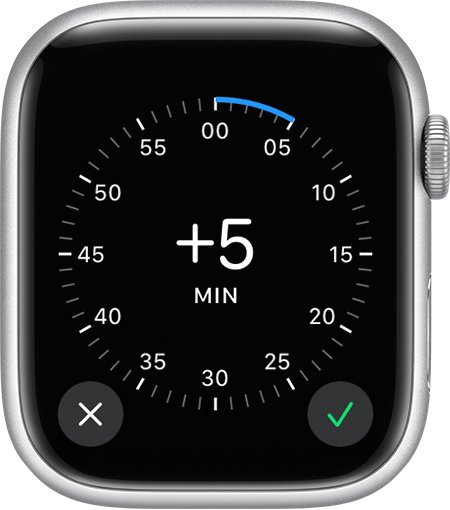
- Tap the + minutes value and turn the Digital Crown back to +0 min.
iPhone 24-hour time FAQ
How do I change the clock setting on my iPhone?
Open Settings, tap General > Date & Time and turn 24-Hour Time on or off. Off gives 12-hour times with AM and PM, and on gives 13:00 to 23:59. The Weather app, Lock Screen and widgets follow this switch.
How do I change the clock on my Apple Watch?
Open the Apple Watch app on your iPhone, tap My Watch > Clock and turn 24-Hour Time on or off. To show a time a few minutes fast, open Settings > Clock on the watch and tap +0 min; this moves the watch face only, not alarms or notifications.
How do I change the clock time on my iPhone?
Open Settings > General > Date & Time, turn off Set Time Automatically and enter the date and time you want. Turn the switch back on later so the iPhone sets the time by itself again.
How do I change the clock time zone on my iPhone?
Open Settings > General > Date & Time and turn off Set Time Zone Automatically. Tap Time Zone City and search for a city, or tap Set By > Time Zone Offset and use + or – to pick the offset.
How do I change the clock face on my iPhone?
Touch and hold the Lock Screen, then tap Customize on the Lock Screen you want to edit. Tap the time to change its font and look, drag the corner to make it taller, then tap Done to save the new clock style.
How do I change the clock face on my iWatch?
With the current watch face showing, touch and hold the display, swipe to the face you want and tap it. For more designs, open the Apple Watch app on your iPhone, tap Face Gallery, pick a face and tap Add to Watch.
How do I change the clock on my computer to 12-hour time?
On a Mac, choose Apple menu > System Settings, click General > Date & Time and turn off 24-hour time. The menu bar clock then shows times such as 3:00 PM instead of 15:00, and Clock Options adds the AM/PM suffix. On a Windows PC, you can change the Windows 11/10 time format to 12-hour instead.