To screen record on a Windows 10 PC, open the app you want to capture and press Windows logo key + Alt + R to start and stop an Xbox Game Bar recording.
This guide covers Game Bar step by step, recording with audio, the full desktop with PowerPoint, Clipchamp and OBS Studio, where the videos are saved, and what to do when recording will not start.
How to screen record on a Windows 10 PC with Xbox Game Bar
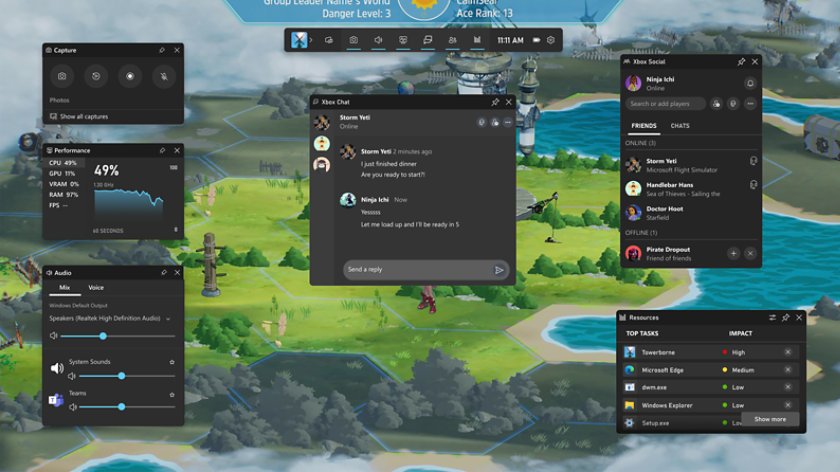
Xbox Game Bar is built into Windows 10 and Windows 11, so there is nothing to install. It records the game or app you are using as an MP4 video.
- Open the game or app you want to record and click inside it.
- Press Windows logo key + G to open Game Bar.
- In the Capture widget, click the microphone icon if you want to turn your mic on or off.
- Click Record from now (the circle), or press Windows logo key + Alt + R.
- Play the game or use the app until you have recorded what you need.
- Click Stop recording (the square), or press Windows logo key + Alt + R again.
- Click See my Captures in the Capture widget to watch the clip.
If nothing happens when you press Windows logo key + G, turn Game Bar on first: open Settings, search for xbox and switch on Enable Xbox Game Bar.
Which screen recording method should I use on Windows 10?
| Your situation | Use this | Why |
|---|---|---|
| Recording a game or a single app window | Xbox Game Bar | Built in, one shortcut, saves MP4 to Videos > Captures |
| Recording the whole desktop or a drawn area | PowerPoint Screen Recording | Windows logo key + Shift + B records the entire screen, Shift + E an area |
| Recording a browser tab, window or screen with a webcam bubble | Clipchamp | Runs in the browser or the Clipchamp app and adds effects and trimming |
| Long tutorials, several sources, or streaming | OBS Studio | Free and open source, with display, window and game capture |
| You are on Windows 11 and want a region with no extra app | Snipping Tool Record | Windows logo key + Shift + R; not available in Windows 10's Snipping Tool |
How to screen record on PC with audio
Game Bar can record your system sound, your microphone, or both. Set this once in Game Bar's settings and every new clip uses it.
- Press Windows logo key + G to open Game Bar.
- Click the Settings button (the gear icon).
- Open Capturing.
- Under Audio to record, select All to capture the game, apps, system sound and an enabled mic.
- Close Game Bar with Windows logo key + G.
- Start recording with Windows logo key + Alt + R and press Windows logo key + Alt + M to turn the mic on or off during the clip.
Choose Game to record only the app you are capturing, or None for a silent clip. If you only need sound with no video, the Windows Voice Recorder app is the simpler tool.
Record screen using Microsoft PowerPoint
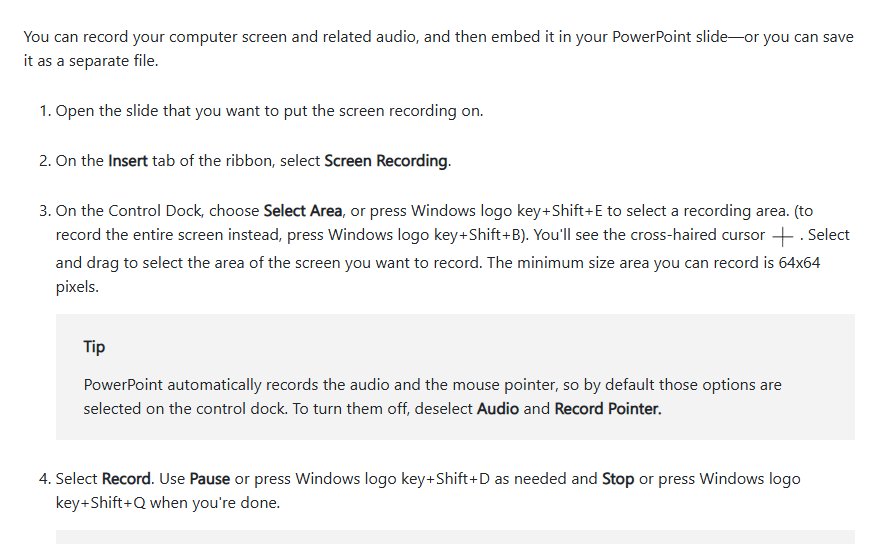
PowerPoint's screen recorder captures any part of the desktop, including File Explorer and several windows at once. It records audio and the mouse pointer by default.
- Open PowerPoint and a slide where the recording can sit.
- On the Insert tab, select Screen Recording.
- On the Control Dock, choose Select Area or press Windows logo key + Shift + E, then drag over the area to record.
- To record the entire screen instead, press Windows logo key + Shift + B.
- Deselect Audio or Record Pointer on the dock if you do not want them.
- Select Record; use Pause or Windows logo key + Shift + D when needed.
- Select Stop or press Windows logo key + Shift + Q to finish.
- Right-click the video on the slide, select Save Media as, choose a folder and name, then select Save.
The smallest area PowerPoint records is 64 x 64 pixels. To cut the start or end, right-click the video, select Trim, drag the green and red markers and select OK before saving the file.
Record screen using Clipchamp
Clipchamp is Microsoft's video editor. The personal version runs as a Windows 10 or Windows 11 app or in Edge or Chrome at app.clipchamp.com, so it also works as a free online screen recorder. Microsoft documents these steps for Clipchamp with a work or school account.
- Go to the Clipchamp homepage and select Create new > Screen recording.
- When your browser asks, select Allow for the camera and microphone.
- Choose your camera, microphone and screen settings, plus any effects such as Text or Backdrop.
- Select Start screen recording.
- Pick a browser tab, a window or the entire screen, then select Share.
- Wait for the countdown; recording starts automatically.
- Select Stop sharing to end the recording.
- Drag the progress bar handles to trim, then select Finish.
Select Record more before Finish to add another clip, or Music to add a background track.
Use third-party software to screen record on Windows 10
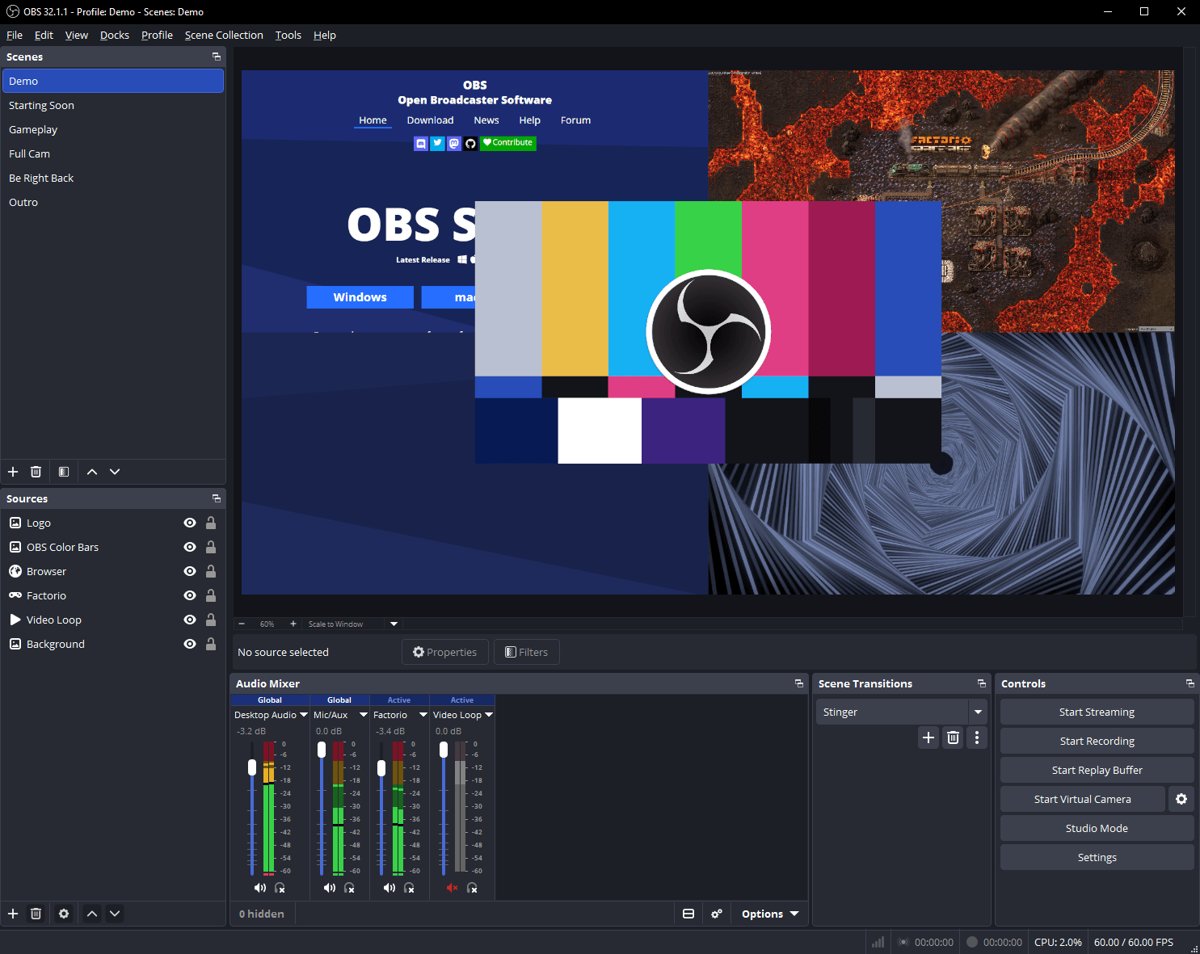
OBS Studio is free, open-source recording and streaming software that supports Windows 10 and Windows 11. Install it only from obsproject.com, never from a download portal.
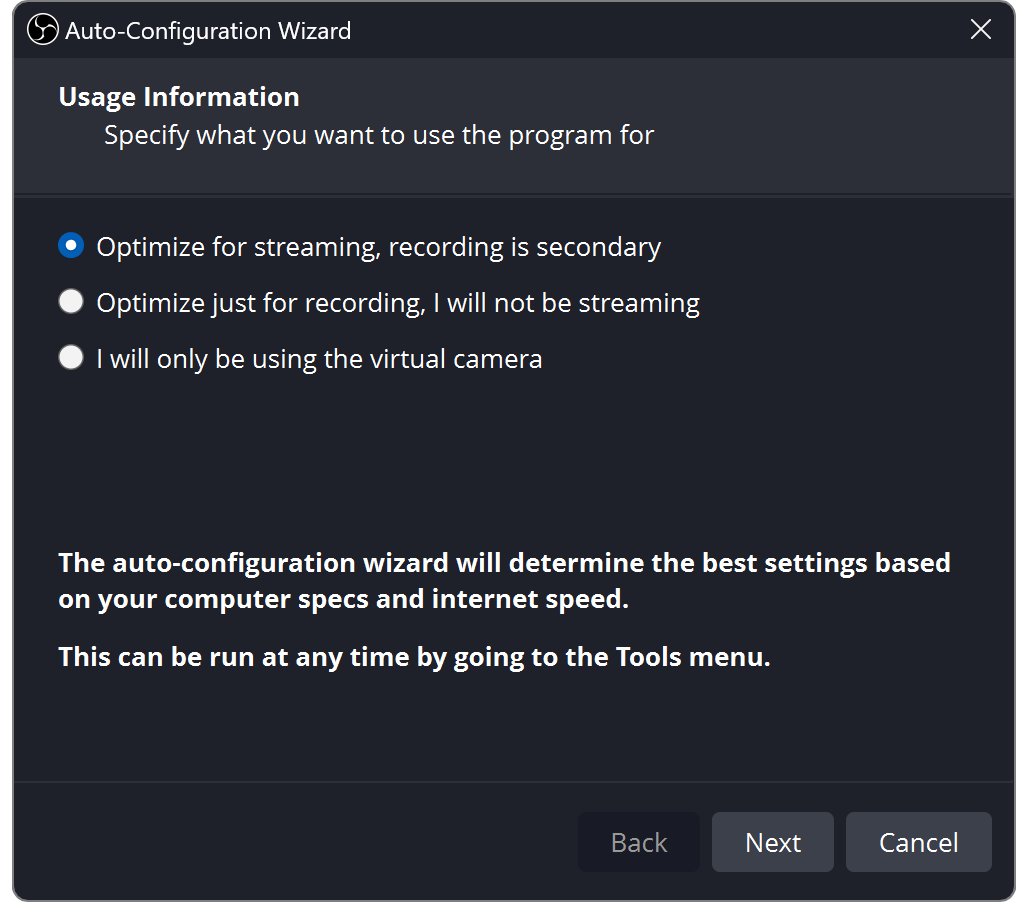
- Open OBS Studio and finish the Auto-Configuration Wizard, choosing recording when it asks.
- In the Sources dock at the bottom, click +.
- Choose Display Capture for the whole desktop, Window Capture for one window, or Game Capture for a 3D game.
- Check the Audio Mixer meters move; OBS captures desktop audio and the microphone by default.
- If a meter stays flat, open Settings > Audio and pick the right device.
- Click Start Recording on the Controls dock, then Stop Recording when you are done.
Record a short test first and play it back before a long session. Settings > Output holds the recording format and quality options.
Screen record on PC shortcut keys
| Shortcut | What it does | Tool |
|---|---|---|
| Windows logo key + G | Open or close Game Bar | Xbox Game Bar |
| Windows logo key + Alt + R | Start or stop recording | Xbox Game Bar |
| Windows logo key + Alt + G | Start and stop recording in full-screen games | Xbox Game Bar |
| Windows logo key + Alt + M | Turn the microphone on or off while recording | Xbox Game Bar |
| Windows logo key + Alt + Print Screen | Take a screenshot (PNG) | Xbox Game Bar |
| Windows logo key + Shift + E / Shift + B | Select an area / record the entire screen | PowerPoint |
| Windows logo key + Shift + D / Shift + Q | Pause / stop the recording | PowerPoint |
| Windows logo key + Shift + R | Start a Snipping Tool screen recording | Windows 11 only |
Where are Xbox Game Bar recordings saved?
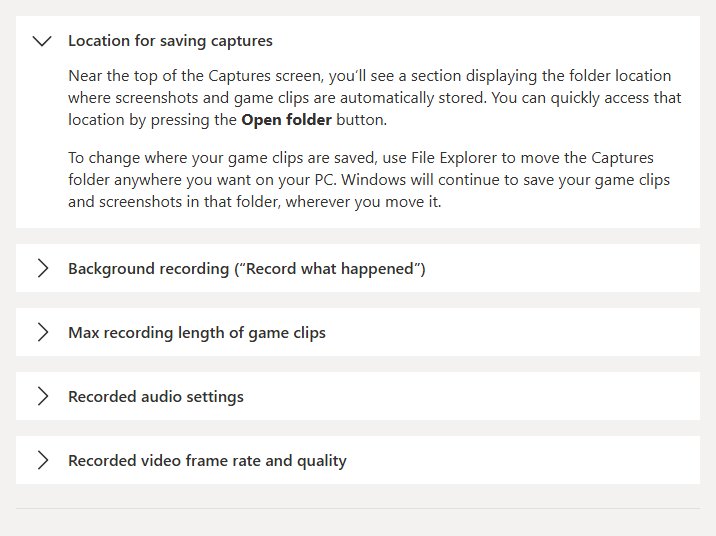
- Open File Explorer and go to Videos > Captures.
- Look for an MP4 file named after the game or app, with the date and time of the recording.
- Double-click it to play it and check the sound and picture.
- To jump there from Game Bar, press Windows logo key + G and click See my Captures in the Capture widget.
- To change capture options, open Settings > Gaming > Captures, where Open folder also opens the same location.
PowerPoint saves to the folder you pick in Save Media as. Snipping Tool recordings on Windows 11 go to Videos > Screen Recordings.
Tips for recording with Xbox Game Bar
| Tip | Why it helps |
|---|---|
| Click inside the app before pressing Windows logo key + Alt + R | Game Bar records the app that has focus |
| Use Windows logo key + Alt + G for full-screen games | Microsoft lists it as the full-screen recording shortcut |
| Set Audio to record to All before a tutorial | System sound and your voice both land in the clip |
| Mute the mic with Windows logo key + Alt + M between takes | Keeps background noise out without stopping the recording |
| Check notifications before sharing a clip | On-screen notifications can be captured in game clips |
| Keep Windows 10 on 22H2 or later | Microsoft says some Game Bar features need Windows 10 22H2 or newer |
| Use PowerPoint or OBS Studio for the desktop | Game Bar is built around recording a game or app |
Why can't I screen record on PC?
Windows logo key + G or Windows logo key + Alt + R does nothing
Game Bar is switched off, the app does not have focus, or a full-screen game is catching the keys.
- Open Settings, search for xbox and switch on Enable Xbox Game Bar.
- Click inside the app you want to record, then press Windows logo key + Alt + R again.
- In a full-screen game, press Windows logo key + Alt + G instead.
- If the game uses those keys itself, run it in a borderless window and try again.
"Sorry, this PC doesn't meet the hardware requirements for recording clips"
Game Bar clips need a graphics chip with a supported video encoder (Intel Quick Sync H.264, NVIDIA NVENC or AMD VCE).
- Open Device Manager and expand Display adapters.
- Right-click your graphics adapter and select Update driver.
- If the error stays, record with PowerPoint Screen Recording or OBS Studio instead.
The recording is blank or black
Some games and video apps block recording, and protected content cannot be captured.
- Try recording a different app to rule out a Game Bar fault.
- If only one app records black, that app does not allow capture; there is no setting to override it.
The recording has no sound
Audio to record is set to Game or None, or the wrong device is selected.
- Press Windows logo key + G, click Settings > Capturing and set Audio to record to All.
- Open the Audio widget in Game Bar and check the output and microphone devices.
- Press Windows logo key + Alt + M if the mic was muted during the clip.
Game Bar features are missing on Windows 10 N
Windows N editions ship without media components that Game Bar needs.
- Install the free Media Feature Pack for Windows N editions from Microsoft.
- Restart the PC and try recording again.
Windows 10 screen recording FAQ
Can my PC screen record?
Yes. Every Windows 10 and Windows 11 PC includes Xbox Game Bar, which records a game or app with Windows logo key + Alt + R. Clip recording needs a graphics chip with a supported hardware encoder, so a few older PCs show a hardware requirements error.
How do I screen record on PC with a shortcut key?
Press Windows logo key + Alt + R to start an Xbox Game Bar recording and press it again to stop. In PowerPoint's Screen Recording, Windows logo key + Shift + B records the entire screen and Windows logo key + Shift + Q stops.
How do I screen record on PC with audio?
Open Game Bar with Windows logo key + G, go to Settings > Capturing and set Audio to record to All. Then record with Windows logo key + Alt + R and toggle the mic with Windows logo key + Alt + M.
Where are Xbox Game Bar recordings saved?
In Videos > Captures as MP4 files named after the app and the date and time. Press Windows logo key + G and click See my Captures, or open Settings > Gaming > Captures and select Open folder.
Can Xbox Game Bar record my whole desktop?
Game Bar is built to record a game or app. For the full desktop, File Explorer or several windows at once, use PowerPoint's Screen Recording with Windows logo key + Shift + B, or OBS Studio's Display Capture source.
Why does the recording shortcut not work?
Game Bar may be switched off, the app may not have focus, or a full-screen game may be catching the keys. Turn on Enable Xbox Game Bar in Settings, click inside the app, and use Windows logo key + Alt + G in full-screen games.
How do I screen record on an HP or Lenovo laptop?
The same way as any Windows PC. HP and Lenovo laptops running Windows 10 or Windows 11 include Xbox Game Bar, so press Windows logo key + Alt + R, or use PowerPoint, Clipchamp or OBS Studio for the full screen.
How do I screen record on PC Windows 11?
Windows 11 adds a recorder to Snipping Tool: press Windows logo key + Shift + R, drag over the area, select Start, then Stop. Recordings save to Videos > Screen Recordings. Xbox Game Bar also works on Windows 11 with the same shortcuts.
Is there a free online screen recorder?
Clipchamp runs in Edge or Chrome at app.clipchamp.com and can record a browser tab, a window or the entire screen with your camera and microphone. The Clipchamp app for Windows 10 and Windows 11 offers the same recorder.
Can I screen record on a Mac the same way?
No. Macs have no Game Bar; you record the Mac screen with audio from the Shift-Command-5 Screenshot toolbar or QuickTime Player instead.
Best free screen recorder for Windows 10
Use Xbox Game Bar with Windows logo key + Alt + R for a single app or game, and PowerPoint Screen Recording or OBS Studio when the whole desktop must be on video. Game Bar needs no setup and saves straight to Videos > Captures, but it is built around one app at a time. PowerPoint records any area including File Explorer, and OBS Studio adds multiple sources and long recordings at no cost.