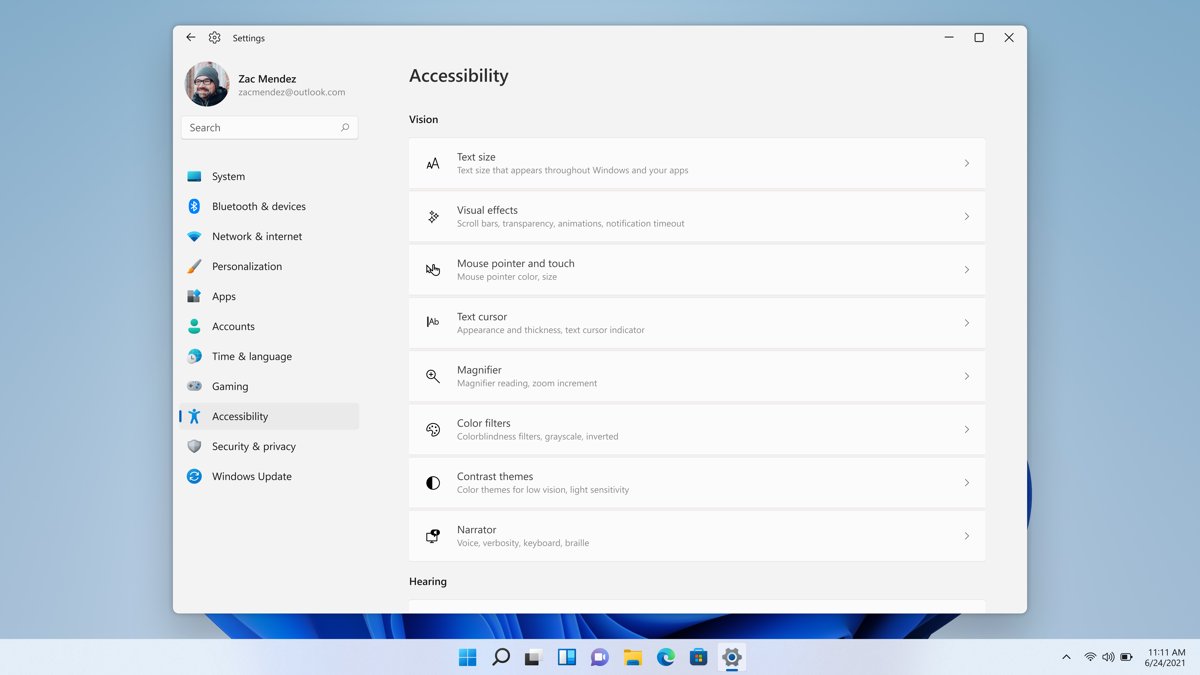
Windows 11 keeps its accessibility tools under Settings > Accessibility, and Windows logo key + U opens that page from anywhere.
This guide covers every vision, hearing and mobility setting on that page, live captions, Narrator, color filters, ClearType, voice access, the shortcuts that toggle each one, and fixes for live captions.
How to open Windows 11 accessibility settings
Every tool in this guide starts from the same page. The sign-in screen has its own shortcut, so you can turn on Narrator or Magnifier before anyone signs in.
- Press Windows logo key + U to open Settings > Accessibility.
- Or select Start > Settings > Accessibility.
- For quick on and off switches, press Windows logo key + A to open Quick Settings and select Accessibility.
- On the sign-in screen, select the Accessibility icon in the bottom-right corner to turn on Narrator and other tools.
Older Windows guides call this page Ease of Access, and there are other ways to find Ease of Access in Windows 11 too.
Windows 11 accessibility settings and features
The Accessibility page groups its settings by Vision, Hearing and Interaction. Each row below is a separate page you open from there.
| Group | Settings page | What it does |
|---|---|---|
| Vision | Text size | Makes text larger without resizing apps and images; drag the slider and select Apply |
| Vision | Visual effects | Always show scrollbars, Transparency effects, Animation effects and how long notifications stay on screen |
| Vision | Mouse pointer and touch | Pointer size and style (white, black, inverted or custom), trails, a Ctrl locator, shadow and a touch indicator |
| Vision | Text cursor | A colored text cursor indicator, cursor thickness and blink rate |
| Vision | Magnifier | Zooms in on part or all of the screen |
| Vision | Color filters | Grayscale, inverted and color-blindness filters |
| Vision | Contrast themes | High-contrast color schemes: Aquatic, Desert, Dusk and Night sky |
| Vision | Narrator | The built-in screen reader |
| Hearing | Audio | Mono audio and screen flashes for audio alerts |
| Hearing | Captions | Live captions and the caption style |
| Interaction | Speech | Voice access to control the PC by voice |
| Interaction | Keyboard | Sticky keys, Filter keys, Toggle keys and the On-screen keyboard |
| Interaction | Mouse | Mouse keys to move the pointer with the numeric keypad |
If text is hard to read, make text bigger in Windows 11 before you reach for Magnifier, and turn on high contrast mode when colors blur together.
Accessibility settings for the deaf
These settings replace or back up sound with text and light. Most of them sit on the Audio and Captions pages.
| Setting | Where to find it | What it does |
|---|---|---|
| Mono audio | Settings > Accessibility > Audio | Combines stereo into one channel, so a single earbud plays everything |
| Flash my screen during audio notifications | Settings > Accessibility > Audio | Flashes the active window's title bar, the active window or the entire screen when an alert sounds |
| Dismiss notifications after this amount of time | Settings > Accessibility > Visual effects | Keeps notifications on screen longer than the 5-second default |
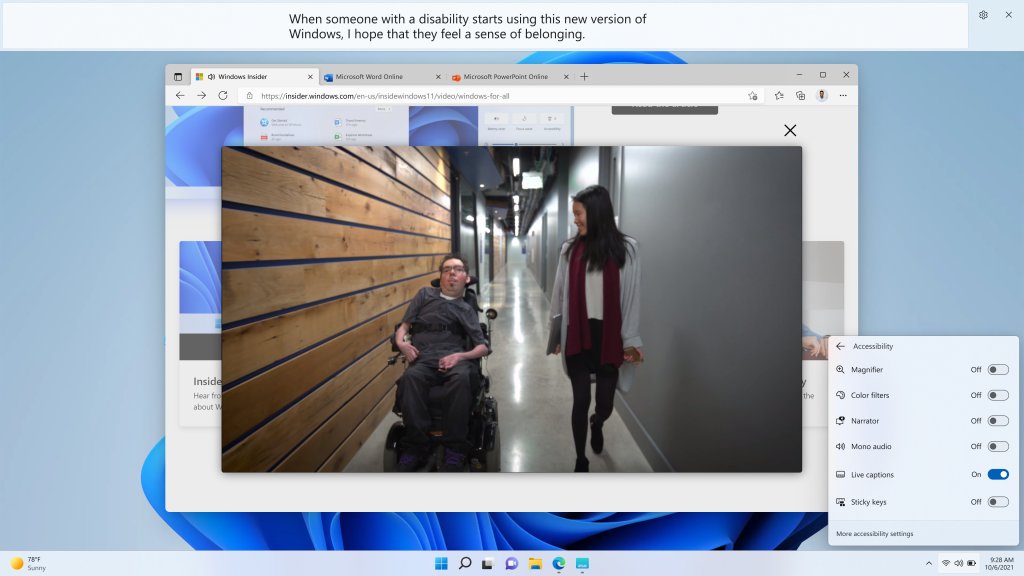
| Live captions | Settings > Accessibility > Captions | Turns any speech playing on the PC into on-screen text, processed on the device |
| Caption style | Settings > Accessibility > Captions | Changes the color, size and background of captions |
| Include microphone audio | Live captions window > Settings > Preferences | Captions people speaking in the room as well as audio from the PC |
How to enable and customize live captions on Windows 11
Live captions needs Windows 11 version 22H2 or later. It works offline, and audio and captions never leave the PC.
- Press Windows logo key + Ctrl + L, or turn on Live captions in Quick Settings or in Settings > Accessibility > Captions.
- The first time, agree to on-device voice processing and download the language files when prompted.
- Select the Settings button in the live captions window, select Position, and choose Above screen, Below screen or Overlaid on screen.
- Select Settings > Preferences > Caption style, then pick a built-in style or select Edit to make your own.
- Turn on Include microphone audio under Preferences to caption people talking in the room.
- Turn on Filter profanity under Preferences to mask swear words.
- To caption another language, select Settings > Change language, pick it, select Continue, then Download.
On Copilot+ PCs running version 24H2 or later, live captions also translates more than 40 languages into English. Drag the edge of the captions window to show more lines.
How to turn off live captions in Windows 11
- Select the battery, network or volume icon on the taskbar to open Quick Settings, then turn off Live captions.
- Or open Settings > Accessibility > Captions and turn off the Live captions switch.
- To free up space afterwards, open Settings > Apps > Installed apps and search for Speech Pack.
- Select the More menu next to each language file you no longer need, then select Uninstall.
Accessibility settings for the blind
Narrator lets you use Windows without a mouse. The other tools in this table suit people with low vision who still use the screen.
| Tool | What it does | Who it suits |
|---|---|---|
| Narrator | Reads text, buttons and controls aloud, and navigates by headings, links and landmarks | Blind users and anyone who prefers to listen |
| Narrator scan mode | Moves through apps and web pages with only the up and down arrow keys | New Narrator users |
| Braille display support | Sends Narrator output to a braille display and lets you navigate from it | Braille readers |
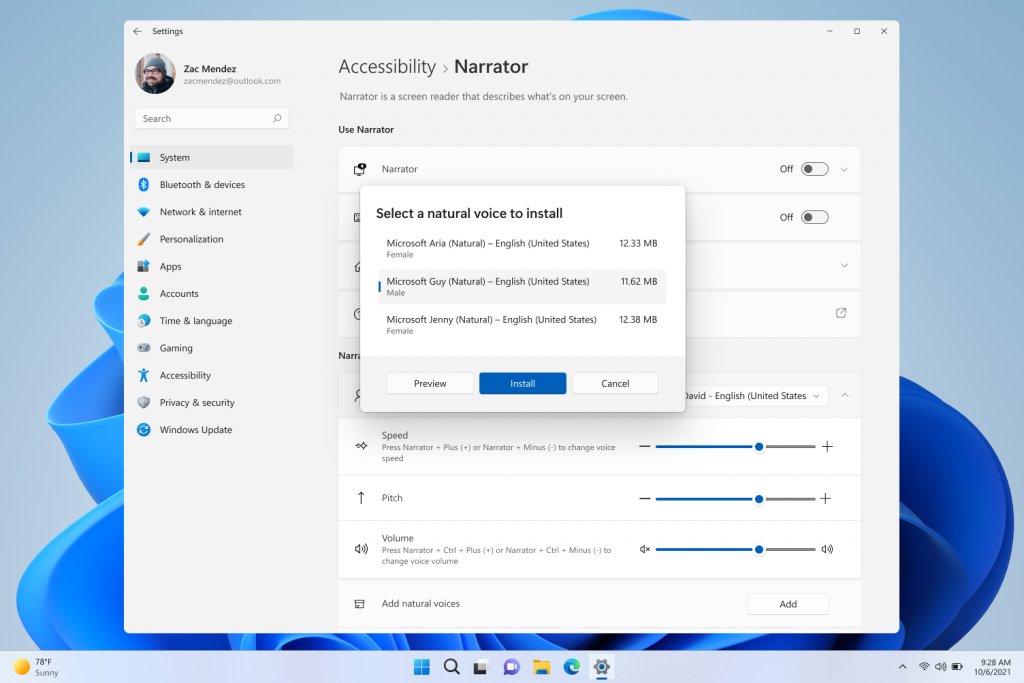
| Narrator natural voices | Adds the US English voices Jenny, Aria and Guy | Long listening sessions |
| Magnifier | Enlarges part or all of the screen | Low vision |
| Contrast themes | Swaps the color scheme for a high-contrast one | Low contrast sensitivity |
| Color filters | Shifts screen colors to separate hard-to-tell shades | Color blindness |
| Text cursor indicator | Adds a colored marker around the text cursor | Losing track of where you type |
How to turn on Narrator in Windows 11 and change its voice
- Press Windows logo key + Ctrl + Enter. Narrator starts and opens Narrator Home.
- Select QuickStart in Narrator Home to learn the basics with a short lesson.
- Press Windows logo key + Ctrl + N to open Narrator settings.
- Under Choose a voice, pick a voice, then expand the setting to change Speed, Pitch and Volume.
- Next to Add natural voices, select Add, choose Jenny, Aria or Guy, and select Install.
- Set Verbosity level from 1 – Text only to 5 – All text details.
- Turn on Lower the volume of other apps when Narrator is speaking.
Most voices read up to about 400 words per minute. Microsoft David, Zira and Mark reach about 800 words per minute.
How to disable Narrator in Windows 11 computer
Narrator usually turns on by accident through its shortcut. Stop it first, then remove the triggers that start it again.
- Press Windows logo key + Ctrl + Enter to stop Narrator.
- Or press Windows logo key + Ctrl + N and turn off the Narrator switch.
- Expand Show all settings next to the switch and clear Start Narrator after sign-in and Start Narrator before sign-in.
- Turn off Keyboard shortcut for Narrator so the key combination no longer starts it.
- If Narrator speaks on the sign-in screen, select the Accessibility icon and turn off the Narrator toggle.
On touch devices, the same shortcut setting also controls the Windows button + Volume up combination.
How to turn on color filters for color blindness in Windows 11
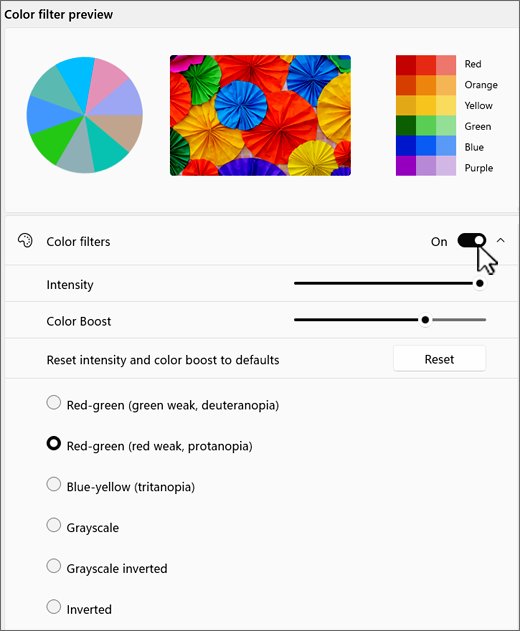
- Press Windows logo key + U and select Color filters.
- Turn on the Color filters switch.
- Pick a red-green or blue-yellow filter for color blindness, or choose Grayscale, Inverted or Grayscale inverted.
- Try each filter on a colorful page until reds, greens and blues are easy to tell apart.
- Turn on Keyboard shortcut for color filters, then press Windows logo key + Ctrl + C to switch filters on and off.
Color filters and Screen Tint cannot run at the same time. If the screen suddenly turns gray, press Windows logo key + Ctrl + C to turn the filter off.
Make text easier to read using ClearType Tuner in Windows 11
ClearType sharpens text on LCD screens by drawing letters with each pixel's red, green and blue parts. No two screens are the same, so tuning it for your monitor gives the crispest text.
- Open Settings > System > Display and set Display resolution to the value marked (Recommended); text is less sharp below the native resolution.
- Select Start, type ClearType, and open the ClearType Text Tuner from the results.
- Keep ClearType turned on and continue to the first set of samples.
- On each page, select the text sample that looks sharpest to you.
- Finish the tuner to save your choices, then compare text in a browser or document.
ClearType is built for LCD screens with vertical red, green and blue stripes, so results vary on a monitor rotated to portrait.
Windows 11 accessibility settings for limited mobility
These settings help when typing, holding keys or using a mouse is hard. The keyboard options live on Settings > Accessibility > Keyboard.
| Feature | Where to find it | What it does |
|---|---|---|
| Voice access | Accessibility > Speech | Controls the PC and dictates text by voice (Windows 11 version 22H2 or later) |
| Voice typing | Any text box | Dictates text instead of typing |
| Sticky keys | Accessibility > Keyboard | Lets you press shortcut keys one at a time instead of together |
| Filter keys | Accessibility > Keyboard | Ignores brief or repeated keystrokes |
| Toggle keys | Accessibility > Keyboard | Plays a sound when you press Caps lock, Num lock or Scroll lock |
| On-screen keyboard | Accessibility > Keyboard | Types with the mouse, a joystick or a single switch |
| Mouse keys | Accessibility > Mouse | Moves the pointer with the numeric keypad |
Pressing Shift five times turns Sticky keys on. If its prompt keeps appearing, you can turn off Sticky Keys for good.
How to set up voice access in Windows 11
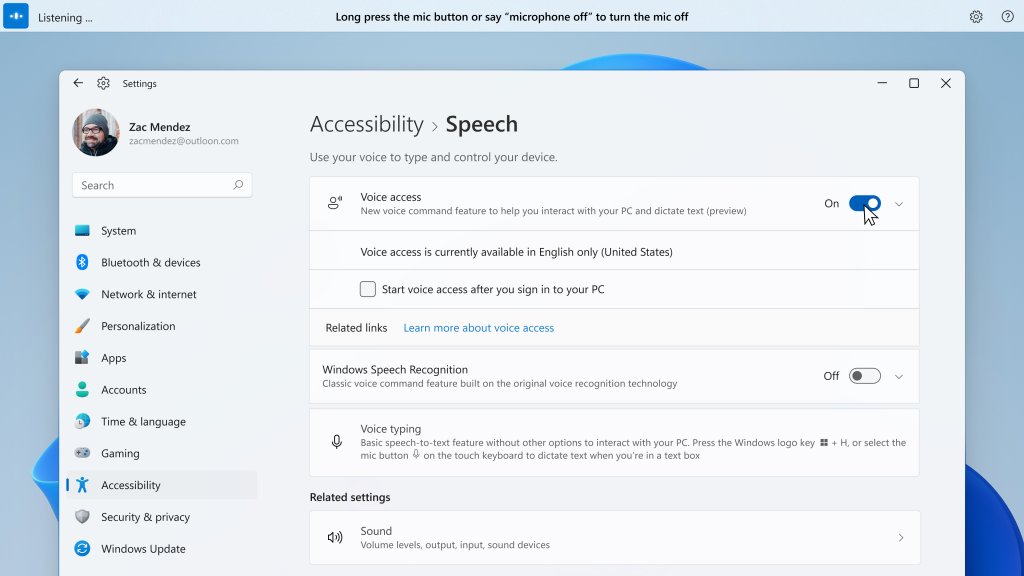
- Select Start > Settings > Accessibility > Speech.
- Turn on the Voice access switch, or search for voice access and select Open.
- On the welcome screen, select your language.
- Select Agree and continue to download the language files. This needs an internet connection.
- On the Setup microphone screen, confirm your microphone and set it as the default input device.
- Select Continue to take the short interactive guide, or start speaking commands straight away.
If you close voice access before the download finishes, setup starts again the next time you open it.
Windows 11 accessibility keyboard shortcuts
| Shortcut | What it does |
|---|---|
| Windows logo key + U | Opens Accessibility settings |
| Windows logo key + Ctrl + Enter | Starts or stops Narrator |
| Windows logo key + Ctrl + N | Opens Narrator settings |
| Windows logo key + Plus (+) | Turns on Magnifier and zooms in |
| Windows logo key + Minus (-) | Zooms Magnifier out |
| Ctrl + Alt + Minus (-) | Switches Magnifier between your zoom level and 1x |
| Windows logo key + Esc | Turns off Magnifier |
| Windows logo key + Ctrl + C | Turns color filters on or off, once the shortcut is enabled |
| Left Alt + Left Shift + Print Screen | Turns the high-contrast theme on or off |
| Windows logo key + Ctrl + L | Turns on live captions |
| Windows logo key + H | Opens voice typing |
| Windows logo key + Ctrl + O | Turns on the On-screen keyboard |
| Shift five times | Turns Sticky keys on or off |
| Hold Right Shift for eight seconds | Turns Filter keys on or off |
| Hold Num lock for five seconds | Turns Toggle keys on or off |
| Left Alt + Left Shift + Num lock | Turns Mouse keys on or off |
Live captions not working in Windows 11
"We can't download the required language files right now"
The PC cannot reach Microsoft Store downloads, which supply the speech files.
- Check that the PC is online, then open Microsoft Store and try downloading any app.
- On a work PC, ask IT whether Microsoft Store is blocked; they can deploy the language package for you.
- If Store downloads work but captions still fail, report it in the Feedback Hub app.
Audio from a headset is not captioned
Live captions listens to the default sound output device.
- Open Settings > System > Sound.
- Set the headset as the default output device, then restart live captions.
Your own voice is not captioned
Microphone audio is off each time live captions starts, and PC audio always takes priority.
- Select Settings > Preferences in the captions window and turn on Include microphone audio.
- Open Settings > Privacy & security > Microphone and turn on Let desktop apps access your microphone.
- Pause other audio on the PC while you speak.
Captions lag or drop out
Heavy apps, such as video calls with effects, slow the on-device speech model.
- Close apps you are not using.
- Turn off background blur and other video effects in your meeting app.
Live captions is missing from Settings
The PC runs a Windows 11 version older than 22H2.
- Open Settings > Windows Update and select Check for updates.
- Install the feature update, restart, and check Settings > Accessibility > Captions again.
Live captions only transcribes speech. Applause and music are skipped, and sung lyrics are not reliably captioned.
Windows 11 accessibility FAQ
Where is Ease of Access in Windows 11?
The Ease of Access tools are under Settings > Accessibility in Windows 11. Press Windows logo key + U to open the page directly, or select Start > Settings > Accessibility. Vision, hearing and interaction settings are grouped on that one page.
How do I turn off accessibility features in Windows 11?
Each feature has its own switch. Open Settings > Accessibility, select the feature, and turn its switch off. Narrator, color filters, Sticky keys and Filter keys turn off with the same shortcut that turned them on, and Windows logo key + Esc closes Magnifier.
How do I turn off live captions in Windows 11?
Open Quick Settings from the battery, network or volume icon and turn off Live captions. You can also turn off the Live captions switch in Settings > Accessibility > Captions. Uninstall the Speech Pack language files from Installed apps to reclaim space.
How do I increase text size in Windows 11?
Open Settings > Accessibility > Text size, drag the slider to the right, and select Apply. To make apps and images bigger too, change Scale in Settings > System > Display. For a quick zoom, press Windows logo key + Plus (+) to start Magnifier.
How do I disable Sticky Keys in Windows 11?
Open Settings > Accessibility > Keyboard and turn off Sticky keys. Pressing Shift five times also toggles it. With Sticky keys off, shortcut keys such as Ctrl and Alt go back to working only when held together.
How do I enable accessibility mode in Windows 11?
Windows 11 has no single accessibility mode. Instead, turn on the tools you need from Settings > Accessibility, or press Windows logo key + A and select Accessibility in Quick Settings for one-click switches such as live captions.
What is new with the accessibility settings in Windows 11?
Live captions and voice access both need Windows 11 version 22H2 or later. Copilot+ PCs on version 24H2 or later can also translate live captions into English. Narrator offers natural voices, and contrast themes include Aquatic, Desert, Dusk and Night sky.