Clipchamp for personal Microsoft accounts now saves video editing projects to your OneDrive, so they autosave to the cloud and open on any PC where you sign in.
This guide covers what changed, how much storage each plan gets, what still stays on your Windows 11 PC, and how to fix OneDrive save errors.
Where does Clipchamp save projects on Windows 11?
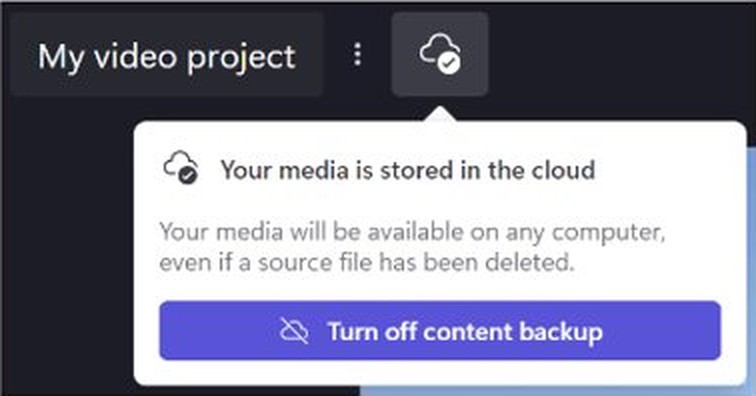
Projects made with a personal or family Microsoft account now live in Microsoft OneDrive, the cloud storage tied to that account. Work and school accounts already worked this way.
If the app is missing from your PC, get the Microsoft Clipchamp app for Windows from the Microsoft Store, or use the browser version.
- Open the Clipchamp app, or go to app.clipchamp.com in Edge or Chrome.
- Sign in with the personal Microsoft account you use for Clipchamp.
- Follow the on-screen prompts to back up the projects you still want to edit to OneDrive.
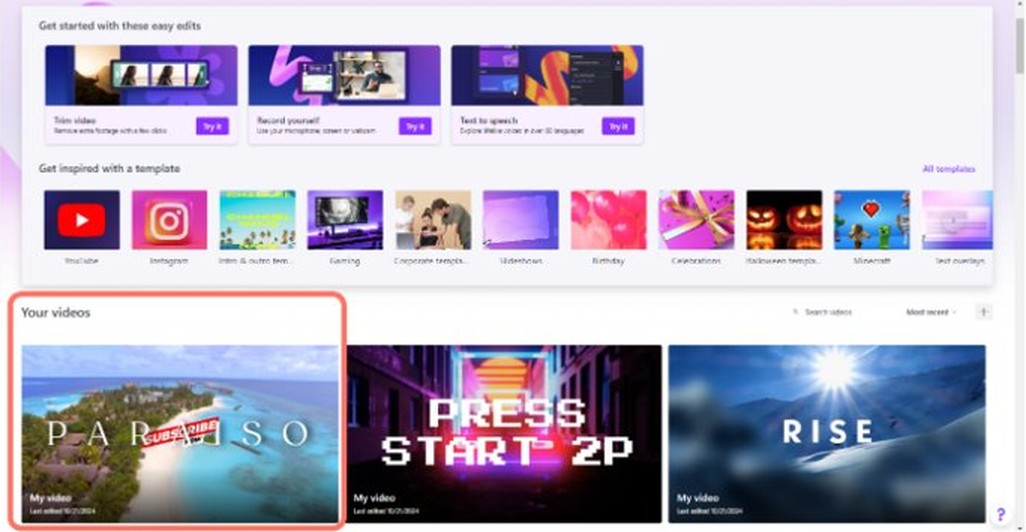
- Read the storage figure on the Clipchamp homepage to see how much OneDrive space is left.
- Check the project list to see which projects are backed up and editable across devices.
The desktop app and the browser version are functionally identical, so both show the same OneDrive-backed projects.
Background: Clipchamp's move to OneDrive
Microsoft began rolling out an updated Clipchamp for personal accounts in late August 2025. The update changed where editing projects are stored and how you manage them.
| Change | Details |
|---|---|
| Rollout start | Late August 2025, starting with the free account tier |
| Accounts covered | Clipchamp for personal and family Microsoft accounts: Free, Premium, and Microsoft 365 Personal or Family |
| Accounts not affected | Clipchamp for work or education, which already stores projects in OneDrive |
| New project home | The OneDrive of the Microsoft account you sign in with |
| Project folders | No longer shown inside Clipchamp; you organise projects in OneDrive |
| Older plans | The legacy Creator, Business and Business Platinum plans are retired |
Why Microsoft is doing this
Microsoft presents the move as a storage and access upgrade for Clipchamp subscribers. Each stated reason has a practical effect on how you edit.
| Microsoft's stated reason | What it means on your PC |
|---|---|
| Projects save to the cloud automatically | Edits autosave every few seconds while you are online, and the project sits in OneDrive instead of one browser profile |
| Projects stay safe and accessible | A reset or failed PC no longer takes a backed-up project with it |
| Export and share across devices | Signing in with the same Microsoft account on another PC opens the same projects |
| Clipchamp is part of Microsoft 365 Personal and Family | Premium features and 1 TB of storage come with the subscription instead of a separate Clipchamp plan |
What changed for Clipchamp users
| Before the update | After the update |
|---|---|
| Project data saved in your Clipchamp account, with media kept on your PC | Projects saved to your OneDrive |
| Folders inside the Clipchamp project list | No folders in Clipchamp; you sort projects in OneDrive |
| Cloud backup sold as a Clipchamp Premium extra | Cloud space comes from your OneDrive allowance: 5 GB free, 1 TB with Microsoft 365 Personal |
| Premium features through a Clipchamp Premium plan | Premium features included with Microsoft 365 Personal and Family |
| Opening a project on another PC meant copying and relinking media | Backed-up projects open on other devices with the same Microsoft account |
What Microsoft says is still local in Clipchamp
Clipchamp is a web-based editor, but the heavy processing still happens on your computer. Your media is not uploaded to a server to render edits or exports.
| Task | Where it happens |
|---|---|
| Previews while you edit | On your PC |
| Exporting the finished video | On your PC, then saved from a temporary cache, usually to the Downloads folder |
| Projects you archive instead of backing up | Your local disk |
| Temporary export files | The browser's local cache, cleared automatically after you save or refresh |
The Clipchamp local-versus-cloud split
Use this table to decide where each project or file should live.
| Your situation | Keep it here | Why |
|---|---|---|
| You still edit the project | OneDrive | Only OneDrive-backed projects stay editable in Clipchamp |
| The project is finished and you need cloud space back | An archive on your local disk | It stops counting against your OneDrive quota |
| You need the finished video | Your PC, plus Save to OneDrive if you want a cloud copy | An exported video is an ordinary file that plays anywhere |
| You edit on two PCs | OneDrive | The same Microsoft account opens the same projects on both |
| Your free 5 GB is full | Archive old projects locally, or move to Microsoft 365 Personal | These are the two routes Microsoft recommends |
Why local archives are not the same thing
An archive on your local disk is a copy you keep, not a project Clipchamp can open. To edit it again, you upload it back to OneDrive first.
| Question | OneDrive project | Local archive |
|---|---|---|
| Can you edit it in Clipchamp? | Yes | Not until you upload it to OneDrive again |
| Does it use OneDrive storage? | Yes | No |
| Does it open on another PC? | Yes, with the same Microsoft account | Only after you move it and upload it |
| Does it survive a PC reset? | Yes | Only if you kept a copy off that PC |
The user impact
How much the change affects you depends on your Clipchamp plan.
| Account | Cloud storage for projects | What to do |
|---|---|---|
| Free Microsoft account | 5 GB | Archive projects locally or upgrade once you pass 5 GB |
| Clipchamp Premium, monthly | 5 GB unless you switch | Switch to Microsoft 365 Personal or Family for 1 TB |
| Clipchamp Premium, annual | Up to 1 TB of previously backed-up projects saved to OneDrive automatically | Microsoft encourages a switch to Microsoft 365 Personal |
| Microsoft 365 Personal or Family | 1 TB per person | Follow the prompts in Clipchamp to back up your selected projects |
| Work or school account | Your organisation's OneDrive or SharePoint | Nothing; projects already lived there |
Consumer versus enterprise expectations
Personal Clipchamp now uses OneDrive like the work version, but the two still behave differently.
| Feature | Clipchamp personal | Clipchamp work or school |
|---|---|---|
| Project storage | Your personal OneDrive | Work OneDrive or SharePoint |
| How you open a project | From the Clipchamp project list | Open the .clipchamp file from OneDrive or SharePoint in Edge or Chrome |
| Share an editing project with someone | No | Yes, through OneDrive or SharePoint |
| Share a finished video by OneDrive link | Yes | Yes |
| Export to Google Drive, YouTube, TikTok or Dropbox | Yes | No |
| Default export location | Your PC, usually Downloads | The project's Exports folder in OneDrive |
What Clipchamp users lose in practice
| What goes | Workaround |
|---|---|
| Folders in the Clipchamp project list | Create and manage folders in OneDrive |
| Editing a project with no OneDrive copy | Archive it locally, then upload it to OneDrive when you want to edit again |
| Cloud space beyond 5 GB on the free plan | Download older projects or move to Microsoft 365 Personal |
| Editing when the account's OneDrive is inactive | Sign in to OneDrive once to reactivate it |
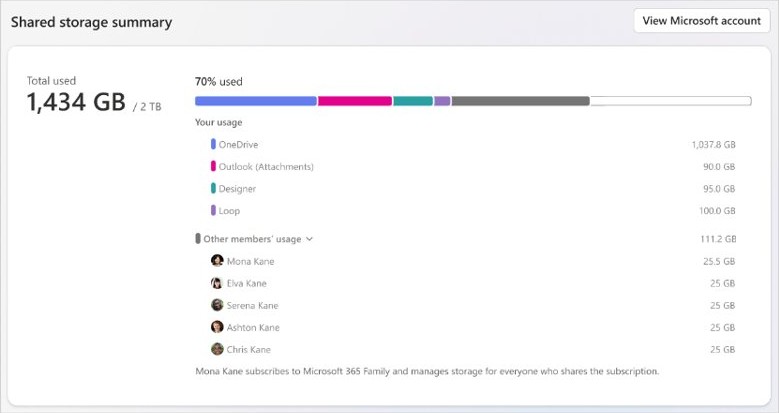
| Free room in OneDrive for other files | Projects share one quota with your photos, documents and Outlook.com attachments |
The competitive landscape
OneDrive is now the only place an editable personal Clipchamp project lives. Finished videos are different, because Clipchamp still exports to rival cloud and video services.
| Destination | Editable projects | Finished videos |
|---|---|---|
| OneDrive | Yes | Yes, with Save to OneDrive |
| Google Drive | No | Yes |
| Dropbox | No | Yes |
| YouTube | No | Yes |
| TikTok | No | Yes |
| No | Yes, for company accounts | |
| Your PC | Archive only | Yes, usually the Downloads folder |
Who benefits from the Clipchamp OneDrive change
| Who | Why they gain |
|---|---|
| Microsoft 365 Personal and Family subscribers | 1 TB per person and Premium Clipchamp features with no extra plan |
| People who edit on more than one PC | Projects open wherever they sign in with the same Microsoft account |
| People who reset or replace PCs | Backed-up projects are not tied to one machine or browser |
| Annual Premium subscribers with cloud backup | Up to 1 TB of previously backed-up projects moves to OneDrive automatically |
Who loses out with Clipchamp OneDrive storage
| Who | What they lose | What to do |
|---|---|---|
| Free users with large projects | Room beyond 5 GB | Archive older projects locally or upgrade |
| Monthly Premium subscribers who do not switch | The 1 TB offer; they keep 5 GB | Switch to Microsoft 365 Personal or Family |
| People who used a Microsoft account only for Clipchamp | Project access, if that account's OneDrive went inactive | Sign in to OneDrive to reactivate it |
| People who sorted projects into Clipchamp folders | The folder view | Rebuild the folders in OneDrive |
| Anyone whose OneDrive is already full | Space to save projects | Free up space or buy more storage |
Privacy, backup, and data control
Projects in OneDrive follow your Microsoft account's storage rules, the same as the other files you sync and back up with OneDrive.
| Question | Answer |
|---|---|
| Does Clipchamp upload media to process edits? | No. Previews and exports are processed on your PC |
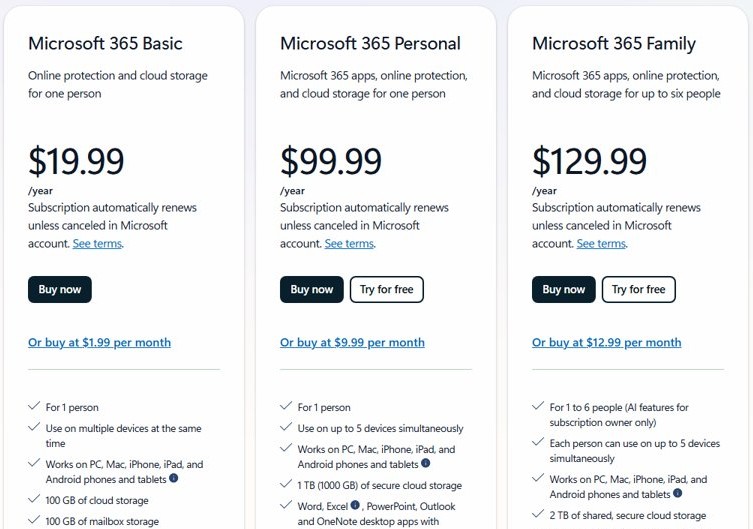
| Who sets the storage limit? | Your Microsoft account plan: 5 GB free, 100 GB with Microsoft 365 Basic, 1 TB with Microsoft 365 Personal |
| Can you choose what is backed up? | Yes. You pick which projects to back up to OneDrive |
| What happens over quota? | OneDrive stops new uploads, edits and syncs, and existing files become read-only |
| Can Clipchamp support see your files? | Only files you choose to share when you ask Clipchamp support for help |
Backup is not the same as control
A OneDrive copy keeps the project, but the exported video is the copy that works without Clipchamp or a subscription. Export every finished project to your PC.
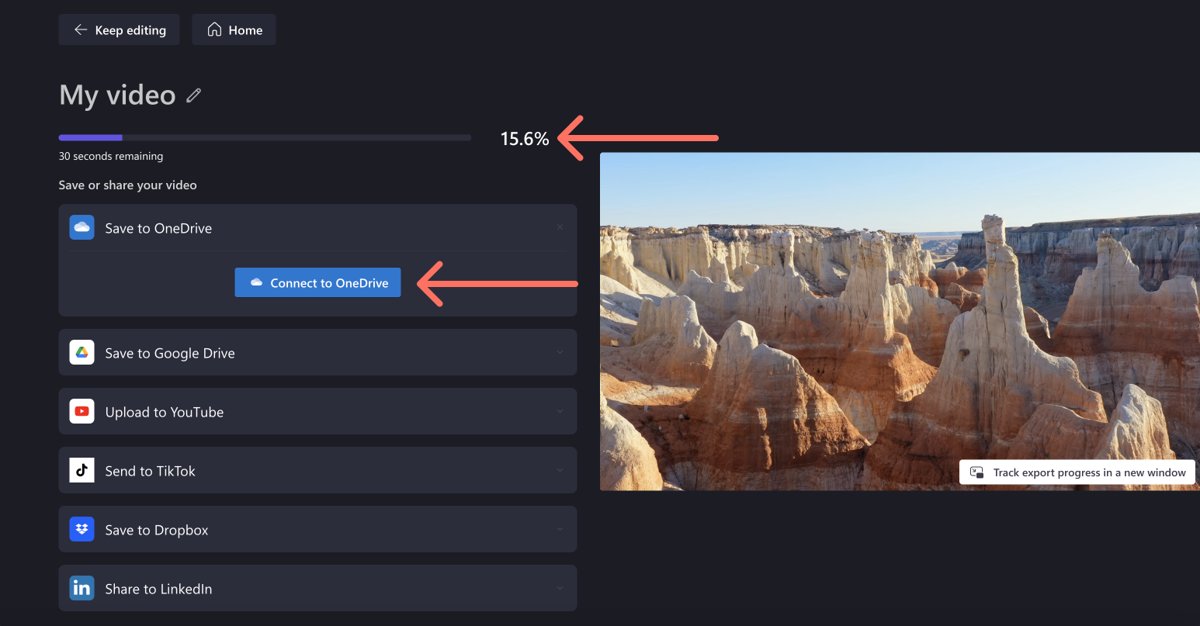
- Open the finished project in Clipchamp.
- Select Export in the top-right corner of the editor.
- Choose a resolution: 480p, 720p, 1080p or 4K. 4K needs a paid plan.
- Wait for the progress bar to finish.
- Find the saved file on your PC, usually in the Downloads folder.
- Select Save to OneDrive, Google Drive or Dropbox if you also want a cloud copy.
Choose GIF for clips of 15 seconds or less. Audio-only projects export as M4A files.
Clipchamp project portability and recovery
Backed-up projects follow your Microsoft account. If Clipchamp cannot find a media file the project uses, it asks you to locate it.
- Copy the media files you used to the new PC from a USB drive or cloud storage, if they are not already there.
- Open the Clipchamp app, or app.clipchamp.com in Edge or Chrome.
- Sign in with the same Microsoft account you used on the first PC.
- Open the project from your project list.
- Select the relink message if one appears.
- Choose Relink entire folder to point Clipchamp at the folder holding your media, or relink files one at a time.
Why this matters for Windows 11
On Windows 11, Clipchamp runs as a Microsoft Store app or in the browser, and both read projects from the same OneDrive.
| Where on Windows 11 | What it tells you |
|---|---|
| Clipchamp desktop app | Built on web technologies and functionally identical to the web version |
| Clipchamp in Edge or Chrome | The app at app.clipchamp.com, useful when the desktop app shows an access error |
| OneDrive icon on the taskbar | Your storage status: a yellow triangle means nearly full, a red circle with a minus sign means over the limit |
| Downloads folder | Where exported Clipchamp videos land by default |
| account.microsoft.com/services | Your Microsoft 365 and Clipchamp subscriptions and renewal dates |
The message Microsoft is sending
| What Microsoft says | What it signals |
|---|---|
| Clipchamp is now included in Microsoft 365 Personal and Family | Clipchamp is a Microsoft 365 app, not a separate product |
| Annual Premium subscribers are encouraged to switch to Microsoft 365 Personal | The standalone Premium plan is no longer the main route |
| Legacy Creator, Business and Business Platinum plans are retired | Older Clipchamp plans are gone for good |
| To edit an archived project again, upload it to OneDrive | OneDrive is the working home for every editable project |
The long-term implication
Treat OneDrive as the working home for every Clipchamp project you still edit, and keep exported videos on your PC as the long-term copy. Editable projects now depend on an active OneDrive with free space, while exported files stay usable whatever happens to your plan.
Strengths and opportunities
| Strength | How to use it |
|---|---|
| Autosave to the cloud | Edits save every few seconds while you are online, with no save button |
| Cross-device editing | Start on a desktop PC and finish on a laptop with the same Microsoft account |
| 1 TB with Microsoft 365 Personal | Room for large 4K projects alongside your other files |
| Selective backup | Back up only the projects you still edit |
| Storage figure on the homepage | Check free OneDrive space before you start a big project |
Why the upside is real
Microsoft 365 Personal and Family subscribers gain the most from the change. They get 1 TB per person, Premium Clipchamp features and cross-device projects without paying for a separate Clipchamp plan.
Risks and concerns
| Risk | What happens | How to avoid it |
|---|---|---|
| OneDrive full | No new uploads, edits or syncs; existing files turn read-only | Archive finished projects locally or buy more storage |
| Over quota for months | Personal accounts are frozen after three months over the limit, and files can be deleted after six | Get back under the limit quickly |
| OneDrive inactive | Clipchamp says you don't have access to your project | Sign in to OneDrive to reactivate it |
| Cancelling Microsoft 365 | Your storage allowance drops, and files over it stop uploading or syncing | Download the projects you need before you cancel |
| Paying twice | A standalone Clipchamp Premium plan keeps renewing after you start Microsoft 365 | Cancel it in Services & subscriptions at account.microsoft.com/services |
The biggest concern: normalized dependency
Every editable project now depends on your OneDrive staying active and under quota. The editor keeps working when OneDrive has a problem, but your projects do not.
| Clipchamp depends on | What breaks without it |
|---|---|
| An active OneDrive on your Microsoft account | Clipchamp reports that you don't have access to your projects |
| Free OneDrive space | OneDrive blocks new uploads and edits |
| An internet connection | Autosave stops, because it needs an active connection |
| A paid Microsoft 365 plan for more than 5 GB | Projects beyond 5 GB must be archived locally |
Looking ahead: Clipchamp and OneDrive storage plans
Your Clipchamp space is your Microsoft cloud storage, so plan changes reach your projects directly.
| Plan | Cloud storage | Note |
|---|---|---|
| Free Microsoft account | 5 GB | Shared with OneDrive files, photos and email attachments |
| Microsoft 365 Basic | 100 GB | One person |
| Microsoft 365 Personal | 1 TB | Includes Premium Clipchamp features |
| Microsoft 365 Family | 1 TB per person, up to six people | New subscriptions from October 8, 2026 get 2 TB shared; renewals move to it from May 2, 2027 |
What to watch in your Clipchamp OneDrive storage
Check storage before a large project, not after a save fails.
- Open Clipchamp and read the storage figure on the homepage.
- Scan the project list for projects that are not backed up.
- Look at the OneDrive icon on the taskbar for a yellow warning triangle or a red circle.
- Open account.microsoft.com/services to check your plan and renewal date.
- Archive finished projects to your local disk if space is tight.
Clipchamp not saving projects to OneDrive
"We couldn't save your projects to OneDrive"
Moving your older projects to the new OneDrive storage failed. The full message adds "Please retry the setup or contact us if this issue persists."
- Select the gear icon in the top-right corner of the Clipchamp dashboard to open Settings.
- Go to OneDrive.
- Select Retry setup and follow the prompts.
- If setup fails again, select Choose folder to download your projects to your PC, then upload them to OneDrive outside Clipchamp.
Clipchamp says you don't have access to your project
The OneDrive on that Microsoft account was disabled for inactivity, which happens when the account was only ever used for Clipchamp.
- Sign in to OneDrive on the web with the same Microsoft account.
- Follow the on-screen instructions to reactivate OneDrive.
- Reload the Clipchamp desktop app and open the project again.
- If the error stays, sign in at app.clipchamp.com in your browser instead.
Clipchamp projects missing after the update
The projects were not backed up to OneDrive yet, or you signed in with a different Microsoft account.
- Sign out and sign in with the Microsoft account you used before the update.
- Check the project list for projects that are not backed up.
- Follow the prompts to back them up to OneDrive.
- If the dashboard shows the OneDrive error, use Retry setup as described above.
OneDrive is full and Clipchamp cannot save
Over quota, OneDrive blocks new uploads, edits and syncs.
- Empty the OneDrive Recycle Bin, which counts toward your storage.
- Archive finished Clipchamp projects to your local disk.
- Delete or move large OneDrive files you no longer need.
- Buy more storage or move to Microsoft 365 Personal if you still need the space.
Clipchamp OneDrive FAQ
Does Clipchamp save projects to OneDrive automatically?
Yes, for personal accounts on the updated version. Backed-up projects save to OneDrive automatically, and edits autosave every few seconds while you are online. You choose which existing projects to back up when Clipchamp prompts you.
How much OneDrive storage do free Clipchamp users get?
Free Microsoft accounts get 5 GB of cloud storage, shared with OneDrive files, photos and email attachments. If you go over it, Microsoft suggests archiving projects locally or moving to Microsoft 365 Personal, which has 1 TB.
Can I keep Clipchamp projects on my PC instead of OneDrive?
Yes, but only as an archive. You can download projects to your local disk, where they stop counting against your OneDrive quota. To edit an archived project again, you must upload it back to OneDrive.
Does the OneDrive change affect Clipchamp for work or school?
No. Clipchamp for work and education already stores projects in your organisation's OneDrive or SharePoint as .clipchamp files, with Assets and Exports folders, and that setup is unchanged.
Where did my Clipchamp project folders go?
Clipchamp no longer shows folders in its interface after the update. Organise your projects in OneDrive instead, the same way you sort your other files there.
Do I need to cancel Clipchamp Premium after switching to Microsoft 365?
Yes, if you want to stop paying for both. A standalone Clipchamp Premium subscription does not end automatically when you start Microsoft 365. Check both plans in Services & subscriptions at account.microsoft.com/services.
Is the Clipchamp desktop app different from the web version?
No. Microsoft describes the Windows desktop app and the web app at app.clipchamp.com as functionally identical. Both open the same projects, so switch to the browser if the desktop app shows an access error.
What happens to Clipchamp projects if I cancel Microsoft 365?
Your OneDrive allowance drops when the subscription ends. Files over the new limit can stop uploading, editing or syncing, so download or archive the projects you need before you cancel.
Does Clipchamp upload my videos to edit them?
No. Clipchamp renders previews and exports on your computer rather than on a server. The OneDrive change is about where editing projects are stored, not where the editing work happens.