When OneDrive is not syncing in Windows 11, select the OneDrive cloud icon on the taskbar, resume sync or sign in if it asks you to, and reset OneDrive if files still do not move.
This guide covers what each OneDrive sync icon means, the file name and size limits that block uploads, Outlook PST files, the offline status, error 0x8007016A, and how to check that sync is up to date.
OneDrive not syncing in Windows 11
Work through these steps in order and stop as soon as files start moving. Resetting OneDrive does not delete any files.
- Select the white or blue OneDrive cloud icon in the notification area at the far right of the taskbar. Select the Show hidden icons arrow if you cannot see it.
- If there is no OneDrive icon, select Start, type OneDrive, and select OneDrive in the search results to start it.
- If the icon shows Paused, select it and choose Resume syncing.
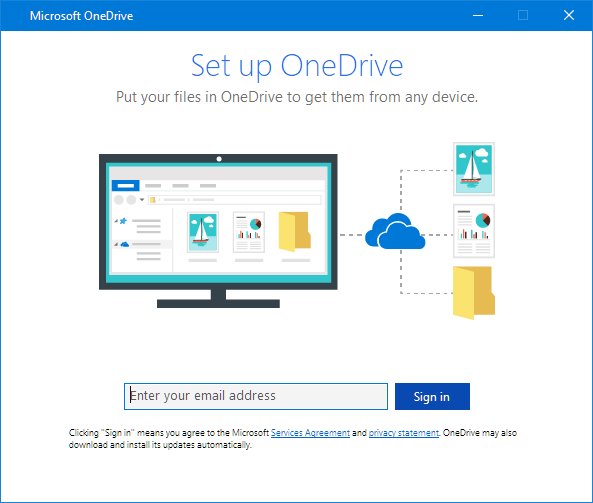
- If the icon is gray with a line through it, sign in with your Microsoft account when the setup screen opens.
- Read the activity center for a named file or error, then close that file or rename it.
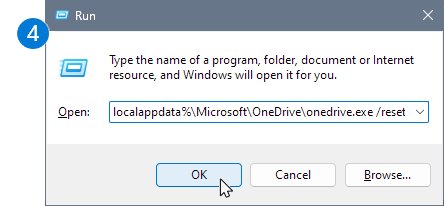
- If sync is still stuck, press Windows key + R, paste
%localappdata%\Microsoft\OneDrive\onedrive.exe /reset, and select OK. - Select Start, type OneDrive, and open the OneDrive desktop app to restart it.
After a reset, OneDrive runs a full sync, which can take a while on a large library. If you had chosen to sync only some folders, choose them again once the sync finishes.
How to fix OneDrive sync issues on Windows 11/10
The OneDrive icon in the notification area tells you which fix you need. The OneDrive sync app behaves the same way on Windows 10, so each row applies there too. The OneDrive status icons in File Explorer use the same symbols.
| What you see | What it means | Fix |
|---|---|---|
| Gray cloud with a line through it | You are not signed in, or OneDrive setup is not complete | Open OneDrive from Start and sign in |
| Paused symbol | Sync was paused manually, or by battery saver mode or a metered network | Select the icon and choose Resume syncing |
| Red circle with a white cross | A file or folder can't be synced | Select the icon, read the named file, and fix that file |
| Circular arrows that never stop, or Processing changes | A file is open, a file is very large, or many files are uploading | Close open files, move large ZIP or PST files out of OneDrive, or wait |
| Gray circle with a flat bar next to a file | Your work or school admin blocked that file type, most often Outlook data files | Move the .pst file out of the OneDrive folder |
| No OneDrive icon at all | OneDrive is not running | Select Start, type OneDrive, and open it |
| Account nearly full, full, locked or frozen | You have used your Microsoft storage quota | Free up OneDrive storage or add more; new files will not upload until you do |
| Error 0x8007016A when opening a file | Files On-Demand is not working | Turn off Files On-Demand, reset OneDrive, then turn it back on |
Why is my OneDrive not syncing in Windows 11?
When the icon looks normal but certain files never upload, the file usually breaks one of OneDrive's limits. Microsoft lists these for both personal and work or school accounts.
| Cause | Limit or detail | Fix |
|---|---|---|
| Character OneDrive does not allow | " * : < > ? / \ | in a file or folder name, or a leading or trailing space |
Select the file, press F2, and rename it |
| Reserved file or folder name | .lock, CON, PRN, AUX, NUL, COM0 to COM9, LPT0 to LPT9, _vti_, desktop.ini, or any name that starts with ~$ | Rename the file or folder |
| Path too long | OneDrive allows 400 characters for the full path; paths over 520 characters show a sync error; File Explorer stops at 260 | Shorten folder names, move files closer to the OneDrive root, or rename the item on the OneDrive website |
| File too large | 250 GB per file | Keep files over 250 GB outside OneDrive, or split them into smaller parts |
| File open in another app | An open file cannot sync | Save your work and close the app |
| Too many items | Microsoft recommends no more than 300,000 items across your cloud storage | Choose fewer folders to sync |
| Storage full | No uploads, edits or new file sync once your quota is used | Delete files or add storage |
| Firewall blocks OneDrive | OneDrive cannot reach its servers | Test on a phone hotspot; if sync works there, ask your internet provider about Microsoft 365 access |
| OneNote notebook | Notebooks use their own sync and are limited to 2 GB | Sync the notebook from OneNote, not File Explorer |
How to reset OneDrive in Windows 11
A reset disconnects all your sync connections, personal and work or school, and rebuilds OneDrive's settings file. You do not lose files or data.
- Press Windows key + R to open the Run dialog box.
- Paste
%localappdata%\Microsoft\OneDrive\onedrive.exe /resetand select OK. - If you see a "Windows cannot find…" message, paste
C:\Program Files\Microsoft OneDrive\onedrive.exe /resetinstead and select OK. - If that also fails, paste
C:\Program Files (x86)\Microsoft OneDrive\onedrive.exe /resetand select OK. - Select Start, type OneDrive, and select the OneDrive desktop app to restart it.
- Wait for the full sync to finish, then choose your folders again if you synced only some of them.
If none of the three paths works, the OneDrive sync app is not installed, so reinstall the OneDrive app first. To reset the Microsoft Store version instead, press Start, enter apps:onedrive, select App settings, and select Reset.
How to unlink and re-link OneDrive on Windows 11
Unlinking only disconnects the local folder from the cloud for a while. Changes made while unlinked sync after you link the PC again.
- Select the OneDrive cloud icon in the notification area.
- Select the Help & Settings gear icon, then select Settings.
- Go to the Account tab, select Unlink this PC, then select Unlink account.
- Press Windows key + R, enter
%localappdata%\Microsoft\OneDrive\settings, and select OK. - Delete the
PreSignInSettingsConfig.jsonfile to clear old sign-in details. - Open OneDrive and sign in when prompted.
- When OneDrive reports that the folder already exists, select Use this folder.
OneDrive downloads placeholders first, so the folder fills in over time. Select Choose new folder at the last step if you want OneDrive in a different location.
OneDrive error 0x8007016A, the cloud file provider is not running
The cloud file provider in this message is OneDrive itself. The error ties to Files On-Demand, the feature that shows online-only files without taking up disk space, so first make sure OneDrive is running and signed in.
- Select Start > Settings > Windows Update > Check for updates, and install any updates.
- Sign in to OneDrive, then select the OneDrive cloud icon in the notification area.
- Select Help & Settings > Settings.
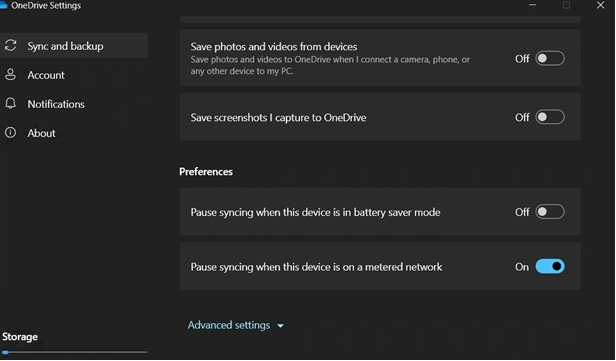
- Go to Sync and back up and expand Advanced settings.
- Under Files On-Demand, select Download all files. On older versions, clear Save space and download files as you use them instead.
- Reset OneDrive with
%localappdata%\Microsoft\OneDrive\onedrive.exe /resetin the Run dialog box. - After the reset, return to Advanced settings and select Free up disk space to turn Files On-Demand back on.
Download all files needs enough free disk space for your whole OneDrive. Once the error is gone, you can turn Files On-Demand back on for individual apps too.
Unable to upload PST files to OneDrive [Fix]
Personal OneDrive accounts accept Outlook .pst files but sync them less often than other files. A .pst file also cannot sync while Outlook has it open, and Outlook keeps it open while it runs.
PST file shows a gray circle with a flat bar
A work or school admin blocked .pst files from syncing; the same rule applies to a personal account on that PC.
- Close Outlook.
- Move the .pst file to a folder outside OneDrive, such as
C:\My Outlook Files. - Point Outlook at the moved file using the steps in the next symptom.
- Ask your admin if a policy blocks a file you must keep in OneDrive.
OneDrive shows Processing changes or A file is in use because of a PST
Outlook created a large .pst file inside OneDrive, usually in OneDrive\Documents\Outlook Files, and it slows sync.
- Close Outlook and wait for OneDrive to finish syncing.
- Open File Explorer and browse to
C:\Users\[username]\OneDrive\Documents\Outlook Files. - Copy the .pst file to a folder outside OneDrive and give the copy a new name.
- Open Outlook and select File > Account Settings.
- On the Email tab, choose the account, select Change Folder, then New Outlook Data File, and pick the renamed copy.
- On the Data Files tab, select the file stored in OneDrive, select Remove, and confirm with Yes.
The .pst file is not in Outlook Files
Outlook stored the data file in another OneDrive folder.
- Open Outlook and right-click the account that uses the .pst file.
- Select Data File Properties > Advanced to see the full path.
- Close Outlook and move the file from that path.
Removing the data file in Outlook only disconnects it; no email is lost. You cannot remove the default data file until another one is set as default.
OneDrive is showing offline on Windows 11
OneDrive icon is gray with a line through it
You are not signed in, or OneDrive setup did not finish (error 0x8004de90).
- Select the gray OneDrive icon.
- Enter your Microsoft account email address on the setup screen and select Sign in.
- If you recently changed your password, sign in with the new one.
- Use a personal Microsoft account for personal OneDrive, and your work or school account for a work site.
OneDrive says it is not connected
OneDrive lost its connection to Microsoft's servers, or a firewall blocks it.
- Close OneDrive, then select Start, type OneDrive, and open it again.
- Connect the PC to a phone hotspot and check whether sync starts.
- If it syncs on the hotspot, ask your internet provider whether its firewall blocks Microsoft 365.
- Check the Microsoft 365 service status page for a OneDrive outage.
Online-only files will not open when the PC is offline
Files with a blue cloud icon exist only online and need an internet connection.
- Reconnect to the internet.
- Right-click the file or folder in File Explorer.
- Select Always keep on this device so it stays available offline.
OneDrive for work or school never starts or asks you to sign in
An admin set the DisableFileSyncNGSC policy under HKEY_LOCAL_MACHINE\Software\Policies\Microsoft\Windows\OneDrive.
- Ask your IT admin whether a Group Policy blocks OneDrive.
- Have the admin remove the policy or set its value to 0.
- Restart the PC and open OneDrive again.
A manual registry change does not last when the setting comes from a Group Policy, because the policy is applied again at the next restart or sign-in.
OneDrive files not syncing in Windows 11
"This file is in use by another application"
An app has the file open, and OneDrive cannot sync an open file.
- Save your work in that app.
- Close the app.
- Wait for OneDrive to sync the file; nothing else is needed.
"OneDrive doesn't have permission to access the file"
Your account lacks Read or Write permission on the file.
- Right-click the file in File Explorer and choose Properties.
- Open the Security tab.
- Select your name under Groups or user names and check the Allow column.
- If Read or Write is not checked, select Edit, grant both, and select Apply and OK.
"Move the file out of OneDrive to restart sync"
OneDrive's record of the file is stuck.
- Right-click the OneDrive cloud icon and select Close OneDrive.
- Move the file to a folder outside OneDrive, such as
C:\. - Select Start, type OneDrive, and open it.
- When OneDrive shows Up to date, copy the file back into the OneDrive folder.
OneDrive stuck on Processing changes
An open file, a very large file, many new files, or an expired sign-in.
- Close any OneDrive files you have open.
- Move very large files, such as ZIP archives, long videos or email data files, out of OneDrive.
- Sign in again if you recently changed your password.
- Select the OneDrive icon to see which files are open or syncing.
- If the message stays, unlink and re-link OneDrive.
OneDrive sync paused by itself
OneDrive pauses automatically in battery saver mode or on a metered network.
- Plug in the charger, or select the OneDrive icon and choose Resume syncing.
- To check the network, select Start > Settings > Network & internet > Wi-Fi and select your network.
- Turn off Metered connection if you do not need it; for a wired network use Ethernet instead of Wi-Fi.
Error 0x8007018b when you move, rename or delete a file
OneDrive is still syncing that file.
- Wait for OneDrive to finish syncing.
- Select the OneDrive cloud icon, select More, then Close OneDrive.
- Move, rename or delete the file, then open OneDrive again.
How to choose which OneDrive folders sync in Windows 11
Syncing fewer folders keeps OneDrive under the 300,000-item recommendation and stops folders you do not need from downloading.
- Select the OneDrive cloud icon in the notification area.
- Select Help & Settings > Settings.
- Go to the Account tab.
- Select Choose folders.
- In the Choose Folders dialog box, clear the folders you do not want on this PC and select OK.
If OneDrive slows down the rest of your connection, open Settings > Sync and back up > Advanced settings and adjust the upload and download rates. Work or school PCs may have these limits set by IT.
How to check OneDrive sync status in Windows 11
- Select the OneDrive cloud icon in the notification area and look for Up to date in the activity center.
- Open your OneDrive folder in File Explorer and read the status column next to each file.
- A white circle with a green check means a file is downloaded and opens without the internet.
- A green circle with a white check marks a file set to Always keep on this device.
- A blue cloud marks an online-only file, and a red circle with a white cross marks a file that can't sync.
- Open a recently changed file on the OneDrive website to confirm the cloud copy matches.
OneDrive not syncing in Windows 11 FAQ
Why is my OneDrive not syncing in Windows 11?
OneDrive stops syncing when it is paused, signed out, not running, or out of storage. Single files also fail when they are open, too large, have a path over 400 characters, or use characters such as * : < > ? or |.
Will resetting OneDrive delete my files?
No. Resetting OneDrive disconnects your sync connections and rebuilds its settings, but files in OneDrive and on the PC stay. OneDrive runs a full sync afterwards, and you choose your folders again if you synced only some.
Why is OneDrive personal not syncing in Windows 11?
Check that the icon is not gray, which means you are signed out. If you also use a work account, an admin block on file types applies to your personal account on that PC too. Sign in again or move the blocked file.
How do I stop a folder from syncing to OneDrive in Windows 11?
Open OneDrive Settings, go to the Account tab, and select Choose folders. Clear the folders you do not want on this PC and select OK. The folders stay in OneDrive online and on your other devices.
What does the OneDrive sync error icon mean?
A red circle with a white cross means a file or folder can't be synced. Select the OneDrive icon in the notification area to see which file it is, then close, rename or move that file.
Why does OneDrive pause syncing by itself?
OneDrive pauses automatically when the PC enters battery saver mode or connects to a metered network. Plug in the charger or turn off the metered setting, then select the OneDrive icon and choose Resume syncing.
Why is OneDrive stuck on Processing changes?
A file is open, a very large file such as a ZIP or PST is uploading, many files are syncing, or you need to sign in again. Close open files, move large files out, and unlink and re-link OneDrive if it never clears.
Can OneDrive sync Outlook PST files?
Personal OneDrive syncs .pst files, but less often than other files, and not while Outlook has them open. Work or school admins can block .pst files entirely, so Microsoft recommends moving them out of the OneDrive folder.
How do I fix OneDrive error 0x8007016A?
Install Windows updates, sign in to OneDrive, and in Sync and back up > Advanced settings select Download all files. Reset OneDrive, then select Free up disk space to turn Files On-Demand back on.
What is the OneDrive file size limit for sync?
Each file can be up to 250 GB for both upload and download, on personal and work or school accounts. For files larger than a few gigabytes, use the OneDrive sync app instead of the website upload.