To fix a kernel security check failure BSOD, remove any hardware you added recently, then update or roll back the driver you changed last, because a faulty driver is the usual cause of stop code 0x00000139.
If that does not stop the crashes, run System File Checker and chkdsk, test your RAM with Windows Memory Diagnostic, and reset Windows only as the last step. Every fix below works on Windows 11 and Windows 10.
Stop code fix for KERNEL_SECURITY_CHECK_FAILURE
Microsoft's own advice for this stop code starts with what changed on the PC just before the crashes began. Do these steps first, in this order.
- Restart the PC once and use it normally; continue only if the blue screen comes back.
- Write down any driver file name, such as a
.sysfile, shown under the stop code. - Shut down, unplug any hardware you added just before the crashes started, and start the PC again.
- Right-click Start and select Device Manager, then look for devices marked with an exclamation point.
- Right-click the device whose driver you changed recently, select Properties, and on the Driver tab select Roll Back Driver.
- If Roll Back Driver is greyed out, right-click the device, select Update driver and let Windows search automatically for a newer one.
- Restart and repeat the task that triggered the blue screen.
If Windows crashes before you reach the desktop, start in Safe Mode first, as shown further down, and do the driver steps there.
What is KERNEL SECURITY CHECK FAILURE?
KERNEL_SECURITY_CHECK_FAILURE is bug check 0x00000139. It means the Windows kernel detected that a critical data structure had been corrupted, and it stopped the system rather than keep running on damaged data.
| Parameter 1 value | What the kernel detected | What it usually means |
|---|---|---|
| 0 or 2 | A stack-based buffer overrun (/GS violation) | Code wrote past the end of a buffer on the stack |
| 1 | An illegal virtual function table (VTGuard) | A C++ object in a driver was corrupted before it was used |
| 3 | A corrupted LIST_ENTRY, for example a double remove | A driver mishandled a linked list, a timer or a sync object |
| 5 | An invalid parameter passed to a function that treats it as fatal | A driver called a system function incorrectly |
| 6 | The stack security cookie was not initialized | A driver built for a newer Windows version loaded on an older one |
| 8 or 28 | An illegal array index or out-of-bounds buffer access | A driver read or wrote outside its memory |
| 14 | An invalid reference count for an object | An object was released too many times |
| 20 or 22 | A cryptographic self-test or crypto library failure | A core security component failed its own check |
Parameter 2 is the address of the trap frame and parameter 3 the address of the exception record. Both matter only to someone reading the crash dump in a debugger, so most people can skip straight to the fixes.
What causes a kernel security check failure BSOD error on Windows 10 and 11?
Microsoft's analysis of blue screen stop errors in general shows where 0x139 crashes usually come from. A user-mode app can trigger one, but the root cause is rarely the app itself.
| Cause | Share of stop errors (Microsoft) | Typical trigger | Fix to try first |
|---|---|---|---|
| Third-party driver code | About 70% | A new or updated graphics, network, storage, audio or security driver | Roll back, update or remove the driver |
| Hardware | About 10% | Faulty RAM, a failing drive, a part added recently, outdated BIOS or firmware | Memory test, chkdsk, BIOS and firmware update |
| Microsoft code | About 5% | A Windows bug fixed in a later cumulative update | Install every Windows update |
| Unknown | About 15% | Memory too corrupted to analyse | Driver Verifier and a full memory dump |
| Damaged system files or malware | Not broken out | Power loss, disk errors or an infection that corrupts the disk | SFC, chkdsk and a Microsoft Defender Offline scan |
The same driver-first logic applies to the PAGE_FAULT_IN_NONPAGED_AREA blue screen, which also comes from drivers touching memory they do not own.
Fixing a kernel security check failure BSOD error
Work down this table in order. Each fix is quicker and less disruptive than the one after it, and the first two solve most cases.
| Order | Fix | Use it when |
|---|---|---|
| 1 | Remove new hardware and roll back the last driver | The crashes began after a hardware or driver change |
| 2 | Check for system and driver updates | Windows or a device driver is behind on updates |
| 3 | Boot into Safe Mode | Windows crashes before or soon after you sign in |
| 4 | Run the System File Checker and chkdsk tools | System files or the disk may be damaged |
| 5 | Test your system memory | No driver is named and the crashes look random |
| 6 | Run a Microsoft Defender Offline scan | You suspect malware or the boot record is infected |
| 7 | Run Driver Verifier | You still cannot tell which driver is at fault |
| 8 | System Restore, then reset Windows | Every fix above failed and the hardware tests pass |
How to find which driver caused KERNEL_SECURITY_CHECK_FAILURE
Microsoft recommends checking the System log and Device Manager before you change anything, because the name of the faulting device often appears there.
- Right-click Start and select Event Viewer.
- Open Windows Logs > System and look for critical errors logged in the same minute as the blue screen.
- Note the device, driver or service those errors name; it is your first suspect.
- In Device Manager, open the properties of any device marked with an exclamation point and read its Events tab.
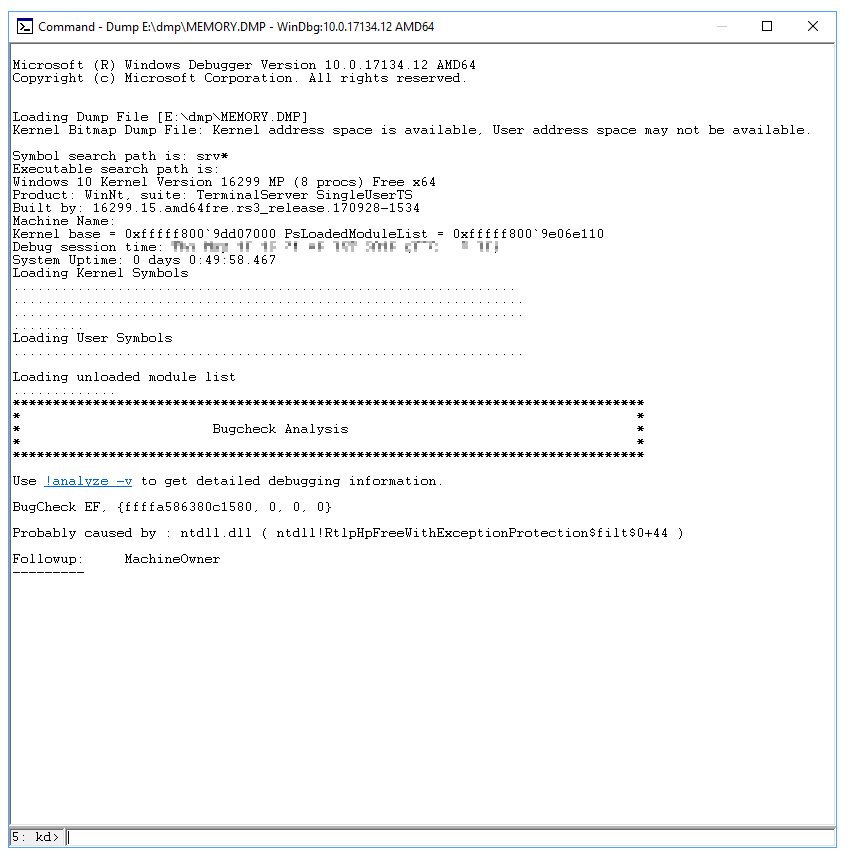
- To keep crash dumps, search for Advanced system settings, select Settings under Startup and Recovery, and choose Automatic memory dump under Write debugging information.
- Find small dumps in
%SystemRoot%\Minidumpand the full dump at%SystemRoot%\MEMORY.DMP, and send them to the maker of the suspect driver.
Check for system and driver updates
A driver bug that causes 0x139 is often fixed in a newer release, and Microsoft fixes its own kernel bugs through cumulative updates.
- On Windows 11, open Start > Settings > Windows Update and select Check for updates.
- On Windows 10, open Start > Settings > Update & Security > Windows Update instead.
- Under Advanced options, turn on Receive updates for other Microsoft products.
- Install every update offered, including optional driver updates, and restart.
- Download the newest graphics, chipset and network drivers from your PC or device maker's support site.
- Install the latest BIOS or UEFI firmware for your exact model from the PC or motherboard maker, following their instructions.
If the blue screen started right after an update, uninstall that update instead, as shown in the troubleshooting section.
How to boot into Safe Mode with a kernel security check failure loop
Safe Mode loads only a basic set of drivers, so a faulty third-party driver usually cannot crash it. Use it when Windows blue-screens before you can fix anything.
- On Windows 11, open Settings > System > Recovery and select Restart now next to Advanced startup; on Windows 10, use Settings > Update & Security > Recovery.
- If Settings will not open, hold Shift while you select Power > Restart on the sign-in screen.
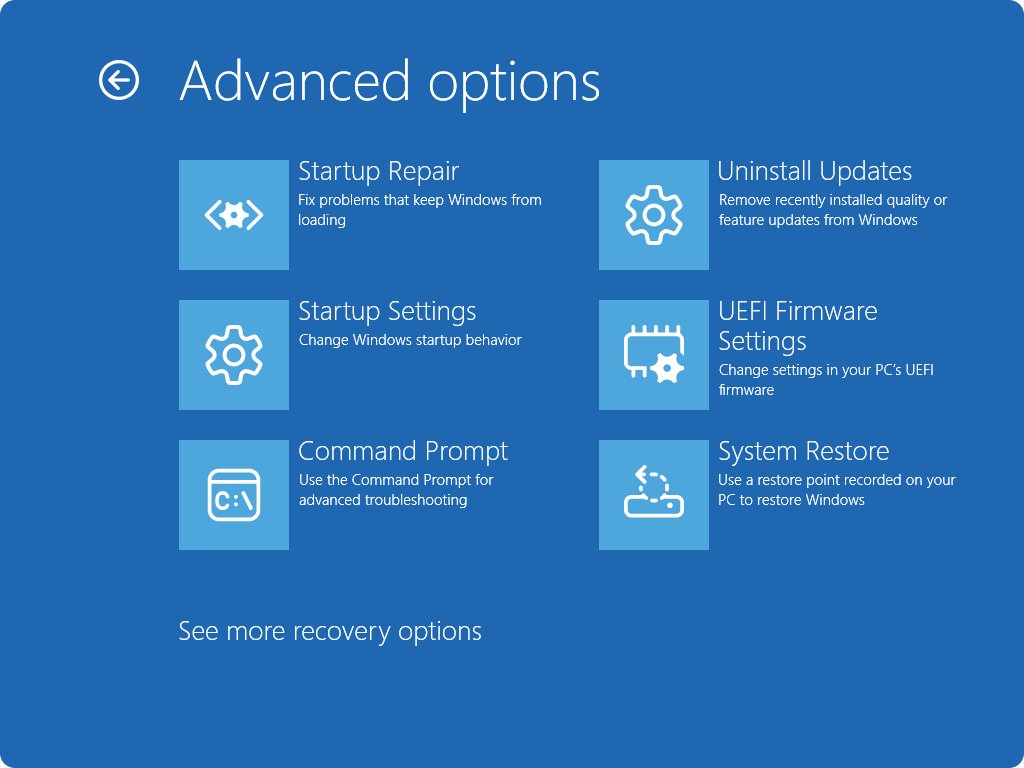
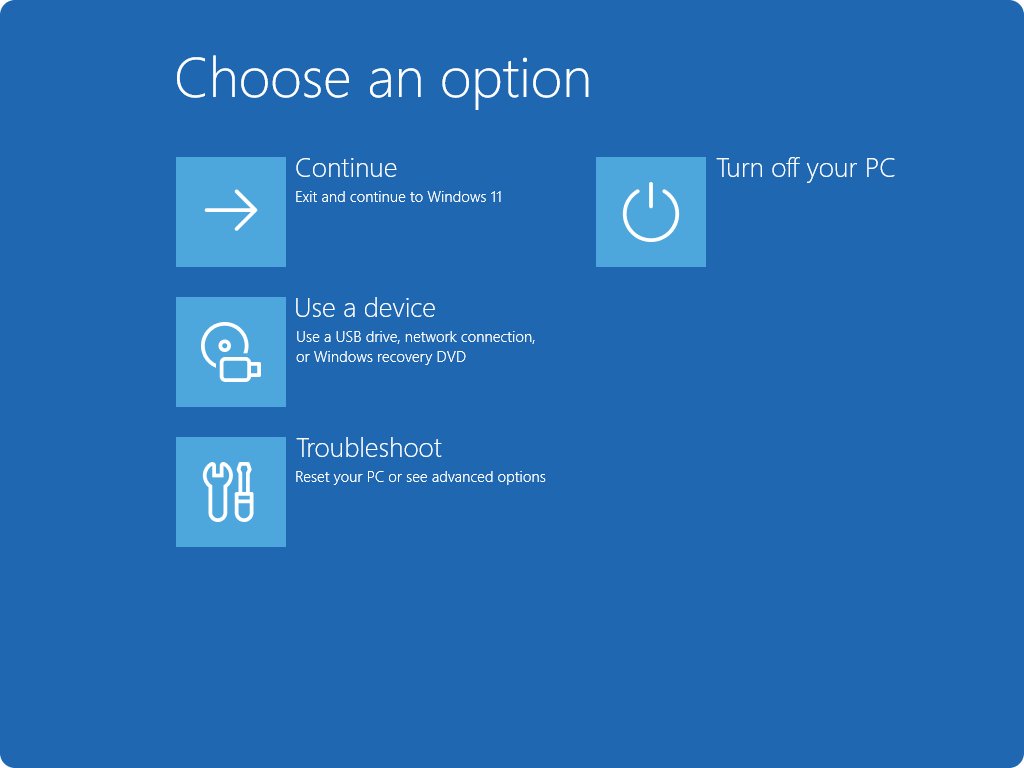
- If Windows will not start at all, interrupt startup twice with the power button to open the recovery environment.
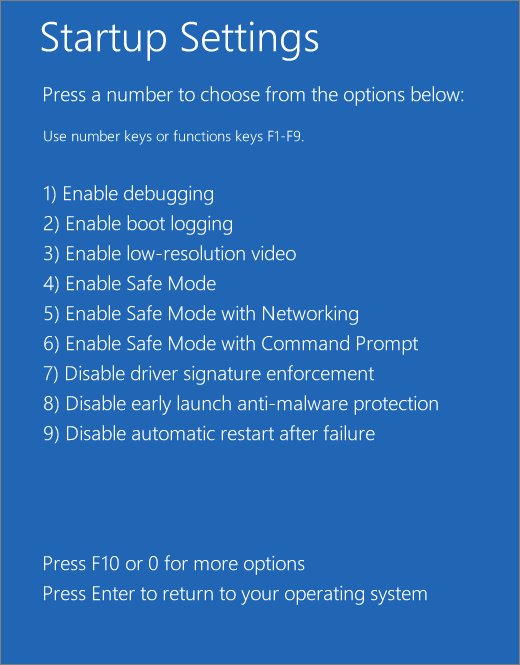
- Select Troubleshoot > Advanced options > Startup Settings > Restart.
- Press 4 or F4 for Safe Mode, or 5 or F5 for Safe Mode with Networking.
- Roll back or uninstall the suspect driver in Device Manager, then restart normally.
If BitLocker protects the drive, keep the recovery key at hand, because the recovery environment may ask for it.
Run the System File Checker and Chkdsk tools
Type cmd in the search box, right-click Command Prompt and select Run as administrator. Run DISM first, then SFC, then chkdsk.
DISM.exe /Online /Cleanup-image /Restorehealth
sfc /scannow
chkdsk C: /f /r
DISM repairs the Windows image that SFC uses as its repair source, and sfc /scannow then checks and repairs protected system files; leave the window open until verification reaches 100%. chkdsk /r finds bad sectors and includes the /f repair; because the system drive is in use, type Y to schedule it and restart so it runs before Windows loads.
You should see: "Windows Resource Protection did not find any integrity violations" or "Windows Resource Protection found corrupt files and successfully repaired them" from SFC, and a chkdsk report with no unfixed errors after the restart.
Test your system memory
Faulty RAM corrupts kernel data at random, which looks exactly like a driver bug. The built-in Windows Memory Diagnostic checks it without extra software.
- Save your work and close all apps.
- Press Windows key + R, type
mdschedand select OK. - Select Restart now and check for problems (recommended).
- For a deeper test, press F1 on the test screen, change Test Mix to Extended with the arrow keys, and press F10.
- After the PC restarts, read the result in the notification near the clock.
- If you miss it, open Event Viewer > Applications and Services Logs > Microsoft > Windows > MemoryDiagnostics-Results.
- If errors are reported, test one memory stick at a time and replace the faulty one.
If the standard pass is clean but the crashes continue, run the Windows memory diagnostics again with the Extended test mix.
Microsoft Defender Offline scan for kernel security check failure
Microsoft notes that viruses can corrupt disks in ways that produce bug check codes, and that the scan should cover the Master Boot Record. An offline Defender scan runs before Windows loads, so it reaches the boot record.
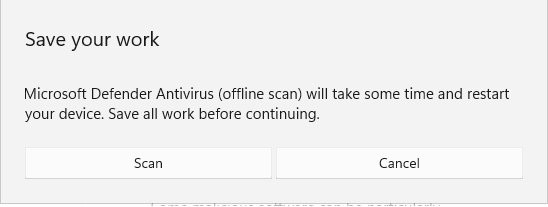
- Save your work; the scan takes about 15 minutes and restarts the PC.
- Open the Windows Security app and select Virus & threat protection.
- Select Scan options, choose Microsoft Defender Offline scan and select Scan now.
- Confirm the prompts with Scan and Yes.
- After Windows restarts, open Protection history to read the results.
Driver Verifier for kernel security check failure
Driver Verifier is built into Windows and stresses chosen drivers so a faulty one crashes with its name on screen. It can crash the PC by design, so create a restore point first and use it only after the fixes above failed.
verifier /standard /driver suspect.sys
verifier /reset
Run these in Command Prompt as administrator; your account must be in the Administrators group. The first line verifies one suspect driver with standard settings (replace suspect.sys with the real file name) and takes effect after a restart. You can also type verifier alone, choose Create standard settings, then Select driver names from a list. Test recently updated or suspicious drivers only, never every driver at once. The second line turns Driver Verifier off; restart afterwards.
You should see: If a verified driver misbehaves, the next blue screen names it, and that is the driver to update, roll back or remove. If Windows cannot reach the desktop, start in Safe Mode, where Driver Verifier does not run, and run verifier /reset.
Reset Windows 10 or Windows 11 with Reset this PC
Try System Restore first: it rolls back drivers and updates without touching your files. Reset reinstalls Windows and removes your apps, so it comes last.
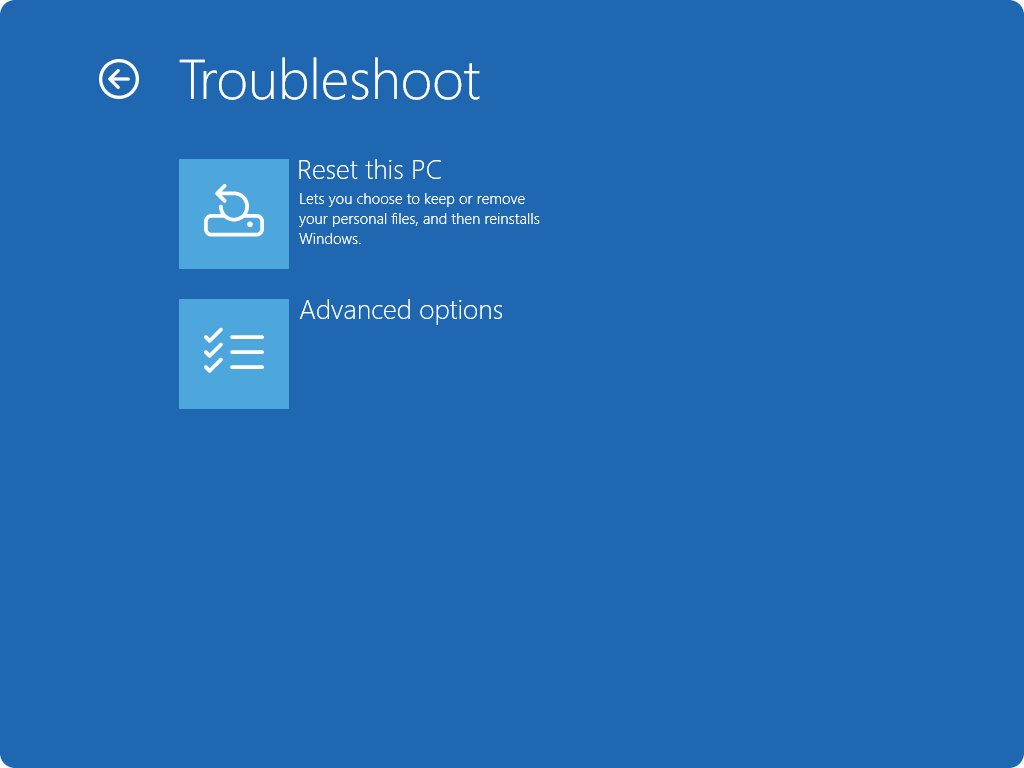
- Open the recovery environment with Shift + Power > Restart, or by interrupting startup twice.
- Select Troubleshoot > Advanced options > System Restore and pick a restore point dated before the crashes began.
- If no restore point helps, back up your files and open Settings > System > Recovery > Reset PC on Windows 11, or Settings > Update & Security > Recovery > Get started under Reset this PC on Windows 10.
- Choose Keep my files or Remove everything.
- Choose Cloud download for a fresh copy of Windows, or Local reinstall to use files already on the PC.
- Leave the PC alone even if the screen stays black for 15 minutes or more.
- Install drivers one device at a time afterwards, so a returning crash points at the last driver you added.
A reset fixes software causes only. If the kernel security check failure returns on a fresh Windows with no extra drivers, treat it as a hardware fault.
How to tell if the kernel security check failure is fixed
- Repeat the task that used to crash the PC, such as gaming, a video call or copying large files, for at least as long as it used to take to crash.
- Open Event Viewer > Windows Logs > System and check that no new critical errors appear after the fix.
- Check that
%SystemRoot%\Minidumpholds no dump files dated after the fix. - Open Device Manager and check that no device shows an exclamation point.
- If you used Driver Verifier, run
verifier /resetand restart so it stops slowing the PC.
Kernel security check failure keeps happening on Windows 11
Windows restarts before you can read the stop code
Automatic restart on system failure is on, which can also cause a crash-and-restart loop.
- Open the recovery environment and select Troubleshoot > Advanced options > Startup Settings > Restart.
- Press 9 or F9 for Disable automatic restart on system failure.
- Read the stop code and any driver name the next time the blue screen appears.
Kernel security check failure after a Windows update
The update shipped a new driver, or an existing driver is not compatible with it yet.
- On Windows 11, open Settings > Windows Update > Update history and select Uninstall updates.
- On Windows 10, open Settings > Update & Security > Windows Update > View your update history > Uninstall updates.
- Select the update installed just before the crashes began, select Uninstall and restart.
- If Windows will not start, open the recovery environment and select Troubleshoot > Advanced options > Uninstall Updates.
Kernel security check failure after installing new hardware or a driver
The new device, or the driver that came with it, is not compatible with your Windows version.
- Shut down and remove the new part or unplug the new device.
- Start Windows and uninstall the driver it installed: in Device Manager, select Uninstall device and tick Attempt to remove the driver for this device.
- Check the maker's site for a driver built for your Windows version, or a firmware update for the device.
- Refit the hardware and install that driver, then test again.
Roll Back Driver is greyed out
Windows has no earlier driver stored for that device.
- On the Driver tab, select Uninstall Device instead.
- Tick Attempt to remove the driver for this device and select OK.
- Install an older, known-good driver from the device maker's website and restart.
Memory Diagnostic passes but the 0x139 crash continues
The fault sits in a driver, the disk or firmware, which the memory test does not cover.
- Run DISM, SFC and
chkdsk C: /f /ras shown above. - Update the BIOS, firmware and chipset drivers from your PC maker.
- Run Driver Verifier on the drivers you updated most recently.
- Run your PC maker's full hardware diagnostics.
How to prevent kernel security check failure blue screens
- Get drivers from Windows Update or the device maker's site, never from download portals.
- Keep Windows, optional driver updates, BIOS and firmware current.
- Create a restore point before you install a major driver, so you can roll back in minutes.
- Keep 10% to 15% of the system drive free.
- Shut down properly instead of cutting the power.
- Add hardware one part at a time, so a new crash points to the part you just fitted.
A related crash, the kernel mode heap corruption error, has the same driver-first fixes because it also comes from drivers damaging kernel memory.
Kernel security check failure FAQ
What is stop code 0x00000139?
Stop code 0x00000139 is KERNEL_SECURITY_CHECK_FAILURE. The Windows kernel found that a critical data structure was corrupted and stopped the system to protect it. A faulty or incompatible driver is the most common cause.
Can bad RAM cause a kernel security check failure?
Yes. Faulty memory corrupts kernel data at random, which can trigger 0x139 and other stop codes. Run Windows Memory Diagnostic with the Extended test mix, and replace any memory stick that reports errors.
Is a kernel security check failure a virus?
Usually not, because drivers cause most of these crashes. Microsoft does note that malware can corrupt a disk and produce bug check codes, so a Microsoft Defender Offline scan, which also checks the boot record, is worth running.
Can a Windows update cause a kernel security check failure?
Yes. An update can install a new driver or expose a driver that is not yet compatible. Uninstall the update from Update history, then check the device maker's site for a newer driver before you reinstall it.
Can a failing hard drive or SSD cause kernel security check failure?
It can. Bad sectors can damage system files and drivers as Windows loads them. Run chkdsk C: /f /r and your drive maker's diagnostics, and replace the drive if errors keep appearing.
Will resetting Windows fix a kernel security check failure?
Reset this PC fixes the error when the cause is software, such as a bad driver or damaged system files. If the blue screen returns on a freshly reset PC with no extra drivers, the cause is hardware.
How do I fix kernel security check failure if Windows will not boot?
Interrupt startup twice to open the recovery environment. From Troubleshoot > Advanced options, start in Safe Mode to roll back drivers, or use Uninstall Updates, System Restore or Reset this PC.
Does kernel security check failure mean my PC is broken?
No, not on its own. Microsoft attributes about 70% of stop errors to third-party drivers and about 10% to hardware. Only a crash that survives driver fixes, memory and disk tests, and a reset points to a failing part.