To turn on sound equalization in Windows 11, open Settings > System > Sound > More sound settings, open your speakers' Properties, select the Enhancements tab, and tick Loudness Equalization.
This guide covers that route on Windows 11 and Windows 10, the Audio enhancements switch in Settings, graphic equalizers in your PC's audio app, how to set an equalizer, and what to do when the Enhancements tab is missing.
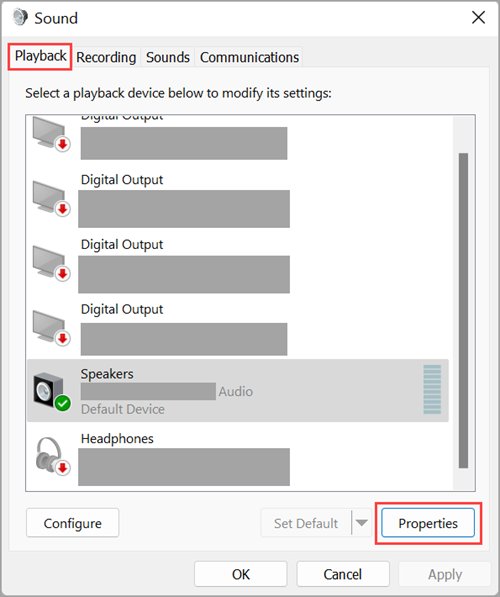
Step-by-step guide to turning on sound equalization in Windows 11
Loudness Equalization is the equalization effect Windows itself provides. It evens out the volume between quiet and loud sources, such as a TV show and the adverts in between.
- Select Start > Settings > System > Sound.
- Scroll down and, under Advanced, select More sound settings.
- On the Playback tab, select the speakers or headphones you use.
- Select Properties.
- Open the Enhancements tab.
- Tick Loudness Equalization.
- Select Apply, then OK, and play some audio to hear the change.
The setting belongs to that one playback device. Repeat the steps for headphones, a headset or external speakers if you switch the sound output device between them. Bluetooth headphones appear on the Playback tab once you turn on Bluetooth and pair them.
Loudness equalization vs equalizer in Windows 11
Windows uses the word equalization for two different things. Loudness Equalization controls volume over time, while a graphic equalizer changes the balance of bass, mids and treble.
| Effect | What it changes | Where to find it |
|---|---|---|
| Loudness Equalization | Keeps perceived volume steady across songs, videos and apps, so quiet parts rise and loud peaks are held back | Enhancements tab in the device's Properties |
| Graphic equalizer | Raises or lowers individual frequency bands, such as bass or treble | Your PC's audio app from the sound chip or PC maker, if it has one |
| Bass Boost | Strengthens low frequencies | Enhancements tab, when the driver offers it |
| Virtual Surround / Virtualized Surround Sound over Headphones | Simulates surround sound on stereo speakers or headphones | Enhancements tab, when the driver offers it |
| Room Correction | Compensates for the room your speakers sit in | Enhancements tab, when the driver offers it |
| Audio enhancements switch | Turns the device's effects on or off as a group | Settings > System > Sound > your device |
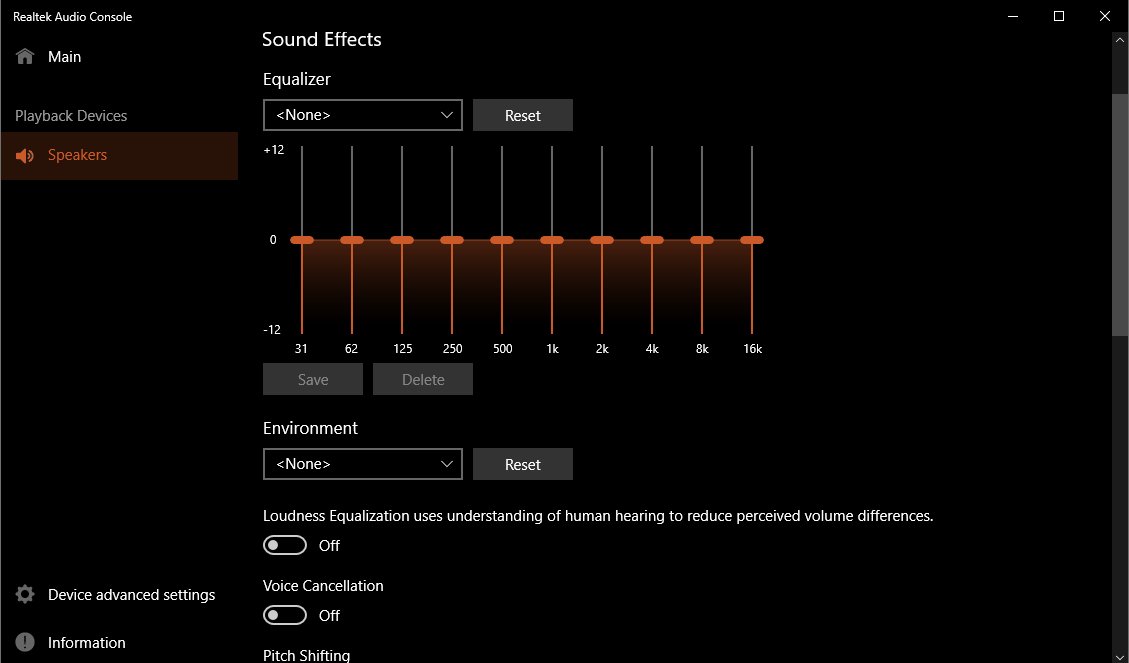
Windows ships no graphic equalizer of its own among its default sound effects. PC makers and audio chip makers can add one, and they provide their own app to set it.
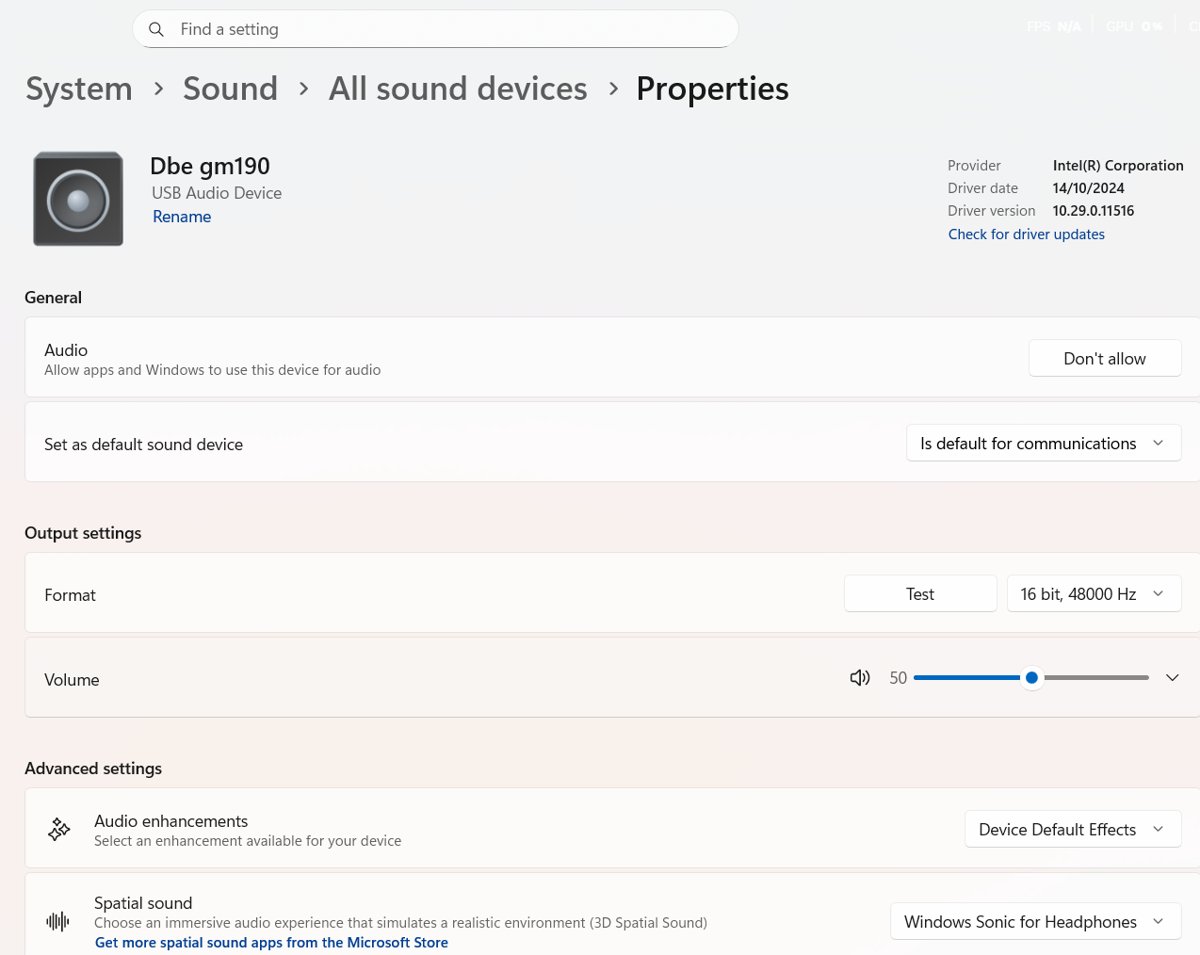
How to turn on audio enhancements in Windows 11 Settings
If Audio enhancements is set to Off for a device, its effects do not run. Turn it back on before ticking Loudness Equalization.
- Select Start > Settings > System > Sound.
- Under Output, select the audio device you are using.
- Scroll to Advanced settings on the page that opens.
- Open the Audio enhancements drop-down and choose any option except Off.
- Go back to More sound settings and tick Loudness Equalization on the Enhancements tab.
The same device page also holds the output format and volume options, and the wider Windows 11 sound settings control the default device and the Volume mixer.
How to turn on sound equalization in Windows 10
Windows 10 uses the same Sound dialog and the same Enhancements tab. The Control Panel route works on both versions.
- Select Start, type Control Panel, and open it.
- Select Hardware and Sound > Sound.
- On the Playback tab, select your speakers or headphones and select Properties.
- Open the Enhancements tab.
- Tick Loudness Equalization.
- Select Apply and OK.
How to enable sound equalizer with your PC's audio app
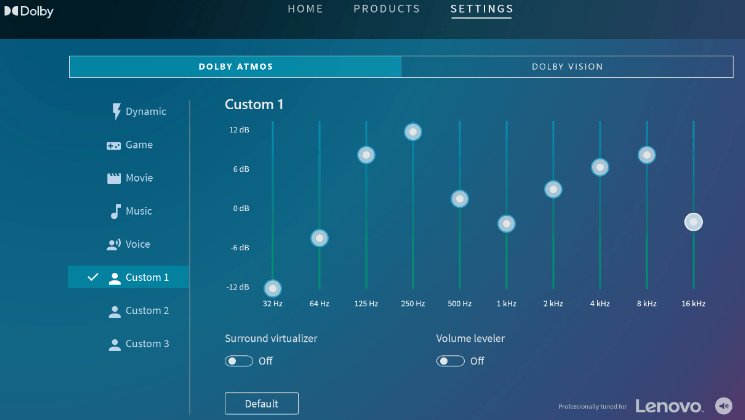
Many PCs replace the Windows sound effects with the maker's own, and those come with a settings app. That app is where a graphic equalizer with sliders lives, if your PC has one.
- Select Start and type the name of your PC's audio app, such as Realtek Audio Control or Dolby Access, or your PC maker's name.
- If none is installed, search the Microsoft Store for your PC maker's audio app.
- Open the app and select the speakers or headphones you use.
- Find the equalizer or sound profile section.
- Pick a preset that matches what you are playing, such as music, movies or voice.
- Adjust individual sliders only after you have tried the presets.
Install audio apps only from the Microsoft Store or the PC maker's own website. A second equalizer on top of the maker's effects can cause distortion.
How to set equalizer for best sound
The best setting depends on what you hear wrong. Match the problem to a row, change one thing, and listen again.
| What you hear | Use this | Why |
|---|---|---|
| Dialogue too quiet in movies, explosions too loud | Loudness Equalization | Quiet parts become audible while peaks are limited, which suits watching at night |
| Adverts or streams jump in volume | Loudness Equalization | It keeps perceived loudness steady across different sources |
| Thin sound from small laptop speakers | Bass Boost, or a bass preset in the audio app | Adds low frequencies the speakers lack |
| Music sounds dull or harsh | Graphic equalizer in the audio app | Lets you lower or raise treble and mids by small amounts |
| Headphones sound flat in games and films | Virtualized surround over headphones, if offered | Simulates surround on stereo headphones |
| Sound crackles or distorts | Turn Audio enhancements off | Enhancements can cause distortion on some devices |
Tips for turning on sound equalization in Windows 11
| Tip | Why it helps |
|---|---|
| Turn it on per device | Each playback device keeps its own Enhancements settings, so headphones and speakers can differ |
| Change one effect at a time | You can hear which effect made the difference and undo it if needed |
| Start from a flat or default preset | Small changes from neutral are easier to judge than large boosts |
| Avoid stacking effects | Loudness Equalization plus a bass boost plus an app equalizer can push audio into distortion |
| Test with familiar audio | A song or film you know well shows the change more clearly than new content |
| Recheck after driver updates | A new audio driver can bring the maker's own effects and change what the Enhancements tab shows |
How to tell if loudness equalization is on
- Open Settings > System > Sound > More sound settings.
- Select your device on the Playback tab and select Properties.
- Open Enhancements and check that Loudness Equalization is ticked.
- Back in Settings > System > Sound, open the device and check Audio enhancements is not set to Off.
- Play a video with quiet speech and loud scenes; the gap in volume should be noticeably smaller.
How to turn off loudness equalization in Windows 11
- Open Settings > System > Sound > More sound settings.
- Select your device on the Playback tab and select Properties.
- On the Enhancements tab, clear Loudness Equalization.
- Select Apply and OK.
- To turn off every effect for the device at once, set Audio enhancements to Off on the device's page in Settings.
Enhancements tab missing in Windows 11
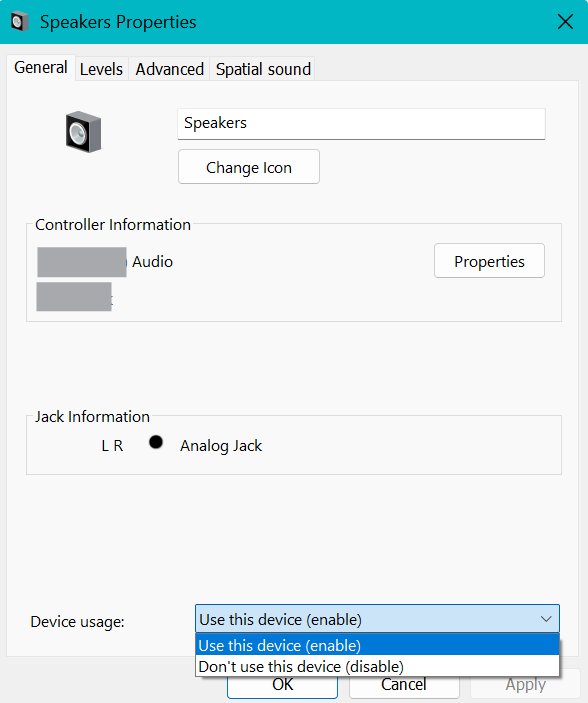
There is no Enhancements tab in the speaker Properties
The audio driver replaced the Windows effects with the maker's own, which are set in its own app.
- Search Start for the sound chip or PC maker's audio app and use its equalizer.
- Open Settings > System > Sound, select the device, and make sure Audio enhancements is not Off.
- Open Device Manager, expand Sound, video and game controllers, right-click the audio device and select Update driver.
- Restart the PC and check the Properties window again.
Audio crackles or distorts after turning on equalization
Audio enhancements can cause sound distortion or crackling on some devices.
- Clear Loudness Equalization and any other ticked effect.
- Set Audio enhancements to Off in the device's Settings page and test again.
- If it still crackles, select Advanced on the device page and choose a different Default format.
Sound got quieter after the change
Enhancements can reduce output volume, and Loudness Equalization holds back loud peaks by design.
- Open Settings > System > Sound > Volume mixer and turn up System and the app you are using.
- Clear Loudness Equalization to compare the volume with it off.
- Turn Audio enhancements off if the device stays too quiet.
Frequently asked questions about turning on sound equalization in Windows 11
What is equalization in audio?
Equalization adjusts sound. A graphic equalizer raises or lowers frequency bands such as bass and treble. Loudness equalization in Windows instead keeps perceived volume steady, so quiet speech is easier to hear and loud peaks are held back.
What does an equalizer do in audio?
An equalizer changes the balance of frequencies in what you hear. Boosting the low bands adds bass, cutting the high bands softens harsh treble, and presets apply a ready-made curve for music, movies or voice.
How do I turn on loudness equalization?
Open Settings > System > Sound > More sound settings, select your playback device, and select Properties. On the Enhancements tab, tick Loudness Equalization, then select Apply and OK. The option only appears when the driver uses the Windows sound effects.
How do I turn on sound equalization in Windows 10?
Open Control Panel > Hardware and Sound > Sound, select your speakers on the Playback tab, and select Properties. Open the Enhancements tab, tick Loudness Equalization, and select Apply and OK. The steps match Windows 11 once the Sound dialog is open.
Can I use a third-party equalizer?
Yes. Many PCs come with an audio app from the sound chip or PC maker, such as Realtek Audio Control or Dolby Access, with equalizer controls. Get audio apps only from the Microsoft Store or the maker's website, and avoid stacking several equalizers.
Will equalization affect all audio devices?
No. Enhancements are set per playback device, so turning on Loudness Equalization for laptop speakers does not change headphones or a USB headset. Open each device's Properties and set the Enhancements tab separately.
Is there an easier way to access sound settings?
Yes. Right-click the Speakers icon on the taskbar to reach the sound options, or press Windows key + I and select System > Sound. From there, More sound settings opens the classic Sound dialog with the Enhancements tab.
How do I equalize audio on my PC?
Turn on Loudness Equalization on the Enhancements tab to even out volume between sources. For tone, open your PC's audio app and use its equalizer presets or sliders. Change one setting at a time and listen with audio you know well.