To change the download destination folder, open your browser's Downloads settings and select Change next to the current location: in Edge it is Settings and more > Settings > Downloads, and in Chrome it is More > Settings > Downloads.
This guide also covers Safari on Mac, getting the Save As prompt back for every file, iCloud Photos downloads on a Windows PC and the drive Windows uses for new apps.
Change download destination folder in Edge, Chrome and Safari
The app that downloads a file decides where it lands, so the setting lives in the browser, not in Windows. Find your browser in the table and follow its path.
| Browser | Where the setting is | Then |
|---|---|---|
| Microsoft Edge | Settings and more > Settings > Downloads > Location > Change | Select the new folder in the dialog box |
| Google Chrome | More > Settings > Downloads > Change | Select the new location |
| Safari on Mac | Safari > Settings > General > File download location | Choose a location in the pop-up menu |
The new folder applies to files you download from now on. Files already downloaded stay where they are.
How to change download destination in Microsoft Edge on Windows 11
This setting controls every file you download in Edge on Windows 11 and Windows 10.
- Open Microsoft Edge.
- Select Settings and more, then select Settings.
- Select Downloads.
- In the Location area, select Change.
- Pick the folder you want in the dialog box and confirm it.
- Check that the new path now shows under Location.
The same page has the option to make Edge ask where to save each file before downloading.
Change download folder location in Google Chrome
- Open Chrome on your computer.
- At the top right, select More, then Settings.
- Select Downloads.
- Next to the current location, select Change.
- Choose the new folder and confirm it.
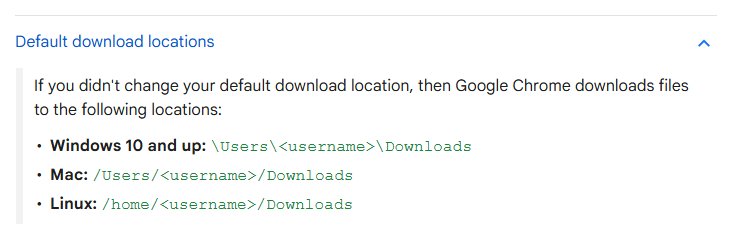
If you never changed it, Chrome on Windows 10 and later saves to \Users\<username>\Downloads.
How to make the browser ask where to save downloads
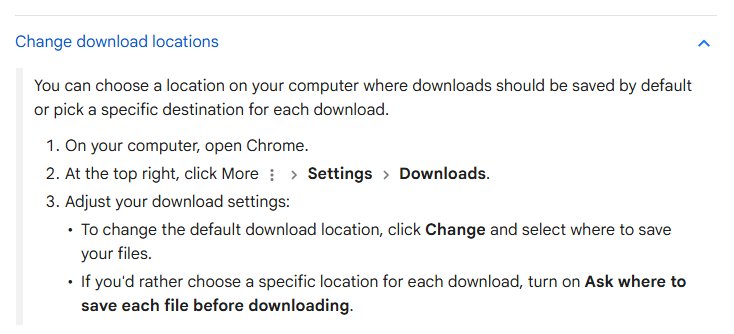
When every download drops into one folder without a Save As window, the browser's ask-each-time setting is off. Turn it on to pick a destination folder per file.
- In Chrome, select More > Settings > Downloads.
- Turn on Ask where to save each file before downloading.
- In Edge, select Settings and more > Settings > Downloads.
- Turn on the option to ask where to save each file before downloading.
- Start a download and choose the folder in the Save As window, then select Save.
In Chrome you can also right-click a link and choose Save as, or right-click an image and choose Save Image As, to pick a folder for one file only.
Change file download location in Safari on Mac
- Open Safari on your Mac.
- Choose Safari > Settings.
- Click General.
- Click the File download location pop-up menu.
- Choose the folder you want.
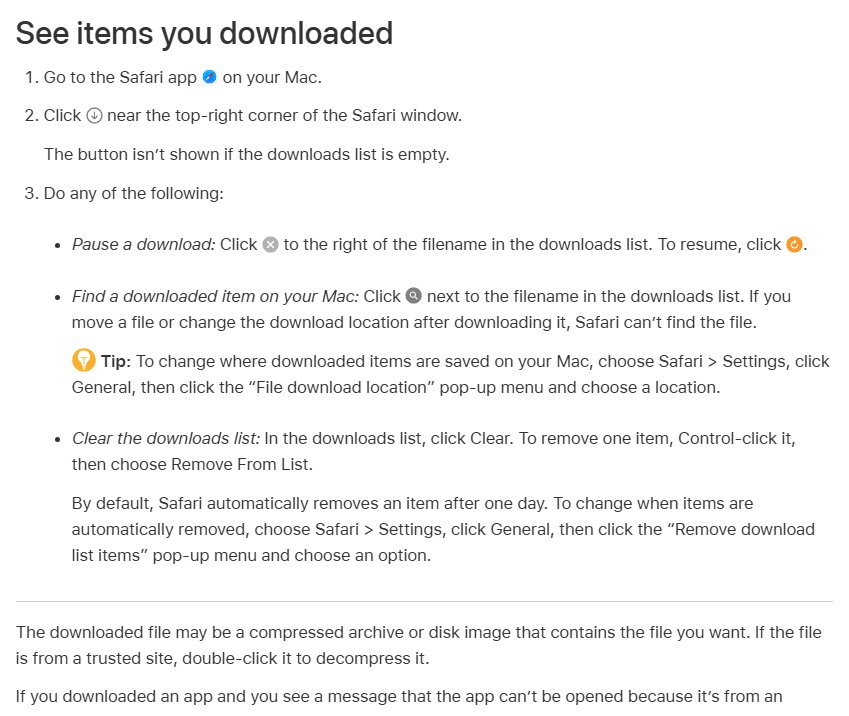
Safari loses track of a file if you change the download location after downloading it, so open older files from their folder instead of the downloads list.
Change where iCloud Photos downloads go on a Windows PC
Photos you download from iCloud.com in a browser follow that browser's download settings. Turn on ask-each-time first if you want to choose the folder.
- Turn on the ask-where-to-save option in Edge or Chrome from the steps above.
- Go to iCloud.com/photos and sign in to your Apple Account.
- Click one or more photos or videos. Hold Ctrl to select several.
- Click the download button in the upper-right corner.
- Choose the destination folder in the Save As window and save.
With iCloud for Windows set up, you can instead open File Explorer, click iCloud Photos, and double-click a photo or video to download it.

How to change destination drive for downloads from Microsoft Store
New apps and new documents, music, photos and videos follow the Where new content is saved setting. Use it to send them to a second drive.
- Select Start > Settings > System > Storage.
- On Windows 11, select Advanced storage settings, then Where new content is saved.
- On Windows 10, select Change where new content is saved.
- Open the list for the content type you want to move, such as new apps or New photos and videos will save to.
- Pick the drive and select Apply.
If you pick an external drive, keep it connected, or Windows cannot save new content there.
What is a destination folder?
A destination folder is the folder a file is written to when you download, save, copy or move it. The default download location is the destination a browser uses when it does not ask.
| System | Default download folder | Where to change it |
|---|---|---|
| Windows 10 and 11 | \Users\<username>\Downloads |
Each browser's Downloads settings |
| Mac | /Users/<username>/Downloads |
Safari > Settings > General, or the other browser's settings |
| Linux | /home/<username>/Downloads |
The browser's Downloads settings |
These are Chrome's defaults when nobody has changed the download location.
How to get to destination folder after a download
Check where the next file actually lands before you delete anything from the old folder.
- In Edge, open Settings and more > Settings > Downloads and read the path under Location.
- In Chrome, open the Download tray to the right of the address bar, point to the file and select Show in folder.
- If the tray is not there, select More > Downloads to see every download.
- In Safari, click the downloads button near the top-right corner, then click the button next to the filename to find it on your Mac.
You can also open the Downloads folder directly from File Explorer or Finder if you kept the default location.
How to change file destination for downloads you already have
Changing the download folder does not move old files. Move them yourself in File Explorer.
- Select Start > File Explorer and open the old download folder.
- Select the files you want to move.
- Select Cut on the ribbon.
- Open the new destination folder.
- Select Paste.
In Chrome, you can also drag a file from the Download tray straight into another folder.
Download destination not changing: fixes
Every download saves to the same folder and Save As never appears
The browser's ask-where-to-save option is off, so it uses the default location every time.
- Open the browser's Downloads settings.
- Turn on the ask-each-time option.
- Download the file again and pick the folder.
Safari can't find a file after you changed the download location
Safari cannot track a file that was moved, or downloaded before the location changed.
- Open Finder and go to the old download folder.
- Move the file to the new folder if you want it there.
- Open it from Finder instead of the Safari downloads list.
New apps or photos fail to save after you picked another drive
The drive chosen in Where new content is saved is disconnected.
- Connect the external drive.
- Or open Where new content is saved and set the location back to This PC (C:).
- Select Apply.
Download destination folder FAQ
How do you change the download destination on Windows 10 and Windows 11?
Change it in the browser you download with. In Edge, select Settings and more > Settings > Downloads, then Change under Location. In Chrome, select More > Settings > Downloads > Change. Both work the same on Windows 10 and Windows 11.
How do you change the default download destination?
Open the browser's Downloads settings and pick a new default folder. Edge and Chrome use a Change button, and Safari on Mac uses the File download location pop-up menu in Settings > General. New downloads go to that folder until you change it again.
How do you change the destination drive for downloads?
Point the browser's download location at a folder on the other drive. For Microsoft Store apps and new documents, music, photos and videos, use Settings > System > Storage > Where new content is saved and pick the drive.
How do you set up download destination folders for different files?
Turn on the option to ask where to save each file in Chrome or Edge. The browser then shows a Save As window for every download, so each file can go to its own folder.
What is a destination folder?
A destination folder is where a file ends up when you download, save, copy or move it. For browser downloads, it is the folder set under Location in the browser's Downloads settings, usually the Downloads folder in your user profile.
How do you get to the destination folder of a download?
In Chrome, point to the file in the Download tray and select Show in folder. In Edge, the path is listed under Location in Settings > Downloads. In Safari, open the downloads list and click the button next to the filename.
How do you change the file destination of something already downloaded?
Move it. In File Explorer, select the file, select Cut on the ribbon, open the new folder and select Paste. Changing the download location only affects files you download afterwards.
Where do iCloud.com photo downloads go on a PC?
They go to the download folder of the browser you used on iCloud.com/photos. Change that browser's download location, or turn on its ask-where-to-save option, to put photos in a different folder.