The Chromium-based Microsoft Edge can be removed like any other Windows program. But many people who try to uninstall it, or one of its Insider builds (Canary, Dev or Beta), get a small dialog that says “Please close all Microsoft Edge windows and try again.” It appears even when no Edge window seems to be open. Here is why, and how to get past it.
Why the error appears
The uninstaller refuses to run while any part of Edge is still active. That includes open windows, but also Edge processes running in the background, website apps you installed from Edge, and extensions that keep running after you close the browser. If anything Edge-related is still running, you get the message.
Fix 1: Close every Edge window
Start with the obvious step. Close all Edge windows, including any Canary, Dev or Beta builds you run side by side, and any installed site apps opened from Edge’s Apps menu. Then try the uninstall again.
Fix 2: End Edge processes in Task Manager
- Press Ctrl + Shift + Esc to open Task Manager.
- On the Processes tab, find Microsoft Edge (and any msedge.exe entries).
- Select each one and click End task.
- Run the uninstall again.
Our Task Manager guide explains how to find and end processes, and what msedge.exe does covers why several Edge processes run at once.
Fix 3: Stop Edge from running in the background
- In Edge, click Settings and more (…) > Settings.
- Open the System section (System and performance in newer versions).
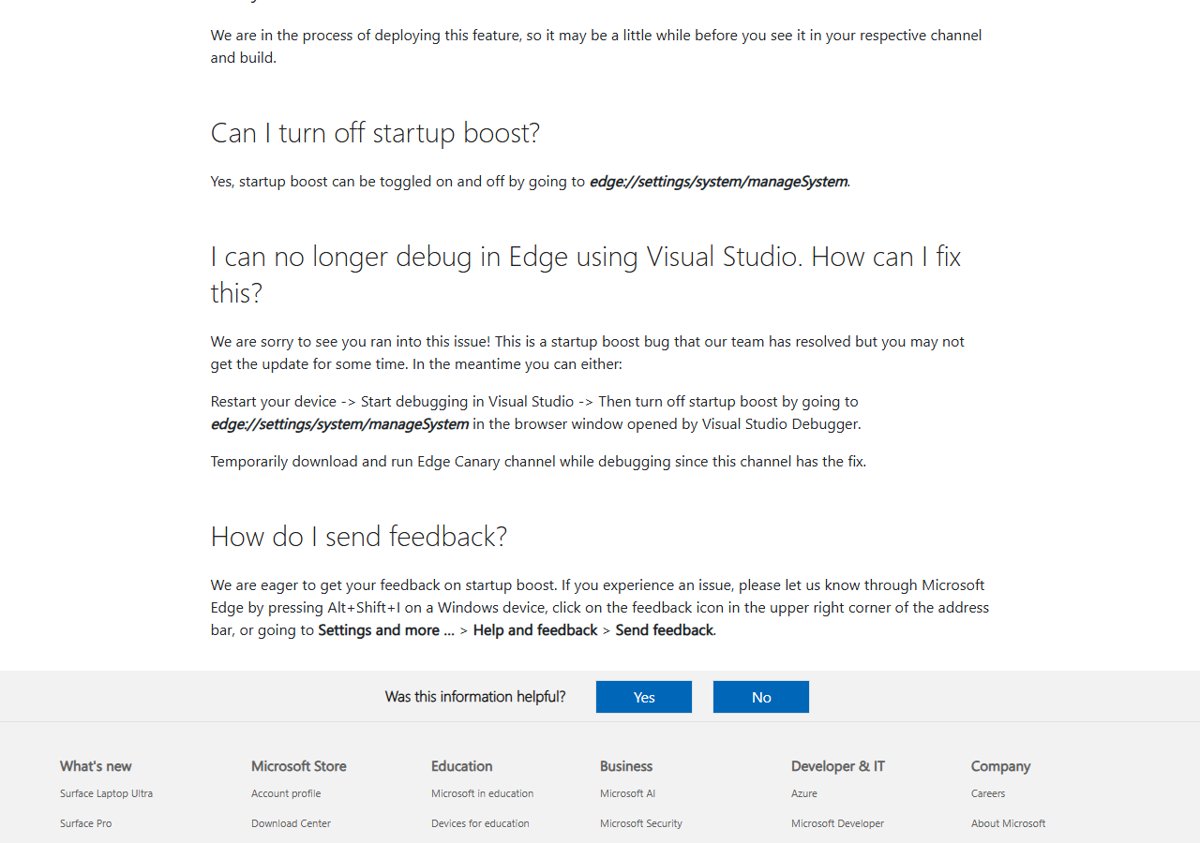
- Turn off Continue running background extensions and apps when Microsoft Edge is closed.
- In newer Edge versions, also turn off Startup boost.
- Close Edge and try again.
Startup boost, added in Edge 88, makes Edge open faster by keeping its processes running in the background. That is exactly what the uninstaller complains about.
Fix 4: Restart the PC
A restart closes every leftover Edge process. Uninstall Edge right after Windows starts, before opening it again. Then go to Settings > Apps, select the Microsoft Edge build and choose Uninstall.
Fix 5: Reinstall, then uninstall
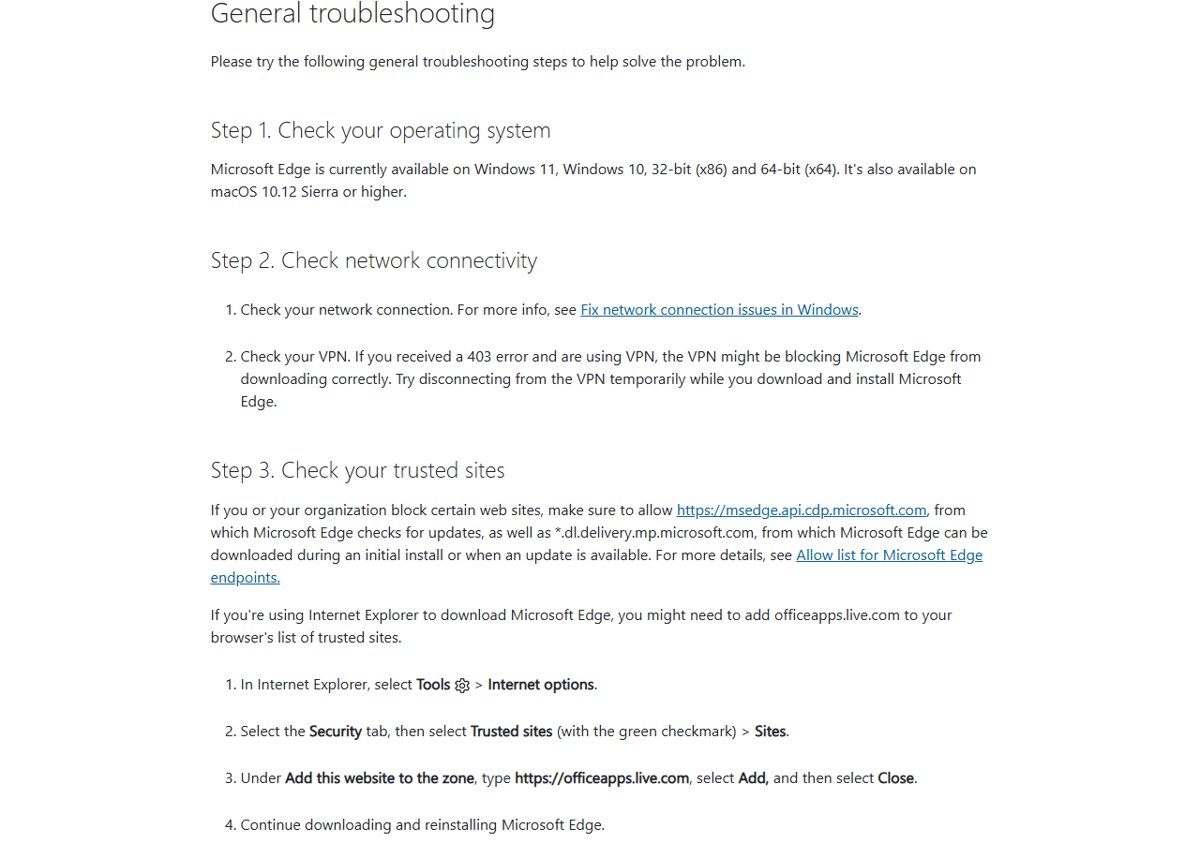
If the uninstaller still fails, Microsoft’s advice for broken installs is to download the latest Edge from microsoft.com/edge and reinstall it, restarting the PC if problems remain. A clean install usually repairs the uninstaller too.
If you only wanted to fix a misbehaving Edge rather than remove it, updating Edge to the latest version often helps.