To free up disk space in Windows 11, open Settings > System > Storage > Cleanup recommendations, select what to remove and select Clean up.
This hub then covers Storage Sense, Disk Cleanup, files you should not delete, partitions and drive letters, formatting and file systems, chkdsk and drive optimization, file recovery, and fixes for low disk space.
Fastest ways to free up space on Windows 11 (2 minutes)
Cleanup recommendations is the quickest of the built-in tools on Windows 11. It lists what it can remove and shows the space each category will save before you delete anything.
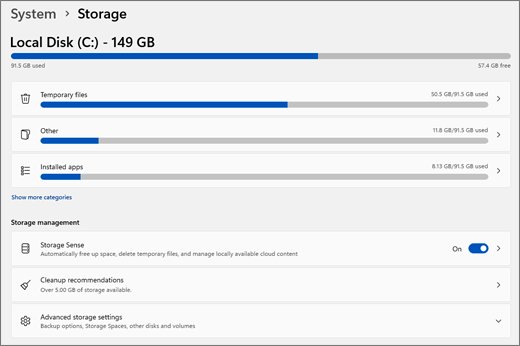
- Select Start > Settings > System > Storage.
- Select Cleanup recommendations.
- Review Temporary files, Large or unused files, Files synced to the cloud and Unused apps.
- Tick the items you no longer need, including apps and games you have stopped using under Unused apps.
- Select Clean up for each section, then check the free space again.
Try the methods below in order and check your free space after each one. That way you stop as soon as you have enough room.
First: find out what is using your disk space
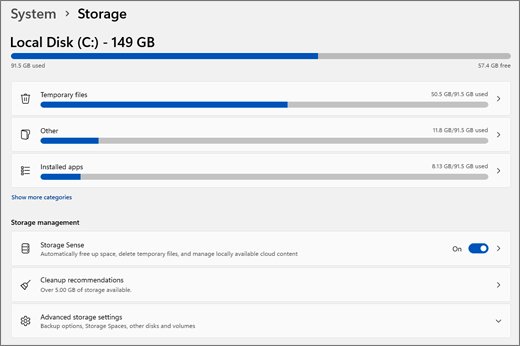
Low space slows Windows down and can block Windows updates, so start by seeing which drive is full and which folders are large. You can view storage on Windows 11 in two places.
| What to check | Where | What it tells you |
|---|---|---|
| Free space per drive | File Explorer > This PC > Devices and drives | Capacity and free space for every drive |
| Low disk state | Settings > System > Storage | The capacity bar turns red when the drive is low |
| Largest personal files | Open Videos, Music, Pictures or Downloads, choose View > Details, then Sort by > Size | These folders usually hold the biggest files you saved |
| Other drives | Settings > System > Storage > Advanced storage settings > Storage used on other drives | Usage for drives other than C: |
A red bar or a warning that you are running low has a plain meaning: what low disk space means for updates and performance.
Turn on Storage Sense
Storage Sense frees space automatically by removing temporary files and old Recycle Bin items. It works only on the system drive, usually C:, and is off by default.
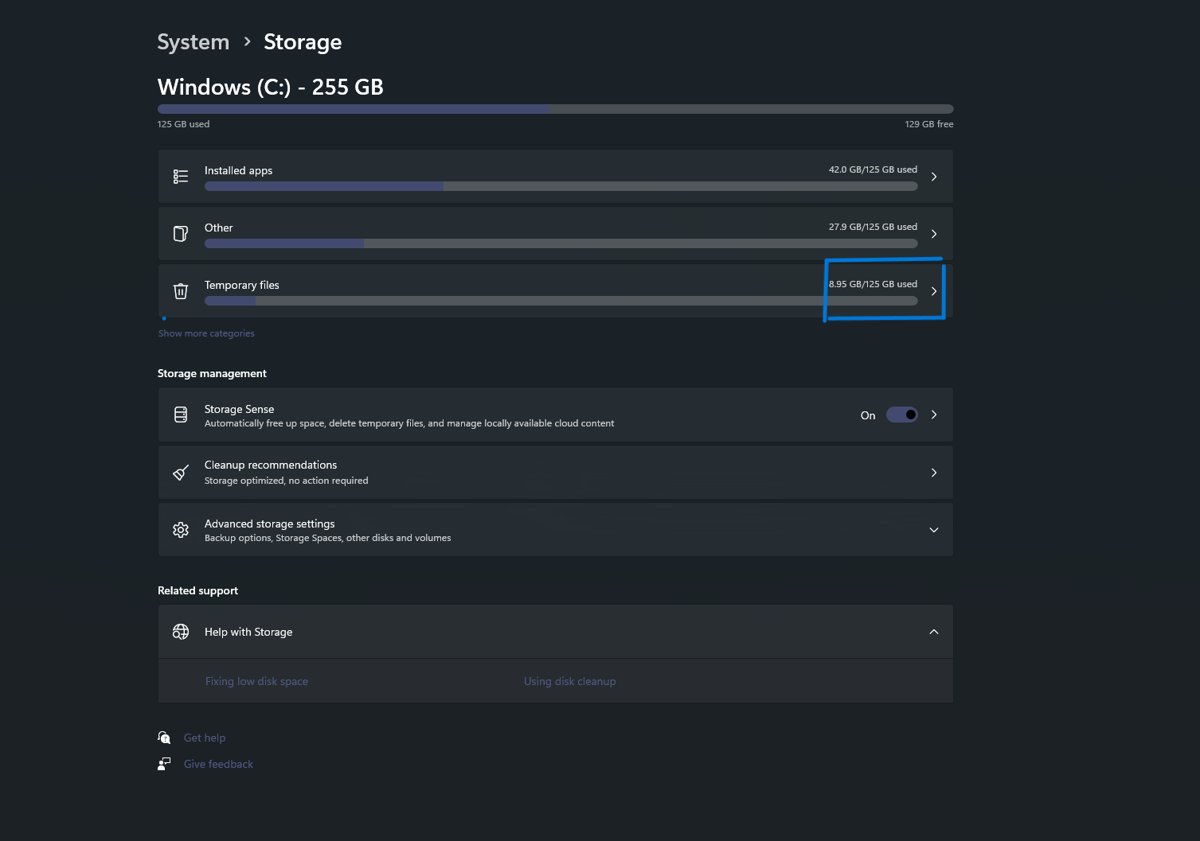
- Select Start > Settings > System > Storage.
- Set Storage Sense to On.
- Stay signed in and online: Storage Sense cannot run until you have been signed in and online for more than 10 minutes.
With the default settings it runs when the device is low on disk space. If you never touched it, Windows may turn it on by itself when space runs low and then notify you.
Choose your Storage Sense settings
Open Settings > System > Storage > Storage Sense to tell it when to run and what to clean. These settings apply only to your account; other users manage their own.
| Setting | What it controls | Default behavior |
|---|---|---|
| Run Storage Sense | How often it runs while you are online and signed in | Runs when the drive is low on space |
| Delete files in my recycle bin if they have been there for over: | Age at which Recycle Bin items are removed | Recycle Bin content is deleted after some time |
| Delete files in my Downloads folder if they haven't been opened for more than: | Age at which unopened downloads are removed | Downloads are not touched unless you set this |
| Content will become online-only if not opened for more than: | Turns on OneDrive Files On-Demand behavior for inactive cloud files | 30 days for OneDrive from Windows 11, version 22H2 |
The online-only setting never deletes files. It keeps a small placeholder on the PC, and any file marked Always keep on this device is left alone. You only see this option while signed in to your cloud account.
Free up space with Disk Cleanup
Disk Cleanup (cleanmgr) is the older tool that still ships with Windows 11 and Windows 10. Use it to run Disk Cleanup step by step when you want to pick categories by hand.
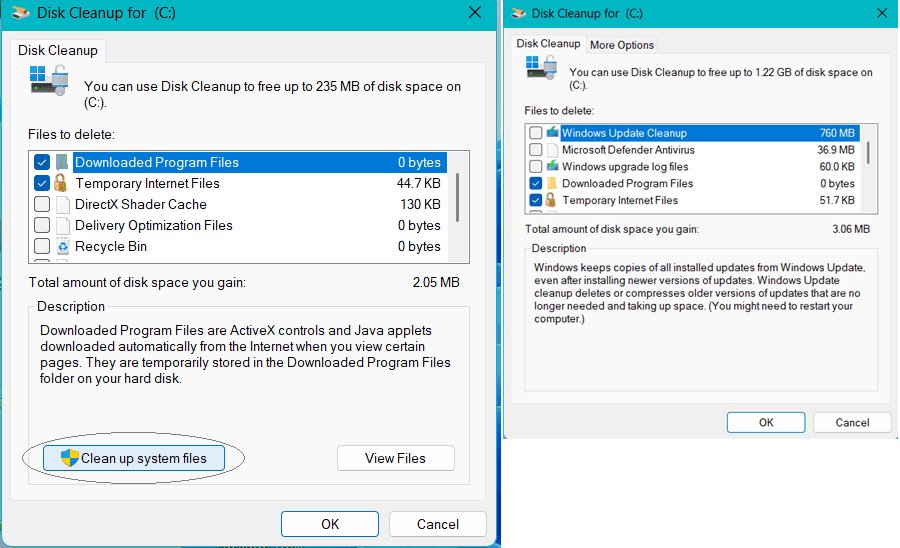
- Press Windows + R, type
cleanmgrand select OK. - Choose the drive to clean, usually C:.
- Tick the categories to remove, such as Temporary files, Recycle Bin, Temporary Internet Files and Old Chkdsk Files.
- Select OK and confirm the deletion.
Windows 11 also lets you delete junk with Disk Cleanup alongside the Settings tools. To remove leftovers from Windows itself, clean up system files as an administrator. On older PCs, the same routine helps you clean a Windows 10 hard drive.
Disk cleanup command: cleanmgr syntax and examples
Syntax: cleanmgr [/d <driveletter>] [/sageset:n] [/sagerun:n] [/TUNEUP:n] [/LOWDISK] [/VERYLOWDISK]. Save a cleanup profile once with /sageset:n, where n is any number from 0 to 9999, then replay it with /sagerun:n.
cleanmgr /sagerun:1Runs the categories you saved with cleanmgr /sageset:1 against every drive. /d C: picks one drive, /lowdisk runs with default settings, /verylowdisk runs them with no prompts, and /autoclean removes files left behind after a Windows upgrade.
You should see: The saved categories are removed and This PC shows more free space.
Examples: cleanmgr /d C: cleans only C:, and cleanmgr /verylowdisk is the quickest silent run. You can schedule a /sagerun profile with the Scheduled Tasks tool.
Delete temporary files
Programs store working data in Temp folders and usually remove it when they quit. What stays behind is safe to clear with Storage settings. The steps differ slightly when you clear temp files on Windows 10 versus when you delete temporary files on Windows 11.
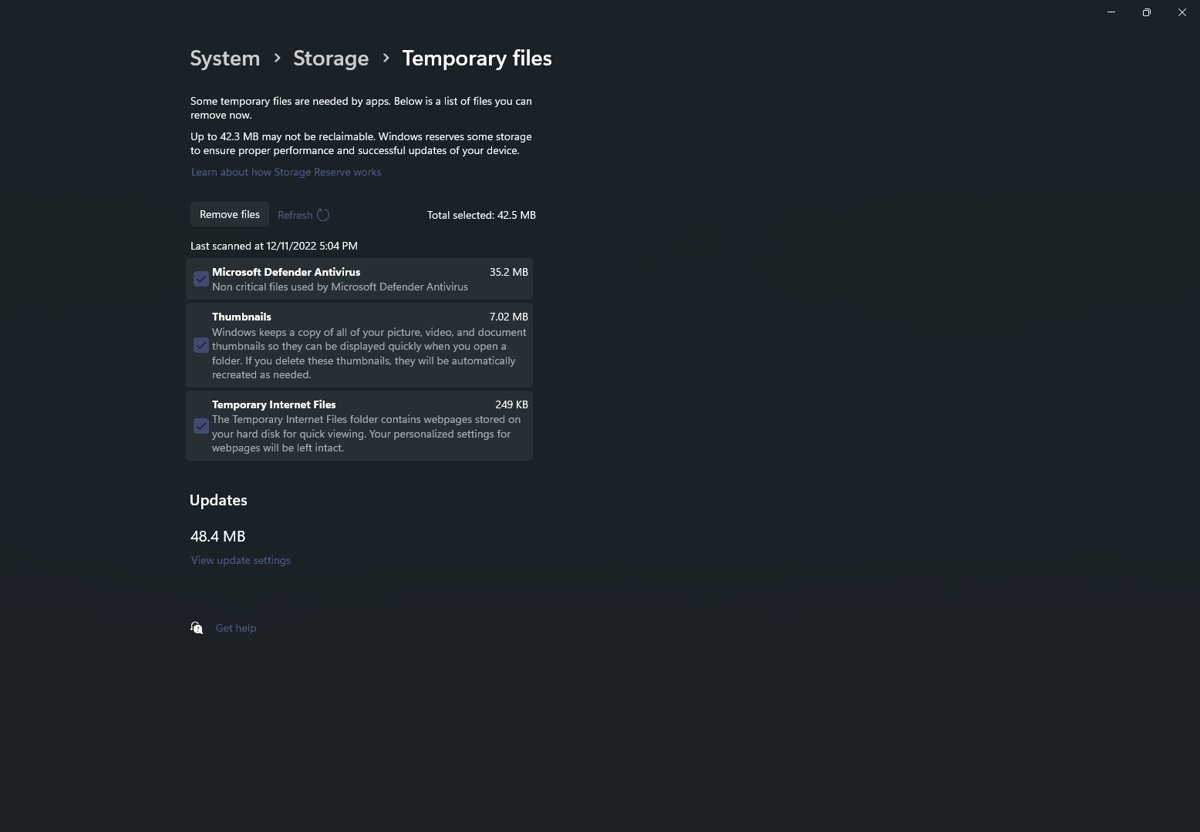
- Select Start > Settings > System > Storage.
- Select Temporary files.
- Tick the types to remove; leave Downloads unticked if you still need those files.
- Select Remove files.
- Open Recycle Bin on the desktop and empty it, because deleted files keep using space until you do.
Clear your Downloads folder by hand or let Storage Sense remove downloads you have not opened for a set time. For the Recycle Bin itself, including per-drive bins, empty the Recycle Bin from every drive that has one. For where temp files come from and which folders hold them, read up on Windows temporary files.
Move large files to an external or secondary drive
Photos, videos and music you keep but rarely open can live on a USB drive or SD card. You can still use them whenever the drive is connected.
- Connect the external drive or SD card.
- Open File Explorer and go to the folder that holds the files.
- Select the files and select Cut.
- Open the external drive and select Paste.
- To stop C: filling up again, open Settings > System > Storage > Advanced storage settings > Where new content is saved and pick another drive for each content type.
If Windows says it needs more space for a feature update, an external storage device can supply the extra room during the update. Delete personal files you no longer need instead of moving them, then empty the Recycle Bin.
What not to delete (and why)
Some large items look like junk but carry a cost when removed. Use this table before you delete anything outside your own folders.
| Item | Where | Safe to delete? | More detail |
|---|---|---|---|
| Temporary files | Settings > System > Storage > Temporary files | Yes | Delete temporary files section |
| Recycle Bin | Desktop, one bin per drive | Yes, once you are sure | Emptied via Storage Sense or by hand |
| Old Chkdsk Files | Disk Cleanup list | Yes, lost file fragments are unnecessary | Disk Cleanup |
| Windows.old (Previous Windows installation) | Temporary files > Previous Windows Installation(s) | Only if you will not roll back; deletion cannot be undone | the Windows.old folder |
| hiberfil.sys | Root of C:, controlled by powercfg /hibernate |
Only by turning hibernation off | Next section |
| pagefile.sys | Root of C:, system managed | No; it backs crash dumps and extends memory | pagefile.sys and its size |
| OneDrive files | Files synced to the cloud in Cleanup recommendations | Make them online-only instead of deleting | Storage Sense settings |
A system-managed page file can grow up to three times your RAM or 4 GB, whichever is larger, capped at one-eighth of the volume. Running out of committed memory can freeze or crash Windows, so leave it alone. Unfamiliar system entries such as Capability Access Manager storage or the Windows Update cleaning up screen at restart have their own explainers.
Disable hibernation with powercfg to remove hiberfil.sys
Hibernation keeps its memory image in hiberfil.sys. Turning the feature off is the supported way to deal with the hiberfil.sys file on your C drive.
powercfg /hibernate offDisables the hibernate feature. powercfg /hibernate on turns it back on, and powercfg /hibernate /type reduced keeps a smaller file that only supports fast startup (hiberboot).
You should see: The command returns with no error; run powercfg /hibernate on to undo it.
Shrink System Restore's reserved space
Volume shadow copies, used for previous versions and restore points, can claim space with no upper limit. Cap it with vssadmin.
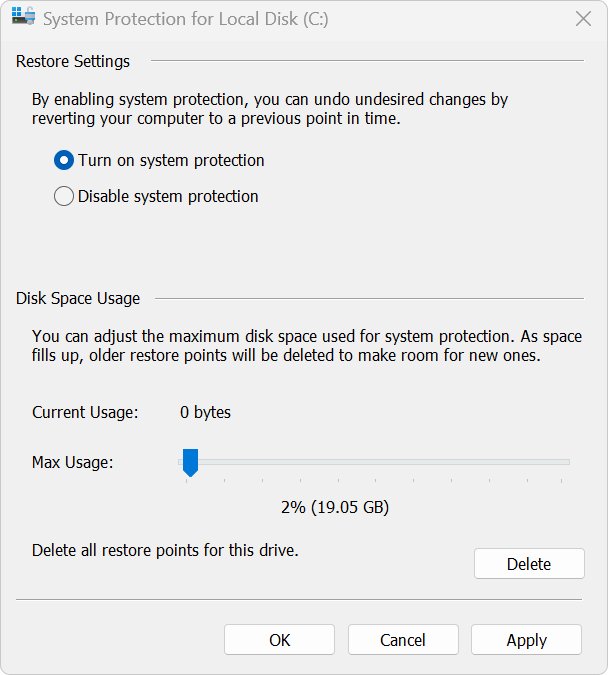
vssadmin resize shadowstorage /For=C: /On=C: /MaxSize=20%Limits shadow copy storage for C: to 20% of the volume. /MaxSize also accepts sizes such as 900MB, with a minimum of 1 MB; leaving it out removes the limit.
You should see: Shadow copies for C: can no longer grow past 20% of the volume.
Compress Windows with Compact OS or NTFS compression
NTFS has built-in compression; exFAT and FAT32 do not. Compact OS compresses the Windows binaries themselves.
compact /CompactOs:queryReports whether Windows is compressed. compact /CompactOs:always compresses all operating system binaries, and compact /CompactOs:never reverses it. For your own folders, compact /c /s:<folder> compresses a folder and its subfolders, and /u uncompresses.
You should see: The query prints the current Compact state of the system.
How much free disk space do you actually need?
Microsoft gives no single number: the low-space threshold varies with disk size and minimum operating thresholds. Watch the signals below instead.
| Signal | What it means | What to do |
|---|---|---|
| Red capacity bar in Settings > System > Storage | The drive is in a low disk state | Run Cleanup recommendations |
| Low storage notification | Performance and system upgrades may suffer | Turn on Storage Sense |
| Feature update asks for more space | Not enough room to install the update | Attach external storage for the update |
| Unsure how much a method frees | Cleanup recommendations shows the saving per category | Compare the figures before you delete |
What is Disk Management in Windows 11?
Disk Management is the built-in tool for disks and volumes: you need it to initialize new drives, create and format volumes, change drive letters, and extend or shrink volumes. It looks and works the same in Windows 10 and Windows 11.
| Way to open it | Steps |
|---|---|
| Power User (Win + X) menu | Right-click Start and select Disk Management |
| Search in the Start menu | Search Disk Management and select Create and format hard disk partitions |
| Run dialog | Press Windows + R, type diskmgmt.msc and select OK |
| Computer Management | Open Computer Management > Storage > Disk Management |
There are more shortcuts if you want to open Disk Management faster, and a full tour of the Windows 10 Disk Management console.
How to use Disk Management in Windows 11
Right-click a disk or volume to see what you can do with it. Back up first: formatting and deleting destroy data.
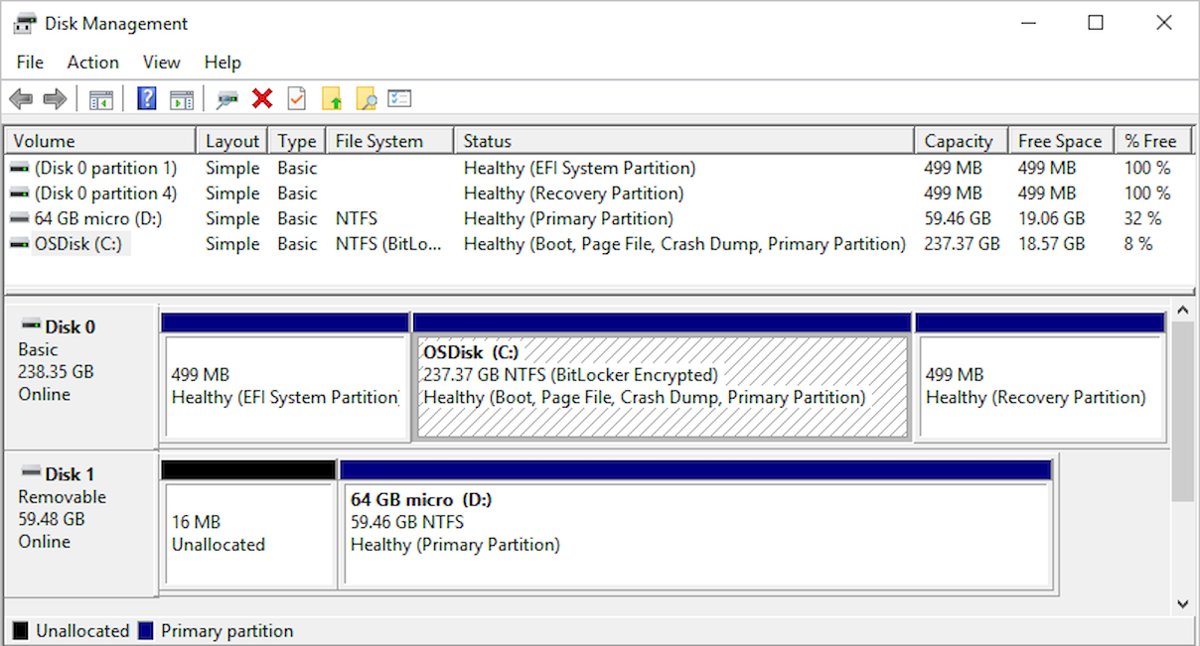
| Task | Right-click | Notes |
|---|---|---|
| Initialize a new disk | Disk > Initialize Disk | Choose GPT for UEFI PCs and large drives; MBR for older hardware |
| Convert MBR to GPT | Pick the partition style at Initialize Disk | GPT supports more than four partitions |
| Create a new partition | Unallocated space > New Simple Volume | Needs admin rights and unallocated space |
| Format a drive | Volume > Format | Erases the volume |
| Change or assign a drive letter | Volume > Change Drive Letter and Paths | Avoid drives with Windows or apps |
| Shrink a volume | Volume > Shrink Volume | NTFS or no file system only |
| Extend a volume | Volume > Extend Volume | Needs unallocated space right after it |
| Delete a partition | Volume > delete the volume | Leaves unallocated space |
| View disk information | Select a disk | Unallocated space shows as a black bar |
Create and format a new partition (volume)
You need administrator rights and unallocated space. If there is none, shrink or delete a volume first. This is also how you create a volume when Windows shows unallocated space on a new drive.
- Open Disk Management. On a brand-new disk, right-click it, select Initialize Disk, pick GPT or MBR and select OK (select Online first if it shows Offline).
- Right-click the unallocated region and select New Simple Volume.
- Select Next, enter the size in MB or accept the maximum, and select Next.
- Accept or choose a drive letter and select Next.
- Format with the default settings, or select Do not format this volume, then select Next.
- Review your choices and select Finish.
On a basic disk the first three partitions are primary; from the fourth on, each is a logical drive in an extended partition. To format an existing partition (volume), right-click it, select Format and select OK twice; you cannot format the partition that holds Windows. For more examples, create and format disk partitions or format a hard drive in Windows 11.
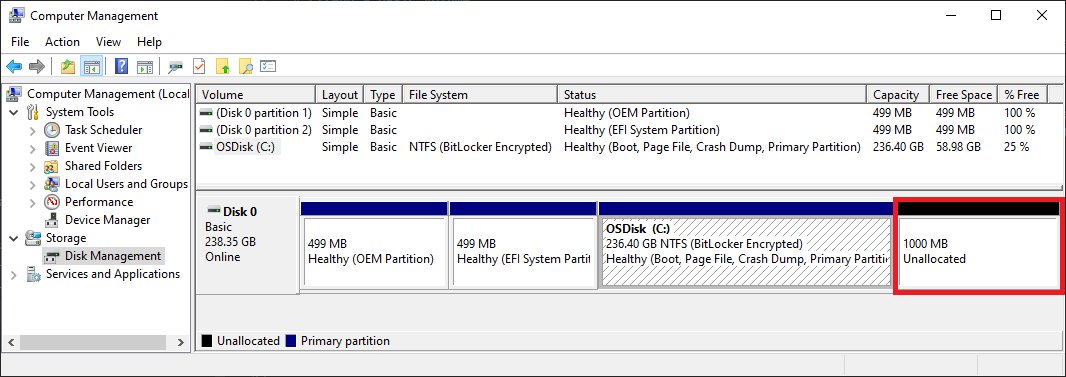
Shrink a basic volume
Shrinking frees unallocated space for a new partition without losing data. It works only on NTFS volumes or volumes with no file system.
- Open Disk Management as an administrator.
- Right-click the volume and select Shrink Volume.
- Follow the on-screen instructions to set the amount and finish.
Unmovable files such as the page file or shadow copy storage set the limit. Event ID 259 in the Application log names the file that blocks the shrink.
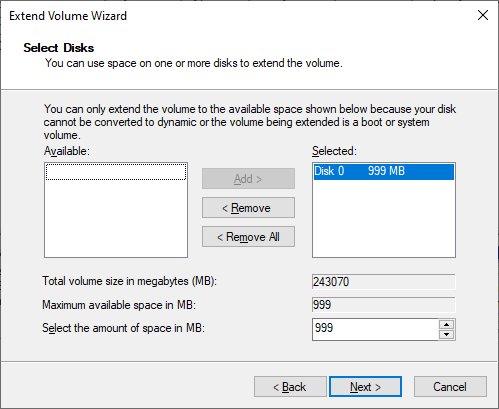
Extend a basic volume
- Right-click Start and select Disk Management.
- Right-click the volume and select Extend Volume.
- Select Next in the Extend Volume Wizard.
- Under Select Disks, keep Maximum available or enter a smaller amount.
- Select Next, then Finish.
The unallocated space must sit immediately after the volume on the same disk. You cannot extend across disks or past another volume.
Change a drive letter
The same dialog lets you assign a drive letter to a new drive. Do not change the letter of a drive that holds Windows or apps, because they may stop finding it.
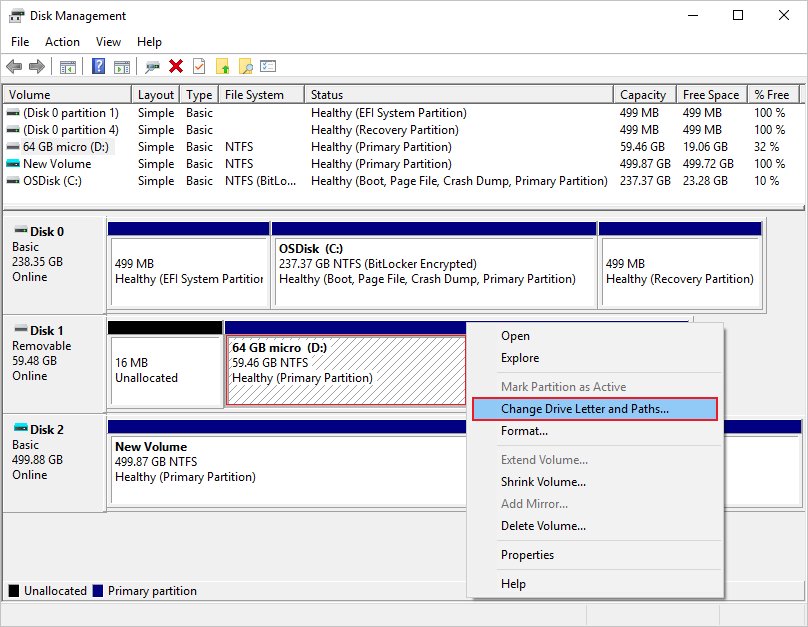
- Open Disk Management with administrator permissions.
- Right-click the volume and select Change Drive Letter and Paths.
- Select Change, or Add for a drive that has no letter.
- Select Assign the following drive letter, pick a letter and select OK.
- Select Yes to confirm.
A drive with no letter does not show in File Explorer, which is the usual fix when you need to unhide the D drive. The system drive keeps C:, and you can open the C drive from This PC.
Use DiskPart commands to manage disks from Command Prompt
DiskPart does everything Disk Management does from the command line. You must be in the local Administrators group. List objects first, then select one to give it focus; every later command acts on that object.
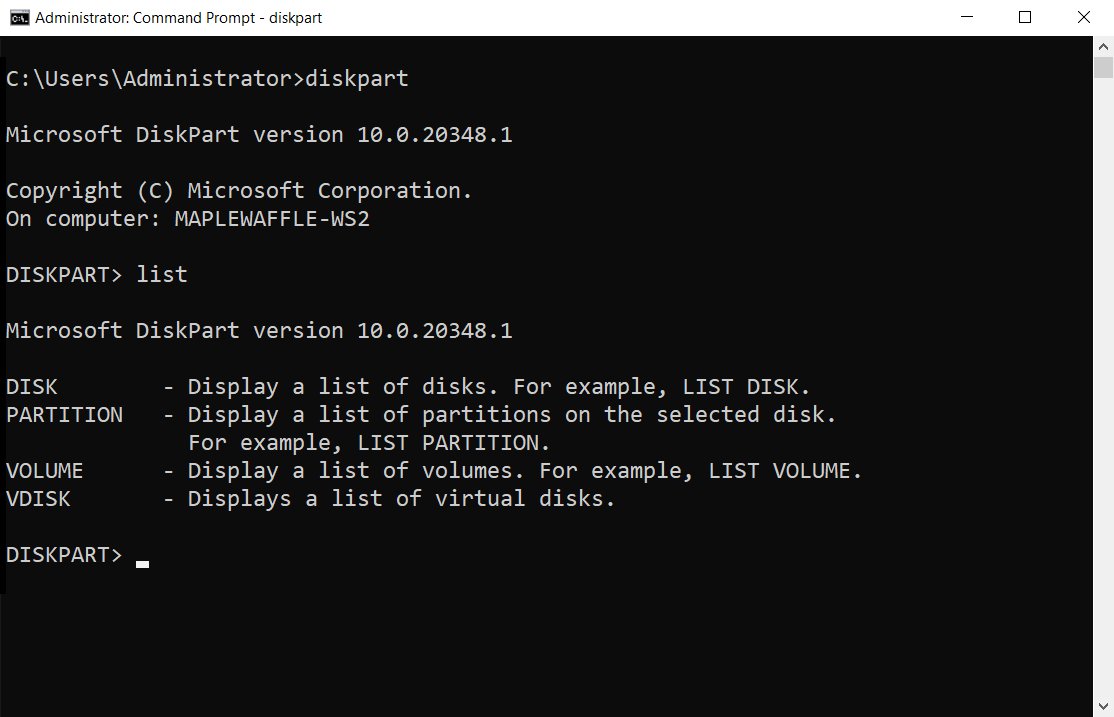
diskpart
list disk
select disk 1
create partition primary
format fs=ntfs label=Backup quick
assign
Lists disks, focuses disk 1, creates a primary partition, quick-formats it as NTFS with the label Backup, and assigns a drive letter. Other commands include extend, shrink, delete, clean (wipes all partitions) and convert.
You should see: Each command prints a success message and the new volume appears in File Explorer.
Check the disk number twice before clean or delete. A full command reference helps you use DiskPart safely.
Choose the right formatting settings
The file system decides the largest file a drive can hold and which devices can read it. NTFS is the default for Windows drives.
| File system | Max file size | Max volume size | Best use |
|---|---|---|---|
| NTFS | 2^64 – 1 bytes | 16 TB with 4 KB clusters; up to 8 PB on Windows 10 version 1709 and later | Windows drives, internal HDDs and SSDs, external drives, flash drives over 4 GB |
| exFAT | 2^64 – 1 bytes | 2^32 – 1 clusters | SD cards and flash drives that need files over 4 GiB |
| FAT32 | 4 GiB | 2^32 blocks | Small flash drives and SD cards under 4 GB |
Only NTFS adds permissions, encryption, compression, quotas and a journal that restores consistency after a crash. A quick format writes a new file table without a bad-sector scan, so use it only on drives in good condition. Each system's trade-offs are laid out in FAT32 vs exFAT vs NTFS.
Format a USB drive in Windows 11
Formatting erases everything on the stick, so copy what you need first. These quick steps format a USB on Windows 11 and Windows 10 alike.
- Plug in the USB drive and open Disk Management.
- Right-click the USB volume and select Format.
- Choose the file system from the table above and enter a volume label.
- Leave Perform a quick format ticked for a healthy drive, or clear it to erase it fully.
- Select OK, then OK again.
Some USB disks cannot be initialized and are only formatted and given a letter. If a card or phone does not appear, first open the SD card on Windows 10, check what a USB OTG adapter supports, or fix a USB device descriptor failure.
Check a drive for errors with chkdsk
chkdsk scans a volume and repairs file system errors. Drive interfaces such as SATA, SATA 2 and SATA 3 or NVMe, M.2 and SATA do not change how you run it.
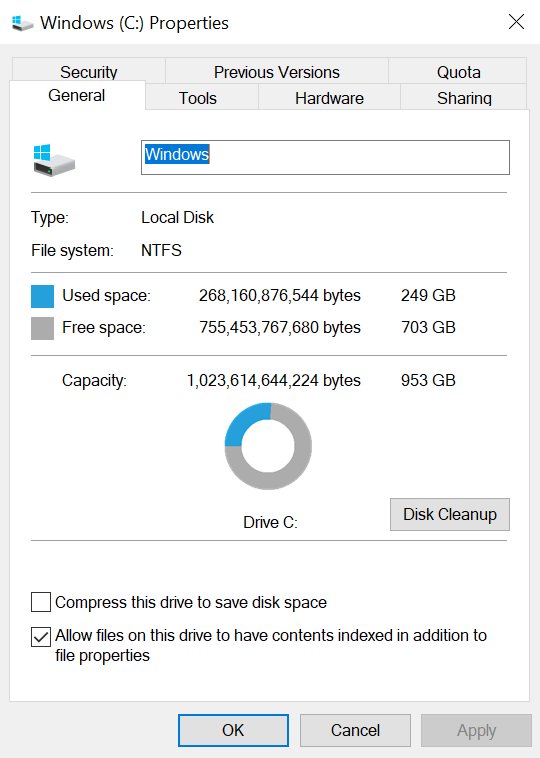
chkdsk C: /scanRuns an online scan of an NTFS volume while you keep working. /f fixes errors and needs to lock the drive, /r also finds bad sectors and recovers readable data, and /x dismounts the volume first.
You should see: chkdsk reports whether it found problems. If it cannot lock C:, it offers to check the drive at the next restart.
Other switches cover FAT drives and offline repair in the full list of chkdsk commands, and you can also scan and repair a Windows 11 drive.
Defragment and optimize drives (HDD and SSD)
Windows optimizes drives as a weekly maintenance task. On SSDs it runs traditional optimization and retrim once a month, whatever the schedule says.
defrag C: /oRuns the right optimization for the drive's media type: defragmentation for hard drives, retrim for SSDs. /a only analyzes, /l runs retrim, /u shows progress and /v gives verbose output.
You should see: defrag prints the analysis and optimization report and returns to the prompt.
Change the schedule in the Optimize Drives app. Read more on how to defragment and optimize drives, and check SSD speed if a drive feels slow.
Recover deleted files with Windows File Recovery and File History
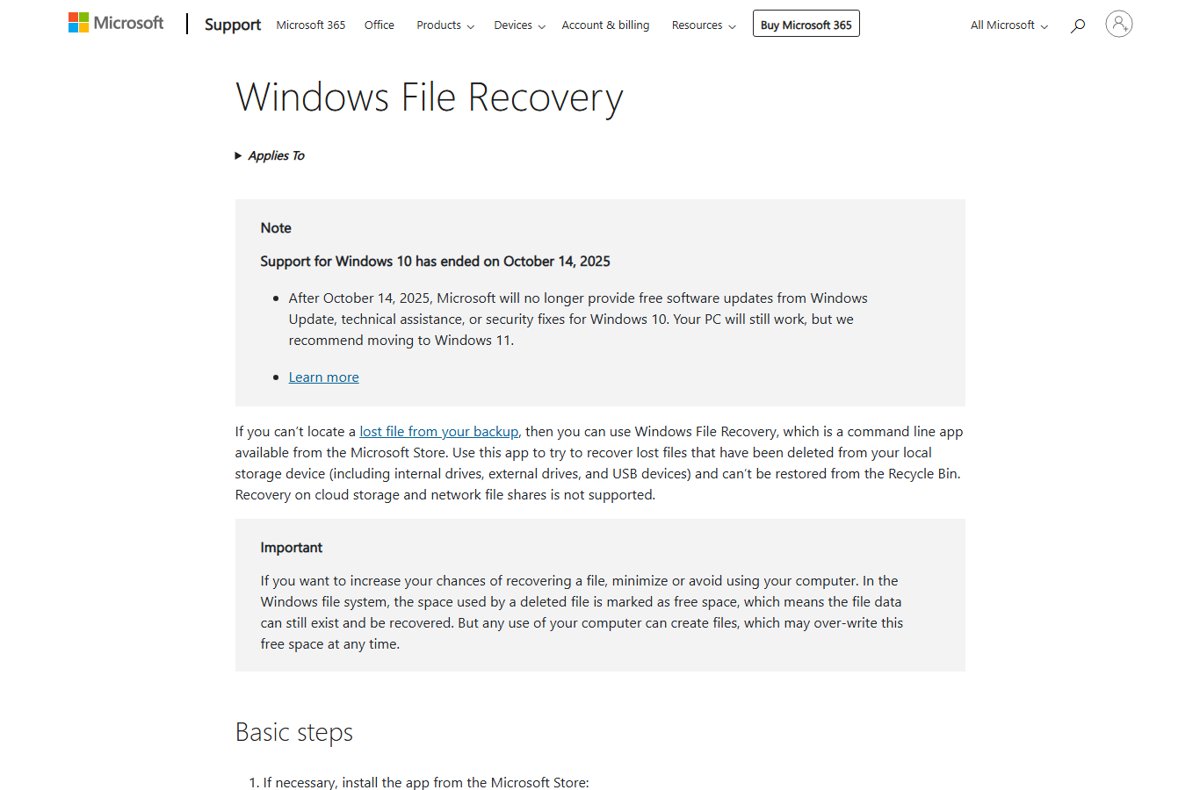
Windows File Recovery is a command-line app from the Microsoft Store for files that are no longer in the Recycle Bin. Use the PC as little as possible until you recover, because new files can overwrite the deleted data.
winfr C: E: /regular /n \Users\<username>\Documents\Recovers the Documents folder from C: to a Recovery_<date and time> folder on E:. Source and destination must differ. Use /extensive for files deleted long ago, after a format, on a corrupted disk, or on FAT and exFAT drives.
You should see: Enter Y to start; recovered files appear in the Recovery folder on the destination drive. Press Ctrl + C to stop.
Cloud storage and network shares are not supported. You can set up Windows File Recovery for SSDs, USB drives and SD cards. To avoid needing it, turn on File History in Control Panel > System and Security > Save backup copies of your files with File History, or use Backup and Restore in Windows 11.
Low disk space and 100% disk usage: symptoms, causes and fixes
| Symptom | Likely cause | Fix |
|---|---|---|
| Low Disk Space error right after Cleanup recommendations | Temp folder filling with Microsoft Store .appx files | Run the Windows Store Apps troubleshooter, run wsreset.exe, run the Windows Update troubleshooter, restart |
| Deleted files but disk space not freeing up | Files are still in the Recycle Bin | Empty the Recycle Bin on each drive |
| Computer says free up disk space for an update | Not enough room for the feature update | Use external storage or Cleanup recommendations; reset or reinstall Windows as a last step |
| Space vanishes for no clear reason | Malware can consume drive space | Run antivirus software such as Windows Security for a full scan |
| Storage Sense does nothing on D: | It only cleans the system drive | Use Storage used on other drives |
| Disk at 100% in Task Manager | A process reading or writing the disk heavily; Task Manager shows which one | Run chkdsk /scan, then work through these 100% disk usage fixes |
Common Disk Management issues and solutions
Extend Volume is grayed out
The unallocated space is not directly after the volume, or is on another disk.
- Check that the black Unallocated bar sits right of the volume.
- Move or delete the volume in between only after backing it up.
- Run Extend Volume again.
Shrink Volume offers less space than expected
Unmovable files such as the page file or shadow copies sit near the end of the volume.
- Find event ID 259 in the Application log to see the blocking file.
- Move the paging file or shadow copies to another disk temporarily.
- Shrink the volume, then move the paging file back.
Change Drive Letter and Paths is missing or grayed
The volume is not ready to receive a drive letter.
- Format the volume if it shows no file system.
- Bring the disk Online if it is offline.
- Retry Change Drive Letter and Paths.
Windows cannot format the C drive
You cannot format a partition that is in use, including the Windows partition.
- Format a different volume instead.
- To wipe Windows itself, reset or reinstall Windows.
Tips for using Disk Management safely: back up before formatting or deleting, confirm the disk number, and leave letters on Windows and app drives unchanged.
Free up disk space in Windows FAQ
How do I free up disk space on the C drive?
Open Settings > System > Storage > Cleanup recommendations and clean each category, then turn on Storage Sense. Storage Sense only manages the system drive, usually C:, removing temporary files and old Recycle Bin items automatically.
How do I free up disk space on Windows 10?
Use Settings > System > Storage, select Temporary files and remove what you do not need, or run Disk Cleanup with cleanmgr. Then move large personal files to an external drive and empty the Recycle Bin.
How do I run Disk Cleanup on Windows 11?
Press Windows + R, type cleanmgr and select OK. Pick the drive, tick the file categories you want to remove and confirm. Windows 11 also offers the same cleanup through Settings > System > Storage.
How do I run disk cleanup in CMD?
Type cleanmgr /d C: to clean drive C, or cleanmgr /verylowdisk to run default settings with no prompts. Save a custom profile with cleanmgr /sageset:1 and run it later with cleanmgr /sagerun:1.
Why does my computer say free up disk space?
Windows warns you when a drive runs low, because low space can slow the PC and block updates. The capacity bar in Settings > System > Storage turns red in this state.
Why can't I free up disk space?
Deleted files stay in the Recycle Bin until you empty it, and Storage Sense ignores drives other than C:. If a Low Disk Space error returns after cleanup, a Temp folder full of Store .appx files may be the cause.
How do I free up disk space on a laptop?
Laptops use the same tools: Cleanup recommendations, Storage Sense and Disk Cleanup. Making OneDrive files online-only and moving videos and photos to a USB drive or SD card frees the most space on small laptop drives.
How do I quickly free up disk space?
Cleanup recommendations is the fastest route. It shows the space each category saves, including temporary files, large or unused files, cloud-synced files and unused apps, so you can clean the biggest items first.