To restrict someone in Messenger, open your chat with them in the Messenger app on iPhone or iPad, tap their name at the top and tap Restrict; on Android, tap and hold the conversation in Chats and tap Restrict.
Restrict is not available on computers, so this guide covers the phone and tablet steps, what changes for both of you, how to unrestrict someone, and when blocking is the better choice.
The fastest way to restrict someone in Messenger
Use the Messenger app on your phone or iPad. The person is not told that you restricted them.
| Your device | Do this |
|---|---|
| iPhone or iPad | From Chats, tap the conversation, tap the person's name at the top, then tap Restrict |
| Android phone | From Chats, tap and hold the conversation, then tap Restrict |
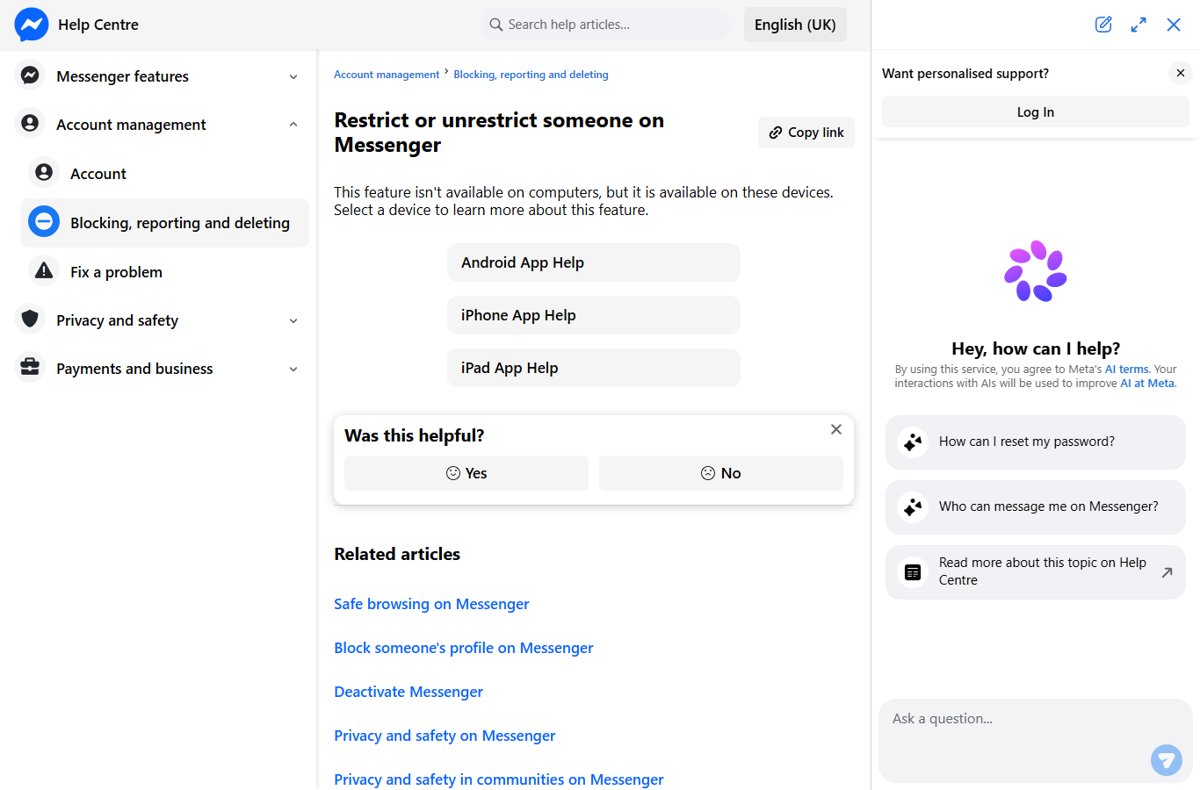
| Computer (messenger.com, Messenger desktop, Facebook in a browser) | Not available; use the phone app, or block the person instead |
Understanding the "Restrict" Feature in Messenger
Restrict is a quiet middle ground between muting a chat and blocking a profile. The table lists every change Meta documents for a restricted contact.
| What changes | Effect after you restrict someone |
|---|---|
| Notifications | You get no notifications when they message you, and your phone does not ring when they call |
| Chats list | Your conversation with them no longer appears in your Chats list |
| Contacting them | You cannot call or message them until you unrestrict them |
| Notice to them | Messenger does not tell them that you restricted them |
| Active status | They cannot see when you are online, and you cannot see when they are online |
| Read receipts | They cannot see whether you have read their messages |
| Group chats | Messenger warns you when you are about to enter a group chat with someone you restricted |
Restrict is not a block. To stop someone messaging or calling you, use Block instead.
Why Use the Restrict Feature?
Restrict suits a contact you want distance from without an open break, such as a relative, a coworker or an ex who shares friends with you. Match your situation to a row.
| Your situation | Use this | Why |
|---|---|---|
| Someone messages or calls too often, but blocking would cause friction | Restrict | Their messages and calls go silent, the chat leaves your list, and they are not told |
| You want to stop sharing your online status and read receipts with one person | Restrict | Neither your active status nor your read receipts reach them |
| You only want one chat to stop buzzing | Turn off conversation notifications | Everything else about the chat stays as it is |
| You want an old conversation gone from your list | Delete the conversation | It removes the chat without changing the contact |
| Someone harasses, threatens or scams you | Block, then report the conversation | Block stops them messaging or calling you on Messenger and Facebook chat |
Prerequisites for Restricting Someone
| You need | Why it matters |
|---|---|
| The Messenger app on an iPhone, iPad or Android phone | Restrict is available on these devices and not on computers |
| A signed-in Messenger account | The Restricted accounts list sits in your Messenger settings |
| A conversation with the person, or their name | The chat routes start from the conversation; the Add option in settings lets you pick more people |
How to Restrict Someone in Messenger on Mobile Devices
Meta documents two routes on iPhone and iPad and one on Android. All of them end with the chat leaving your Chats list.
iPhone or iPad: from the chat
- Open Messenger and go to Chats.
- Tap the conversation with the person you want to restrict.
- Tap their name at the top of the chat.
- Tap Restrict.
iPhone or iPad: from the Chats list
- Tap Chats to view your conversations.
- Swipe left on the conversation with the person.
- Tap More.
- Tap Restrict.
Android
- Open Messenger and go to Chats.
- Tap and hold the conversation with the person you want to restrict.
- Tap Restrict.
How to Restrict Someone on Messenger Using Desktop or Web
Restrict is not available on computers, so messenger.com and Messenger on a laptop or PC have no Restrict option. Use your phone for the restriction, or block the person from the computer if you need to act now.
- To restrict: pick up your iPhone, iPad or Android phone and follow the mobile steps above.
- To block from a computer instead: open the conversation on messenger.com and click Information.
- Below Privacy & support, click Block.
- Select Block messages and calls or Block on Facebook.
- Click Block to confirm.
How to Use Facebook’s Blocking as an Alternative
Block is the stronger tool. A blocked profile cannot message or call you on Messenger or Facebook chat, and blocking the Facebook profile also unfriends them and stops them finding your profile.
- In the Messenger app, open Chats and open the conversation with the person.
- Tap their name at the top of the conversation.
- Scroll down and tap Block.
- Tap Block [Name] to confirm.
The person is not notified when you block them. Blocking from the Messenger app only covers the Facebook profile you are using, so repeat it from any other profiles you have.
Blocking only messages and calls leaves their Facebook profile visible to you; blocking the profile on Facebook cuts contact on both Messenger and Facebook.
How to check the restriction worked
- Go back to Chats and confirm the conversation no longer appears.
- Tap Menu, then tap Settings.
- Tap Privacy & safety, then Restricted accounts, and confirm the person is listed.
- Tap their name. The chat opens with Unrestrict at the bottom, which shows the restriction is active.
Managing Restricted Contacts
Everyone you restrict appears in one list in your Messenger settings, and you can add more people from there without opening their chats.
- In the Messenger app, tap Menu, then tap Settings.
- Tap Privacy & safety.
- Tap Restricted accounts to see everyone you have restricted.
- Tap Add in the corner of the screen to restrict more people.
- Tap a name to open your chat with that person.
How to unrestrict someone on Messenger
- Tap Menu, then tap Settings.
- Tap Privacy & safety.
- Tap Restricted accounts.
- Tap the person you want to unrestrict. Messenger opens your chat with them.
- Tap Unrestrict at the bottom of the chat.
Fix restricting on Messenger when it does not work
Why can't I restrict someone on Messenger?
Restrict is available in the iPhone, iPad and Android apps only, not on computers.
- Open the Messenger app on your phone or iPad instead of messenger.com or the desktop app.
- On iPhone or iPad, open the chat and tap the person's name at the top.
- On Android, tap and hold the conversation in Chats.
- Tap Restrict. If you need to act from a computer, use Block instead.
Can't find restricted people in Messenger
Restricted conversations leave your Chats list, so they only appear in settings.
- Tap Menu, then Settings.
- Tap Privacy & safety.
- Tap Restricted accounts to see the full list.
Accidentally restricted someone on Messenger
A swipe or a tap and hold on the Chats list can land on Restrict.
- Go to Settings > Privacy & safety > Restricted accounts.
- Tap the person.
- Tap Unrestrict at the bottom of the chat.
Can't message or call someone on Messenger
You cannot call or message a person while they are restricted.
- Open Settings > Privacy & safety > Restricted accounts and check whether they are listed.
- Tap their name.
- Tap Unrestrict at the bottom of the chat, then send your message.
Tips for Effective Restriction Management
| Tip | Why |
|---|---|
| Check Restricted accounts now and then | Restricted chats leave your Chats list and send no notifications, so they are easy to forget |
| Unrestrict before you need to reply | You cannot message or call someone while they are restricted |
| Expect to lose their online status too | Restrict hides active status in both directions |
| Watch for the warning before entering a group chat | Messenger flags group chats that include a restricted person |
| Switch to Block if the contact turns abusive | Restrict silences a contact; Block stops their messages and calls |
| Use conversation notifications for a milder fix | Turning off one chat's notifications leaves the contact otherwise unchanged |
Common FAQs About Restricting Someone in Messenger
What happens if I restrict someone on Messenger?
You stop getting notifications for their messages and calls, and your conversation leaves your Chats list. They cannot see when you are online or whether you read their messages, and you cannot message or call them until you unrestrict them.
Does restricting someone block them?
No. Restrict silences a contact and hides the chat, while Block stops them messaging or calling you on Messenger and Facebook chat. Blocking their Facebook profile also unfriends them.
Will the person know if I restrict them on Messenger?
No. Messenger does not tell someone that you restricted them. They can no longer see your active status or read receipts, and you can no longer see when they are online.
What is the difference between blocking and restricting?
Restricting hides the chat, silences notifications and hides your online status and read receipts. Blocking stops the person messaging or calling you, and blocking their Facebook profile also stops them finding your profile and unfriends them.
How do I restrict someone on Messenger on a laptop or PC?
You cannot. Restrict is not available on computers, only in the Messenger app for iPhone, iPad and Android. On a computer, the closest option is Block: open the chat, click Information, then click Block below Privacy & support.
How do I unrestrict someone on Messenger?
In the Messenger app, tap Menu, then Settings, Privacy & safety and Restricted accounts. Tap the person to open your chat with them, then tap Unrestrict at the bottom of the chat.
Where do I find restricted people in Messenger?
Tap Menu, then Settings, then Privacy & safety, then Restricted accounts. The list shows everyone you restricted, and tapping a name opens your chat with that person.
Why can't I restrict someone on Messenger?
The most common reason is using a computer. Restrict works only in the Messenger app on iPhone, iPad and Android. Open the chat there, or tap and hold it on Android, and tap Restrict.
What is restrict in Messenger?
Restrict is a Messenger privacy control that silences one person's messages and calls, removes your chat with them from the Chats list and hides your online status and read receipts from them, without telling them.
Final Thoughts
Use Restrict from your phone when you want quiet distance from someone, and switch to Block the moment the contact becomes abusive. Restrict silences their messages and calls and hides your activity from them without notice, but only Block stops them contacting you.