To install Python on Windows 11 using cmd, run winget install 9NQ7512CXL7T -e --accept-package-agreements in Command Prompt, reopen the window, and run py install default.
That installs the official Python install manager and then the latest stable Python 3. Below you will find the silent python.org installer route, a first test script, virtual environments, updates, PATH fixes and a clean uninstall.
The fastest way to install Python from Command Prompt
The Python documentation names WinGet as the easiest scripted route, and WinGet ships with Windows 11. No administrator prompt is needed, because the install manager and its runtimes install per user.
- Press Start, type
cmd, and select Command Prompt. - Run
winget install 9NQ7512CXL7T -e --accept-package-agreementsto install the Python install manager from the Microsoft Store source. - Close Command Prompt and open a new one so the new
pythonandpycommands are found. - Run
py install defaultto download and install the latest stable Python 3 release. - Run
python --version. A line such as Python 3.14.7 means Python is ready.
Before you start
Two quick checks in Command Prompt save most failed installs: confirm WinGet works, and find out whether an older Python is already on the PC.
| Check | What to run or do | What you should see |
|---|---|---|
| Open Command Prompt | Press Start, type cmd, press Enter |
A prompt such as C:\Users\<you>> |
| Is WinGet available? | winget --version |
A version number. "Not recognized" means App Installer needs updating from the Microsoft Store |
| Is Python already installed? | python --version and py list |
A version or a table of runtimes. If python opens the Microsoft Store instead, no Python is installed yet |
| Where does an existing Python live? | where python |
One path per match, in the order Windows searches them |
| Admin rights | Not required for the install manager or a just-for-me install | Only an all-users install asks for approval |
| Internet access | Needed for WinGet, py install and the web download |
Offline installs need an index prepared on another PC |
If WinGet is new to you, the general walkthrough in How To Install Apps On Laptop & PC On Windows covers searching and installing other apps the same way.
Which method should you use?
| Your situation | Use this | Why |
|---|---|---|
| New install on a personal PC | Method 1: WinGet and the install manager | python.org's recommended installer; updates and several versions from one py command |
| You want the classic python.org installer and PATH set in one go | Method 2: silent installer from cmd | PrependPath=1 adds Python and its Scripts folder to PATH during setup |
| You follow Microsoft's Windows developer setup guide | winget install Python.Python.3.14 |
The package ID Microsoft Learn uses for Python 3.14 |
| You want to move to Python 3.16 or later when it ships | Method 1 | The full installer is deprecated and will not be produced for Python 3.16 or later |
| Windows Server 2019 or a tool that cannot install MSIX | The install manager MSI from python.org | It is the only supported option where MSIX is unavailable |
Method 1: Install Python using winget in Command Prompt
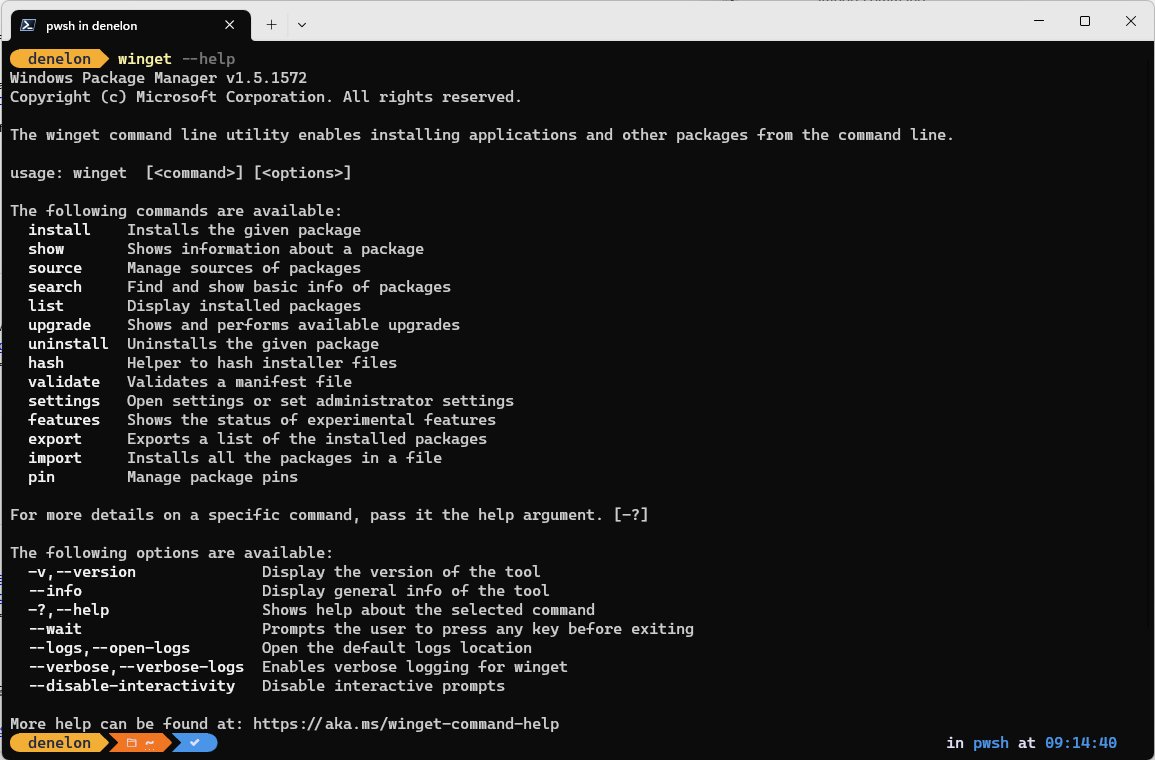
WinGet can install either the Python install manager or a single Python version. The install manager is the route python.org now recommends, so start with it.
- In Command Prompt, run
winget --versionto confirm WinGet responds. - Run
winget search Python.Pythonto see the Python packages WinGet offers, with their IDs and versions. - Run
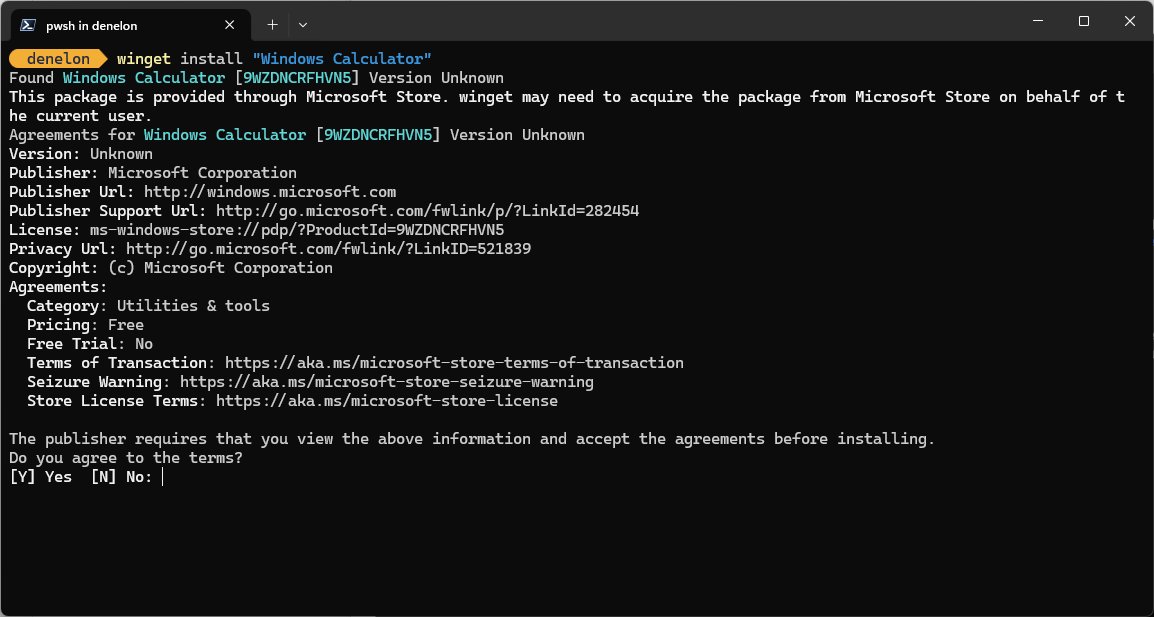
winget install 9NQ7512CXL7T -e --accept-package-agreements --disable-interactivityto install the Python install manager. - Alternatively, run
winget install Python.Python.3.14to install Python 3.14 directly with the traditional installer package. - Close Command Prompt and open a new window so the updated PATH and command aliases load.
- If you installed the install manager, run
py install defaultto add the latest stable runtime. Runpy install --configure -yto accept the suggested PATH changes. - Run
python --versionandpy listto confirm the runtime is installed.
Typing python with no runtime installed also triggers an automatic install of the latest release, but py install is the explicit and predictable command. To add a specific version, run py install 3.13; py list --online shows every version available.
Method 2: Install Python from the official installer using cmd
This route downloads the python.org installer with the curl tool built into Windows 11 and runs it silently. The full installer is deprecated since Python 3.14 and will not exist for 3.16, so treat it as a 3.14 or 3.13 option.
- In Command Prompt, run
cd %USERPROFILE%\Downloadsto work in your Downloads folder. - Run
curl -O https://www.python.org/ftp/python/3.14.7/python-3.14.7-amd64.exeto download the 64-bit installer. On an ARM64 PC, usepython-3.14.7-arm64.exein both places instead. - Run
start /wait python-3.14.7-amd64.exe /quiet InstallAllUsers=0 PrependPath=1 Include_test=0to install for your account with no windows.start /waitholds the prompt until setup finishes. - For an all-users install in
C:\Program Files, open Command Prompt as administrator and useInstallAllUsers=1instead. - Close Command Prompt and open a new one so the new PATH entries load.
- Run
python --versionto confirm the install.
Replace /quiet with /passive to see a progress bar without any prompts. /log install.log writes a log file you can check if setup fails.
To install the Python install manager from its python.org package instead of the Store, run powershell -Command "Add-AppxPackage -AppInstallerFile https://www.python.org/ftp/python/pymanager/pymanager.appinstaller". Python's documentation recommends this only when the Store or WinGet route is not possible.
Understanding python, py, and pip on Windows
Windows gives you three related commands, and knowing which one to type avoids most "wrong version" surprises.
| Command | What it does | When to use it |
|---|---|---|
python |
Launches the default runtime, an active virtual environment, or the version a script requests | Everyday use: python script.py |
py |
Same as python by default, plus -V:<tag> to pick a version and subcommands such as py install, py list and py uninstall |
Several versions installed, or managing runtimes |
pymanager |
Same as py, but with no arguments it shows help instead of launching Python |
Scripts that must not clash with an older py launcher |
pip |
Installs packages from PyPI | Prefer python -m pip install <package>, which always targets the Python you mean |
python3 |
Mimics python to catch commands copied from Linux or macOS |
Not recommended for regular use on Windows |
pythonw / pyw |
Windowed versions that do not open a console | Launching GUI scripts |
To run a specific version, type py -V:3.13 script.py. For official releases the V: can be dropped, so py -3.13 script.py works too.
Test your Python installation with a simple script
A version number proves the command exists. Running a real file proves the interpreter works end to end.
- Run
mkdir %USERPROFILE%\pytestand thencd %USERPROFILE%\pytestto create and enter a project folder. - Run
echo print("Hello from Python") > hello.pyto create a one-line script. - Run
python hello.py. The window should print Hello from Python. - Run
python -m pip --versionto confirm pip is present and see which Python it belongs to. - Run
where pythonif the wrong version answers. The first path listed is the one Command Prompt uses.
Set up a virtual environment
The Python documentation recommends one virtual environment per project. Packages installed inside it stay out of your main Python and cannot break other projects.
- In your project folder, run
python -m venv .venvto create the environment. - Run
.venv\Scripts\activate.batto activate it in Command Prompt. The prompt now starts with (.venv). - Run
python -m pip install requeststo install a package inside the environment only. - Run
python -m pip listto see what the environment contains. - Run
deactivateto return to your normal Python.
In PowerShell, activate with .venv\Scripts\Activate.ps1 instead of the .bat file.
Install Python updates using cmd
The update command depends on how Python was installed. The install manager updates itself automatically, but the Python runtimes it manages are updated only when you ask.
- Run
py list --onlineto see the newest versions available to the install manager. - Run
py install --updateto update every runtime the install manager handles to its newest release. - For a WinGet package such as
Python.Python.3.14, runwinget upgradeto list apps with updates, thenwinget upgrade --id Python.Python.3.14 -e. - For a copy installed with the python.org installer, download the newer installer with
curl -Oand run it with the same options you used before. - Run
python --versionin a new Command Prompt window to confirm the new version.
An update through py install --update removes packages installed globally into that runtime, but virtual environments keep working. That is one more reason to install packages inside a venv.
How to add Python to PATH manually
Add a folder to PATH only when python or a package command is not found. The folder depends on the install route: the install manager puts global commands in %LocalAppData%\Python\bin, and a just-for-me python.org install lives in %LocalAppData%\Programs\Python\Python314 with its own Scripts subfolder.
- Run
py install --configure -yfirst if you use the install manager. It checks your setup and offers to fix PATH for you. - To do it by hand, press Start and search for Edit environment variables for your account.
- Under User variables, select Path and click Edit.
- Click New and paste
%LocalAppData%\Python\binfor the install manager, or both%LocalAppData%\Programs\Python\Python314and%LocalAppData%\Programs\Python\Python314\Scriptsfor a python.org install. - Click OK in each window.
- Open a new Command Prompt and run
where pythonto confirm the new folder appears.
Keep the %UserProfile%\AppData\Local\Microsoft\WindowsApps entry in your user PATH. Windows adds it by default, and without it the python and py aliases of the install manager are not found.
Fix common Python installation problems on Windows 11
Typing python opens the Microsoft Store or says the command is not found
No runtime is installed, or the App execution aliases for Python are off or stale.
- Run
py listto check whether any runtime is installed. If none is listed, runpy install default. - Press Start, open Manage app execution aliases, and make sure Python (default) is on. If it already is, switch it off and on again.
- Refresh the Python (default windowed) and Python install manager aliases the same way.
- Check that your user PATH still contains
%UserProfile%\AppData\Local\Microsoft\WindowsApps.
winget is not recognized in Command Prompt
App Installer, which provides WinGet, is missing or outdated.
- Open the Microsoft Store and update App Installer.
- Open a new Command Prompt and run
winget --versionagain. - If WinGet still fails, use Method 2 instead.
py gives a "can't open file" error
The older Python launcher is installed and takes priority over the install manager.
- Press Start, open Installed apps, and search for Python launcher.
- Uninstall it, then open a new Command Prompt and run
py list.
python and py start different versions
An older python.org install is on PATH ahead of the install manager.
- Run
where pythonto see which copy answers first. - In Installed apps, remove the older Python, or choose Modify and turn off its PATH option.
- In Manage app execution aliases, make sure the python.exe alias points to Python (default).
- Run
py listto confirm which runtime is the default.
pip is not recognized
No virtual environment is active, or the pip shortcut was not generated.
- Use
python -m pip install <package>instead of plainpip. - In a project, run
.venv\Scripts\activate.batfirst sopipis on PATH. - Run
py install --refreshto regenerate global shortcuts, and add the folder it names to PATH if it reports one missing.
Uninstall Python from cmd
Remove runtimes before the install manager. Uninstalling the install manager alone leaves every runtime on disk.
- Run
py listto see installed runtimes and their tags. - Run
py uninstall 3.14to remove one version, orpy uninstall --purgeto remove every runtime the install manager handles, including Start menu entries and download caches. - Run
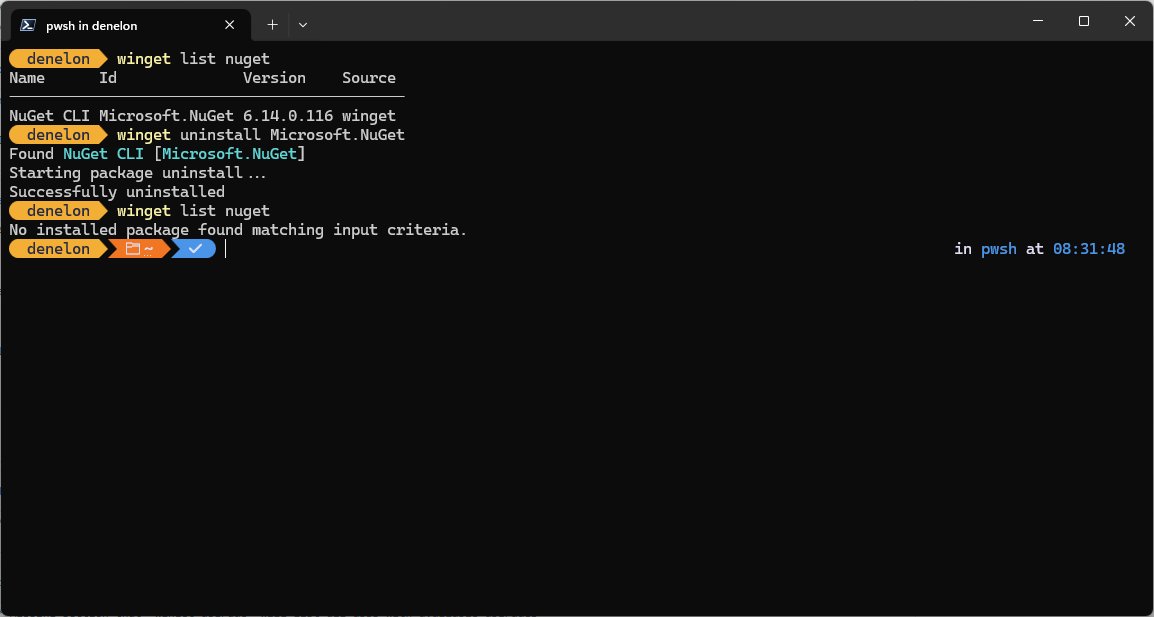
winget uninstall 9NQ7512CXL7Tto remove the install manager itself, or remove Python install manager from Settings > Apps > Installed apps. - For a WinGet package, run
winget uninstall --id Python.Python.3.14 -e. - For a python.org install, run the same installer file with
/uninstall, for examplestart /wait python-3.14.7-amd64.exe /uninstall. - Open a new Command Prompt and run
where python. No Python paths should remain.
Best practices after installing Python
| Practice | How | Why |
|---|---|---|
| Use a venv per project | python -m venv .venv |
Isolates packages and survives runtime updates |
Install packages with python -m pip |
python -m pip install <package> |
Targets the interpreter you are actually running |
| Pick versions explicitly when you have several | py -V:3.13 script.py |
Avoids running a script on the wrong version |
| Update runtimes on a schedule | py install --update |
Security and bug fixes arrive in point releases |
Run py install --refresh after installing tools globally |
Regenerates command shortcuts | New package commands are not added automatically |
| Enable long paths if deep folders fail | Policy Enable Win32 long paths, or LongPathsEnabled set to 1 in the registry |
Removes the 260-character path limit Windows applies by default |
The long path setting lives under HKEY_LOCAL_MACHINE\SYSTEM\CurrentControlSet\Control\FileSystem and needs administrator rights to change.
Quick command summary
| Task | Command |
|---|---|
| Install the install manager | winget install 9NQ7512CXL7T -e --accept-package-agreements |
| Install the latest Python | py install default |
| Install one version with WinGet | winget install Python.Python.3.14 |
| Silent python.org install | start /wait python-3.14.7-amd64.exe /quiet InstallAllUsers=0 PrependPath=1 |
| Check the version | python --version |
| List installed runtimes | py list |
| Find the active python.exe | where python |
| Create and activate a venv | python -m venv .venv then .venv\Scripts\activate.bat |
| Install a package | python -m pip install <package> |
| Update runtimes | py install --update |
| Remove a runtime | py uninstall 3.14 |
Frequently Asked Questions
How do I install Python on Windows 11 using PowerShell?
Use the same commands as in Command Prompt: winget install 9NQ7512CXL7T -e --accept-package-agreements, then py install default in a new window. If you download with curl in Windows PowerShell 5.1, type curl.exe, because curl there is an alias for Invoke-WebRequest.
Can I install Python from Windows Terminal?
Yes. Windows Terminal runs Command Prompt and PowerShell tabs, so every command in this guide works there unchanged. Open a new tab after installing so the updated PATH and Python aliases load.
How do I install Python for VS Code on Windows 11?
Install Python first, then run winget install Microsoft.VisualStudioCode to add Visual Studio Code. Open VS Code and install the Python extension from the VS Code Marketplace, which adds language support, debugging and linting.
How do I uninstall Python on Windows 11?
Run py uninstall --purge to remove every runtime the install manager handles, then remove Python install manager from Settings > Apps > Installed apps. For a python.org install, run its installer with /uninstall or remove it from Installed apps.
Should I install the 64-bit version of Python on Windows 11?
Yes. python.org offers 64-bit, 32-bit and ARM64 installers; choose 64-bit for Intel and AMD PCs and ARM64 for ARM-based PCs. The 32-bit build exists only for software that specifically needs it.
Is installing Python different on Windows 11 Pro or Home?
No. The install manager, WinGet and the python.org installer work the same on every Windows 11 edition, on a laptop or a desktop. Windows Server 2019 is the only supported Windows version without MSIX support, and it needs the MSI package.
Does Windows 11 come with Python preinstalled?
No. Windows does not include a system Python installation. Typing python before installing one usually opens the Microsoft Store through an app execution alias, which is why the command seems to exist.
Do I need administrator rights to install Python?
No, for a normal install. The install manager and its runtimes install per user, and the python.org installer's default install needs no admin rights. An all-users install into Program Files does ask for approval.
Which Python version should I install on Windows 11?
Install the latest stable Python 3 release, which is Python 3.14.7 at the time of writing. py install default always picks the newest stable version, so you do not need to look it up.
Conclusion
Install the Python install manager with winget install 9NQ7512CXL7T and add Python with py install default. It is python.org's recommended route, needs no admin rights, handles updates and several versions from one command, and keeps working after the full installer stops at Python 3.15.