Windows has no master volume setting above 100%, but turning on Loudness Equalization makes quiet audio noticeably louder without pushing the slider past its limit.
This guide covers that built-in effect, the per-app and in-player volume controls that often sit below maximum, the manufacturer's audio app, hardware fixes, and why third-party volume boosters are not worth installing.
Boost Volume Over 100% in Windows
Loudness Equalization is one of the audio effects Windows ships by default. It raises the quiet parts of a track and holds back the loud peaks, so everything sounds louder at the same slider position.
The steps are the same on Windows 11 and Windows 10, because both still include the classic Sound window.
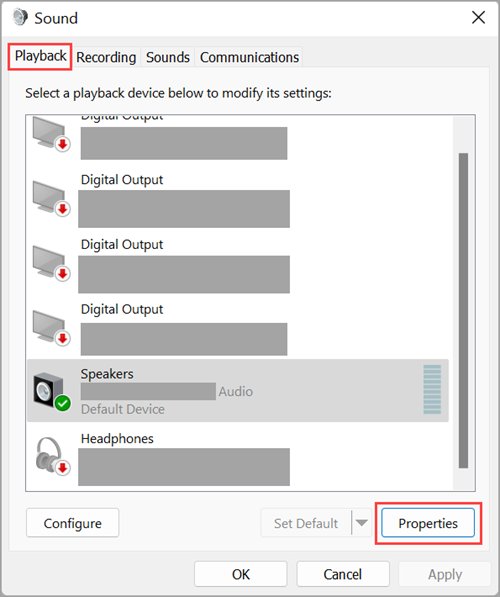
- Select Start, type control panel, and open it from the results.
- Select Hardware and Sound, then select Sound.
- On the Playback tab, select the speakers or headphones you are listening on, then select Properties.
- Open the Enhancements tab.
- Tick Loudness Equalization.
- Select Apply, then OK, and play something to hear the difference.
On Windows 11 you can also reach the same window from Start > Settings > System > Sound > More sound settings. If there is no Enhancements tab, jump to the manufacturer's audio app section below.
Understanding Volume Limits in Windows
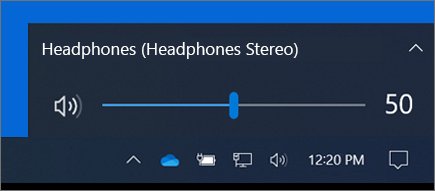
The 100 on the taskbar slider is the top of the Windows output level, not a limit you can unlock. Every other control in the chain can only be at or below its own maximum.
So the honest way to get more sound is to find the control that is not at full, add a loudness effect, or add amplification in hardware.
| Control | Where it lives | Can it go above 100%? |
|---|---|---|
| Master volume | Taskbar Speakers icon, keyboard volume keys | No. 100 is the maximum output level Windows sends. |
| App volume | Settings > System > Sound > Volume mixer | No. It scales that app's sound up to the master level. |
| In-app or player volume | The slider inside the app, browser tab or video player | No, and it works independently of Windows, so it is often left low. |
| Loudness Equalization | Sound window > device Properties > Enhancements | It does not raise the ceiling, but it lifts quiet passages so audio sounds louder. |
| Speaker, headset or amplifier volume | The accessory itself or its own software | This is real extra gain, added after Windows. |
Which route gives you the most extra volume?
| Your situation | Use this | Why |
|---|---|---|
| Everything is quiet, including system sounds | Loudness Equalization | Lifts quiet passages on every app that plays through that device. |
| Only one app or website is quiet | Volume mixer and the app's own slider | One of them is usually below maximum. |
| Quiet only in Chrome or on YouTube | The player slider, then Chrome in the Volume mixer | The site's player volume is separate from Windows. |
| No Enhancements tab on your device | The PC maker's or sound card's audio app | The driver ships its own effects in place of the Windows ones. |
| Laptop speakers are at full and still too quiet | External powered speakers or headphones | Only hardware adds real volume beyond what Windows outputs. |
| Your microphone is too quiet | Microphone level and Microphone Boost | Input has its own boost slider on many devices. |
Before You Begin
Check the cheap causes first. A single slider at half volume is the most common reason audio seems capped too low.
| Check | How | Why it matters |
|---|---|---|
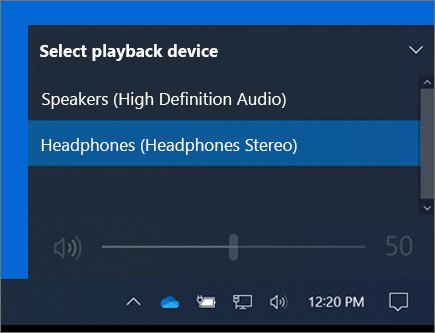
| Correct output device | Select the taskbar Speakers icon, then the arrow next to the slider (Select a sound output) | Sound may be going to a monitor or a disconnected headset. |
| Master volume at 100 | Drag the taskbar slider to the right or press the volume-up key | Every other control scales from this level. |
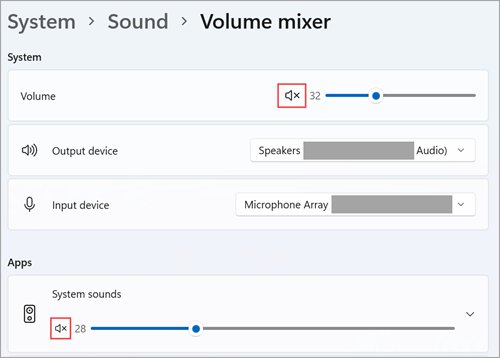
| Not muted anywhere | Look for an x on the speaker icon in the Volume mixer | A muted app or device plays nothing at any level. |
| Accessory volume | Turn up the speaker or headset's own dial or buttons | Accessory controls work independently of Windows. |
| Cables and ports | Reseat the plug or try another USB port | A loose connection can sound weak or one-sided. |
Using Built-in Volume Boosters and Enhancements
Loudness Equalization is the main built-in booster. The other built-in control is the Volume mixer, which sets each app's level separately and can hold one app below the rest.
- Select Start > Settings > System > Sound.
- Select Volume mixer.
- Drag the System slider to maximum.
- Under Apps, find the quiet app and drag its slider to maximum.
- Check that the app is not muted and that its Output device is the speaker you are using.
- Go back to Sound, select your device under Output, and make sure Audio enhancements is not set to Off so Loudness Equalization can run.
Microsoft notes that app volume controls can override system volume. An app left at 40 in the mixer stays at 40% of the master level however high the taskbar slider goes.
Boost Volume in Chrome Browser
Chrome has no setting that pushes sound above 100%. Web audio passes through three controls: the site's player, Chrome's entry in the Volume mixer, and the Windows master volume.
The same steps apply to YouTube in any browser.
- Turn the video player's own volume slider all the way up. On YouTube it sits next to the play button.
- Check that the tab is not muted. In Chrome, select More > Settings > Privacy and security > Site settings > Sound and make sure the site is allowed to play sound.
- Open Settings > System > Sound > Volume mixer and raise Google Chrome to maximum while it is playing.
- Turn on Loudness Equalization for your output device, as in the first section.
- Refresh the page and play the video again.
Browser extensions that promise "up to 600%" volume work by amplifying the page's audio past full scale, which produces clipping and distortion. Skip them.
Use the audio app from your PC or sound card maker
Microsoft lets PC and sound card makers replace the built-in Windows effects with their own. When they do, the settings move into the maker's audio app, and the Enhancements tab may be missing.
These apps often include their own loudness, voice or dialogue boost and equalizer, tuned for your speakers.
- Select Start and look in the app list for an audio app from your PC or sound card maker.
- If there is none, open your PC maker's support site, enter your model, and install the audio driver or audio app it lists.
- Open the app and select your speakers or headphones.
- Turn on its loudness, volume leveller or dialogue enhancement option, if it has one.
- Play the same clip before and after to compare.
Get the app only from the PC or sound card maker's own site or the Microsoft Store. A "sound booster" from any other publisher is not the same thing.
Using Hardware Solutions
Hardware is the only way to get real volume beyond what Windows outputs. Laptop speakers are small, and once every slider is at maximum they cannot go further.
- Connect powered external speakers or headphones by USB, Bluetooth or the headphone jack.
- Select them as the output with the taskbar Speakers icon and the Select a sound output arrow.
- Turn up the volume on the PC and in the app, as Microsoft recommends for USB and Bluetooth speakers.
- Then raise the volume on the speakers or headphones themselves.
- For passive speakers or high-impedance headphones, add an amplifier or headphone amplifier between the PC and the speakers.
- If the sound is still thin, upgrade to larger speakers or headphones rated for your listening level.
Use of Third-Party Volume Boosting Software
Do not install third-party volume boosters on Windows 10 or 11. They cannot raise the level of the audio device itself. They multiply the digital signal, which clips once it passes full scale and adds distortion, and high levels can strain small laptop speakers. Many are published by small, unknown developers and hook into every audio stream on the PC. Loudness Equalization and your device maker's audio app do the same job with software Windows or your PC maker supports.
Adjusting Volume via Software – Using Equalizer APO and Peace GUI
Skip Equalizer APO and its Peace interface unless you are comfortable repairing your audio setup; they are not recommended here. Both are third-party tools, not Microsoft or PC maker software. They install an extra audio processing object into the chain for the device you choose, and any gain set above zero pushes loud passages past full scale, where they clip. If the audio later goes silent or crackles, you have to remove the tool and reinstall your driver. Loudness Equalization gives most of the audible gain without adding anything to the audio chain.
Can Modifying the Registry Remove the Volume Cap?
No. Microsoft documents no registry value that lifts the Windows volume above 100%, so leave the registry alone. The "registry hacks" passed around online usually just switch on the same enhancement effects the Enhancements tab already controls, or they change driver settings with no documentation behind them. A wrong value can silence the device until the driver is reinstalled. Use the Sound window instead, which makes the same change safely.
How to check the boost worked
- Pick a clip with quiet dialogue and loud music, such as a film scene.
- Play it with the taskbar slider at a fixed level, such as 50.
- Open the Enhancements tab again, untick Loudness Equalization, select Apply, and listen to the same passage.
- Tick it again and select Apply. Quiet speech should be clearly louder, while loud peaks stay about the same.
- Open Volume mixer while the app plays and confirm its slider moves with the sound and sits at maximum.
Additional Tips for Better Sound Experience
| Tip | Where | What it does |
|---|---|---|
| Try a different audio format | Settings > System > Sound > your device > Advanced > Default format | An unsupported format can play at low volume. |
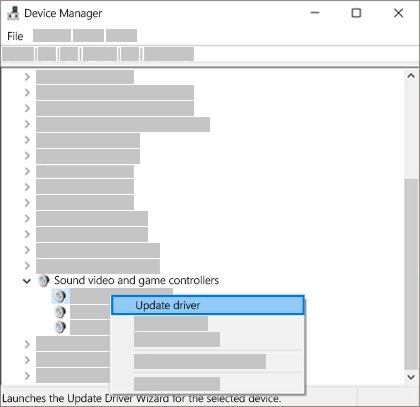
| Update the audio driver | Device Manager > Sound, video and game controllers > right-click the device > Update driver | An outdated or corrupted driver can cause low sound. |
| Install Windows updates | Start > Settings > Windows Update > Check for updates | Audio fixes often arrive through updates. |
| Try other built-in effects | Sound window > device Properties > Enhancements | Bass Boost and laptop sound effects can make small speakers sound fuller, where the driver offers them. |
| Position the speakers | Your desk | Aim them at your ears and keep them clear of soft furnishings that absorb sound. |
| Check the source | Another device | A quietly mastered recording sounds quiet everywhere; test the same file on a phone. |
How to turn the enhancement off again
Turn the effect off if music sounds flat or compressed, since Loudness Equalization narrows the gap between quiet and loud parts.
- Open Control Panel > Hardware and Sound > Sound.
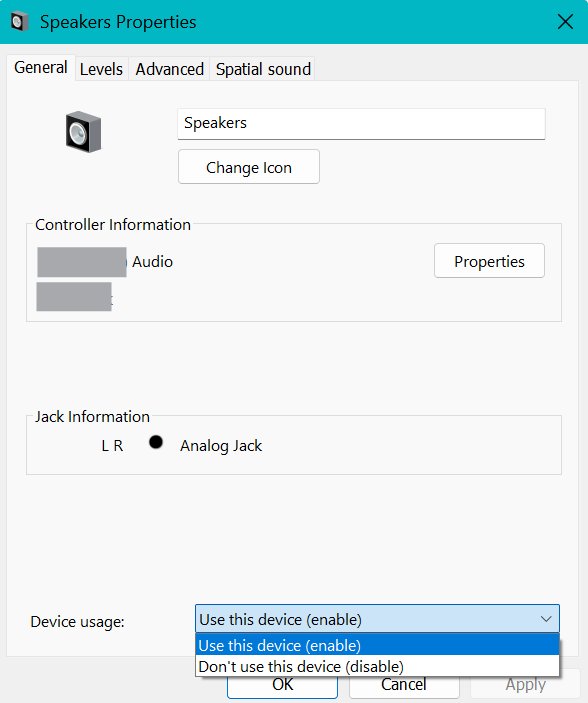
- On the Playback tab, select your device, then select Properties.
- Open the Enhancements tab and untick Loudness Equalization.
- Select Apply, then OK.
Troubleshooting and Precautions
Volume is at 100 but the PC is still too quiet
An app slider, the player slider or the accessory volume is below maximum, or an enhancement is reducing output.
- Open Settings > System > Sound > Volume mixer and raise System and the app.
- Raise the player's own slider and the speaker's own volume.
- If the sound got quieter after an enhancement change, set Audio enhancements to Off, test, and compare.
- Run the audio troubleshooter: Settings > System > Troubleshoot > Other troubleshooters > Audio > Run.
There is no Enhancements tab or no Loudness Equalization option
The device maker replaced the Windows effects with its own, or the driver is a generic one.
- Look for the maker's audio app in the Start menu and use its loudness option.
- Install the audio driver from your PC maker's support site for your exact model.
- Restart the PC and check the Enhancements tab again.
Sound distorts or crackles after boosting the volume
The signal is clipping, or the speakers are being driven past what they can reproduce.
- Lower the Windows volume a few steps and raise the external speaker volume instead.
- Turn off any third-party booster or browser extension you installed.
- Set Audio enhancements to Off and test; turn it back on if the distortion was not caused by it.
- Update the driver from Device Manager > Sound, video and game controllers > Update driver.
Input or microphone volume is too low
The microphone level or boost is set low in the recording device's properties.
- Select Start > Settings > System > Sound > More sound settings.
- On the Recording tab, select your microphone and select Properties.
- On the Levels tab, raise Microphone, then raise Microphone Boost if it is listed.
- Select OK and test with the Voice Recorder app.
Disclaimer
Raise volume in small steps and stop if the sound distorts or your ears ring. Loud listening through headphones for long periods can damage hearing, and distortion means small speakers are being pushed past their limit. Loudness Equalization is the gentler option because it limits the loudest peaks while lifting the quiet parts.
Frequently Asked Questions
How do you increase volume beyond 100 in Windows?
You cannot raise the Windows master volume past 100. Turn on Loudness Equalization in Control Panel > Sound > device Properties > Enhancements to make quiet audio louder, then max the app and player sliders and turn up the speaker itself.
How do I boost volume on Windows 11?
Open Settings > System > Sound > More sound settings, select your speakers, choose Properties, and tick Loudness Equalization on the Enhancements tab. Then check Volume mixer so no app sits below maximum.
How do I boost volume on Windows 10?
Open Control Panel > Hardware and Sound > Sound, select your speakers on the Playback tab, choose Properties, and tick Loudness Equalization on the Enhancements tab. Select Apply and play something to compare.
How do I boost volume on a laptop?
Turn on Loudness Equalization, raise every slider in Volume mixer, and check your laptop maker's audio app for a loudness or dialogue option. If the built-in speakers are still too quiet at full volume, only external speakers or headphones will add more.
How do I boost YouTube volume?
Raise the YouTube player's own slider first, since it works separately from Windows. Then raise your browser in Volume mixer and turn on Loudness Equalization for your speakers. Extensions that claim 600% volume only add distortion.
How do I boost input volume on a PC?
Open Settings > System > Sound > More sound settings, go to the Recording tab, and open your microphone's Properties. On the Levels tab, raise Microphone and, where available, Microphone Boost.
Is it safe to use a volume booster app?
Third-party volume boosters are not recommended. They amplify the digital signal past full scale, which clips and distorts, and they can strain small speakers. Loudness Equalization and your PC maker's own audio app are the safer built-in options.
Why is my computer volume so low even at 100?
Usually an app, the video player or the speaker's own control is below maximum, or the wrong output device is selected. An outdated driver or an unsupported audio format can also cause low sound, so update the driver and try another Default format.
Does Loudness Equalization damage speakers?
No. Loudness Equalization limits the loudest peaks while lifting quiet parts, so it is gentler than a raw volume boost. Distortion is the warning sign; if you hear it, lower the Windows volume and raise the speaker volume instead.
Wrapping — Amplifying Volume Above 100%
Turn on Loudness Equalization, max the app and player sliders, and add powered speakers if you still need more. Windows cannot output above 100%, so real extra volume has to come from a loudness effect or from hardware. These routes use only Windows, your PC maker's software and your speakers, with none of the distortion and risk a third-party booster adds.