The Ubuntu Server download is a free 2.7GB ISO from ubuntu.com that installs a headless Linux server on a PC, a rack server or a virtual machine. Canonical also publishes images for ARM servers and the Raspberry Pi.
Ubuntu Server 26.04.1 LTS “Resolute Raccoon” is the current release, with Linux kernel 7.0 and security updates until 2031.
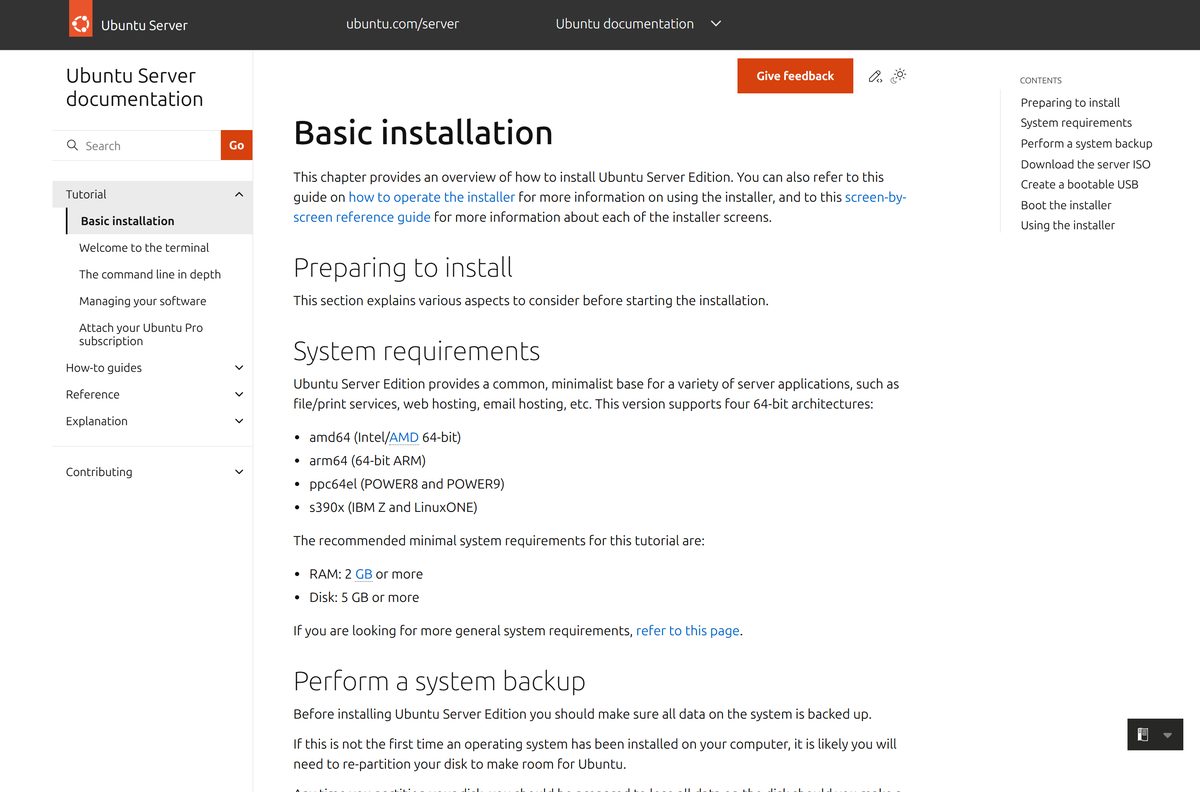
This guide covers which image to pick, the official links, checking the ISO, making a bootable USB, installing, Multipass VMs on Windows and Mac, Raspberry Pi boards, upgrades and fixes for common install errors.
Which Ubuntu Server download do you need?
Match your hardware to a row. Every image below is the same LTS release, built for a different processor or device.
| Your hardware or plan | Download this | Size |
|---|---|---|
| A PC, laptop or rack server with an Intel or AMD processor | Ubuntu Server for Intel or AMD 64-bit | 2.7GB ISO |
| An ARM 64-bit server or cloud instance | Ubuntu Server for ARM | 2.9GB ISO |
| An ARM server with plenty of memory and memory-heavy workloads | Ubuntu Server for ARM (64k page size) | 2.9GB ISO |
| A Raspberry Pi 5, 4B, 400, CM4 or Zero 2 W | Ubuntu Server for Raspberry Pi | About 1.1GB image |
| A test server in a window on Windows or macOS | Multipass | No ISO needed |
| IBM POWER, IBM Z or RISC-V hardware | Ubuntu Server release directory | 734MB to 1.6GB ISO |
On a Windows PC, open Settings > System > About and read System type. An x64-based processor takes the Intel or AMD image.
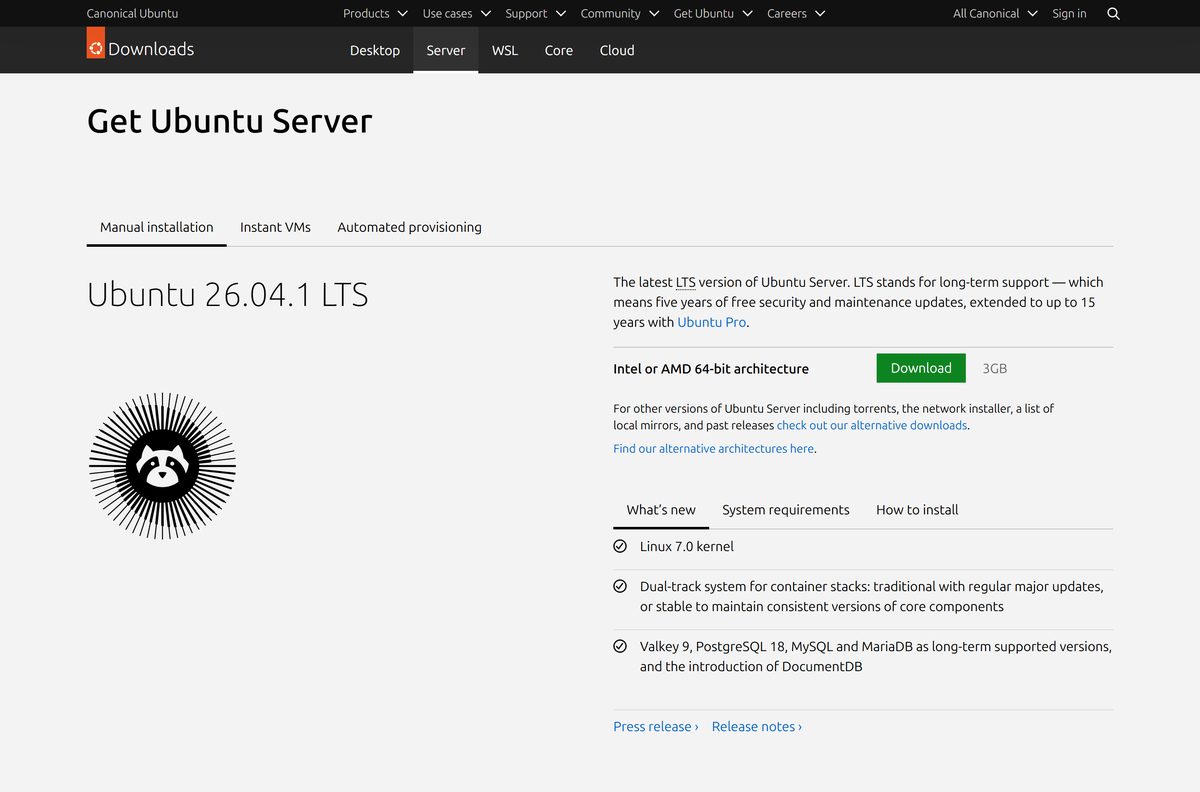
Download the Ubuntu Server ISO from ubuntu.com
The download page starts the Intel or AMD image. The releases directory holds the same file with its checksums, a torrent and the netboot tarball.
- Ubuntu Server download page — 3GB · current LTS, plus 24.04.5 LTS and 22.04.5 LTS
- Ubuntu Server LTS release directory — 2.7GB · file
ubuntu-26.04.1-live-server-amd64.iso, plusSHA256SUMS,SHA256SUMS.gpg, a.torrentand a 112MB netboot tarball - Ubuntu Server for ARM — 2.9GB · default ISO and 64k page size ISO
- Alternative architecture directory — arm64, ppc64el, s390x, riscv64 and preinstalled server images
- Alternative downloads — torrents, network installer, local mirrors and past releases
The download page rounds the Intel or AMD ISO up to 3GB. The file itself is 2,927,861,760 bytes.
How to verify the Ubuntu Server ISO on Windows
A corrupted ISO fails halfway through an install. One PowerShell command confirms the file matches Canonical’s published checksum.
- Open releases.ubuntu.com/26.04.1/ and save SHA256SUMS next to the ISO.
- Open Windows PowerShell from the Start menu.
- Run cd $HOME\Downloads to move to your Downloads folder.
- Run Get-FileHash .\ubuntu-26.04.1-live-server-amd64.iso .
- Open SHA256SUMS in Notepad and find the line ending in ubuntu-26.04.1-live-server-amd64.iso .
- Compare the two values. Letter case does not matter, but every character must match.
- Delete the ISO and download it again if the values differ.
Get-FileHash uses SHA256 by default, so no extra switch is needed. On Linux, run sha256sum -c SHA256SUMS –ignore-missing in the download folder instead.
How to write the Ubuntu Server ISO to a USB stick with Rufus
Physical servers and PCs install from a USB stick. Rufus writes one on Windows in about ten minutes. Writing the stick erases everything on it.
- Insert a USB stick of 4GB or larger and open Rufus, as Ubuntu’s USB guide for Windows describes.
- Check that the Device field shows your USB stick, and pick it from the list if several are connected.
- Click SELECT next to Boot selection and open the Ubuntu Server ISO.
- Leave the other options at their defaults and click START.
- Select Yes if Rufus asks to download extra files.
- Keep Write in ISO Image mode selected at the ISOHybrid prompt and click OK.
- Click OK at the warning that all data on the device will be destroyed.
- Wait for the status bar to show READY, then click CLOSE.
Keep the stick plugged in for the install that follows.
How to install Ubuntu Server on a PC or bare-metal server
The server installer is text-based and driven by the arrow keys and Enter. Back up the target machine first, because the default storage layout wipes the chosen disk.
- Plug in the USB stick and start the machine.
- Press Escape, F2, F10 or F12 during startup if it does not boot the stick, then pick the USB drive.
- Choose your language, and accept the installer update if one is offered.
- Select your keyboard layout.
- Let the installer configure a wired network with DHCP, or continue without networking.
- Skip the proxy and custom mirror screen unless your network needs them.
- Leave Use an entire disk checked, choose the disk, select Done and confirm the install.
- Enter your name, the server’s hostname, a username and a password.
- Select Done on the SSH screen and on the snaps screen.
- Wait for the install log to finish, restart, remove the USB stick and log in.
The SSH screen can also install the OpenSSH server and import your SSH keys from GitHub or Launchpad, so you can manage the machine remotely from the first boot.
Run Ubuntu Server in a VM on Windows 11 or 10 with Multipass
Multipass is Canonical’s free VM manager for Windows, macOS and Linux. It pulls the current LTS image itself, so no ISO or USB stick is needed.
- Open the Multipass install page on canonical.com and select Windows.
- Set your local network to private, because Windows blocks Multipass on a public network.
- Run the installer with an administrator account.
- Open PowerShell and run multipass launch –name foo to create an Ubuntu LTS VM.
- Run multipass exec foo — lsb_release -a to confirm the release inside the VM.
- Run multipass list to see your instances.
- Run multipass exec foo — bash to open a shell inside the server, and type logout to leave.
Multipass on Windows needs Windows 10 Pro, Enterprise or Education version 1803 or later, or any Windows 10 edition with VirtualBox. Run multipass find to list other images you can launch.
Which Ubuntu Server download do you need for your Mac?
Ubuntu Server runs on a Mac as a virtual machine, and the image depends on the chip.
| Your Mac | Use this | Notes |
|---|---|---|
| Any Mac, quickest route | Multipass for macOS | multipass launch fetches the current LTS |
| Apple M1, M2, M3 or M4, in your own hypervisor | Ubuntu Server for ARM ISO | 2.9GB arm64 ISO |
| Intel Mac, in your own hypervisor | Ubuntu Server for Intel or AMD ISO | 2.7GB amd64 ISO |
Open the Apple menu and select About This Mac to see your chip. The Multipass installer needs an administrator account.
Is Ubuntu Server free?
Yes. Ubuntu Server is free and open source, with no licence key, activation or per-server fee. Canonical sells Ubuntu Pro for extended security maintenance, Livepatch, FIPS modules and support tiers. Ubuntu Pro is free for personal use on up to five machines. A site that charges for an Ubuntu Server ISO is not an official source.
Which Ubuntu Server LTS should you install: 26.04, 24.04 or 22.04?
The download page still offers the two previous LTS releases, and each has its own support window.
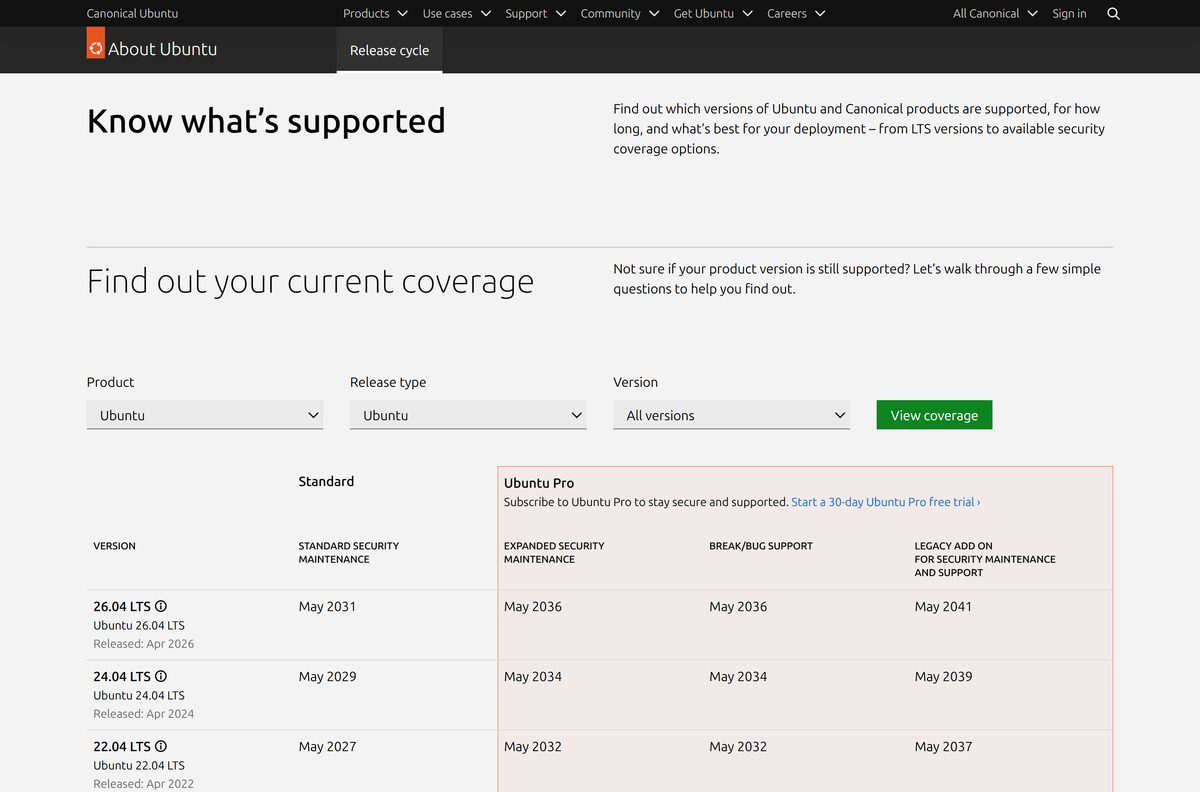
Install 26.04.1 LTS on a new server. Pick 24.04.5 LTS only when your software vendor has not certified 26.04 yet. 26.04 LTS gets standard security maintenance until May 2031, against May 2029 for 24.04 and May 2027 for 22.04. Starting on 22.04 now means a release upgrade within two years.
Each LTS gets five years of standard updates, and Ubuntu Pro extends that to ten years, or fifteen with the Legacy add-on. Interim releases get nine months.
How to check your Ubuntu Server version and upgrade it
- Run lsb_release -a and read the Description line for your current release.
- Back up your data and note any third-party PPAs, because the upgrade disables them.
- Run sudo apt update .
- Run sudo apt dist-upgrade to install every update for the current release.
- Reboot if the file /run/reboot-required exists.
- Run sudo do-release-upgrade to move to the next release.
- Press D to review a changed config file, then keep yours with N or take the new one with Y.
- Accept removal of obsolete packages, and reboot when the upgrade asks.
An LTS server upgrades only to the next LTS, and only after that release’s first point release. From 22.04, upgrade to 24.04 first, then to 26.04.
Check the Ubuntu Server system requirements before you install
Ubuntu Server runs on modest hardware. The suggested figures leave room for real services.
| Field | Value |
|---|---|
| Software | Ubuntu Server LTS “Resolute Raccoon” |
| Developer | Canonical |
| Latest version | 26.04.1 LTS, Linux kernel 7.0 |
| Licence | Free and open source |
| Memory | 1.5GB minimum for an ISO install; 3GB or more suggested |
| Disk space | 5GB minimum; 25GB or more suggested |
| Installer media | USB port (4GB stick or larger) or DVD drive |
| Architecture | amd64, arm64, ppc64el, s390x and riscv64; no 32-bit PC image |
| Download size | 2.7GB (Intel or AMD ISO), 2.9GB (ARM ISO) |
| Offline installer | Yes; networking can be skipped during setup |
| Official source | ubuntu.com download page |
| Last verified | 2026-09-25 |
Cloud images need less: 1GB of memory and 4GB of disk. A Raspberry Pi needs a microSD card of at least 4GB, and 8GB is recommended.
Check whether your Raspberry Pi runs Ubuntu Server 26.04
Canonical publishes a preinstalled server image for 64-bit Raspberry Pi boards. Find your board before you flash a card.
| Board | Ubuntu 26.04 LTS |
|---|---|
| Raspberry Pi 5 | Yes, certified |
| Raspberry Pi 4B | Yes, certified |
| Raspberry Pi CM4 | Yes, certified |
| Raspberry Pi 400 | Yes |
| Raspberry Pi Zero 2 W | Yes |
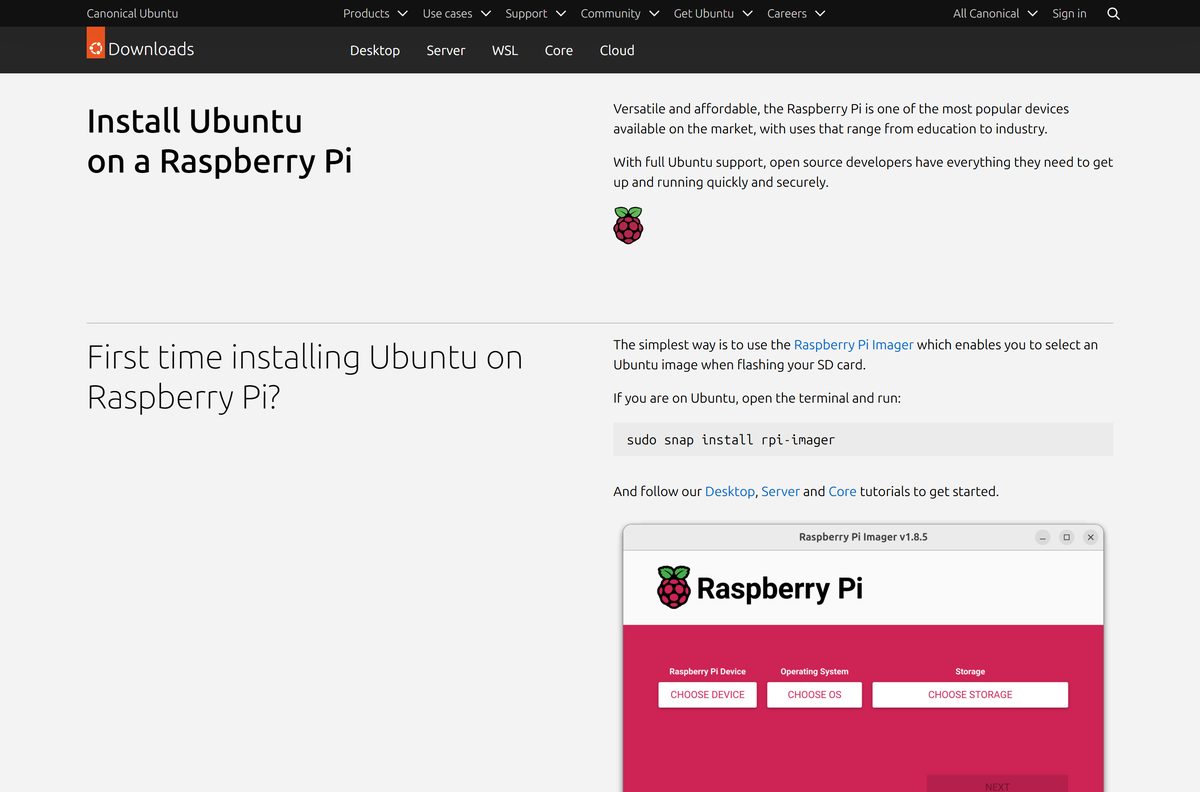
Open Raspberry Pi Imager, pick the Ubuntu Server image and your microSD card, then set the hostname, SSH, user and Wi-Fi in its settings before you write. Allow two minutes on first boot, then connect with ssh
The Raspberry Pi 4 and 5 need a minimum EEPROM date for some Ubuntu releases, so update the bootloader first if the board does not start.
Fix Ubuntu Server not booting or installing
The machine ignores the USB stick and boots its old system
USB boot is disabled or the boot menu was not opened.
- Restart and hold Escape, F2, F10 or F12 as the machine starts.
- Read the startup message for the correct key if none of those work.
- Select the USB drive in the boot menu.
- Rewrite the stick with Rufus in Write in ISO Image mode if it still does not appear.
The installer cannot reach the network
DHCP failed on the wired interface, or the network needs a proxy.
- Continue without networking; the ISO installs offline.
- Enter your proxy address on the proxy screen if your network requires one.
- Run sudo apt update after the first boot to fetch updates.
Multipass will not start on Windows
Windows blocks Multipass on a network marked public.
- Open Settings > Network & internet and select your connection.
- Set the network profile to Private network.
- Run multipass launch again.
The install fails or the ISO will not boot at all
The download is incomplete or damaged.
- Check the ISO with Get-FileHash against SHA256SUMS .
- Download the ISO again if the values differ.
- Write a fresh USB stick and start the install again.
How to remove an Ubuntu Server VM or install
A Multipass VM is removed with two commands. A bare-metal install is replaced by installing another system over its disk.
- Run multipass list to find the instance name.
- Run multipass stop foo with your instance name.
- Run multipass delete foo to mark the instance for removal.
- Run multipass purge to free its disk space.
- On a physical server, copy off your data, then boot another installer and let it erase the disk.
Uninstall Multipass itself from Settings > Apps > Installed apps on Windows once no instances remain.
Which Canonical system should you install instead of Ubuntu Server?
| Option | Best for | Get it |
|---|---|---|
| Ubuntu Desktop | A PC you use with a screen, mouse and graphical apps | Ubuntu Desktop download |
| Ubuntu Core 24 | IoT devices and appliances that need an immutable, confined system | Ubuntu Core for Raspberry Pi |
| Multipass | Throwaway Ubuntu Server VMs on a Windows or Mac workstation | Multipass |
| Previous LTS releases | Software certified only on 24.04 or 22.04 | Ubuntu Server download page |
Pick Ubuntu Server for anything that runs headless: file servers, web hosting, databases, containers and home labs.
Frequently asked questions
Is Ubuntu Server free to download?
Yes. Ubuntu Server is free and open source, with no licence key, activation or per-core fee. Ubuntu Pro, Canonical’s extended security subscription, is also free for personal use on up to five machines. Download the image only from ubuntu.com.
What is the official Ubuntu Server download page?
The official page is ubuntu.com/download/server. It offers the current LTS image for Intel or AMD 64-bit servers, the two previous LTS releases, torrents, the network installer and links to the ARM, IBM POWER, IBM Z and RISC-V images.
Can I install Ubuntu Server on a Windows 11 PC?
Yes. Write the ISO to a USB stick with Rufus, boot the PC from it and install Ubuntu Server in place of Windows. To keep Windows, run Ubuntu Server in a virtual machine with Multipass instead.
How big is the Ubuntu Server download?
The Ubuntu Server LTS ISO for Intel and AMD machines is 2.7GB, which the download page rounds to 3GB. The ARM 64-bit ISO is 2.9GB and the Raspberry Pi image is about 1.1GB.
Is the Ubuntu Server ISO an offline installer?
Yes. The server ISO includes the complete installer, so it installs from the USB stick without a connection. The installer tries DHCP on wired network cards, and you can continue if networking fails.
Can I run Ubuntu Server on a Mac?
Yes, as a virtual machine. Multipass from Canonical installs on macOS and launches an Ubuntu Server VM with one command. You can also boot the ARM 64-bit ISO in a hypervisor on an Apple silicon Mac.
Does Ubuntu Server support ARM64 and 32-bit machines?
The current Ubuntu Server LTS has install images for amd64, arm64, ppc64el, s390x and riscv64, plus a Raspberry Pi image. There is no 32-bit PC image. ARM servers with large memory can use the 64k page size ISO.
Is Ubuntu Server safe to download?
Yes, from ubuntu.com and releases.ubuntu.com. Check the ISO with Get-FileHash in PowerShell against the SHA256SUMS file in the same directory. A value that does not match means the file is damaged or not genuine.
What is the latest Ubuntu Server version?
Ubuntu Server 26.04.1 LTS “Resolute Raccoon” is the current release. It ships Linux kernel 7.0 and gets standard security maintenance until May 2031, extended to 2041 with Ubuntu Pro and the Legacy add-on.
How much RAM does Ubuntu Server need?
Canonical lists 1.5GB of memory and 5GB of disk as the minimum for an ISO install. It suggests 3GB of RAM and 25GB of disk or more for real workloads.
Does Ubuntu Server have a graphical desktop?
No. Ubuntu Server installs without a graphical interface and uses a text, menu-based installer. You manage it from the console or over SSH, which the installer can set up for you.
Why won’t Ubuntu Server install or boot from USB?
The usual causes are a PC that skips USB boot, a stick written in the wrong mode, or a damaged download. Open the boot menu with Escape, F2, F10 or F12, check the ISO checksum, and rewrite the stick in ISO Image mode.