Snapchat has retired Cameos in Chat, so changing your Cameo now means changing the selfie behind it under Settings > My Selfie.
That same selfie is what Snap carried over to My Selfie, the feature that replaced Cameos, and it is the only part of a Cameo you can still update, clear or lock down.
How to Change Your Cameo on Snapchat
Your Cameos selfie is now stored as My Selfie. Replacing it replaces the face Snapchat uses everywhere that feature appears.
- Open Snapchat and tap your Bitmoji or Story icon at the top to open the My Account screen.
- Tap the gear icon to open Settings.
- Find My Account in the Settings menu and tap My Selfie.
- Tap Update My Selfie.
- Take new selfies with the Snap camera, or pick images of yourself from your camera roll, and confirm.
Snap replaces the stored images with the new set. Older My Selfie screens label the removal option Clear Selfie instead of Delete Selfie.
Understanding the Difference Between Changing and Customizing a Cameo
Changing a Cameo swaps the photos of your face. Customizing covers everything else people mean by the word, and most of it sits in a different part of Snapchat.
| What you want to change | Where to do it | What happens |
|---|---|---|
| The selfie your Cameos used | Settings > My Selfie > Update My Selfie | New images replace the old set across every My Selfie feature |
| Remove the stored selfie | Settings > My Selfie > Delete Selfie | Snap clears the images and the features that need them stop working |
| Your cartoon avatar and its outfit | My Account > swipe down > Avatar or Fashion | Edits Bitmoji, which is a separate avatar from the Cameos selfie |
| Who may generate images of you | Settings > My App > My Selfie | Sets Who Can Generate with My Selfie to Only Me |
| Sending a Cameo scene in Chat | No longer offered | Cameos in Chat are no longer available, so the sticker route is gone |
How to Access Your Snapchat Cameo Settings
There is no Cameos menu left in Snapchat. The controls that used to belong to Cameos live on the My Selfie page.
- Tap your Bitmoji or Story icon at the top of the camera screen to open My Account.
- Tap the gear icon in the top-right corner to open Settings.
- Scroll to the My Account group and tap My Selfie.
- Read the options on that page: Update My Selfie and Delete Selfie or Clear Selfie.
- If My Selfie is not listed, update Snapchat in the App Store, Google Play Store or Amazon Appstore and reopen Settings.
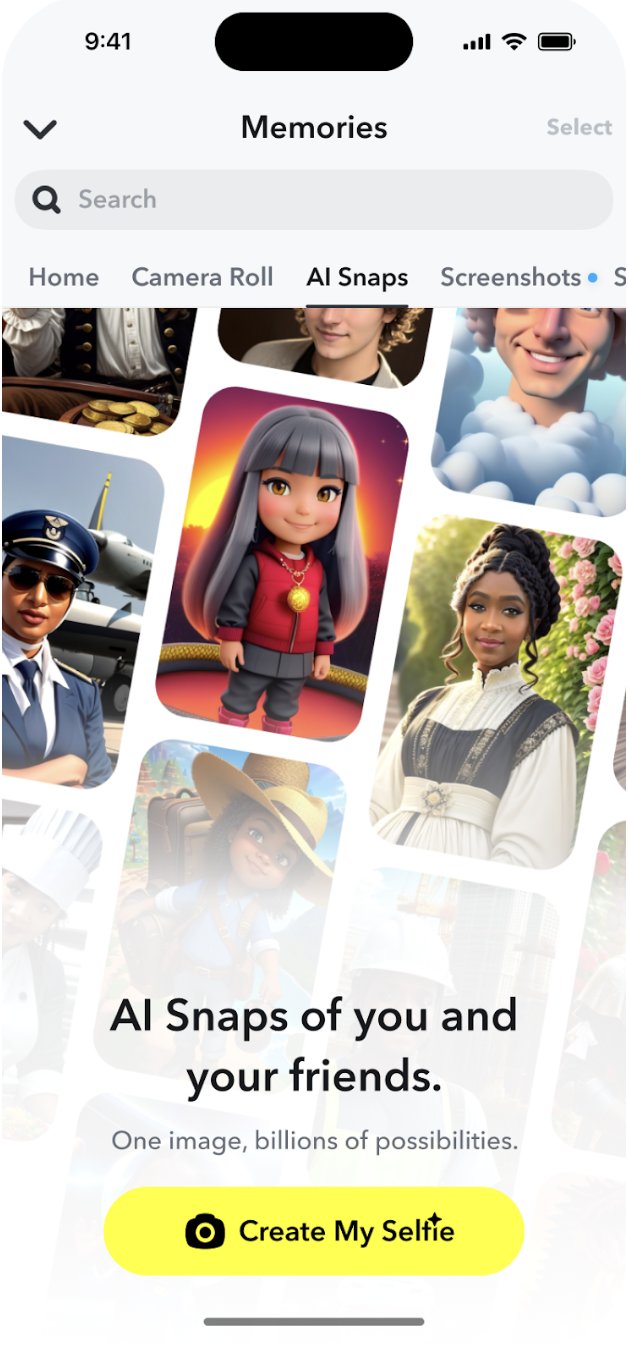
You can also reach the same setup from the AI Snaps tab in Memories.
Creating or updating your Bitmoji avatar
Bitmoji is the avatar many readers actually want to change when they search for a Cameo change. It is edited in the app, not on the My Selfie page.
- Tap your Bitmoji or Story icon at the top to open the My Account screen.
- Tap Create My Avatar if you do not have one yet, and follow the prompts.
- If you already have one, swipe down or tap your avatar to open the customization menu.
- Tap Avatar to change its appearance, or Fashion to change its clothes.
- Tap Selfie or Scene to change how the avatar appears on your Profile.
Bitmoji can only be fully customized in the Snapchat mobile app. The web and desktop versions do not offer the full editor.
Reset or recreate your Bitmoji
Unlinking is the reset route when the avatar itself is wrong and editing is not enough.
- Tap your Bitmoji or Story icon at the top to open My Account, then tap the gear icon.
- Scroll to App & Privacy and tap My App.
- Under Customize Appearance, tap Bitmoji.
- Tap Remove My Bitmoji to unlink the avatar from your Snapchat account.
- To link a different avatar, open the Bitmoji app, tap the gear icon, scroll to Link to Snapchat and tap Continue.
A Bitmoji created through Snapchat is permanently deleted when you unlink it, including every item saved in your Closet. Snap notes that purchased items go too.
How to check the change worked
- Reopen Settings > My Selfie and confirm the page shows your new images rather than the old ones.
- Open the AI Snaps tab in Memories and check that your new face appears in generated Snaps.
- If you deleted the selfie instead, confirm the page now offers setup again rather than an update option.
- For a Bitmoji edit, close and reopen the app and look at the avatar on your Profile.
What Is a Snapchat Cameo?
| Detail | What Snap states |
|---|---|
| What it was | A short, looping video that put you into a scene and could be sent to friends in Chat |
| When it launched | December 2019 on iOS and Android, with more than 150 scenes at launch |
| How you set it up | You took a selfie in the app; Snap states Cameos did not use facial recognition software |
| How the face was placed | Cameos segmented the shape of your face and hair to fit you into the scene |
| Two-person Cameos | Available when a friend had also set up a Cameos selfie, so you could co-star |
| Status today | Cameos in Chat are no longer available; Snap says other My Selfie experiences are being upgraded |
| What the selfie powers now | My Selfie, which feeds generative AI features such as AI Snaps |
Because the scenes are gone, the benefit of a Cameo today is the stored selfie, not the chat sticker it once produced.
Understanding the Role of Bitmoji in Snapchat Cameos
Bitmoji and Cameos are two different likenesses. Guides that tell you to redraw a Bitmoji to change a Cameo are pointing at the wrong feature.
| Feature | What it is | Where it appears | How you change it |
|---|---|---|---|
| Cameos selfie, now My Selfie | Photographs of your real face | My Selfie features such as AI Snaps and, formerly, Cameos in Chat | Settings > My Selfie > Update My Selfie |
| Bitmoji | A personal cartoon emoji that represents you around Snapchat | Profile, Chat, Snap Map and Friendmoji | My Account > Avatar, Fashion, Selfie or Scene |
| Linking | A Bitmoji account tied to Snapchat | Account settings | Link from the Bitmoji app, or Remove My Bitmoji under My App |
Only one Bitmoji account can be linked at a time. Unlink the current one before linking another.
Best Practices for Customizing Your Cameo
The stored images decide how well every My Selfie feature renders you, so the quality of the update matters more than the number of retries.
- Open Settings > My Selfie and tap Update My Selfie.
- Take the new selfies with the Snap camera so the framing matches what Snapchat expects.
- If you add camera roll images instead, add only images of yourself, as Snap instructs.
- Face the camera squarely and keep your face and hair clear of obstructions.
- Check the AI Snaps toggle is on if you want your selfie to appear in generated images.
How to Delete or Reset Your Cameo on Snapchat
Deleting is the full reset. It removes the stored images rather than replacing them.
- Open Settings from the gear icon on the My Account screen.
- Tap My Selfie under My Account.
- Tap Delete Selfie, or Clear Selfie if that is the label your version shows.
- To reset the avatar as well, go to Settings > My App > Bitmoji and tap Remove My Bitmoji.
- Set up My Selfie again from the same page, or from the AI Snaps tab in Memories, when you are ready.
Clearing the selfie does not delete your Snapchat account or your Bitmoji. They are separate deletions.
Troubleshooting Common Issues with Changing Cameo
Changes are not reflecting after you update the selfie
The app is still running an older session or an older build.
- Update Snapchat to the latest version in the iOS App Store, Google Play Store or Amazon Appstore.
- Completely close the app and open it again.
- Turn the device off and on again.
- Switch between mobile data and Wi-Fi to rule out the connection.
- Reopen Settings > My Selfie and check the images again.
You cannot access Cameo settings
Cameos in Chat were retired, so the old Cameos entry no longer exists.
- Open Settings and look under My Account for My Selfie, not for Cameos.
- Update the app if My Selfie is missing from the menu.
- Open the AI Snaps tab in Memories as the second route to the same setup.
- Expect no Cameos button in the Chat sticker bar; that feature is gone.
Unable to create or update the selfie
The capture or upload did not complete.
- Check your Internet connection and switch between mobile data and Wi-Fi.
- Close and reopen the app, then tap Update My Selfie again.
- Take the selfies with the Snap camera instead of uploading, and add only images of yourself.
- If it still fails, open Settings > Support and Safety > Bugs and Suggestions and choose Report a Bug.
Your face is not being picked up properly
Cameos never used facial recognition software; Snap segments the shape of your face and hair, so framing and lighting decide the result.
- Retake the selfie in even light with your face towards the camera.
- Move hair, hands and headwear away from the outline of your face.
- Use a plain background so the shape separates cleanly.
- Tap Update My Selfie again and replace the set rather than adding to it.
Crashes, no sound, or screen glitches
A broken build or a bad session, which Snap treats as a bug report rather than a setting.
- Update Snapchat to the latest store version.
- Restart the app, then restart the device.
- Check the Internet connection by switching between mobile data and Wi-Fi.
- Report the bug from Settings > Support and Safety > Bugs and Suggestions.
- If the app will not open at all, report the issue on the Snapchat Support site from a browser.
Privacy and Security Considerations
My Selfie images can power generative images made by you, by Snap and by friends, including ads. The controls sit under App & Privacy.
- Open Settings, scroll to App & Privacy and tap My App.
- Under Customize Appearance, tap My Selfie.
- Set Who Can Generate with My Selfie to Only Me to stop friends generating Snaps of you.
- Toggle off See My Selfie in Ads to keep your selfie out of ads delivered to you.
- To remove the images entirely, go back to Settings > My Selfie and tap Delete Selfie.
To report a Cameo someone sent you, tap it to open it, press and hold, tap Report, then describe the problem.
Additional Tips and Insights
One selfie set serves every My Selfie feature, so there is no way to keep several Cameo faces for different contexts. Snap's own pages are the reference for what each control does.
- Cameos in Chat — Snap's notice that Cameos in Chat are no longer available
- What is My Selfie? — Setup, change, delete and the privacy toggles in one page
- How do I change or clear My Selfie? — The three-tap route used in the first section
- How do I create and edit my Bitmoji avatar? — Avatar, Fashion, Selfie and Scene editing
- Cameos privacy — Snap's statement that Cameos did not use facial recognition software
- How to Report a Cameo — Reporting an inappropriate Cameo you have been sent
Frequently Asked Questions
Bing autocomplete for this phrase is dominated by the Silhouette Cameo cutting machine, so these questions come from the headings of the pages ranking for the Snapchat query.
How do Cameos work on Snapchat now?
They no longer work as a chat feature. Snap states that Cameos in Chat are no longer available. The selfie you took for Cameos is now used by My Selfie, which powers generative AI features such as AI Snaps.
How do I update my Cameo selfie?
Open Settings from the gear icon, tap My Selfie under My Account, then tap Update My Selfie. Take fresh selfies with the Snap camera or choose images of yourself from the camera roll, and the new set replaces the old one.
How do I get a Cameo on Snapchat?
You cannot get the old Cameos scenes any more, since Cameos in Chat were retired. You can still set up the selfie behind them from the My Selfie page in Settings or from the AI Snaps tab in Memories.
Can I make more than one Cameo?
No. Snapchat stores one My Selfie set for your account, and updating it replaces what was there. There is no option to keep separate faces for different chats, friends or contexts.
Do I need a Bitmoji to change my Cameo?
No. Bitmoji is a separate cartoon avatar that represents you around Snapchat. The Cameos selfie is a photograph of your real face, and it is changed from the My Selfie page rather than the Bitmoji editor.
How do I change my Bitmoji instead?
Tap your Bitmoji or Story icon to open My Account, swipe down or tap the avatar, then tap Avatar for appearance or Fashion for clothing. Full Bitmoji customization is only available in the Snapchat mobile app.
How do I delete my Cameo selfie?
Open Settings, tap My Selfie, then tap Delete Selfie, labelled Clear Selfie in some versions. Snap clears the stored images, and the features that rely on them stop working until you set the selfie up again.
Does Snapchat use facial recognition for Cameos?
Snap states that Cameos did not use facial recognition software. The feature segmented the shape of your face and hair to place you into a scene, and you could change, delete or restrict the selfie in Settings.
Why is my Cameo change not showing up?
Usually an old app build or a stale session. Update Snapchat in your store, close and reopen the app, restart the device, and switch between mobile data and Wi-Fi before checking the My Selfie page again.
Can my friends generate images with my selfie?
For some My Selfie features, yes. To stop it, open Settings, tap My App under App & Privacy, tap My Selfie under Customize Appearance, and set Who Can Generate with My Selfie to Only Me.
Wrap-Up
Change the selfie from Settings > My Selfie > Update My Selfie, and treat the Bitmoji editor as a separate job. Cameos in Chat are retired, so the selfie is the only part of a Cameo left to change, and it now drives My Selfie features and their privacy toggles.