Press Win + I, select Apps > Installed apps, select More next to the app, then select Advanced options to change that app's settings on Windows 11.
This guide covers app permissions, default apps, startup entries, notifications, background and battery use, the install drive, Microsoft Store updates and greyed-out settings.
Open the main app settings in Windows 11
Almost every app control on Windows 11 starts from one page: Settings > Apps.
- Press Win + I to open Settings.
- Select Apps in the left pane.
- Select Installed apps to see every app Windows can manage.
- Select the More icon next to an app, then select Advanced options.
- Change the options on that page, such as Let this app run in background or Repair.
Apps installed from outside the Microsoft Store often show no Advanced options page. Use their own settings instead.
Which app setting do you actually need?
App settings are split across four Settings pages, not one. Match your goal to the row below.
| What you want to change | Where it lives | Why there |
|---|---|---|
| Repair, reset or background use for one app | Settings > Apps > Installed apps > More > Advanced options | Every per-app control sits on that one page |
| What an app is allowed to access | Settings > Privacy & security | Permissions are grouped by capability, then by app |
| Which app opens a file type or a link | Settings > Apps > Default apps | Associations are set by file type, protocol or app |
| Which apps launch when you sign in | Settings > Apps > Startup | The same list Task Manager shows under Startup apps |
| Banners, sounds and notification priority | Settings > System > Notifications | Per-app notification options live under the system list |
| Power drain caused by an app | Settings > System > Power & battery > Battery usage | Usage figures and background activity sit together |
| The drive new apps install to | Settings > System > Storage > Advanced storage settings > Where new content is saved | Storage owns default save locations for new content |
| Where apps are allowed to come from | Settings > Apps > Advanced app settings | Choose where to get apps gates installers |
Display, sound and other hardware settings sit outside this set. For screens, see How To Change Display Settings In Windows 10.
Change settings for an individual installed app
The Advanced options page is where Windows keeps everything it controls for a single app.
- Select Start > Settings > Apps > Installed apps.
- Scroll to the app, or type its name in the list's search box.
- Select More options on the right edge of the row.
- Select Advanced options.
- Under Background app permissions, set Let this app run in background to Always, Power optimized (recommended) or Never.
- Scroll down and use Repair or Reset if the app misbehaves.
Not every app has this page. Windows shows Advanced options only for apps that register the controls with it.
Change app permissions
Permissions decide what an app may reach: the camera, the microphone, your location, your files.
Windows 11 keeps them under Privacy & security, grouped by capability rather than by app.
- Select Start > Settings > Privacy & security.
- Select the capability you want to control, such as Camera, Microphone, Location, Calendar or Contacts.
- Turn the top toggle on to allow anyone using the device to use that capability.
- Turn individual apps and services on or off in the list below it.
- Repeat for each capability you care about.
- Press Win + R, type
ms-settings:privacy-webcamand press Enter to jump straight back to camera access later.
One permission deserves a second look: Allow elevation lets an app run with administrator privileges without prompting you first.
Change default apps for files and links
Windows 11 sets defaults per file extension and per protocol, so one app can own .txt while another owns .md.
- Select Start > Settings > Apps > Default apps.
- To change one file type, type the extension or protocol in the search bar, such as
.txtorHTTP. - Select the matching result, then choose the app that should open it.
- To change a whole app instead, select that app under Set defaults for applications.
- Select each file type or link type listed, then pick your preferred app for it.
- For a browser, select Microsoft Edge, then select Set default next to Make Microsoft Edge your default browser.
Printers keep their own defaults outside this page. See How to change Printer default settings in Windows 11/10.
Control which apps run at startup
Two lists show the same startup apps. Settings gives toggles; Task Manager adds the startup cost of each one.
- Select Start > Settings > Apps > Startup.
- Set an app's toggle to Off to stop it launching when you sign in.
- Select the chevron next to an app to change its advanced startup settings.
- Right-click Start and select Task Manager for the impact figures.
- Select the Startup apps tab, select an app, then select Disable or Enable.
- For an app that is missing from both lists, press Win + R, type
shell:startup, and add or delete a shortcut in the folder that opens.
shell:startup covers the signed-in user. shell:common startup covers every user on the device.
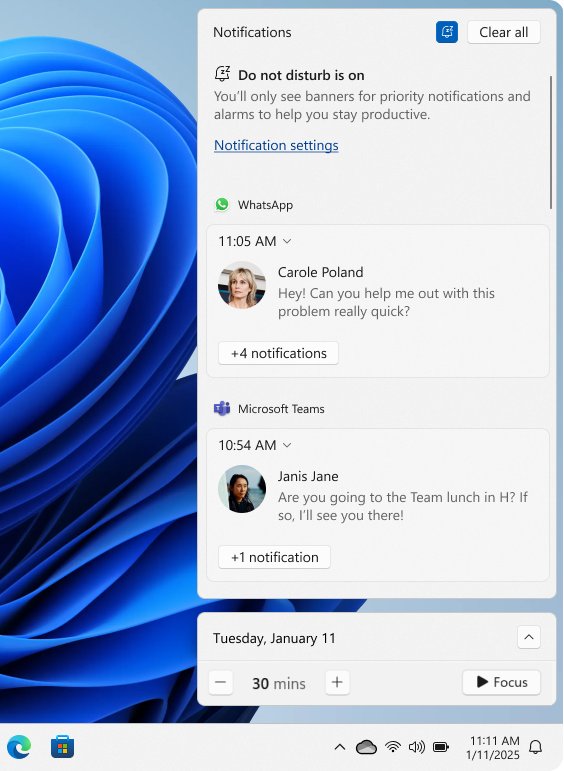
Change notification settings for apps
- Select Start > Settings > System > Notifications.
- Set the top Notifications toggle to Off to silence everything, or leave it on and continue.
- Select an app under Notifications from apps and other senders.
- Turn Show notification banners off to keep the app quiet but still logged.
- Turn Show notifications in notification center off to drop it from the list entirely.
- Set Priority of notifications to Top, High or Normal to control its place in the centre.
- Turn on Hide content when notifications are on lock screen for anything private.
Only one app can hold Top priority. Press Win + N to open the notification centre and check the result.
Manage background activity and battery use
Background activity is what lets an app sync and notify while closed. It is also what drains the battery.
- Select Start > Settings > System > Power & battery > Battery usage.
- Read the per-app figures to find the app costing you the most power.
- Select More options next to that app, then select Manage background activity.
- Set Let this app run in the background to Power optimized (recommended) for a balance of updates and battery life.
- Set it to Never to stop notifications and updates from that app completely.
- Set it to Always only for an app whose alerts you cannot miss.
Keep at least one app on Always. Windows needs that to stay connected and collect app updates.
Repair, reset, modify, or uninstall apps
Try them in order of damage: repair keeps your data, reset clears it, uninstall removes the app.
- Select Start > Settings > Apps > Installed apps.
- Select the More icon next to the app, then select Advanced options.
- Select Repair if it is offered, then reopen the app.
- Select Reset if Repair is missing or did not fix it.
- To remove the app, return to Installed apps, select More > Uninstall.
- For a desktop program, enter
control panelin the taskbar search box and select Control Panel. - Select Programs > Programs and Features, right-click the program, then select Repair, Change, or Uninstall/Change.
Some built-in Windows apps cannot be uninstalled at all. To roll a whole machine back instead, see How to reset all settings Windows 11.
Change where apps are installed
Windows installs new apps on the system drive until you point it somewhere else.
- Connect the drive you want to use and let Windows mount it.
- Select Start > Settings > System > Storage.
- Select Advanced storage settings, then select Where new content is saved.
- Open the drop-down under New apps will save to and pick the drive.
- Set the drop-downs for documents, music, pictures and videos separately if you want them elsewhere too.
- Install the app again so the new location takes effect.
Apps already installed stay where they are. Some games and apps also require the system drive and will fail elsewhere.
Change Microsoft Store app settings and updates
- Select Start, then search for and select Microsoft Store.
- Select Profile, the account photo in the top right corner.
- Select Store Settings.
- Set App updates to On so Store apps update themselves.
- Set it to Off if you would rather approve each update yourself.
- Return to the Store library to install any waiting updates by hand.
Publishers that ship their own updater ignore this switch. Those apps update from inside the app instead.
Change app execution and installation restrictions
One setting decides whether an installer downloaded from the web is allowed to run at all.
- Select Start > Settings > Apps > Advanced app settings.
- Find Choose where to get apps.
- Select The Microsoft Store only (Recommended) to block every installer from outside the Store.
- Select Anywhere, but warn me before installing an app that's not from the Microsoft Store for a warning instead of a block.
- Select Anywhere, but let me know if there's a comparable app in the Microsoft Store to see Store suggestions.
- Select Anywhere to stop the recommendations and warnings entirely.
On a work or school device this list can be locked by your administrator, and the options will not respond.
Change app settings inside the app itself
Windows controls permissions and defaults. Everything else — accounts, themes, sync, shortcuts — belongs to the app.
- Open the app.
- Look for the gear icon, usually in a corner or on a left-hand rail.
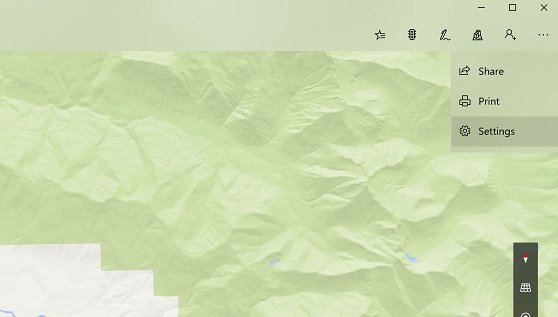
- Select the More icon first if no gear is visible, then select Settings.
- Change the option you came for and close the settings pane.
- Restart the app if the change did not apply immediately.
A desktop app's own settings are the only place to control it, because Windows privacy pages do not list desktop apps.
Use compatibility settings for older apps
An app written for an older Windows release can stop working after an upgrade, often with "This app or game can't run on your device".
- Check the Microsoft Store for an update if the app came from there.
- Check the publisher's own website for a newer build if it did not.
- Select Start > Settings > System > Troubleshoot > Other troubleshooters.
- Find Program Compatibility Troubleshooter and select Run.
- Follow the on-screen instructions and pick the app when asked.
- Run Windows Update afterwards if the app still flickers or stops responding, so drivers come up to date.
Manage optional Windows apps and features
Optional features are Windows components that are not installed by default, such as language and handwriting resources.
- Press Win + R, type
ms-settings:optionalfeaturesand press Enter. - Or select Start > Settings > System > Optional features.
- Select View features next to Add an optional feature.
- Tick each feature you want, then select Next.
- Review the list and select Add.
- To remove one, search the Search installed features box under Installed features, select the feature, then select Remove.
Stay online while adding a feature. Windows Update downloads the content it needs. On some Windows 11 versions the pane sits under Settings > Apps instead.
Change app settings for websites and links
Some installed apps register the website they belong to, so their links open in the app rather than the browser.
- Press Win + R, type
ms-settings:appsforwebsitesand press Enter. - Review the listed apps and turn off any app that should not capture its website's links.
- For link types the list does not cover, select Start > Settings > Apps > Default apps.
- Type the protocol in the search bar, such as
HTTP,HTTPSorMAILTO. - Select the result, then choose the app that should open that link type.
A browser also holds its own site permissions for the camera, microphone and notifications, separate from Windows.
Use search to find app settings faster
Windows Search on the taskbar returns files, apps and settings pages, so typing the page name is quicker than clicking through.
The Run box is faster still when you know the page you want.
| Settings page | Type this after Win + R |
|---|---|
| Installed apps | ms-settings:appsfeatures |
| Advanced options for one app | ms-settings:appsfeatures-app |
| Default apps | ms-settings:defaultapps |
| Startup apps | ms-settings:startupapps |
| Apps for websites | ms-settings:appsforwebsites |
| Optional features | ms-settings:optionalfeatures |
| Notifications | ms-settings:notifications |
| Battery use | ms-settings:batterysaver-usagedetails |
| Where new content is saved | ms-settings:savelocations |
| Storage | ms-settings:storagesense |
| Camera privacy | ms-settings:privacy-webcam |
| Microphone privacy | ms-settings:privacy-microphone |
ms-settings:batterysaver-usagedetails works only on a device with a battery. Press the Windows key and start typing to search instead.
How to check the change stuck
- Close Settings completely, reopen the page, and confirm the toggle or drop-down still shows your choice.
- For a default app, double-click a file of that type and confirm the new app opens it.
- For a startup change, open Task Manager > Startup apps and confirm the status reads Disabled.
- For a permission change, open the app and try the feature; a blocked camera or microphone fails immediately.
- For an install-drive change, install a small app and check the new drive's free space drops.
- Sign out and back in for startup and background changes, then repeat the check.
Troubleshoot missing or grayed-out app settings
Advanced options is missing for an app
Windows shows that page only for apps that register the controls, and most desktop programs do not.
- Open the app and look for its own Settings behind the gear icon.
- Enter
control panelin the taskbar search box and select Control Panel. - Select Programs > Programs and Features, right-click the program and select Change to reach its installer options.
An app never appears in the privacy permission lists
Desktop apps do not use Windows permission prompts and do not appear on the privacy settings pages.
- Open the app's own settings and look for its camera, microphone or file options there.
- Read the publisher's privacy statement to see what the app collects.
- Uninstall the app from Settings > Apps > Installed apps if its access cannot be limited.
A setting is greyed out or says it is managed by your organization
Group policy or mobile device management can hide or lock the setting on a work, school or family-managed device.
- Check whether you are signed in with a work or school account in Settings > Accounts.
- Sign in with a local administrator account on a personal PC and reopen the page.
- Ask your administrator to change the policy if the device is managed; the option will not respond until they do.
A startup entry shows "We couldn't find this app"
The shortcut points to a removed app, a disconnected drive or a broken registry path.
- Select the information icon next to the entry's On / Off toggle to see the path it points to.
- Reconnect the removable or network drive if the path lives there.
- Reinstall the app if you still need it, or delete its shortcut from the folder that
shell:startupopens.
Windows blocks an installer you downloaded
Choose where to get apps is set to The Microsoft Store only (Recommended).
- Select Start > Settings > Apps > Advanced app settings.
- Change Choose where to get apps to Anywhere, but warn me before installing an app that's not from the Microsoft Store.
- Run the installer again and read the warning before continuing.
The Settings app will not open at all
The Settings package is damaged, or a sign-in problem is stopping it from launching.
- Press Win + R, type
ms-settings:appsfeaturesand press Enter to open the page directly. - Sign out and back in, then try Win + I again.
- Work through Fix Can't open the Settings App in Windows 10, which applies to Windows 11 as well.
How to put an app setting back
- Return to the same page and set the toggle or drop-down back to its earlier value.
- For a default app, open Settings > Apps > Default apps, select the original app and set the file types back to it.
- For a startup app, set its toggle to On in Settings > Apps > Startup.
- For background use, set Let this app run in background back to Power optimized (recommended).
- For an app whose settings you changed inside it, select Reset on its Advanced options page to return it to first-run state.
- Reinstall the app if Reset is not offered and the app still behaves oddly.
Reset deletes the app's data and sign-in state. Note anything you need before selecting it.
Frequently Asked Questions
How do you change app settings on Windows 11?
Open Settings with Win + I, select Apps, then Installed apps. Select More next to the app and choose Advanced options. That page holds background permissions, Repair and Reset for the apps that support them.
How do you change app install settings on Windows 11?
Go to Settings > Apps > Advanced app settings and set Choose where to get apps. To change the drive apps install to, go to Settings > System > Storage > Advanced storage settings > Where new content is saved.
How do you change default app settings on Windows 10?
Open Settings > Apps > Default apps. Type a file extension or protocol in the search bar, select the result, then pick the app. You can also select an app and set each file type it handles.
How do you change app download settings on Windows?
Microsoft Store downloads are governed by Store Settings. Open Microsoft Store, select Profile, then Store Settings, and set App updates to On or Off. Choose where to get apps controls downloads from outside the Store.
How do you change the default app in Windows?
Go to Settings > Apps > Default apps, select the app you want to use, then select each file type or link type it should own. For a browser, select Set default on the app's page.
How do you add apps to Windows Settings?
You cannot add entries by hand. Every app Windows can manage appears in Settings > Apps > Installed apps automatically after installation. Desktop programs appear there too, but usually without an Advanced options page.
How do you change app permissions on Windows 11?
Open Settings > Privacy & security and select a capability such as Camera or Location. Turn the top toggle on to allow it on the device, then turn individual apps on or off underneath.
How do you change app recommendation settings in Windows 11?
Go to Settings > Apps > Advanced app settings and open Choose where to get apps. Select Anywhere to stop recommendations, or Anywhere, but let me know if there's a comparable app in the Microsoft Store to keep them.
How do you change app settings for battery usage on Windows 11?
Open Settings > System > Power & battery > Battery usage. Select More options next to an app, then Manage background activity, and set Let this app run in the background to Never or Power optimized.
How do you change app notification settings on Windows 11?
Go to Settings > System > Notifications and select the app under Notifications from apps and other senders. Turn banners, notification centre entries, sounds and lock screen content on or off for that app alone.
How do you allow an app to make changes to system settings?
An app needs administrator rights to change system settings. Windows lists this as the Allow elevation permission, which lets the app run with administrator privileges without prompting first. Grant it only to apps you trust.
How do you change app settings on a laptop?
The steps are the same as on a desktop PC: Settings > Apps > Installed apps for per-app options. A laptop adds Settings > System > Power & battery > Battery usage, where background activity per app can be limited.
How do you change app security settings on Windows 11?
Restrict what an app can reach in Settings > Privacy & security, and restrict where apps may be installed from in Settings > Apps > Advanced app settings. Windows Security holds the device-wide protection settings.
Bottom Line
Start every app settings change at Settings > Apps > Installed apps > More > Advanced options, and only move to Privacy & security, Notifications or Storage when that page does not hold the control you need. Windows 11 keeps the per-app controls it owns on that single page, so anything absent from it belongs either to a capability list or to the app's own settings.