You cannot call Google about a free Gmail account: Google publishes no phone line for it, and its account recovery page states that you can't call Google for help to sign in.
Phone contact exists only for paying customers, so this guide shows how Google One members request a call, how Google Workspace admins reach phone support, what free users get instead, and how to spot fake support numbers.
Can You Call Google Support for Gmail?
It depends entirely on the account. Match yours to a row and use the route it names. No row involves dialing a number you found in a search result or an ad.
| Your account | Phone support? | Where to start |
|---|---|---|
| Free personal Gmail (@gmail.com), no paid plan | No. No Google page lists a phone line for free accounts | Gmail Help Center at support.google.com/mail, account recovery, or the Gmail Help Community |
| Personal Gmail with a Google One membership | Yes. Members can reach Google One support by chat, a phone call or email | one.google.com > Help > Contact us |
| Google Workspace, and you are the admin | Phone only on Premium Support and some Education editions such as Plus and Standard, in English | admin.google.com > Help > Contact support |
| Work or school account someone else manages | Not from Google directly | Your organization's IT team or Workspace administrator |
The Google One call is requested from inside your signed-in account. The Workspace number is shown in the Admin console for your region, together with a PIN.
Before You Call: Identify What Type of Gmail Account You Have
Two addresses can both open in Gmail and still have completely different support. Use these checks to find out which kind of account you are signed in to.
| What you see | Account type | What it means for support |
|---|---|---|
| Your address ends in @gmail.com and you have never paid Google | Personal Gmail account | Self-service only: Help Center, account recovery and the community forum |
| You pay Google monthly or yearly for a Google One plan, usually for extra storage | Google One member | Chat, phone call or email through Google One support |
| Your address ends in your company's own domain and your company pays for Google Workspace | Google Workspace account | Support is filed by an administrator from the Google Admin console |
| Your address ends in a school or employer domain and someone else set it up | Managed work or school account | Google's recovery steps might not work; your administrator handles it |
If you are the person who signs in at admin.google.com, you are the Workspace admin. If that page refuses your account, you are a Workspace user and your route runs through the admin.
Step-by-Step: How to Request a Phone Call Through Google One
Google One members can reach Google One support by chat, a phone call or email. Google One support covers membership management, Google One features and your storage.
- On a computer, go to one.google.com and sign in with the Google Account that holds the membership.
- At the top, click Help.
- Under Need more help?, click Contact us.
- Choose the phone option if it is offered for your issue, or pick chat or email instead.
- In the Google One app on Android, tap Menu > Help, then under Need more help? tap Contact us.
- In the Google One app on iPhone or iPad, tap Menu > Google One Help Center, then under Need more help? tap Contact us.
The contact form sits behind your sign-in. If you cannot sign in at all, Google One support cannot be reached this way; start with account recovery instead.
Step-by-Step: How Google Workspace Admins Can Call Google Support
Phone support for Google Workspace is offered only to Premium Support customers and certain Google Workspace for Education editions such as Plus and Standard. It is available in English only. Other admins can still reach Google by chat or email from the same panel.
Contacting support needs the Support administrator privilege. Essentials Starter customers must switch to Enterprise Essentials before they can contact support.
- Sign in to the Google Admin console at admin.google.com with an administrator account.
- At the top right, click Help.
- At the bottom of the Help window, click Contact support.
- Describe your issue in the Help Assistant panel and click Send, then review any suggested article.
- If the issue is still unresolved, click Continue to support.
- Click Phone and use the number shown for your region.
- Read the phone support PIN at the bottom of that section to the agent. It proves you are an admin and stays valid for 60 minutes.
If your plan has no phone option, the same panel offers Chat and Email. Choose chat, pick your language, describe the issue and click Connect to agent to join the queue.
Not the admin? Contacting Workspace support requires an administrator account with the Support administrator privilege. Ask your IT team or Workspace administrator to open the case for you.
What If You Have Free Gmail and Need Urgent Help?
No Google page offers free accounts a phone line, but the official self-service routes handle the urgent cases: lockouts, forgotten passwords and hacked accounts. Wrong guesses in account recovery will not lock you out, and there is no limit on attempts.
- Locked out or forgot the password: go to the Google Account recovery page and answer the questions as best you can, then reset the password when prompted.
- Forgot the address itself: use the username recovery steps, which need the account's phone number or recovery email plus the full name on the account.
- Someone else is using the account: follow Google's steps to secure a hacked or compromised account, then turn on 2-Step Verification.
- Any other Gmail problem: search the Gmail Help Center at support.google.com/mail.
- Still stuck: post in the Gmail Help Community at support.google.com/mail/community, where Product Experts and other users answer.
- Recovery keeps failing: wait a few days if you recently changed recovery info, because changes can take up to 7 days to take effect, then try again.
If recovery still fails, Google's advice is to create a new Google Account and set up recovery options on it so it does not happen again.
How to Avoid Fake Gmail Support Phone Numbers
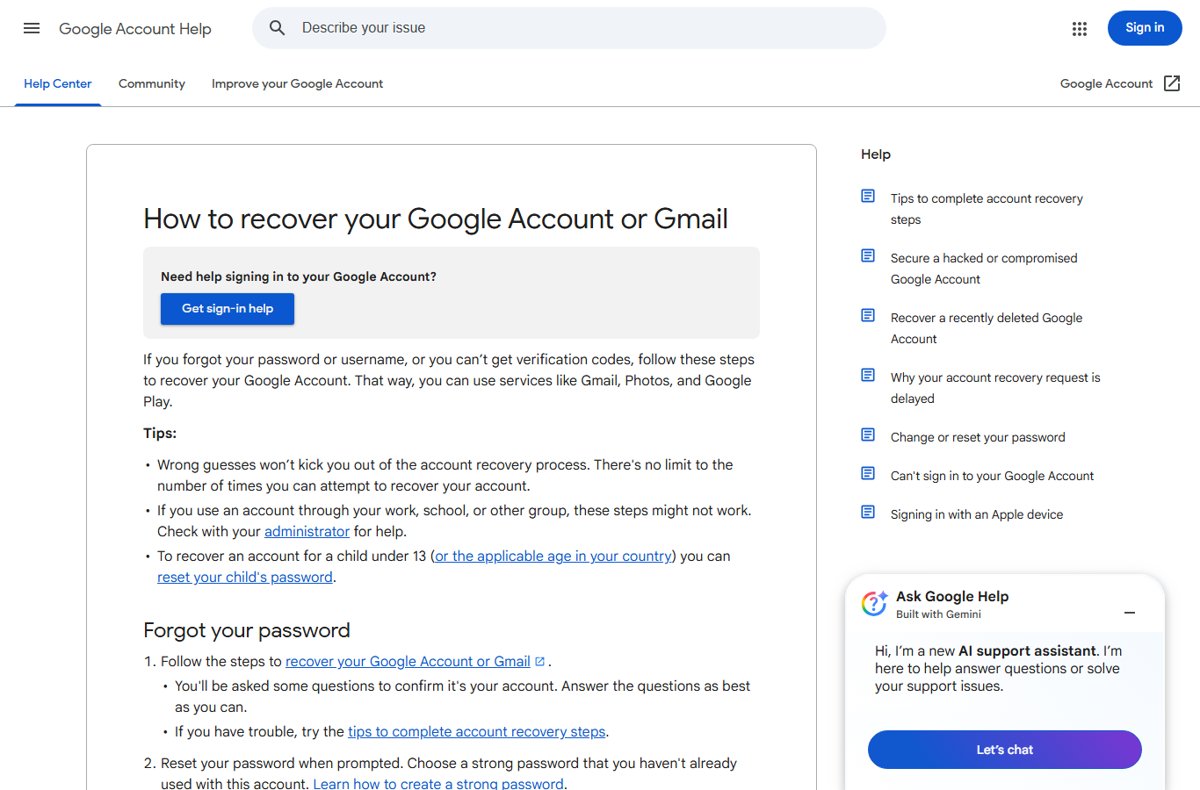
Google states plainly that you can't call Google for help to sign in to your account. It also says it does not work with any service that claims to provide account or password support, and that you should never give out your password or verification codes.
That makes any "Gmail customer service" number for a free account a red flag by definition. Scam numbers turn up in ads, search results, forum posts and even as snippets in help-site search results, so a number's location proves nothing.
| Red flag | Why it signals a scam |
|---|---|
| A phone number offered for free @gmail.com support | No Google page lists a phone line for free Gmail accounts |
| The caller asks for your password or a verification code | Google tells users never to give out passwords or verification codes |
| A "recovery service" offers to get you back into your account | Google does not work with any account or password recovery service |
| You are asked to pay by gift card, crypto or wire transfer | Google's phishing guidance says never to respond to requests for personal or financial information |
| You are asked to install remote-access software | Phishing content asks you to click links or download software |
| The message sounds urgent: "account will be deleted today" | Google's phishing guidance says to beware of messages that sound urgent |
If a scam email reached you, open it in Gmail on a computer, click More next to Reply, then click Report phishing. If you already shared a password or code, change your password at once and run Google's steps to secure a compromised account.
How to Verify You Are Contacting Google
Genuine Google support always starts from inside your own signed-in account. Run these checks before you share anything.
- Check the address bar: legitimate routes start at one.google.com, admin.google.com or a page on support.google.com.
- Confirm you opened the contact option yourself from Help > Contact us (Google One) or Help > Contact support (Admin console).
- For Workspace calls, confirm the PIN you read out came from your own Admin console in the last 60 minutes.
- Hang up on anyone who asks for your password or a verification code, whoever they claim to be.
- Treat an unsolicited call or email claiming to be Google support as suspect, and start again from the official page yourself.
What to Have Ready Before Contacting Google Support
Google's Workspace team lists the details that speed up a case. The same list works for a Google One chat or call. Never include passwords, government ID numbers or card numbers.
| Have ready | Why it helps |
|---|---|
| The affected account address or usernames | Support needs to know which account is involved |
| What is happening and what you expected instead | Separates a bug from a setting or a misunderstanding |
| Steps to reproduce, with date, time and time zone | Lets the team search the right logs |
| Whether it happens every time and on another device, browser or network | Narrows the problem to the account or to one device |
| Screenshots showing the full URL and the exact error message | Exact error text speeds up log review |
| Browser, operating system and extensions, including security software | Rules out local interference |
| Workspace only: the phone support PIN from the Admin console | Verifies you are an administrator on the account |
Workspace admins can attach files up to 25 MB to a support email or up to 40 MB in the Google Customer Care Portal.
Common Gmail Problems and the Best Support Path
Most Gmail problems are solved faster through a self-service route than by any support channel. Find your symptom below.
You forgot your Gmail password
Google handles password resets only through its automated account recovery, not by phone.
- Open the Google Account recovery page and enter your Gmail address.
- Answer the questions as best you can; wrong guesses do not end the process.
- Reset the password when prompted and choose one you have not used on this account before.
- On a work or school account, ask your administrator to reset it instead.
Your Gmail was hacked
Someone changed your password or recovery info, or is signed in without permission.
- If you can still sign in, change your password immediately.
- If you cannot sign in, use the account recovery page.
- Review recent security events and the list of signed-in devices, and remove any you do not recognize.
- Change the password on other sites that used the same password.
- Turn on 2-Step Verification.
Gmail is not receiving emails
A full storage quota, a filter or spam sorting, or a service problem on Google's side.
- Check the Spam folder, since Gmail can move suspicious mail there.
- Check your storage: each Google Account gets 15 GB shared across Gmail, Drive and Photos, and a full quota can stop Gmail sending and receiving.
- Check the Google Workspace Status Dashboard at google.com/appsstatus for a Gmail outage.
- Search the Gmail Help Center, or post in the Gmail Help Community with the exact bounce message if the sender got one.
Gmail storage is full
Gmail, Google Drive and Google Photos share one storage quota.
- Open Google One and review how Gmail, Drive and Photos use your storage.
- Delete large Gmail messages and attachments, then empty Spam and Trash, which also count toward the quota.
- Clear large files in Google Drive and Original quality backups in Google Photos.
- If you still need space, buy a Google One plan, which also gives you access to Google One support.
Frequently Asked Questions
How do I call Google support for Gmail?
You cannot call about a free Gmail account, because Google publishes no phone line for it. Google One members request a call from one.google.com under Help > Contact us. Google Workspace admins on Premium Support get a regional number and PIN inside the Admin console.
Can I call Google customer support?
Only if you pay for a service that includes it. Google One members can reach support by chat, phone call or email. Workspace phone support is limited to Premium Support and some Education editions. Free Gmail users rely on the Help Center, account recovery and the Gmail Help Community.
What is the Google support phone number?
Google does not publish one public phone number for Gmail. Workspace admins see the number for their region in the Admin console, next to a one-hour PIN. Google One members start the call from inside their account. Any number offered for free Gmail support should be treated as a scam.
How do I contact Google support by phone?
Start from inside your signed-in account, never from a number found online. On Google One, go to Help > Contact us and choose the phone option. As a Workspace admin, open admin.google.com, click Help > Contact support, then Continue to support and Phone.
How do I call Google support for my business?
Sign in to the Google Admin console as an administrator with the Support administrator privilege, click Help, then Contact support. Phone support is limited to Premium Support and certain Education editions. Standard plans can use chat or email from the same panel.
How do I call Google Workspace support?
In the Admin console, click Help > Contact support, describe the issue, click Continue to support, then Phone. Use the number shown for your region and give the PIN displayed with it. Phone support is available in English only.
How do I call Google tech support?
Google has no general tech support line for consumers. Google One members reach support for membership, features and storage questions through Help > Contact us. Workspace admins file cases in the Admin console. Everyone else uses the product's Help Center and community forum.
Can I call Google support for a password reset?
No. Google states that you can't call Google for help to sign in to your account. Reset a forgotten password through the Google Account recovery page. On a work or school account, your administrator resets it.
How do I call Google for help with my Gmail account being hacked?
There is no phone line for this. Change your password if you can still sign in, or use the account recovery page if you cannot. Then review recent security events and devices, and turn on 2-Step Verification.