To play Spotify on another device, start a song, tap the device icon at the bottom of the Spotify app and pick the speaker, TV or console you want.
This guide covers Spotify Connect, Bluetooth pairing, PIN login on TVs and consoles, cars, voice assistants and smartwatches, plus fixes when a device will not show up or play.
The fastest way to play Spotify on your speaker, TV or console
Spotify Connect lets your phone, tablet or computer act as the remote while another device plays the audio. The first time you connect, every device must be on the same Wi-Fi network.
- Join your phone and the speaker, TV or console to the same Wi-Fi network.
- Open the Spotify app and play any song or podcast.
- Tap the device icon at the bottom of the screen.
- Pick the device you want from the list.
- Keep using your phone to skip, pause and change the volume.
If you pause for more than 10 minutes, Spotify says you may need to reconnect by picking the device again.
Should you use Bluetooth or Spotify Connect?
Both routes put Spotify on a speaker, but they behave differently. Spotify Connect streams over Wi-Fi from Spotify itself, while Bluetooth sends audio from your phone to a nearby device.
| Your situation | Use this | Why |
|---|---|---|
| Wi-Fi speaker, smart TV or game console at home | Spotify Connect | The device streams itself, so your phone is only the remote |
| Headphones, a portable speaker or no Wi-Fi nearby | Bluetooth | Needs only the two devices, ideally within 1 meter (3 ft) |
| You want lossless audio on a speaker | Spotify Connect | Spotify lets you switch a Connect device to Lossless where the device supports it |
| Car with CarPlay or Android Auto | Apple CarPlay or Android Auto | Spotify lists both as ways to connect your phone to a car |
| Older stereo or car with no wireless input | AUX or USB cable | Spotify supports a cable connection to speakers and cars |
| Speaker with Chromecast or AirPlay | Google Cast or Apple AirPlay | Spotify lists both as supported ways to play on speakers and TVs |
Check Spotify Compatibility and Account Requirements
Your account can play on only one device at a time, so starting playback on a TV stops it on your phone. For devices that play Spotify through Connect, Spotify says to check compatibility with the manufacturer.
| Device or feature | Requirement Spotify states |
|---|---|
| iPhone and iPad app | iOS 16.1 or above |
| Android app | Android OS 7.0 or above |
| Mac app | OS X 13.0 or above |
| Windows app | Windows 10 (64-bit), Windows 11 or above |
| Web player | Chrome, Firefox, Edge, Opera or Safari |
| Spotify on Alexa devices | Marked For: Premium on Spotify's Alexa page |
| Apple Watch app | Series 4 or later with watchOS 10 or above |
| Streaming or offline listening on Apple Watch | Premium; Free users can only use the Watch as a remote |
| Playback on more than one device | Not possible; one device at a time per account |
Spotify's Connect help page does not list Connect as a Premium-only feature. If several people in your home want separate playback, each needs a separate account; see how to create a new Spotify account if you already have one.
Pair Spotify Using Bluetooth
Bluetooth works with headphones, speakers and many car stereos. Spotify recommends closing the app while the two devices pair.
- Close Spotify on your phone, tablet or computer.
- Switch Bluetooth on for both devices.
- Put the speaker or headphones within about 1 meter (3 ft) of your phone.
- Open the Bluetooth settings on your phone or computer and select the speaker to pair it.
- Open Spotify and play a song.
- Listen for the sound coming from the paired device.
The pairing screen differs by phone, computer and speaker brand, so check the device maker's support site for the exact menu names. On a Windows PC or Mac the flow is the same: pair in the system Bluetooth settings first, then play from the Spotify desktop app.
Use Spotify Connect to Control Playback Across Devices
Once a device appears in the device list, switching between it and your phone takes one tap. You can also raise audio quality on supported speakers.
- Play something in the Spotify app.
- Tap the device icon in the Now Playing bar.
- Select the playing device to move playback to it.
- Tap Change quality settings to adjust audio for that device.
- Select Lossless if the device supports it.
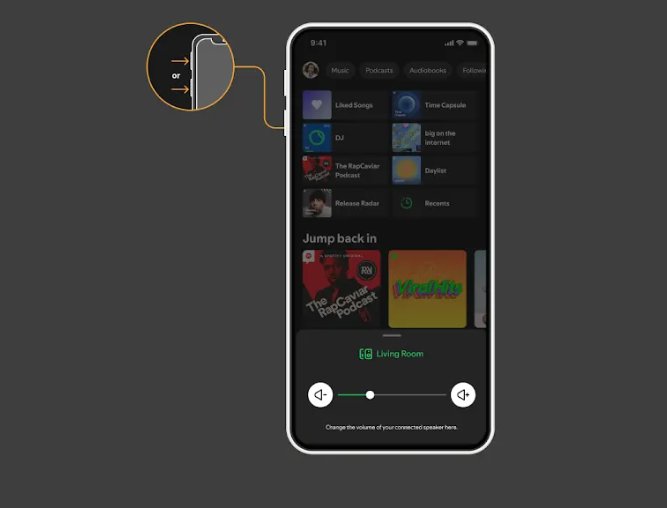
- Press a volume button on your phone to bring up the volume slider for the connected device.
Spotify says lossless on a third-party device has to be switched on from your mobile device, and not every device supports it. To keep what you play out of your Listening Activity, start a Private Session before you connect.
Set Up Spotify on Smart TVs, Speakers, Consoles, and Cars
Each device type has its own route. Find your device in the left column and follow the right one.
| Device | How to set it up | Control while it plays |
|---|---|---|
| Smart TV or set-top box | Search the TV's app store for Spotify, install it, then log in with email and password, Spotify Connect or LOG IN WITH PIN | Phone via Spotify Connect, or the TV remote |
| TV without the app | Use Google Chromecast, Apple AirPlay or a Now Smart Stick | The casting phone or tablet |
| Wi-Fi or smart speaker | Spotify Connect, a voice assistant, Chromecast Audio or AirPlay | Phone via the device list |
| PlayStation 5 or PS4 | Install the Spotify app on the console and log in; the account links to your PlayStation Network account | PS5: press the PS button, select Music. PS4: press and hold the PS button, select Spotify |
| Xbox Series X, Series S or Xbox One | Install the Spotify app on the console and log in | Press the Xbox button to open the Xbox Guide, then select Spotify |
| Car | Spotify Connect, Bluetooth, AUX or USB cable, Android Auto, Apple CarPlay, or a built-in Spotify app | Set up before you drive; use the car's controls on the road |
Spotify keeps playing on PlayStation and Xbox while you game. If the game allows, turn off its in-game music so the two do not overlap.
How to log in to Spotify on a TV or console with a PIN
Typing a password with a TV remote is slow. The PIN route lets your phone or computer do the typing.
- Open the Spotify app on your TV, PlayStation or Xbox.
- Select LOG IN WITH PIN.
- On your phone or computer, go to
www.spotify.com/pair. - Enter the PIN shown on the TV screen.
- Wait for the TV or console to sign in to your account.
The other two options on the same screen are your Spotify email and password, or opening Spotify on your phone and picking the TV from the device list. If you normally sign in with Facebook, create a Spotify password first to use the email option.
Control Spotify with Voice Assistants and Wearables
Alexa and Google Assistant need your Spotify account linked in their own apps. Siri works once Spotify is installed on a supported Apple device.
| Assistant or wearable | How to link Spotify | Example command |
|---|---|---|
| Amazon Alexa (Echo, Echo Dot, Echo Show, Fire TV Cube, Sonos) | Alexa app: More > Settings > Music & Podcasts > Link New Service > Spotify | "Alexa, play Discover Weekly" |
| Google Home and Google Nest | Google Home app: tap + > Music and audio > Spotify > Link Account, then log in | "OK Google, play Discover Weekly" |
| Siri (iPhone, iPad, Apple Watch, AirPlay) | No linking step; end the command with "on Spotify" | "Hey Siri, play my Discover Weekly playlist on Spotify" |
| Apple Watch Series 4 or later | iPhone Watch app > Available Apps > install Spotify | Control your phone or a Connect device from the wrist |
Your phone must be on the same Wi-Fi as the Google device when you link it. With Alexa, you still need to say "on Spotify" when asking for podcasts, even after setting Spotify as the default.
How to make Spotify the default player on Alexa or Google Home
Setting Spotify as the default means a plain "play some jazz" goes to Spotify instead of another service.
- Alexa: open the Alexa app and tap More, then Settings.
- Under Alexa Preferences, select Music & Podcasts.
- Tap Your Default Services, select Spotify and tap DONE.
- Google Home: open the Google Home app and tap Account, then Settings.
- Tap Music under services.
- Select Spotify to make it the default music player.
Google Home also offers to make Spotify the default when you ask it to play music; say "yes" to agree.
How to check Spotify is playing on the right device
- Tap the device icon in the Spotify app on your phone.
- Confirm the device you picked is shown as the one currently playing.
- Pause from your phone and check that the speaker or TV stops.
- Change the volume with the slider and listen for the change on the speaker.
- On a PS5, press the PS button and look for the Spotify card in the control center.
How to disconnect or remove a device from Spotify
Remove old or shared devices so you do not start playback on the wrong speaker, or on a device someone else controls.
- In the device list, select the three dots next to the device and choose Log out of this device.
- To unlink Alexa, open the Alexa app, go to More > Settings > Music & Podcasts, select Spotify and tap Disable Skill.
- To unlink Google Home, go to Account > Settings > Music, then tap UNLINK.
- To unlink PlayStation Network, go to Settings > Users and Accounts > Link Services > Spotify on the console and select Unlink.
- For a Bluetooth device, open your phone's Bluetooth settings and choose Forget or Unpair.
- If you left your account signed in somewhere you cannot reach, use Sign out everywhere on your Spotify account page and reset your password.
Fix Common Spotify Pairing and Playback Problems
Your speaker, TV or console does not show in the device list
The devices are on different networks, the device is not signed in, or iPhone local network access is off.
- Connect both devices to the same Wi-Fi network.
- Log in to the speaker or TV with your Spotify account so it shows even off your Wi-Fi.
- On iPhone, go to Settings > Spotify > Local Network and turn it on.
- In the Spotify mobile app, turn off Local device visibility in Settings > Apps and devices.
- If two devices share a name, such as two iPhones, try each in turn.
- In the web player, switch to the Spotify app; the web player only lists devices you already signed in to, or Google Cast devices when you use Chrome.
Spotify Connect is not working
A stale app session, outdated software or a Wi-Fi fault.
- Restart the Spotify app.
- Restart the speaker or smart display, then the phone running Spotify.
- Update the Spotify app and the software on every device.
- Restart your router, or try a different Wi-Fi network.
- On Android TV, go to Settings > Apps > Special app access > Display over other apps and allow Spotify.
Bluetooth will not pair or plays no sound
The devices are too far apart, low on power, or the speaker is busy with another connection.
- Move the devices within 1 meter (3 ft) of each other.
- Disconnect other phones from the speaker; some allow only one connection.
- Check that Bluetooth on your phone allows media sharing.
- Charge both devices.
- Forget the device on both sides, switch Bluetooth off and on, then pair again.
The Spotify TV app will not open or play
The TV is offline or runs an outdated app.
- Check the TV is connected to the internet.
- Update the Spotify app from the TV's app store and update the TV software.
- Restart the Spotify app, then the TV, then your Wi-Fi.
- Delete the Spotify app and reinstall it.
- Contact the TV maker if it still fails.
Spotify in the car will not connect
Outdated software, no internet on the phone, or a faulty cable.
- Update the Spotify app and your phone's software.
- Check the phone has an internet connection.
- Restart the app, then turn the car's ignition off and on.
- For AUX or USB, check the cable fits your phone and swap it for another.
- Contact the car or stereo maker if it still fails.
iPhone volume buttons do not change the speaker volume
Apple discontinued the technology that let Spotify map the hardware buttons to connected devices.
- Press a volume button once to show the slider at the bottom of the Spotify screen.
- Drag the slider, or tap the device icon in the Now Playing bar to reach the same slider.
An unfamiliar device appears in your list
Devices from a shared network show up, or your account is still signed in on someone else's device.
- Turn on Local device visibility in Settings > Apps and devices to show only local devices.
- Select the three dots next to the device and choose Log out of this device.
- Unlink Spotify from the maker's app, such as Amazon Alexa.
- Use Sign out everywhere on your account page and reset your password.
Frequently Asked Questions
Do I need Spotify Premium to use Spotify Connect or pair with devices?
Spotify's Connect and Bluetooth help pages do not mark either as Premium-only. Some integrations do need Premium: Spotify's Alexa page is marked For: Premium, and streaming or downloading music directly on an Apple Watch requires Premium.
How do I make Spotify show my speaker, TV, or console in the device list?
Put both devices on the same Wi-Fi and sign the speaker or TV in to your Spotify account. On iPhone, turn on Local Network access for Spotify in Settings. In the Spotify mobile app, turning off Local device visibility lets the app see devices outside your network.
Should I use Bluetooth or Spotify Connect for better playback?
Use Spotify Connect when the device supports it. The speaker streams directly over Wi-Fi, your phone is only the remote, and supported devices can play lossless. Use Bluetooth for headphones, portable speakers and places without Wi-Fi.
How can I control Spotify in my car?
Connect your phone with Apple CarPlay, Android Auto, Bluetooth, Spotify Connect or an AUX or USB cable, or use a built-in Spotify app if the car has one. Spotify advises setting it up before you drive.
What should I do if Spotify connects but there is no sound?
Check the correct device is selected in the device list and raise its volume with the in-app slider. For Bluetooth, confirm media sharing is allowed and no other phone holds the connection. Then restart the app, the speaker and your phone.
How do I pair Spotify to my computer or PC?
Install the Spotify desktop app on Windows 10 64-bit, Windows 11 or macOS, then sign in. To send audio to a Bluetooth speaker, pair it in the computer's Bluetooth settings first, then play from Spotify.
How do I pair Spotify with my phone?
Install the Spotify app on your phone and sign in. Your phone then appears in the device list on your other signed-in devices, and it can act as a remote for any speaker, TV or console on the same Wi-Fi.
How do I connect Spotify to a device I already paired?
Switch on the paired Bluetooth device and select it in your phone's Bluetooth settings, then play in Spotify. For a Connect device, play a song, tap the device icon and pick it from the list.
Can I play Spotify on two devices at the same time?
No. Spotify allows playback on only one device at a time per account. Starting a song on your TV stops it on your phone, so each listener who wants separate playback needs their own account.
How do I log in to Spotify on my TV without typing a password?
Open Spotify on the TV and select LOG IN WITH PIN. On your phone or computer, go to www.spotify.com/pair and enter the PIN shown on screen. You can also pick the TV from Spotify Connect on your phone.
Bottom Line
Use Spotify Connect for anything on your home Wi-Fi, and keep Bluetooth for headphones and portable speakers. Connect hands the stream to the speaker, TV or console, so your phone stays free and supported devices can play lossless, while Bluetooth needs no network at all.