Your backed-up photos are in the Photos tab of the Google Photos app and at photos.google.com, under the Google Account that did the backup; anything else sits in Archive, Trash, Locked Folder or a device folder, all reachable from Collections.
This guide shows where each of those places is on Android, iPhone and a computer, how to confirm what is really backed up, and why photos go missing after a new phone, a deletion or a full storage quota.
Start in the Photos Tab
Most "missing" photos turn up in one of three minutes of checking. Run these steps in order and stop when the photo appears.
- Open the Google Photos app and tap your profile picture or initial at the top right to confirm which Google Account is signed in.
- Tap Photos at the bottom and scroll back to the date the photo was taken.
- Not there? Tap Search at the bottom and type what is in the photo, a place, a person's name or a word visible in the image.
- Still missing? Tap Collections at the bottom and open Archive, then Trash, then Locked Folder.
- On a computer, go to
photos.google.comwith the same account to see exactly what is stored in the cloud.
Quick Checklist for Finding Missing Google Photos
Match what happened to your photo to a row, then go to the place in the middle column.
| What happened | Where to look | Why |
|---|---|---|
| You can't find a photo you know you took | Search, then Collections > Recently added | Search matches people, places, objects and text inside photos |
| You hid it from the main view | Collections > Archive | Archived photos leave the Photos view but stay in albums and search |
| You or someone else deleted it in the last 30 days | Collections > Trash (Bin in UK English) | Trash keeps deleted items for 30 days before permanent deletion |
| You moved it somewhere private | Collections > Locked Folder | Locked Folder items never show in the grid, search, albums or memories |
| It came from WhatsApp, a download or a screenshot | Collections > On this device (Android) | Only camera photos back up until you turn on other device folders |
| Someone shared it with you | Collections > Albums > Shared with me, or your partner's name in Sharing | Shared items stay out of your library until you save them |
| Your library looks empty or wrong | Your profile picture at the top right | You are signed in to a different Google Account from the one that backed up |
| New photos stopped appearing | Photos settings > Backup | Backup is off, waiting for Wi-Fi, or your storage is full |
First, Know the Difference Between Google Photos and Your Device
Google Photos shows two kinds of items side by side: copies stored in your Google Account and files that exist only on the phone in your hand. A photo can be in one place, the other, or both.
That difference explains nearly every missing-photo case. A device-only photo does not follow you to a new phone or to photos.google.com.
| Where the photo is | Where you can see it | What removes it |
|---|---|---|
| Backed up to your Google Account | The Google Photos app on any device signed in to that account, and photos.google.com |
Deleting it in Google Photos, then 30 days in Trash |
| Only on your phone (not backed up) | That phone's Google Photos app and its gallery or camera roll | Deleting it on the phone, uninstalling or factory resetting where it is the only copy |
| Backed up and removed with Free up space | The Google Photos app while signed in and online, and photos.google.com |
Deleting the cloud copy in Google Photos |
| In Locked Folder without Locked Folder backup | Only that device, after unlocking with the screen lock | Uninstalling Google Photos, clearing its app data or a factory reset |
Deleting a photo in the Google Photos app deletes both the cloud copy and the copy on your device. Copies you put in Drive, Gmail, Blogger or YouTube are not deleted with it. The same applies when you delete all Google Photos at once, so turn off backup first if you want to keep phone copies.
Make Sure You Are in the Right Google Account
An empty or unfamiliar library usually means the wrong account. Each Google Account has its own separate photo library, and backup goes to only one of them.
- In the Google Photos app, tap your profile picture or initial at the top right and read the email address shown.
- Tap Photos settings > Backup, then check the account listed under Account & storage.
- If the backup account is not the one you expected, switch accounts from the same menu and look for your photos there.
- On a computer, open
photos.google.com, select your profile picture at the top right and switch to the other account if needed. - Search again in the correct account before assuming anything was lost.
Use Search to Find Photos Fast
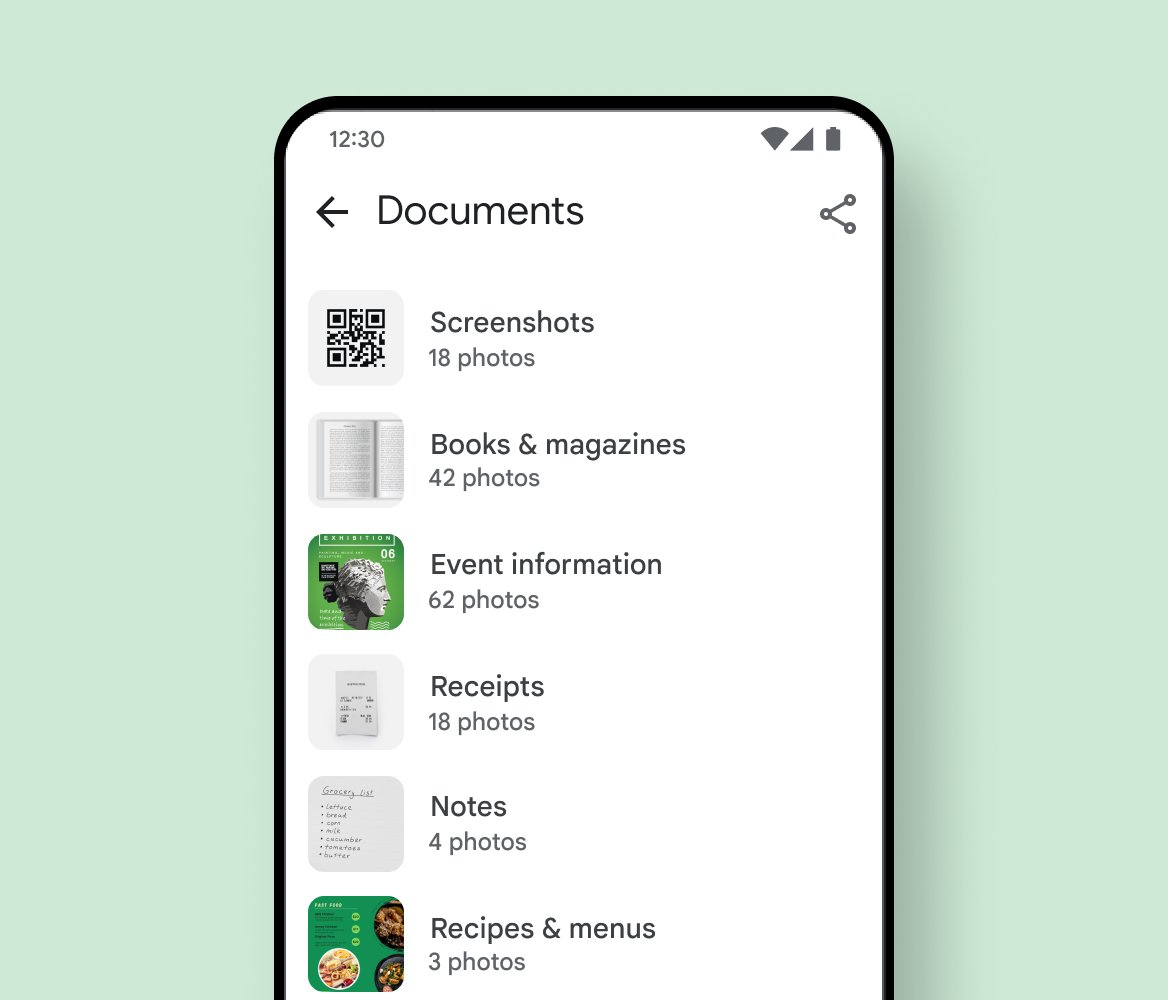
Search reads what is in your photos, so you can find a picture without knowing its date. It also opens collections such as Recently added, Screenshots, Documents and Favorites by name.
- Open Google Photos and tap Search at the bottom (on a computer, go to
photos.google.com/search). - Type a person or pet's name, a place, or an object such as "beach" or "receipt".
- To match exact text in a filename, caption, camera model or text inside a photo, put it in quotation marks, for example
"invoice". - To see your newest uploads in the order they were backed up, type Recently added and tap it in the suggestions.
- Tap the microphone icon to search by voice instead of typing.
Searching by a name only works after you label that face group. Some search features are not available in every region, domain or account type.
Look in Collections, Library, Albums, and Device Folders
Collections is the app's library screen. It gathers albums, device folders and the special places such as Archive, Trash and Locked Folder.
- Open Google Photos and tap Collections at the bottom.
- Open Albums to see albums you created, and tap Shared with me at the top for albums others shared.
- On Android, tap On this device to browse the phone's own folders, such as Camera, Screenshots and Download.
- Open a folder and scroll to find the photo.
- On a computer, use the side panel at
photos.google.comto open People & pets, Places, Documents or Videos.
Find Screenshots, Downloads, and App Images
Screenshots, downloaded images and pictures saved by apps such as WhatsApp land in their own device folders on Android. Google Photos backs up the camera by default; other folders back up only when you turn them on.
If a hide setting such as Hide all or Hide clutter is set for device folders, those photos are filtered out of the main view rather than missing.
- Tap Collections > On this device and open the folder the app saves to.
- To back that folder up, tap your profile picture > Photos settings > Backup.
- Tap Back up device folders.
- Turn on each folder you want backed up, for example Screenshots or WhatsApp Images.
- Optionally turn on Back up all device folders so new folders are included automatically.
An item deleted from a device folder before it was backed up never reaches Google Photos, so it will not appear in your library or Trash later.
Check Archive
Archive hides photos from the main Photos view without deleting them. Archived photos still appear in albums they were added to, in search results and in folders on your device.
- Open Google Photos and tap Collections > Archive (on a computer, click Archive on the left of
photos.google.com). - Select the photo you want back; touch and hold to select several.
- Tap More > Unarchive; on iPhone and iPad, tap Unarchive at the top right.
- Tap Photos and confirm the photo is back on its date.
Check Trash Before It Is Permanently Deleted
Photos and videos you delete stay in Trash for 30 days, then Google deletes them permanently. That applies to backed-up items and to unbacked items deleted on Android 11 and up.
UK English versions of Google Photos call it Bin.
- Open Google Photos and tap Collections > Trash.
- Touch and hold the photo or video you want to restore.
- Tap Restore at the bottom.
- Check that the photo is back in your library, its original albums and the phone's gallery app.
An item cannot be restored if it went to Trash more than 30 days ago, if Trash was emptied, or if it was deleted permanently. Google also says content may be deleted if you are inactive in Google Photos, or over your storage quota, for 2 years or more.
Check Locked Folder
Locked Folder is protected by your device screen lock, and its items do not appear in the Photos grid, memories, search or albums. It needs Android 6 or later and is not available on fully managed devices or some account types.
- Open Google Photos and tap Collections.
- Tap Locked Folder (on a computer, click Locked Folder at
photos.google.com). - Unlock it with your device screen lock when asked.
- Browse for the photo, then move it out of Locked Folder if you want it back in your main library or want to share it.
To see Locked Folder on other devices, tap your profile picture > Photos settings > Backup > Back up Locked Folder, unlock, and turn it on. Without that backup, Locked Folder items live only on the one device.
Check Shared Albums and Partner Sharing
Photos other people share with you are not part of your library until you save them. Partner sharing photos appear under your partner's name. To send your own pictures the other way, share Google Photos with a link from the Share menu.
- For shared albums, tap Collections > Albums and tap Shared with me at the top.
- For a shared conversation, open it, scroll to the photo and tap Save below it to put a copy in your library.
- For partner sharing, tap your profile picture > Photos settings > Sharing > Partner sharing, then tap your partner's name.
- If you have a pending invitation, tap Updates at the top right, then View invitation > Accept.
- Under Save to your account, choose All photos or Photos of specific people so future shared photos save automatically.
Saved shared photos count toward your storage, though photos saved through active partner sharing do not. If your partner deletes a photo before you save it, it disappears from partner sharing.
Use Google Photos on the Web to Confirm What Is in the Cloud
photos.google.com shows only what is stored in your Google Account, with nothing from the phone mixed in. It is the fastest proof of whether a photo was backed up, and it is where your Google Photos are on any computer.
- Open a browser on any computer and go to
photos.google.com. - Sign in with the account your phone backs up to, and check the profile picture at the top right.
- Scroll to the photo's date, or use the search box at the top.
- Click Archive or Trash on the left if it is not in the main view.
- To keep a copy on the computer, select the photo and click More > Download.
Your operating system can give a downloaded file a new timestamp based on when you downloaded it. To export your whole library at once, use Google Takeout.
Check Whether Backup Is Turned On
If backup is off, new photos stay on the phone only and never reach photos.google.com. A backup can take a while depending on your connection and the size of the uploads.
- Open Google Photos and sign in to your Google Account.
- Tap your profile picture or initial at the top right.
- Tap Photos settings > Backup.
- Turn Backup on.
- Confirm the account listed is the one you want, and turn on Back up device folders for app images.
- Set whether backup can use mobile data, and turn on backup while roaming if you travel.
How to Tell Whether a Photo Is Backed Up
The status at the top of the app tells you about backup as a whole. The icon on each thumbnail tells you about a single photo.
- Open Google Photos and read the status at the top: Backup complete means everything is uploaded, Backing up photos means it is in progress, and Backup stopped or Backup is off means nothing new is going up.
- Tap the status message to see details, such as Waiting for Wi-Fi or Waiting for connection.
- Look at a thumbnail: a plain thumbnail with no icon is backed up, an uploading icon means in progress, and a queue or pause icon means waiting.
- A cloud with a line through it means the item is not backed up and not queued, and a failure icon means backup failed permanently.
- For final proof, find the same photo at
photos.google.com; if it is there, it is in the cloud.
What “Free Up Space” Does
Free up space on this device deletes photos from your phone that are already backed up. It is found by tapping your profile picture in the Google Photos app, and it shows how much space it will free before you tap Free up [x] from device.
Use Free up space only after confirming backup is complete, and expect the removed photos to vanish from your phone's gallery app while staying in Google Photos. After Free up space, the removed photos remain visible in the Google Photos app and at photos.google.com, but not when you are offline, not in the device's built-in gallery app, and not when you are signed out of Google Photos. Photos under 30 days old may be kept on the device.
Why Your Photos Are Missing After Getting a New Phone
A new phone only shows what was backed up to the Google Account you sign in with. Anything that stayed on the old phone does not transfer through Google Photos.
The library on the new phone is empty or missing older photos
You signed in with a different account, or those photos were never backed up from the old phone.
- On the new phone, tap your profile picture and confirm the account matches the old phone's backup account.
- Open
photos.google.comwith that account and check whether the photos are there. - If the old phone still works, open Google Photos on it and check each photo's backup icon.
- Turn on Backup on the old phone and wait for Backup complete before resetting it.
Locked Folder is empty on the new phone
Locked Folder backup was off, so the items stayed on the old device only.
- On the old phone, tap your profile picture > Photos settings > Backup > Back up Locked Folder.
- Unlock with the screen lock and turn the backup on.
- Wait for the upload, then open Locked Folder on the new phone.
Why Photos Are Missing After Deleting Them From Your Phone
Photos deleted in the Google Photos app are gone from the phone and the cloud
Deleting in Google Photos removes both the cloud copy and the device copy, plus the photo's place in albums and shared albums.
- Tap Collections > Trash within 30 days of the deletion.
- Touch and hold the photo and tap Restore.
- If it is not in Trash, it was deleted permanently and cannot be restored.
Photos are gone from the gallery app but you never deleted them in Google Photos
Free up space removed backed-up device copies; the cloud copies remain.
- Open Google Photos while connected to the internet.
- Confirm you are signed in to the backup account.
- Scroll to the date or search; the photos appear from the cloud.
- Leave them in the cloud, or download the ones you need back to the phone from the photo's menu.
Photos from WhatsApp or other apps are missing after deleting them
Their device folder was not backed up, so deleting the local file removed the only copy.
- Check Collections > Trash in case Google Photos moved them there.
- Turn on Back up device folders for that app's folder to protect future images.
Check Google Account Storage
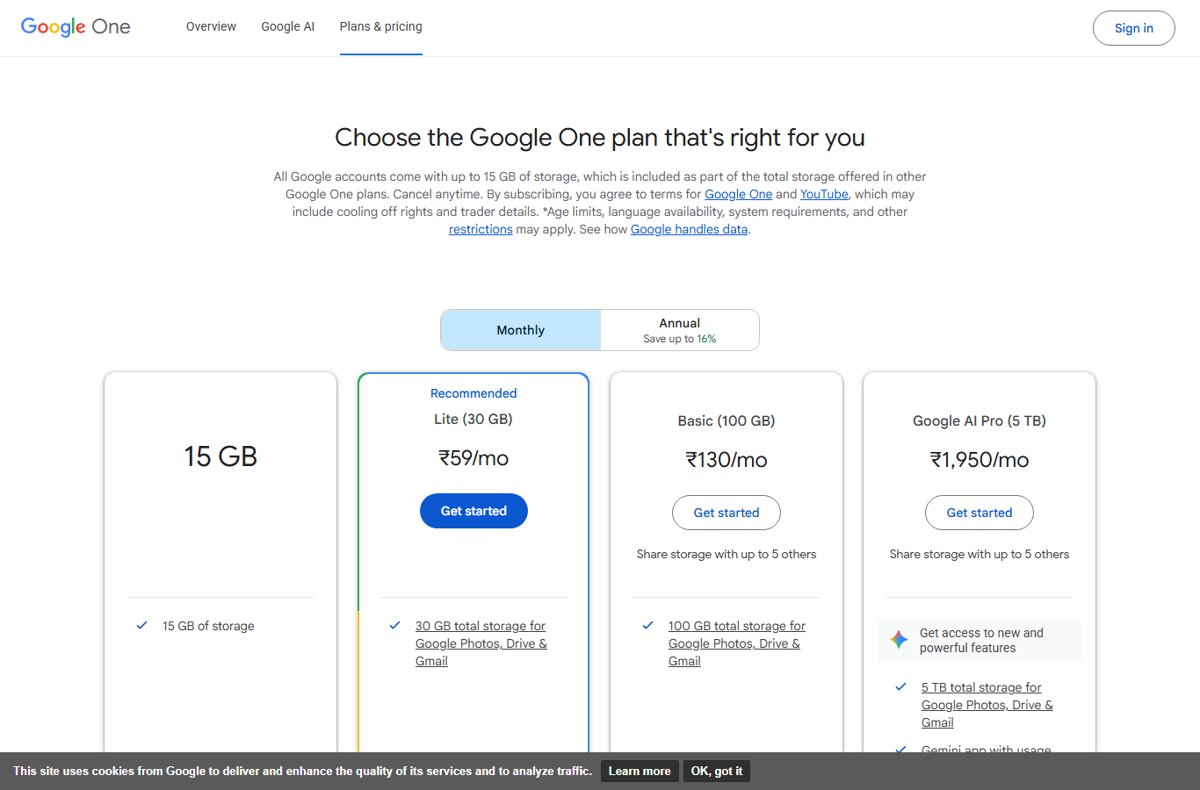
Google Photos, Gmail and Google Drive share one storage pool, with 15 GB free. When it is full, backup stops for all three.
Google Photos storage is full and new photos are not backing up
Your account is over its storage limit, so Google Photos cannot upload or back up.
- Tap your profile picture > Photos settings > Backup > Manage storage to see what is using space.
- On a computer, open
one.google.com/storage/managementto review storage across Photos, Gmail and Drive. - Delete large videos, blurry photos or screenshots you do not need; the storage tool surfaces these for you.
- Buy more storage if you want to keep everything.
- Reopen Google Photos and confirm the status changes to Backing up photos.
Google Photos is not syncing or takes a long time to back up
Backup is waiting for Wi-Fi or a connection, the phone is saving power, or a large batch is uploading.
- Tap the status at the top of the app and read the message, such as Waiting for Wi-Fi.
- Connect to Wi-Fi, or allow mobile data under Photos settings > Backup.
- Plug the phone in to charge; backup can pause when the screen is off.
- Leave the app open until the status shows Backup complete.
Check File Types and Unsupported Items
Google Photos backs up common photo and video formats up to set size limits. A file outside those limits stays on your device only.
One photo or video never backs up while others do
It is an unsupported file type, too large, too small, or an empty 0-byte file.
- Check the format: photos can be .jpg, .heic, .heif, .png, .webp, .gif, .avif or most RAW files; videos include .mp4, .mov, .mkv, .avi, .wmv, .3gp and .m4v.
- Check the size: photos must be under 200 MB or 200 megapixels and at least 256 x 256 pixels; videos must be under 10 GB.
- Delete blank or 0-byte photo and video files, which cannot back up.
- Check the thumbnail icon; a failure icon means that item will not back up in its current form.
Frequently Asked Questions
Where are my photos on Google Photos?
Backed-up photos are in the Photos tab of the Google Photos app and at photos.google.com, under the account that backed them up. Hidden, deleted and private items are in Collections under Archive, Trash and Locked Folder.
Where are my Google Photos on this computer?
Google Photos lives in your Google Account, not in a folder on your PC. Open photos.google.com in any browser and sign in with your backup account. To keep a copy, select a photo and click More > Download, or install the Google Photos desktop app on Windows.
Where are my photos on Google Drive?
Look in Google Photos, not Drive. Photos backed up by the Google Photos app are viewed in the app and at photos.google.com. Drive and Photos share one storage pool with Gmail, so your photos still count toward the storage total shown in Drive.
Where are my photos stored on Google?
They are stored in your Google Account and count toward the storage it shares with Gmail and Google Drive, 15 GB free. You can see them on any device signed in to that account through the Google Photos app or photos.google.com.
Where is Google Photos on my phone?
Google Photos is a separate app on Android, iPhone and iPad, named Google Photos. Open it and tap Photos, Collections or Search at the bottom to browse by date, open your albums and folders, or find a specific picture.
Why is my Google Photos storage full?
Photos, Gmail and Drive share the same 15 GB free storage, so large emails and Drive files fill it too. Open Photos settings > Backup > Manage storage, or one.google.com/storage/management, to see what uses space and delete what you do not need.
Why are my Google Photos not syncing?
Backup is usually off, waiting for Wi-Fi, paused while the screen is off, or blocked by full storage. Tap the status at the top of the app to see the reason, then turn on Backup, connect to Wi-Fi or free up storage.
Why is Google Photos taking so long to back up?
Google says backup time depends on your internet connection, the size of your uploads and other conditions. Connect to Wi-Fi, keep the phone charging and the app open, and check the status message for Waiting for Wi-Fi or Waiting for connection.
Why are my photos in Google Photos?
Backup is turned on, so Google Photos saves the photos and videos from your camera, and any device folders you chose, to your Google Account. You can turn it off under Photos settings > Backup at any time.

![Unable to accept invite in Discord [Fix]](https://techdows.com/wp-content/uploads/2026/10/Unable-to-accept-invite-in-Discord-Fix-1-600x338.jpg)