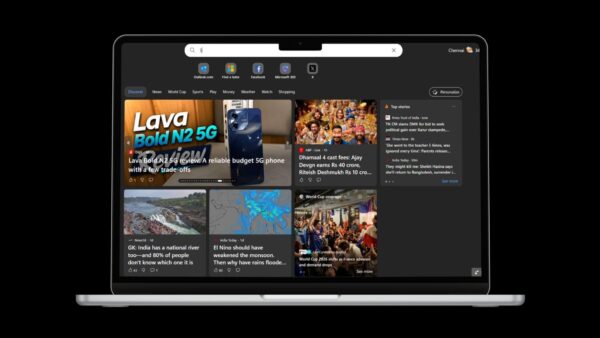
Google started work on a native dark theme for Chrome on desktop in early 2019. On January 2, 2019, Google introduced Native Dark Theme for Chrome on Windows 10, and the first pages to pick up the dark look in test builds were Chrome’s own internal pages: the New Tab page, History and Downloads.
At that stage, the dark versions of these pages were limited to development builds and could change or disappear before reaching the stable channel. Today the feature is part of every Chrome release, and it takes only a few clicks to switch on.
Which Chrome pages go dark
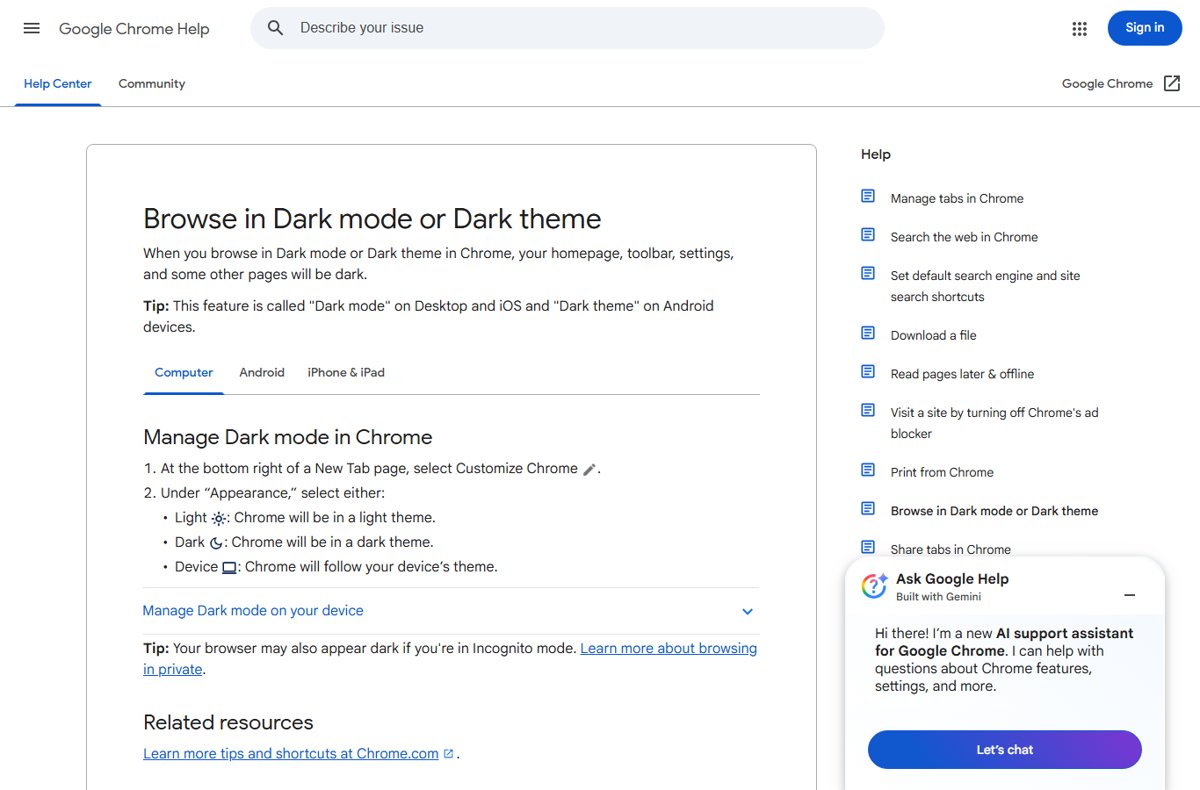
According to Google, when you turn on Chrome’s dark theme, your homepage, the toolbar, Settings and “some other pages” become dark. That includes Chrome’s internal pages such as the New Tab page, History (chrome://history) and Downloads (chrome://downloads). Incognito windows may already look dark regardless of the setting.
Dark mode in Chrome changes the browser’s own interface. It does not repaint ordinary websites. If you want sites themselves to appear dark, you can turn on Google’s dark theme for Google’s pages, or use a site-level option where one exists.
How to turn on dark mode in Chrome
- Open Chrome on your computer and open a New Tab page.
- At the bottom right, click Customize Chrome.
- Under Appearance, choose Dark.
- Open History (Ctrl + H) or Downloads (Ctrl + J) to see them in the dark theme.
Choose Device instead of Dark if you want Chrome to follow your computer’s light or dark setting automatically. On Windows, that means turning on dark mode in Windows’ personalization settings first; on a Mac, in Apple’s Appearance settings.
Customize the New Tab page while you are there
The same Customize Chrome panel controls the shortcuts on the New Tab page. Under Shortcuts, you can pick My shortcuts or Most visited sites, or turn off Show shortcuts to hide them. Google notes that these New Tab options require you to be signed in to your Google Account and to use Google as the default search engine.
If the pages stay light
- Check that Chrome is up to date; updating Google Chrome brings the latest appearance options.
- If you picked Device, check your operating system’s dark mode setting.
- A third-party theme from the Chrome Web Store can override the colors. Switching back to the default theme, or resetting Chrome settings, removes it.
Today
What was an experiment in January 2019 is now a standard setting. Chrome on Windows and Mac offers Light, Dark and Device modes from the Customize Chrome panel, and the New Tab, History and Downloads pages all follow that choice.