To enable the Windows Boot Manager menu on Windows 11 or 10, run bcdedit /set {bootmgr} displaybootmenu yes in an administrator Command Prompt, and to disable it, run the same command with no.
This guide covers both commands, the menu timeout, turning the Windows Boot Manager entry off in UEFI firmware, and what to do when the PC then reports no bootable device.
Enable or disable Windows Boot Manager on Windows 11/10
The displaybootmenu value decides whether Windows Boot Manager stops at every start and asks which system to load. Enabling it shows the menu even on a PC with one copy of Windows; disabling it lets the PC go straight to the default entry.
- Select Start, type cmd, right-click Command Prompt and select Run as administrator.
- Back up the boot store first: run
bcdedit /export C:\bcdbackup. - To enable the boot menu, run
bcdedit /set {bootmgr} displaybootmenu yes. - To disable the boot menu, run
bcdedit /set {bootmgr} displaybootmenu no. - Set how long the menu waits with
bcdedit /set {bootmgr} timeout 10, replacing10with the number of seconds you want. - Wait for The operation completed successfully., then restart the PC.
In PowerShell or Windows Terminal, put the identifier in quotes, for example bcdedit /set "{bootmgr}" displaybootmenu yes. Microsoft notes that you may need to suspend BitLocker before changing boot settings, or the next start can ask for the recovery key.
If you only need the menu once, open the boot manager from Advanced startup instead of changing the setting.
How to turn off Windows Boot Manager in UEFI firmware
On a UEFI PC, Windows Boot Manager is also the name of the firmware boot entry that starts Windows. Turning that entry off is a different thing from hiding the menu: the firmware then skips Windows on that drive altogether.
- Open Settings > System > Recovery and select Restart now next to Advanced startup. On Windows 10, the page is Settings > Update & Security > Recovery.
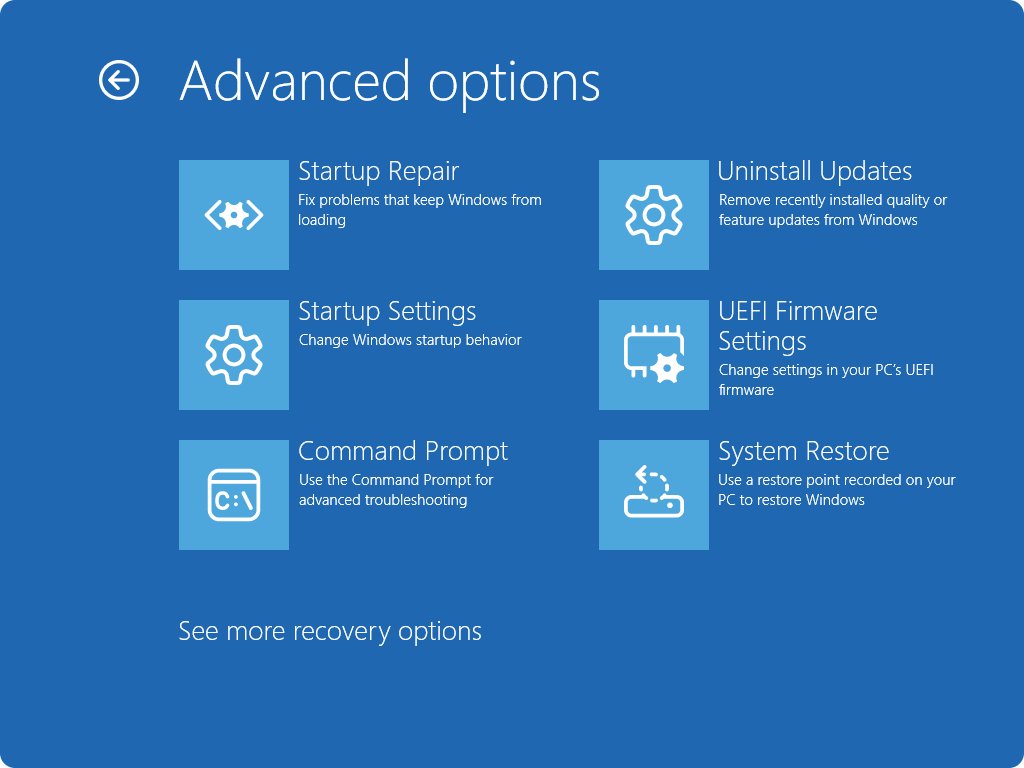
- Select Troubleshoot > Advanced options > UEFI Firmware Settings, then Restart.
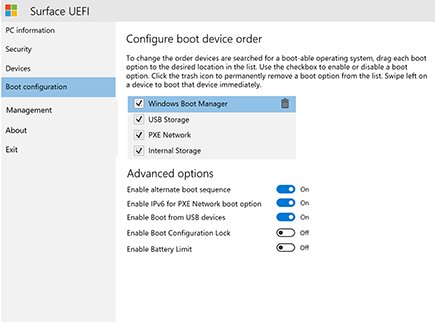
- Open the boot page of the firmware. On a Surface it is Boot configuration; other makers call it Boot, Boot order or Boot priority.
- Disable the Windows Boot Manager entry, or move another device such as USB Storage above it.
- Save the change and restart. On a Surface, select Restart Now on the Exit page.
On a Surface, the order only applies when Enable Alternate Boot Sequence is set to On. Only disable the entry when another drive holds a system you want to start or you want to boot from a USB drive instead, or the PC has nothing left to boot.
How to configure Windows Boot Manager
Every Windows Boot Manager setting lives in the boot configuration data (BCD) store. Run these commands from an administrator Command Prompt. Microsoft points to the System Configuration tool (msconfig) on its Boot tab as the safer way to change the default entry and timeout.
| What you want | Command | What it does |
|---|---|---|
| Show the menu at every start | bcdedit /set {bootmgr} displaybootmenu yes |
Boot manager stops and lists the boot entries |
| Hide the menu | bcdedit /set {bootmgr} displaybootmenu no |
PC starts the default entry without asking |
| Remove the setting entirely | bcdedit /deletevalue {bootmgr} displaybootmenu |
Returns the menu to its default behaviour |
| Change the wait time | bcdedit /timeout 5 |
Seconds before the default entry starts |
| Pick the default system | bcdedit /default {ID} |
Entry chosen when the timeout runs out |
| Change the menu order | bcdedit /displayorder {ID1} {ID2} |
Order the entries appear in the menu |
| Choose a system for the next start only | bcdedit /bootsequence {ID} |
One-time order, then the normal order returns |
Replace {ID} with the identifier shown by bcdedit /enum. Any change needs a restart to take effect.
What happens if Windows Boot Manager is disabled?
| What you disabled | What happens at startup | How to reverse it |
|---|---|---|
The boot menu (displaybootmenu no) |
Windows starts the default entry straight away; nothing else changes | Run the command again with yes |
| The firmware entry Windows Boot Manager | The firmware skips Windows on that drive and tries the next device | Turn the entry back on in UEFI and move it to the top |
| The boot files themselves (deleted or damaged) | Errors such as Bootmgr missing or corrupted or no bootable device | Rebuild them with bcdboot from installation media |
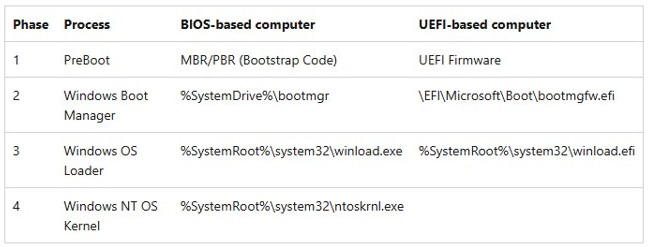
Windows cannot start without Windows Boot Manager. On a UEFI PC the firmware loads \EFI\Microsoft\Boot\bootmgfw.efi, and that boot manager then starts the Windows loader.
Should I enable Windows Boot Manager?
Keep the Windows Boot Manager firmware entry enabled and at the top of the boot order on any PC that runs Windows. Enable the boot menu only when you dual boot or want a chance to pick recovery tools at every start. The firmware entry is what starts Windows, so disabling it leaves the PC unable to boot from that drive. The menu itself only adds a delay at startup; Microsoft's own troubleshooting lists it as a cause of slow starts when nobody is there to pick an option.
How to check Windows Boot Manager settings with bcdedit
bcdedit /enum BOOTMGRLists the Windows Boot Manager entry, including its displayorder, timeout and, when set, the displaybootmenu value. Run it in an administrator Command Prompt.
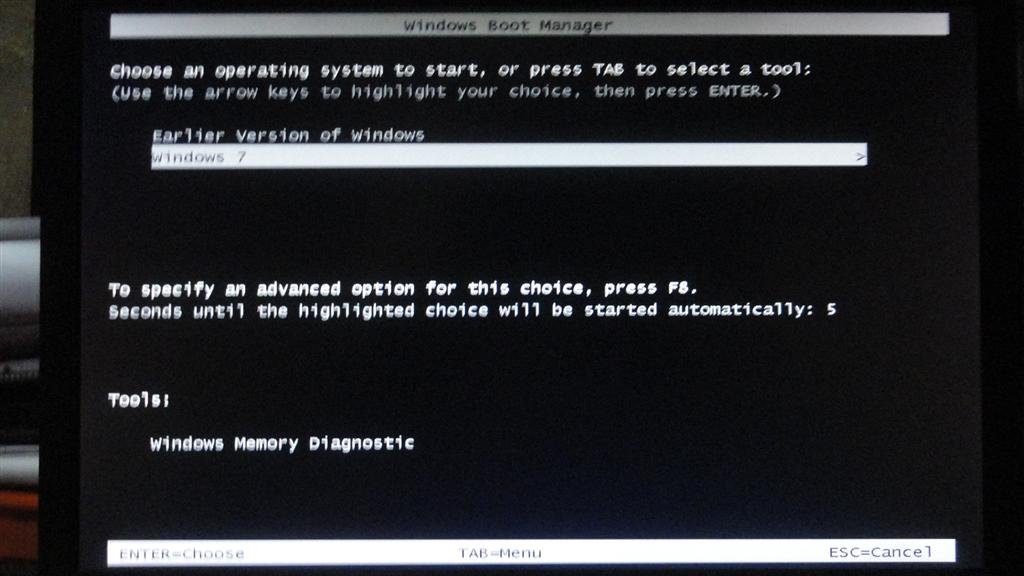
You should see: The entry shows identifier {bootmgr}, your chosen timeout, and displaybootmenu Yes or No. After a restart with the menu enabled, the screen reads "Choose an operating system to start, or press TAB to select a tool".
How to remove Windows Boot Manager entries
An old or deleted copy of Windows can leave its line in the menu. Removing that entry is how most people "get rid of" Windows Boot Manager without breaking the startup.
- Open Command Prompt as administrator.
- Run
bcdedit /export C:\bcdbackupto save a backup. - Run
bcdedit /enumand note the identifier of the entry you want gone. Never pick the one marked{current}. - Run
bcdedit /delete {ID}, replacing{ID}with that identifier including the braces. - Restart. With only one entry left, the menu no longer appears unless
displaybootmenuis set toyes.
How to restore Windows Boot Manager settings from a backup
- Open Command Prompt as administrator.
- Run
bcdedit /import C:\bcdbackup. This replaces every entry in the store with the backup. - Run
bcdedit /enumto confirm the entries are back. - Restart the PC.
If you never made a backup, bcdedit /deletevalue {bootmgr} displaybootmenu and bcdedit /timeout 30 bring the menu back to typical values.
No bootable devices found in Windows 11
This firmware message means the PreBoot stage found no valid system disk to hand over to. It usually follows a change to the Windows Boot Manager entry or damage to the boot files, which Startup Repair and bootrec can usually fix.
The message appeared after you disabled Windows Boot Manager
The firmware entry that starts Windows is off or below a device with nothing on it.
- Restart and open the firmware setup with your PC maker's key, or Volume-Up + Power on a Surface.
- Open the boot page and enable Windows Boot Manager.
- Move Windows Boot Manager to the top of the boot order.
- Save the change and restart.
Windows Boot Manager is missing from the firmware boot list
The boot files on the EFI system partition are missing or damaged.
- Start the PC from Windows installation media and press Shift + F10 at the setup screen.
- Run
diskpart, thenlist vol, thenexitto find the letter of the Windows partition. - Run
bcdboot D:\Windows, replacingDwith that letter. - Remove the USB drive and restart, then check that Windows Boot Manager is back in the firmware list.
The drive itself does not show in the firmware
The firmware cannot see the disk, which points to a connection or hardware fault rather than a Windows setting.
- Disconnect external drives and USB devices, then restart.
- Check that the internal drive is listed in the firmware's storage or information page.
- If it is not listed, contact the PC maker; Microsoft notes that a PC stuck before Windows starts can have a hardware issue.
Windows Boot Manager not working
Boot failed: Windows Boot Manager
The boot manager started but could not load Windows, often because the BCD store or boot sector is damaged.
- Start from installation media and select Next > Repair your computer.
- Select Troubleshoot > Advanced options > Startup Repair and let it finish.
- If that fails, open Command Prompt from the same menu and run
bootrec /scanos, thenbootrec /rebuildbcd. - Restart the PC.
The menu appears at every start even with one Windows installation
displaybootmenu is set to yes, or an old entry is still in the store.
- Run
bcdedit /set {bootmgr} displaybootmenu noas administrator. - Remove leftover entries with
bcdedit /delete {ID}. - Restart to confirm Windows starts without the menu.
F8 does nothing at startup
The default Standard boot menu policy ignores F8.
- Run
bcdedit /set {default} bootmenupolicy legacyas administrator to bring back the F8 menu. - Restart and press F8 before the Windows logo appears.
- To return to the default, run
bcdedit /set {default} bootmenupolicy standard.
Windows Boot Manager FAQ
How do I turn off Windows Boot Manager?
Run bcdedit /set {bootmgr} displaybootmenu no in an administrator Command Prompt to stop the menu appearing at startup. To turn off the firmware entry instead, disable Windows Boot Manager on the UEFI boot page, but only if another bootable system is installed.
How do I disable boot manager without breaking Windows?
Hide the menu rather than the firmware entry. The displaybootmenu no setting or a short timeout stops the prompt, while Windows Boot Manager keeps starting Windows in the background. Disabling the firmware entry stops Windows from booting from that drive.
How do I boot to Windows Boot Manager?
Restart the PC with Shift held while you select Restart, or set displaybootmenu yes so the menu appears at every start. On a UEFI PC, the firmware's one-time boot menu also lists Windows Boot Manager as a device you can pick.
How do I access Windows Boot Manager?
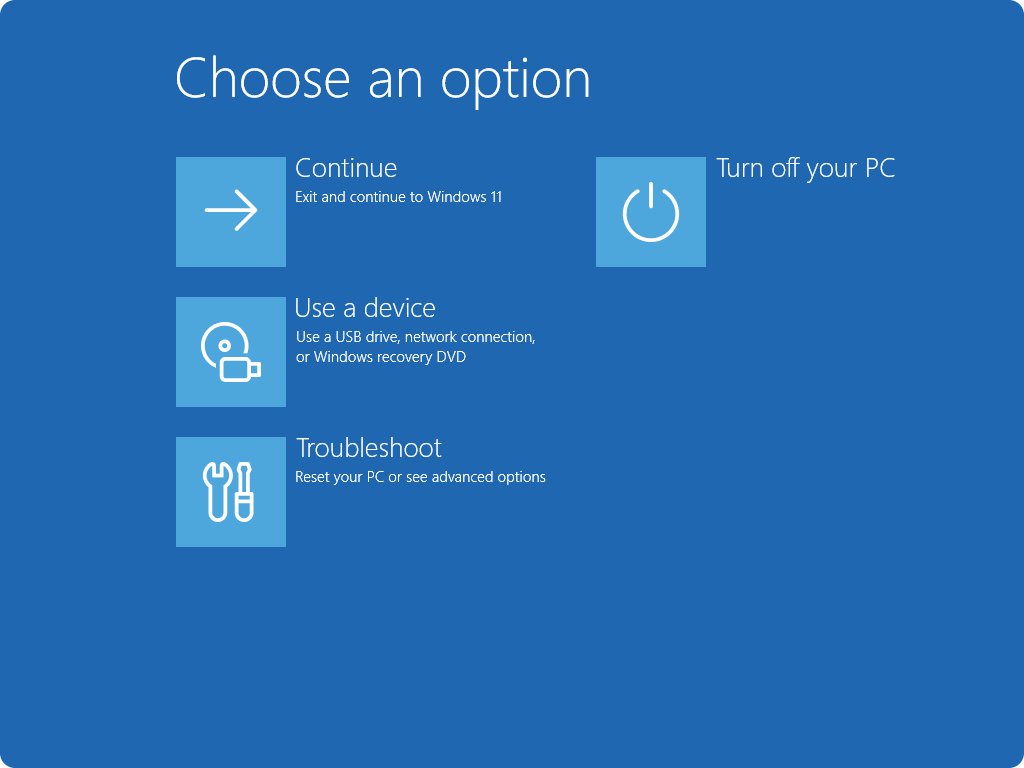
The quickest route is Settings > System > Recovery > Restart now next to Advanced startup. The PC restarts into a blue menu where you can choose another system, a device or Troubleshoot tools.
How do I use Windows Boot Manager?
When the menu shows "Choose an operating system to start", use the arrow keys to pick an entry and press Enter. Press Tab to move to the tools section. If you press nothing, the default entry starts when the timeout runs out.
How do I remove Windows Boot Manager?
You cannot remove Windows Boot Manager from a PC that runs Windows, because it is what starts Windows. You can remove unwanted entries from its menu with bcdedit /delete {ID} and hide the menu with displaybootmenu no.
How do I configure Windows Boot Manager?
Use bcdedit as administrator: /timeout sets the wait, /default picks the system that starts automatically, and /displayorder sorts the list. The System Configuration tool (msconfig) Boot tab changes the default entry and timeout without commands.
How do I modify Windows Boot Manager safely?
Export the store first with bcdedit /export C:\bcdbackup, then make one change at a time and restart to test it. If something goes wrong, bcdedit /import C:\bcdbackup restores every entry. Suspend BitLocker before you change boot settings.