If the Apple TV+ sign-in code on your smart TV is not working, scan the QR code on the TV with your phone camera instead, or type the code at link.apple.com, the address Apple now gives for smart TV sign-in.
This guide covers both sign-in options in the Apple TV app, the difference between the TV code and the six-digit Apple Account code, resetting the app, and fixes for each sign-in error.
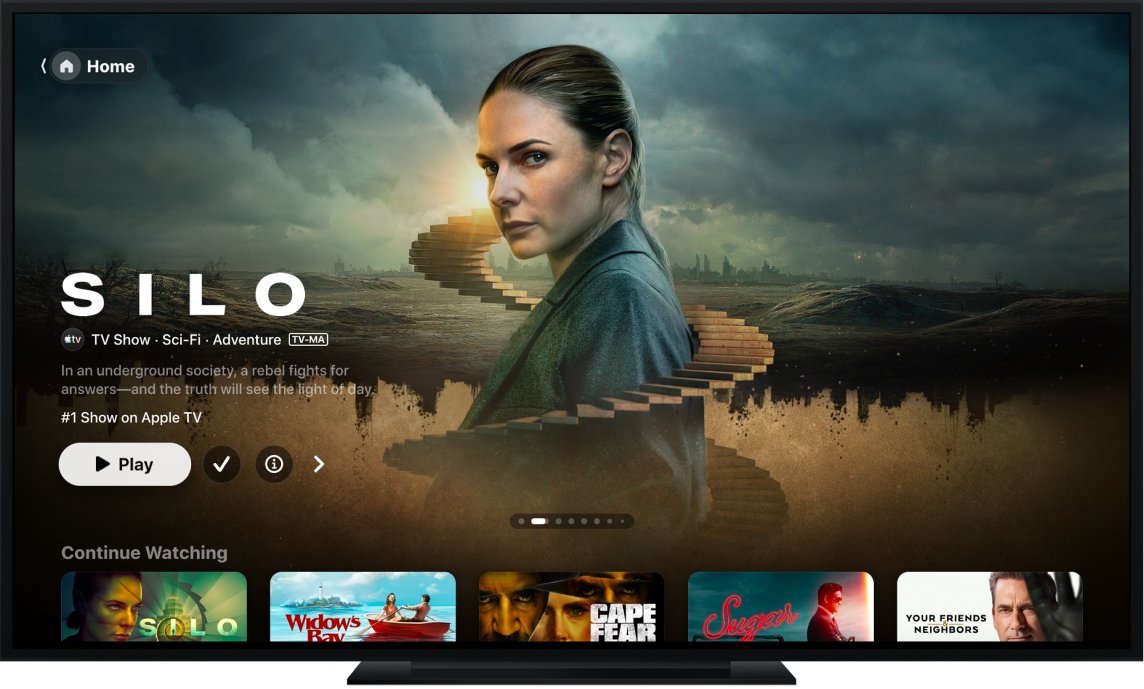
Apple TV sign in code not working: the fastest fix
Apple's subscription is now just called Apple TV, and the app on compatible smart TVs, streaming devices and game consoles signs you in the same way. Most failed codes come from typing the code at an old address or using a code from an earlier attempt.
- Open the Apple TV app on the smart TV and go to the sign-in screen.
- Select Sign In On Mobile Device so the TV shows a QR code and a sign-in code.
- Open the Camera app on your phone and point it at the QR code on the TV.
- Tap the link that appears, sign in with your Apple Account, and follow the instructions on the phone.
- If scanning does not work, open a browser on your phone or computer, go to link.apple.com and type the code shown on the TV exactly.
- If the code is refused, leave the sign-in screen on the TV and open it again so the TV shows a fresh code, then enter the new code.
- If the mobile route keeps failing, choose Sign in with Remote on the TV, where it is offered, and enter your Apple Account email and password with the remote.
Older help pages and forum posts mention a different activation address. Always use the address the TV screen shows, and use link.apple.com when the screen gives no address.
Why can't I sign into Apple TV?
Match what you see on the TV or phone to the row below.
| What happens | Likely cause | What to do |
|---|---|---|
| Website says the code is invalid | Old code, a typo, or a different activation website | Reopen the sign-in screen for a new code and use link.apple.com |
| Phone signs in but the TV never moves on | TV lost its internet connection or the app is stuck | Turn the TV off and on, then try again |
| Asked for a six-digit code you do not have | Two-factor authentication on your Apple Account | Allow the sign-in on a trusted device or tap Didn't Get a Code? |
| Password rejected | Wrong or forgotten Apple Account password | Reset the password, then sign in again |
| Signed in but shows cannot be played | Account not ready for purchases or streaming limit reached | Add a payment method or stop playback on another device |
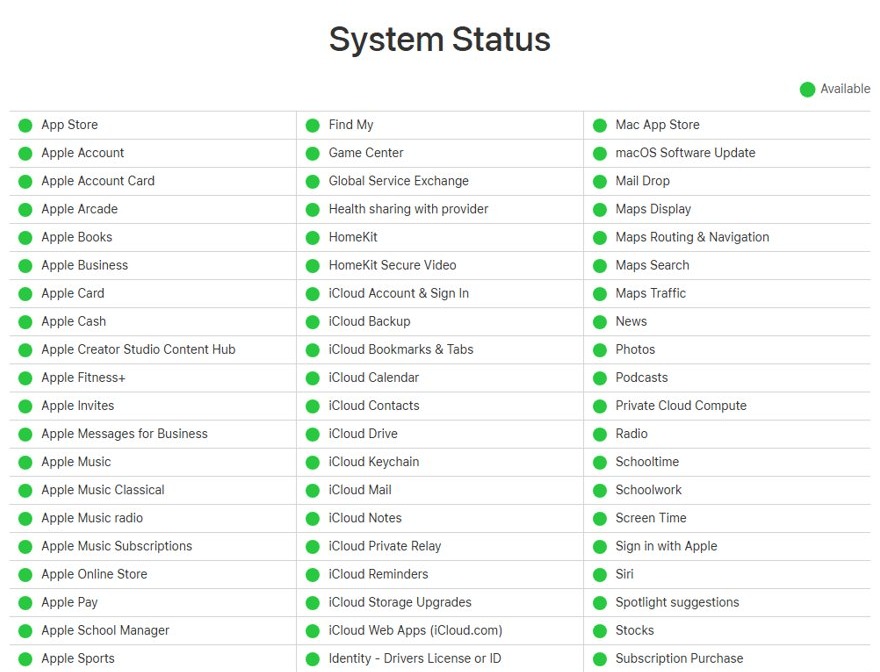
| Sign-in screen will not load at all | An Apple outage or a network problem | Check Apple's System Status page, then your Wi-Fi |
How to sign in to Apple TV on a smart TV with a code
Sign In On Mobile Device lets your phone do the typing. It is the easier route when your Apple Account password is long.
- Make sure the smart TV is connected to the internet.
- Open the Apple TV app and choose Sign In On Mobile Device.
- On your phone, scan the QR code with the camera, or go to link.apple.com in any browser and enter the code from the TV.
- Sign in with the same Apple Account that holds your Apple TV subscription.
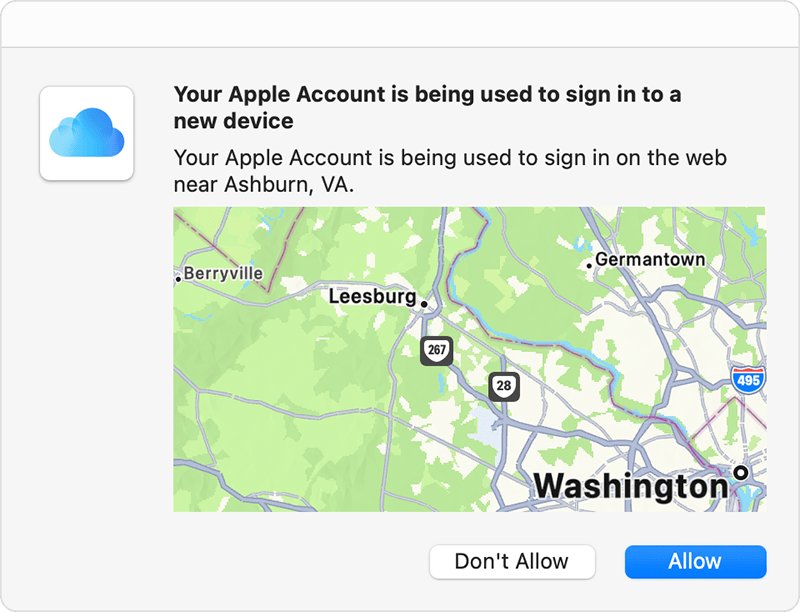
- If a six-digit verification code appears on another of your Apple devices, enter it on the phone to finish.
- Follow the remaining prompts on the phone until the TV shows the Apple TV home screen.
Sign in with the same Apple Account you used to subscribe. A different account signs in normally but does not carry your subscription.
How to sign in to Apple TV with the TV remote
When the code route will not finish, Sign in with Remote skips the website entirely. Not every TV offers it.
- Open the Apple TV app and go to the sign-in screen.
- Choose Sign in with Remote.
- Use the TV remote to enter your Apple Account email address or phone number.
- Enter your Apple Account password.
- When your iPhone, iPad or Mac shows a sign-in notification, choose Allow and enter the six-digit verification code on the TV.
- Complete the setup prompts on the TV.
Apple TV sign in code vs Apple Account verification code
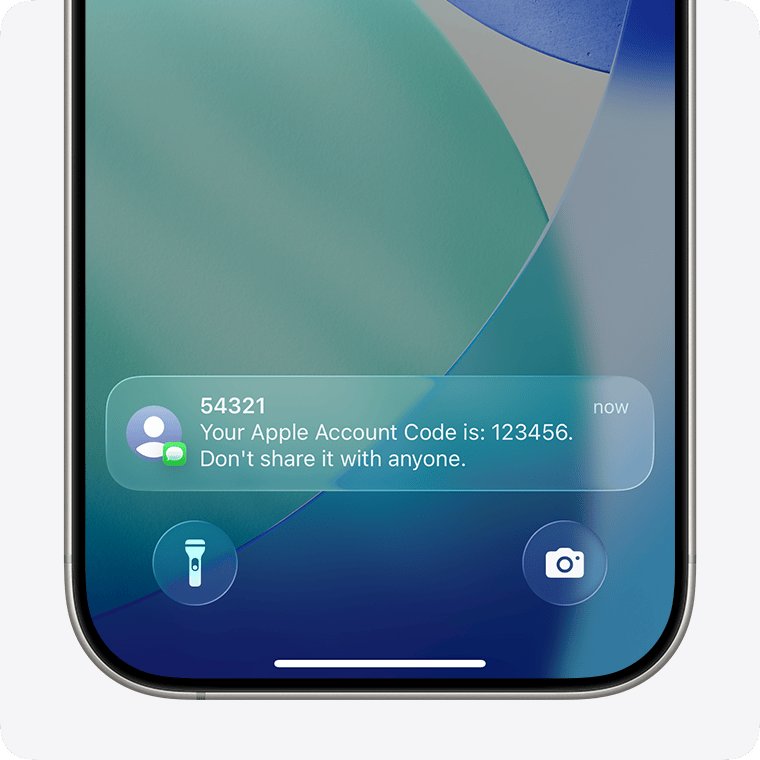
Two different codes appear during smart TV sign-in, and entering one in place of the other is a common reason the sign-in fails.
| Code | Where it appears | Where you enter it |
|---|---|---|
| Sign-in code | On the TV screen, beside the QR code, after you choose Sign In On Mobile Device | At link.apple.com on your phone or computer |
| Six-digit verification code | On a trusted iPhone, iPad, Mac or Apple Watch after you tap Allow, or by text or phone call | On the device that is asking for it, the phone or the TV |
How to reset the Apple TV app on a smart TV
Resetting the app clears your personal information and returns it to its original settings. It removes a stuck sign-in state so you can start again cleanly.
- Open the Apple TV app on the smart TV.
- Go to Settings.
- Choose the Reset option and confirm.
- Reopen the app and sign in again with Sign In On Mobile Device or Sign in with Remote.
On a smart TV that is also signed in to the Apple Music app, resetting the Apple TV app restores the Apple Music app to its original settings too.
How to remove a smart TV from your Apple Account
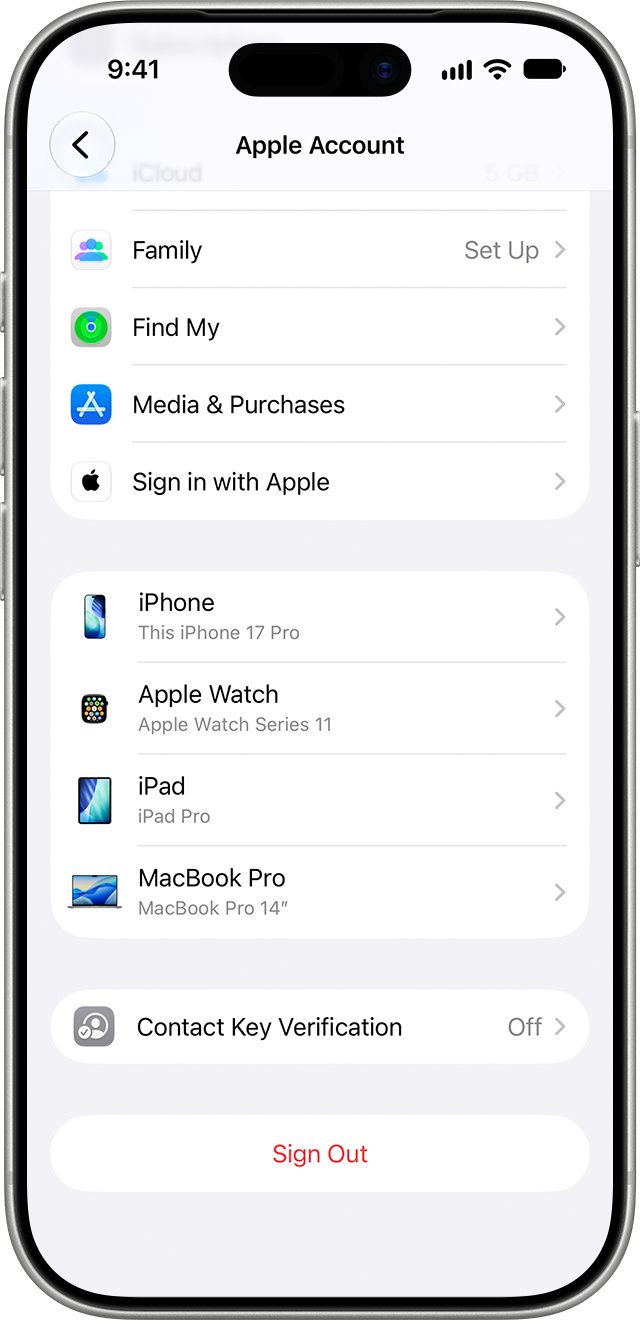
Streaming devices you use for Apple TV appear in your Apple Account device list. Removing an old or unreachable TV signs it out remotely, and the TV only returns to the list when you sign in on it again.
- On iPhone or iPad, open Settings and tap your name; on a Mac, choose Apple menu > System Settings and click your name.
- Scroll down to the list of devices.
- Tap or click the smart TV you want to remove.
- Choose Remove from Account and confirm.
- On a Windows PC or Android phone, sign in at account.apple.com to see the same device list.
Apple TV not signing in on smart TV: how to fix it
Work through the symptom that matches yours, trying sign-in again after each step.
Apple TV sign in code says invalid
The code is from an earlier attempt, was mistyped, or was entered on a different website.
- Leave the sign-in screen on the TV and open Sign In On Mobile Device again for a new code.
- Go to link.apple.com and type the new code carefully.
- Scan the QR code instead if you keep mistyping the code.
Apple TV won't sign in on TV after the phone says done
The TV app lost its connection or is stuck on the old screen.
- Turn the smart TV off and back on.
- Check that the TV is still connected to Wi-Fi and can open another streaming app.
- Reset the Apple TV app from its Settings menu and sign in again.
No verification code arrives
Your trusted device is off, out of reach, or filtering messages from unknown senders.
- Look for a sign-in notification on your iPhone, iPad or Mac and choose Allow.
- On the code screen, select Didn't Get a Code? and have the code sent by text or phone call.
- If you filter unknown senders in Messages, check that folder for the code.
Apple TV can't sign into Apple account because the password is wrong
The password was changed or forgotten.
- Reset your Apple Account password from a trusted device or Apple's account website.
- Sign in on the TV with the new password.
- Use the same Apple Account you used to subscribe.
Signed in but Apple TV is not working on TV
The account is not ready for purchases, too many devices are streaming, or Apple has an outage.
- Check Apple's System Status page for an Apple TV interruption.
- Add or update a payment method so your Apple Account is ready for purchases.
- Stop playback on other devices if several people are watching the same subscription.
- Make sure the connection gives at least 8 Mbit/s, the speed Apple lists for HD streaming.
Can't sign into Apple TV on computer
The browser or the Windows app is out of date, or the account needs verification.
- In a browser, go to tv.apple.com and choose to sign in.
- If asked, add or verify a credit card on your Apple Account.
- On Windows, update Windows and then update the Apple TV app in the Microsoft Store.
If the app will not install or the TV will not connect to the internet at all, contact the TV maker, as Apple advises. To send video from an iPhone or Mac instead, fix AirPlay problems on a TV that supports it.
Apple TV sign in on smart TV FAQ
Where do I enter the Apple TV sign in code?
Go to link.apple.com on your phone or computer and enter the code shown on the TV, or scan the QR code with your phone camera. The code appears after you choose Sign In On Mobile Device in the Apple TV app on the smart TV.
Why can't I sign in to Apple TV+?
The usual causes are an old or mistyped sign-in code, a wrong Apple Account password, or a missing two-factor verification code. Get a fresh code on the TV, use link.apple.com or the QR code, and check Apple's System Status page for an outage.
Why can't I sign into Apple TV on my TV with the code?
Codes from an earlier attempt or typed at an old activation address fail. If the website refuses it, reopen the sign-in screen for a new code. If it still fails, use Sign in with Remote or reset the Apple TV app from its Settings.
Apple TV login not working even with the right password. What now?
Your account probably needs the six-digit verification code. Choose Allow on a trusted iPhone, iPad or Mac to see it, or select Didn't Get a Code? to receive it by text or phone call, then enter it on the device asking for it.
Can't sign into Apple TV on computer. How do I fix it?
In a browser, sign in at tv.apple.com and add or verify a credit card if asked. On a Windows PC, update Windows and then update the Apple TV app in the Microsoft Store before trying again.
Why is Apple TV not working on my TV after I signed in?
Check Apple's System Status page, then make sure your Apple Account is ready for purchases and that the subscription is not already streaming on too many devices. Turning the smart TV off and back on clears most playback errors.
How do I sign out of Apple TV on a smart TV I no longer have?
Remove it from your Apple Account device list. On iPhone, open Settings, tap your name, select the TV and tap Remove from Account. Without an Apple device, sign in at account.apple.com to see the same list.