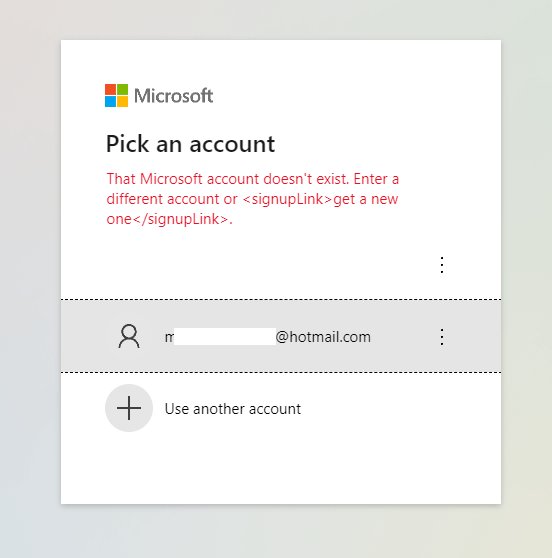
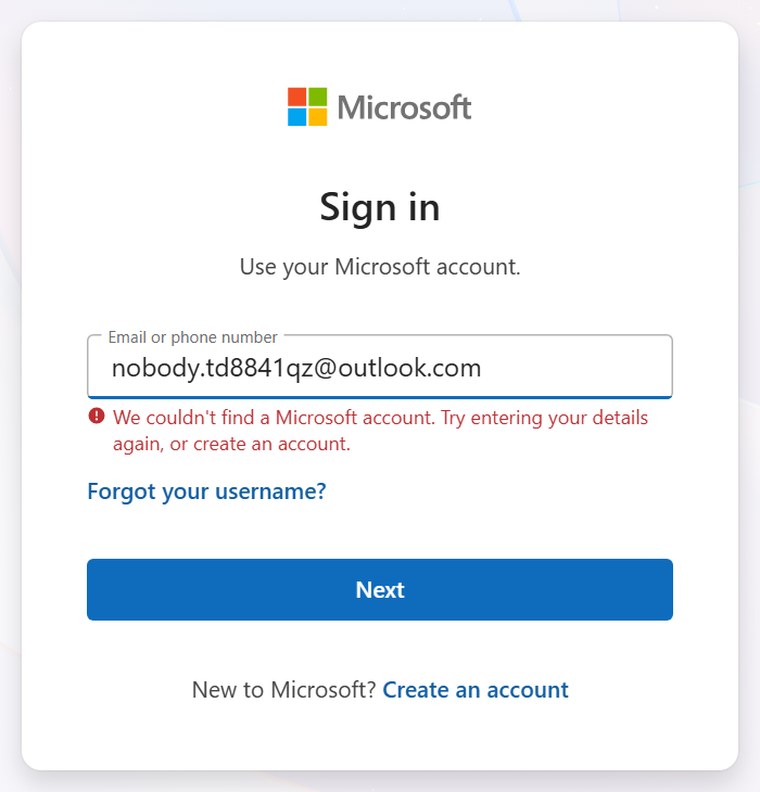
Microsoft shows "That Microsoft account doesn't exist" when the address you typed is not a personal Microsoft account, usually because of a typo, the wrong domain, a work or school address, or an account that was closed and deleted.
This guide shows how to find which of those applies, how to sign in with the right username, and how to fix the passkey, child account and account creation blocked errors that often appear alongside it.
Fix that Microsoft account doesn’t exist error
Try these in order. Stop as soon as you see a password prompt instead of the error.
- Retype the address and check both parts: the name (rachel or rachael) and the domain (.com, .co.uk, hotmail, outlook or live).
- If the account has another email address or phone number on it, sign in with that instead.
- If the address belongs to your employer or school, sign in to the work service instead of a personal Microsoft page.
- Open the Microsoft account sign-in helper at aka.ms/sign-in-helper, enter the address and follow what it tells you.
- If you closed the account recently, sign in at account.microsoft.com to reopen it during the grace period.
- If none of this works, contact Microsoft support and say that your username has stopped working.
Why does Microsoft say I do not have an account?
The sign-in page only checks whether the exact text you typed is a personal Microsoft account username. Anything else returns the same message.
| Cause | How to tell | Fix |
|---|---|---|
| Typo in the name | One letter differs from your real address | Retype it slowly or paste it from an email you sent |
| Wrong domain | You typed outlook.com but signed up with hotmail.co.uk | Try each Microsoft domain you might have used |
| Signing in with an alias that is not on the account | You used an old or secondary address | Use your primary address or phone number |
| Work or school address | The address ends in your company or school domain | Sign in to the work or school service instead |
| Account closed by you | You closed it more than 30 or 60 days ago | It is deleted; create a new account with a new address |
| Account deleted for inactivity | No sign-in for more than two years | It cannot be reopened; create a new account |
| The address was never a Microsoft account | You only used it with other services | Create a Microsoft account with it |
The person is logging in using an alias
An alias is another email address that works with the same Microsoft account. Any alias on the account can sign in, but an address that was never added, or one you used for something else, will not.
- Go to account.microsoft.com and try your other email addresses and your phone number one at a time.
- When one shows a password prompt, sign in with it.
- Open the account's how you sign in page to see every alias on the account.
- Select Add email if you want the address you tried first to work as a sign-in name too.
- Follow the instructions to verify the new alias.
Your organization may block adding its email addresses as aliases on a personal account, and VOIP numbers cannot be added as a sign-in method.
Retype the correct email address
Microsoft runs separate country domains for Hotmail, Outlook and Live addresses, so [email protected] and [email protected] are different accounts.
- Clear the username box completely instead of editing the text in it.
- Type the name part and check its spelling letter by letter.
- Type the full domain, including any country ending such as .co.uk or .fr.
- If you see a password prompt, the address is a Microsoft account; sign in.
- If the error comes back, repeat with the other domains you might have signed up with.
How to find your Microsoft account username
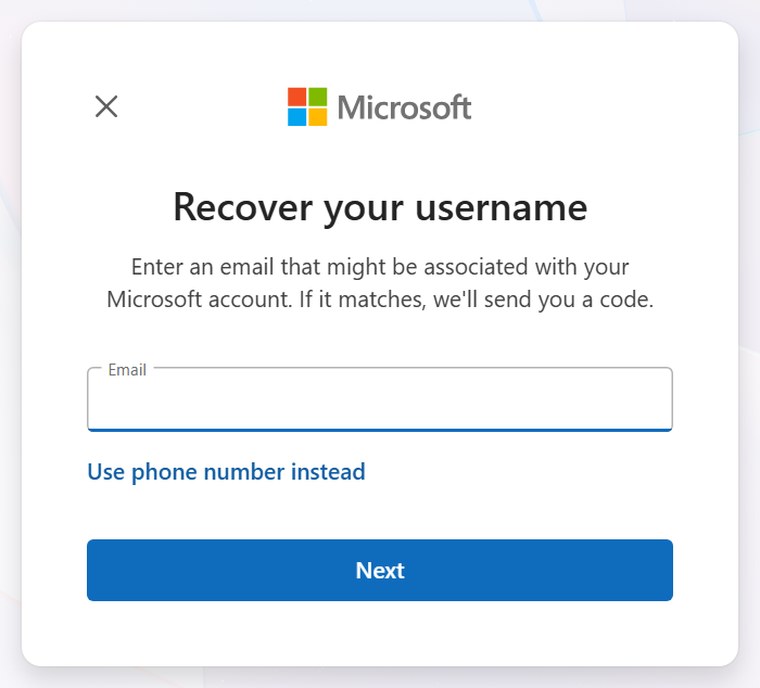
If you are not sure which address the account uses, Microsoft can show a hint using the security phone number or email on the account.
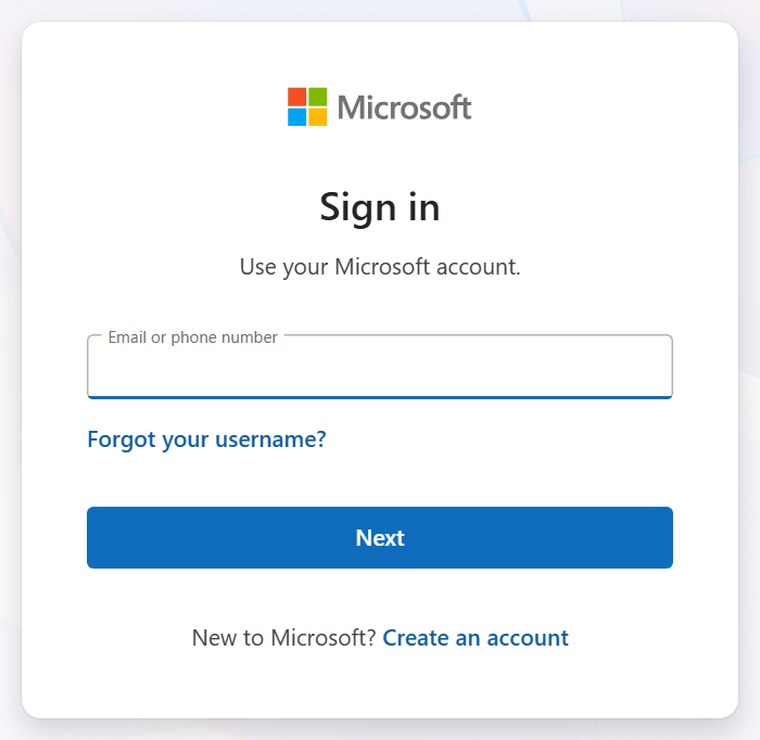
- Open the forgotten username lookup from the Microsoft account sign-in page.
- Enter the security phone number or email address you added to the account.
- Request a security code, enter it and select Next.
- Read the username hint, shown in a form such as j**@outlook.com**.
- Sign in with the full address that matches the hint.
One phone number or backup email can be linked to several accounts, so you may see more than one hint. If the lookup fails, check the products where you used the account, such as an Xbox console, Outlook.com or the Microsoft Store, for the address it shows.
How to reopen a closed Microsoft account
A closed account gets a 30-day or 60-day grace period. During it you can reopen the account with your old address; after it the account is permanently deleted and the sign-in page says it does not exist.
- Go to account.microsoft.com and select Sign in.
- Enter the address of the closed account and your password.
- Choose where to receive a security code, then enter it.
- Wait for the account to reopen with its subscriptions, Xbox profile, Rewards points and purchases.
Accounts with no sign-in for more than two years may also be deleted, and those cannot be reopened. Microsoft does not let anyone reuse an address from a deleted account, so a new account needs a new address. If you meant to close the Microsoft account yourself, this is the expected result.
That Microsoft account doesn't exist with a work or school email
A work or school account is created by your organization's admin in Microsoft Entra, and it is a different account type from a personal Microsoft account. The two never sync, so each one only signs in to its own services.
| What you are signing in to | Account to use | If you see the error |
|---|---|---|
| Outlook.com, Xbox, OneDrive personal, Microsoft Store, Family Safety | Personal Microsoft account | Your work address is not a Microsoft account; use your personal one |
| Microsoft 365 for business, Teams for work, SharePoint | Work or school account | Sign in on the work service, or ask your IT admin |
| Microsoft 365 Education | School account | Ask your school's IT admin |
| Address ends in .onmicrosoft.com | Work or school account | It is a business address, not a personal account |
If you visit Outlook.com and sign in with a work or school account, Microsoft redirects you to your work mailbox. Password problems on a work or school account go to your IT admin, not to Microsoft account support.
Windows says Microsoft account doesn't exist during setup
If Windows setup or the Add account screen rejects the address, sort out the account first, or finish setup another way and add the account later.
- On a phone or another PC, check the address at account.microsoft.com to see whether it shows a password prompt.
- If it does not, create the Microsoft account there first, then return to Windows setup.
- Or sign in to Windows with a different, existing Microsoft account and add your new account later.
- Or set up the PC with a local account where Windows offers that option.
You can switch from a local account to a Microsoft account at any time once the PC is running.
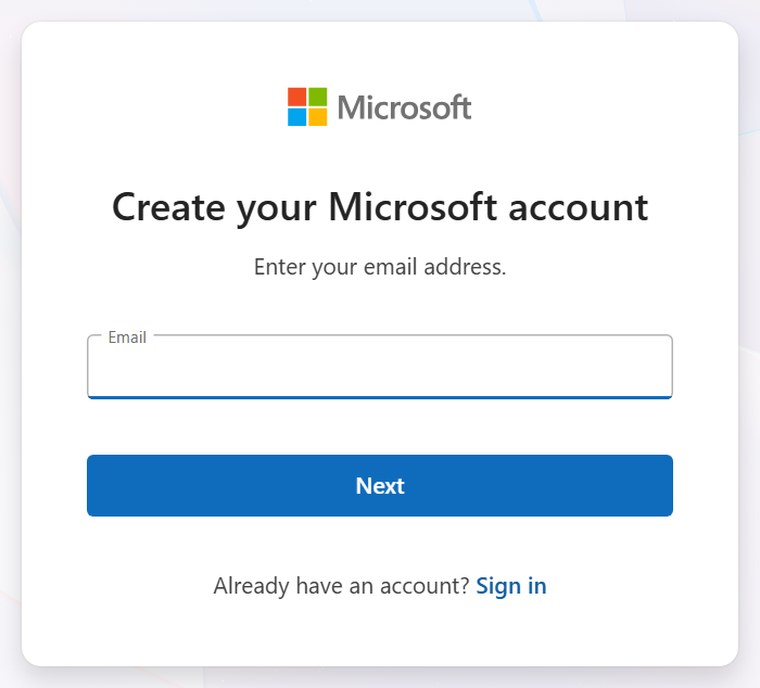
How to check if your email address is a Microsoft account
- Go to account.microsoft.com and select Sign in.
- Enter the email address and select Next.
- A password prompt means the address is a Microsoft account.
- "We couldn't find an account with that username" or "That Microsoft account doesn't exist" means it is not one, or it has been closed.
A passkey or code prompt in place of the password prompt also means the account exists. Select Forgot password? if you know the address is right but not the password.
Microsoft account is showing as a child account
Microsoft treats an account as a child account when its birth date is under the age of consent in your country or region. Adults are 18 or older, or 19 in Canada. A child cannot change their own birth date, so an adult has to give consent first.
- Sign in to account.microsoft.com/profile/edit-profile-information. If you can edit the birth date there, correct it and select Save.
- If you see "Parent or guardian consent is required for this account," sign in at login.live.com and select I'm a parent or guardian.
- Sign in with any adult personal Microsoft account.
- Select Yes, I agree at the bottom of the consent form, then select Family Safety.
- At account.live.com/mykids.aspx, select Edit this child's personal info for your name and correct the birth date.
- If consent was already given, the adult who gave it signs in at account.live.com/mykids.aspx and selects Edit this child's personal info.
If the account is in a family group, only an organizer can remove a member. Open account.microsoft.com/family, select the options next to your name and choose Leave family group. Leaving a group removes access to shared subscriptions such as Microsoft 365 Family.
Microsoft account passkey not working [Fix]
"Something went wrong" when you use a passkey
The sign-in timed out, Bluetooth is off, or the browser is too old for passkeys.
- Start the sign-in again and complete each prompt promptly.
- Turn on Bluetooth on both devices and keep them in range and online.
- Update Windows, macOS or your phone and the browser, then retry.
"No passkeys available"
The device has no screen lock, so it cannot use passkeys.
- Set a face, fingerprint or PIN lock on the device.
- Try the passkey sign-in again.
"This passkey can no longer be used"
The passkey was deleted, or you changed your PIN or biometric method.
- Sign in another way, such as a code or password.
- Set up a new passkey for the account.
- Delete the old passkey from your authenticator app and the account.
"We couldn't use your device to verify your identity"
The passkey on that device is no longer valid.
- Select one of the other sign-in options offered.
- Remove passkeys that no longer apply from the account.
No QR code appears for an iPhone, iPad or Android device
Bluetooth is off, the devices are out of range, or your organization blocks Bluetooth sign-in.
- Turn on Bluetooth on both devices.
- Connect both devices to the internet; they do not need the same network.
- On a work account, ask your admin whether cross-device passkeys are allowed.
External security key not found
The key did not respond in time.
- Unplug the security key and plug it back in.
- Touch or activate it as soon as the prompt appears.
Account creation has been blocked by Microsoft [Fix]
Microsoft blocks sign-ups that look automated or abusive, such as accounts made by scripts or bots, many accounts at once, or the same details reused across several accounts. It does not publish the exact triggers.
Account creation is blocked when you sign up
The sign-up method or device was flagged.
- Sign up with a different method, such as an email address instead of a phone number.
- Try the sign-up on another device.
- Do not retry many times in a row or create several accounts with the same details.
The address you want says it is already used or does not exist
Addresses from closed Microsoft accounts can never be reused, even years later.
- Pick a new address for the account.
- Or create a free Outlook.com address at outlook.com with Create free account.
You cannot create an account while setting up a new PC
Account creation failed inside Windows setup.
- Sign in with an existing Microsoft account and add the new account later.
- Or set up the PC with a local account and change to a Microsoft account afterwards.
Error 0x8015402B when creating an account on Xbox
The non-Microsoft email address on the account has not been verified.
- Check the Xbox status page for service problems.
- Open the verification email sent to that address and verify the account, then try again.
If you see "Your account has been locked" instead, sign in at account.microsoft.com and follow the Let's prove you're human steps, or the aka.ms reinstatement link if that option is missing.
That Microsoft account doesn’t exist FAQ
Why does my Microsoft account not exist?
The address you typed is not a personal Microsoft account username. The usual reasons are a typo, the wrong country domain, a work or school address, or an account that was closed or deleted after two years without a sign-in.
Why is Microsoft not recognizing my account?
Microsoft only recognizes the exact usernames on the account. Try your other email addresses and phone number, check the domain, and run the sign-in helper at aka.ms/sign-in-helper to see what it finds.
Can I recover a deleted Microsoft account?
Only during the 30-day or 60-day grace period after you close it. Sign in at account.microsoft.com and enter the security code to reopen it. After the grace period, or after two years of inactivity, the account is gone for good.
Can I create a new Microsoft account with my old email address?
No. Microsoft does not let anyone reuse an address from a closed account, even one closed a long time ago. Create the new account with a different address, such as a new Outlook.com address.
Why does my work email say that Microsoft account doesn't exist?
Work and school accounts are a separate account type managed by your organization. Personal Microsoft pages do not recognize them. Sign in on the work service, such as Microsoft 365 for business, or ask your IT admin.
How do I find my Microsoft account email?
Use the forgotten username lookup with the security phone number or email on the account. Microsoft sends a code, then shows a hint such as j****@outlook.com. You can also check an Xbox console or other signed-in device.
How do I contact Microsoft when my account doesn't exist?
Run the sign-in helper first. If you still see "We couldn't find an account with that username," select Contact support from Microsoft's username stopped working page and tell the agent that your username has stopped working.