When Find My shows a stolen iPhone as online but with Location Services off, the iPhone is connected yet isn't sending its position, so Apple can't put it on a map.
You can still lock it with Lost Mode, report it with its serial number and IMEI, protect your Apple Account and erase it remotely. French iPhones show the same state as « Pas de partage de la position • Connecté(e) ».
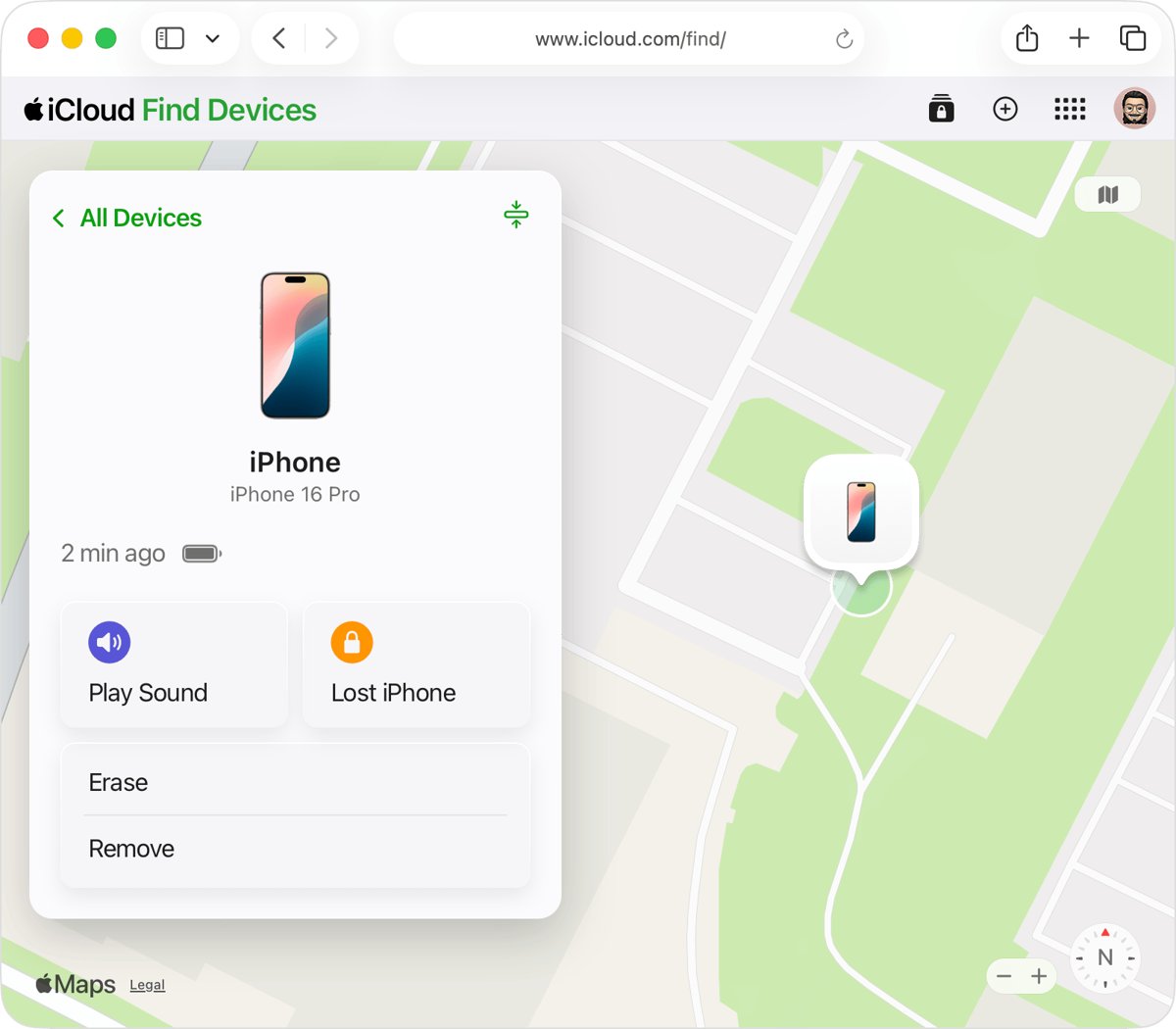
What to do when Find My says your stolen iPhone is online but not sharing location
Act while the iPhone is online. Lost Mode and remote erase reach the device only when it has a Wi-Fi or cellular connection, and an online iPhone takes the command straight away.
- On any computer or phone, go to icloud.com/find and sign in with your Apple Account. If you're asked for a verification code, select the Find Devices button instead.
- Under All Devices, select the stolen iPhone.
- Choose Mark As Lost and follow the onscreen instructions. Skip the phone number and message: Apple advises against showing contact details on a stolen device.
- Leave the iPhone in your device list. Don't select Remove, because removing it also removes Activation Lock.
- Report the theft to local police and to your wireless carrier, and give them the serial number and IMEI.
- From another trusted device or account.apple.com, review your Apple Account and change the password if anything looks wrong.
Don't try to get the iPhone back yourself, even if a location appears later. Apple's advice is to contact local law enforcement instead.
What not sharing location online means in Find My
Find My separates two things: whether the iPhone can reach Apple, and whether it can send a position. "Online" means the first works. Location Services being off, or not working, blocks the second.
| Status in Find My | French iPhone wording | What it means | What you can still do |
|---|---|---|---|
| Location on the map | – | The iPhone is online and sending its location | Get directions, play a sound, mark as lost, erase |
| Not sharing location • Online | Pas de partage de la position • Connecté(e) | The iPhone is connected but can't send its location, for example because of a Location Services problem | Mark as lost and erase take effect at once |
| Offline | Hors ligne | The iPhone is off, out of battery or has no connection | See the last known location for up to 7 days in the Find My app; queued commands run when it reconnects |
| No location found | Aucune position trouvée | More than seven days have passed since the iPhone last sent a location | Mark as lost and erase still queue for the next connection |
| iPhone not in the list | – | Find My was off before the theft, or the device was removed | Report the theft and change your Apple Account password |
Turning Location Services off stops many iPhone features from using your position, Find My included. If the iPhone was in your pocket when it was stolen and the setting was on, someone may have changed it since.
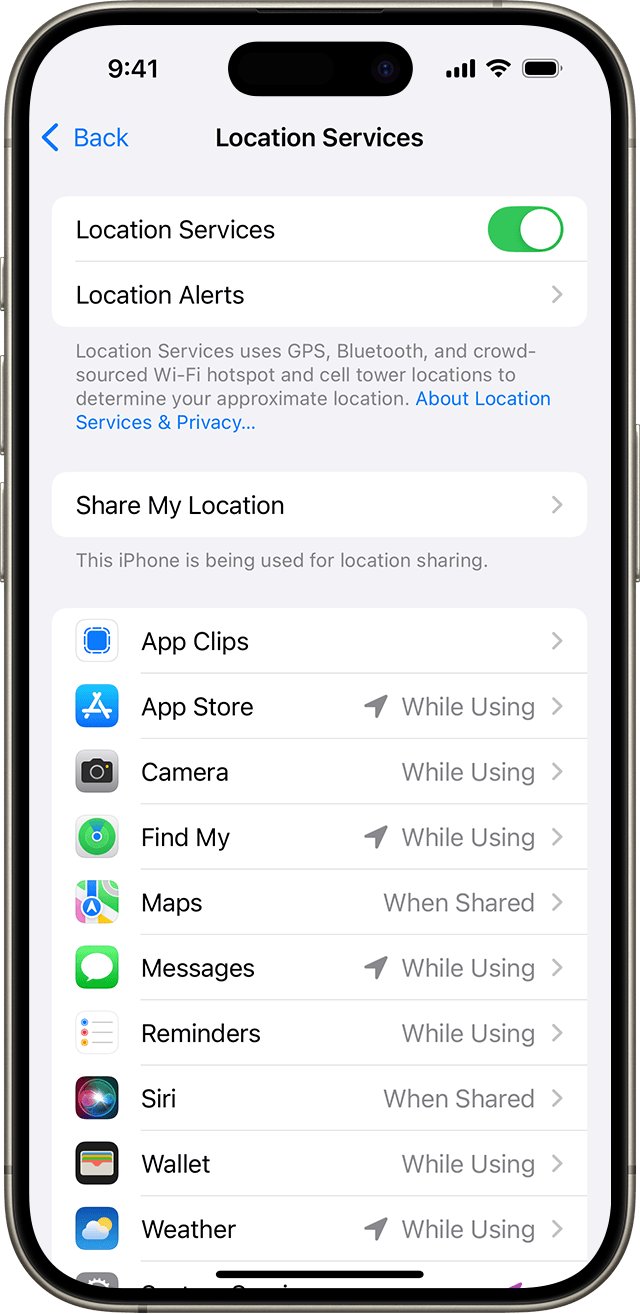
How to mark a stolen iPhone as lost on iCloud.com
Lost Mode locks the iPhone with its passcode and suspends Apple Pay cards and passes. With Stolen Device Protection on, turning Lost Mode off needs Face ID or Touch ID, so a passcode alone won't unlock it.
- Go to icloud.com/find and sign in to your Apple Account. No verification code is needed, so this works even when the stolen iPhone is your trusted device.
- In the list of devices, select the stolen iPhone. If another device is already selected, select All Devices first.
- Select Mark As Lost.
- If the iPhone has no passcode, create one when asked.
- Leave the phone number and message empty, then finish the onscreen steps.
- Check your Apple Account email for the Lost Mode confirmation message.
Mark the iPhone as lost even if Stolen Device Protection is on. Its extra safeguards last only for a period of time, while Lost Mode stays on until you stop it.
Turn on Lost Mode for a stolen iPhone in the Find My app
Use another Apple device signed in to your Apple Account, or a Family Sharing member's iPhone or iPad, where your devices appear under theirs.
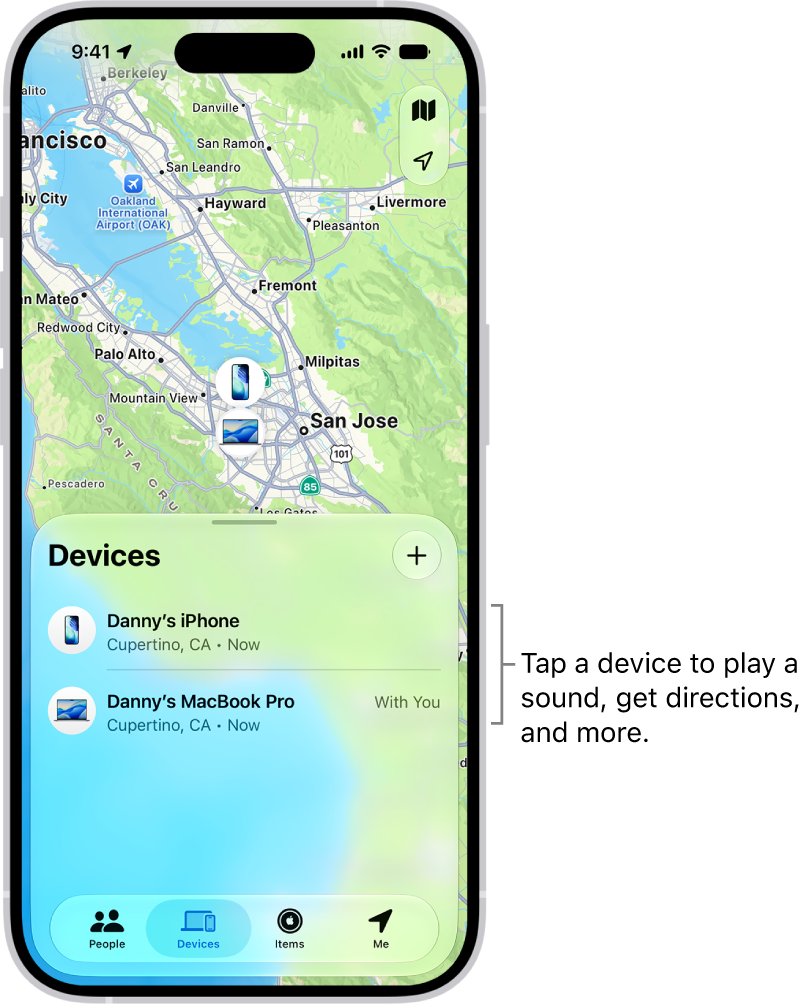
- Open the Find My app and tap the Devices tab.
- Scroll down and select the stolen iPhone. On a family member's device, it sits underneath their own devices.
- Tap the More button.
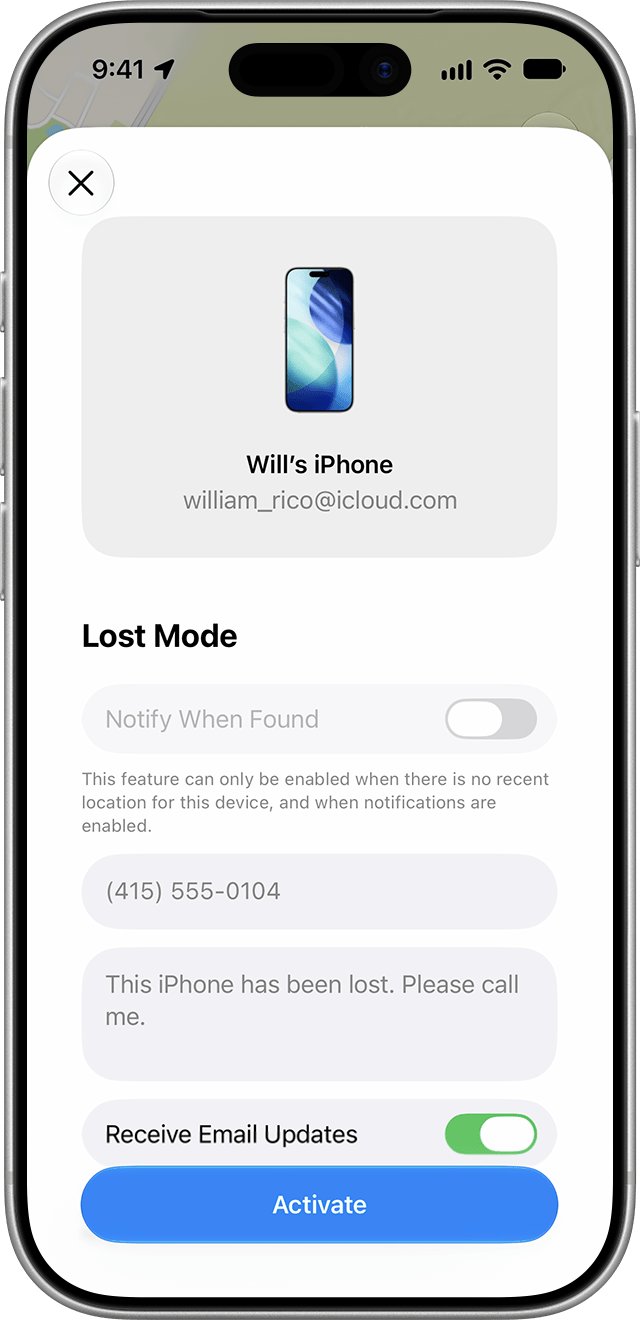
- Scroll down to Lost iPhone, then turn on Lost Mode.
- Skip the contact information screens for a stolen phone, then tap Activate.
Apple's Lost Mode page says the map shows the iPhone's current location and any changes in it while Lost Mode is on, so check the map again over the next hours.
How to find the IMEI of a stolen iPhone for the police
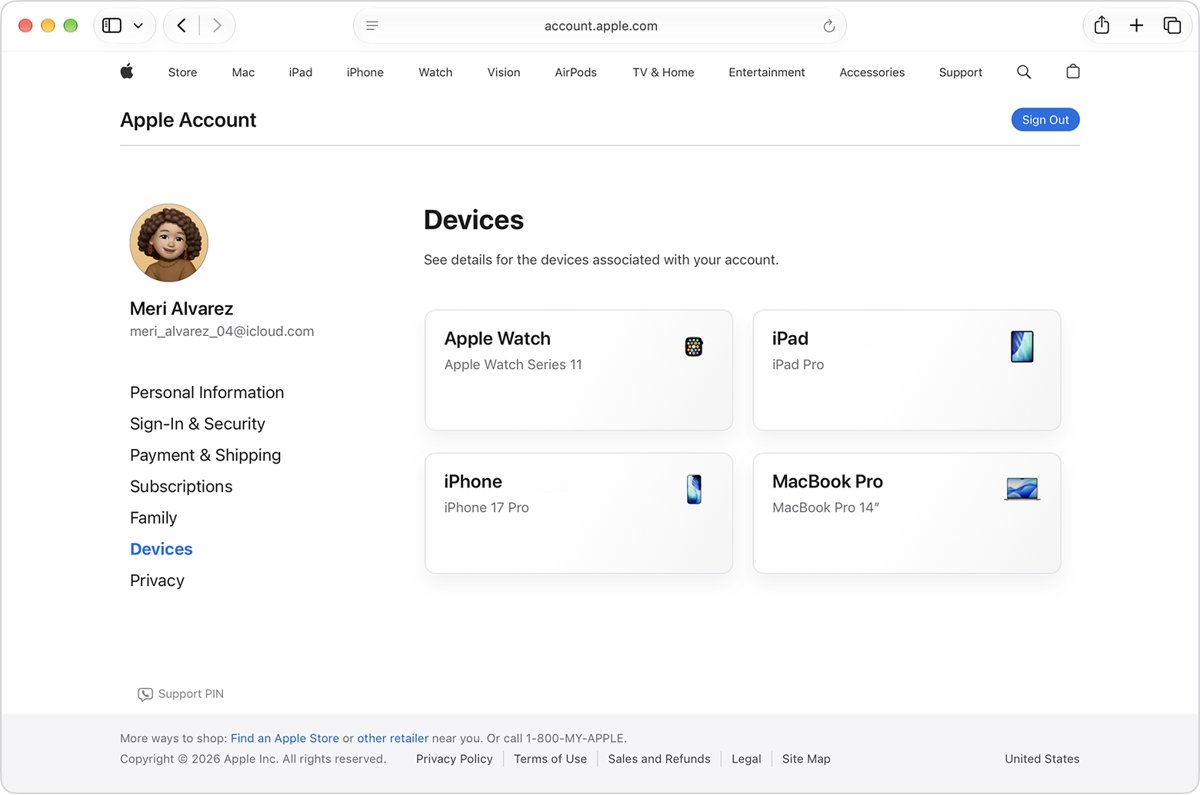
Police and your carrier may ask for the serial number or IMEI, the number used to track a stolen iPhone. You can read both without the iPhone in your hand.
| What you have | Where to look | What you get |
|---|---|---|
| A web browser | account.apple.com > sign in > Devices > select the iPhone | Serial number, EID and IMEI/MEID |
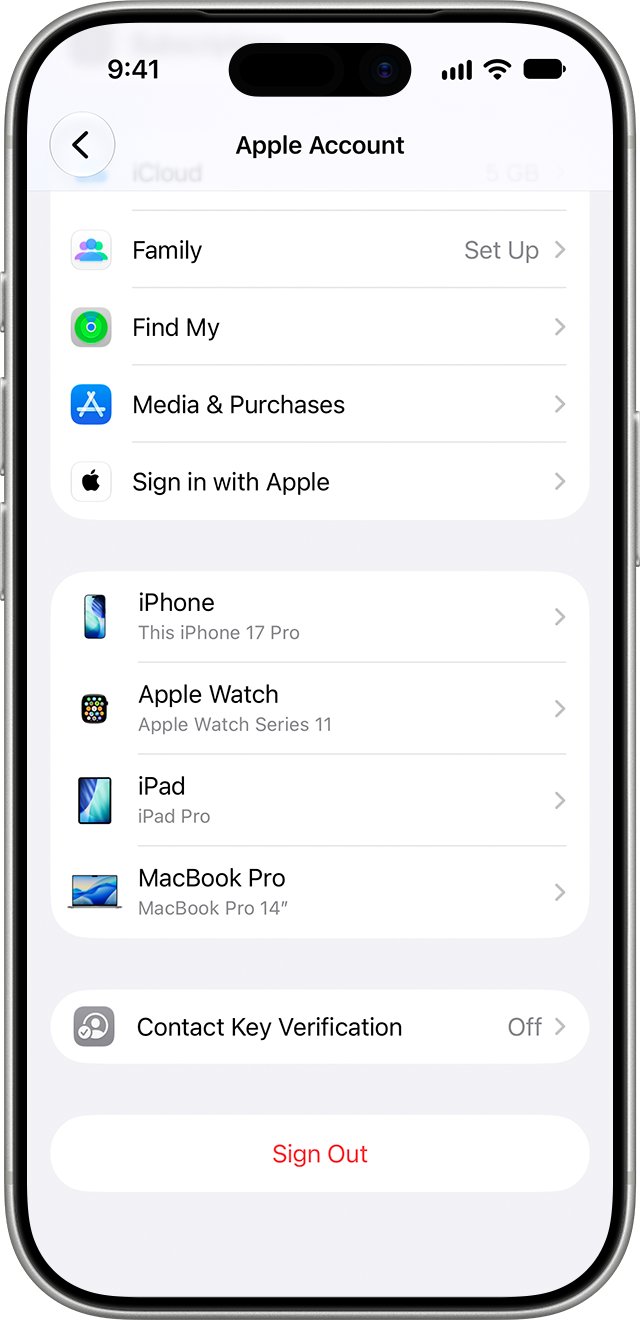
| Another iPhone or iPad on the same Apple Account | Settings > your name > scroll down > tap the stolen iPhone | Serial number and IMEI |
| The original box | The barcode label on the packaging | Serial number, EID and IMEI/MEID |
iPhone 14 models and later have no IMEI engraving on the body or SIM tray, so the box and your Apple Account are the places to check. If the iPhone has AppleCare+ with Theft and Loss, file the claim before you remove the iPhone from your account.
How to secure your Apple Account after your iPhone is stolen
A thief with your passcode can try to change your Apple Account. Check it from a device you still control.
- On another iPhone or iPad, open Settings and tap your name. On a Mac, open System Settings and click your name.
- Scroll down to the device list and remove any device you don't recognise.
- Tap Sign-In & Security and check the email addresses, phone numbers and recovery methods on the account.
- If anything changed that you didn't do, update it and change your Apple Account password.
- Without another Apple device, sign in at account.apple.com to review the same details.
You can remove the stolen iPhone from your account's device list without taking it out of Find My. Keep it in Find My so Activation Lock stays on. If you need a new password, reset your Apple Account password from a trusted device.
How to erase a stolen iPhone remotely with Find My
Erase only after you have tried everything else, because it can't be undone. An iPhone with iOS 15 or later can still be located in Find My after it's erased.
- Sign in to icloud.com/find.
- Choose the stolen iPhone from the device list.
- Select Erase iPhone, then select Erase to confirm.
- Or, in the Find My app, choose Devices, select the iPhone, tap the More button, then choose Erase This Device and complete the onscreen steps.
- Keep the iPhone in your Find My list afterwards so Activation Lock still blocks resale.
If the iPhone goes offline before the erase reaches it, the erase starts the next time it connects. Erasing a device from the Find My app needs two-factor authentication on your Apple Account; without it, use iCloud.com.
How to tell if Lost Mode is on for your stolen iPhone
- Look for the confirmation email Apple sends to your Apple Account email address when Lost Mode starts.
- Go to icloud.com/find and select the iPhone. While Lost Mode is on, a Lost option appears for it.
- Select Lost to see or change the details. Stop Lost Mode appears there; don't select it until the iPhone is back with you.
- In the Find My app, select the iPhone, tap the More button and scroll to Lost iPhone to see that Lost Mode is on.
- Check whether the status changed from Not sharing location • Online to a position on the map.
How to turn on Location Services and Find My iPhone on a replacement iPhone
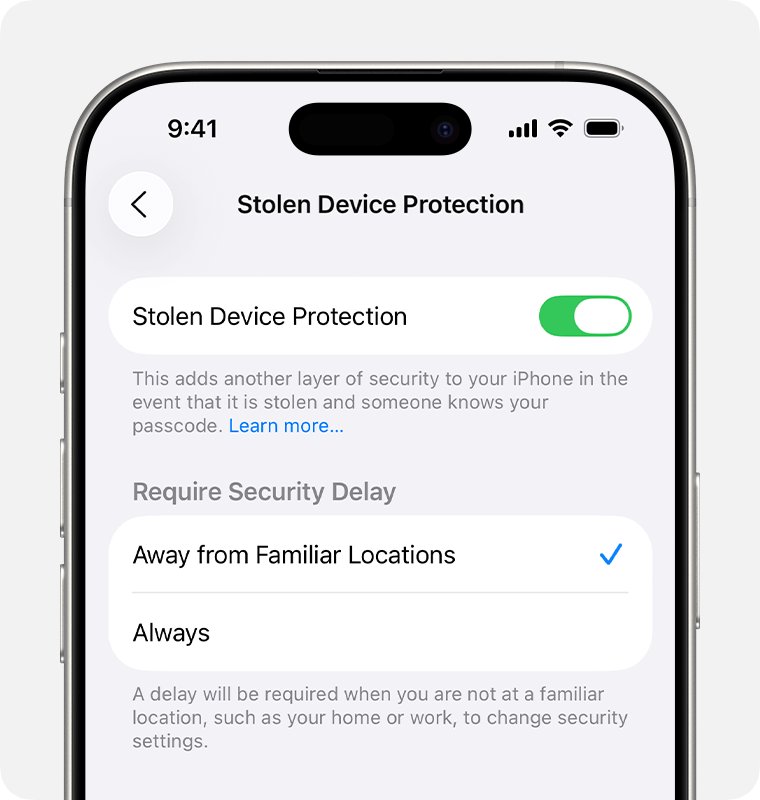
Set these on your next iPhone so a future theft shows on the map. Stolen Device Protection must be on before a device is stolen, and it needs iOS 17.3 or later.
| Setting | Where it is | Why it matters |
|---|---|---|
| Location Services | Settings > Privacy & Security > Location Services | With it off, apps and services can't use the iPhone's location |
| System Services | Settings > Privacy & Security > Location Services > System Services | Shows which system services can use location |
| Find My iPhone | Settings > your name > Find My > Find My iPhone | Without it, the iPhone never appears in Find My |
| Find My network | Settings > your name > Find My > Find My iPhone > Find My network | Lets you see the iPhone even when it's offline |
| Send Last Location | Settings > your name > Find My > Find My iPhone > Send Last Location | Sends the location to Apple when the battery is low |
| Stolen Device Protection | Settings > Face ID & Passcode > Stolen Device Protection | Requires Face ID or Touch ID to turn off Lost Mode or erase the iPhone away from familiar places |
Stolen Device Protection needs two-factor authentication, a passcode, Face ID or Touch ID, Find My, and Significant Locations & Routes under Location Services > System Services.
Find My not showing location of stolen iPhone
Find My shows "Not sharing location • Online"
The iPhone is connected but can't send a position, for example because Location Services is off.
- Mark the iPhone as lost now, while it's online, so the lock reaches it straight away.
- Leave out contact details and keep the iPhone in Find My.
- Check the map again later; Lost Mode shows the current location and changes when the iPhone sends them.
- Report the theft to police and your carrier with the IMEI.
The stolen iPhone shows "Offline"
The iPhone is turned off, out of battery or has no network connection.
- Open the Find My app to see the last known location, kept for up to 7 days.
- On icloud.com/find, the last known location shows for up to 24 hours. Select Notify me when found to get an email when it reconnects.
- Mark it as lost anyway. Lost Mode and erase start the next time it connects.
Find My shows "No location found"
More than seven days have passed since the iPhone last sent its location.
- Keep the iPhone in Lost Mode and leave it in your Find My list.
- Report it to police and your carrier if you haven't yet.
- Decide whether to erase it, then review the last known location options in case an older position helps the police.
The location disappeared after a password change
With Stolen Device Protection on, an Apple Account password change from an unfamiliar location can hide your devices' locations for a period of time.
- Mark the iPhone as lost; Lost Mode still locks it while the map is blank.
- Wait and check icloud.com/find again later.
- Review Sign-In & Security on a trusted device in case the change wasn't yours.
The stolen iPhone isn't listed in Find My at all
Find My wasn't turned on before the theft, so the iPhone can't be marked as lost or erased remotely.
- Change your Apple Account password right away.
- Report the theft with the serial number and IMEI from account.apple.com.
- Try the other ways to find a stolen iPhone with Find My off.
iCloud asks for a verification code sent to the stolen iPhone
Standard iCloud sign-in sends two-factor codes to your trusted devices.
- Go to icloud.com/find instead of icloud.com.
- Select the Find Devices button at the bottom of the sign-in window to skip the code.
Stolen iPhone Find My location FAQ
Why can't I locate my stolen iPhone if Find My says it's online?
Online means the iPhone is connected, not that it's sending a position. If Location Services is off or failing, Find My shows "Not sharing location • Online" and no map pin. You can still mark it as lost and erase it while it's online.
What does "Not sharing location • Online" mean on Find My?
It means the iPhone is online but unable to send its location to Apple, for example because of a Location Services issue. Find My can't place it on the map, but Lost Mode, playing a sound and remote erase still work because the device is connected.
Can I turn on Location Services remotely on a stolen iPhone?
No. Find Devices on iCloud.com offers three actions for an iPhone: play a sound, mark it as lost and erase it. None of them switches Location Services back on. Mark the iPhone as lost, then check the map again over time.
Does Lost Mode show the location of a stolen iPhone?
Apple says that with an iPhone in Lost Mode you see its current location on the map and any changes in it. That still depends on the iPhone being able to send its position, so a phone with Location Services off may stay off the map.
Should I remove a stolen iPhone from Find My?
No. Removing the iPhone from your Find My list removes Activation Lock, which makes it easier for a thief to erase and resell it. Keep it listed even after a remote erase, and wait for any AppleCare+ Theft and Loss claim to be approved.
Should I erase my stolen iPhone if it shows online?
Erase it once you have tried everything else, because erasing can't be undone. An iPhone with iOS 15 or later can still be located in Find My after the erase, and Activation Lock stays on while it remains in your device list.
Can someone use my stolen iPhone if it's in Lost Mode?
Lost Mode locks the iPhone with its passcode and suspends Apple Pay cards and passes. With Stolen Device Protection on, turning off Lost Mode also needs Face ID or Touch ID, so someone who knows the passcode is still locked out.
Where do I find the IMEI of my stolen iPhone?
Sign in at account.apple.com, open Devices and select the iPhone to see its serial number and IMEI. You can also tap the iPhone in the device list under Settings and your name on another Apple device, or read the barcode on the original box.