In Word, type a hyphen (-) with the Minus key, an en dash (–) with Ctrl + Minus on the numeric keypad, and an em dash (—) with Ctrl + Alt + Minus on the numeric keypad.
This guide covers every other way to insert them, including the Symbol dialog, Alt codes, Alt + X, AutoFormat and Word for Mac, plus when each mark belongs in a sentence.
How to type hyphen, en dash, and em dash in Word
Each mark is a different character with its own shortcut. The numeric keypad shortcuts are the quickest in Word for Windows; the Alt + X codes work on any keyboard.
| Character | Word shortcut (Windows) | Alt code | Unicode, then Alt + X |
|---|---|---|---|
| Hyphen (-) | The Minus key next to 0 | Not needed | 002D |
| Nonbreaking hyphen | Ctrl + Shift + Hyphen | Use the shortcut | Use the shortcut |
| En dash (–) | Ctrl + Minus (numeric keypad) | Alt + 0150 | 2013 |
| Em dash (—) | Ctrl + Alt + Minus (numeric keypad) | Alt + 0151 | 2014 |
Alt codes need the numeric keypad too. On a laptop without one, use the Unicode code with Alt + X or the Symbol dialog. The same methods type other characters too, such as the degree symbol and the not-equal sign.
Hyphen, en dash, em dash on keyboard shortcuts in Word
Word's own shortcuts for dashes use the Minus key on the numeric keypad, not the one in the number row. The number-row key types an ordinary hyphen.
- Click in the document where the dash should go.
- For an en dash, hold Ctrl and press Minus on the numeric keypad.
- For an em dash, hold Ctrl and Alt, then press Minus on the numeric keypad.
- For a hyphen, press the Minus key next to 0 in the number row.
- For a nonbreaking hyphen that keeps both words on one line, press Ctrl + Shift + Hyphen.
A nonbreaking hyphen looks like a normal hyphen but stops Word splitting a term such as a phone number across two lines.
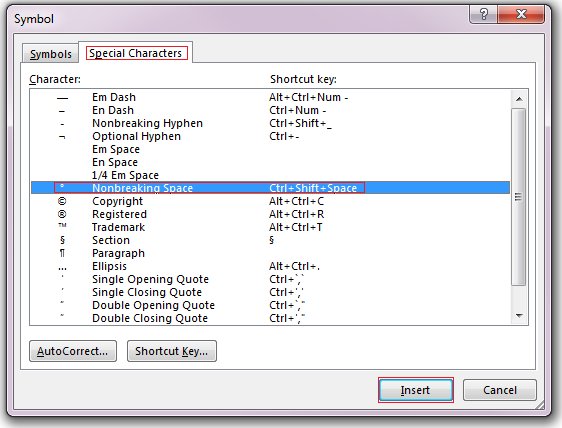
How to insert an em dash from the Symbol menu in Word
The Symbol dialog needs no shortcut and works the same in every desktop version of Word. Dashes sit on the Special Characters tab rather than in the main symbol grid.
- Click where you want the dash.
- Go to Insert > Symbol > More Symbols.
- Select the Special Characters tab.
- Double-click the em dash or en dash in the list.
- Select Close.
Many entries on the Special Characters tab show a shortcut key next to them, so you can use the keyboard next time.
How to make a hyphen a dash with AutoFormat in Word
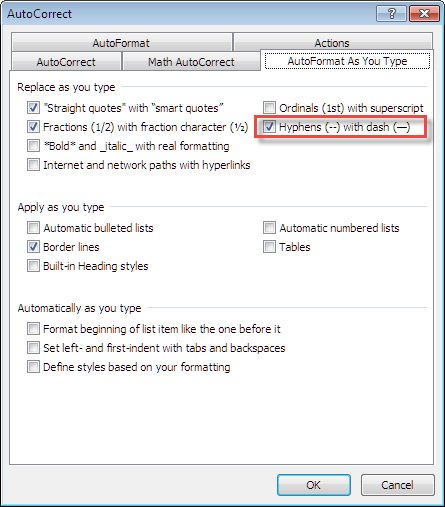
Word can turn two hyphens into a dash as you type. Spaces decide which dash you get: hyphens typed with spaces before and after become an en dash, and hyphens with no trailing space become an em dash.
- Go to File > Options > Proofing.
- Select AutoCorrect Options.
- Select the AutoFormat As You Type tab.
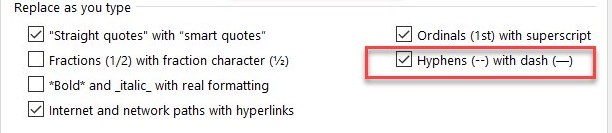
- Under Replace as you type, select the check box that replaces hyphens (–) with a dash, then select OK.
- For an em dash, type a word, two hyphens and the next word with no spaces, such as
word--word, then keep typing. - For an en dash, type a word, a space, two hyphens, a space and the next word, such as
word -- word.
The same option controls both dashes, so turning it on gives you en dashes and em dashes depending only on the spacing you type. The Border lines option on the same tab is what turns three hyphens into a horizontal line in Word.
Type en dash with Alt code or Alt + X in Word
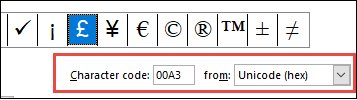
Word turns a Unicode code into its character when you press Alt + X straight after it. This works on laptops with no numeric keypad.
2014 then Alt + XType 2014 where the em dash should go, then press Alt + X and Word replaces the code with —. Use 2013 for an en dash. On a keyboard with a numeric keypad you can instead hold Alt and type 0151 for an em dash or 0150 for an en dash.
You should see: The four digits disappear and a single dash takes their place. If the code follows a letter or number, Word may read them together; type U+2014 instead so it converts only the code.
Windows 11 shortcut for en dash and em dash in Word
Windows 11 versions 24H2 and 25H2 added system-wide dash shortcuts in update KB5065789, so they work in Word and in every other app.
- Make sure Windows 11 is up to date in Start > Settings > Windows Update.
- Click in your Word document where the dash should go.
- Press Windows logo key + Minus (-) for an en dash.
- Press Windows logo key + Shift + Minus (-) for an em dash.
- Close Magnifier first if it is running, because Windows logo key + Minus zooms Magnifier out instead.
The Windows 11 en and em dash shortcuts rolled out gradually, so a fully updated PC may get them a little later than others.
How to type an em dash in Word for Mac
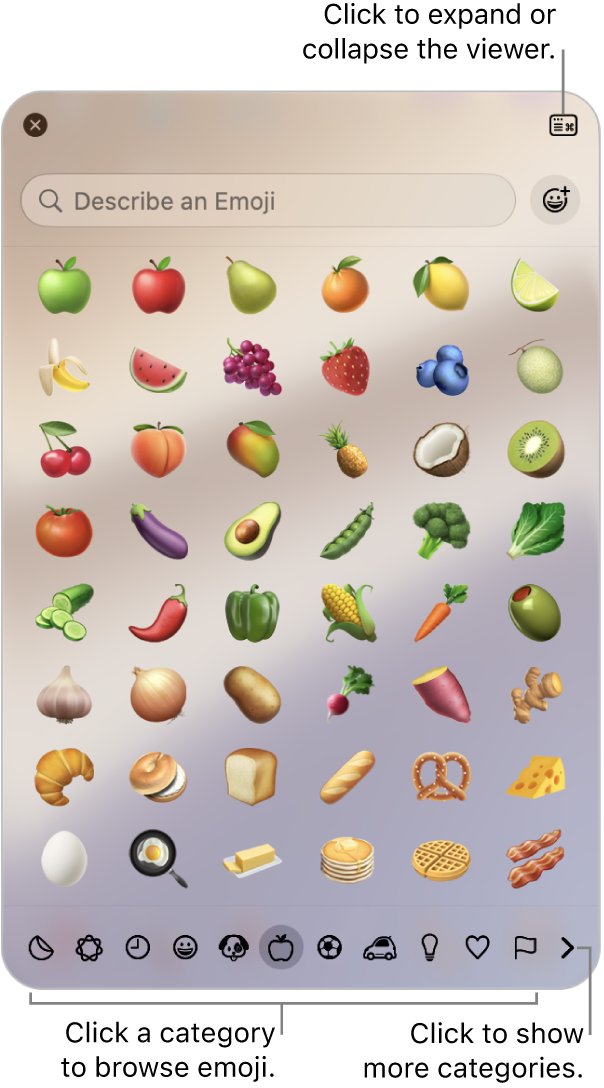
Word for Mac has a Special Characters list as well, and macOS has a Character Viewer that works in any app.
- Click where the dash should go in your Word document.
- On the Insert tab, select Symbol and choose More Symbols.
- Go to Special Characters.
- Double-click the em dash or en dash, then close the dialog.
- Or press Fn/Globe + E, or choose Edit > Emoji & Symbols, search for dash in the Character Viewer and click the one you want.
Word for Mac uses Shift + Option + Minus for a nonbreaking hyphen and Command + Option + Minus for an optional hyphen.
What is the difference between hyphen, en dash, and em dash?
The three marks look alike but are not interchangeable. They differ in length and in the job they do in a sentence; a fourth mark, the minus sign, is different again.
| Mark | Character | Length | Main job |
|---|---|---|---|
| Hyphen | – | Shortest | Joins words and attaches prefixes, as in built-in or read-only |
| En dash | – | Longer than a hyphen | Shows a range of numbers or dates, as in 2015–2017 |
| Em dash | — | Longest of the three | Marks a break in thought or sets off an aside within a sentence |
| Minus sign | − | Its own character | Subtraction and negative numbers, as in −12°F |
How do you use a hyphen, en dash, and em dash?
The Microsoft Writing Style Guide sets out a rule for each mark, including when to leave out spaces. Use the table as a quick reference while you edit.
| Use | Mark | Example | Spacing |
|---|---|---|---|
| Compound modifier before a noun | Hyphen | up-to-date information | No spaces |
| Range of numbers or dates | En dash | 2015–2017 | No spaces |
| Time stamp range in a UI | En dash | 2:15 PM – 4:45 PM | Spaces around it |
| Compound modifier built on an open compound | En dash | AI Builder–supported features | No spaces |
| Break in thought or aside | Em dash | The information in your worksheet—numbers, formulas, and text—is stored in cells. | No spaces |
Do not type two or more hyphens in place of an em dash in finished text, and do not use an en dash as a minus sign; the style guide rules that out for accessibility reasons.
How do you add a hyphen to a word?
To add a hyphen yourself, type it between the two parts of the word. Word can also hyphenate words at line ends for you.
- Click between the two letters where the hyphen should go and press the Minus key.
- Press Ctrl + Shift + Hyphen instead if the hyphenated term must never split across lines.
- To hyphenate long words at line ends automatically, go to the Layout tab, select the arrow next to Hyphenation and choose Automatic.
- To approve each line-end hyphen yourself, choose Manual and select Yes for each break you want in the Manual Hyphenation dialog.
- To keep a paragraph free of hyphens, select it, open the Paragraph dialog, go to Line and Page Breaks and select Don't hyphenate.
Hyphenation Options under the same menu lets you limit consecutive hyphens with the Limit consecutive hyphens box.
How to stop Word changing hyphens to dashes
If Word keeps replacing your double hyphens, the AutoFormat option is on. Turning it off leaves every hyphen exactly as typed.
- Go to File > Options > Proofing.
- Select AutoCorrect Options, then the AutoFormat As You Type tab.
- Under Replace as you type, clear the check box that replaces hyphens (–) with a dash.
- Select OK to save the change.
Em dash shortcut not working in Word
Ctrl + Alt + Minus types a hyphen or nothing
The Minus key in the number row was pressed instead of the one on the numeric keypad.
- Press Ctrl + Alt with the Minus key on the numeric keypad.
- On a laptop without a keypad, type
2014and press Alt + X instead. - Or insert it from Insert > Symbol > More Symbols > Special Characters.
Alt + 0151 does not type an em dash
Alt codes only work with the digits on the numeric keypad.
- Hold Alt and type 0151 on the numeric keypad, not the number row.
- Use
2014followed by Alt + X if the keyboard has no keypad.
Double hyphens are not turning into a dash
The AutoFormat option that replaces hyphens with a dash is turned off.
- Go to File > Options > Proofing > AutoCorrect Options > AutoFormat As You Type.
- Select the check box that replaces hyphens (–) with a dash under Replace as you type.
- Type
word--wordagain with no spaces for an em dash, orword -- wordfor an en dash.
Windows logo key + Minus zooms the screen instead of typing a dash
Magnifier is running, and it takes that shortcut first.
- Close Magnifier, then press Windows logo key + Minus again.
- Use Ctrl + Minus on the numeric keypad inside Word while you need Magnifier open.
Hyphen, en dash and em dash in Word FAQ
How do you type a hyphen, en dash and em dash?
In Word for Windows, press the Minus key for a hyphen, Ctrl + Minus on the numeric keypad for an en dash and Ctrl + Alt + Minus on the numeric keypad for an em dash. Without a keypad, type 2013 or 2014 and press Alt + X.
Is a hyphen a type of dash?
No. A hyphen is a separate, shorter character that joins words, such as built-in. En dashes and em dashes are longer marks used for ranges and breaks in a sentence, and the Microsoft Writing Style Guide says they are not interchangeable.
What is a dash and a hyphen?
A hyphen (-) joins words and prefixes. A dash is either an en dash (–), used for ranges such as 2015–2017, or an em dash (—), used to set off an aside or a break in thought.
How do you make a hyphen a dash in Word?
Turn on the AutoFormat As You Type option that replaces hyphens with a dash, then type two hyphens between words. With no spaces you get an em dash; with a space on each side you get an en dash.
When should you use an en dash instead of a hyphen?
Use an en dash for ranges of numbers, dates and times, such as 2015–2017. Use a hyphen to join words into a compound modifier, such as up-to-date information. Never use either one as a minus sign.
How do you use hyphens and dashes in a sentence?
Put hyphens inside compound words with no spaces, en dashes between the ends of a range, and em dashes around an aside, as in: The information in your worksheet—numbers, formulas, and text—is stored in cells.
What is the en dash vs hyphen on the keyboard?
The hyphen has its own key next to 0. The en dash has no key, so in Word press Ctrl + Minus on the numeric keypad, hold Alt and type 0150, or type 2013 and press Alt + X.
Is there a shortcut for an em dash in Windows 11?
Yes. On Windows 11 versions 24H2 and 25H2 with update KB5065789 or later, press Windows logo key + Shift + Minus for an em dash and Windows logo key + Minus for an en dash in any app, including Word.