To change where downloads are saved in Windows 11, open the Downloads folder's Properties, select the Location tab and use Move to point it at a new folder; to change where new apps, documents, music, photos and videos go, use Settings > System > Storage > Advanced storage settings > Where new content is saved.
This guide covers both Windows settings, the separate download folder setting in Microsoft Edge and Google Chrome, how to check the change took effect, and how to put everything back.
How to change downloads folder location in Windows 11
Moving the Downloads folder itself is the fastest way to change where downloads go, because browsers and apps that use the default Downloads folder follow it to the new place.
Create the destination folder first, for example D:\Downloads if you want downloads on the D drive.
- Open File Explorer with Windows logo key + E.
- Create the folder you want to use, such as Downloads on drive D:.
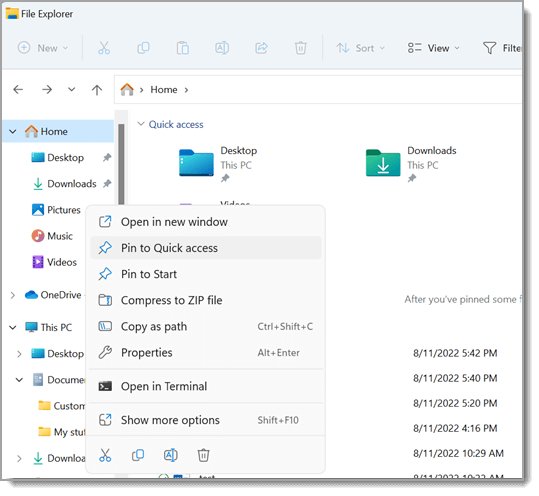
- Right-click the Downloads folder under Home or This PC and select Properties.
- Select the Location tab.
- Select Move, browse to the new folder and choose Select Folder.
- Select Apply.
- When Windows asks whether to move the files from the old location to the new one, select Yes so existing downloads go with it.
- Select OK to close the dialog.
The Downloads shortcut in File Explorer now opens the new folder, and the path on the Location tab shows where it lives.
Change Windows storage defaults
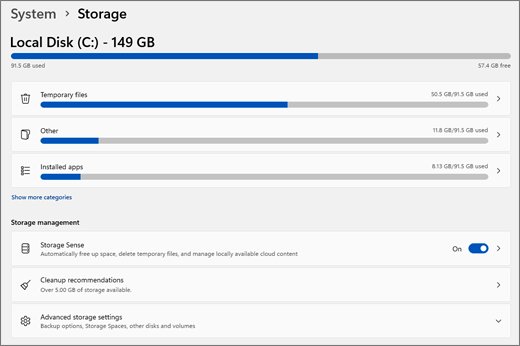
Windows 11 keeps a separate setting that decides which drive receives new apps, documents, music, photos and videos. It is the right place to send bulky new content to a second drive, which helps free up storage space on the C: drive without moving anything by hand.
This page has no entry for downloads, so use the Downloads folder move above or the browser setting below for those.
- Select Start > Settings > System > Storage.
- Select Advanced storage settings.
- Select Where new content is saved.
- Open the drop-down under the content type you want to change, for example New photos and videos will save to.
- Pick the drive you want, such as D: or a connected external drive.
- Select Apply next to that drop-down.
- Repeat for each other content type you want on that drive.
If you choose an external drive, keep it connected. Content set to save there has nowhere to go while the drive is unplugged.
Change the download folder in Microsoft Edge
Microsoft Edge has its own download location, so a file can still land in the old folder if Edge was set to a specific path earlier.
- Open Microsoft Edge.
- Select Settings and more (the three dots) > Settings.
- Select Downloads.
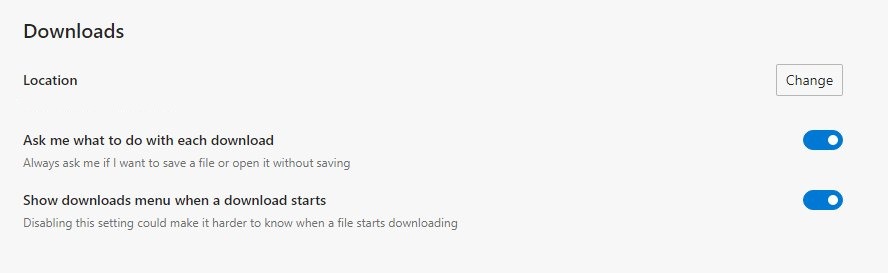
- In the Location area, select Change.
- Choose the new folder in the dialog box and confirm it.
- Turn on the option to have Edge ask where to save each file if you want to pick a folder for every download.
The path shown under Location is where Edge now saves downloads, for example C:\Users\[your name]\Downloads before any change.
Change downloads location in Google Chrome on Windows 11
Chrome saves to \Users\<username>\Downloads on Windows 10 and later until you change it.
Other browsers keep a download setting of their own, so you may also need to change the download folder in each browser you use.
- Open Chrome on your computer.
- At the top right, select More > Settings > Downloads.
- Next to the current location, select Change and pick the folder where you want files saved.
- Turn on Ask where to save each file before downloading if you would rather choose a folder each time.
Where new content is saved settings in Windows 11 and Windows 10
Microsoft moved this setting one level deeper in Windows 11, which is why older instructions do not match the Windows 11 Settings app.
| What you want to change | Windows 11 path | Windows 10 path |
|---|---|---|
| Drive for new apps, documents, music, photos and videos | Settings > System > Storage > Advanced storage settings > Where new content is saved | Settings > System > Storage > Change where new content is saved |
| Folder that holds downloads | Downloads folder > Properties > Location > Move | Downloads folder > Properties > Location > Move |
| Folder Microsoft Edge saves to | Edge > Settings and more > Settings > Downloads > Location > Change | Edge > Settings and more > Settings > Downloads > Location > Change |
| Folder Google Chrome saves to | Chrome > More > Settings > Downloads > Change | Chrome > More > Settings > Downloads > Change |
What does where new content is saved do in Windows 11
The three settings overlap, and picking the wrong one is the usual reason a change seems to do nothing. Moving large folders off the system drive also pairs well with Storage Sense automatic cleanup when C: is nearly full.
| Setting | What it affects | What it leaves alone |
|---|---|---|
| Where new content is saved | The default drive for new apps, documents, music, photos and videos | Downloads, and files already saved |
| Downloads folder Location tab | The real location of the Downloads folder and, if you select Yes, the files already in it | Browsers set to a custom folder of their own |
| Edge or Chrome download setting | Where that one browser saves new downloads | Other browsers, other apps and files downloaded earlier |
| OneDrive folder backup | Desktop, Documents, Pictures, Music and Videos, synced to OneDrive | The Downloads folder |
Whichever default you set, the Save As dialog in an app still lets you pick a different folder for a single file.
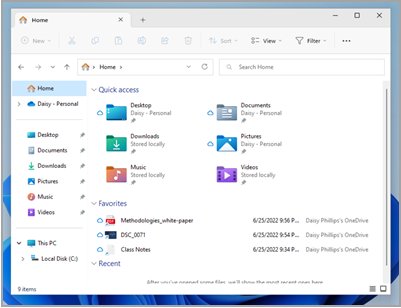
How to see where Windows 11 is saving downloads
Check the path in both places that can control it, because a browser setting overrides the Downloads folder for that browser.
- In File Explorer, right-click Downloads, select Properties and read the path on the Location tab.
- In Edge, open Settings and more > Settings > Downloads and read the path under Location.
- In Chrome, open More > Settings > Downloads and read the path next to Change.
- Download a small file and select Show in folder in the browser's download list to see the folder it landed in.
- For new content, open Where new content is saved and confirm each drop-down shows the drive you chose.
If the paths match the new folder, the change is complete. You can also open the Downloads folder from File Explorer or the browser to check its contents.
How to change the Downloads folder back to the C drive
The original Downloads location is C:\Users\<username>\Downloads. Moving it back uses the same Move button.
- Right-click the Downloads folder in File Explorer and select Properties.
- Select the Location tab and then Move.
- Browse to
C:\Users\<username>, open or create the Downloads folder there and choose Select Folder. - Select Apply, then Yes to move the files back.
- In Where new content is saved, set each drop-down back to This PC (C:) and select Apply.
- In Edge or Chrome, use Change on the Downloads page to pick the C: Downloads folder again.
Downloads still saving to the old folder in Windows 11
Why are files still going to Downloads?
Where new content is saved has no downloads entry, or the browser has its own fixed download folder.
- Move the Downloads folder with Properties > Location > Move.
- Open the browser's Downloads settings and select Change to set the same folder there.
- Download a test file and check its folder with Show in folder.
Old downloads are still in the original folder
You selected No when Windows asked whether to move the files, or you only changed a browser setting.
- Open the old folder in File Explorer.
- Select the files, press Ctrl + X, open the new folder and press Ctrl + V.
Camera roll is missing error 0xA00F4275 after changing where photos save
The drive chosen for new photos and videos is disconnected or the save location is not set correctly.
- Connect the external drive if photos are set to save there.
- Open Where new content is saved and select the current entry under New photos and videos will save to.
- Pick another location, select Apply, then change it back to the original location or This PC (C:) and select Apply again.
- Take a test picture in the Camera app.
Saving to the external drive stopped working
Content set to save to an external drive cannot be written while the drive is unplugged.
- Reconnect the drive and try again.
- If the drive will not stay connected, set that content type back to This PC (C:) and select Apply.
Change downloads location in Windows 11 FAQ
How do I change where downloads go in Windows 11?
Right-click the Downloads folder in File Explorer, select Properties, open the Location tab and select Move. Pick the new folder, select Apply and choose Yes to move existing files. Browsers that use the default Downloads folder then save there automatically.
Can I change the download location?
Yes. You can move the Windows Downloads folder from its Location tab, and Microsoft Edge and Google Chrome each let you pick a different folder under Settings > Downloads > Change. Both changes apply to new downloads straight away.
How do I change downloads to the D drive?
Create a folder such as D:\Downloads, then open the Downloads folder's Properties, select Location > Move and choose that folder. Select Apply and Yes. The Downloads shortcut in File Explorer then opens the folder on the D drive.
Will this move my existing downloads?
Moving the Downloads folder from the Location tab moves existing files only if you select Yes when Windows asks. Changing the folder in Edge or Chrome affects new downloads only, so move older files by hand with cut and paste.
How do I change where a file downloads each time?
Turn on the ask-before-saving option in your browser. In Chrome it is Ask where to save each file before downloading under Settings > Downloads; Edge has the same option on its Downloads page. The browser then shows a Save As dialog for every file.
How do I change the downloads location in Edge?
Open Microsoft Edge, select Settings and more > Settings > Downloads, and select Change in the Location area. Choose the new folder in the dialog box. The path shown under Location is where Edge saves files from then on.
Does Where new content is saved change the Downloads folder?
No. Where new content is saved sets the drive for new apps, documents, music, photos and videos only. To change where downloads are saved, move the Downloads folder from its Location tab or change the folder in your browser's settings.
Where are downloads stored by default in Windows 11?
Downloads are stored in C:\Users\<username>\Downloads by default. Microsoft Edge shows this path under Settings > Downloads > Location, and Chrome uses the same \Users\<username>\Downloads folder on Windows 10 and later until you change it.