To restore an iPhone 11, connect it to a Mac or Windows PC, select it in Finder or the Apple Devices app, and click Restore iPhone, which erases it and installs the latest iOS.
This guide covers the computer restore, iTunes on Windows, erasing from Settings, recovery mode, a restore without the passcode, getting your data back from a backup, and fixes when an iPhone 11 will not restore.
How to restore iPhone 11 on computer
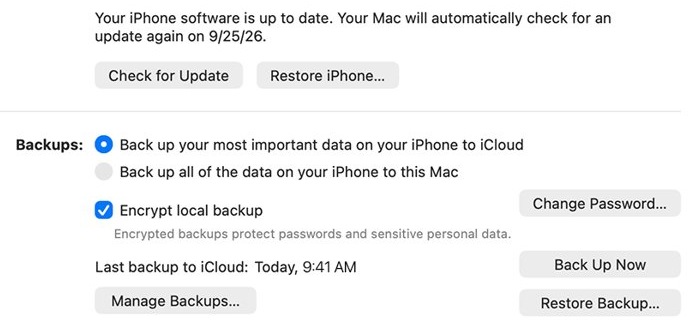
This is Apple's standard factory restore. It works the same on iPhone 11, iPhone 11 Pro and iPhone 11 Pro Max, and it removes all data and settings.
- Back up the iPhone, then open Settings > [your name] > Find My > Find My iPhone and turn it off with your Apple Account password.
- Connect the iPhone 11 to the computer with its Lightning cable.
- Click Allow if the Allow accessory to connect? alert appears on a Mac.
- Open Finder on a Mac, or the Apple Devices app on a Windows PC.
- Select the iPhone in the sidebar, click Trust on the computer, then tap Trust on the iPhone and enter its passcode.
- Click Restore iPhone and follow the onscreen instructions.
- Choose Back Up or Don't Back Up if asked, then click Restore and Agree to the terms.
- Wait for the Hello screen to appear on the iPhone.
Restoring an iPhone does not delete its eSIM, so your cellular plan stays on the phone.
Ways to restore iPhone 11 to factory settings
Pick the route that matches the state of the phone. Every route below erases the iPhone except the recovery mode Update option.
| Your iPhone 11 situation | Restore route | What happens to your data |
|---|---|---|
| Works normally, computer available | Finder or Apple Devices Restore iPhone | Erased, latest iOS installed |
| Works normally, no computer | Erase All Content and Settings in Settings | Erased |
| Windows PC with iTunes installed | iTunes Summary > Restore | Erased, iTunes offers a backup first |
| Stuck on the Apple logo or not recognized | Recovery mode, then Update first | Update keeps data, Restore erases it |
| Forgotten passcode | Forgot Passcode? on the lock screen, or recovery mode | Erased |
| Erased and you want your data back | Restore from an iCloud or computer backup | Returned from the backup |
How to restore iPhone 11 with iTunes on Windows
On Windows 10 or later, Apple's current app is Apple Devices. If your PC still uses iTunes, the restore lives on the device's Summary page.
- Turn off Find My iPhone on the iPhone 11.
- Connect the iPhone to the PC with a USB cable.
- Open iTunes on the PC.
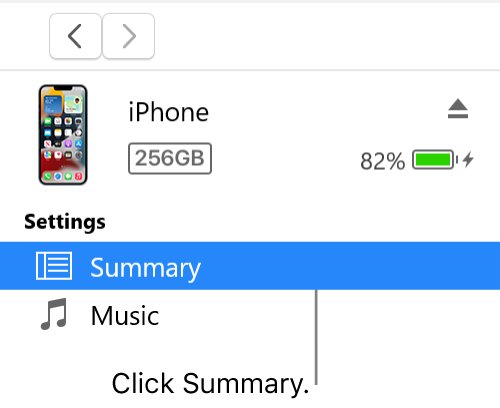
- Click the Device button near the top left of the iTunes window.
- Click Summary.
- Click Restore, then follow the onscreen instructions. iTunes offers to back up the iPhone before it erases it.
- Click the Eject button before you disconnect the iPhone.
The steps are the same for an iPhone 11 Pro Max with iTunes. If iTunes does not see the phone, use recovery mode below.
How to restore iPhone 11 to factory settings without a computer
If the iPhone 11 turns on and you know the passcode, you can erase it from Settings. This is the free route most people need before selling or giving away the phone.
- Open Settings and tap General.
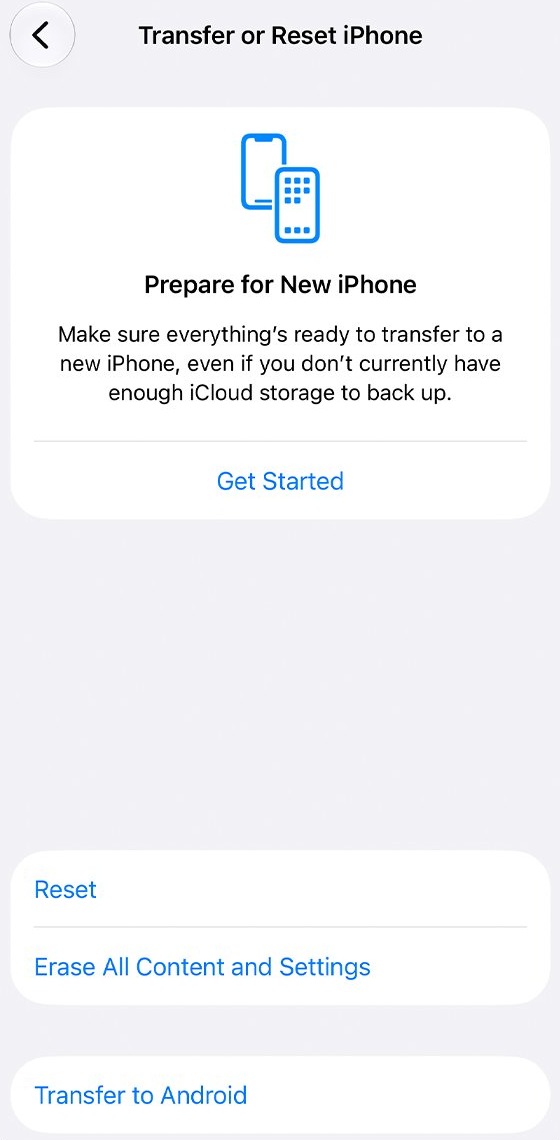
- Tap Transfer or Reset iPhone.
- Tap Erase All Content and Settings, then tap Continue.
- Choose whether to keep or delete your eSIM. If you delete it, contact your carrier to reactivate the plan.
- Enter the iPhone passcode and wait for the backup to finish.
- Enter your Apple Account password and tap the done button on the keyboard.
- Wait for the iPhone to reset. The Hello screen appears when it is finished.
How to force restore iPhone 11 in recovery mode
Use recovery mode when the iPhone 11 shows the Apple logo for several minutes with no progress bar, shows the Connect to computer screen, or the computer does not recognize it.
- Update your Mac, or install the latest Apple Devices app on your PC.
- Connect the iPhone 11 to the computer with a USB cable and open Finder or Apple Devices.
- On the iPhone, press and quickly release Volume Up.
- Press and quickly release Volume Down.
- Press and hold the side button until the Connect to computer screen appears.
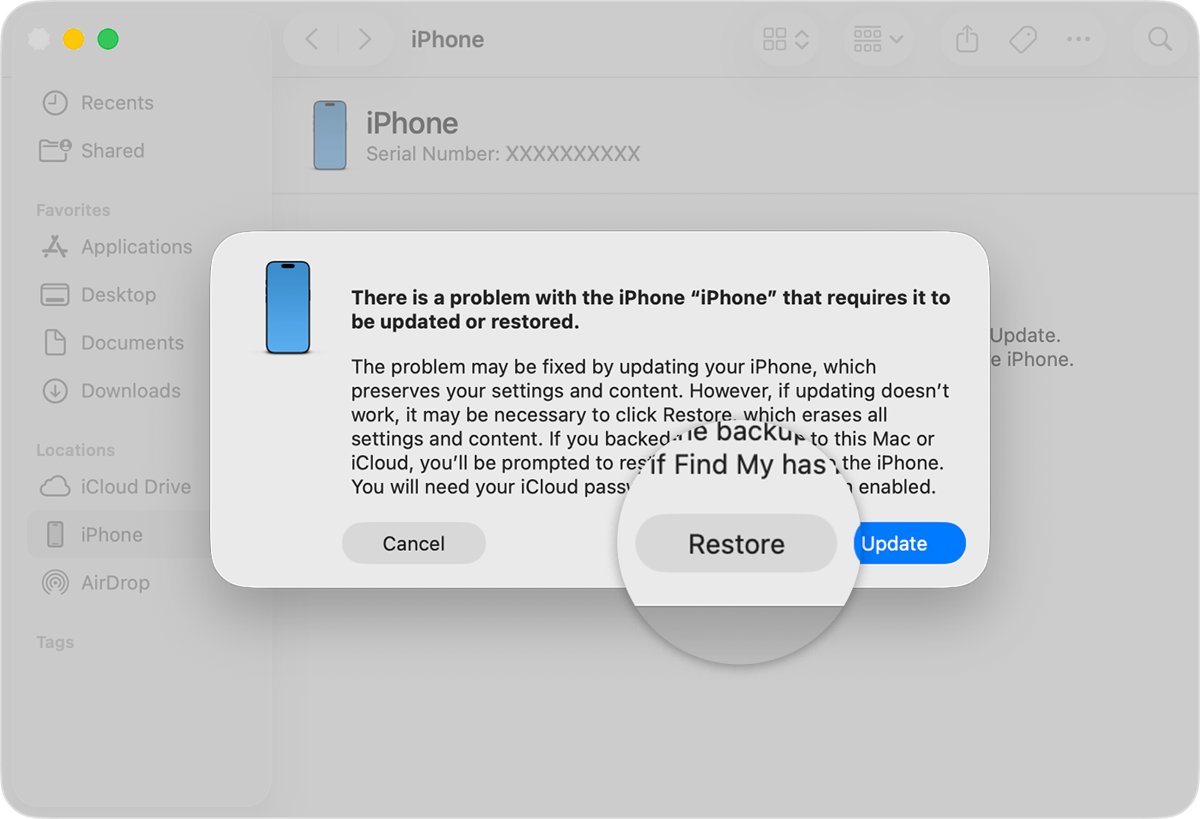
- On the computer, choose Update first. It reinstalls iOS and keeps your data.
- Choose Restore if Update fails. Restore reinstalls iOS and erases all data.
- If the download takes more than 15 minutes and the phone leaves the recovery screen, let the download finish, then repeat steps 3 to 5.
If you already have the firmware file, you can also restore with an IPSW file from the same recovery screen.
How to restore iPhone 11 without passcode
A forgotten passcode means the iPhone must be erased. On iOS 17 or later, try the lock screen first, because it needs no computer.
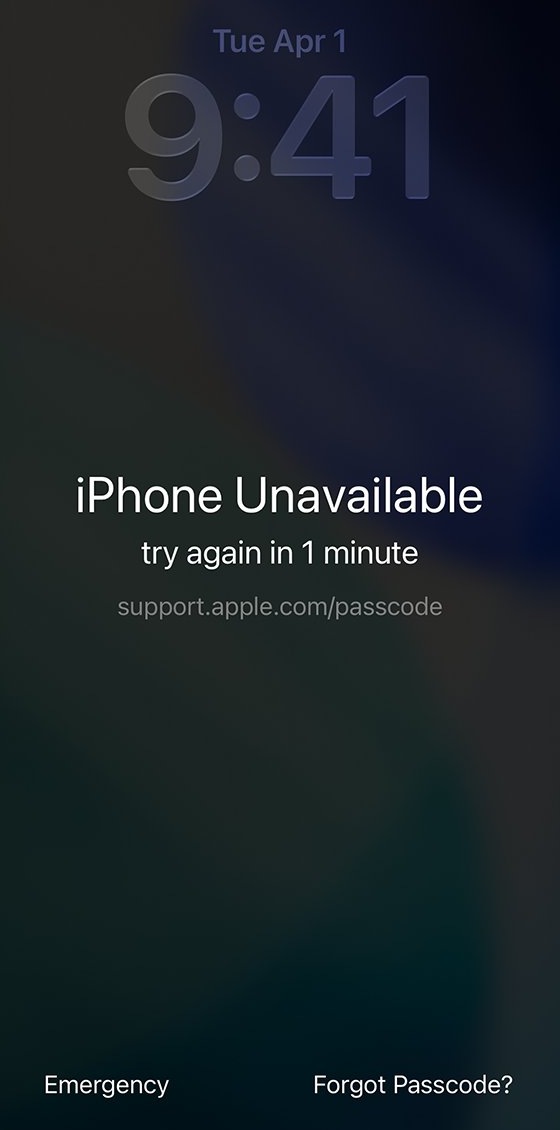
- Enter the wrong passcode until the iPhone Unavailable screen appears.
- Tap Forgot Passcode? in the bottom corner. If you changed the passcode in the last 72 hours, tap Enter Previous Passcode and use the old one instead.
- Tap Start iPhone Reset on the Security Lockout screen.
- Enter your Apple Account password to sign out of the iPhone.
- Tap Erase iPhone, then set the phone up again and restore a backup if you have one.
Forgot Passcode? appears only when the iPhone is online, signed in to an Apple Account and has Find My turned on. On iOS 15.2 or iOS 16 the option is Erase iPhone.
Without those conditions, use a computer: turn the iPhone off with the side button and Volume Down, connect the cable to the computer, then connect it to the iPhone while holding the side button. Keep holding until the computer and cable image appears, then choose Restore.
How to restore iPhone 11 from iCloud backup
An iCloud backup is restored during setup, so the iPhone must be on the Hello screen. If you already set it up, erase it first.
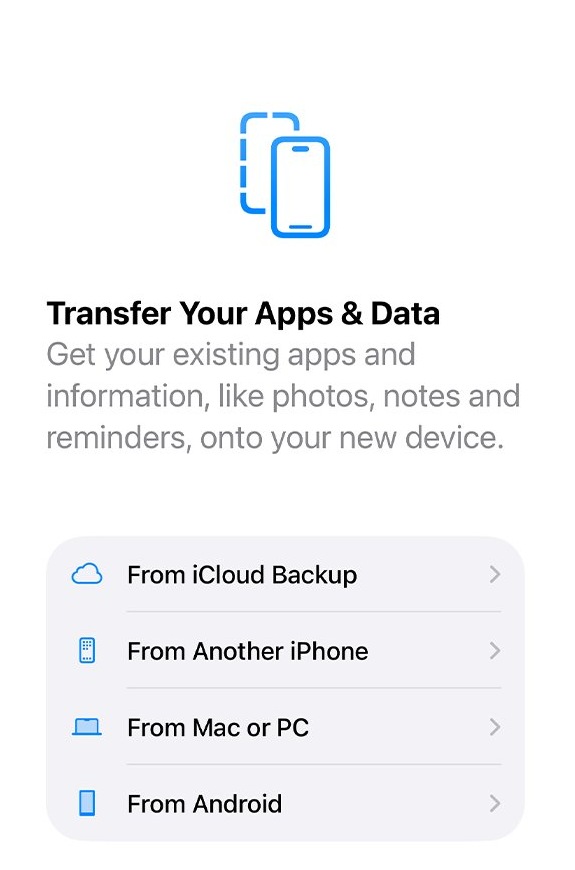
- Turn on the iPhone 11 and follow the setup steps until you reach Transfer Your Apps & Data.
- Tap From iCloud Backup.
- Sign in with your Apple Account.
- Check the date and size of each backup and choose the most recent one.
- Sign in again when asked to restore your apps and purchases.
- Keep the iPhone on Wi-Fi and power until the progress bar finishes, then finish setup.
Photos, music and apps keep downloading from iCloud after setup, so leave the phone on Wi-Fi and power for a while longer.
How to restore iPhone 11 from a backup on your computer
Use this when the backup was made with Finder, Apple Devices or iTunes instead of iCloud.
- Open Finder on a Mac with macOS Catalina 10.15 or later, or Apple Devices on a PC with Windows 10 or later.
- Connect the iPhone 11 with a USB cable and select it in the sidebar.
- Click Restore Backup.
- Choose the most recent backup from the Backup menu, checking its date and size.
- Enter the password if the backup is encrypted.
- Click Restore and keep the iPhone connected while it restarts and syncs.
iPhone 11, iPhone 11 Pro and iPhone 11 Pro Max restore buttons
All three 2019 models have Face ID, a side button on the right and a Lightning port, so every restore step in this guide is identical across them.
| Model | US model number | Other model numbers | Recovery mode buttons |
|---|---|---|---|
| iPhone 11 | A2111 | A2221, A2223 | Volume Up, Volume Down, hold side button |
| iPhone 11 Pro | A2160 | A2215, A2217 | Volume Up, Volume Down, hold side button |
| iPhone 11 Pro Max | A2161 | A2218, A2220 | Volume Up, Volume Down, hold side button |
The same Volume Up, Volume Down, side button sequence also force restarts the phone. Release the side button at the Apple logo for a restart, or keep holding for recovery mode.
How to know iPhone 11 restore is complete
A restore can look stuck while it is still working. These signs show whether it has finished.
- Look for the Hello screen on the iPhone. That screen means the factory restore is done.
- If you see the Apple logo with a progress bar, wait. The bar can move slowly or restart once before it completes.
- Check the computer. When the iPhone appears in Finder or Apple Devices and you can change sync options, the process is complete.
- After a backup restore, open Photos and App Store and let downloads finish on Wi-Fi.
iPhone 11 won't restore
Match the message or screen you see. If a full reset keeps failing, try the fixes for an iPhone that won't reset as well.
Error 9, 4005, 4013 or 4014 during restore
The iPhone or computer lost the connection partway through.
- Update macOS, or the Apple Devices app or iTunes on Windows.
- Force restart the iPhone 11 with Volume Up, Volume Down, then hold the side button.
- Reconnect and choose Update instead of Restore.
- Try another USB cable, then another computer.
- Contact Apple if the same error returns.
Another error code or alert on the computer
A hub, cable, port or security software is interrupting the connection.
- Plug the iPhone straight into a USB port on the computer, not a keyboard or hub.
- Unlock the iPhone and tap Trust if prompted.
- Switch to a different Apple USB cable or port.
- Turn the computer off and on, and restart the iPhone.
- Try a different computer on a different network. Error -18 has its own fixes for iPhone error -18.
The computer does not recognize the iPhone 11
The phone is not trusted, or Finder or Apple Devices cannot see it.
- Unlock the iPhone and keep it on the Home Screen.
- Tap Trust on the iPhone and click Allow on a Mac.
- Put the iPhone in recovery mode, which the computer detects even when the phone will not start.
Stuck on the Apple logo with a progress bar
The restore or update is still writing files, or it has stalled.
- Leave the iPhone connected to power and wait.
- Press a button to wake the screen. An updating message means the process is still running.
- Force restart the iPhone if the bar never completes.
- Get service if the progress bar returns every time.
Recovery mode will not start because a button is broken
Recovery mode needs working volume and side buttons.
- Try erasing from Settings if the iPhone still turns on.
- Book service with Apple if you cannot reach the Connect to computer screen.
Restore iPhone 11 FAQ
How do I restore my iPhone 11?
Connect it to a Mac or Windows PC, open Finder or the Apple Devices app, select the iPhone and click Restore iPhone. Without a computer, go to Settings, General, Transfer or Reset iPhone, Erase All Content and Settings.
How do I restore iPhone 11 on Windows?
Install the Apple Devices app on Windows 10 or later, connect the iPhone, select it in the sidebar and click Restore iPhone. On a PC that uses iTunes, click the Device button, then Summary, then Restore.
How do I restore iPhone 11 Pro Max with iTunes?
Turn off Find My, connect the iPhone 11 Pro Max to the PC, open iTunes, click the Device button, then Summary, then Restore. The steps match the iPhone 11 and iPhone 11 Pro.
How do I force restore iPhone 11?
Connect it to a computer, press and release Volume Up, press and release Volume Down, then hold the side button until the Connect to computer screen appears. Choose Update first, and Restore if Update fails.
How do I restore iPhone 11 without passcode?
On iOS 17 or later, enter the wrong passcode until iPhone Unavailable appears, tap Forgot Passcode? and choose Start iPhone Reset. Otherwise, connect it to a computer in recovery mode and choose Restore. Both erase the phone.
Why can't I restore my iPhone 11?
Most failed restores come from a dropped connection, an outdated Mac or Apple Devices app, a faulty cable or a USB hub. Update the computer, plug in directly, try another cable, and use recovery mode if the phone is not recognized.
Is it free to restore iPhone 11?
Yes. Restoring with Finder, the Apple Devices app, iTunes or Settings costs nothing, and Apple supplies the iOS software. You pay only if the restore fails because of hardware and the iPhone needs service.
Does restoring iPhone 11 delete everything?
A restore erases all data and settings and installs the latest iOS. It does not delete the eSIM when you restore with a computer. Back up first so you can restore your data afterwards.
How long does it take to restore iPhone 11?
Apple allows up to 60 minutes for a passcode reset with a computer. The iOS download alone can pass 15 minutes, and a backup restore depends on its size and your network speed.