To prevent accidental app deletion on iPhone, open Settings > Screen Time > Content & Privacy Restrictions, turn the restrictions on, tap iTunes & App Store Purchases and set Deleting Apps to Don't Allow.
The sections below also cover locking that setting with a Screen Time passcode, stopping iOS from offloading apps on its own, a child's iPhone, and getting back an app you already deleted.
How to prevent deleting apps on iPhone
This restriction removes the delete option for apps from the App Store, so a stray tap on Remove App can no longer end in Delete App. It works on your own iPhone and on iPad.
- Open the Settings app and tap Screen Time.
- Tap Content & Privacy Restrictions.
- Turn on Content & Privacy Restrictions.
- Tap iTunes & App Store Purchases.
- Tap Deleting Apps and choose Don't Allow.
- Leave Installing Apps and In-app Purchases as they are unless you also want to block those.
If Screen Time is not set up yet, tap Screen Time > Manage Screen Time and tap Turn On App & Website Activity first. The restriction applies until you set Deleting Apps back to Allow.
Best way to stop apps being deleted on iPhone
Apps leave an iPhone in three different ways: you delete them, someone else deletes them, or iOS offloads them to save storage. Match what is happening to the setting that stops it.
| What keeps happening | Setting that stops it | Where it is |
|---|---|---|
| You tap Delete App by mistake | Deleting Apps set to Don't Allow | Settings > Screen Time > Content & Privacy Restrictions > iTunes & App Store Purchases |
| Someone else could switch the restriction off | A Screen Time passcode | Settings > Screen Time > Passcode & Management > Lock Screen Time Settings |
| Apps vanish on their own and leave an icon with a cloud symbol | Offload Unused Apps turned off | Settings > Apps > App Store |
| A child keeps deleting apps | The App Store setting for deleting apps set to Blocked | Parent's iPhone: Settings > Family > child's name > Apps & Websites |
| You want an app off the Home Screen without any risk of deleting it | Remove from Home Screen | Touch and hold the app > Remove App > Remove from Home Screen |
How to lock Screen Time settings with a passcode on iPhone
Without a passcode, anyone holding your unlocked iPhone can turn the restriction off again. A Screen Time passcode stops changes to the settings you chose for yourself.
- Open Settings and tap Screen Time.
- Tap Passcode & Management.
- Tap Lock Screen Time Settings.
- Enter a four-digit passcode.
- Enter the same passcode again to verify it.
After you set the passcode, set up Screen Time Passcode Recovery when iOS offers it. That lets you reset the passcode with your Apple Account if you forget the Screen Time passcode. Pick a code that differs from the passcode you use to unlock the iPhone.
How to stop Apple from deleting apps automatically
When storage is low, iPhone can remove unused apps while keeping their data. The icon stays on the Home Screen with a cloud symbol, which often looks like an accidental deletion.
- Open Settings and tap Apps.
- Tap App Store.
- Turn off Offload Unused Apps.
- Go back to the Home Screen and tap any icon that shows a cloud symbol to reinstall that app.
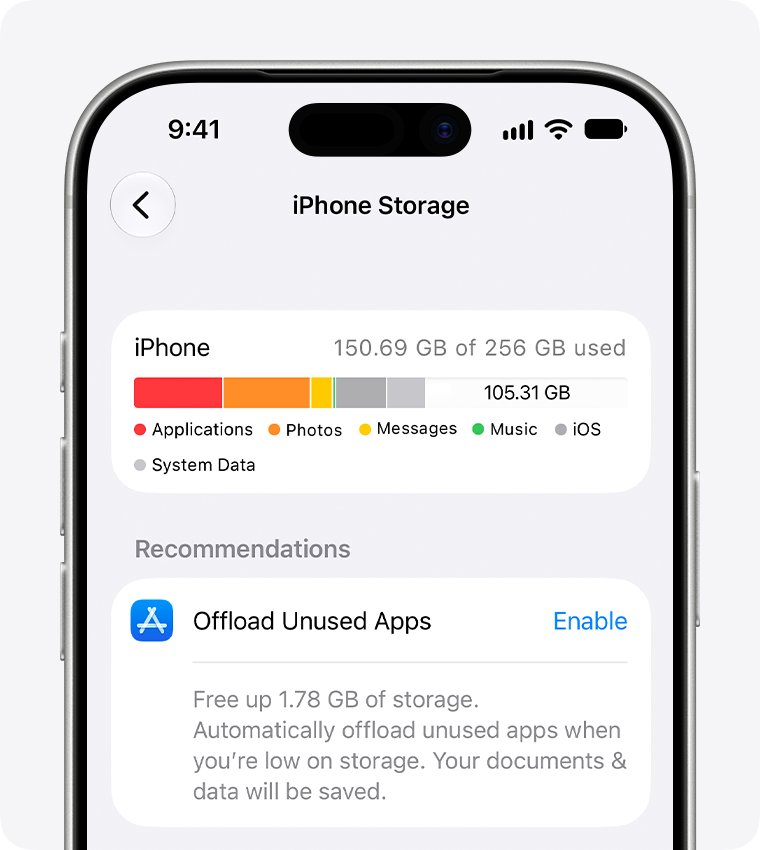
With the switch off, iPhone stops removing apps on its own, so keep an eye on free space in Settings > General > iPhone Storage. If several apps are already offloaded, you can clear out offloaded apps at once or reinstall the ones you need.
How to prevent a child from deleting apps on iPhone
On a child's iPhone in a Family Sharing group, a parent or guardian changes the setting from their own device. The menu depends on whether your family has moved to the iOS 27 parental controls.
- On your own iPhone, open Settings and tap Family.
- Tap your child's name.
- Tap Apps & Websites and enter your Screen Time passcode if asked.
- Tap App Store and find the setting for deleting apps.
- Choose Blocked.
On iOS 26 or earlier, go to Settings > Screen Time, tap the child's name, then tap Content & Privacy Restrictions > iTunes & App Store Purchases and set Deleting Apps to Don't Allow. The same restriction also explains why deleting apps on a child account fails until a parent allows it.
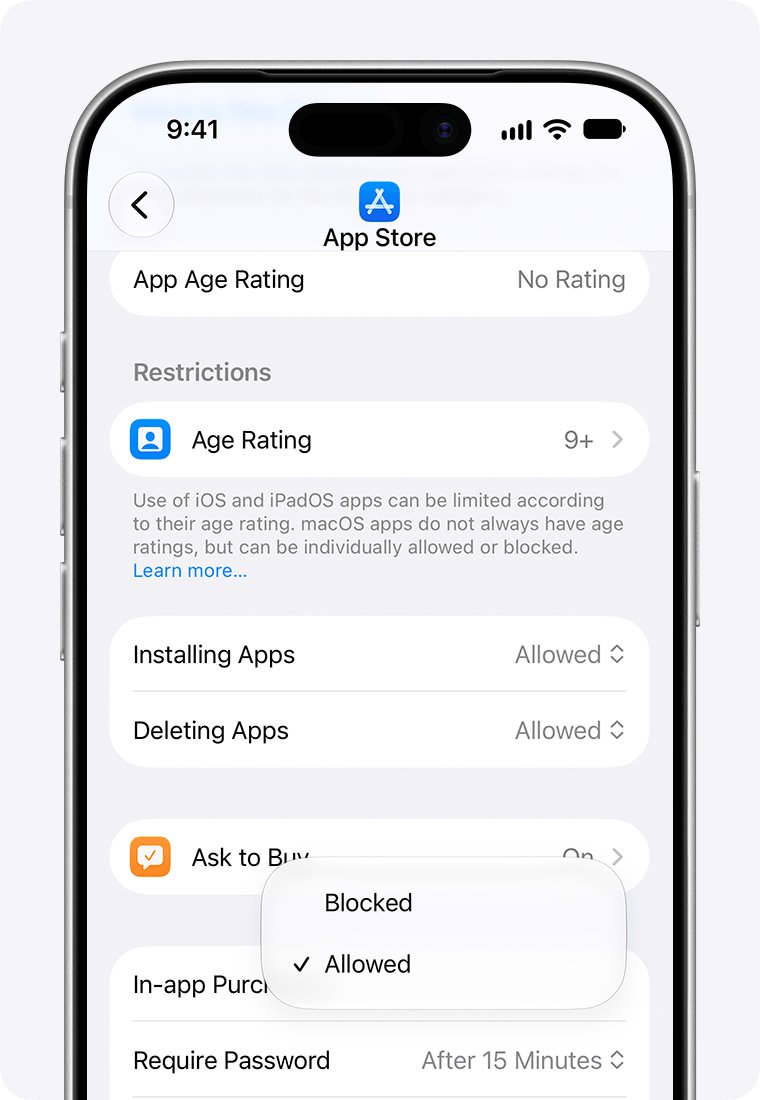
Where is the Deleting Apps setting on iPhone and iPad
The setting sits in a different menu depending on whose device it is and which version it runs.
| Device | Path to the delete setting | Options |
|---|---|---|
| Your own iPhone on iOS 27 or iOS 26 | Settings > Screen Time > Content & Privacy Restrictions > iTunes & App Store Purchases > Deleting Apps | Allow or Don't Allow |
| Your own iPad | Settings > Screen Time > Content & Privacy Restrictions > iTunes & App Store Purchases > Deleting Apps | Allow or Don't Allow |
| A child's iPhone or iPad, iOS 27 parental controls | Parent's device: Settings > Family > child's name > Apps & Websites > App Store | Allowed or Blocked |
| A child's device on iOS 26 or earlier | Settings > Screen Time > child's name > Content & Privacy Restrictions > iTunes & App Store Purchases | Allow or Don't Allow |
| A work or school iPhone | Set by the organization's device management service | The Remove apps restriction blocks deletion on supervised devices |
How to tell if app deletion is blocked on iPhone
Test the restriction on an app you would not mind losing, in case it is not active yet.
- Go to the Home Screen and touch and hold an app you downloaded from the App Store.
- Tap Remove App.
- Check the options. With deletion blocked, Delete App does not appear, and only Remove from Home Screen is offered.
- Tap outside the menu to close it without changing anything.
- Open Settings > Screen Time > Content & Privacy Restrictions > iTunes & App Store Purchases and confirm Deleting Apps reads Don't Allow.
Apple notes that when the delete option is missing for an app not made by Apple, the Deleting Apps setting is the first thing to check.
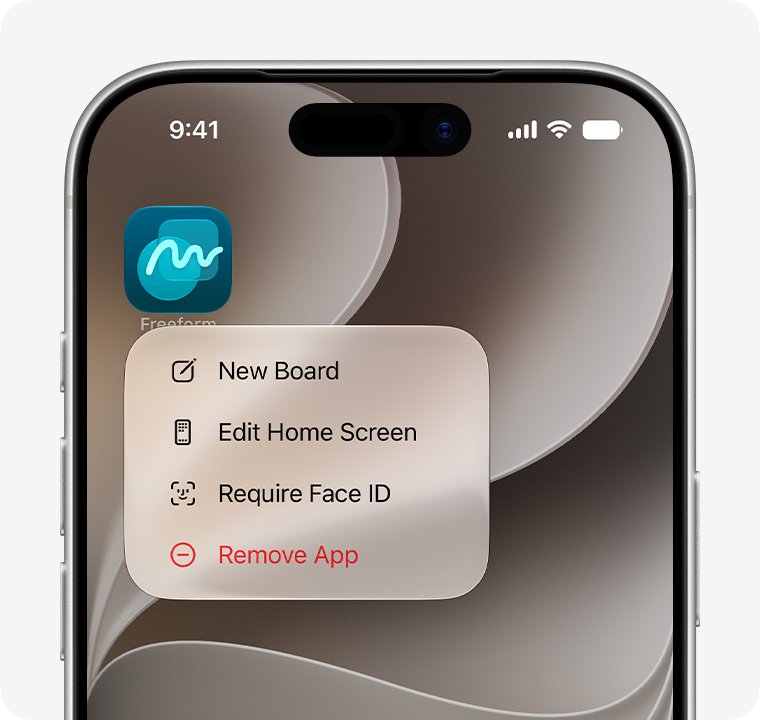
Is it safe to delete app data on iPhone?
An accidental tap costs different things depending on the option. Only Delete App takes the app's on-device data with it.
| Option | What happens to the app | What happens to its data |
|---|---|---|
| Delete App | Removed from the iPhone; reinstall it from the App Store if it is still available | Removed from the iPhone. Data stored in iCloud, such as photos or documents saved through the app, stays. |
| Remove from Home Screen | Moves to App Library and still works | Untouched |
| Offload Unused Apps | Removed automatically when storage is low; the icon stays with a cloud symbol | Kept on the iPhone |
| Hide and Require Face ID | Moves to the Hidden folder at the bottom of App Library | Untouched |
Built-in apps cannot be hidden; only apps downloaded separately from the App Store can. A locked or hidden status applies only to that iPhone and does not sync with iCloud.
How to allow deleting apps again on iPhone
When you really do want an app gone, lift the restriction for a moment and turn it back on afterwards.
- Open Settings > Screen Time > Content & Privacy Restrictions.
- Enter your Screen Time passcode if asked.
- Tap iTunes & App Store Purchases, tap Deleting Apps and choose Allow.
- Touch and hold the app, tap Remove App, tap Delete App, then tap Delete.
- Return to Deleting Apps and choose Don't Allow again.
The full set of routes to delete an app on iPhone, including App Library and iPhone Storage, works once Allow is set.
How to recover an accidentally deleted app on iPhone
You can reinstall any app you previously downloaded if it is still in the App Store. Data the app kept in iCloud returns when you sign back in; data stored only on the iPhone does not.
- Open the App Store app.
- Tap your account button or picture.
- Tap Apps & Purchase History, then tap Your Apps.
- In a Family Sharing group, tap My Apps or choose a family member.
- Find the app and tap the download button.
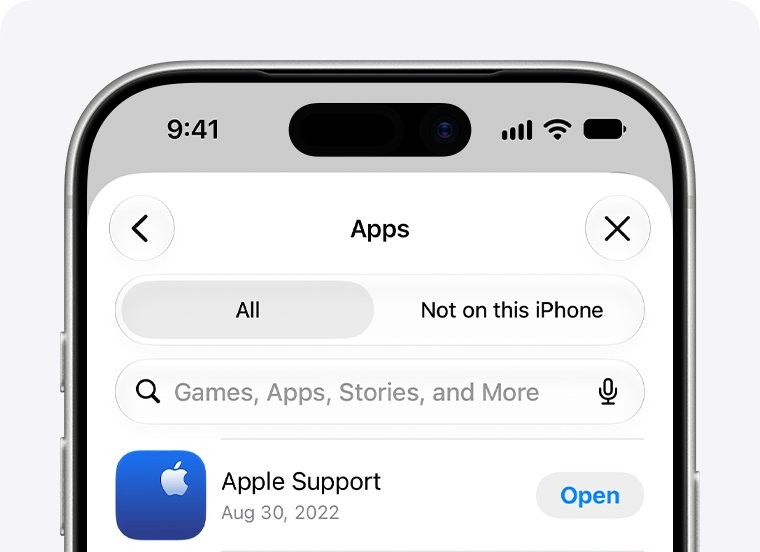
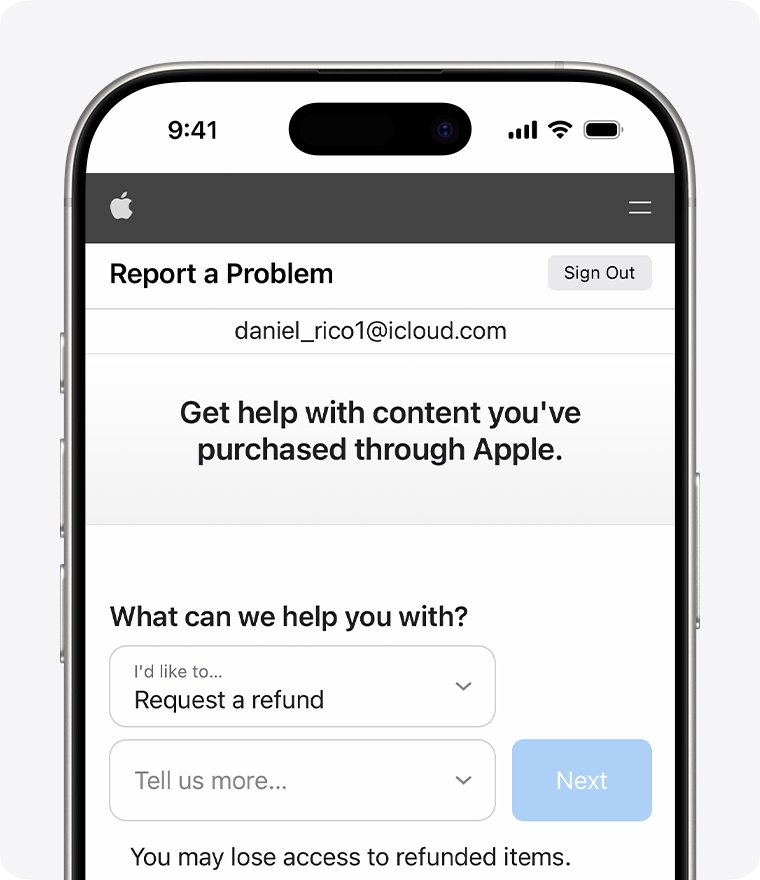
How to cancel an accidental app purchase on iPhone
If the accident was a purchase rather than a deletion, some App Store purchases qualify for a refund. Apple reviews each request, and eligibility varies by country or region.
- Sign in to reportaproblem.apple.com with the Apple Account that made the purchase.
- Tap I'd like to, then choose Request a refund.
- Choose the reason for the refund, then choose Next.
- Choose the app, subscription or other item, then choose Submit.
- Wait 24 to 48 hours for an update on the request.
A pending charge cannot be refunded yet, so wait for the email receipt first. A Family Sharing organizer can find a family member's purchase by choosing the Apple Account button and then All.
iPhone apps still disappearing after blocking app deletion
Match what you see to the cause below.
Apps come back with a cloud symbol on the icon
iOS offloaded them to save storage; the Deleting Apps restriction does not cover this.
- Open Settings > Apps > App Store.
- Turn off Offload Unused Apps.
- Tap each cloud icon on the Home Screen to reinstall that app.
An app is missing from the Home Screen but was not deleted
It was moved to App Library with Remove from Home Screen, or hidden.
- Swipe left past all Home Screen pages to App Library.
- Search for the app's name in the field at the top.
- If it is not there, tap the Hidden folder at the bottom of App Library and authenticate with Face ID, Touch ID or your passcode.
- Open Settings > Apps > Hidden Apps for a list of hidden apps.
Someone turned the restriction back off
No Screen Time passcode was set, so the setting could be changed freely.
- Set Deleting Apps to Don't Allow again.
- Go to Settings > Screen Time > Passcode & Management and tap Lock Screen Time Settings.
- Enter and verify a four-digit passcode that others do not know.
Forgot the Screen Time passcode needed to change the setting
The passcode locks every Screen Time change you set for yourself.
- Use Screen Time Passcode Recovery with your Apple Account, if you set it up.
- To remove the passcode when you know it, tap Screen Time > Passcode & Management > Change Screen Time Passcode > Turn Off Screen Time Passcode.
Apps cannot be deleted at all on a work or school iPhone
A device management service can apply the Remove apps restriction to a supervised device.
- Open Settings > General > VPN & Device Management to see whether a management profile is installed.
- Ask the device administrator to change the restriction or remove the app for you.
Some built-in Apple apps can only be removed from the Home Screen and never deleted, with or without a restriction. When the delete button has vanished for a different reason, the missing Delete App option has its own causes.
Prevent app deletion on iPhone FAQ
How do you prevent deleting apps on iPhone?
Open Settings, tap Screen Time, then Content & Privacy Restrictions, and turn the restrictions on. Tap iTunes & App Store Purchases and set Deleting Apps to Don't Allow. Add a Screen Time passcode so nobody else can switch it back.
How do I stop Apple from deleting apps?
Turn off Offload Unused Apps in Settings > Apps > App Store. With it on, iPhone removes unused apps when storage is low and leaves the icon with a cloud symbol. Your data stays, and tapping the icon reinstalls the app.
How do you prevent iOS from deleting apps when storage is low?
Switch off Offload Unused Apps under Settings > Apps > App Store. iOS then stops removing apps on its own, so free up space yourself in Settings > General > iPhone Storage by clearing old videos, messages and apps you no longer use.
How to cancel an accidental app purchase?
Sign in to reportaproblem.apple.com, choose I'd like to, then Request a refund. Pick a reason, choose the app and submit. Apple replies within 24 to 48 hours, and eligibility depends on your country or region.
Is it safe to delete app data?
Deleting an app removes it and its data from the iPhone, so anything stored only on the device is lost. Data kept in iCloud, such as photos or documents saved through the app, is not deleted and returns when you reinstall it.
How do I get rid of an app when deleting is blocked?
Either set Deleting Apps back to Allow in Screen Time and delete it, or touch and hold the app, tap Remove App and choose Remove from Home Screen. The second option keeps it installed in App Library.
How to delete unwanted apps on iPhone without turning off the restriction?
You cannot. While Deleting Apps is set to Don't Allow, the Delete App option is unavailable for App Store apps. Allow it for a moment, delete the unwanted apps, then set it back to Don't Allow.
Can a child delete apps on their iPhone?
Only if a parent allows it. On the parent's iPhone, go to Settings > Family, tap the child, tap Apps & Websites, then App Store, and set the deleting apps setting to Blocked or Allowed.