Press Windows logo key + Ctrl + Enter to start Narrator, the screen reader built into Windows 11 and Windows 10, and press the same keys again to stop it.
This guide walks through the first session, the Narrator key, scan mode, reading commands, voices, touch gestures and the fixes for the problems people hit most.
Windows Narrator: Step-by-step screen reader guide (Win10/11)
Narrator reads and interacts with what is on the screen, such as text and buttons, so you can use the PC without a mouse. These steps take you from off to reading a webpage in a few minutes.
- Press Windows logo key + Ctrl + Enter to turn on Narrator. Narrator Home opens every time Narrator starts.
- Select QuickStart on Narrator Home for a guided lesson, including a sample webpage that teaches headings and landmarks.
- Learn the Narrator key: Caps Lock and Insert both work by default, and commands written as "Narrator + X" use either one.
- Press Ctrl whenever you want Narrator to stop reading.
- Press Tab or the arrow keys to move between items, and press Enter to use a link, button or checkbox.
- Open Microsoft Edge, Chrome or Firefox. Scan mode turns on by itself there, so the Up and Down arrow keys move through the page.
- Press Narrator + S to hear how many links, landmarks and headings the page has, then press H to jump from heading to heading.
- Press Windows logo key + Ctrl + Enter again when you want Narrator to stop.
Press Narrator + 1 at any point to turn on input learning. Narrator then names each key you press and the command tied to it, without running the command.
How to turn on Narrator in Windows 11
There are four ways to start Narrator, and each one suits a different moment: a working keyboard, the Settings app, the sign-in screen or a touch-only tablet.
| Where you are | Do this | What happens |
|---|---|---|
| Anywhere in Windows, with a keyboard | Press Windows logo key + Ctrl + Enter | Narrator starts and Narrator Home opens |
| You want the settings page as well | Press Windows logo key + Ctrl + N, then switch on the Narrator toggle | Narrator starts with its settings already open |
| The sign-in screen | Select the Accessibility icon in the bottom-right corner, then switch on Narrator | Narrator reads the sign-in screen; it stops when you leave that screen |
| A touch device with no keyboard | Press the Windows button + Volume up button together | Narrator starts, as long as the keyboard shortcut setting is on |
| Settings app, by mouse | Select Start > Settings > Accessibility > Narrator and switch on Narrator | Same as the Windows logo key + Ctrl + N route |
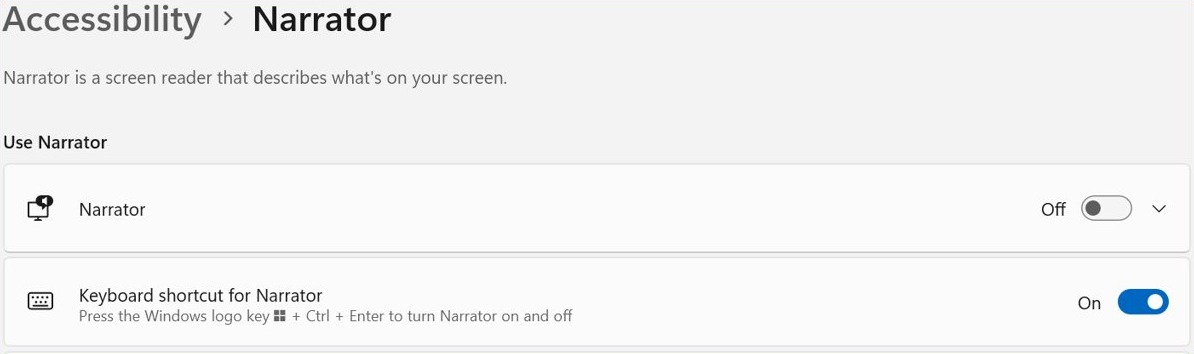
The Windows logo key + Ctrl + Enter and Windows button + Volume up shortcuts only work while Keyboard shortcut for Narrator is on in Narrator settings.
How to start Narrator automatically before or after sign-in
If you rely on Narrator every day, set it to start by itself so you never begin a session without speech.
- Press Windows logo key + Ctrl + N to open Narrator settings.
- Expand Show all settings, the drop-down arrow next to the Narrator toggle. With the keyboard, press Tab to reach it and press Spacebar.
- Select the checkbox next to Start Narrator after sign-in to have it start when you sign in to your account.
- Select the checkbox next to Start Narrator before sign-in to have it read the sign-in screen for every user of the PC.
- Restart the PC to hear Narrator start on its own.
What is the Narrator key in Windows?
The Narrator key is the modifier used in almost every Narrator command. Microsoft's documentation writes it simply as "Narrator", so Narrator + T means Caps Lock + T or Insert + T.
| Setting or command | What it does |
|---|---|
| Default Narrator key | Caps Lock and Insert both act as the Narrator key |
| Japanese 106 keyboard | Insert and NonConvert are the default Narrator keys |
| Narrator settings > Narrator key | Choose Caps Lock, Insert or both |
| Narrator + Z | Locks the Narrator key in a pressed state so you do not hold it for each command; press it again to unlock |
| Narrator + 1 | Turns input learning on or off, so Narrator names keys instead of running commands |
| Keyboard layout setting | Standard layout matches other screen readers; Legacy keeps Narrator's original commands |
Locking the Narrator key can feel disorienting at first, so try it in a document before you depend on it.
Narrator keyboard shortcuts for Windows 11
These are the commands to learn first. Plus and minus mean the physical keys, so Narrator + Ctrl + Plus is really Narrator + Ctrl + the equal key, with no Shift.
| Press | To do this |
|---|---|
| Windows logo key + Ctrl + Enter | Turn Narrator on or off |
| Windows logo key + Ctrl + N | Open Narrator settings |
| Ctrl | Stop reading |
| Narrator + Plus / Narrator + Minus | Speak faster or slower |
| Narrator + Ctrl + Plus / Narrator + Ctrl + Minus | Raise or lower Narrator volume |
| Narrator + Alt + Plus / Narrator + Alt + Minus | Switch to the next or previous installed voice |
| Narrator + T / Narrator + W | Read the window title / read the title and contents of the window |
| Narrator + F12 | Hear the time, day of the week and date |
| Narrator + Shift + B | Hear battery and network status |
| Narrator + X | Repeat the last thing Narrator said |
| Narrator + Ctrl + X | Copy the last thing Narrator said to the clipboard |
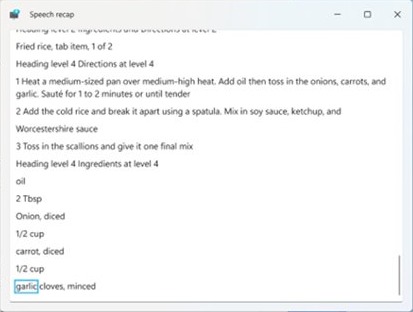
| Narrator + Alt + X | Open speech recap, a history of the last 500 spoken strings |
| Narrator + Ctrl + C | Turn on screen curtain, which blacks out the display while Narrator keeps reading |
| Narrator + Shift + S | Turn Narrator speech off and on while Narrator stays active (April 2026 release) |
| Narrator + \ | Read the status bar in apps such as Word and Excel (March 2026 release) |
Regular Windows 11 keyboard shortcuts still work alongside these. Press the Windows logo key to open Start with focus in the search box, or Alt + Tab to hear the names of open apps as you cycle through them.
How to use Narrator scan mode
Scan mode lets you move through apps, email and webpages with the arrow keys and jump straight to headings, links, tables and landmarks with single letters.
- Press Narrator + Spacebar to turn scan mode on. It turns on by itself in Mail, Outlook, Microsoft Edge, Google Chrome and Firefox.
- Press the Down arrow to move to the next piece of text or item, and the Up arrow to go back.
- Press Enter or Spacebar to use the item you are on, such as a link, a button or a text box.
- Type in an edit field normally. Scan mode switches off inside edit fields, and pressing Up or Down again leaves the field and resumes scan mode.
- Press H for the next heading, K for the next link, T for the next table or D for the next landmark. Add Shift to go backwards.
- Press Narrator + Spacebar again to turn scan mode off. It stays off for that app until you turn it back on.
Narrator scan mode keyboard commands
These single-key jumps work only while scan mode is on. Shift with the same key moves to the previous element of that type.
| Press | Jump to the next |
|---|---|
| H | Heading |
| 1 to 9 | Heading at that level, such as 2 for the next level 2 heading |
| K | Link |
| N | Text past a link or a group of links |
| D | Landmark |
| T | Table |
| L / I | List / list item |
| P | Paragraph, read aloud |
| B | Button |
| E / F | Edit box / form field |
| C | Combo box |
| R / X | Radio button / checkbox |
| G | Graphic or image |
| , / . | Beginning / end of a table, list or landmark |
To copy text from a webpage in scan mode, select it with Shift plus the arrow keys, or press F9 to mark the start, move, then press F10 to select everything in between. Press Ctrl + C to copy.
How to make Narrator read text by line, word or paragraph
Outside scan mode, Narrator has a full set of reading commands. In a word processor such as Microsoft Word, the plain arrow keys also read as you move.
| Read | Current | Next | Previous |
|---|---|---|---|
| Character | Narrator + Comma | Narrator + Period | Narrator + M |
| Word | Narrator + K | Narrator + L | Narrator + J |
| Line | Narrator + I | Narrator + O | Narrator + U |
| Sentence | Narrator + Ctrl + Comma | Narrator + Ctrl + Period | Narrator + Ctrl + M |
| Paragraph | Narrator + Ctrl + K | Narrator + Ctrl + L | Narrator + Ctrl + J |
| Page | Narrator + Ctrl + I | Narrator + Ctrl + O | Narrator + Ctrl + U |
Press Narrator + R to read from the cursor onwards, or Narrator + Ctrl + R to read the document from the beginning. Press the current-word or current-character command twice to have the word spelled or the character read phonetically.
Press Narrator + F to hear formatting such as font name, size and colour, and Narrator + Alt + [ or Narrator + Alt + ] to change how much punctuation Narrator speaks.
Narrator verbosity levels explained
Verbosity sets how much detail Narrator gives about controls and text. Press Narrator + V or Narrator + Shift + V until you hear the level you want.
| Level | What Narrator reads | Best for |
|---|---|---|
| 1 – Text only | Text without link announcements or formatting | Fast reading of articles, books and websites |
| 2 – Some control details | Text plus some control information | Apps you already know well |
| 3 – All control details (default) | Full reading plus all details about controls | Everyday use |
| 4 – Some text details | Most text attributes | Writing a document |
| 5 – All text details | Heading level, font, size, formatting, bullet shape and list type | Proofreading and editing |
Press Narrator + 4 to cycle how capital letters are announced: not at all, with a higher pitch, or with "cap" before them. The higher pitch option does not work with natural voices.
How to navigate a webpage with Narrator
Narrator starts reading a webpage from the top automatically. These commands open lists and summaries so you can go straight to the part you want.
| Press | What you get |
|---|---|
| Narrator + S | A spoken summary: number of links, landmarks and headings |
| Narrator + S twice quickly | A dialog with that summary plus the page's popular links |
| Narrator + F6 | A list of every heading; press Enter to jump to one |
| Narrator + F7 | A list of every link; type part of a link to filter, then press Enter |
| Narrator + F5 | A list of landmarks |
| Narrator + N | Move to the main landmark |
| Narrator + Ctrl + F | Narrator Find; Narrator + F3 goes to the next result |
| Narrator + Ctrl + D | The title of the page a link points to |
| Narrator + Page up / Page down | Change the Narrator view (headings, links, words and more); Narrator + Left or Right arrow then moves by that view |
Turn on the Fn or F Lock key first if your keyboard needs it for the F5, F6 and F7 commands.
How to get image descriptions with Narrator
Narrator can describe images and graphs that have no useful alt text. Basic descriptions need an internet connection because the image is sent to Microsoft.
| PC | Press | What happens |
|---|---|---|
| Any Windows PC online | Narrator + Ctrl + D on an image | Narrator sends the image to Microsoft and reads a basic description |
| Copilot+ PC (Snapdragon, AMD or Intel) | Narrator + Ctrl + D | A detailed on-device description of people, objects, colours, text and numbers; the AI models download the first time, which you can watch in Settings > Windows Update |
| Windows 11 with Copilot | Narrator + Ctrl + D or Narrator + Ctrl + S | Copilot opens with the focused image or the full screen, and you type your own prompt |
In scan mode, press G to move focus to the next image or graph before you ask for a description. To switch these online services off, open Manage data and services in Narrator settings.

How to change the Narrator voice, speed and pitch
Narrator voices average up to about 400 words per minute. The US English voices Microsoft David, Microsoft Zira and Microsoft Mark reach about 800 words per minute.
- Press Windows logo key + Ctrl + N to open Narrator settings.
- Go to Narrator's voice and pick a voice from Choose a voice.
- Expand Show all settings under the voice to reveal Speed, Pitch and Volume.
- Adjust each slider and listen to the change straight away.
- Turn on Lower the volume of other apps when Narrator is speaking if music or video drowns Narrator out.
- Pick a different device under Narrator audio output device to send Narrator's speech to headphones instead of the speakers.
Narrator also works with SAPI 5 voices. Select Add legacy voices to open Time & language > Speech, where Add voices installs voices for other languages.
How to add natural voices to Narrator
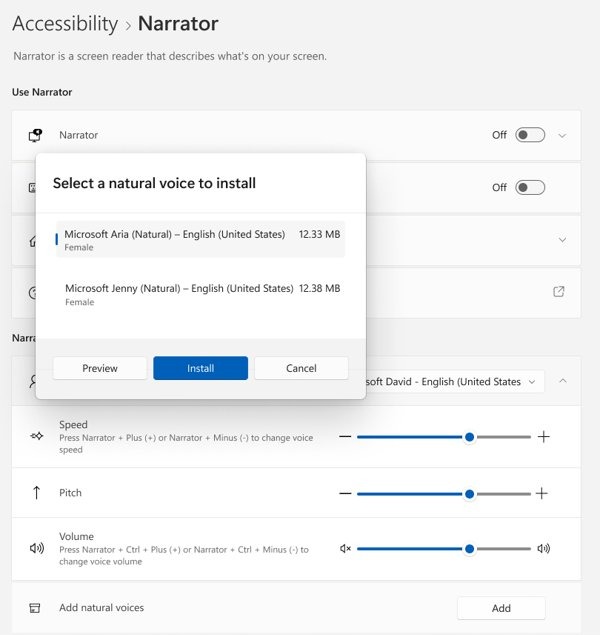
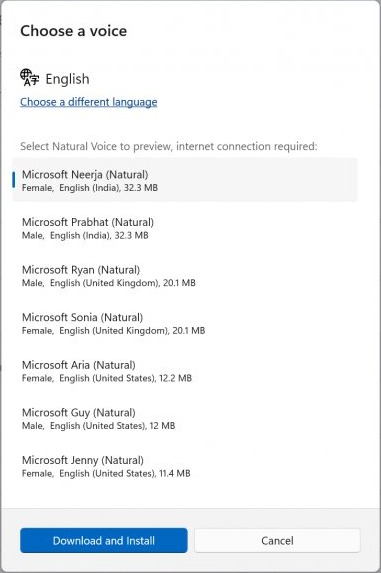
Natural voices sound closer to human speech. US English offers Jenny, Aria and Guy, and HD voices Andrew and Ava were added in the November 2025 release.
- Press Windows logo key + Ctrl + N to open Narrator settings.
- Go to the Choose a voice combo box and expand Show all settings below it.
- Select Add under Add natural voices. The button sits after the speed, pitch and volume options.
- Select the voice you want. Use Choose a language to see voices for other languages; a preview plays as you move through the list.
- Select Install and wait a few minutes while the voice downloads.
- Return to Choose a voice and select the new voice.
Each natural voice installs separately. Emphasis on formatted text, pauses at punctuation and higher pitch for capitals are not available with natural voices.
Narrator touch gestures for Windows tablets
On a touch screen, drag one finger around to hear what is under it, then double-tap to use the item you just heard.
| Gesture | What it does |
|---|---|
| Flick left or right with one finger | Move to the previous or next item |
| Flick up or down with one finger | Change the Narrator view (characters, words, lines, links) |
| Double-tap with one finger | Activate the item |
| Double-tap with two fingers | Show the context menu |
| Triple-tap with two fingers | Dismiss a context menu, like Esc |
| Flick in any direction with two fingers | Scroll |
| Tap once with three fingers | Change verbosity |
| Swipe down with three fingers | Read continuously from the current position |
| Flick left or right with three fingers | Tab backward or forward |
| Triple-tap with four fingers | Show the Narrator command list |
To type faster on the touch keyboard, go to Settings > Accessibility > Narrator and select On touch keyboards, activate keys when I lift my finger.
How to turn off Narrator in Windows 11
The same shortcut that starts Narrator stops it. The remaining steps stop it from coming back.
- Press Windows logo key + Ctrl + Enter to turn Narrator off.
- Press Windows logo key + Ctrl + N and check that the Narrator toggle is off.
- Expand Show all settings next to the toggle and clear Start Narrator after sign-in and Start Narrator before sign-in.
- Turn off Keyboard shortcut for Narrator if you keep starting Narrator by accident.
Narrator keeps turning on in Windows 11
Narrator keeps turning on by itself
Narrator is set to start at sign-in, or the keyboard shortcut is being pressed by accident.
- Press Windows logo key + Ctrl + N to open Narrator settings.
- Expand Show all settings and clear Start Narrator after sign-in and Start Narrator before sign-in.
- Turn off Keyboard shortcut for Narrator so Windows logo key + Ctrl + Enter no longer starts it.
Narrator will not stop talking
Narrator is reading a long page or window from the top.
- Press Ctrl once to stop the current speech.
- Press Narrator + Shift + S to silence speech while keeping Narrator running.
- Press Windows logo key + Ctrl + Enter to close Narrator completely.
Caps Lock no longer types capital letters
Caps Lock is acting as the Narrator key.
- Open Narrator settings with Windows logo key + Ctrl + N.
- Go to Mouse and keyboard settings > Narrator key.
- Choose Insert only, so Caps Lock goes back to normal while Narrator runs.
Narrator speech is too quiet or comes from the wrong speaker
Other app audio is louder, or Narrator uses a different output device.
- Press Narrator + Ctrl + Plus to raise Narrator's own volume.
- Turn on Lower the volume of other apps when Narrator is speaking in Narrator settings.
- Select the right device under Narrator audio output device.
Narrator natural voices will not install
The download needs an internet connection and working Microsoft Store downloads.
- Check that the PC is connected to the internet.
- Open Microsoft Store and confirm it can download an app.
- On a work PC where the Store is blocked, ask your IT administrator to deploy the voice package.
- If the Store works and the voice still fails, send a report through the Feedback Hub app.
Narrator makes silent stops in scan mode
Narrator is pausing on punctuation it has been told not to read.
- Press Narrator + Alt + ] to raise punctuation verbosity.
- Read the same line again with Narrator + I to hear which mark caused the pause.
Windows Narrator FAQ
What is the shortcut to turn on Narrator?
Press Windows logo key + Ctrl + Enter to turn Narrator on, and press it again to turn it off. On a touch device, press the Windows button and Volume up together. Both shortcuts need Keyboard shortcut for Narrator switched on in Narrator settings.
How do I make Narrator stop reading?
Press the Ctrl key once and Narrator stops reading immediately. From the April 2026 release, Narrator key + Shift + S turns speech off entirely while Narrator keeps running, which helps during meetings or video. Press the same shortcut to bring speech back.
What is the Narrator key?
The Narrator key is the modifier in Narrator commands. Caps Lock and Insert both work by default, so Narrator + T means Caps Lock + T or Insert + T. You can limit it to one key under Narrator key in Narrator settings.
Is Narrator the same in Windows 10 and Windows 11?
Narrator ships with both, and Microsoft's Complete guide to Narrator applies to Windows 11 and Windows 10. The core shortcuts are the same on both. Newer additions such as Copilot image descriptions, speech off and HD voices arrive through Windows 11 updates.
Does Narrator work with Chrome and Firefox?
Yes. Scan mode turns on automatically in Microsoft Edge, Google Chrome and Firefox, so the arrow keys and single-letter jumps work as soon as a page loads. Narrator also starts reading a webpage from the top by itself.
Can Narrator read a whole webpage aloud?
Yes. Narrator reads webpages from the top automatically, and Narrator + R reads from the current position. If you only want article text spoken, Firefox Reader View has its own Narrate read-aloud feature that works without Narrator.
How do I change Narrator's voice?
Press Windows logo key + Ctrl + N, go to Narrator's voice and pick one from Choose a voice. To switch quickly without settings, press Narrator + Alt + Plus for the next installed voice or Narrator + Alt + Minus for the previous one.
Can Narrator describe pictures?
Yes. Press Narrator + Ctrl + D on an image and Narrator reads a description fetched from Microsoft. Copilot+ PCs generate detailed descriptions on the device, and other Windows 11 PCs can open the image in Copilot. Browsers have similar options, such as Chrome's image descriptions from Google.
What is screen curtain in Narrator?
Screen curtain blacks out the whole display while Narrator keeps reading, so only you know what is on the screen. Press Narrator + Ctrl + C to turn it on. It is useful for privacy in public places.
How do I see what Narrator just said?
Press Narrator + Alt + X to open speech recap, which lists the last 500 strings Narrator spoke and refreshes each time Narrator starts. Narrator + X repeats the last phrase, and Narrator + Ctrl + X copies it to the clipboard.