The clipboard on Android is found in your keyboard: tap any text box, then tap Clipboard at the top of the keyboard to see what you copied.
This guide shows where the clipboard sits in Gboard, how to view and pin copied items, how to reach it on Samsung phones, how to tell a copy worked and what to do when the clipboard button is missing.
Step by step tutorial: Locating the clipboard feature on Android
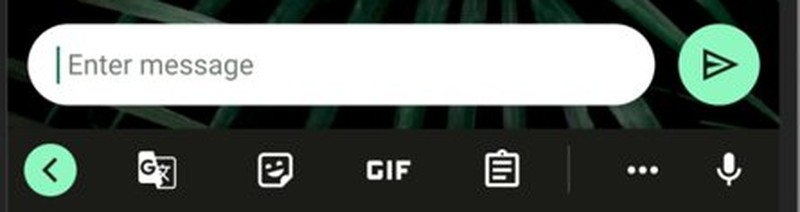
Android has no clipboard app in the app drawer. The keyboard shows your copied items, so the steps start in any app where you can type.
- Copy some text first, so the clipboard has something in it.
- Open any app where you can type, such as Messages, Gmail or Google Keep.
- Tap a text field to bring up the keyboard.
- Tap Clipboard in the row at the top of the keyboard.
- Tap an item in the list to paste it into the text field.
- Tap Back to return to the normal keyboard.
If Clipboard is not in the top row, tap Open features menu at the top left of the keyboard to show more tools.
Where is the clipboard on Android phone
The clipboard you can see depends on the keyboard and on what you want to do with the copied item.
| What you want | Where to look | Why |
|---|---|---|
| Paste something you copied a moment ago | Clipboard at the top of Gboard | Gboard lists recent copies for reuse |
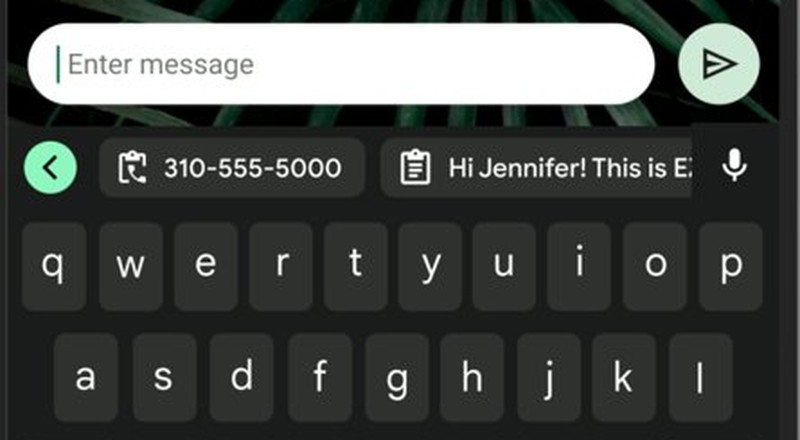
| Paste only an email, URL or phone number from a block of text | The strip at the top of Gboard right after copying | Gboard splits the copied text into details you can tap |
| Keep a snippet for later | The Pinned section of the Gboard clipboard | Pinned items are not cleared with the history |
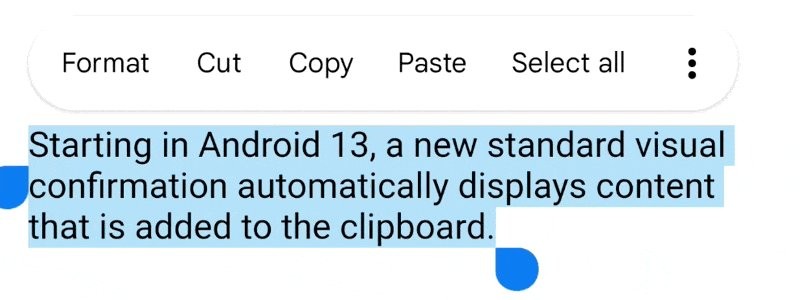
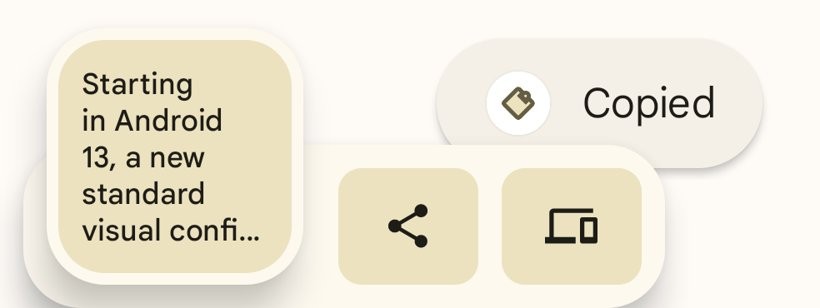
| Check what you just copied | The copy confirmation and preview on Android 13 or later | The system confirms each copy and shows a preview |
| Samsung or another phone without Gboard | Install Gboard from Google Play, then open its Clipboard | The system clipboard itself has no viewer |
How to view clipboard on Android phone
Gboard keeps a short list of recent copies. The list has a separate Pinned section for items you want to keep.
- Tap a text field in any app to open Gboard.
- Tap Clipboard at the top of the keyboard.
- Scroll the list to find older copies.
- Look under Pinned for items you saved earlier.
- Tap Back when you are done.
Gboard clears the history shortly after you last use it. Google does not publish an exact time limit, so pin anything you need again.
How to paste from the clipboard on Android
Gboard can paste a whole copied item or only one detail inside it, such as an address or a date.
- Copy a block of text in any app.
- Open the app you want to paste into and tap a text field.
- Scroll the strip at the top of the keyboard and tap the detail you want, such as an email address, URL or phone number.
- To paste the full item, tap Clipboard instead and tap the item.
- Tap Back to keep typing.
Gboard can pull out emails, URLs, phone numbers, numbers, addresses, dates and times. Addresses, dates and times only work in some countries, regions and languages, and dates must be numeric, such as 3/12/2021.
How to save items to the Android clipboard permanently
Pinning is the only way to stop Gboard from clearing an item with the rest of the history.
- Open any app you can type in and tap a text field.
- Tap Clipboard at the top of the keyboard.
- Touch and hold the item you want to keep.
- Tap Pin.
- Find the item later in the Pinned section of the clipboard.
Where is the clipboard on my Samsung phone
On a Samsung Galaxy phone, the clipboard belongs to whichever keyboard you type with, just as on any Android phone. Gboard works on Samsung phones and gives the same Clipboard button described above.
- Open the Google Play Store and install Gboard.
- Open Settings and go to the on-screen keyboard list, then turn on Gboard.
- Tap a text field in any app.
- If another keyboard appears, touch and hold the Globe icon and tap Gboard.
- Tap Clipboard at the top of Gboard to see your copied items.
On a Google Pixel, the keyboard list sits at Settings > System > Keyboard > On-screen keyboard. Samsung phones name the keyboard settings differently, so use the Settings search box and type keyboard if you cannot find the list.
How to tell if text copied to the clipboard on Android
Android 13 and later confirm every copy on screen. Older versions leave the feedback to each app, so a missing message there does not mean the copy failed.
- Copy some text or an image in any app.
- Look for the system confirmation that appears right after the copy on Android 13 or later.
- Check that its preview shows the content you meant to copy.
- On Android 12 or earlier, open Gboard's Clipboard and check that the item sits at the top of the list.
Passwords and card numbers copied from apps that mark them as sensitive do not appear in the preview, even though the copy worked.
Is there a clipboard history on Android
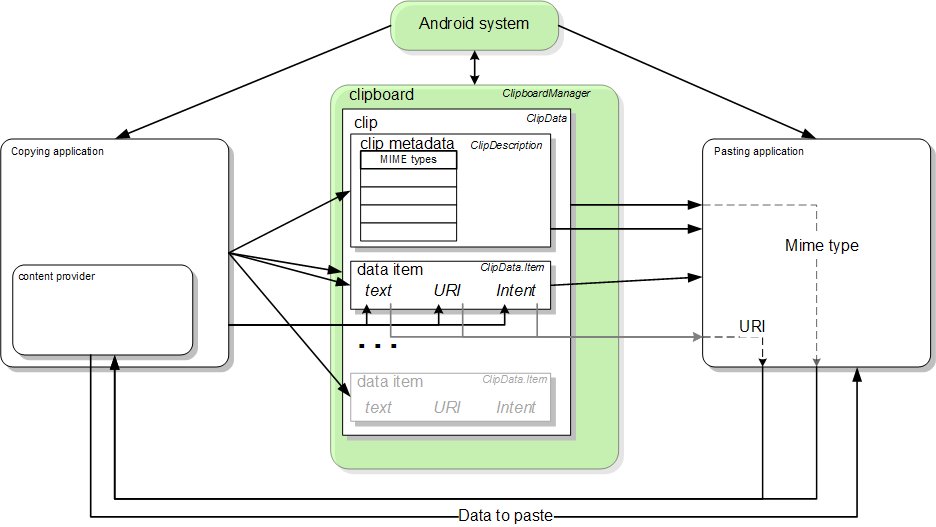
Android's own clipboard holds one item, and the keyboard adds the history. That split explains most surprises.
| Part | What it stores | How long it lasts |
|---|---|---|
| Android system clipboard | One clip at a time; each new copy replaces the last one | Until any app copies something new |
| Gboard clipboard history | Recent copies you can tap to paste | Cleared shortly after you last use it |
| Gboard Pinned section | Items you touched and held, then pinned | Kept until you remove them |
| Android 12 and later paste notice | A message such as "APP pasted from your clipboard" when an app reads it | Shown the first time an app reads another app's clip |
To move copied text between a computer and a phone, Chrome can send clipboard content to Android.
Clipboard not showing on Android keyboard
No Clipboard button on the keyboard
Another keyboard is active, or Gboard dropped out of the keyboard list after an update.
- Touch and hold the Globe icon on the keyboard and tap Gboard.
- If Gboard is not listed, open Settings > System > Keyboard > On-screen keyboard and turn on Gboard.
- Tap Open features menu at the top left of Gboard to show the hidden tools.
An item copied earlier is gone
Gboard clears the history after a short time, and the system clipboard keeps only the latest copy.
- Copy the text again from its source.
- Open Clipboard, touch and hold the item, and tap Pin.
- Use pinned items for anything you paste often.
Gboard crashes or the clipboard does not open
The app's cached data or a recent update is faulty.
- Open Settings > Apps > Gboard and tap Force stop, then reopen the keyboard.
- Tap Storage and cache > Clear cache.
- Update Gboard from Google Play, or tap Uninstall updates on its Play Store page if trouble started after an update.
Tips for locating the clipboard feature on Android
| Tip | Why it helps |
|---|---|
| Copy something before you look | An empty clipboard shows nothing to find |
| Start from a text field | The clipboard only appears when the keyboard is open |
| Pin anything you reuse | Unpinned history is cleared after a short time |
| Keep Gboard updated | Google ships keyboard fixes through Google Play |
| Do not leave passwords on the clipboard | Apps can read the current clip; Android 12 and later show a notice when they do |
| Use the strip after copying | It pastes just the phone number or address you need |
Android clipboard FAQ
How do I access the clipboard on Android?
Tap any text field to open the keyboard, then tap Clipboard at the top of Gboard. Your recent copies appear in a list, and tapping one pastes it. Tap Back to return to the keys.
Where is the clipboard located on an Android phone?
The clipboard is part of the keyboard, not a separate app or a folder. Android stores the current clip in the system, and Gboard shows it with your recent copies under the Clipboard button at the top of the keyboard.
Where is the clipboard on my Samsung phone?
On a Samsung phone, the clipboard sits inside the keyboard you use. With Gboard installed and selected, tap a text field and tap Clipboard at the top of the keyboard to see copied text and pinned items.
Can I find the clipboard on my Google Pixel?
Yes. On a Pixel with Gboard as the keyboard, tap a text field and tap Clipboard at the top of the keyboard. If the button is hidden, tap Open features menu at the top left to show more tools.
Is there a clipboard history on Android?
Android itself holds one clip at a time, and each new copy replaces it. Gboard adds a short history you can reuse, which it clears shortly after you last use it. Pinned items stay until you remove them.
How do I paste from the clipboard on Android?
Tap the text field, open Clipboard at the top of Gboard and tap the item you want. Right after copying, you can also tap a single detail, such as a phone number or URL, in the strip above the keys.
Can I save items to the clipboard permanently?
Yes, by pinning them in Gboard. Open Clipboard, touch and hold the item and tap Pin. Pinned items move to the Pinned section and are not cleared with the rest of the clipboard history.
How do I see the clipboard on an Android phone after copying?
On Android 13 and later, a system confirmation with a preview of the copied content appears right after you copy. On any version, open Gboard's Clipboard to see the latest item at the top of the list.