To access DoD email from home, plug a CAC reader into your computer, open your organization's Outlook on the web address in a current browser, and sign in with the certificate on your CAC.
This guide covers Windows, Mac, iPhone and iPad, the web addresses Microsoft lists for DoD mailboxes, and fixes for the errors that stop a home sign-in.
How to access DoD email from home
DoD mailboxes run on the Microsoft 365 DoD environment, where multifactor sign-in through a federated identity supports PIV and CAC cards. A home computer needs three things: a working CAC reader, a supported browser and the right web address.
- Plug a USB CAC reader into the computer and insert your CAC chip first.
- Open Microsoft Edge, Google Chrome, Firefox or Safari 16 or later.
- Go to the Outlook on the web address your organization gives you, such as webmail.apps.mil.
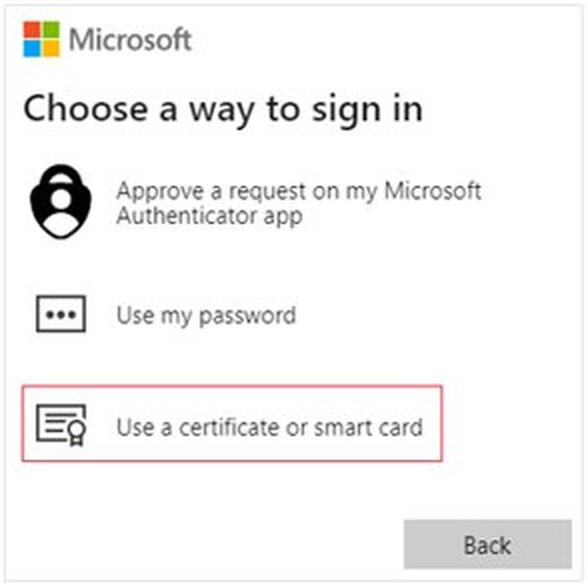
- When the sign-in page offers it, choose the certificate or smart card option.
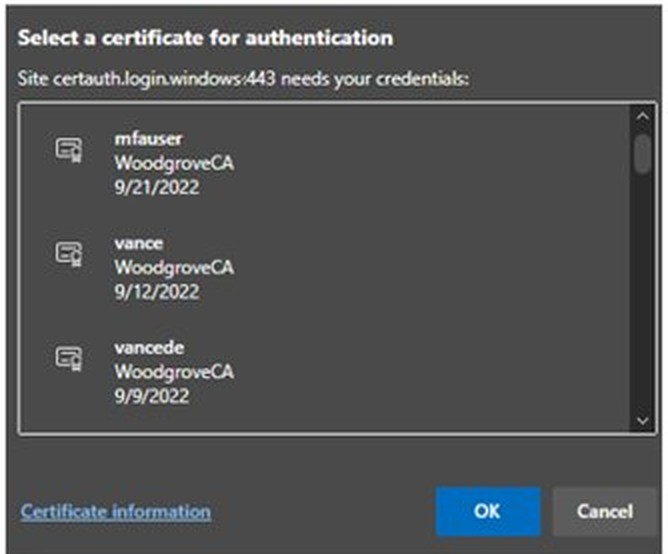
- In the certificate prompt, pick the authentication certificate from your CAC and select OK.
- Enter your CAC PIN when asked, then wait for the inbox to load.
If no certificate prompt appears, the computer is not reading the card yet. Work through the reader checks for your system below before trying the web address again.
DoD email login page and Outlook web access address
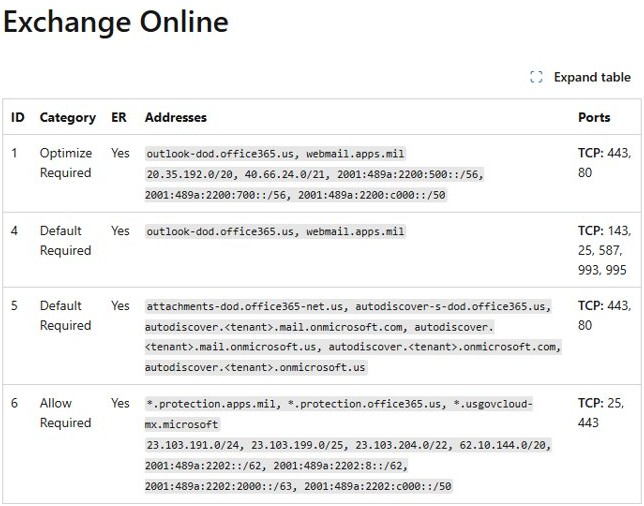
Microsoft publishes the network endpoints for Microsoft 365 DoD plans. The Exchange Online entries are the addresses DoD webmail and mail apps connect to.
| Address | What it is | When you use it |
|---|---|---|
| webmail.apps.mil | Exchange Online endpoint for Microsoft 365 DoD | Outlook web access in a browser |
| outlook-dod.office365.us | Exchange Online endpoint for Microsoft 365 DoD | Mail clients and apps that connect to DoD mailboxes |
| portal.apps.mil | Microsoft 365 DoD portal endpoint | The Microsoft 365 start page for DoD accounts |
| login.microsoftonline.us | Microsoft Entra sign-in endpoint for US Government clouds | The sign-in step before the mailbox opens |
An older bookmark can point to an address your mailbox no longer uses. If a bookmark fails, ask your help desk for the current DoD email login page instead of guessing at a new one.
DoD email on personal computer: CAC reader and browser requirements
Microsoft supports certificate sign-in to web apps on every platform, so a personal computer can work. Your organization's access policy still decides whether an unmanaged device is allowed in.
| Item | Windows | Mac | iPhone or iPad |
|---|---|---|---|
| Operating system | Windows 11 or Windows 10 | macOS 10.15 or later for built-in PIV smart card support | iOS 16.1 or iPadOS 16 or later |
| Card reader | USB smart card reader listed under Smart card readers in Device Manager | USB CCID class-compliant reader, no extra software | CCID class-compliant reader; some need a powered USB hub |
| Browser | Microsoft Edge, Google Chrome or Firefox | Safari 16 or later, Edge, Chrome or Firefox | Safari, or the Outlook app for mail |
| Account access | Allowed by your organization's Conditional Access policy | Allowed by your organization's Conditional Access policy | May require Intune Company Portal and a derived credential |
Old browsers such as Internet Explorer, Edge Legacy, Chrome 79 or earlier and Safari 13.1 or earlier get an error page from Outlook on the web. Update the browser before you troubleshoot anything else.
Sign in to DoD email with a CAC on Windows
Windows reads most USB CAC readers with its built-in smart card driver. Microsoft Edge has an extra option to reset a wrong certificate choice, which helps when you have more than one certificate on the card.
- Connect the CAC reader and insert your card.
- Press Windows + R, type
devmgmt.mscand press Enter to open Device Manager. - Expand Smart card readers and confirm your reader is listed.
- If it is missing, open the Action menu and select Scan for hardware changes.
- Open Microsoft Edge and go to your organization's DoD webmail address.
- Select the certificate or smart card sign-in option, choose your CAC authentication certificate, and select OK.
- Type your CAC PIN and wait for Outlook on the web to open.
Cancelled the certificate prompt or picked the wrong certificate? Close every browser window and start a new session, because browsers cache the certificate you chose.
Access DoD email on a Mac with Safari and a CAC
A Mac with macOS 10.15 or later reads PIV smart cards such as a CAC through a USB CCID reader, and Safari supports client certificate sign-in with them. Most Mac failures come from a blocked reader or untrusted DoD root certificates.
- Plug the CAC reader straight into the Mac and insert your card.
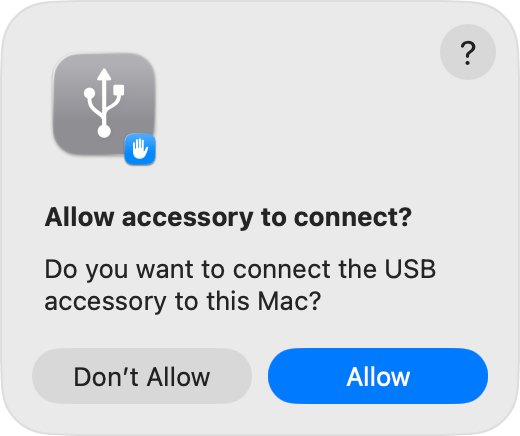
- If an alert asks to let the accessory connect, unlock the Mac and click Allow.
- Open Safari and go to your organization's DoD webmail address.
- Choose the certificate sign-in option when the page offers it.
- Pick the authentication certificate from your CAC in the certificate list.
- Enter your CAC PIN and wait for the mailbox to load.
If Safari warns that the certificate is not trusted, the Mac is missing the DoD certificate chain. You can import and trust DoD certificates in Keychain Access and then reopen Safari.
DoD email on iPhone and iPad with Outlook
Outlook for iOS and Android uses Microsoft's native sync for DoD mailboxes and needs no special setup. Your organization can still block the app or require a managed device first.
| Your situation | What to do | Why |
|---|---|---|
| Organization uses Intune | Install Intune Company Portal, enroll, then install Outlook from Company Portal | Managed apps get the policy and certificates they need |
| Organization issues derived credentials | Set up the Purebred derived credential in Company Portal | The phone then signs in without a physical CAC |
| You have a CCID CAC reader | Connect it on iOS 16.1 or iPadOS 16 or later and sign in through Safari | Apple devices read PIV cards natively |
| You want personal mail in the same app | Use another mail app or device for personal accounts | DoD Outlook accounts block adding personal accounts |
Army users can sync Enterprise Outlook email on an iOS device with the full Company Portal and Purebred steps.
Install DoD webmail as an app in Edge or Chrome
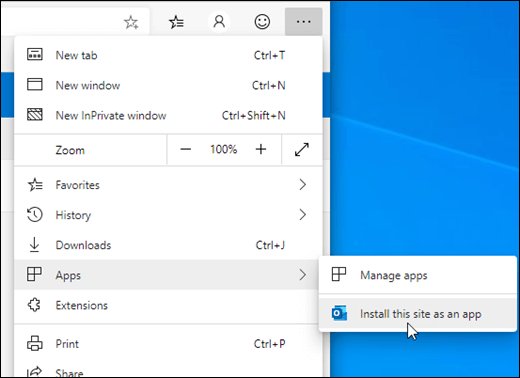
Outlook on the web installs as a progressive web app in Microsoft Edge and Google Chrome. It then opens from the taskbar like a desktop mail app, which saves typing the address every day.
- Sign in to DoD webmail in Microsoft Edge or Google Chrome with your CAC.
- In Edge, select Settings and more at the top of the window.
- Select Apps > Install this site as an app.
- In Chrome, select Customize and control Google Chrome instead.
- Select Install Outlook.
- Pin the new Outlook window to the taskbar so it opens in one click.
The app still asks for your CAC and PIN when the sign-in session expires, so keep the reader connected.
Check a CAC reader works on Windows for DoD email
When DoD email never asks for a certificate, check whether Windows can see the card at all. Open Command Prompt as administrator and run these commands.
sc queryex scardsvr
certutil -scinfo
The first command shows the state of the Smart Card service. The second lists the certificates stored on the inserted card; a PIN is not required, so press Esc if Windows asks for one.
You should see: STATE shows 4 RUNNING, and certutil lists your CAC certificates. If the service is stopped, run net stop SCardSvr and then net start SCardSvr.
How to check DoD webmail is a secure connection in Safari
A Mac that refuses a secure connection to DoD webmail usually has a certificate problem, not a mail problem. Safari's own certificate check shows whether the page you reached is encrypted and trusted.
- Open the DoD webmail page in Safari.
- Choose Safari > Connection Security Details in the menu bar.
- Confirm the page uses HTTPS and does not show Not Secure in the Smart Search field.
- If a certificate warning appears, click Show Certificate and read who issued it.
- If the certificate is not trusted or the name does not match the site, click Cancel and fix the DoD certificate chain first.
Once the connection is trusted and Safari shows your CAC certificate prompt, the remaining problems are account or policy issues for your help desk.
DoD email not working from home
Safari can't establish a secure connection to DoD webmail
The Mac does not trust the DoD certificate chain, or the reader was never allowed to connect.
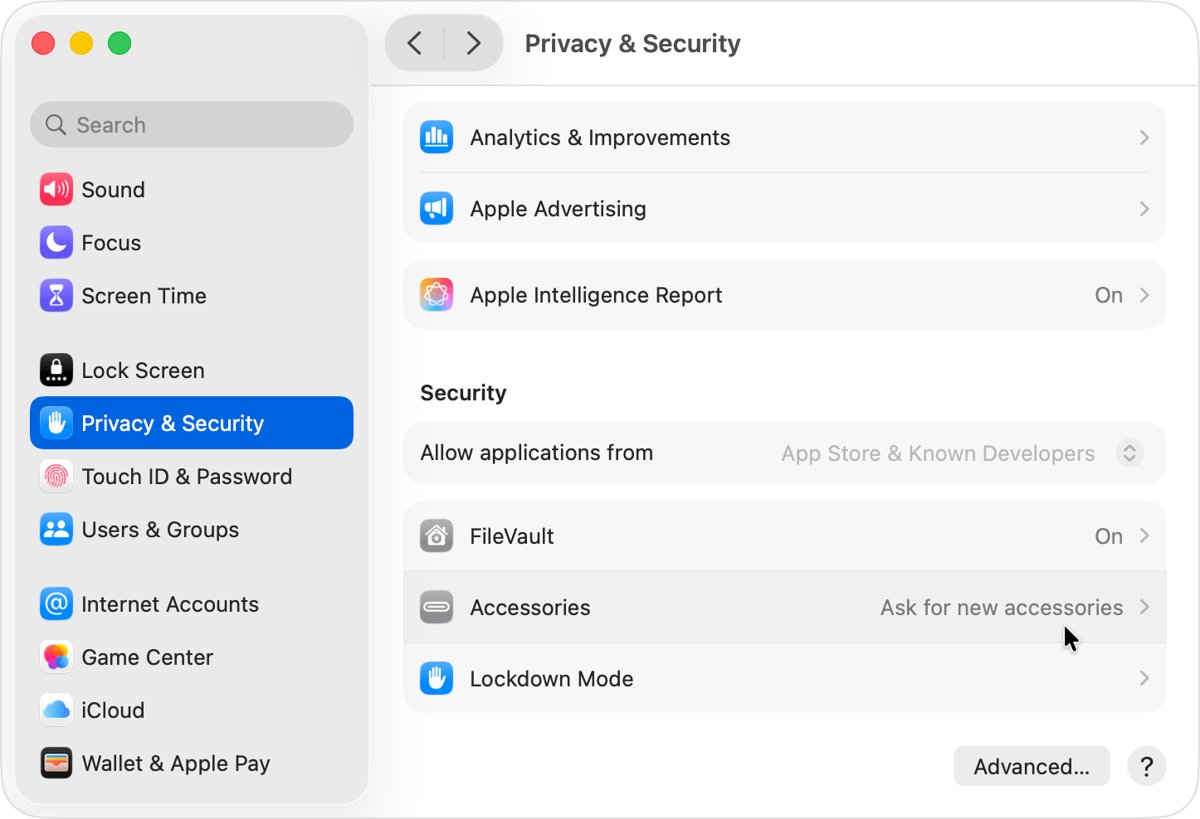
- Choose Apple menu > System Settings and click Privacy & Security.
- Scroll to Accessories and make sure new accessories are allowed, then reconnect the reader.
- Open Keychain Access, choose File > Import Items, and import the DoD root certificates your help desk provides.
- Double-click each imported certificate, open Trust, and set the trust options your help desk specifies.
- Quit Safari completely and open the webmail address again.
No certificate prompt, or the wrong certificate was used
The browser cached a cancelled or wrong certificate choice.
- Close every browser window and open a new session.
- In Edge, select the lock icon left of the address and select Your certificate choices.
- Select Reset certificate choices, then Reset choices.
- On the sign-in page, select Other ways to sign in.
- Select Use a certificate or smart card and pick the authentication certificate.
CAC reader not detected on Windows
Windows has not loaded the reader, or the Smart Card service is stopped.
- Open Device Manager and expand Smart card readers.
- If the reader is missing, select Action > Scan for hardware changes.
- Run
sc queryex scardsvrin an administrator Command Prompt. - If the service is not running, run
net stop SCardSvrand thennet start SCardSvr. - Remove and reinsert the CAC, then reload the webmail page.
AADSTS53000 or AADSTS53003 error after the PIN
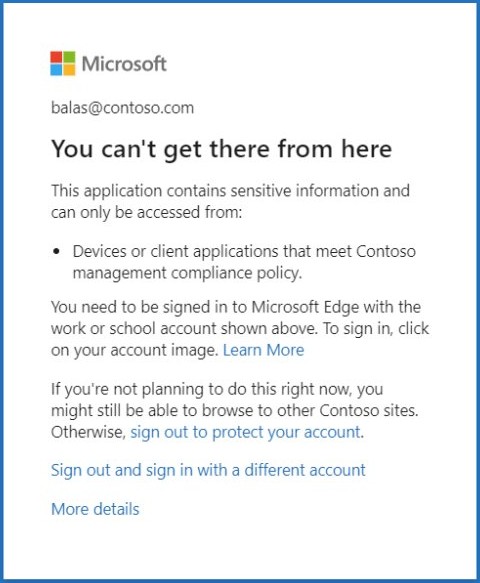
A Conditional Access policy blocked the device or app; 53000 means the device is not compliant and 53003 means access is blocked by policy.
- Read the full error page, which usually names the requirement you missed.
- Select More details and copy the information shown.
- Send it to your help desk, because only your organization can approve the device or change the policy.
DoD email login FAQ
How do I access DoD email from home?
Connect a CAC reader, open your organization's Outlook on the web address in a current browser, and sign in with the authentication certificate on your CAC and its PIN. Microsoft lists webmail.apps.mil as an Exchange Online endpoint for Microsoft 365 DoD.
Can I access DoD email on a personal computer?
Yes, if your organization's access policy allows unmanaged devices. Microsoft supports certificate sign-in to browser apps on every platform. You need a working CAC reader and a supported browser, and a Conditional Access block can still stop the sign-in.
How do I access DoD webmail?
Open the DoD webmail address in Microsoft Edge, Chrome, Firefox or Safari 16 or later, choose the certificate or smart card sign-in, pick your CAC certificate and enter your PIN. Outlook on the web then opens in the browser.
What is my DoD email address?
Your organization assigns it, and the email signing certificate on your CAC carries it. On Windows, certutil -scinfo lists the certificates on an inserted card. Your help desk or the address book in Outlook on the web can also confirm it.
How do I log into DoD email with Outlook?
In a browser, sign in to Outlook on the web with your CAC. On iPhone, iPad or Android, install Outlook, through Intune Company Portal if your organization manages devices, and add your DoD account; it uses native Microsoft sync.
Why is my DoD email not working?
Most home failures come from a reader the computer does not detect, a cached wrong certificate, missing DoD root certificates on a Mac, or a Conditional Access block. The error page and the reader checks above separate these causes, and they help too when the Air Force portal rejects your CAC.
Do I need a CAC reader to check DoD email?
On a computer, yes, because the sign-in uses the certificate on your CAC. On a phone or tablet, your organization may issue a derived credential through Purebred and Company Portal, which replaces the physical card for mail.
Which browsers work with DoD email?
Microsoft supports the latest Edge, Firefox and Chrome on Windows 11, and Edge, Safari 16 or later, Firefox and Chrome on macOS. Internet Explorer, Edge Legacy and other old versions get an error page.