To disable the Print Spooler service on Windows 11, open Services, double-click Print Spooler, select Stop and set Startup type to Disabled; to enable it again, set Startup type to Automatic and select Start.
This guide covers the Services app, PowerShell, Command Prompt and Group Policy, what stops working while the spooler is off, and how to undo Windows protected print mode.
Enable or disable Print Spooler service
The Services console is the quickest route on every edition of Windows 11, including Home. You need an administrator account to change the startup type.
- Press Windows key + R, type
services.mscand press Enter. - Select the Standard tab at the bottom of the window, then scroll down to Print Spooler.
- Double-click Print Spooler to open its properties.
- To disable it, select Stop, then choose Disabled in the Startup type box.
- To enable it, choose Automatic in the Startup type box, then select Start.
- Select Apply and then OK.
Stopping the service takes effect at once, and the startup type decides what happens at the next boot. To restart a stuck Print Spooler without disabling it, use its Restart option instead.
How do I enable Print Spooler?
A disabled service cannot be started until its startup type changes. That is why the Start button stays greyed out while Startup type reads Disabled.
- Open Start, type services and select Services.
- Double-click Print Spooler.
- Change Startup type from Disabled to Automatic and select Apply.
- Select Start under Service status and wait until it reads Running.
- Select OK, then open Settings > Bluetooth & devices > Printers & scanners to see your printers again.
Automatic is the Windows default for the Print Spooler. Manual also works, but the spooler then waits for a user or an app to start it.
Disable Print Spooler with PowerShell
Open PowerShell as administrator first. The service name is Spooler, while Print Spooler is only the display name.
Stop-Service -Name Spooler -Force; Set-Service -Name Spooler -StartupType DisabledStop-Service stops the spooler now, and -Force is required to stop a service that other services depend on. Set-Service -StartupType Disabled prevents any user or app from starting it again.
You should see: No error is returned, and Get-Service -Name Spooler shows the Status column as Stopped.
Enable Print Spooler with PowerShell
Set-Service -Name Spooler -StartupType Automatic; Start-Service -Name SpoolerThe startup type must change first, because Windows will not start a disabled service. Start-Service then starts the spooler without a reboot.
You should see: Get-Service -Name Spooler shows Running, and your printers reappear in Printers & scanners.
Disable Print Spooler using Command Prompt
Open Start, type cmd, right-click Command Prompt and select Run as administrator. Then run the two commands below, pressing Enter after each one.
- Run
net stop spoolerto stop the service now. - Run
sc.exe config spooler start= disabledto stop it from starting at boot. - To enable it again, run
sc.exe config spooler start= auto. - Then run
net start spoolerto start it without a restart.
Keep the space after start=. Microsoft's sc.exe documentation states that the command fails without it.
Where can I find Print Spooler?
| Where | How to open it | What you can change |
|---|---|---|
| Services console | Windows key + R, then services.msc | Start, Stop, Restart and Startup type |
| PowerShell (admin) | Get-Service, Set-Service, Start-Service, Stop-Service with -Name Spooler | Status and startup type, scriptable |
| Command Prompt (admin) | net stop spooler, net start spooler, sc.exe config spooler | Status and startup type |
| Local Group Policy Editor | gpedit.msc > Computer Configuration > Administrative Templates > Printers | Allow Print Spooler to accept client connections, Point and Print Restrictions |
| Settings app | Settings > Bluetooth & devices > Printers & scanners | Printers and Windows protected print mode, not the service itself |
Print Spooler startup type: Automatic, Manual or Disabled
| Startup type | What Windows does | PowerShell value | sc.exe value |
|---|---|---|---|
| Automatic (default) | Starts the spooler at system start-up | Automatic | auto |
| Manual | Starts it only when a user, the Service Control Manager or an app asks | Manual | demand |
| Disabled | Blocks every start until the type changes | Disabled | disabled |
| Automatic (Delayed Start) | Starts it a short time after the other automatic services | Use sc.exe | delayed-auto |
Pick Disabled only on a PC that never prints. Pick Automatic everywhere else.
Disable Print Spooler client connections with Group Policy
Windows 11 Pro, Enterprise and Education can keep local printing but refuse inbound connections from other computers. This blocks remote use of the spooler without breaking printing on the PC itself.
- Press Windows key + R, type
gpedit.mscand press Enter. - Go to Computer Configuration > Administrative Templates > Printers.
- Double-click Allow Print Spooler to accept client connections.
- Select Disabled, then select OK.
- Close the Local Group Policy Editor.
When the policy is not configured, the spooler starts accepting client connections as soon as a user shares a local printer. Disabling it suits a PC that prints locally but never shares a printer.
How to check if Print Spooler is disabled in Windows 11
Get-Service -Name Spooler | Select-Object -Property Name, StartType, StatusGet-Service reads the Spooler service, and Select-Object shows its startup type and current state in one line.
You should see: A disabled spooler shows StartType Disabled and Status Stopped. An enabled one shows StartType Automatic and Status Running.
In Command Prompt, sc.exe query spooler shows the same state on its STATE line.
What happens if I disable Print Spooler?
Microsoft's own service description is blunt: if you turn off this service, you can't print or see your printers.
| Your PC | Effect of disabling Print Spooler | Recommendation |
|---|---|---|
| Home or office PC that prints | No printing, and printers vanish from Printers & scanners | Keep it on Automatic |
| PC that prints only to PDF | Microsoft Print to PDF is a printer too, so it stops working | Keep it on Automatic |
| PC that never prints | No visible change | Disabling is fine; re-enable before you next print |
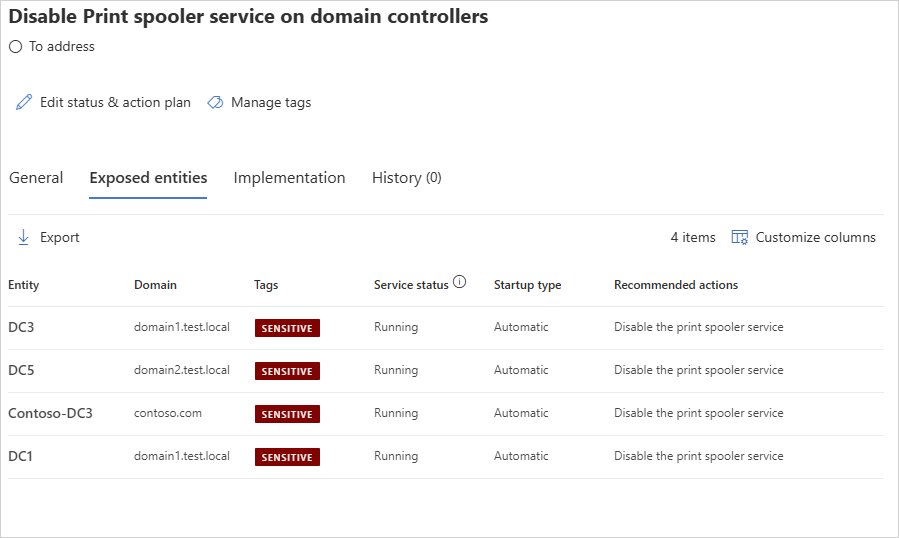
| Domain controller or Active Directory admin system | Removes a remote path to the computer account credential | Microsoft recommends disabling it, ideally through a GPO |
| Print server | All shared printers stop | Keep it running and patch it |
On domain controllers, the spooler also prunes stale print queue objects from Active Directory. With it disabled, prune those queues on a schedule instead.
How to disable Windows protected print mode
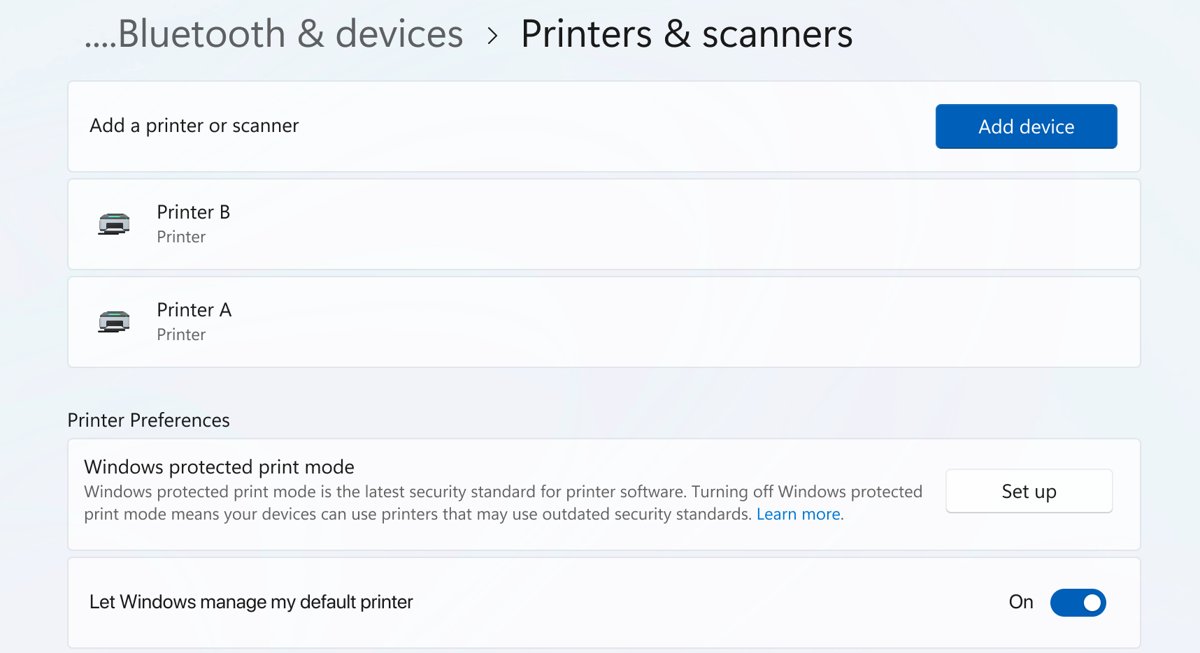
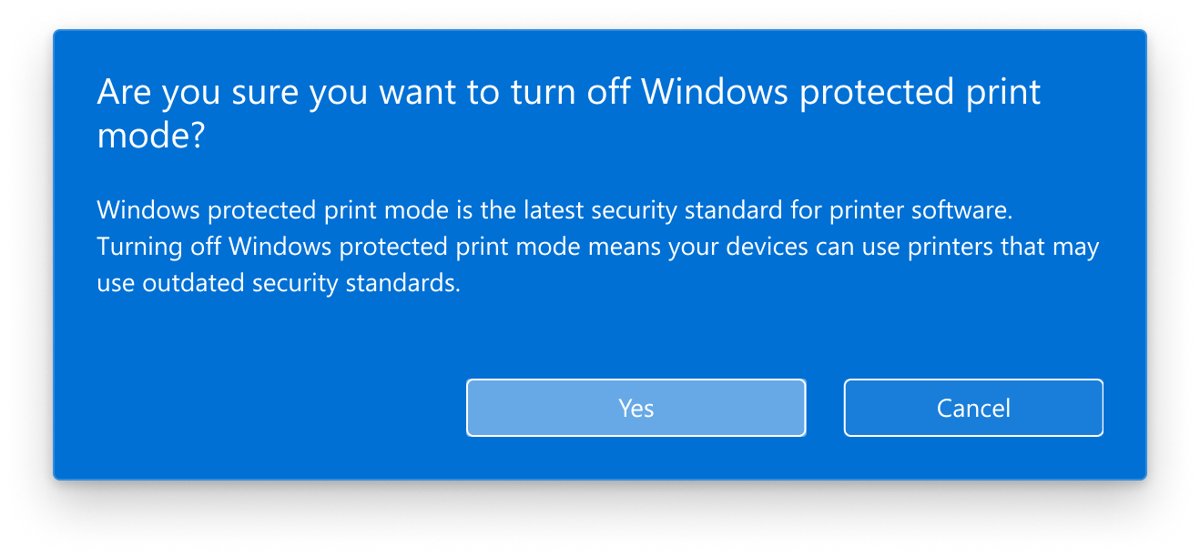
Windows protected print mode runs printing through Windows Ready Print and blocks third-party printer drivers. If a printer or scanner you need is not compatible, turn the mode off instead of touching the spooler.
- Select Start, then open Settings > Bluetooth & devices > Printers & scanners.
- Scroll down to Printer preferences.
- Under Windows protected print mode, select Turn off.
- Select Yes to confirm.
- Reinstall any printer that was removed when the mode was turned on.
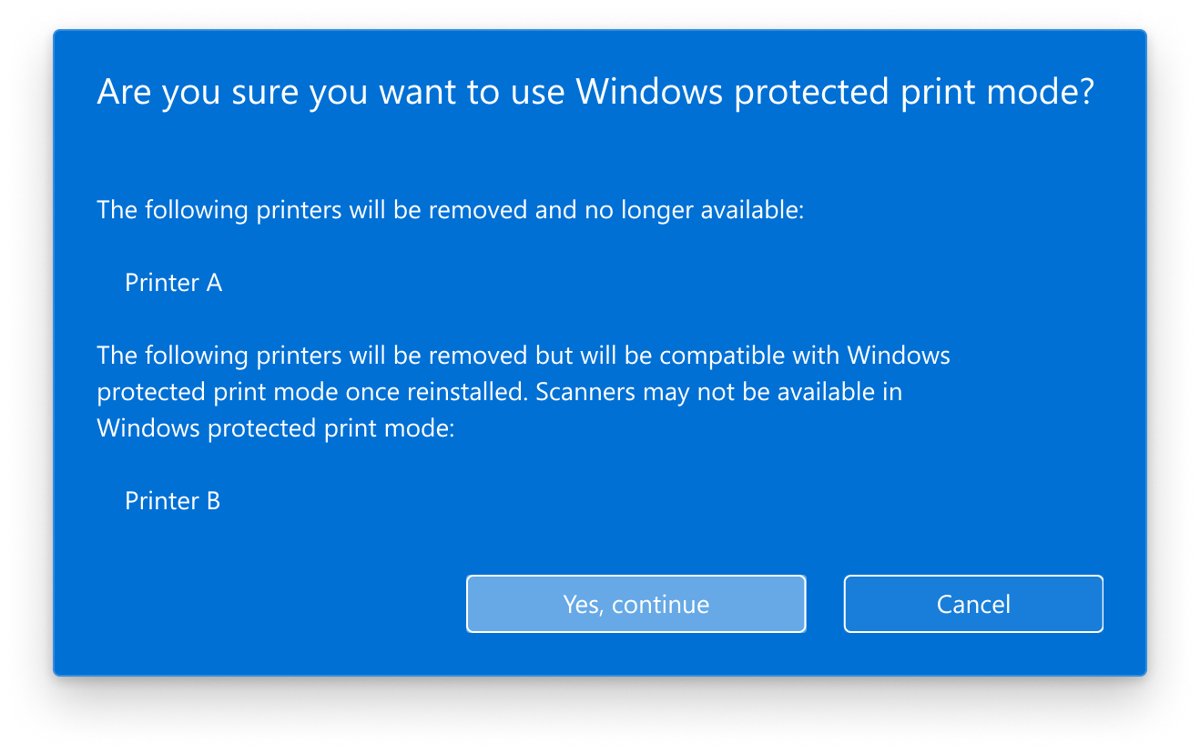
To turn the mode on again, select Set up in the same place and choose Yes, continue at each prompt. If your organization enforces it through Group Policy, the Turn off option stays unavailable until an administrator changes the policy.
Print Spooler service won't start on Windows 11
The Start button is greyed out in Print Spooler properties
The startup type is Disabled, and Windows cannot start a disabled service.
- Set Startup type to Automatic.
- Select Apply.
- Select Start, then OK.
Print Spooler goes back to Disabled after a restart
A Group Policy Object disables the service, often as a security mitigation on work PCs and domain controllers.
- On a work or school PC, ask the IT administrator whether a GPO disables the Print Spooler.
- Ask for the PC to be excluded from that policy if it needs to print.
- Set Startup type back to Automatic and start the service once the policy is lifted.
"Access is denied" when you run the commands
The window is not elevated.
- Close the window.
- Right-click Command Prompt or Windows PowerShell and select Run as administrator.
- Run the command again.
Print Spooler starts and then stops again
An outdated or faulty printer driver crashes the spooler, or a corrupt job sits in the queue.
- Update the printer driver from the printer maker or Windows Update.
- Clear the print spooler queue and start the service again.
- Check Event Viewer for errors from the local print provider.
Printers disappeared after you enabled printing again
Windows protected print mode removed printers that use third-party drivers.
- Turn off Windows protected print mode in Printers & scanners.
- Reinstall each missing printer from Settings > Bluetooth & devices > Printers & scanners.
For crashes that keep coming back, work through the spooler failure troubleshooting steps one at a time.
Print Spooler service FAQ
How do I enable printing after disabling Print Spooler?
Open Services, double-click Print Spooler, set Startup type to Automatic, select Apply and then Start. Printing works again at once, and your printers reappear in Settings > Bluetooth & devices > Printers & scanners.
Is it safe to disable Print Spooler on Windows 11?
Yes, on a PC that never prints. Disabling it removes the ability to print or see printers, including Microsoft Print to PDF. Microsoft recommends disabling it on domain controllers and servers that do not need it.
How do I disable Windows protected print mode?
Go to Settings > Bluetooth & devices > Printers & scanners, scroll to Printer preferences, select Turn off under Windows protected print mode and confirm with Yes. Reinstall any printers that were removed when it was turned on.
What is the service name of Print Spooler?
The service name is Spooler. Use it in commands such as Get-Service -Name Spooler, net stop spooler and sc.exe config spooler. Print Spooler is the display name shown in the Services console.
Do I need to restart Windows after disabling Print Spooler?
No. Selecting Stop or running Stop-Service ends the spooler immediately, and the Disabled startup type keeps it off at the next boot. Your printers stay installed and return when the service starts again.
Should I disable Print Spooler on a domain controller?
Yes. Microsoft Defender for Identity flags an enabled spooler on domain controllers because any authenticated user can connect to it remotely. Disable it through a GPO and prune stale print queues on a schedule instead.
Does disabling Print Spooler fix PrintNightmare?
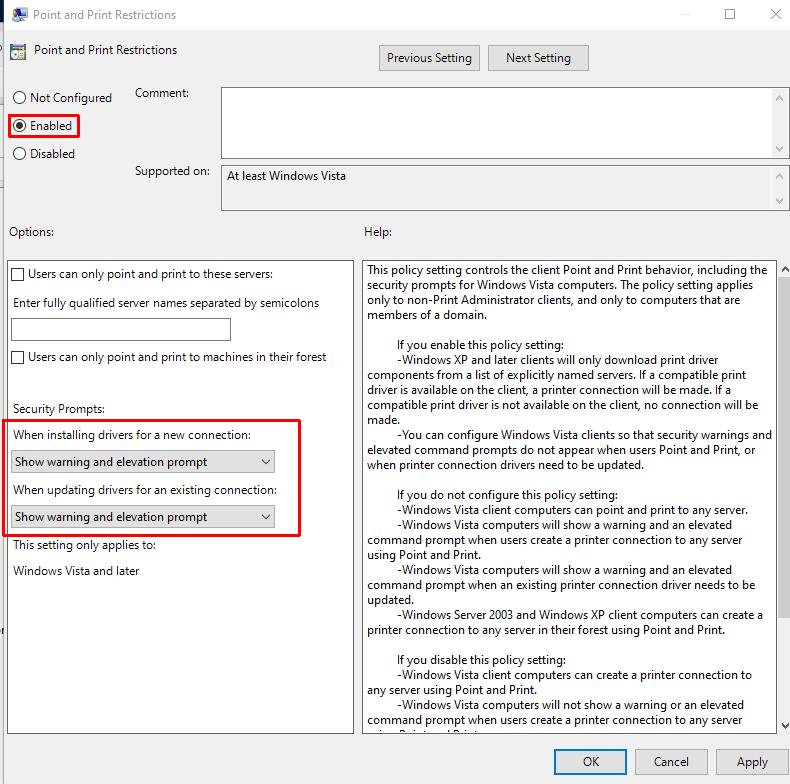
It is not required on an updated PC. Microsoft's fix for CVE-2021-34527 is the July 2021 or later updates with Point and Print Restrictions left unconfigured or set to show warning and elevation prompts.
Can I disable Print Spooler on Windows 11 Home?
Yes. The Services console, PowerShell and Command Prompt methods all work on Windows 11 Home. Only the Group Policy client-connections setting needs Windows 11 Pro, Enterprise or Education.