To get into BIOS on an ASUS motherboard, power on the PC and press Delete (or F2) as soon as the ASUS logo appears, or restart from Windows into UEFI Firmware Settings.
This guide covers the splash-screen key, the Windows Recovery Environment route, the shutdown command, the ASUS boot menu, and what to do when the key does nothing.
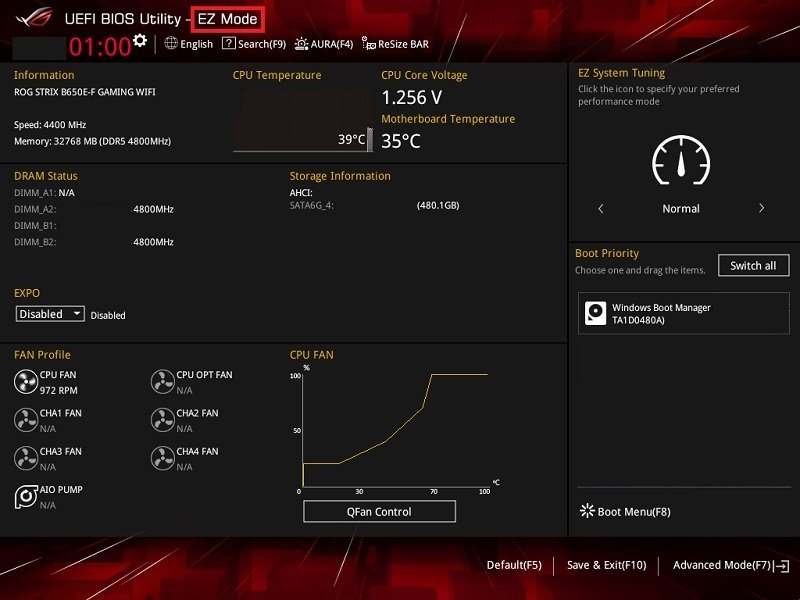
Enter BIOS from splash screen
ASUS desktop motherboards open the BIOS setup with the Delete key during the power-on self-test (POST), the short check that runs before Windows loads. ASUS also lists F2 as a common BIOS key, so try it if Delete does nothing.
- Save your work and shut the PC down completely from Start > Power > Shut down.
- Press the power button on the case.
- Tap Delete repeatedly as soon as the ASUS or ROG logo appears.
- If Windows starts loading instead, shut down again and tap F2 this time.
- Wait for the BIOS to open in EZ Mode, the simplified first screen.
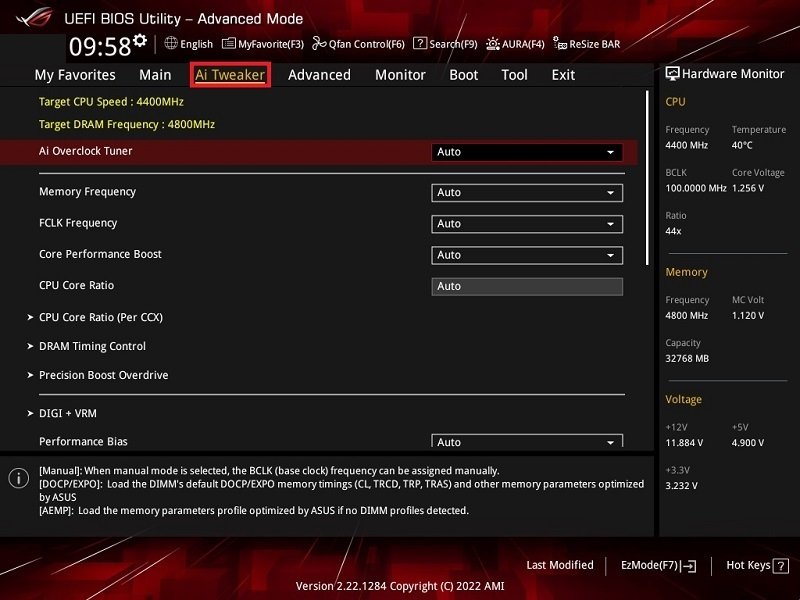
- Press F7 to switch to Advanced Mode when you need the full menus such as Ai Tweaker and Boot.
Some boards open straight into Advanced Mode. In that case there is no need to press F7.
ASUS BIOS key for motherboards, laptops and handhelds
ASUS uses a different key depending on the type of device. Match your hardware to a row, then use that key from a full shutdown.
| Your ASUS device | Key or route | How to press it |
|---|---|---|
| ASUS or ROG desktop motherboard | Delete (F2 on some boards) | Tap it repeatedly from power-on until EZ Mode opens |
| Older ASUS desktop PC | Delete | Press and hold it during startup |
| ASUS laptop or All-in-One | F2 | Hold F2, press the power button, release F2 when BIOS appears |
| ASUS gaming handheld | Volume Down | Hold Volume Down, then press the power button |
| Any ASUS PC that boots Windows | UEFI Firmware Settings | Restart from Windows Recovery Environment, no key timing needed |
Other brands use their own keys, so the steps to boot into BIOS on a Dell differ from the ASUS ones here.
From Windows recovery environment
The Windows Recovery Environment (Windows RE) can restart the PC straight into the firmware setup screen. This route avoids racing the logo screen, which helps when POST finishes too fast to catch the key.
- Open Settings and select System > Recovery. On Windows 10, select Update & Security > Recovery.
- Under Recovery options, select Restart now next to Advanced startup.
- Save your work and select Restart now again to confirm.
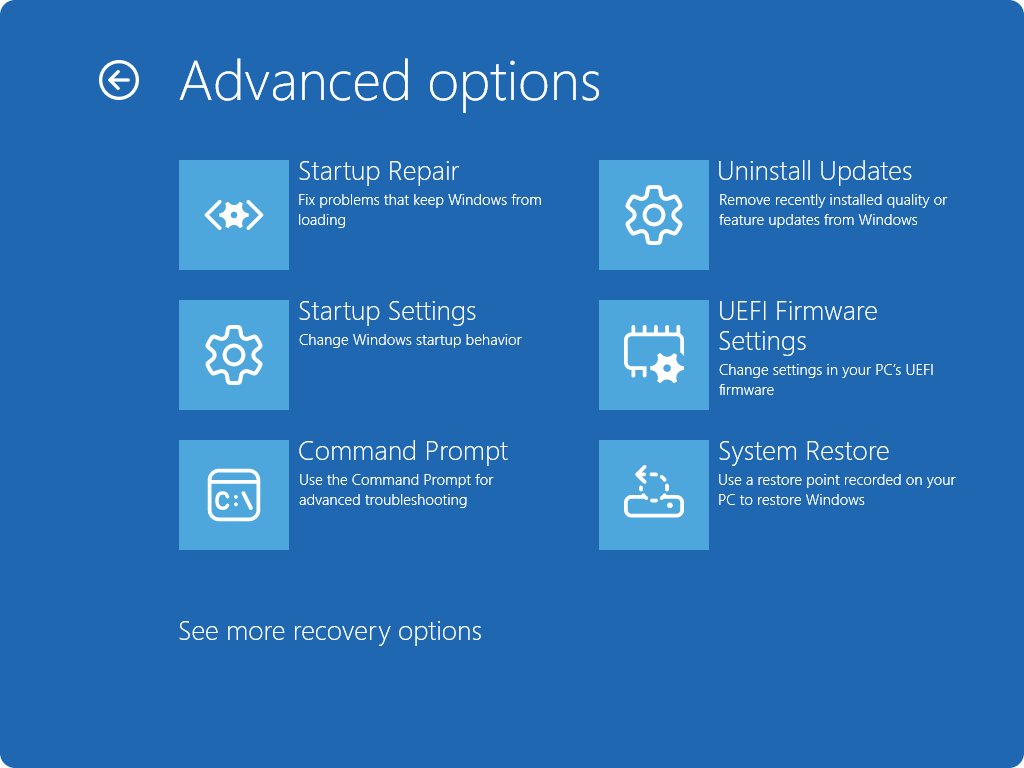
- On the blue Choose an option screen, select Troubleshoot.
- Select Advanced options.
- Select UEFI Firmware Settings.
- Select Restart. The PC restarts into the ASUS BIOS.
You can also reach the same page by searching Change advanced startup options in the Windows search box and selecting Open.
How to enter ASUS BIOS from Windows 11 with Shift + Restart
Holding Shift while you restart opens Windows RE without going through Settings. It works from the Start menu and from the sign-in screen.
- Select Start > Power, or the power icon on the sign-in screen.
- Press and hold Shift while you select Restart.
- Release Shift when the Choose an option screen appears.
- Select Troubleshoot > Advanced options > UEFI Firmware Settings.
- Select Restart to open the BIOS.
How to enter ASUS BIOS when Windows won't boot
If Windows fails to start, it opens Windows RE on its own after repeated failed boots. You can force this by interrupting startup twice, then pick UEFI Firmware Settings from there. The Delete key at the logo still works too, since it does not depend on Windows.
- Turn the PC on and wait for the logo to appear.
- As soon as the logo appears, press and hold the power button until the PC shuts down.
- Turn the PC on again and repeat the forced shutdown once more.
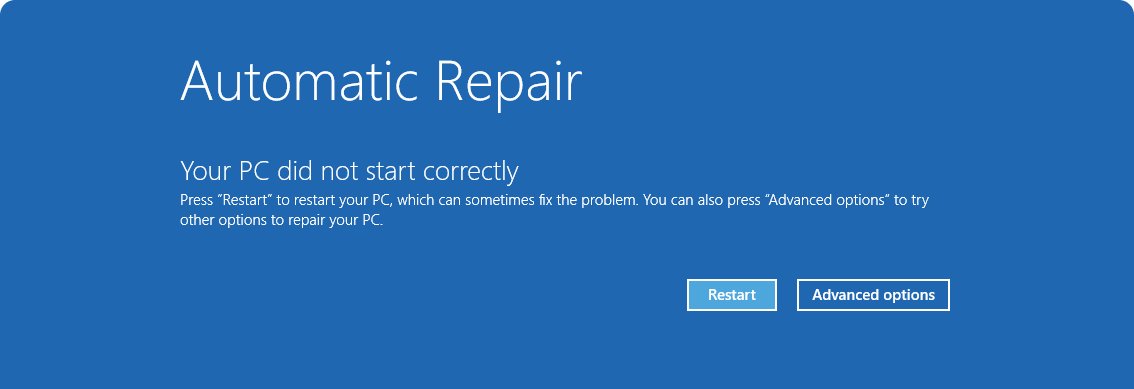
- Turn the PC on a third time and wait for the Automatic Repair screen.
- Select Advanced options, then Troubleshoot > Advanced options.
- Select UEFI Firmware Settings and then Restart.
If the board itself will not reach POST after a failed flash, recover a corrupted BIOS before trying these keys again.
Use other utilities
The built-in shutdown command in Windows has a switch that sends the next restart to the firmware user interface. It is the fastest route when you already have a terminal open, and it works the same on Windows 11 and Windows 10.
Select Start, type cmd, select Run as administrator, then run the command below.
shutdown /r /fw /t 0/r restarts the PC, /fw makes the next start open the firmware (BIOS) setup instead of Windows, and /t 0 sets a zero-second delay so the restart happens at once.
You should see: The PC restarts and opens ASUS BIOS EZ Mode without any key press. If you would rather pick from the recovery menu, run shutdown /r /o to restart into Advanced boot options instead.
Save open files first, because /t 0 gives running apps no warning. To cancel a pending firmware restart started with a delay, run shutdown /a /fw in a new window before the timer runs out.
How to tell you are in ASUS BIOS EZ Mode
ASUS boards open the setup in one of two layouts. The labels below show you landed in the BIOS and not in a Windows recovery screen.
- Look for the EZ Mode screen, which shows system details such as memory frequency at a glance.
- Press F7 and check that the screen changes to Advanced Mode with tabs along the top.
- Look for the Ai Tweaker tab, where ASUS keeps memory settings such as XMP, EXPO or DOCP.
- Open the Boot tab and check for Boot Configuration and Secure Boot entries.
- If you see Choose an option, Troubleshoot or Automatic Repair instead, you are still in Windows RE; select UEFI Firmware Settings to go on.
How to open the ASUS boot menu from BIOS
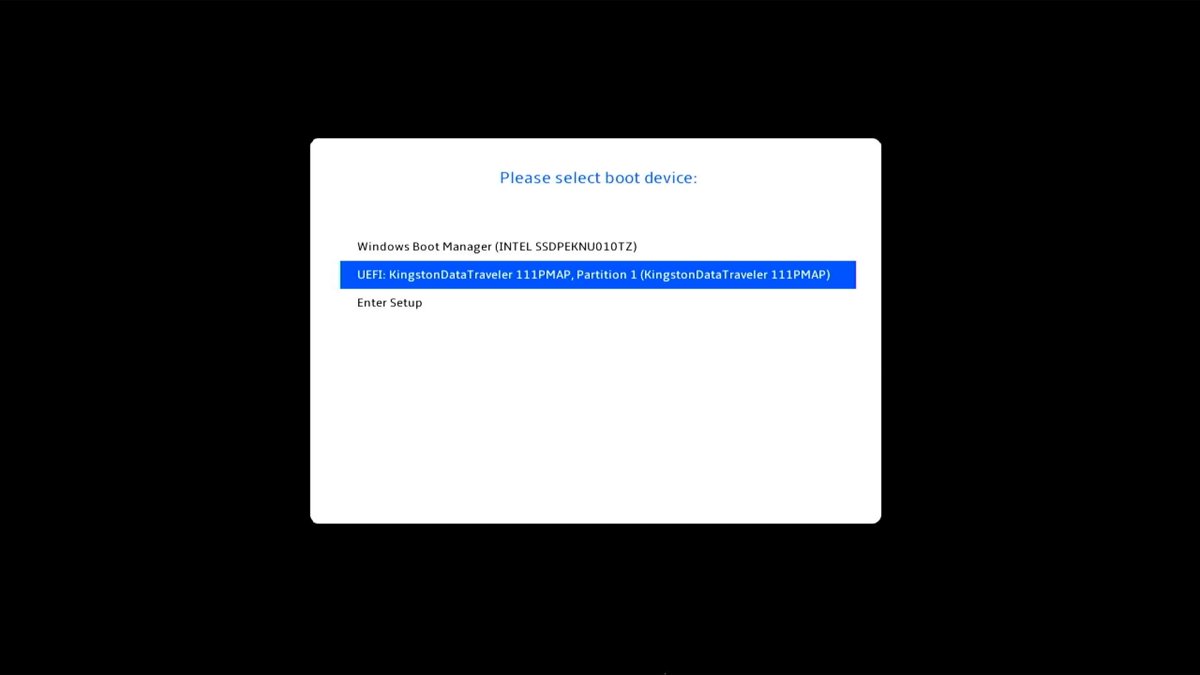
The boot menu lets you start once from a USB drive or disc without changing the saved boot order. On ASUS desktops you open it from inside the BIOS.
- Enter the BIOS with Delete or F2 at the logo.
- Press F8, or select Boot Menu on the screen.
- Select your USB drive or optical drive in the list.
- Press Enter to boot from it.
If the USB drive is missing from the list, press F7 for Advanced Mode, open Boot > Boot Configuration and set Fast Boot to Disabled, then press F10 to save and retry. ASUS also notes the USB drive must be formatted as FAT32.
How to save changes and exit ASUS BIOS
Changes in the BIOS only apply after you save them. ASUS desktops accept the arrow keys and Enter or a mouse for every step below.
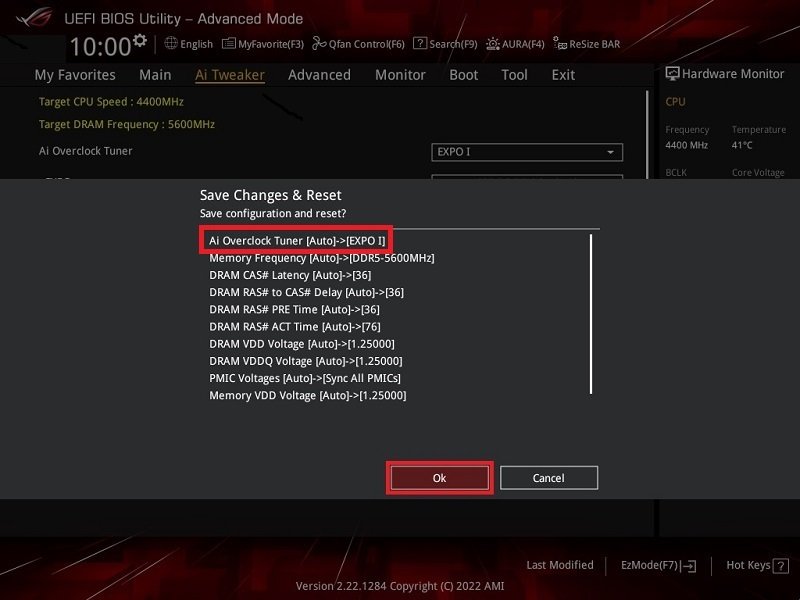
- Make your change, for example the boot order under Boot or an XMP profile under Ai Tweaker.
- Press F10, or select Save & Exit.
- Select Ok and press Enter to confirm.
- Let the PC restart into Windows with the new settings.
- To undo every change instead, press F5 or select Default, confirm Ok to load the optimized defaults, then save with F10.
Loading defaults does not remove a BIOS password. Once you are comfortable in the menus, you can update the ASUS BIOS with EZ Flash from the same screen.
Can't get into BIOS on ASUS motherboard
Pressing Delete at startup does nothing and Windows loads
POST finished before the key registered, or the board expects F2.
- Shut the PC down fully instead of restarting.
- Press the power button and tap Delete from the first second, not once the logo is gone.
- Repeat with F2 if Delete still fails.
- Use Settings > System > Recovery > Advanced startup > UEFI Firmware Settings to skip the key timing entirely.
UEFI Firmware Settings is missing in Advanced options
Windows on this PC was likely installed in legacy BIOS (CSM) mode, so it cannot hand off to UEFI setup, which is why the UEFI firmware settings entry goes missing.
- Select Turn off your PC on the Choose an option screen.
- Press the power button and tap Delete as the ASUS logo appears.
- Use the splash-screen key every time you need the BIOS on this install.
ASUS PC freezes or will not boot after a BIOS change or overclock
A memory or CPU setting the hardware cannot run stably, which ASUS fixes by clearing CMOS.
- Shut the PC down and unplug the power cord.
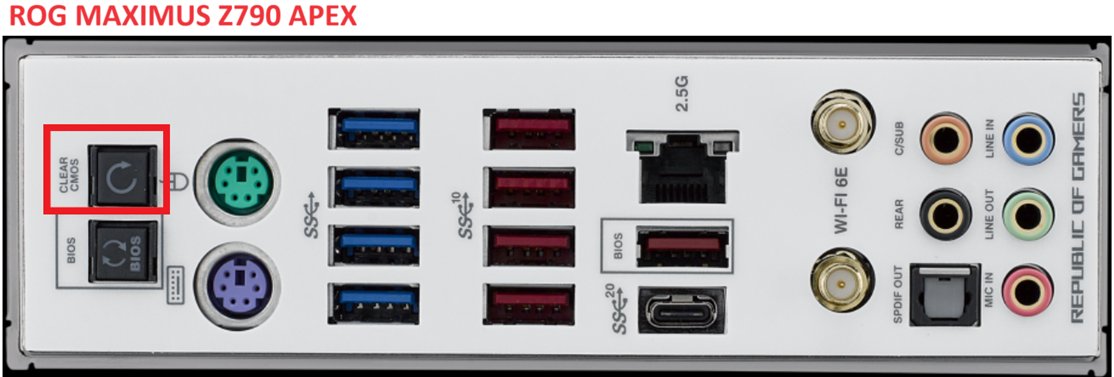
- Press the Clear CMOS (CLR_CMOS) button on the board for 5 to 10 seconds, or short the 2-pin CLRTC header with a jumper cap for the same time.
- Plug the power cord back in and turn the PC on.
- When the PC reports that BIOS settings were reset, press F1 to enter the BIOS setup.
- Press F5 to Load Optimized Defaults, then F10 to save and exit.
BitLocker asks for a recovery key after an ASUS BIOS update
BitLocker asks for its key after a hardware or firmware change it treats as a security risk; ASUS warns this can follow a BIOS update.
- Note the first 8 digits of the recovery key ID shown on the BitLocker screen.
- On another device, go to aka.ms/myrecoverykey, sign in with the Microsoft account and find the key with the matching ID.
- Type the 48-digit key and press Enter to start Windows.
Your board's manual, under Manual & Document on its ASUS support page, shows whether it has a Clear CMOS button or a CLRTC header.
ASUS BIOS key FAQ
How do I enter BIOS on Windows 11 with an ASUS motherboard?
Open Settings > System > Recovery, select Restart now next to Advanced startup, then choose Troubleshoot > Advanced options > UEFI Firmware Settings > Restart. You can also tap Delete at the ASUS logo during a cold start.
How do I enter BIOS on Windows 10 with an ASUS PC?
Go to Settings > Update & Security > Recovery and select Restart now under Advanced startup. Then pick Troubleshoot > Advanced options > UEFI Firmware Settings and select Restart. The Delete or F2 key at power-on works as well.
What key boots into BIOS on an ASUS laptop?
ASUS laptops use F2. Shut the laptop down fully, press and hold F2, press the power button, and release F2 once the BIOS screen appears. On a 2-in-1, attach the keyboard first.
Why can't I enter BIOS on my ASUS PC?
Usually the key press comes too late, or the board expects F2 rather than Delete. Start from a full shutdown and tap the key from the moment you press power, or restart into UEFI Firmware Settings from Windows to avoid the timing.
Can I enter BIOS without restarting Windows 11?
No. The BIOS only runs while the PC starts, before Windows loads, so every method needs a restart. The quickest restart is shutdown /r /fw /t 0, which opens the firmware setup directly.
How do I boot into BIOS from CMD?
Open Command Prompt as administrator and run shutdown /r /fw /t 0. The /fw switch tells the next restart to open the firmware user interface, and /t 0 restarts immediately. Save your work before you run it.
Can I access BIOS from Windows?
Yes, indirectly. Windows cannot show the BIOS screens itself, but Advanced startup and the shutdown /fw command both restart the PC straight into the ASUS BIOS, so you never need to press a key at the logo.
Delete or F2: the key for ASUS BIOS
Tap Delete at power-on on an ASUS motherboard, and switch to UEFI Firmware Settings in Windows RE if the key keeps missing. Delete is the key ASUS documents for its motherboards, while the Windows RE route and shutdown /r /fw open the same BIOS with no timing to get right.