When Google Chrome crashes, freezes or stops responding, end every Chrome process in Task Manager and reopen it; if the problem returns, work through extensions, malware, a settings reset and a reinstall.
This guide covers seven fixes in the order that solves most cases fastest, plus what to do when Chrome will not open at all or only one page crashes.
1. Chrome didn't properly close
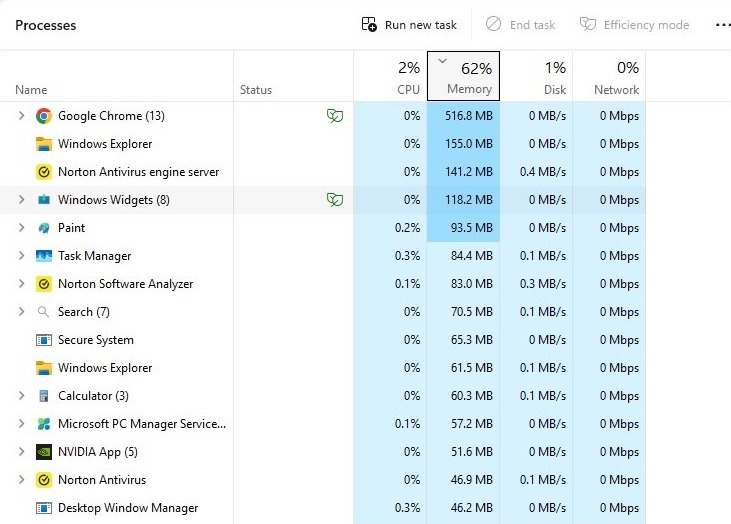
A Chrome window that froze can leave chrome.exe running in the background. A new window then refuses to open or hangs, because the old process still holds your profile. Ending every Chrome process gives you a clean start.
- Press Ctrl + Alt + Delete and select Task Manager.
- On the Processes tab, select Google Chrome or chrome.exe.
- Select End task, and repeat for any other Chrome entry in the list.
- Reopen Chrome from the Start menu or the desktop shortcut.
- Press Ctrl + Shift + T to bring back the tabs you had open.
- If Chrome froze again, restart Windows and try once more before moving to fix 2.
To close Chrome cleanly while it still responds, select More (the three dots) > Exit and reopen it from the Start menu.
2. Make sure there are no internet issues
Google lists connection errors such as err_connection_reset and err_connection_closed among the messages people see when Chrome seems to crash. A page that hangs while loading is often a network problem rather than a broken browser.
- Check that the PC is connected over Wi-Fi or Ethernet and that Airplane mode is off.
- Open the same page in another browser, such as Microsoft Edge.
- If it fails there too, restart your modem and router, then reload the page in Chrome.
- On public Wi-Fi, look for a sign-in portal page and complete it.
- If the page loads in the other browser but not in Chrome, the problem is Chrome itself; continue with fix 3.
A page that fails with ERR_NAME_NOT_RESOLVED points at a DNS lookup problem, and you can fix the ERR_NAME_NOT_RESOLVED error separately.
3. Disable all Chrome extensions
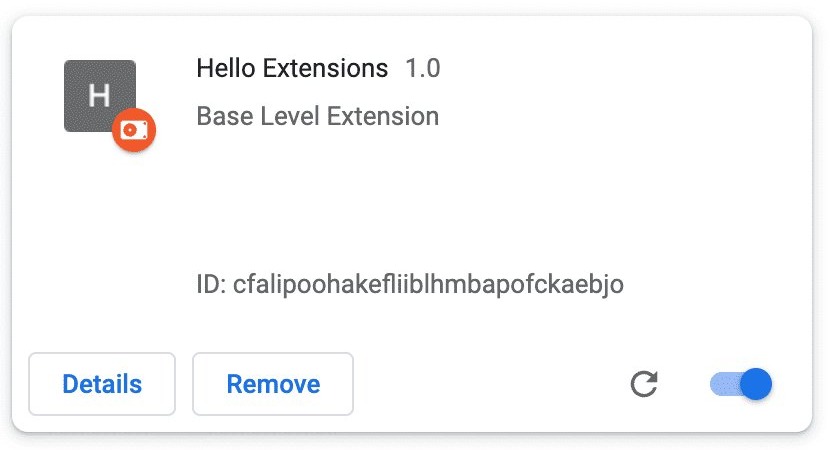
A faulty or corrupted Chrome extension is one of the most common reasons Chrome crashes. Turning all of them off, then back on one at a time, shows which one is responsible.
A quick test comes first: open a new Incognito window from the More menu and use the page that crashed. Extensions do not run in Incognito unless you allowed them, so a stable Incognito window points at an extension.
- Open Chrome and select More > Extensions > Manage extensions.
- Turn off the switch on every extension.
- Use Chrome normally for a while to see if the crashes stop.
- Turn the extensions back on one at a time, testing after each.
- When the crash returns, select Remove on the last extension you turned on and confirm with Remove.
- If an extension is marked as corrupted, select Repair, then Repair extension.
4. Use the Chrome malware scanner
Unwanted software can crash Chrome, change your homepage or search engine, and reinstall extensions you removed. Chrome's built-in check is Safety Check, which flags potentially harmful extensions; a Windows Security scan then covers programs outside the browser.
- In Chrome, select More > Settings > Privacy and security.
- Under Safety Check, select Go to Safety Check.
- Select each item Chrome flags, such as a potentially harmful extension, and follow the on-screen instructions.
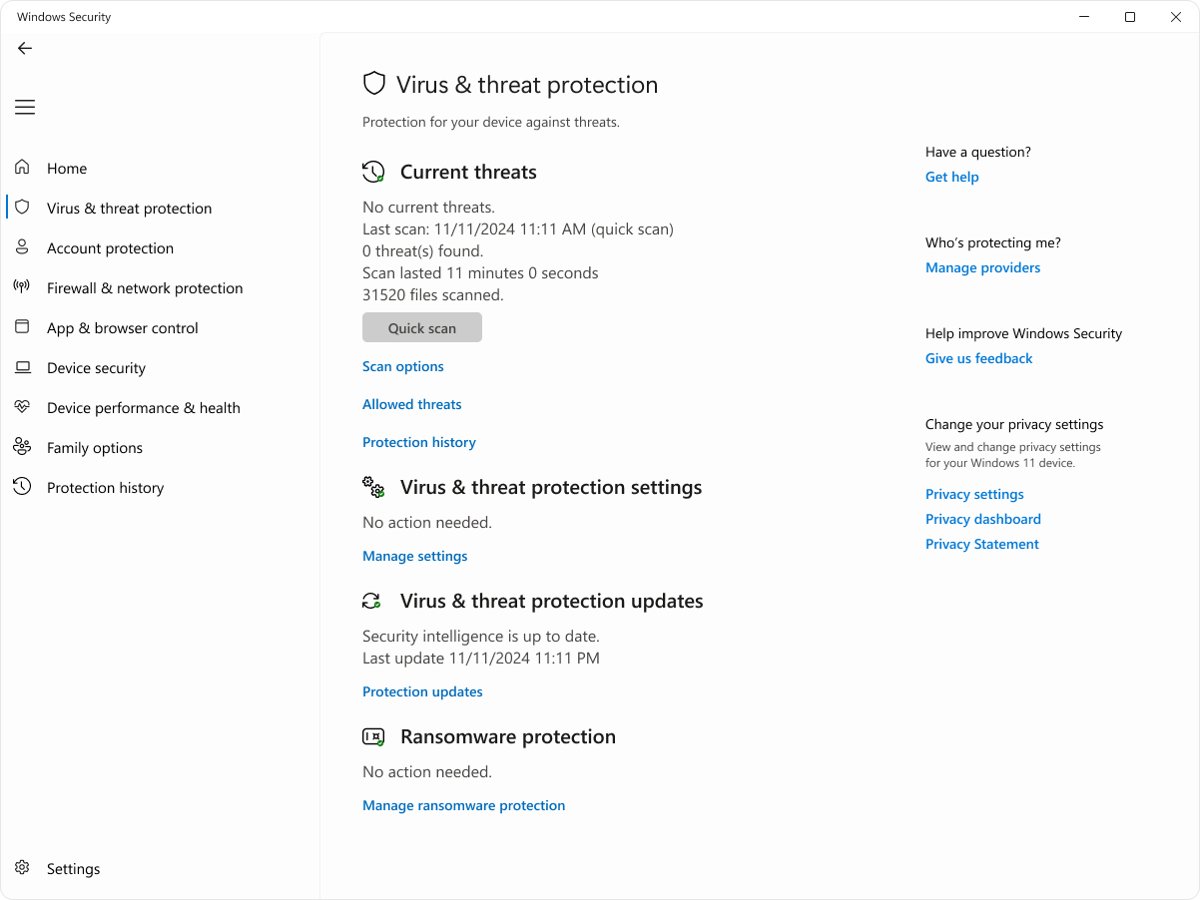
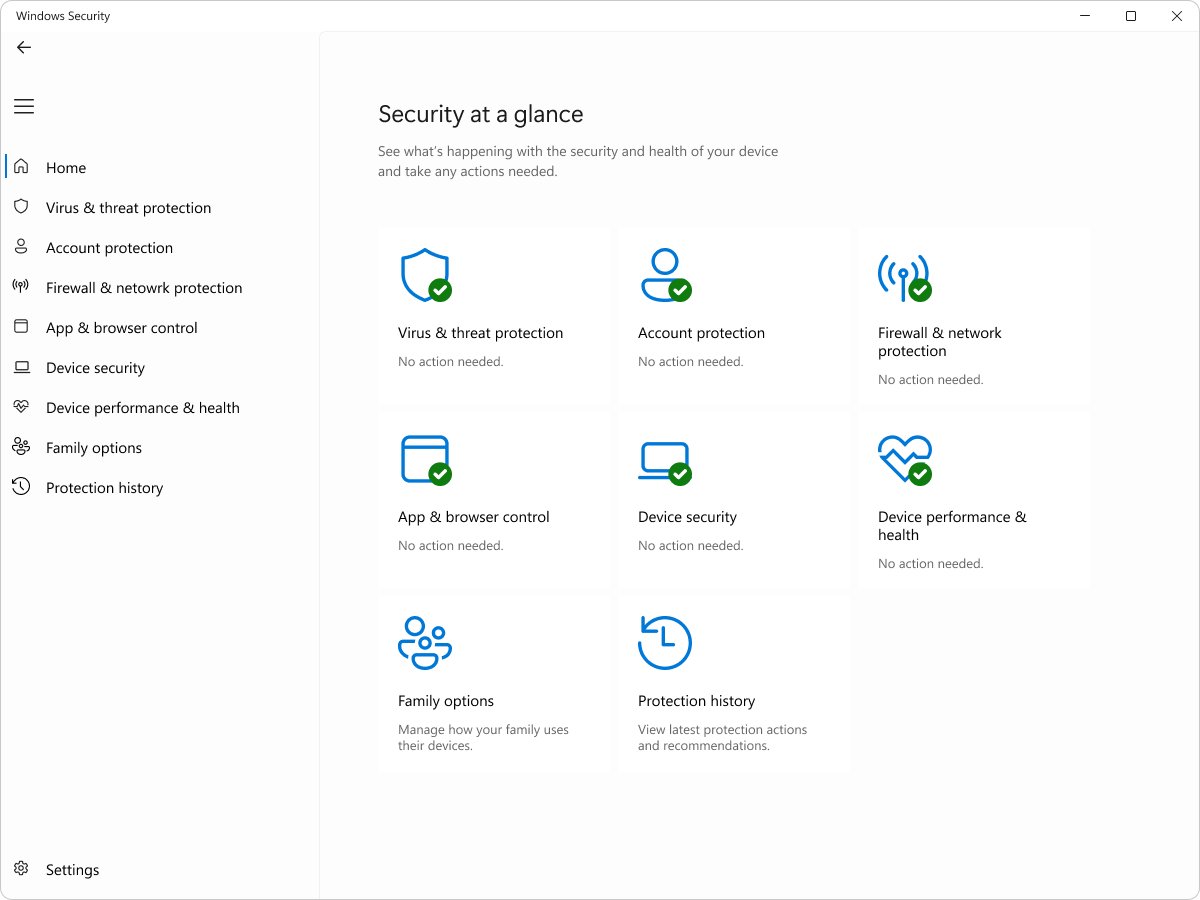
- Open Windows Security from the Start menu and select Virus & threat protection.
- Select Scan options, choose Full scan and select Scan now.
- If you suspect malware that hides from Windows, choose Microsoft Defender Antivirus (offline scan) instead; the PC restarts to run it.
Offline scan results appear later under Protection history in Windows Security.
5. Reset all Chrome settings
A reset undoes settings that apps or extensions changed without your knowledge. Bookmarks and saved passwords stay where they are.
- Open Chrome and select More > Settings.
- Select Reset settings.
- Select Restore settings to their original defaults.
- Select Reset settings to confirm.
- Turn back on only the extensions you trust from More > Extensions > Manage extensions.
The reset returns your default search engine, homepage and startup tabs, new tab page, pinned tabs, content settings, cookies and site data, and extensions and themes to their defaults. Fonts and accessibility settings are not reset; for a fully clean slate, add a new Chrome profile instead.
6. Remove incompatible applications
Other programs on the PC can inject into Chrome or fight with it. First remove anything you did not install on purpose from Settings > Apps > Installed apps: select the program and choose Uninstall.
If Chrome still crashes, a clean boot shows whether a background app or service is to blame. It starts Windows with only Microsoft services and no startup apps.
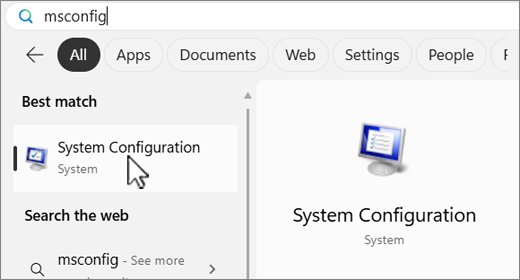
- Select Search, type msconfig and open System Configuration.
- On the Services tab, select Hide all Microsoft services, then Disable all, then Apply.
- On the Startup tab, select Open Task Manager.
- On the Startup apps tab, select each Enabled item and choose Disable, noting what you turned off.
- Close Task Manager, select OK in System Configuration and restart.
- Use Chrome; if it stays stable, turn half of the disabled items back on, restart and test, halving again until you find the program.
To leave the clean boot, open System Configuration, select Normal Startup on the General tab, select Enable all on the Services tab and turn your startup apps back on in Task Manager.
7. Uninstall and reinstall Chrome
A fresh install fixes most problems with Chrome launching, updating, pop-ups and the default search engine. Sign in to Chrome first if you want your bookmarks and passwords to come back from your Google Account.
- Close every Chrome window.
- Open Settings and select Apps > Installed apps.
- Next to Google Chrome, select More > Uninstall, then Uninstall again.
- Select Yes in the User Account Control prompt.
- On Windows 10, go to Settings > Apps > Apps & features instead, and check Also delete your browsing data to remove the old profile.
- Download Chrome again from google.com/chrome and run the installer.
- Sign in to Chrome to restore synced bookmarks and settings.
If a reinstalled Chrome says your profile is from a newer version, you can fix the newer-version profile error before you sign in.
How to check if Google Chrome is up to date
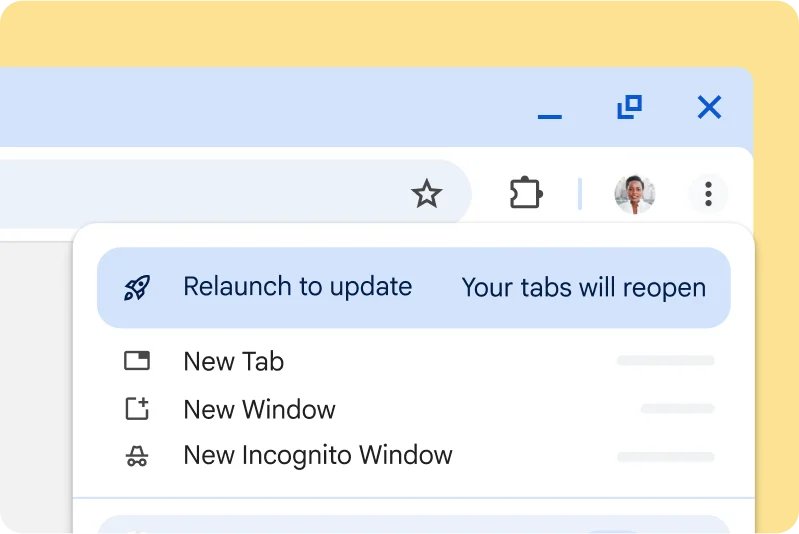
An outdated build can keep crashing on sites that a newer release handles. Chrome normally updates in the background, but a pending update only installs when Chrome restarts.
- Open Chrome and select More > Help > About Google Chrome.
- Wait while Chrome checks for an update.
- Select Relaunch if it appears; Chrome reopens your tabs after the restart.
- If there is no Relaunch button, you are already on the latest version.
How to turn on Chrome crash reports
Crash reports send Google details such as the page you were on, your extensions and memory use when Chrome failed. They can include personal information from memory, so turn them on only while you chase a crash.
- Open Chrome and select More > Settings.
- Select You and Google > Google services.
- Turn on Help improve Chrome's features and performance.
- Turn it off again once the crash is solved, if you prefer.
Google Chrome not responding on Windows 11
Chrome won't open at all
Chrome is already running in the background, or security software is blocking it.
- Open Task Manager and end every Google Chrome or chrome.exe process.
- Open Windows Security > Virus & threat protection > Protection history and check whether Chrome was blocked.
- Restart the PC and open Chrome again.
- If it still will not start, uninstall and reinstall Chrome as in fix 7.
Only one page crashes with "Aw, Snap!"
A loading or connection problem with that page, or low memory.
- Close every other tab and pause downloads, then reload the page.
- Open the page in an Incognito window to rule out extensions.
- Type Delete browsing data in the address bar and select the matching action to clear cookies and cache.
- Open the page in another browser; if it fails there too, contact the website owner.
Chrome freezes on videos, games or graphics-heavy pages
Hardware acceleration is clashing with the graphics driver.
- Select More > Settings > System.
- Turn off Use hardware acceleration when available.
- Select Relaunch or close and reopen Chrome.
- Test the same page; turn the setting back on if nothing changed.
Chrome slows down and freezes with many tabs open
The PC is running out of memory.
- Close tabs you are not using and quit other programs.
- Remove extensions you no longer need from Manage extensions.
- Restart Chrome and reopen only the tabs you need.
A crash page that names STATUS_ACCESS_VIOLATION has its own cause, so use the STATUS_ACCESS_VIOLATION crash fix for that one.
Chrome crashing and freezing FAQ
Why is Chrome closing with tabs open?
Chrome usually closes on its own because the PC is low on memory, an extension crashed, or unwanted software interfered. Reopen Chrome and press Ctrl + Shift + T to restore the tabs, then turn off extensions to find the cause.
How do I reset Chrome settings to default?
Open Chrome, select More > Settings > Reset settings, choose Restore settings to their original defaults, and confirm with Reset settings. Your bookmarks and saved passwords are kept, but extensions are turned off.
Can I reset Chrome settings without opening Chrome?
No, the reset option lives inside Chrome's settings, so Chrome has to open. If it will not start, end its processes in Task Manager first; if it still fails, uninstall it, delete the browsing data and reinstall.
Does resetting Chrome delete bookmarks and passwords?
No. A Chrome reset keeps your bookmarks and saved passwords. It resets the search engine, homepage, startup and pinned tabs, content settings, cookies and site data, and disables extensions and themes.
How do I completely reset Chrome?
Run Reset settings first, since it does not touch fonts or accessibility settings. For a fully clean start, add a new Chrome profile, or uninstall Chrome with its browsing data removed and install it again.
Will reinstalling Chrome delete my bookmarks?
Only the local copy, and only if you choose to delete browsing data when you uninstall. Bookmarks synced to your Google Account come back when you sign in to the newly installed Chrome.
How do I fix Aw, Snap errors in Chrome?
Reload the page, close other tabs to free memory, and test it in an Incognito window. If it still fails, clear browsing data, update Chrome from About Google Chrome, and reset Chrome settings as a last step.
Fixing Chrome issues that keep coming back
End Chrome in Task Manager and update it first, then turn off every extension before you reset settings or reinstall. Background processes, outdated builds and faulty extensions explain most crashes and take minutes to rule out, while a reset or reinstall removes settings and data you then have to restore.