“No internet, secured” means your PC joined an encrypted Wi-Fi network but Windows cannot reach the internet through it, and resetting the network components with five commands fixes it most often.
This guide covers eight fixes for Windows 11 and Windows 10, from DHCP and adapter settings to diagnostics and drivers, plus what to check when the router is the cause.
Method 1: Reset your network components
These commands reset Winsock and the TCP/IP stack, then request a new IP address from the router and clear the DNS cache. Run them in this order from an administrator Command Prompt.
- Select Start, type
cmd, right-click Command Prompt, and select Run as administrator. - Type
netsh winsock resetand press Enter. - Type
netsh int ip resetand press Enter. - Type
ipconfig /releaseand press Enter. - Type
ipconfig /renewand press Enter. - Type
ipconfig /flushdnsand press Enter. - Restart the PC from Start > Power > Restart.
If the message returns, resetting your network settings with Network reset is the last resort. In Windows 11 it is at Settings > Network & internet > Advanced network settings > Network reset; in Windows 10 it is at Settings > Network & Internet > Status > Network reset. Select Reset now > Yes, then reinstall any VPN client afterward.
What does no internet, secured mean on Windows 11?
The two words describe two separate checks. “Secured” is about the Wi-Fi link to the router, and “No internet” is about what lies beyond it.
| Part of the message | What Windows checked | What it tells you |
|---|---|---|
| Secured | The Wi-Fi connection to the router uses encryption | The password worked and the link is up; Windows labels networks on WEP or TKIP as not secure instead |
| No internet | The Network Connectivity Status Indicator (NCSI) sent a web probe to a Microsoft test server | The probe did not complete, or came back with a failure such as a proxy block |
| Both together | Local link works, internet path fails | The fault sits in the IP settings, DNS, a proxy, a driver, the router or the internet provider |
NCSI sends separate IPv4 and IPv6 probes, and either one succeeding counts as internet access. Public hotspots with a sign-in page can also trigger the message until you accept their terms.
Why does my Wi-Fi say no internet, secured?
| What you see | Likely cause | Start with |
|---|---|---|
| Other devices on the same Wi-Fi work | Network stack or settings on this PC | Method 1, then Method 2 |
ipconfig shows an address starting with 169.254 |
Windows did not get an address from the router | Method 2: Enable DHCP |
| The connection drops after the PC sleeps | Adapter power saving | Method 3: Configure network adapter properties |
| Only the 5 GHz network fails | Band or adapter compatibility | Method 4: Disable 5 GHz mode |
| You do not know where to start | Unknown | Method 5: Run Windows network diagnostics |
| Wi-Fi keeps disconnecting or shows errors | Adapter or driver fault | Method 6, then Method 8 |
| Started after setting up a proxy or VPN | Proxy blocking the connectivity probe | Method 7: Turn off proxy settings |
| No device on the Wi-Fi has internet | Router, modem or provider | Restart the modem and router before any PC fix |
Method 2: Enable DHCP
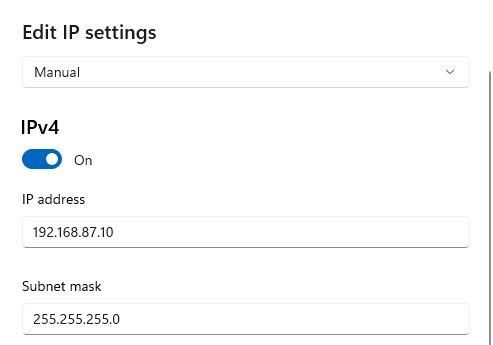
DHCP lets the router hand your PC its IP address and DNS servers. A manual address that no longer matches the router leaves you connected but offline, and Microsoft recommends the automatic option.
- Open Settings > Network & internet.
- Select Wi-Fi > Manage known networks, then select your network.
- Next to IP assignment, select Edit.
- Under Edit IP settings, select Automatic (DHCP).
- Select Save.
- Next to DNS server assignment, select Edit and choose Automatic (DHCP) too, then select Save.
If the PC already uses DHCP and still gets a 169.254 address, the router is not handing out addresses. Turn on DHCP in the router's settings unless your network uses static IP addresses on purpose.
Method 3: Configure network adapter properties
Power saving can switch the Wi-Fi adapter off and leave it in a half-connected state when the PC wakes. Two settings control this: one in Device Manager and one in Power Options.
- Right-click Start and select Device Manager.
- Expand Network adapters, right-click your Wi-Fi adapter, and select Properties.
- Open the Power Management tab.
- Clear Allow the computer to turn off this device to save power, then select OK.
- Open Control Panel's Power Options and select Change plan settings > Change advanced power settings.
- Expand Wireless Adapter Settings > Power Saving Mode and set it to Maximum Performance.
- Select OK and restart the PC.
Some adapters do not show the Power Management tab; skip that step if yours does not.
Method 4: Disable 5 GHz mode
Try the other band first: if the router shows separate 2.4 GHz and 5 GHz networks, connect to the 2.4 GHz one. If the message clears, stop the adapter from choosing 5 GHz in its advanced properties.
- Right-click Start and select Device Manager.
- Expand Network adapters, right-click the Wi-Fi adapter, and select Properties.
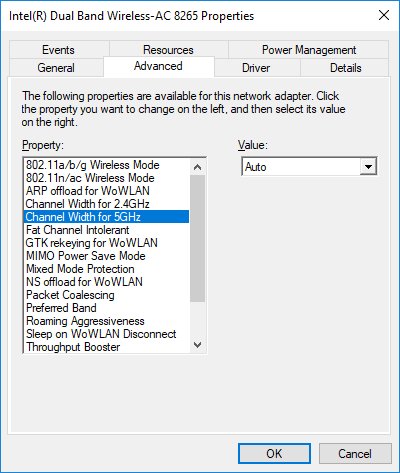
- Open the Advanced tab.
- On Intel adapters, select Preferred band and choose Prefer 2.4 GHz band.
- To block 5 GHz completely on Intel adapters, select 802.11a/b/g Wireless Mode and choose 802.11b and 802.11g.
- Select OK and reconnect to the Wi-Fi network.
Other adapter makers use labels such as Wireless Mode or Band, and some properties appear only with certain drivers. Change Wireless Mode back to its default later, because Intel says the default is needed for 802.11n and 802.11ac speeds.
Method 5: Run Windows network diagnostics
Windows can test the connection and apply fixes on its own. In Windows 11 the network diagnostics run from the Get Help app.
- Open the Get Help app from Start.
- In the search bar, type connect to network and internet.
- Select Run network diagnostics.
- Follow the troubleshooting steps it shows until the connection works.
- In Windows 10, select Start > Settings > Network & Internet > Status, then select Network troubleshooter.
Method 6: Run dedicated troubleshooters
Beyond the general diagnostics, Windows has more targeted tools: a wireless network report, a router test and a DNS test. Together they show whether the fault is the adapter, the router or DNS.
- Open Command Prompt as administrator.
- Type
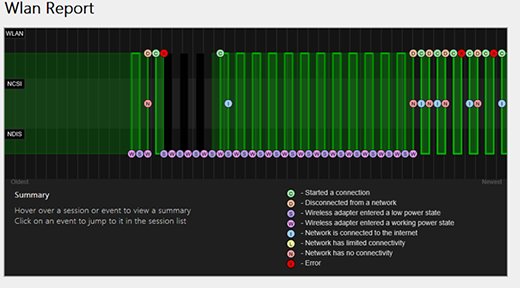
netsh wlan show wlanreportand press Enter, then open the HTML report it saves in a browser. - Check Disconnect Reasons and any red circles in the Wi-Fi summary chart for the error behind each drop.
- Type
ipconfigand note the Default Gateway address of your Wi-Fi adapter. - Type
pingfollowed by that address and press Enter. Replies mean the PC reaches the router, so the modem or provider is the next suspect. - Type
ipconfig /all | findstr /c:"DNS Servers", thenpingthe DNS server address it lists. If that fails, the DNS server is the problem.
No replies from the router point to the Wi-Fi link or the router itself. Connect an Ethernet cable directly to the modem to test, and update the router firmware.
Method 7: Turn off proxy settings in Windows 11
A proxy that is missing or misconfigured blocks the connectivity probe Windows sends, so the PC reports no internet even when the link is fine. Turn off a manual proxy unless your workplace requires it.
- Open Settings > Network & internet > Proxy.
- Under Manual proxy setup, open the setting next to Use a proxy server.
- Turn off Use a proxy server and select Save.
- Disconnect from the Wi-Fi network and connect again.
On a work PC, a proxy may be set by your organization; ask your IT team before changing it. If the problem began after the Windows 11 26H2 update, some 26H2 network problems have fixes tied to that release.
Method 8: Reinstall or roll back network drivers
Roll back when the message started after a driver or Windows update. Reinstall when it appeared without any update. Download the current network adapter driver from your PC maker's site to a USB drive first, in case Windows cannot reinstall it.
- Right-click Start and select Device Manager, signed in as an administrator.
- Expand Network adapters, right-click your Wi-Fi adapter, and select Properties.
- To roll back, open the Driver tab, select Roll Back Driver, choose a reason, and select Yes.
- To reinstall instead, right-click the adapter and select Uninstall device.
- Check Attempt to remove the driver for this device, then select Uninstall.
- Restart from Start > Power > Restart so Windows reinstalls the driver.
- If no adapter appears after the restart, install the driver you saved from your PC maker.
To update instead, right-click the adapter, select Update driver, then Search automatically for updated driver software.
How to tell if Windows has internet access again
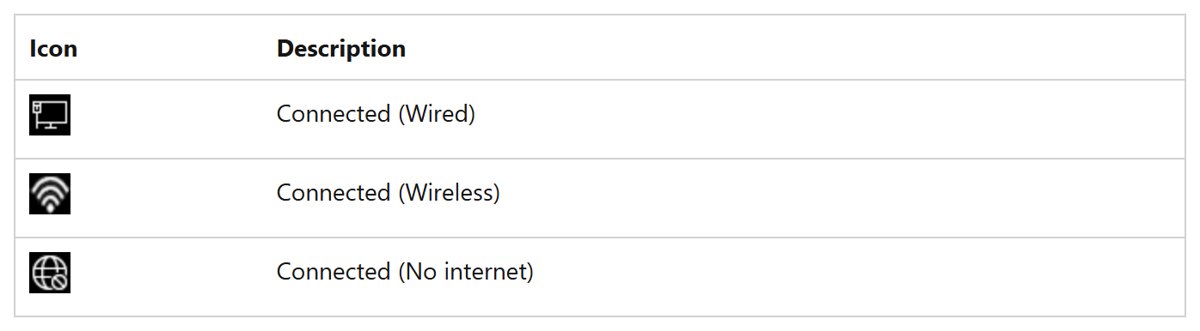
- Select the network icon on the taskbar and check that your Wi-Fi network shows Connected with no “No internet” label.
- Open Settings > Network & internet and check the status at the top of the page.
- Open Command Prompt, type
ipconfig, and check that the Wi-Fi adapter's IPv4 address does not start with 169.254. - Open a website in your browser to confirm pages load.
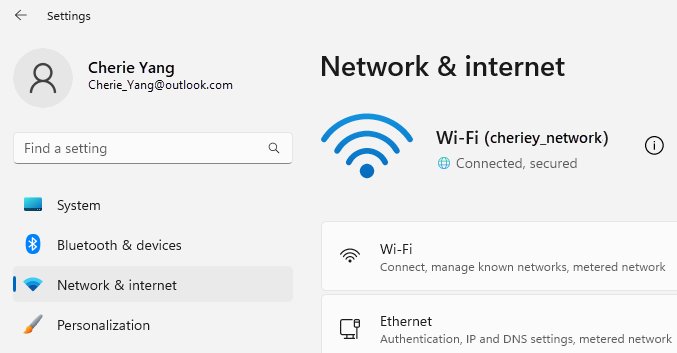
No internet, secured still showing on Windows 11
No device on the network can get online
The router, modem or internet provider is down, not the PC.
- Unplug the router, then the modem.
- Wait about 30 seconds, then plug the modem back in and wait for its lights to stop blinking.
- Plug the router back in and wait a few minutes before reconnecting.
- Contact your internet provider if devices still cannot connect.
Internet stopped after installing or updating antivirus software
The firewall component of your antivirus suite is blocking the connection.
- Keep the protection running rather than disabling it, because that leaves the PC exposed.
- Update the security suite to its latest version from its own app.
- Open the suite's firewall settings and check whether your Wi-Fi network is set to a blocked or untrusted profile.
- Use the suite's own repair option, or contact its vendor's support if the block remains.
Hotel, airport or coffee shop Wi-Fi says no internet
A sign-in page is intercepting the connection until you accept it.
- Open a browser and visit any website to bring up the network's sign-in page.
- Accept the terms or sign in as the venue asks.
- Wait a moment for the network icon to update.
Wi-Fi forgets the connection or the password stops working
The saved network profile on the PC is out of date.
- Open Settings > Network & internet > Wi-Fi > Manage known networks.
- Select the network and select Forget.
- Select the network icon on the taskbar, choose the network, and enter the password again.
No internet, secured FAQ
What does no internet, secured mean?
It means your PC is connected to an encrypted Wi-Fi network, but Windows cannot reach the internet through it. The Wi-Fi password worked, so the problem lies in the IP settings, DNS, a proxy, a driver, the router or the internet provider.
Is no internet, secured a problem with my PC or my router?
Check other devices on the same Wi-Fi. If they also have no internet, restart the modem and router or contact your provider. If they work, the fault is on your PC, and resetting the network components is the first fix to try.
How do I fix no internet, secured on Windows 10?
The same fixes work on Windows 10. The commands are identical, while Network reset and the network troubleshooter sit under Settings > Network & Internet > Status. DHCP, adapter power settings and driver rollback in Device Manager also apply.
Will a network reset delete my Wi-Fi passwords?
Network reset removes and reinstalls network adapters and sets networking components back to their defaults, so expect to reconnect to Wi-Fi with the password. You may also need to reinstall VPN clients, and networks can default to the public profile afterward.
Why does my laptop say no internet, secured but my phone works?
Because the fault is on the laptop, not the router. Common causes are a stuck IP address, a manual proxy, a bad driver or adapter power saving. Run the reset commands first, then check DHCP and the Wi-Fi driver in Device Manager.
What does a 169.254 IP address mean?
An address starting with 169.254 means Windows did not get an address from the router. Make sure the PC uses Automatic (DHCP) in its IP settings, run ipconfig /release and ipconfig /renew, and check that DHCP is turned on in the router.
Can a VPN cause no internet, secured?
Yes, a VPN or proxy can stop the connectivity probe Windows uses, so the PC reports no internet. Disconnect the VPN, turn off any manual proxy in Settings, and reconnect to Wi-Fi. If a network reset removes the VPN client, reinstall it afterward.