An Apple Pencil that will not charge is usually on the wrong connector for its model: Apple Pencil Pro and Apple Pencil (2nd generation) charge on the iPad's magnetic connector with Bluetooth on, while Apple Pencil (USB-C) and Apple Pencil (1st generation) only charge when plugged in.
This guide covers how each model charges, the fixes for 2nd gen, Pro, USB-C and 1st gen pencils, how to read the battery level, and what to do when the pencil sits at 0 percent.
How to fix Apple Pencil not charging
Work through these steps in order. Most charging problems end at step 3 or step 4.
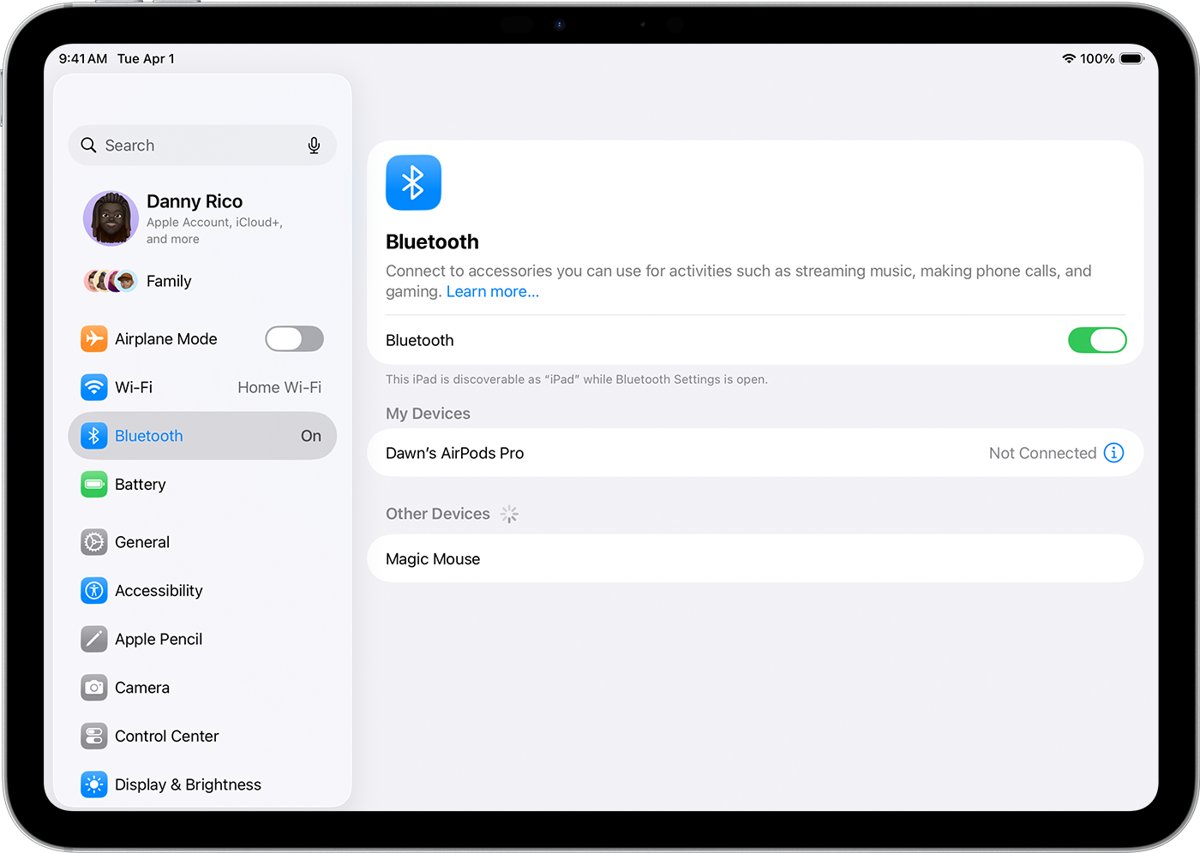
- Open Settings on your iPad, tap Bluetooth and make sure Bluetooth is turned on.
- Check that your Apple Pencil model works with your iPad, using the compatibility table below.
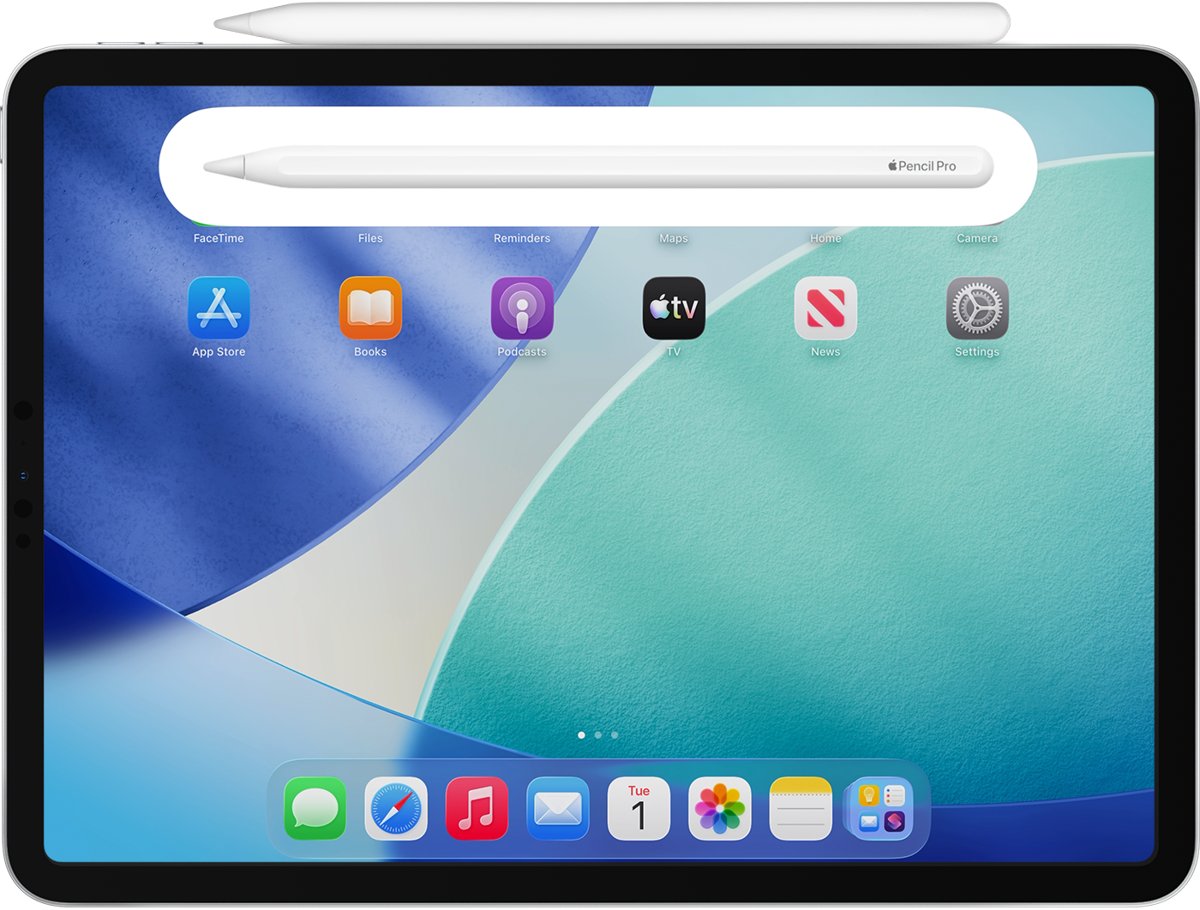
- For Apple Pencil Pro or Apple Pencil (2nd generation), center the pencil on the magnetic connector on the side of the iPad.
- For Apple Pencil (USB-C) or Apple Pencil (1st generation), plug the pencil in with a cable or adapter, because these models do not charge magnetically.
- Leave the pencil connected for at least one minute, then open Settings > Apple Pencil to see whether the battery level appears.
- If nothing changes, keep the pencil connected and restart your iPad.
- Still no charge: forget the pencil under Settings > Bluetooth, then connect it again and tap Pair.
If the Pair button never appears and the battery level never shows, the pencil or the iPad connector may need service.
Why is my Apple Pencil not charging?
Match what you see to a row. The cause is almost always one of these six.
| Cause | What happens | Fix |
|---|---|---|
| Bluetooth is off | Apple Pencil Pro and Apple Pencil (2nd generation) attach but do not charge | Turn on Settings > Bluetooth |
| Apple Pencil (USB-C) is only attached magnetically | The magnet holds it for storage, but it never charges or pairs that way | Plug it into the iPad with a USB-C charge cable |
| Wrong pencil for the iPad | The pencil sticks to the side or plugs in, but never pairs or charges | Check the compatibility list and use the matching model |
| Pencil is off-center on the connector | The battery level never appears | Center the pencil on the magnetic connector |
| A case or cover is in the way | Apple Pencil Pro or 2nd gen does not connect through the case | Remove the case or cover and attach the pencil again |
| The battery is fully drained | No Pair button appears right away | Leave it connected for one minute, then connect again |
How to charge Apple Pencil by model
Each Apple Pencil charges in one specific way. Find your model, then charge it exactly as the row says.
| Apple Pencil model | How it charges | Other way to charge |
|---|---|---|
| Apple Pencil Pro | Attach it to the magnetic connector on the long side of the iPad, with Bluetooth on | None listed by Apple |
| Apple Pencil (2nd generation) | Attach it to the magnetic connector on the right side of the iPad, with Bluetooth on | None listed by Apple |
| Apple Pencil (USB-C) | Slide open the end and plug it into the iPad or iPhone Duo with a USB-C charge cable | USB-C charge cable and the power adapter that came with your iPad |
| Apple Pencil (1st generation), iPad with a Home button | Remove the cap and plug it into the iPad's Lightning connector | Apple Pencil Charging Adapter with a Lightning cable and power adapter |
| Apple Pencil (1st generation), iPad (10th generation) or iPad (A16) | Plug it into the USB-C to Apple Pencil Adapter, then connect the adapter to the iPad with a USB-C charge cable | USB-C charge cable and the power adapter that came with your iPad |
Charging from a wall outlet uses the same adapter that charges the iPad, so the basics of charging an iPad safely apply to the pencil as well.
Which Apple Pencil works with my iPad
A pencil that is not made for your iPad will not pair or charge on it, even if it sticks to the side. Apple lists these combinations, so match your model against the list of every iPad generation if you are unsure which iPad you own.
| Your iPad | Apple Pencil that works | Common mismatch |
|---|---|---|
| iPad Pro 13-inch or 11-inch (M4 and M5) | Apple Pencil Pro, Apple Pencil (USB-C) | Apple Pencil (2nd generation) is not supported |
| iPad Air 13-inch or 11-inch (M2, M3 and M4) | Apple Pencil Pro, Apple Pencil (USB-C) | Apple Pencil (2nd generation) is not supported |
| iPad mini (A17 Pro and A20 Pro) | Apple Pencil Pro, Apple Pencil (USB-C) | Apple Pencil (2nd generation) is not supported |
| iPad Pro 11-inch (1st to 4th generation), iPad Pro 12.9-inch (3rd to 6th generation) | Apple Pencil (2nd generation), Apple Pencil (USB-C) | Apple Pencil Pro is not supported |
| iPad Air (4th or 5th generation), iPad mini (6th generation) | Apple Pencil (2nd generation), Apple Pencil (USB-C) | Apple Pencil Pro is not supported |
| iPad (10th generation), iPad (A16) | Apple Pencil (USB-C), Apple Pencil (1st generation) with the USB-C to Apple Pencil Adapter | 1st gen does not connect without the adapter |
| iPad (6th to 9th generation), iPad mini (5th generation), iPad Air (3rd generation) | Apple Pencil (1st generation) | Magnetic pencils are not supported |
Apple Pencil Pro also needs iPadOS 17.5 or later, and Apple Pencil (USB-C) needs iPadOS 17.1.1 or later. Update the iPad under Settings > General > Software Update if it is older.
Apple Pencil 2nd gen not charging on iPad
Apple Pencil (2nd generation) charges wirelessly on the magnetic connector on the right side of a compatible iPad. Bluetooth must be on for it to charge.
- Confirm your iPad is on the 2nd generation list: iPad Pro 11-inch (1st to 4th generation), iPad Pro 12.9-inch (3rd to 6th generation), iPad Air (4th or 5th generation) or iPad mini (6th generation).
- Open Settings > Bluetooth and turn on Bluetooth.
- Remove any case or cover that sits between the pencil and the right side of the iPad.
- Center the pencil on the magnetic connector on the right side of the iPad.
- Wait a few seconds for the Pair button or the battery level to appear.
- If the Pair button does not appear, wait one minute while the pencil charges, then detach it and attach it again.
An Apple Pencil (2nd generation) on an iPad Pro (M4), iPad Air (M2) or later model will not charge, because Apple does not support that pairing.
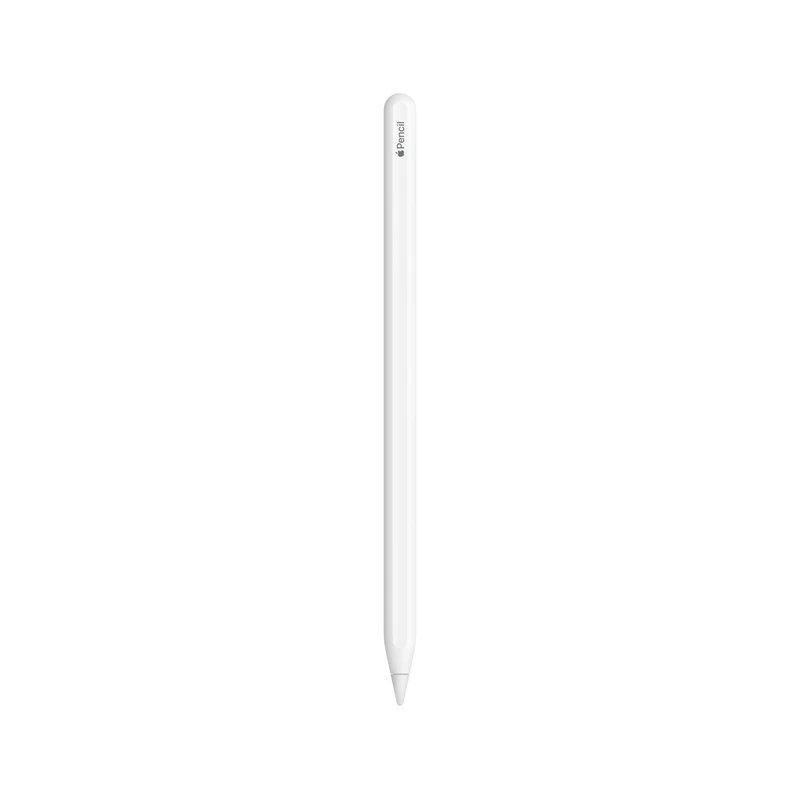
Apple Pencil Pro not charging on iPad Pro or iPad Air
Apple Pencil Pro pairs, charges and stores magnetically on the long side of a compatible iPad. It only works with iPadOS 17.5 or later.
- Confirm your iPad is an iPad Pro (M4 or M5), iPad Air (M2, M3 or M4) or iPad mini (A17 Pro or A20 Pro).
- Open Settings > General > Software Update and install any available update.
- Open Settings > Bluetooth and turn on Bluetooth.
- Remove any case or cover from the iPad.
- Center Apple Pencil Pro on the magnetic connector on the long side of the iPad.
- Open Settings > Apple Pencil and check that a battery level appears.
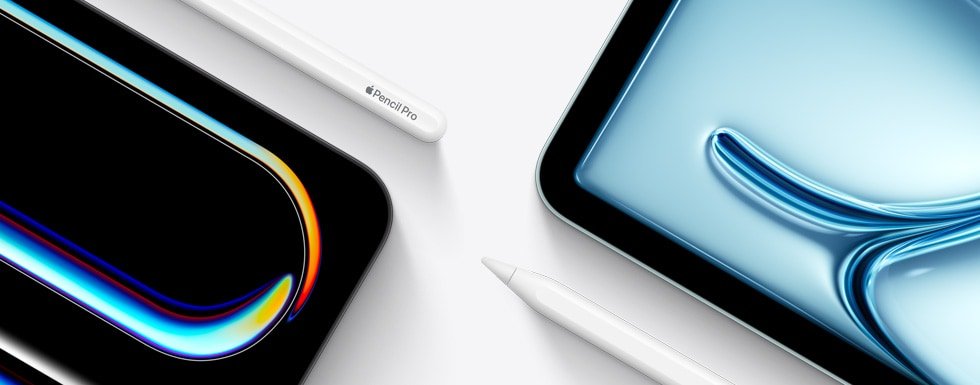
Magnetic Apple Pencil (USB-C) not charging
Apple Pencil (USB-C) attaches magnetically to the side of the iPad for storage only. It does not pair or charge that way, so a USB-C pencil left on the magnet will run flat.
- Slide open the end of Apple Pencil (USB-C) to reveal its USB-C port.
- Connect the pencil to the USB-C charge cable that came with your iPad.
- Plug the other end of the cable into the USB-C connector on the iPad.
- Tap Tap to Connect if the iPad asks you to pair.
- Leave it plugged in while it charges, or use the same cable with the iPad's power adapter instead.
Apple Pencil (USB-C) stays paired until you restart the iPad, turn off Bluetooth or pair it with another iPad. After any of those, plug it in again to pair it.
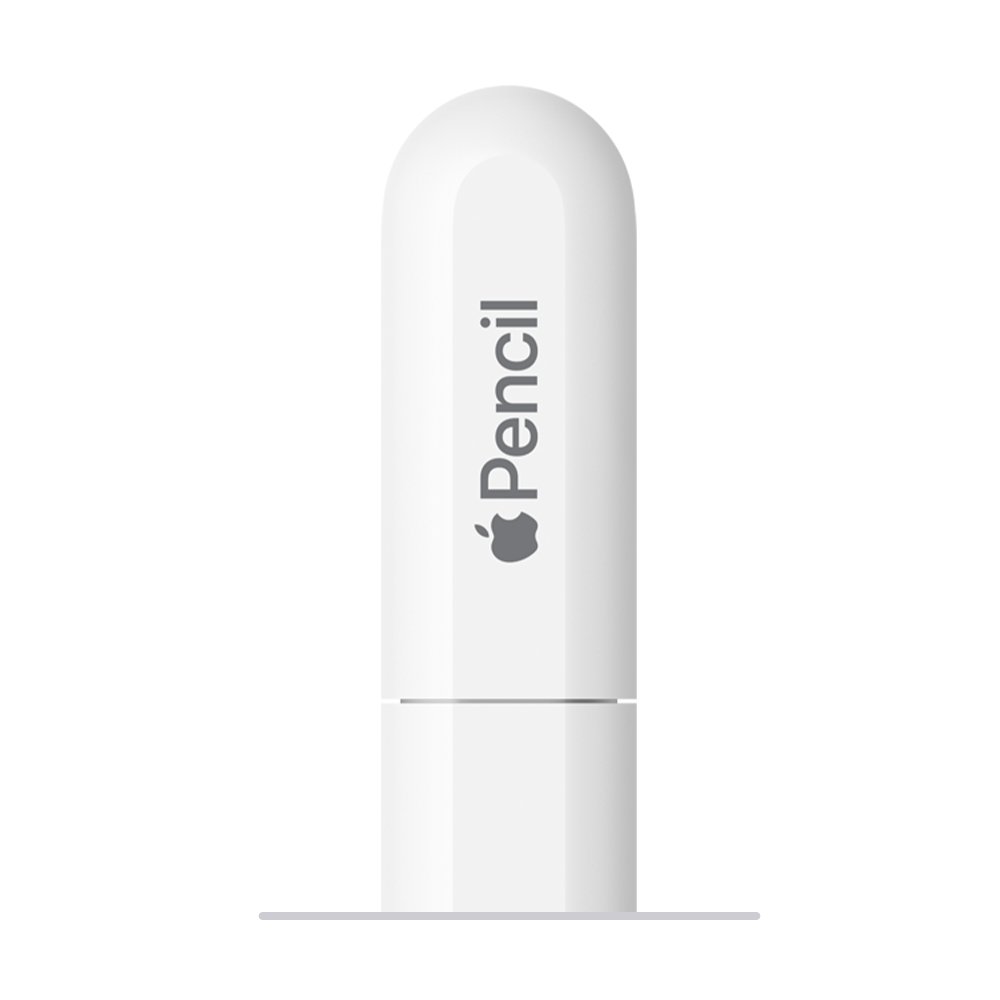
Apple Pencil 1st gen not charging
Apple Pencil (1st generation) charges only while it is plugged in. How you plug it in depends on whether your iPad has a Lightning or USB-C connector.
- Remove the cap from the end of the pencil.
- On an iPad with a Home button, plug the pencil straight into the iPad's Lightning connector.
- On iPad (10th generation) or iPad (A16), plug the pencil into the USB-C to Apple Pencil Adapter.
- Connect the adapter to the iPad with the USB-C charge cable that came with your iPad.
- Tap Pair when the button appears, and leave the pencil connected while it charges.
- To charge away from the iPad, use the Apple Pencil Charging Adapter with a Lightning cable and power adapter, or the USB-C to Apple Pencil Adapter with a USB-C cable and power adapter.
Without the USB-C to Apple Pencil Adapter, a 1st gen pencil cannot pair with or charge from iPad (10th generation) or iPad (A16).
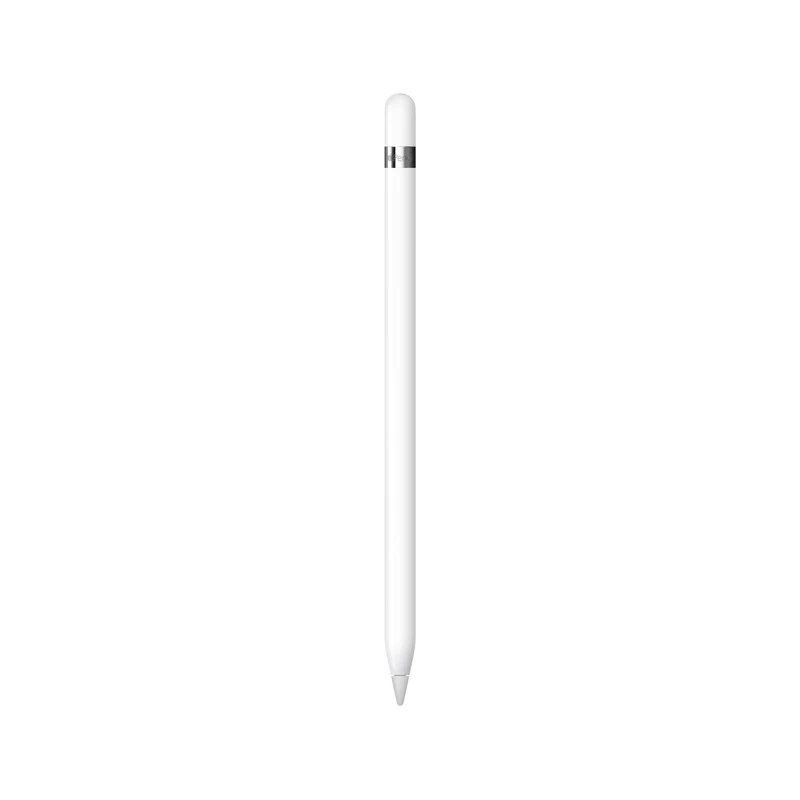
How to check Apple Pencil battery level on iPad
A battery percentage is the proof that the pencil is connected and charging. If no percentage shows, the iPad does not see the pencil.
- Connect or attach the pencil the way its model charges.
- Open Settings and tap Apple Pencil to see the battery level.
- Or add the Batteries widget to the Home Screen and read the pencil's percentage there.
- Check the level again after a few minutes to see that it has gone up.
How to re-pair Apple Pencil when it won't charge or connect
A stale Bluetooth pairing can stop the iPad from recognising the pencil. Forgetting it and pairing again clears that.
- Connect the pencil to the iPad: center Apple Pencil Pro or 2nd gen on the magnetic connector, or plug in a USB-C or 1st gen pencil.
- Keep the pencil connected and restart your iPad.
- Open Settings > Bluetooth and make sure Bluetooth is on.
- Find your Apple Pencil under My Devices, tap the info button next to it, then tap Forget this Device.
- Connect the pencil again and tap Pair when it appears after a few seconds.
- If Pair does not appear, wait one minute while the pencil charges, then connect it again.
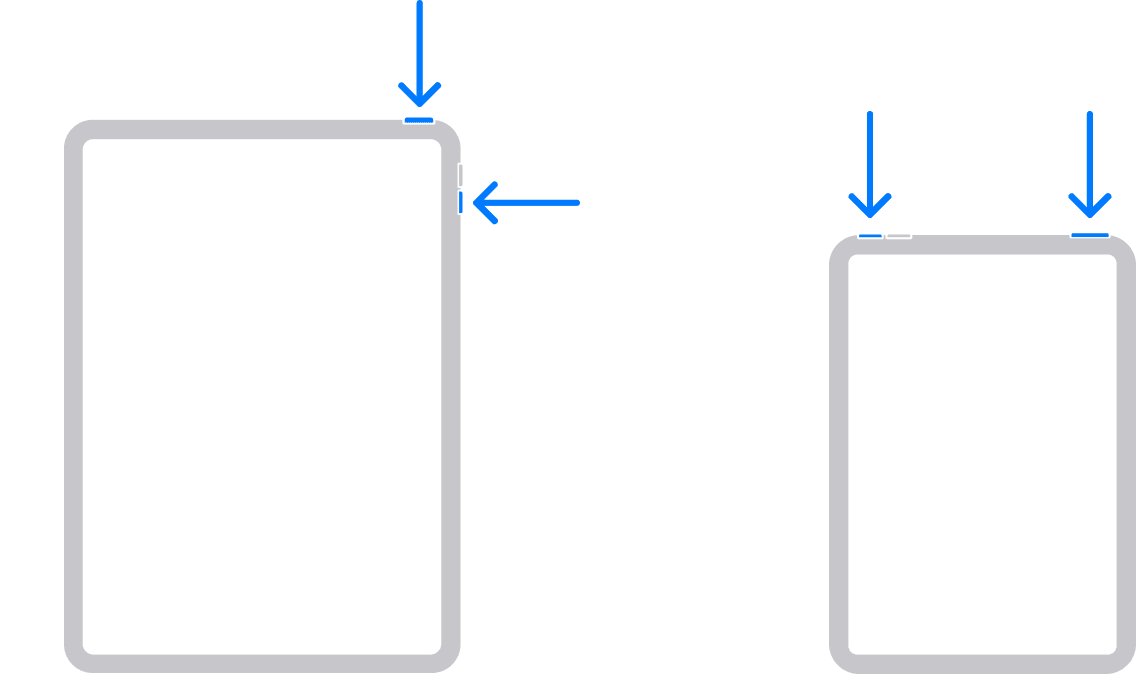
To restart an iPad without a Home button, press and hold either volume button and the top button, then drag the slider. If the iPad Pro is frozen, force restart the iPad Pro instead.
Apple Pencil not charging 0 percent or after long time
Apple Pencil not charging, stuck at 0 percent
A fully drained pencil needs a short charge before the iPad can pair with it.
- Connect the pencil the way its model charges, and keep Bluetooth on.
- Leave it connected for one minute without detaching it.
- Detach or unplug it, then connect it again and wait for the Pair button.
- Open Settings > Apple Pencil and check whether the percentage now rises.
Apple Pencil not charging after long time unused
The pencil has been sitting unpaired, and the old pairing no longer works.
- Connect the pencil and keep it connected while you restart the iPad.
- Forget the pencil under Settings > Bluetooth > My Devices.
- Connect it again and tap Pair.
- If Pair still does not appear after one minute of charging, contact Apple Support for service.
Apple Pencil charged but not working
The pencil has battery but is not paired with this iPad.
- Check that the pencil model is supported on your iPad.
- Open Settings > Bluetooth and confirm Bluetooth is on.
- Forget the pencil, connect it again, and tap Pair.
- For Apple Pencil (USB-C), plug it in again after every restart, because a restart unpairs it.
Apple Pencil not charging on iPad Pro with a case
A case or cover can sit between the pencil and the magnetic connector.
- Remove the case or cover from the iPad.
- Center the pencil on the magnetic connector.
- Wait for the battery level or Pair button to appear.
- Use the iPad without that case while the pencil charges.
New Apple Pencil not charging
A new pencil may be the wrong model for the iPad, or the iPad needs an update.
- Compare the pencil with the compatibility table above.
- Open Settings > General > Software Update and install any update.
- Charge the pencil the way its model requires, then tap Pair.
- If it still will not pair, contact Apple or the seller while it is covered by warranty.
Apple Pencil won't charge or connect after every fix
The pencil, the adapter or the iPad connector may be faulty.
- Try another USB-C charge cable or adapter for a USB-C or 1st gen pencil.
- Charge a 1st gen or USB-C pencil from a power adapter instead of the iPad.
- If the Pair button still never appears, request service from Apple Support.
Apple Pencil not charging FAQ
How to fix Apple Pencil not charging?
Turn on Bluetooth, then connect the pencil the way its model charges. Attach Apple Pencil Pro or 2nd gen to the magnetic connector, and plug in Apple Pencil (USB-C) or 1st gen. Leave it for one minute, restart the iPad, and re-pair it if the battery level still does not show.
Why is my Apple Pencil not charging?
The most common reasons are Bluetooth being off, a pencil model that does not work with the iPad, a case between the pencil and the connector, or an Apple Pencil (USB-C) left on the magnet. The USB-C model only charges when plugged in with a cable.
Why is my Apple Pencil gen 2 not charging?
Apple Pencil (2nd generation) charges only on the magnetic connector of a supported iPad with Bluetooth on. It does not work with iPad Pro (M4 and M5) or iPad Air (M2 and later). Center it on the right side and remove any case.
Why is my Apple Pencil not charging on iPad Pro?
Newer iPad Pro models (M4 and M5) support Apple Pencil Pro and Apple Pencil (USB-C) only. Older iPad Pro models support Apple Pencil (2nd generation) and USB-C. A pencil outside your iPad Pro's list will not charge on it.
Does Apple Pencil (USB-C) charge magnetically?
No. Apple Pencil (USB-C) attaches to the side of the iPad magnetically for storage only. It pairs and charges through its USB-C port, using the USB-C charge cable plugged into the iPad or a power adapter.
Why is my Apple Pencil Pro not charging?
Apple Pencil Pro needs a compatible iPad running iPadOS 17.5 or later, with Bluetooth on. Attach it to the magnetic connector on the long side of an iPad Pro (M4 or M5), iPad Air (M2 or later) or iPad mini (A17 Pro or A20 Pro).
Why is my Apple Pencil stuck at 0 percent?
A fully drained pencil may not show a Pair button straight away. Keep it connected for one minute, then connect it again. If the level still stays at 0 percent after a restart and re-pairing, the pencil may need service.
Why is my new Apple Pencil not charging?
Check that the new pencil is the right model for your iPad and that iPadOS is up to date. Apple Pencil (USB-C) needs iPadOS 17.1.1 or later, and a 1st gen pencil needs the USB-C to Apple Pencil Adapter on iPad (10th generation) and iPad (A16).