When an iPhone 15 suddenly sounds quieter or worse through the same headphones or car AUX cable, the usual cause is a setting: Headphone Safety lowering the volume after a loud-audio notification, Reduce Loud Audio capping it, or a Music EQ preset changing the tone.
This guide covers each of those settings, the USB-C adapter and cable, Apple Music audio quality, speaker sound problems, and when the phone needs Apple service.
How to fix bad sound quality on iPhone 15
Play the same song after each step so you can hear what changed.
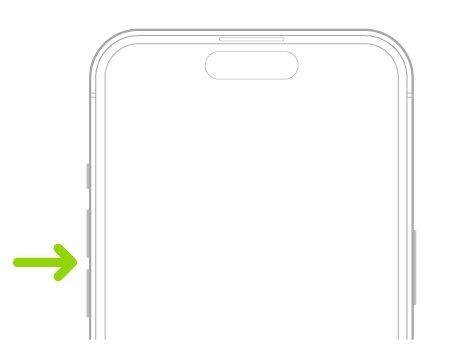
- Press the volume up button while music plays. After a loud-headphone notification, iPhone lowers the volume the next time headphones connect.
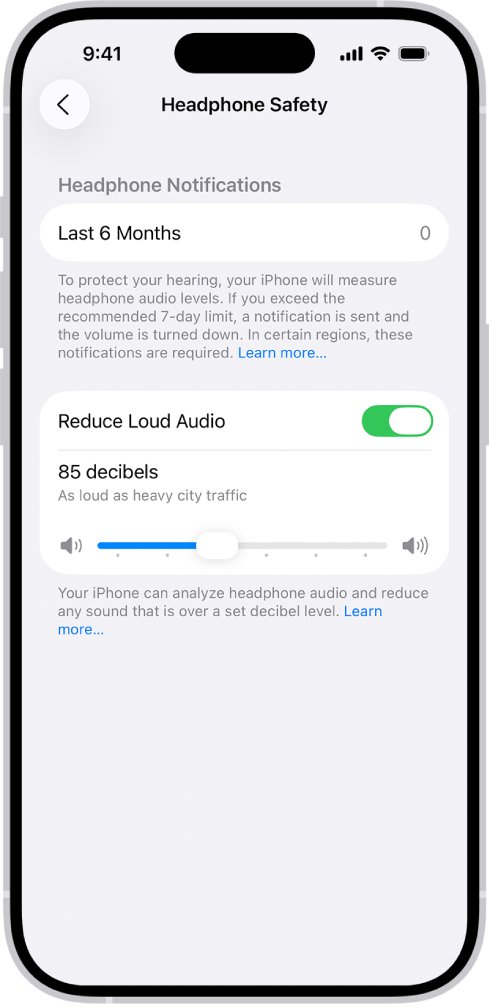
- Open Settings, tap Sounds & Haptics, then Headphone Safety, and turn off Reduce Loud Audio or drag its slider higher.
- Go to Settings > Apps > Music, tap EQ, and choose Off.
- In the same Music settings, turn off Sound Check if quiet and loud songs now sound flattened.
- Unplug the USB-C to 3.5 mm adapter, plug it back in firmly, and try another cable.
- Restart the iPhone and install any iOS update in Settings > General > Software Update.
iPhone 15 audio issues: what changes the sound
Several iPhone features change how loud or how full audio sounds without any obvious alert. Match what you hear to a row below.
| What you notice | Likely cause | Where to change it |
|---|---|---|
| Headphones or AUX suddenly quieter than before | A headphone audio notification set the volume to a lower level for the next connection | Volume buttons, then Headphone Safety |
| Volume never gets loud on headphones or AUX | Reduce Loud Audio is on and cuts sound above the slider level | Settings > Sounds & Haptics > Headphone Safety |
| Built-in speaker never gets loud | Limit Maximum Volume or Reduce Loud Sounds is on for the speaker | Settings > Sounds & Haptics > Built-In Speaker |
| Music sounds thin, boomy or muffled | An EQ preset in the Music app | Settings > Apps > Music > EQ |
| Songs all play at a similar level | Sound Check normalizes volume | Settings > Apps > Music > Sound Check |
| Streamed music sounds less detailed | Audio quality depends on the setting, song availability, network and the connected speakers | Settings > Apps > Music > Audio Quality |
| Car stereo over Bluetooth sounds worse than the cable | Bluetooth connections aren't lossless | Use the USB-C to 3.5 mm adapter or CarPlay over USB-C |
iPhone 15 Headphone Safety and Reduce Loud Audio settings
These settings apply to anything plugged into the USB-C port through an adapter, as well as Bluetooth headphones. They explain most cases of sound becoming softer overnight through the same cable.
- Open Settings and tap Sounds & Haptics.
- Scroll down and tap Headphone Safety.
- Turn off Reduce Loud Audio, or leave it on and drag the slider to a higher decibel level.
- Turn Headphone Notifications off if your country or region allows it. In some regions the setting cannot be turned off.
- Reconnect the headphones or AUX cable and raise the volume with the volume buttons or Control Center.
On a child's iPhone, a parent can lock this slider in Screen Time under Content & Privacy Restrictions > Reduce Loud Sounds. Change it there to Allow if the setting is dimmed.
iPhone 15 sound settings for Music EQ and Sound Check
The Music app applies EQ and Sound Check to everything it plays, so a preset chosen months ago can change the tone through every speaker and cable.
- Open Settings and tap Apps.
- Tap Music.
- Tap EQ and choose Off to hear the track as mastered.
- Try a preset only if you want a different balance, and play the same song to compare.
- Go back and turn Sound Check off to keep each song at its own level, or on to even out volume between songs.
How to improve sound quality on iPhone with Lossless Audio
Apple Music subscribers can stream and download the catalog in Apple Lossless. It uses much more data and storage, and Bluetooth headphones still play it over a lossy connection.
- Go to Settings > Apps > Music.
- Tap Audio Quality, then turn on Lossless Audio.
- Choose the quality for cellular streaming, Wi-Fi streaming and downloads.
- Pick Lossless for up to 24-bit/48 kHz, or Hi-Res Lossless for up to 24-bit/192 kHz.
- Delete and redownload songs you saved earlier to get their lossless versions.
- Look for the Lossless icon on album pages and the Now Playing screen.
Hi-Res Lossless above 48 kHz needs an external digital-to-analog converter on iPhone, and Automix and Crossfade switch off while it is selected.
iPhone 15 AUX cable sound with the USB-C to 3.5 mm adapter
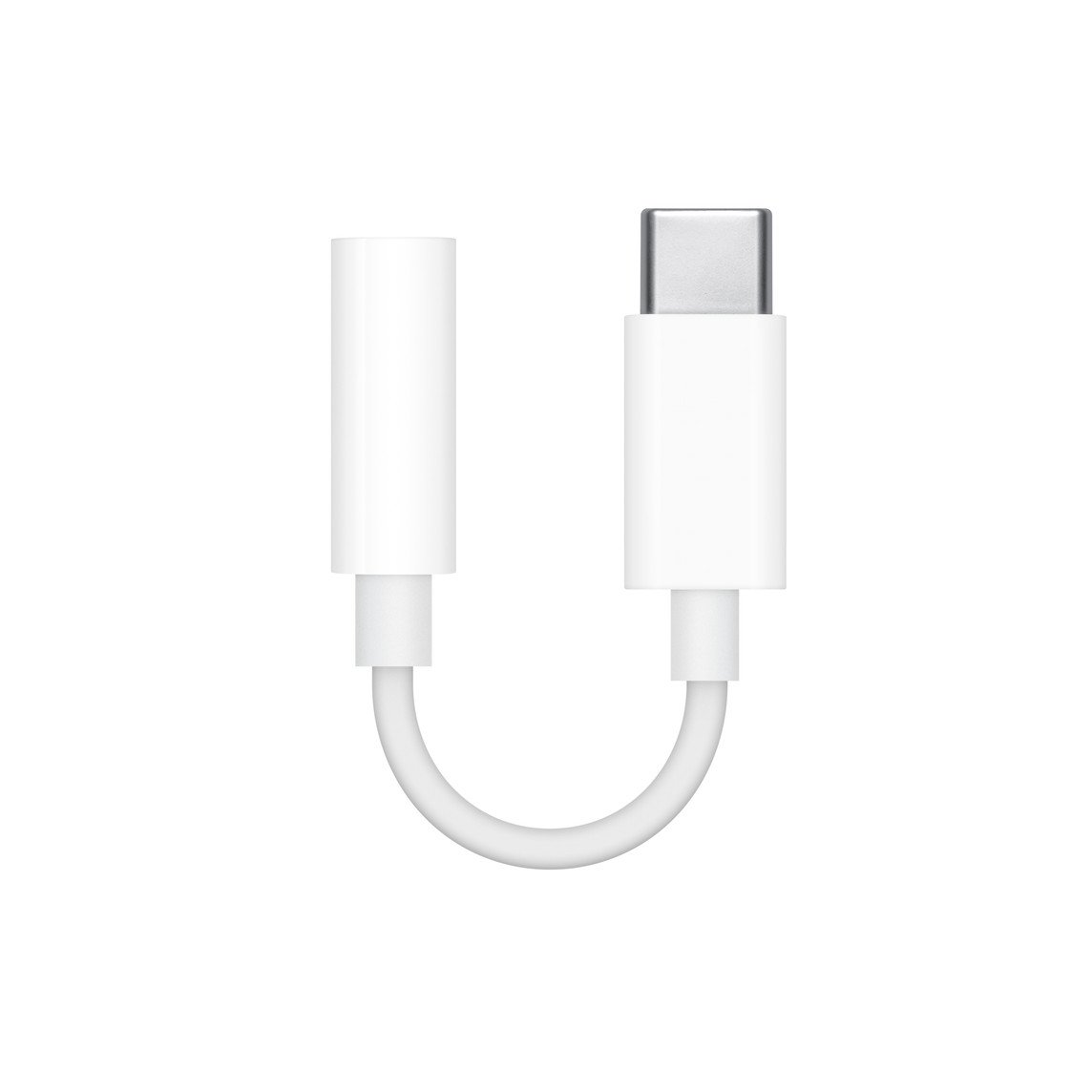
iPhone 15 has a USB-C connector and no headphone jack, so a car AUX cable or wired headphones connect through an adapter. Apple names its own USB-C to 3.5 mm Headphone Jack Adapter for this, and warns that accessories that don't meet the USB-C standard might not work as expected. A loose or non-standard adapter is also a common reason wired headphones keep disconnecting.
- Unplug the adapter from the iPhone, check the USB-C port for lint, and plug the adapter back in fully.
- Check that the AUX cable is pushed all the way into both the adapter and the car's input.
- Try a different AUX cable, then a different adapter, to find which part is failing.
- Use Apple's USB-C to 3.5 mm Headphone Jack Adapter or another adapter that meets the USB-C standard.
- Turn the iPhone volume up fully, then set the level with the car stereo's own volume knob.
- If the car supports CarPlay over USB-C, connect a USB-C cable instead of AUX.
Some third-party USB-C accessories can interfere with wireless connections; Apple says Wi-Fi and cellular performance return to normal once the accessory is unplugged.
iPhone sound very low on the built-in speaker
The speaker has its own limits, separate from the headphone settings above.
- Open Settings and tap Sounds & Haptics.
- Under Built-In Speaker, tap Volume Limit and turn off Limit Maximum Volume, or drag the slider up.
- Turn off Reduce Loud Sounds under Built-In Speaker.
- Open Control Center and drag the volume control up while audio plays.
- Remember that the volume buttons change media volume only while audio is playing; at other times they set ringer and alert volume.
If only the alarm is silent, fix the iPhone alarm sound separately, because alarms have their own volume to check.
Restart iPhone 15 and update iOS to fix sound problems
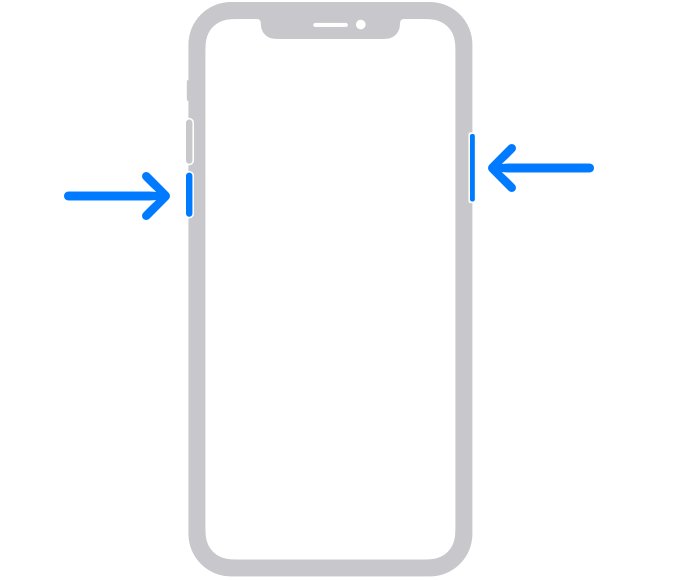
- Press and hold either volume button and the side button until the power-off slider appears.
- Drag the slider, then wait 30 seconds for the iPhone to turn off.
- Press and hold the side button until the Apple logo appears.
- If the iPhone is frozen, press and quickly release Volume Up, press and quickly release Volume Down, then hold the side button until the Apple logo appears.
- Back up the iPhone, connect to Wi-Fi and power, then open Settings > General > Software Update.
- Tap Download and Install if an update is available.
iPhone 15 headphone level meter in Control Center
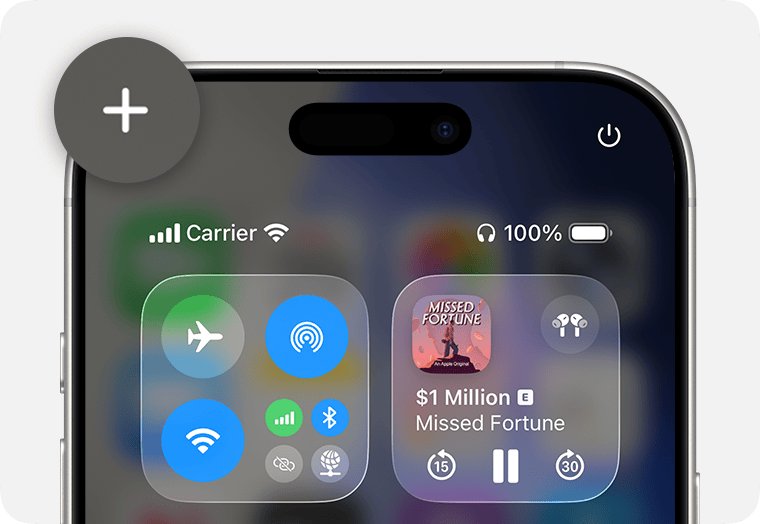
The Hearing control shows the live level reaching your headphones, so you can tell whether a limit is still cutting the sound. Apple notes the reading is most accurate with Apple or Beats headphones; other audio is estimated from the iPhone volume.
- Open Control Center and tap the add button at the top left, then Add a Control.
- Scroll to Hearing Accessibility and tap Hearing.
- Play music through the headphones or AUX cable and tap the Hearing control.
- Read the decibel level on the Headphone Level meter as you raise the volume.
- If the level stops rising at the same point every time, go back to Headphone Safety and check Reduce Loud Audio.
- Open Health > Browse > Hearing > Headphone Notifications to see whether a notification lowered the volume.
iPhone 15 sound problems
No sound on iPhone 15 from calls, alerts or the speaker
Silent mode or Do Not Disturb is on.
- Press the Action button if it is set to Silent mode, or open Control Center and turn Silent mode off.
- Open Settings > Focus > Do Not Disturb and make sure it is off.
- In Settings > Sounds & Haptics, drag the Ringtone and Alerts slider back and forth. No sound, or a dimmed speaker button, means the speaker may need service.
Crackling, static or muffled sound from the iPhone 15 speaker
A case, screen protector or film, or dirt in the speaker or receiver opening.
- Remove the case, screen protector and any film.
- Check the speaker opening and the receiver at the top of the screen for blockage.
- Clean the openings with a small, clean, dry, soft-bristled brush.
Sound is fine in music but bad on phone calls
Network or reception, if the ringtone test sounds clear.
- Make a call and turn on speakerphone.
- If you still hear static or crackling, call again later or from a different location.
- If callers are only audible on speakerphone, treat it as an iPhone earpiece problem.
Why does my iPhone keep losing sound when headphones connect?
After a loud-headphone notification, iPhone sets a lower volume the next time headphones are plugged in or connected by Bluetooth.
- Raise the volume after connecting.
- Check Headphone Notifications in the Health app to confirm it happened.
- Adjust Reduce Loud Audio in Headphone Safety.
Car audio sounds worse over Bluetooth than over the AUX cable
Bluetooth connections aren't lossless, even with AAC.
- Use the USB-C to 3.5 mm adapter and the AUX input.
- Or connect a CarPlay car with a USB-C cable.
When iPhone 15 sound problems need Apple service
Book service with Apple if the Ringtone and Alerts slider plays no sound, its speaker button is dimmed, or audio stays distorted after you remove the case, clean the openings, restart and update iOS. Apple says those results point to a speaker that might need service, and settings or accessories can be ruled out first because they are free to check.
If the fault only happens through one adapter or cable, replace that accessory instead; the iPhone itself is fine.
iPhone 15 sound quality FAQ
How do I improve sound quality on iPhone?
Turn the Music EQ off or pick a preset that suits your headphones, turn on Lossless Audio in Settings > Apps > Music > Audio Quality, and use a wired connection for lossless playback. Check that Reduce Loud Audio is not capping the volume.
How do I fix iPhone sound problems?
Turn off Silent mode and Do Not Disturb, remove the case, clean the speaker openings, and test with the Ringtone and Alerts slider. Then check Headphone Safety and Music EQ settings, restart the iPhone and update iOS. Book service if the slider plays nothing.
Why is my iPhone 15 sound so low?
A volume limit is usually on. Check Volume Limit and Reduce Loud Sounds under Built-In Speaker, and Reduce Loud Audio under Headphone Safety, all in Settings > Sounds & Haptics. A headphone notification can also lower volume for the next connection.
Why does my iPhone keep losing sound?
Silent mode, a Focus such as Do Not Disturb, or an automatic headphone volume drop after a loud-audio notification are the common causes. If sound still cuts out with those ruled out, restart the iPhone, update iOS, and test the speaker with the ringtone slider.
Why is there no sound on my iPhone 15?
Check whether the Action button or Control Center has put the iPhone in Silent mode, and whether Do Not Disturb is on. If the Ringtone and Alerts slider in Sounds & Haptics makes no sound, the speaker might need service.
How do I fix sound on iPhone 14?
The same steps apply on iPhone 14: turn off Silent mode and Do Not Disturb, clean the speaker openings, check Headphone Safety and Music EQ, then restart and update iOS. Wired headphones on iPhone 14 connect through Lightning instead of USB-C.
Does the iPhone 15 have a headphone jack?
No. iPhone 15 models use a USB-C connector for wired audio. Apple's USB-C to 3.5 mm Headphone Jack Adapter connects standard 3.5 mm headphones, speakers and car AUX cables, and USB-C headphones such as EarPods (USB-C) plug in directly.