Install Kodi from the Google Play Store if your smart TV runs Android TV or Google TV, because that is the one route that works directly on the TV with no extra steps.
This guide covers LG webOS, Samsung and Roku TVs, the plug-in devices that add Kodi to any TV with HDMI, and the fixes for a failed install.
How to install Kodi on a smart TV
These steps are for a TV with the Google TV interface. Most new Sony, TCL and Hisense models with Google software use it.
- On the home screen, select Search, or press the Assistant button on your remote.
- Say or type
Kodi. - Open the app page and confirm the developer is Kodi Foundation.
- Select Install.
- Open Kodi from the Your apps row on the home screen.
What Kodi is and isn't
Kodi is a player and library for media you supply. It is not a streaming service, and an empty install has nothing to watch until you add a source.
| Kodi is | Kodi isn't |
|---|---|
| A free, open source media center released under the GPL | A paid app or a subscription |
| A player for videos, photos, podcasts and music from a hard drive, optical disc, local network or the internet | A catalog of movies and shows. The official version contains no content |
| Built with a 10-foot interface for a remote control | Designed for small phones |
| Run by the XBMC Foundation and a community of volunteers | Connected to any third-party add-on provider |
Kodi add-ons and copyright reminder
Use Kodi with media you own or sources you have the right to watch. Team Kodi says it does not endorse streaming copyright-protected material without permission. Some third-party add-ons exist to do exactly that, and some boxes sold as "fully loaded" come with them preinstalled. Those add-ons have no connection to Kodi, and the XBMC Foundation does not endorse them.
Why install Kodi on your smart TV?
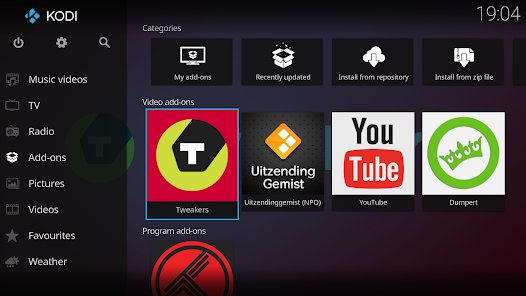
The main reason is one app for a personal library, with no separate box or PC attached to the TV.
| Reason | What you get |
|---|---|
| Play your own files | Video, music, photos and podcasts from local or network storage, in one interface |
| No extra hardware | On Android TV and Google TV, the app runs on the TV itself |
| A remote-first interface | Kodi's Estuary skin is built for browsing with a few buttons from across the room |
| No cost | Kodi is free and open source, with no subscription |
| Limited data sharing | The Google Play listing declares no data collected and none shared with third parties |
Will my smart TV run Kodi on smart TV operating systems?
The TV's operating system decides this, not the brand. Kodi's supported systems include Android, webOS and tvOS, but not Tizen or Roku OS.
| TV software | Common brands | Kodi status | How you get it |
|---|---|---|---|
| Android TV or Google TV | Sony, TCL, Hisense, Philips, Panasonic, Sharp, Toshiba | Supported | Google Play Store on the TV |
| webOS | LG | Supported, with a separate webOS build | Kodi's webOS build, covered in the LG section below |
| Tizen | Samsung | Not on Kodi's supported list | Use a plug-in device |
| Roku OS | Roku TV models from TCL, Hisense and others | Not on Kodi's supported list | Use a plug-in device |
| Fire OS | Amazon Fire TV devices | Android-derived, with apps from the Amazon Appstore | Sideload as an Android app |
| Vega OS | Fire TV Stick 4K Select | Not on Kodi's supported list | Use a different device |
Can it even be done on Samsung, LG and Sony smart TVs?
To check your own TV, look at the home screen. An Apps tab at the top points to Google TV, and a Play Store app under Apps points to Android TV.
Sony: yes. LG: possibly. Samsung: no. Sony's Android TV and Google TV models install Kodi from the Play Store. LG models need the webOS build, which depends on the TV's software version. Samsung TVs run Tizen, which is not on Kodi's supported list, so a plug-in device is the way forward.
Installing Kodi on your smart TV
Older Android TV models did not get the Google TV interface, so the Play Store has its own place on the home screen. Use these steps on those TVs.
- From the Home screen, scroll to Apps.
- Open the Play Store app.
- Select the Search icon at the top and search for
Kodi. - Select Kodi from Kodi Foundation.
- Follow the on-screen prompts to install it.
- Open Kodi from Apps on the home screen.
To check compatibility from a computer, go to play.google.com and search for Kodi. Select the device dropdown and choose your TV, and the results show only compatible apps.
How to install Kodi on LG smart TVs (webOS 4+)
webOS is on Kodi's supported list, but LG TVs use the LG Content Store and not Google Play. Confirm the minimum webOS version for the current Kodi build on kodi.tv before you start, because support can change between releases.
- Check your TV's webOS version in the TV's settings.
- Open the LG Content Store and search for
Kodi. - If a listing from Kodi appears, select it and install it.
- If there is no listing, go to kodi.tv on a computer and open the download page for webOS.
- Compare the minimum version there with your TV's version.
- Follow the instructions on kodi.tv if your TV qualifies.
- If it does not qualify, use one of the plug-in devices below.
Never install a lookalike app that uses the Kodi name from any other publisher. The official download page is the only safe source for this build.
Best smart TVs compatible with Kodi
The best choice for Kodi is any TV running Android TV or Google TV, because the install takes minutes and updates come through the Play Store. Brands sell several software platforms, so confirm the software on the exact model before you buy.
| Brand | Software to look for | Fit for Kodi |
|---|---|---|
| Sony | Android TV or Google TV | Direct install from the Play Store |
| TCL | Android TV or Google TV. Some models use Roku OS instead | Direct install on Android TV or Google TV models only |
| Hisense | Android TV or Google TV. Some models use Roku OS instead | Direct install on Android TV or Google TV models only |
| Philips, Panasonic, Sharp, Toshiba | Android TV or Google TV, depending on model | Direct install on those models |
| LG | webOS | Possible through the webOS build, subject to version |
| Samsung | Tizen | No native app. Needs a plug-in device |
What if your TV doesn't run Android?
Plug in a separate device through HDMI. Kodi then runs on that device, and the TV only displays it, so this works on Samsung, Roku and older LG models.
| Device | How Kodi gets on it | Best for |
|---|---|---|
| Google TV or Android TV streaming device | Google Play Store, using the steps above | The simplest route, with no sideloading |
| Amazon Fire TV on Fire OS | Sideloading an Android build. Amazon documents this for developers, and it needs Apps from Unknown Sources turned on | People who already own one. Learn how a Firestick works before you buy for this |
| Raspberry Pi | LibreELEC, a Linux system built to run Kodi as its main interface | A low-cost dedicated player, if you are comfortable setting up an OS |
| Apple TV | tvOS is on Kodi's supported list. Check kodi.tv for the current install method | Households already using Apple TV |
| Windows PC or laptop | Kodi runs on Windows 10 and later, and you can install apps on a Windows PC the usual way | An older PC connected to the TV |
The Fire TV Stick 4K Select runs Vega OS instead of Android-based Fire OS, so check the model before you rely on it for Kodi.
Can't install Kodi on your smart TV? Try these workarounds!
Find the problem you see on the TV. Each fix below stays with official sources, so you never need an unofficial Kodi build.
Kodi does not appear in the Play Store on the TV
Not every Google Play app works on every Android TV device.
- On a computer, go to play.google.com and search for Kodi.
- Select the device dropdown and choose your TV.
- If Kodi is not listed as compatible, use a plug-in Google TV or Android TV device.
Samsung or Roku TV has no Kodi app
Tizen and Roku OS are not on Kodi's supported list, so there is no official app to find.
- Stop searching the TV's app store, and ignore any lookalike apps that appear.
- Pick a plug-in device from the table above.
- Connect it to an HDMI port and install Kodi on that device.
Kodi keeps crashing on Google TV
An outdated build or a stuck process is the usual cause.
- Open the Google Play Store on the TV and select your profile picture or initial.
- Select Manage apps & games > Updates > Update all.
- Go to Settings > Apps and select Kodi.
- Select Force stop, then OK, and reopen Kodi.
- If it still crashes, report the problem to the Kodi developers.
Play Protect warns about a Kodi app
Play Protect scans apps from outside Google Play and warns about risky ones. Treat an unofficial or "fully loaded" build as unsafe.
- Do not bypass the warning.
- Uninstall that copy from Settings > Device > Apps.
- Install Kodi from the Play Store instead, from Kodi Foundation.
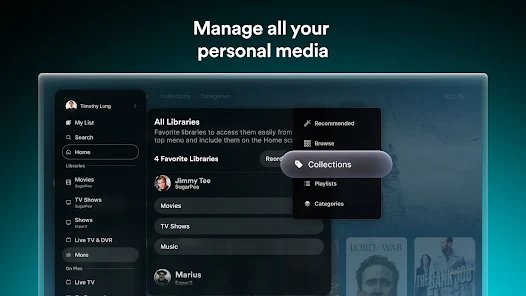
Alternatives to Kodi on smart TV – Plex and Sling TV
These two reach the TVs Kodi cannot, including Samsung and Roku. They solve different problems, so choose by what you want to watch.
| Detail | Plex | Sling TV |
|---|---|---|
| What it is | A media server and player, which began as a 2008 fork of XBMC, the project now called Kodi | A live TV streaming service with paid plans |
| What you watch | Your own library, plus free movies, shows and live TV from Plex | Live channels from Sling's packages |
| TV platforms | Android TV, Apple TV, Fire TV, Roku, webOS and Tizen | Android TV, Google TV, Apple TV, Fire TV, LG, Samsung, Roku and Vizio |
| What you need | A computer to set up Plex Media Server for your own files | A Sling account and plan |
| Best for | Replacing Kodi's library features on a Samsung or Roku TV | Replacing cable, not a personal library |
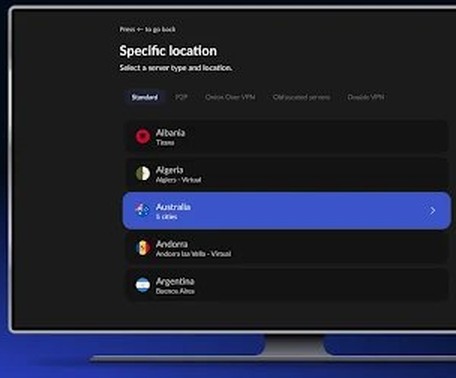
For added privacy when using Kodi, use a VPN
A VPN encrypts the TV's traffic and hides its destinations from your internet provider. It does not make unlicensed streams legal, and Kodi does not need one to work.
| Your setup | VPN route | Why |
|---|---|---|
| Android TV or Google TV | Install a VPN app from the Play Store. NordVPN, for example, lists Android TV support | The app runs on the TV alongside Kodi |
| Plug-in Android TV device | Install the VPN app on the device | Same as above, without changing the TV |
| LG, Samsung or Roku TV | Check your VPN provider's setup page for that TV | Support varies by provider and model |
| Only local files | Skip it | Files on your own network do not leave your home |
How to tell if Kodi is installed on your smart TV
Installed apps are listed in fixed places, and these are quicker than scrolling the home screen.
- On Google TV, look for Kodi in the Your apps row on the home screen.
- On Android TV, open Settings and go to Apps.
- Alternatively, open the Play Store, go to My Apps and look under Apps installed.
- Open Kodi and wait for its home screen. An empty library is normal until you add a source.
Kodi smart TV tips for remotes, content and upgrades
A few small choices make Kodi easier to live with on a TV.
| Tip | Why it helps |
|---|---|
| Install Kore Official Remote for Kodi on your Android phone | It is the Kodi Foundation's own remote control app, so you do not need an unofficial one |
| Keep your files on local or network storage | Kodi's listing names these as sources, and it needs you to supply the content |
| Move Kodi up the Your apps row | Hold Select on the app, choose Move, position it, then choose Done |
| Stay on official releases | Kodi says upgrades need an official version, and any other version may fail to upgrade |
| Be careful with add-ons | Kodi has no affiliation with third-party add-on providers, so only add ones from sources you trust |
How to uninstall Kodi from a smart TV
Removing Kodi takes under a minute. Your own media files stay wherever you keep them.
- On Google TV, hold Select on Kodi in the Your apps row.
- Select View Details, then Uninstall.
- On Android TV, go to Settings > Device > Apps and choose Kodi under Downloaded apps.
- Select Uninstall, then confirm with OK.
Kodi on smart TV FAQ
Can you install Kodi on a Samsung smart TV?
Not directly. Samsung smart TVs run Tizen, which is not on Kodi's supported list, so there is no official app to install. Connect a Google TV or Android TV device to an HDMI port and install Kodi on that device instead.
Can you install Kodi on an LG smart TV?
Possibly. LG TVs run webOS, and webOS is on Kodi's supported list. Whether your TV qualifies depends on its webOS version, so check the requirements on kodi.tv first. A plug-in Google TV device is the fallback if your model does not qualify.
Does Kodi work on a Roku TV?
No. Roku OS is not on Kodi's supported list, and that includes Roku TV models built by TCL and Hisense. Use a plug-in Android TV device, or use Plex, which has a Roku app, if your goal is watching your own library.
Is Kodi free?
Yes. Kodi is free, open source software released under the GPL, and the Google Play listing shows no purchase requirement. Be wary of anyone charging for Kodi or selling a preloaded box, because some of those devices carry third-party add-ons that the project does not endorse.
Does Kodi come with movies and TV shows?
No. The official version of Kodi contains no content at all. You supply your own files from local or network storage, discs you own, or add-ons that open content freely available from the official provider. A new install shows an empty library.
Is Kodi legal?
Kodi itself is legal, open source software. The legal risk comes from how it is used, because some third-party add-ons stream copyrighted content without permission. Team Kodi does not endorse those add-ons, so stick to your own media and licensed sources.
Do I need a VPN for Kodi?
No. Kodi works without a VPN, and a VPN adds nothing when you only play files on your home network. It does add privacy for internet streams, because your provider can no longer see where your traffic goes.
Can I use a Fire TV Stick for Kodi instead?
On Fire OS models, yes, through sideloading the Android build. Amazon documents sideloading for developers, and it requires turning on Apps from Unknown Sources. A Google TV device is simpler because Kodi installs from the Play Store, with no change to security settings.