Open Microsoft Store from the Start menu, sign in with your Microsoft account, then use Apps, Gaming and Library to install, update and reinstall your apps and games.
This guide covers each of those jobs in Windows 11 and Windows 10, including where to remove apps, how to pause updates, how to use WinGet, and what to do about error 0xC002001B.

How to use Microsoft Store in Windows 11/10
These steps cover the full cycle for one app or game, from finding it to keeping it current.
- Select Start, enter Microsoft Store, and select the app.
- Sign in with your Microsoft account if the Store asks you to.
- Choose Apps or Gaming, or type a name in the search box.
- Open the product page and select Install or Get.
- Select Library to see what you own, then select Get updates to check for new versions.
- Open Settings > Apps > Installed apps when you want to repair or remove something.
An app installed from the Store follows your account to other devices, and it updates automatically unless its publisher handles updates directly.
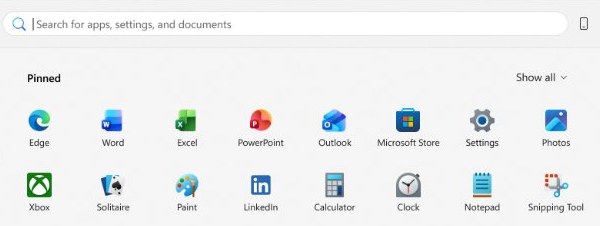
Microsoft Store vs Windows Settings for managing apps
Microsoft Store handles getting and updating apps. Windows Settings handles repairing and removing them.
| What you want to do | Where to do it | Why it lives there |
|---|---|---|
| Install a new app or game | Microsoft Store > Apps or Gaming | The Store holds the catalog and your purchases |
| Reinstall something you own | Microsoft Store > Library | Library lists everything tied to your account |
| Update apps now | Microsoft Store > Library > Get updates | Manual checks work even while updates are paused |
| Pause automatic updates | Profile picture > Store Settings | The pause option sits under App updates |
| Repair or reset an app | Settings > Apps > Installed apps | Advanced options holds Repair and Reset |
| Remove an app or game | Start > All apps, or Installed apps | Uninstalling is a Windows job, not a Store job |
| Choose the drive for new apps | Settings > System > Storage | The setting applies to newly installed apps |
Add or remove a Microsoft account in Microsoft Store
Purchases, your library and device authorization all follow the Microsoft account signed in to the Store. Microsoft notes that the Store app may not be available at all when Windows is signed in to a local account.
- Open Microsoft Store.
- Select Profile, which shows your account photo.
- Choose the sign-in or sign-out option shown for your account.
- Sign in with the Microsoft account that owns your apps and games.
- Open Library and check that your purchases appear.
You can also change purchase sign-in settings if you want the Store to ask for a password before each purchase.
How to install an application or game from the Microsoft Store
- Select Start, then select Microsoft Store.
- Choose Apps or Gaming.
- Select Show all to see more of any category.
- Open the product page and read the system requirements if the product lists them.
- Select the install or buy button on the page.
- Open the app or game from the Store or from Start once it finishes.
To install something you already own, select Library. Any item with a Download icon beside it is not on this PC yet, so select that icon. If a game stalls at this point, you can fix the stalled Microsoft Store download and try again.
Payment, Store settings and my library in Microsoft Store
Three parts of the Store control what you pay with, how the Store behaves, and what you own. Not all payment methods work in every region.
| Area | What it does | Where to open it |
|---|---|---|
| Payment options | Add a credit card, debit card, bank account, PayPal account or mobile phone | Payment options page of your Microsoft account dashboard |
| Gift cards and codes | Add Microsoft or Xbox gift card, download code or token value to your balance | redeem.microsoft.com |
| Store Settings | Control App updates, including the pause period | Profile picture > Store Settings |
| My Library | List owned apps and games, and download ones not on this PC | Library in the Store |
| Order history | Find software bought from Microsoft, including product keys where one exists | Order history page of your Microsoft account |
A balance added this way can be spent in Microsoft Store online, on Windows and on Xbox. If a purchase went wrong, you can request a Microsoft Store refund under the Store and Xbox rules.
Finding installed apps and managing them
Use the Windows list to see everything on the PC, not just Store apps. Windows shows Repair and Reset only for apps that support them.
- Select Start > Settings > Apps > Installed apps.
- Find the app or game in the list.
- Select the More icon next to it.
- Select Advanced options, then select Repair if the app misbehaves.
- Select Reset if Repair is missing or does not fix the problem.
- Select Uninstall from the More menu to remove the app.
You can also remove an app from Start > All apps by right-clicking it and selecting Uninstall. Reinstall it any time from Library in the Store. Some apps built into Windows cannot be uninstalled.
How to update Microsoft Store apps and games
Microsoft Store updates apps and games automatically. Apps from publishers who run their own update systems are the exception.
- Select Start, then select Microsoft Store.
- Select Library.
- Select Get updates.
- Wait for the listed updates to install.
A Store update can include the Store itself, and that update starts installing automatically. You can also update Microsoft Store apps manually one at a time.
How to pause Microsoft Store app updates
Microsoft replaced the old Off option with a time-limited pause, so you cannot turn Store updates off permanently. Updates resume by themselves when the pause ends.
- Open Microsoft Store.
- Select your profile picture, then select Store Settings.
- Go to App updates and select the pause option.
- Choose a pause length from one to five weeks.
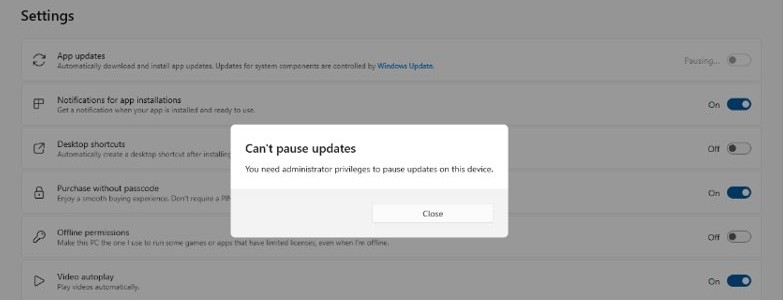
If you do not see the pause option, your IT admin might manage app updates on the device. Manual checks through Library still work during a pause.
Change where Microsoft Store installs new apps
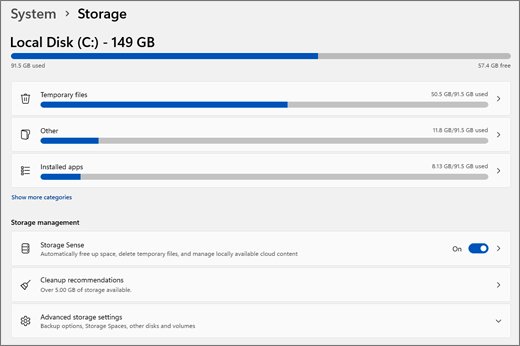
This setting picks the default drive for new apps. It does not describe moving an app that is already installed.
- Select Start > Settings > System > Storage.
- Select Advanced storage settings.
- Select Where new content is saved.
- Choose a drive under the new apps entry, then apply the change.
Free up a Microsoft Store device slot
You can download Microsoft Store apps and content to 10 devices on one account. If downloads stop working on a new PC, you might have reached that limit.
- Go to account.microsoft.com/devices/content in a browser.
- Sign in with the Microsoft account that owns the content.
- Find the device you no longer use for Store downloads.
- Select Unlink, then confirm.
Downloading a Store app on that device later puts it back in the count.
Use winget to install Microsoft Store apps
WinGet, the Windows Package Manager, ships as part of App Installer and can reach the Store catalog through its msstore source. Store packages use a product ID instead of a readable name, so search first.
- Select Start, enter PowerShell, and open it.
- Run
winget search <app name> --source msstoreand note the Id column. - Run
winget install <Id> -s msstoreto install the app. - Run
winget upgradeto preview the apps with updates available. - Run
winget upgrade --allto install those updates.
If PowerShell says winget is not recognized, install App Installer from Microsoft Store and try again.

How to tell if Microsoft Store apps are up to date
- Open Microsoft Store and select Library.
- Select Get updates.
- Check the list for anything still waiting or downloading.
- Run
winget upgradein PowerShell for a second list that includes apps from other sources.
A pause does not block manual checks, so a clean result here is accurate even with automatic updates paused.
Fix 0xC002001B Microsoft Store error on Windows 11
Microsoft's system error reference lists 0xC002001B as RPC_NT_CALL_FAILED, described as "The RPC failed." The Microsoft Store errors section on Microsoft Support does not cover this code, so the general Store repair order is the right starting point.
Code 0xC002001B when installing or updating a Store app
A call between Windows components failed, so the Store could not complete the job.
- Close Microsoft Store and restart the PC.
- Select Start > Settings > Windows Update > Check for updates, then install what it finds.
- Check your time and location settings, then correct anything that is wrong.
- Press Windows logo key + R, enter
wsreset.exe, and select OK. - Wait about ten seconds for the blank window to close and the Store to open.
- Select Library > Get updates so the Store app itself is current.
- Try the install again, and contact Microsoft Support if the same code returns.
Microsoft Store is not opening after reset [fix]
Running wsreset.exe should open the Store by itself after about ten seconds. If it does not, work through these in order. You can also repair or reset Microsoft Store from Settings.
The reset window closes and the Store stays shut
Windows needs a restart or an update, or the Store app itself is damaged.
- Restart the PC, then select Start, enter Microsoft Store, and open it.
- Select Start > Settings > Windows Update > Check for updates.
- Check your time and location settings.
- Go to Settings > Apps > Installed apps, select More beside Microsoft Store, then Advanced options.
- Select Repair, then select Reset if the Store still fails.
Repair and Reset did not help
The Store package may need registering again.
- Select Start, enter PowerShell, and open it.
- Run
$p = (Get-AppxPackage -Name Microsoft.WindowsStore).InstallLocation + '\Appxmanifest.xml'. - Run
Add-AppxPackage -Path $p -Register -DisableDevelopmentMode. - Restart the PC and open Microsoft Store.
Why can't I use Microsoft Store on this PC?
Unable to use Microsoft Store with a work email or work PC
An organization can control access to the Store app through policy.
- Select Start and enter Microsoft Store to see if the app exists.
- Ask your administrator if the app has been turned off on this device.
Microsoft Store is missing from Start
The app was unpinned, or Windows is signed in to a local account.
- Select Start and enter Microsoft Store.
- Right-click the result and select Pin to Start.
- Sign in to Windows with a Microsoft account if the Store does not appear in search.
- Download Microsoft Store from the Store online if the app is still not found.
An app does not appear or will not install
Region limits, family settings, removal from the Store, or device compatibility can all hide an app.
- Restart the PC if Windows updates were installed recently.
- Check that the correct account is signed in to the Store.
- Ask the family organizer if family settings might be hiding the app.
- Check the publisher's own site if the app is no longer in the Store.
Microsoft Store apps and games FAQ
How does Microsoft Store work?
Microsoft Store is the catalog app built into Windows for apps, games and other content. You sign in with a Microsoft account, install what you want, and the Store keeps most of those items updated automatically.
How do you use Microsoft Store for the first time?
Select Start, enter Microsoft Store and open the app. Sign in with your Microsoft account, then choose Apps or Gaming to browse. Select a product, install it, and open Library to see everything your account owns.
What are the purposes of Microsoft Store?
Microsoft Store lets you find, buy, install and update Windows apps and games from one place. It also ties purchases to your Microsoft account, so an installed app can follow you to your other devices.
Why can't I use Microsoft Store?
The most common causes are a local Windows account, a work device where an administrator turned the app off, or an outdated Windows install. Sign in with a Microsoft account, install Windows updates, and ask your administrator on a work PC.
How do you make Microsoft Store work again?
Press Windows logo key + R, enter wsreset.exe and select OK. The Store should open after about ten seconds. If it does not, install Windows updates, check your time and location settings, then use Repair or Reset under Installed apps.
Can you use a Microsoft Store gift card on Xbox?
Yes. Microsoft and Xbox gift cards work the same way once redeemed to your Microsoft account. You can spend that balance at Microsoft Store online, on Windows or on Xbox, using the same account on the console.
Is Microsoft Store good for installing apps and games?
It suits most people who want automatic updates and one list of everything they own. Its limits are that some apps are not offered in every region, and some publishers distribute only through their own sites.
Can you use winget to install Microsoft Store apps?
Yes. WinGet includes a source named msstore that covers the Microsoft Store catalog. Search with winget search and the –source msstore option, then install using the product ID shown in the Id column of the results.
Can you use Intune to manage Microsoft Store updates?
Organizations can control the Store app through Intune administrative templates or the Settings Catalog. If the pause option is missing on a managed PC, the update settings are probably set by your IT admin, so ask them about changes.