Install the latest Windows 11 cumulative update to get the new CPU boost, because Microsoft documents no switch or setting that turns it on.
The steps below cover the Windows Update route, the builds that matter, ViVeTool, how to watch CPU speed in Task Manager, and what to do when the update does not appear.
Enable Low Latency Profile on Windows 11 (Update)
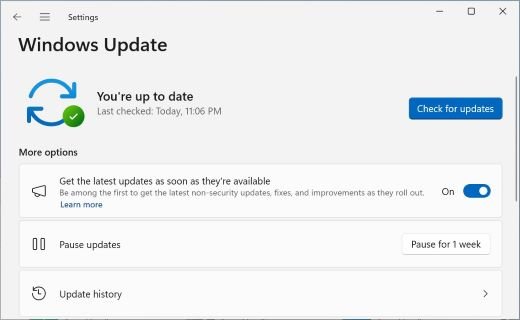
Windows Update is the only route Microsoft documents. The June 9, 2026 cumulative update, KB5094126 (OS Builds 26200.8655 and 26100.8655), includes the May 26 preview, whose notes say it accelerates app launch and core shell experiences such as Start menu, Search and Action Center.
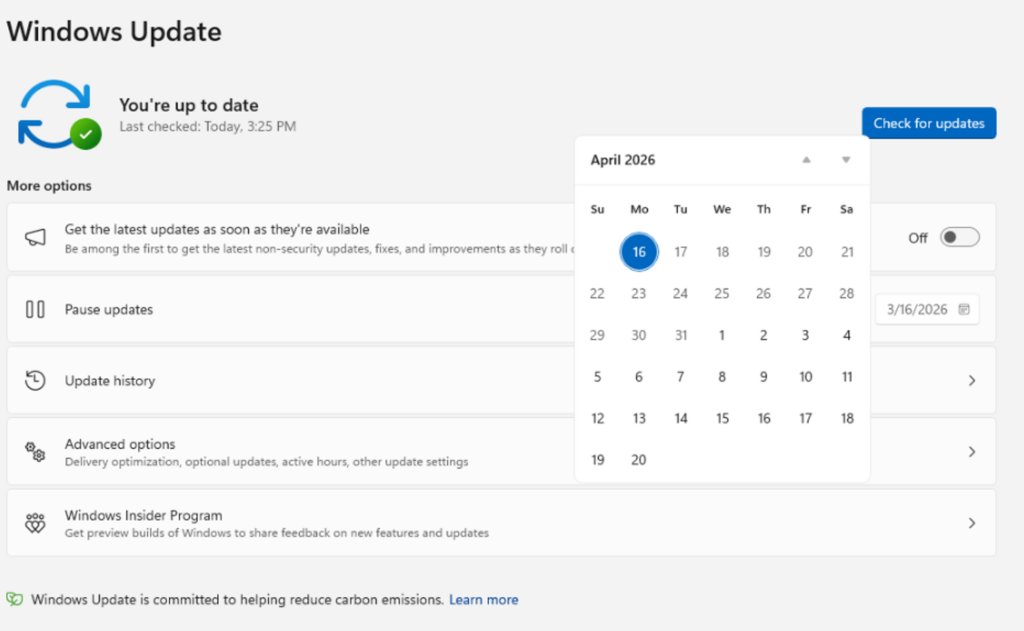
- Open Start, then select Settings > Windows Update.
- Turn on Get the latest updates as soon as they're available so non-security improvements reach your PC sooner.
- Select Check for updates.
- Select Download & install if an update is listed.
- Restart the PC when Windows asks you to.
Windows 11 updates are cumulative, so any later update also carries this change. Nothing else needs to be set after the restart.
Enable Low Latency Profile on Windows 11 (ViveTool)
ViVeTool is a third-party command-line tool that changes hidden Windows feature flags. Microsoft does not document it, and Microsoft publishes no feature ID for Low Latency Profile.
No ID is printed here for that reason. A flag number that cannot be checked against a Microsoft page gives no guarantee of what it changes, so the table below sets out what to do in each case.
| Your situation | Do this | Why |
|---|---|---|
| Your build is lower than 26200.8655 or 26100.8655 | Install the latest update first | ViVeTool cannot add code that your build does not contain yet |
| Your build is current and you want to force the feature | Wait for the rollout instead of changing flags | Microsoft says availability varies by device during a gradual rollout, and it lists no flag for this feature |
| You want to try unreleased Windows features with Microsoft's own controls | Join the Windows Insider Experimental channel | Microsoft added feature flags to that channel so you can choose which features to try |
| The PC is managed by your workplace | Ask your IT team | Updates on managed devices follow the policies your organization sets |
What is Low Latency Profile in Windows 11?
Low Latency Profile is the label Windows news coverage uses for a short CPU speed increase when you open parts of the Windows shell. That name does not appear in the Microsoft release notes, so the table separates what Microsoft has said from what it has not.
| Question | What Microsoft has published |
|---|---|
| What changed? | "Targeted performance/power tuning improvements" for the most frequently used OS and app scenarios, rolling out since mid-March 2026 |
| What gets faster? | App launch and core shell scenarios, named as the Start menu, Search and Action Center |
| Is the scheduler involved? | Microsoft separately reported a Windows scheduler update that handles processor power states (C-states) better to improve responsiveness in everyday use |
| How long does the boost last? | No duration, frequency limit or power figure has been published |
| Is there a setting for it? | No setting, policy or toggle is documented |
Windows 11 build number for Low Latency Profile
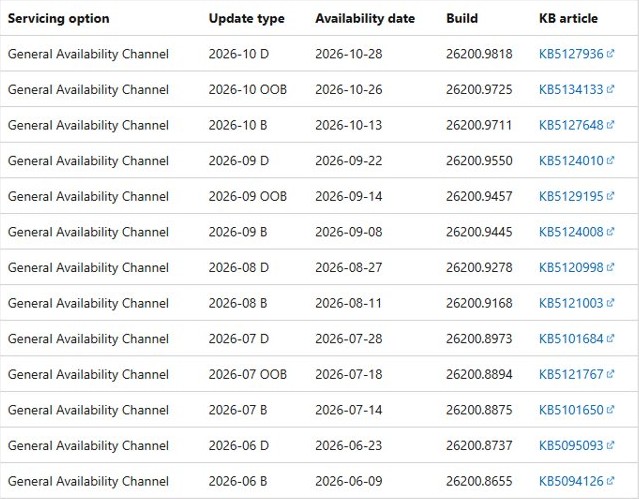
Compare your build with the first two rows. Build 26100 is Windows 11 version 24H2, and build 26200 is version 25H2. A higher number after the dot means a newer update.
| Update | Released | OS builds | What it means here |
|---|---|---|---|
| KB5089573 (preview) | May 26, 2026 | 26200.8524, 26100.8524 | First release notes that name the faster Start menu, Search and Action Center |
| KB5094126 (security) | June 9, 2026 | 26200.8655, 26100.8655 | Monthly update that includes the May 26 preview |
| KB5127648 (security) | October 13, 2026 | 26200.9711, 26100.9711 | Later monthly update, also cumulative |
| KB5134133 (out-of-band) | October 26, 2026 | 26200.9725, 26100.9725 | Later out-of-band update, also cumulative |
| KB5127936 (preview) | October 28, 2026 | 26200.9818 | Optional preview for version 25H2 |
How to find your Windows 11 OS build number
- Select Start, type
winverand press Enter. - Read the version and OS Build numbers in the About Windows window.
- For the same details in Settings, select Start > Settings > System > About.
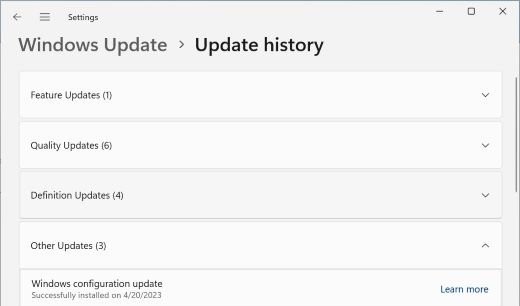
- To see which KB is installed, select Start > Settings > Windows Update > Update history.
How to see CPU boost in Task Manager on Windows 11
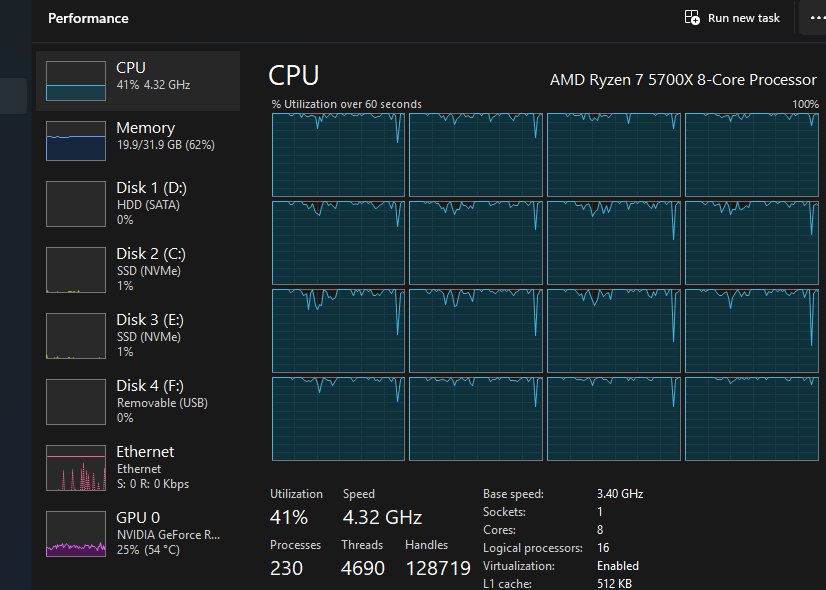
Windows shows no message or indicator for this change, so Task Manager is the closest view you have. Treat it as a rough check, because any app can raise CPU speed at the same moment.
- Close the apps you are not using, so the CPU is close to idle.
- Press Ctrl + Shift + Esc to open Task Manager.
- Select Performance in the left pane, then select CPU.
- Note the CPU speed shown on the page while the PC sits idle.
- Open the Start menu, then Search, then Action Center, and watch the speed and the graph after each one.
A short rise each time you open one of these is what you would expect to see. A flat graph does not prove the feature is missing, since Microsoft publishes no target speed to compare against.
Best Windows 11 power mode for CPU boost
Power mode is the documented setting that affects how hard Windows drives the processor. It sits alongside the update and is set separately for mains and battery power.
- Open Start, then select Settings > System > Power & battery.
- Find Power mode and pick a value for Plugged in.
- Pick a value for On battery if the PC is a laptop.
- Choose Best performance to maximize performance, Balanced to balance performance and battery, or Best power efficiency to save battery.
Windows also has a hidden Processor Performance Boost Mode setting in its power plan options, which is a different control. If Task Manager reports fewer processors than your CPU has, you can enable all CPU cores by removing a boot limit.
Can you turn off Low Latency Profile in Windows 11?
Microsoft documents no off switch. Update history > Uninstall updates does exist under Settings > Windows Update, but it removes the whole update and not just this one change.
Keep the update installed and use Best power efficiency if battery life is the concern. Microsoft does not recommend removing updates unless necessary, and a cumulative update also carries security fixes that leave with it.
Low Latency Profile not working on Windows 11
KB5094126 or a later update is not offered
Updates may be paused on this PC, or a managed device may follow policies set by your organization.
- Open Settings > Windows Update and resume updates if they are paused.
- Select Check for updates and install what is listed.
- Select Advanced options > Optional updates to see any preview update.
- On a managed PC, ask your IT team when the update is approved.
Start menu feels no faster after the update
Microsoft says a gradual rollout delivers features in phases, so availability varies by device.
- Run
winverand compare the build with the table above. - Turn on Get the latest updates as soon as they're available in Windows Update.
- Close heavy apps and test again, since startup and background apps also slow the PC down.
- Keep installing the monthly update, because the tuning continues to change.
Power mode cannot be changed
Microsoft says a custom power plan can block the Power mode control.
- Open Control Panel > System and Security > Power Options.
- Select the Balanced plan.
- Return to Settings > System > Power & battery and choose the mode you want.
Low Latency Profile on Windows 11 FAQ
Does Windows 11 have a Low Latency Profile setting?
No. Microsoft documents no setting, toggle or policy with that name. The change arrives through a cumulative update, and the only related control you can set yourself is Power mode under Settings > System > Power & battery.
Which Windows 11 versions get the CPU boost?
Microsoft's note on faster Start, Search and Action Center appears in the update for builds 26200 and 26100, which are version 25H2 and version 24H2. Install KB5094126 or any later cumulative update to include it.
Do I need ViVeTool to enable Low Latency Profile?
No. Windows Update is the documented route, and Microsoft publishes no feature ID for this change. ViVeTool is a third-party tool that Microsoft does not document, so leave flags alone and install the latest cumulative update.
Do I need the optional preview update?
No. The June 9, 2026 security update, KB5094126, includes the May 26 preview, and every later monthly update carries it too. A normal Check for updates in Windows Update is enough on an unmanaged home PC.
Does the CPU boost speed up apps or only the Start menu?
Microsoft names both. Its notes say the update accelerates app launch and core shell experiences such as Start menu, Search and Action Center. It has not published a list of apps or a measured speed gain for any of them.
Does Low Latency Profile hurt battery life?
Microsoft has published no battery figure for this change. Set Power mode to Best power efficiency for the On battery state if you want to favor battery life, since that is the documented control for the trade-off.
Is Low Latency Profile the same as Processor Performance Boost Mode?
No. Processor Performance Boost Mode is a hidden power plan option you set yourself. The Low Latency Profile label refers to behavior delivered by a Windows update, and Microsoft documents no user setting for it.
Does the new CPU boost work on Windows 10?
The release notes that describe this change are for Windows 11 only. Windows 10 support ended on October 14, 2025, and its last feature update is version 22H2, so upgrade to Windows 11 for these improvements.