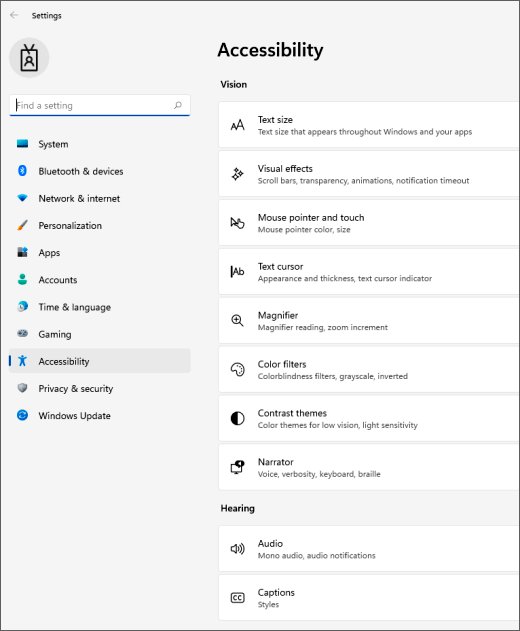
Enable color filters at Settings > Accessibility > Color filters and high contrast at Settings > Accessibility > Contrast themes in Windows 11. On Windows 10, both settings sit under Settings > Ease of Access.
This guide covers both Windows versions, the two keyboard shortcuts, every filter type, custom contrast themes, and the fixes for a screen stuck in the wrong colors.
Enable color filters & high contrast for easy reading (Win 10/11)
These steps use Windows 11. Pick a color filter when colors are hard to tell apart, or a contrast theme when text blends into its background.
- Press Windows logo key + U to open Accessibility settings.
- For a color filter, select Color filters, turn on the Color filters switch, and select a filter from the list.
- For high contrast, return to Accessibility and select Contrast themes.
- Choose a theme from the Contrast themes drop-down menu.
- Select Apply, then wait a few seconds while Windows changes the screen colors.
You now have both settings available. Keep whichever one makes text easiest to read, and turn the other off if the combination looks wrong.
Color filters vs high contrast in Windows 11 and 10
The two features solve different reading problems. Match your problem to a row below.
| Your reading problem | Use this | Why |
|---|---|---|
| Items differ only by color and you can't tell them apart | Red-green or blue-yellow color filter | It changes the screen's color palette to help you separate those items |
| Color itself is distracting | Grayscale color filter | It removes color entirely |
| Bright backgrounds cause glare | Inverted color filter | It flips colors across all of Windows |
| Text blends into low-contrast backgrounds | Contrast theme | It applies strongly contrasting colors for low vision and light sensitivity |
| A built-in theme still hides certain colors | Custom contrast theme | You can swap the affected colors for background, text, links and buttons |
| The screen is harsh in the evening | Night light | It warms the screen from white to a softer amber |
How to turn on color filters in Windows 11
Color filters apply across all of Windows. Try each one to see which suits you best.
- Select Start > Settings > Accessibility, or press Windows logo key + U.
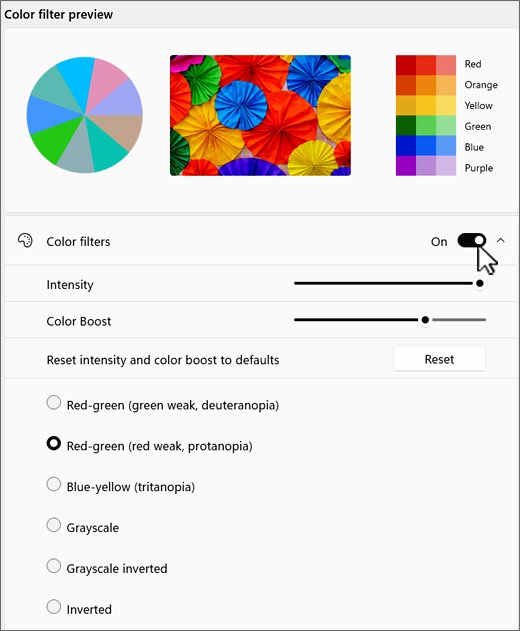
- Select Color filters.
- Turn the Color filters switch on.
- Select a filter from the list.
- Open a document or web page, then repeat step 4 until the text is comfortable to read.
How to turn on color filters in Windows 10
Windows 10 keeps color filters under Ease of Access. Older Windows 10 versions use the path Start > Settings > Ease of Access > Color & high contrast instead.
- Select Start > Settings > Ease of Access.
- Select Color filters.
- Turn on the toggle under Turn on color filters.
- Select a filter from the menu and check how your screen looks.
Keyboard shortcut for color filters in Windows 11 and 10
Windows logo key + Ctrl + C turns color filters on and off, but only after you enable the shortcut in Settings.
| Windows version | Enable the shortcut here | Then press |
|---|---|---|
| Windows 11 | Settings > Accessibility > Color filters, then set Keyboard shortcut for color filters to On | Windows logo key + Ctrl + C |
| Windows 10 | Settings > Ease of Access > Color filters, then select Allow the shortcut key to toggle filter on or off | Windows logo key + Ctrl + C |
Windows 11 color filter types: grayscale, inverted and color blind filters
Windows 11 groups its filters into color removal, color inversion, and color blindness options. The list below follows Microsoft's Windows 11 guidance.
| Filter | What it does | Try it when |
|---|---|---|
| Grayscale | Removes color entirely | Color distracts you from the text |
| Inverted | Flips colors across all of Windows | White pages cause glare |
| Grayscale inverted | Shows grayscale with inverted colors | You want a dark screen without color |
| Red-green (deuteranopia / protanopia) | Adjusts colors for red-green color blindness | Red and green items look alike |
| Blue-yellow (tritanopia) | Adjusts colors for blue-yellow color blindness | Blue and yellow items look alike |
How to turn on high contrast in Windows 11
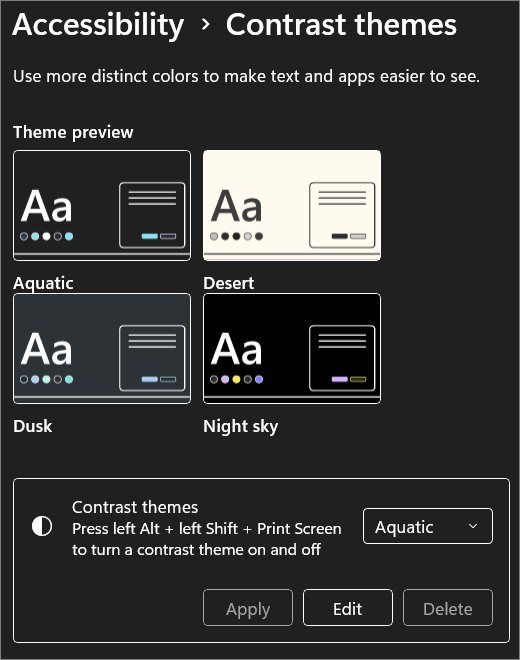
Windows 11 calls this feature contrast themes. It includes four built-in themes: Aquatic, Desert, Dusk and Night sky.
- Select Start > Settings > Accessibility > Contrast themes.
- Open the Contrast themes drop-down menu.
- Select a theme and review its preview.
- Select Apply.
- Wait for the Please wait screen to clear and the new colors to appear.
How to turn on high contrast in Windows 10
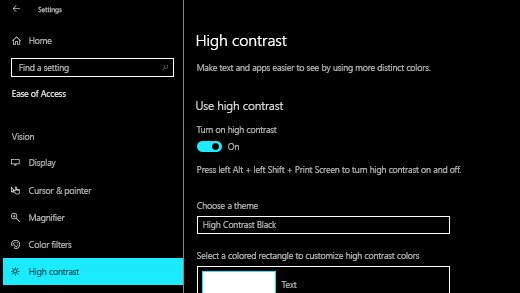
Windows 10 uses a toggle and a theme menu on one settings page.
- Select Start > Settings > Ease of Access > High contrast.
- Turn on the toggle under Turn on high contrast.
- Open the Choose a theme drop-down menu.
- Select the theme that makes text easiest to read.
High contrast keyboard shortcut in Windows 11 and 10
This shortcut switches high contrast on or off without opening Settings. Use the left Alt and left Shift keys, because Microsoft specifies those keys for this shortcut.
- Hold the left Alt key and the left Shift key.
- Press Print Screen, which is labeled Print Scrn on some keyboards.
- Release the keys and wait a few seconds for a possible Please wait screen.
- Press the same three keys again to reverse the change.
How to make a custom high contrast theme in Windows 11 and 10
A custom theme helps when a built-in theme still uses a color you can't read. Use it to swap only the colors that cause trouble.
| Step | Windows 11 | Windows 10 |
|---|---|---|
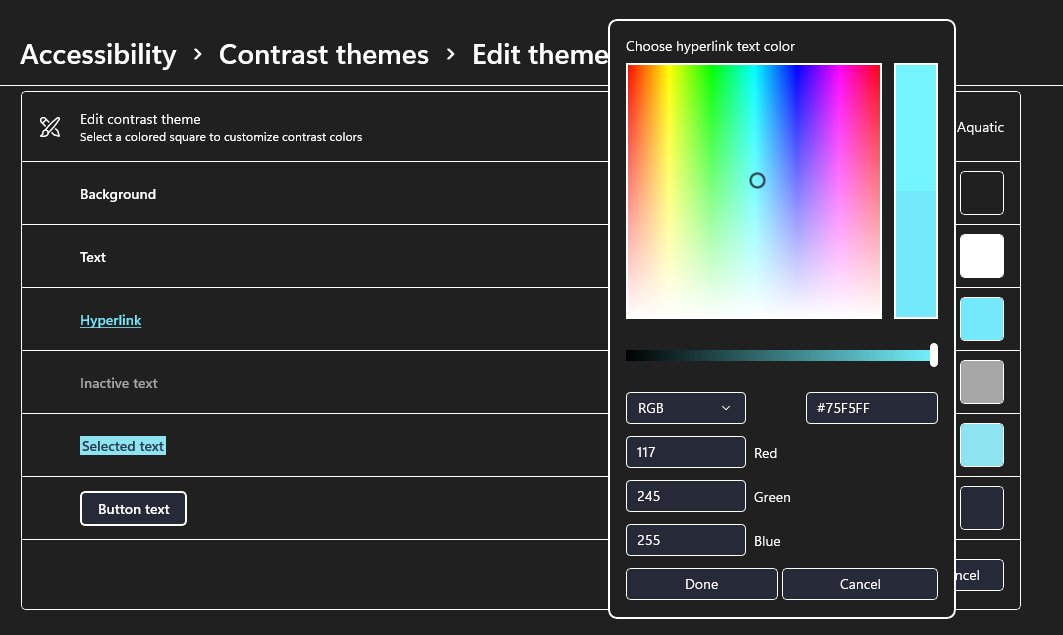
| Open the editor | Select a theme, then select Edit under the Contrast themes menu | Select a theme, then select a colored rectangle under Choose a theme |
| Choose an element | Background, Text, Hyperlinks, Inactive Text, Selected Text or Button Text | Text, Hyperlinks, Disabled Text, Selected Text, Button Text or Background |
| Pick the color | Use the palette and brightness slider, then select Done | Use the palette and brightness slider, then select Done |
| Save it | Select Save as, type a name, then select Save and apply | Select Apply |
Where color filters and high contrast settings are in Windows 11 and 10
Windows 11 uses Accessibility where Windows 10 uses Ease of Access. You can browse the wider set of Windows 11 accessibility settings from the same page.
| Setting | Windows 11 | Windows 10 |
|---|---|---|
| Color filters | Settings > Accessibility > Color filters | Settings > Ease of Access > Color filters |
| High contrast | Settings > Accessibility > Contrast themes | Settings > Ease of Access > High contrast |
| Text size | Settings > Accessibility > Text size | Settings > Ease of Access > Display, under Make text bigger |
Screen tint vs night light vs color filters in Windows 11
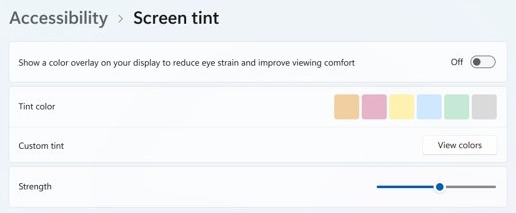
Three more color tools can look similar to a color filter, but each one solves a different problem. Screen Tint and color filters can't run at the same time.
| Tool | What it does | Where it is in Windows 11 | Helps with |
|---|---|---|---|
| Color filters | Changes how colors render across Windows | Settings > Accessibility > Color filters | Glare, light sensitivity and color vision differences |
| Screen Tint | Lays one color over the whole screen | Settings > Accessibility > Screen Tint | Bright screens that tire your eyes during the day |
| Night light | Warms the screen from white to soft amber | Settings > System > Display > Night light | Blue light that makes it harder to fall asleep |
| Dark mode | Uses dark backgrounds with light text | Settings > Personalization > Colors | Bright windows in dim rooms |
Make text bigger in Windows 11 for easier reading
Larger text often helps as much as a color change. Text size enlarges only text, while Scale also enlarges icons, buttons and apps.
- Select Settings > Accessibility > Text size.
- Drag the Text size slider until the preview is comfortable.
- Select Apply.
- If everything still looks small, select Settings > System > Display.
- Under Scale & layout, open Scale and pick a larger percentage, such as 125% or 150%.
How to tell if color filters or high contrast are on in Windows
A colored screen can come from several settings, so check the setting itself rather than guessing from the display.
- Press Windows logo key + U to open Accessibility settings on Windows 11.
- Select Color filters and check whether the Color filters switch is on.
- Return to Accessibility and select Contrast themes.
- Read the Contrast themes menu. None means no contrast theme is active.
- Select Screen Tint under Vision and check whether it is on.
How to turn off color filters and high contrast in Windows
Turning either feature off returns the screen to its normal colors.
- To remove a color filter, open the Color filters page and turn the switch off.
- On Windows 11, turn off a contrast theme by selecting None from the Contrast themes menu, then selecting Apply.
- On Windows 10, turn off the toggle under Turn on high contrast.
- Use Left Alt + Left Shift + Print Screen as the fastest way out of high contrast.
- Use Windows logo key + Ctrl + C to turn off a color filter if you enabled that shortcut.
Color filters and high contrast not working in Windows
Windows key + Ctrl + C does nothing
The color filter shortcut stays inactive until you enable it.
- On Windows 11, open Settings > Accessibility > Color filters and set Keyboard shortcut for color filters to On.
- On Windows 10, open Settings > Ease of Access > Color filters and select Allow the shortcut key to toggle filter on or off.
- Press Windows logo key + Ctrl + C again.
Windows 11 screen stuck in black and white
The Grayscale color filter removes color across all of Windows.
- Press Windows logo key + U.
- Select Color filters.
- Turn the Color filters switch off, or select a different filter.
Color filter turned off by itself in Windows 11
Turning on Screen Tint turns off color filters, because they can't run together.
- Open Settings > Accessibility > Screen Tint and turn it off.
- Return to Accessibility > Color filters.
- Turn the Color filters switch on.
High contrast shortcut changes nothing
The shortcut needs the left Alt and left Shift keys together with Print Screen.
- Press the left Alt, left Shift and Print Screen keys together.
- Wait a few seconds for a possible Please wait screen.
- If the colors stay the same, set the theme from Settings > Accessibility > Contrast themes on Windows 11, or Settings > Ease of Access > High contrast on Windows 10.
Can't find color filters in Windows 10 settings
Older Windows 10 versions place color filters on a combined settings page.
- Select Start > Settings > Ease of Access.
- Select Color & high contrast.
- Turn on the color filter option on that page.
Contrast theme hides text or links
A built-in theme's colors don't suit every kind of color vision.
- Open the contrast theme page for your Windows version.
- Select a different built-in theme and apply it.
- If the problem remains, edit the Text or Hyperlinks color and save the theme under a new name.
Windows color filters and high contrast FAQ
What is the keyboard shortcut for color filters in Windows 11?
The shortcut is Windows logo key + Ctrl + C. It works only after you set Keyboard shortcut for color filters to On at Settings > Accessibility > Color filters. Pressing it again turns the filter off.
What is the keyboard shortcut for high contrast in Windows?
Press left Alt + left Shift + Print Screen to turn high contrast on or off in Windows 11 and Windows 10. The screen may show a Please wait message for a few seconds before the colors change.
What is the difference between color filters and contrast themes?
Color filters change how colors render across the whole screen, which helps with color blindness and glare. Contrast themes replace interface colors with strongly contrasting ones, which helps when low-contrast text is hard to read.
Which Windows color filter is best for color blindness?
Use a Red-green filter for deuteranopia or protanopia, and a Blue-yellow filter for tritanopia. Microsoft recommends trying each filter to see which one suits you, so compare them on a page you read often.
How do I turn off grayscale in Windows 11?
Press Windows logo key + U, select Color filters, and turn the Color filters switch off. If you enabled the shortcut, Windows logo key + Ctrl + C also turns the grayscale filter off immediately.
Can you use color filters and Screen Tint at the same time?
No. Turning on Screen Tint turns off color filters, and turning on color filters turns off Screen Tint. Keep Screen Tint off if you rely on a filter for color blindness.
Can you use a color filter with a contrast theme?
Yes. Microsoft describes dark mode, contrast themes and color filters as layered settings that you can combine. Check the result on a document you read often, then keep the combination that makes text easiest to read.
Is high contrast the same as dark mode in Windows?
No. Dark mode switches Windows and supported apps to dark backgrounds with light text. Contrast themes go further, using high-contrast color schemes designed for people with low vision or light sensitivity.
What are the built-in contrast themes in Windows 11?
Windows 11 includes four built-in contrast themes: Aquatic, Desert, Dusk and Night sky. Select one at Settings > Accessibility > Contrast themes, then select Apply. You can also edit a theme and save your own version.
How is the Inverted color filter different from Magnifier invert?
The Inverted color filter stays on across all of Windows. Magnifier's invert works only while Magnifier is running, where Ctrl + Alt + I turns it on and pressing the same keys again restores normal colors.