Get Army Enterprise Outlook email on an iPhone or iPad by enrolling the device through your organization's Intune Company Portal, adding a derived credential made from your CAC, and signing in to Microsoft Outlook.
This guide covers DISA Purebred setup, Outlook and iPhone Mail sync, CAC readers in Safari, encrypted email, and fixes for the usual sign-in errors. Your organization decides which devices may connect, so every route below works only if it has been approved for your account.
How to access Army military email on an iPhone or iPad
This is the route Microsoft documents for smart card users on Department of Defense tenants that use Intune and DISA Purebred. Ask your unit's IT support first if nobody has told you mobile access is available for your account.
- Install Intune Company Portal and Microsoft Authenticator from the App Store.
- Open the iOS Settings app, select Company Portal, select Cloud and set it to Government.
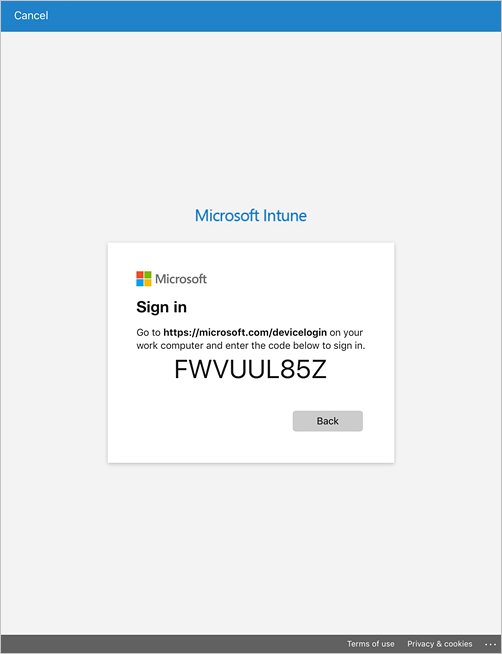
- Open Company Portal, tap Sign in from another device and write down the code on screen.
- On a computer where your CAC works, go to
https://microsoft.com/devicelogin, enter the code and insert your CAC to sign in. - Return to Company Portal and follow the onscreen instructions to enroll the device.
- Tap the Company Portal notification to set up mobile smart card access, then finish the derived credential with your Purebred agent.
- Open Outlook, tap Add Account and sign in with the derived credential.
If your organization manages phones with a different product, its app takes the place of Company Portal and its instructions take priority over these steps.
Army CAC email on iOS: derived credential or CAC reader
CAC sign-in is the sticking point on iOS, since iPhones had no built-in way to read the card before iOS 16. Your device and what your organization has approved decide which route fits.
| Your situation | Use this | What it depends on |
|---|---|---|
| Government-managed iPhone or iPad | Outlook with a derived credential | Company Portal enrollment and a credential from your organization's issuer |
| Personal device your organization has approved | Outlook under Intune app protection | Microsoft Authenticator, a policy on your account and a PIN set in Outlook |
| iOS 16 or iPadOS 16.1 or later, with a reader and web mail only | CAC reader and Safari | An NFC or CCID class-compliant reader, and a tenant that allows the sign-in |
| You prefer Apple's built-in app | iPhone Mail with an email profile | An admin-deployed profile, because your organization can make Outlook the only approved client |
| None of these is approved for you | A computer with your CAC | Nothing on the iPhone can override your organization's access policy |
Army CAC email requirements for iPhone and iPad
| Item | Requirement |
|---|---|
| Smart card | Your CAC, plus a computer or kiosk where you can sign in with it |
| Company Portal | Version 5.2509.0 or later when you use Purebred version 3; Microsoft recommends the latest version |
| Purebred agent | A live agent during enrollment, who gives you time-limited one-time passcodes |
| Network | Access to the on-premises network over corporate Wi-Fi or VPN to retrieve the credential |
| Microsoft Authenticator | Needed for certificate sign-in to Office apps on iOS and for app-based Conditional Access |
| iOS version | iOS 9 or later for certificate sign-in; iOS 16 or iPadOS 16.1 or later for built-in smart card reader support |
What is a derived credential for a CAC on iPhone?
A derived credential is a certificate created from your smart card credentials and installed on the device, so you can sign in without inserting the card each time.
| Question | Answer |
|---|---|
| What standard does it follow? | The NIST guidelines for Derived PIV credentials in Special Publication 800-157 |
| What can it sign in to? | Work apps, Wi-Fi, VPN and email, including the iOS Mail app |
| Can it sign and encrypt email? | Yes, S/MIME signing and encryption, including in Outlook on iOS |
| Who issues it? | Intune supports DISA Purebred, Entrust and Intercede, with one issuer per tenant |
| Does it expire? | Yes. Intune notifies you at 80% of its life span, and you then request a new credential through the same process |
How to set up DISA Purebred on an iPhone or iPad
Your organization deploys the Purebred app through Intune so that it can work with Company Portal. These steps follow the Company Portal notification and apply to Purebred version 3.
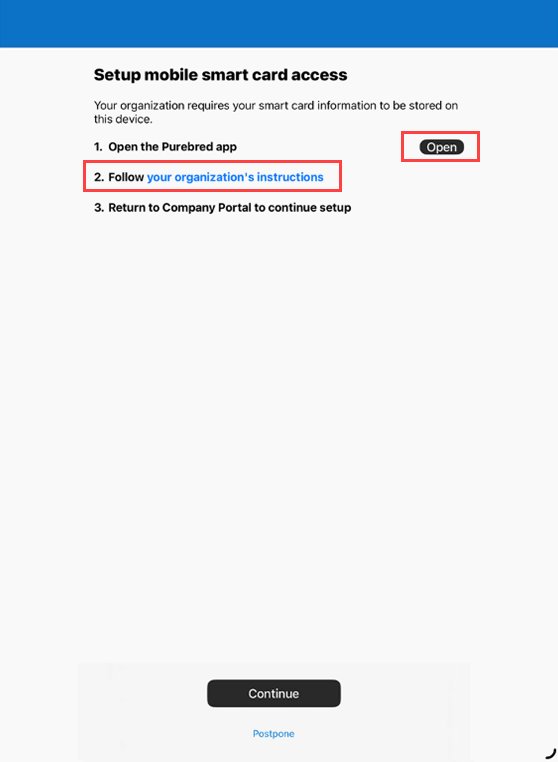
- On the Setup mobile smart card access screen, tap the link to your organization's instructions, then select Open to launch the Purebred app.
- Select Open again when asked to allow Company Portal to open the Purebred Registration app.
- Work with your organization's Purebred agent to enroll the device in the Purebred system.
- Return to Company Portal, tap Continue on Setup mobile smart card access, then tap Continue on Import certificates.
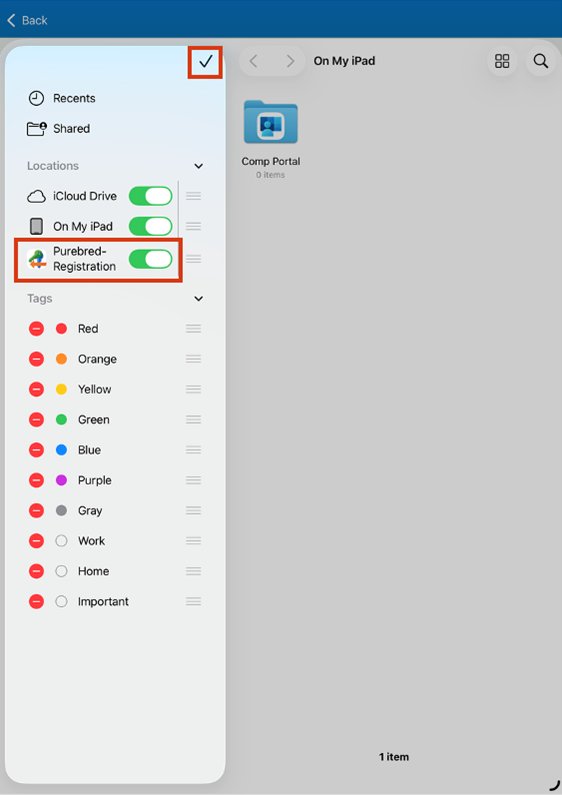
- Tap the three dots (…) to open the overflow menu. On an iPhone, select Browse first.
- Tap Edit Sidebar, turn on PurebredRegistration and tap the check mark.
- Tap PurebredRegistration on the sidebar. Press and hold
all.zip, then tap View zip Details to check its contents and tap Dismiss. - Tap
all.zipto import it. - Wait for the success message in the Purebred app, then tap Done.
A wrong file cannot be undone without starting over, so check it before you tap. Install only one version of the Purebred app, because a second copy can cause problems. Purebred version 2 uses configuration profiles instead, and your agent walks you through those.
Set up Outlook for iOS with an Army account
Microsoft says Department of Defense tenants can use Outlook for iOS without special configuration, as long as the organization has not blocked the app. Enrolled devices may receive Outlook automatically.
- Install Outlook from Company Portal on an enrolled device. On a device that is not enrolled, search for Microsoft Outlook in the App Store.
- Open Outlook. If your account appears, tap Add Account. If it does not, enter your work email address and tap Add Account.
- Choose your derived credential when iOS asks for a certificate.
- Tap Register if Outlook asks your organization to validate the device.
- Approve any Microsoft Authenticator prompt or enter any PIN your organization requires.
- Tap Maybe Later if Outlook offers to add another account.
- Restart Outlook and set a PIN when prompted, if an app protection policy applies to your account.
Your organization chooses how the device is managed, so Microsoft Intune on Apple devices may look different from one command to the next.
Sync Army email to the iPhone Mail app
Microsoft supports certificate sign-in for the native iOS Mail app over Exchange ActiveSync, and Intune can use a derived credential in an iOS email profile. An admin has to deploy that profile, so there is no manual route to it.
- Ask your IT support whether an email profile for iPhone Mail is approved for your account.
- Enroll the device and add your derived credential.
- Open Company Portal when it notifies you about a policy that uses your derived credential.
- Wait for the email profile to install, then open Mail and let the account sync.
No profile usually means Outlook is your approved client, since your organization can make Outlook the only permitted mobile mail app. With a CAC in a reader, Mail shows a signing button in the new message toolbar when a certificate on the card matches the account's email address.
Use a CAC reader with an iPhone or iPad in Safari
Apple builds in support for physical smart cards on iOS 16 and iPadOS 16.1 or later, through an NFC or CCID class-compliant reader. Microsoft's browser table for iOS marks only Safari as supported for this certificate sign-in.
- Update the device to iOS 16 or iPadOS 16.1 or later.
- Connect your CCID class-compliant reader. Some desktop readers need a powered USB hub.
- Insert your CAC into the reader.
- Open Safari and go to the Outlook on the web address your organization gave you. Microsoft lists
webmail.apps.milfor Microsoft 365 Department of Defense plans. - Choose your CAC certificate when Safari asks, then enter your PIN.
This gives you web mail only, with no background sync or notifications. On a computer, the same idea applies to CAC sites in Safari on a Mac.
What syncs in Outlook for iOS on a Department of Defense account?
Outlook for iOS uses Microsoft's native sync technology on Department of Defense tenants. Microsoft turns some features off by default in government clouds to meet its compliance boundary.
| Content | What happens on iOS |
|---|---|
| Email folders | 500 items per folder at first, and up to 1,000 if you tap Load more conversations; the app trims back to the default over time |
| Calendar | Syncs in the background with mail, and reminders depend on that background sync |
| Contacts | Export to the iOS Contacts app with Save Contacts, if your organization has not disabled it |
| Attachments | Download only when you open them, and stay cached for up to seven days |
| Shared mailboxes | Supported when both mailboxes are in Exchange Online |
| Personal accounts | Cannot be added by default; only your work account and its OneDrive account are allowed |
| Add-ins, third-party storage, Office Lens | Not available by default on government accounts |
| In-app support | Off by default, so contact your help desk and use Share Diagnostics Logs under Settings > Help |
Save Army Outlook contacts to the iPhone Contacts app
Contacts export in one direction on iOS. Keep managing them in Outlook, because Microsoft says the iOS Contacts app should not be used to edit them.
- Open Outlook, tap Inbox at the top, then tap the Settings gear.
- Tap your Army account.
- Turn on Save Contacts.
- Keep Outlook open in the foreground until the first export starts. Plug in the device if the onscreen prompt asks you to.
Turn it on one device at a time, because enabling it on an iPhone and an iPad together can create missing or duplicate contacts.
Turn on S/MIME in Outlook for iOS to read encrypted Army email
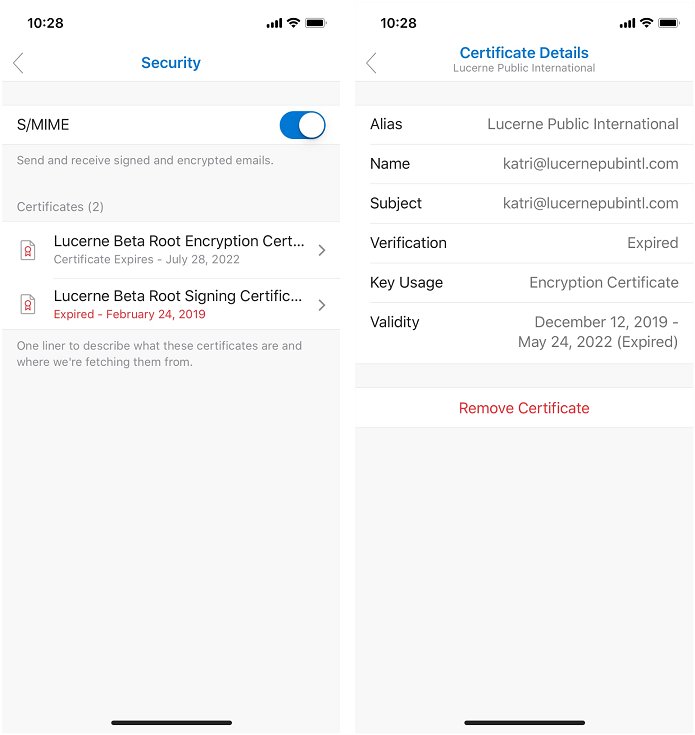
Outlook keeps S/MIME off by default, and encrypted messages stay unreadable until your private key is on the device. On iOS, certificates arrive through Company Portal.
- Open Company Portal when it notifies you, and let it retrieve your signing and encryption certificates.
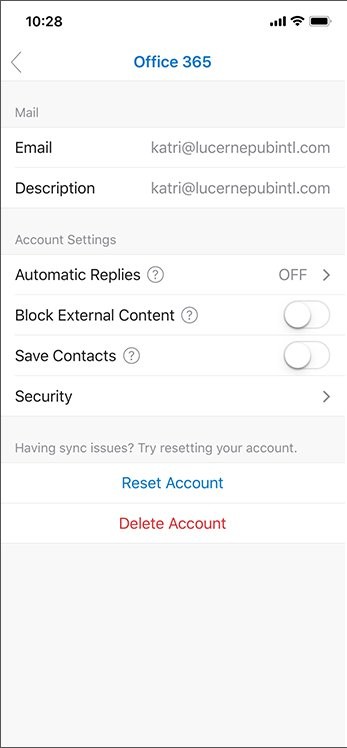
- In Outlook, open your account settings and tap Security.
- Turn on the S/MIME control.
- Tap a listed certificate to check its key usage and validity period.
- When you write a message, tap the ellipsis, then Sign and Encrypt, and choose an option.
Outlook starts warning you about an expiring certificate 30 days before the end date, when you try to sign or encrypt.
How to tell if Army email is syncing on an iPhone
- Send yourself a test message from a computer and check that it reaches Outlook on the iPhone.
- Create a test event in the Outlook calendar on the iPhone and check that it appears on the computer.
- Sign in to Outlook on the web, open Options and select Mobile Devices.
- Find the iPhone or iPad in the list and read its ClientType value. Outlook means the native Microsoft sync technology is in use.
Delete the test items afterward. If the message arrives only when Outlook is open, background sync is the problem, and the fix is below.
AADSTS53003 and other Army email sign-in error codes
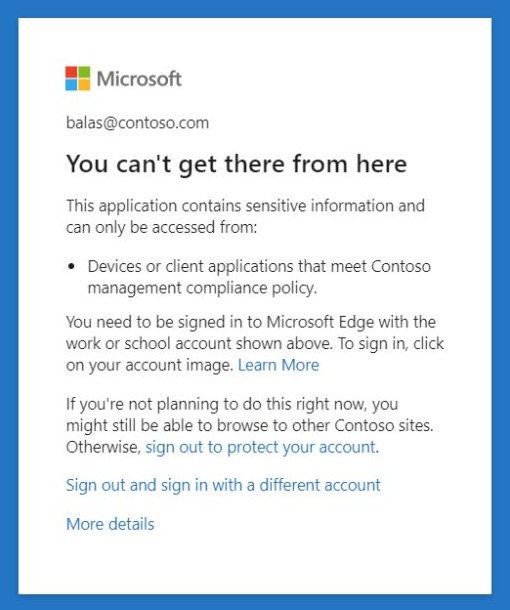
Conditional Access errors name the rule your device failed. On the error page, select More Details and give the code, time and date to your help desk.
| Code | Error string | What to do |
|---|---|---|
| AADSTS53000 | DeviceNotCompliant | Finish enrollment in Company Portal, then ask IT which compliance rule the device fails |
| AADSTS53002 | ApplicationUsedIsNotAnApprovedApp | Use the approved app, usually Outlook rather than another mail client |
| AADSTS53003 | BlockedByConditionalAccess | Send the details to your help desk, because a policy is blocking this sign-in |
| AADSTS53009 | Application needs to enforce Intune protection policies | Install Microsoft Authenticator and sign in again so that Outlook can apply the policy |
I can't access my Army email on an iPhone
Air Force users meeting the same prompts on a computer can work through CAC portal sign-in problems as well. Never try to get around a block with an unapproved app, because the policy exists to protect the mailbox.
Army "you cannot access this right now" on iPhone
This block usually comes from a Conditional Access policy, which means the device or app does not meet your organization's requirements.
- Read the message, because it often names the requirement.
- Select More Details and write down the code, time and date.
- Finish Company Portal enrollment if you have not done it.
- Give the details to your help desk if the block remains.
Company Portal sign-in goes to the wrong cloud
Microsoft Entra ID does not yet redirect government users to the government cloud when they sign in from another device.
- Open the iOS Settings app and select Company Portal.
- Select Cloud and change it from Automatic to Government.
- Start the sign-in from Company Portal again.
Workplace Join failed or Company Portal Temporarily Unavailable
The Company Portal app is out of date or corrupted.
- Remove the Company Portal app from the device.
- Install Microsoft Intune Company Portal from the App Store.
- Enroll the device again.
User Name Not Recognized or DeviceCapReached in Company Portal
Your account has no valid Intune license, or too many of your devices are already enrolled.
- Ask your admin to check your Intune license if you see User Name Not Recognized.
- Remove an old device from Company Portal if you see DeviceCapReached.
- Enroll the iPhone or iPad again.
Derived credential request stops partway
Purebred needs the on-premises network, and a device restriction or Conditional Access rule can block part of the process.
- Connect to corporate Wi-Fi or the VPN your organization provides.
- Check Company Portal for the notification, because a blocked mailbox may not receive the email version.
- Confirm that only one version of the Purebred app is installed.
- Ask your Purebred agent to check that policy allows each step, including the camera if your flow scans a QR code.
Outlook on iPhone shows no new mail until you open it
iOS has suspended background sync after a force quit, a restart, a crash or a long time without opening the app.
- Open Outlook and leave it in the foreground until mail downloads.
- Stop force quitting Outlook from the app switcher.
- Open Outlook after each restart of the device.
Army contacts missing or duplicated on iPhone
Outlook was suspended during export, Save Contacts was turned on for several devices at once, or sync errors built up.
- Wait 24 hours, then restart Outlook so that it reconciles the contacts.
- Turn off Save Contacts for the account if the problem remains.
- Go to Settings > Help & Feedback > Delete All Saved Contacts if duplicates stay in Contacts.
- Turn Save Contacts back on and follow the onscreen prompts.
Outlook says a certificate isn't available for signing
Your primary email address does not match the subject or subject alternative name on the certificate.
- Check the email address on your account in Outlook.
- Open Security in your account settings and tap the certificate to read its details.
- Give both to your help desk, since the certificate has to be reissued or the account corrected.
Army Outlook email on iOS FAQ
How do I get access to Army email?
Your organization issues the account and decides which devices may connect to it. Once the account is active, use a computer with your CAC, or enroll an approved iPhone or iPad and add a derived credential for Outlook.
Can you access Army email from home?
Yes, if your organization allows it from outside its network. Use a computer with a CAC reader, an enrolled iPhone or iPad running Outlook, or Safari with a compatible reader on iOS 16 or iPadOS 16.1 and later.
Why can't I access my Army email?
A Conditional Access policy is the usual cause when your sign-in works but access is refused. Your device may not be enrolled or compliant, or the app may not be approved. Select More Details on the error page and give the code to your help desk.
Can soldiers check enterprise email on an iPhone without inserting a CAC?
Yes, on an approved device. A derived credential is a certificate made from your CAC and stored on the iPhone, so Outlook can sign in without the card. You still need the CAC once, on a computer or kiosk, to get the credential.
Do I need a CAC reader for my iPhone?
Not for Outlook with a derived credential. A reader is the route for Safari on iOS 16 or iPadOS 16.1 and later, which support NFC and CCID class-compliant readers without additional drivers. Your organization still has to allow that sign-in.
How do I get access to Army Teams on an iPhone?
Install Microsoft Teams and sign in with the same work account. Microsoft lists Teams among the iOS apps that support certificate sign-in, so a derived credential can work there too. Your organization decides whether Teams is approved for your device.
How do I get access to military websites on an iPhone?
Use Safari, the browser Microsoft's iOS table marks as supported for certificate sign-in. Sign in with a derived credential already on the device, or with your CAC in a compatible reader. Some sites also need an approved network, which your IT support can confirm.
Can I add my personal email to Army Outlook on iPhone?
Not by default. Government accounts in Outlook for iOS allow only the work account and its OneDrive account on one device. Use another device for personal mail, or a different mail app if your organization permits it on that device.