To kill explorer.exe in Windows 11 or Windows 10, press Ctrl + Shift + Esc, right-click Windows Explorer on the Processes tab and select End task, or run taskkill /f /im explorer.exe in Command Prompt.
This guide covers Task Manager, taskkill and PowerShell, how to start Explorer again, what stops working while it is closed, and why you should never delete the file.
Kill explorer.exe in Windows
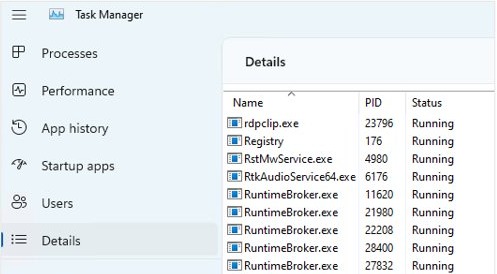
Task Manager is the safest route, because it stays open after the taskbar disappears and lets you start Explorer again. Save any open work before you begin.
- Press Ctrl + Shift + Esc to open Task Manager.
- On the Processes tab, find Windows Explorer.
- Right-click Windows Explorer and select End task.
- When you are ready to get the taskbar back, select File > Run new task, unless it has already returned on its own.
- Type
explorer.exeand press Enter.
The taskbar and desktop icons disappear as soon as the process ends, and they return when Explorer starts again.
Task Manager vs taskkill vs Stop-Process for explorer.exe
| Your situation | Use this | Why |
|---|---|---|
| You want menus, no typing | Task Manager > End task | Run new task is one click away when you want Explorer back |
| Command Prompt is already open | taskkill /f /im explorer.exe |
One line ends Explorer forcefully by its image name |
| PowerShell or Terminal is open | Stop-Process -Name explorer -Force |
Stops every process named explorer on the PC |
| You only want one File Explorer window gone | Close the window, or press Alt + F4 | Closes the active window and leaves the taskbar alone |
| You want Explorer to come straight back | Task Manager > right-click Windows Explorer > Restart | Ends and starts it in one action |
How to taskkill explorer.exe
Open Command Prompt or Windows Terminal before you run this, because the taskbar is gone until Explorer starts again. Explorer runs under your own account, so a normal window without administrator rights is enough.
taskkill /f /im explorer.exetaskkill ends one or more processes, /im selects them by image name and /f ends them forcefully.
You should see: The taskbar, Start button and desktop icons disappear, and the command window stays open.
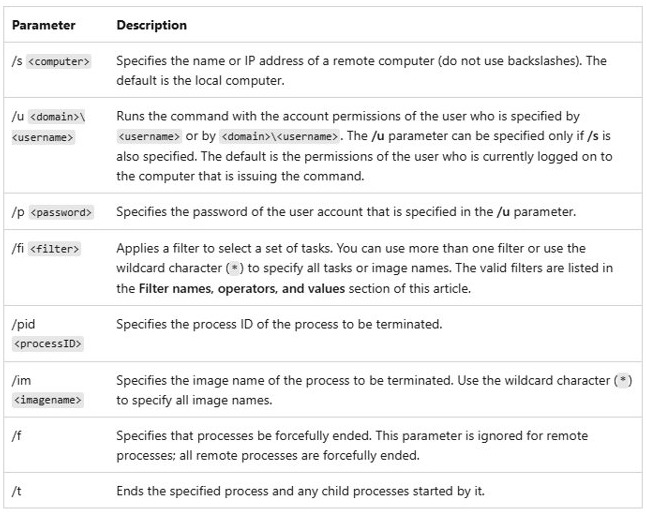
The /im switch targets every process with that image name. To end a single process, find its ID with tasklist and run taskkill /pid followed by that number. Add /t if you also want to end any child processes it started.
Command to end explorer.exe in PowerShell
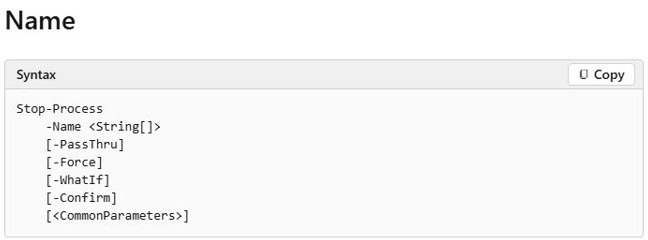
PowerShell's Stop-Process cmdlet stops processes on the local computer by name or by ID. Note that the name has no .exe on the end.
Stop-Process -Name explorer -Force-Name explorer picks every process with that name, and -Force stops them without prompting. PowerShell also accepts kill as a Windows alias for Stop-Process.
You should see: The taskbar and desktop icons disappear. The cmdlet prints nothing by default, so add -PassThru if you want to see the stopped process listed.
Microsoft warns that stopping a process can also stop the processes and services that depend on it, so close anything important first.
How to start explorer.exe after ending it
Use this when the screen is blank and only the mouse cursor is left. Task Manager works without the taskbar, so you always have a way back.
- Press Ctrl + Shift + Esc to open Task Manager.
- Select File > Run new task.
- Type
explorer.exe. - Press Enter, then wait a few seconds for the taskbar to return.
From a command window, run start explorer.exe in Command Prompt or Start-Process -FilePath explorer.exe in PowerShell. If your goal is a refresh, you can restart Explorer.exe in one command instead of doing the two halves separately.
What happens if explorer.exe is killed?
Ending Explorer does not shut anything down, but it removes the parts of Windows you normally use to get around. This is what to expect until you start it again.
| Part of Windows | While explorer.exe is closed |
|---|---|
| Taskbar and Start button | Gone from the screen |
| Desktop icons | Gone from the screen, but the files are still on the drive |
| File Explorer windows | Closed |
| Other open apps | Normally stay open, because they are separate processes |
| Ctrl + Shift + Esc | Still opens Task Manager |
| Ctrl + Alt + Del | Still opens the security screen |
| Mouse cursor | Still visible on a blank screen |
What does explorer.exe do
Explorer.exe is the default Windows shell, which means it is the program you get as your interface after you sign in.
| Detail | explorer.exe |
|---|---|
| Name in Task Manager | Windows Explorer |
| Image name for commands | explorer.exe |
| Role | Default Windows shell |
| What starts it | Winlogon loads it after sign-in |
| Where Windows records it | Shell value under HKLM\Software\Microsoft\Windows NT\CurrentVersion\Winlogon |
Default Shell value |
explorer.exe |
Can I delete explorer.exe?
Ending the process is temporary and you can reverse it in seconds. Trying to remove, delete or get rid of the file itself is a different and much bigger step.
No, do not delete explorer.exe. Windows Resource Protection exists to stop essential system files being replaced, because changing them can cause application or system failure. Winlogon also expects to load this shell when you sign in, and a broken shell entry can leave you unable to sign in at all.
Organizations that truly need a different interface use Shell Launcher, which replaces Explorer.exe with another app on kiosks, ATMs and digital signage. It is only available on Windows Enterprise, Education and IoT Enterprise editions.
If you suspect a fake copy, right-click the file, select Show more options on Windows 11 and select Scan with Microsoft Defender instead of deleting it.
How to repair Windows Explorer in Windows 11?
If Explorer keeps misbehaving after you start it again, repair Windows instead of killing the process repeatedly. These steps also work on Windows 10, where Windows Update sits under Update & Security.
- Select Start > Settings > Windows Update > Check for updates, then install what it finds and restart.
- Search for command prompt and select Run as administrator.
- Run
DISM.exe /Online /Cleanup-image /Restorehealthand wait for The operation completed successfully. - Run
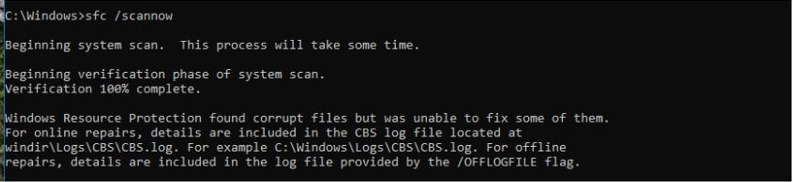
sfc /scannowand wait for Verification 100% complete. - Restart the PC and test File Explorer with Windows logo key + E.
If that does not settle it, work through the fixes for File Explorer not responding or crashing. Microsoft's last resort is resetting the PC from the Windows recovery options.
How to tell if explorer.exe is running
- In Command Prompt, run
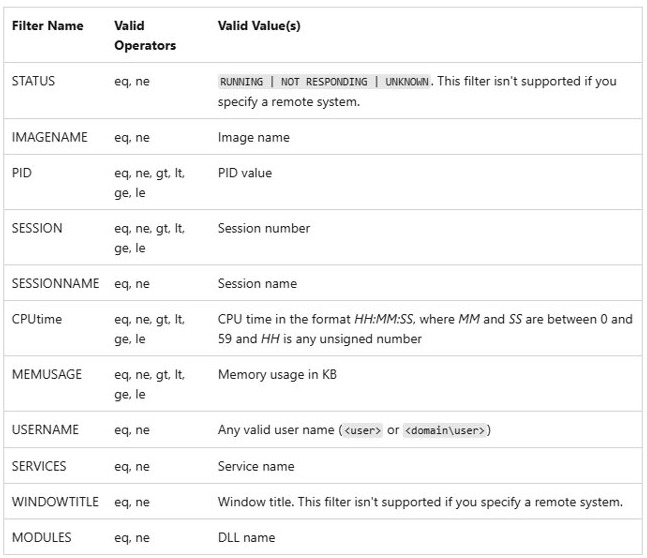
tasklist /fi "IMAGENAME eq explorer.exe"and look for an explorer.exe line with a process ID. - In PowerShell, run
Get-Process -Name explorerand look for at least one listed process. - In Task Manager, look for Windows Explorer on the Processes tab.
- Look at the screen: the taskbar and desktop icons should be back.
Run the same tasklist command right after a kill to prove it ended. No explorer.exe line means no copy of the process is running.
Explorer.exe won't end or won't start again
These are the failures that matter when you end Explorer on purpose. Task Manager also has other keyboard shortcuts if the usual one does nothing.
Task Manager won't open after you kill explorer.exe
The taskbar route is gone, so Task Manager is only reachable through the keyboard.
- Press Ctrl + Alt + Del to open the security screen.
- Select Task Manager.
- Select File > Run new task.
- Type
explorer.exeand press Enter.
Stop-Process says access is denied
The process belongs to another user account, and only an elevated PowerShell can stop it.
- Search for PowerShell and select Run as administrator.
- Run
Stop-Process -Name explorer -Forceagain.
File Explorer still won't open after you start explorer.exe
Pending updates or a damaged Windows installation can stop File Explorer from opening.
- Check for updates in Windows Update and install them.
- Restart the device so pending updates finish installing.
- Press Windows logo key + E to test File Explorer again.
- Run the DISM and SFC repair above if it still fails.
Kill explorer.exe FAQ
How do I end or close explorer.exe?
Press Ctrl + Shift + Esc, right-click Windows Explorer on the Processes tab and select End task. From a command window, run taskkill /f /im explorer.exe in Command Prompt or Stop-Process -Name explorer -Force in PowerShell.
What is the command to stop explorer.exe?
In Command Prompt, the command is taskkill /f /im explorer.exe. In PowerShell, it is Stop-Process -Name explorer -Force. Both end Explorer immediately, and the taskbar and desktop icons disappear until it starts again.
What does taskkill /f /im explorer.exe & start explorer do?
It ends Explorer forcefully and then starts it again from the same line. The & groups the two commands together, while the && version runs the second command only if the first one succeeded.
How do I start explorer.exe after ending it?
Press Ctrl + Shift + Esc to open Task Manager, select File > Run new task, type explorer.exe and press Enter. In a command window that is still open, start explorer.exe also works in Command Prompt.
What does explorer.exe do?
Explorer.exe is the default Windows shell. Winlogon loads it after you sign in, and it provides the taskbar, Start button, desktop icons and File Explorer windows that you use to get around Windows.
Can I delete explorer.exe?
No. Explorer.exe is an essential part of Windows, and Windows Resource Protection exists to stop such system files being replaced. To stop it temporarily, end the process in Task Manager instead of touching the file.
What happens if you delete explorer.exe?
Windows loses the shell that Winlogon loads at sign-in. Microsoft documents that a wrong shell entry can make Windows log on and immediately log off again, so treat a missing or changed explorer.exe as a serious repair job.
How do I fix explorer.exe?
Install pending Windows updates and restart. Then open Command Prompt as administrator, run DISM.exe /Online /Cleanup-image /Restorehealth, and follow it with sfc /scannow. If File Explorer still fails, reset the PC from the recovery options.
How do I stop exe files from running?
To stop one that is running now, end it in Task Manager or run taskkill /f /im followed by its file name. Check the name first, because ending a system process can also stop the services that depend on it.