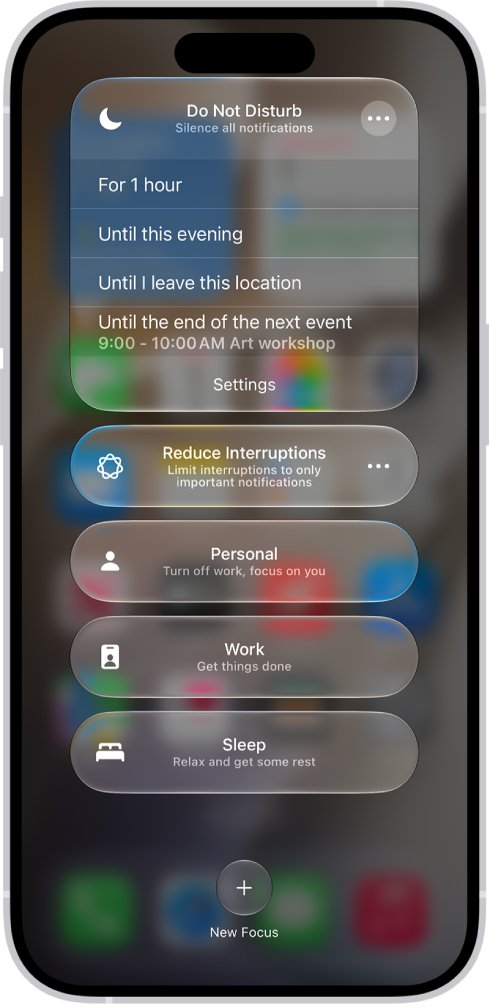
Open Control Center, tap Focus, and turn on Do Not Disturb to silence all notifications on your iPhone at once.
This guide also shows how to silence one app or one person, set quiet hours at night, and fix alerts that still get through.
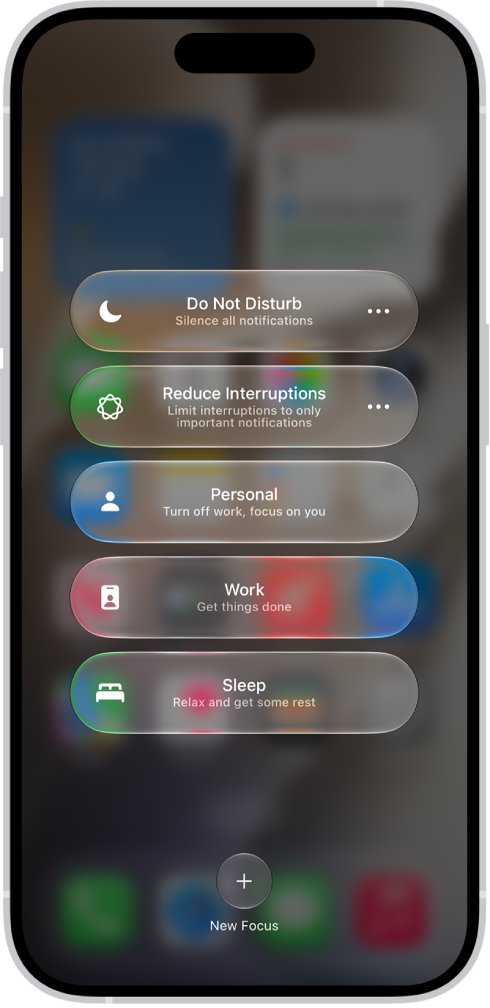
Step by step tutorial: How to silence notifications on iPhone
These steps work on every iPhone that runs current iOS, from iPhone 11 to the latest models. Alerts stay out of your way until you turn the Focus off, and they wait for you afterwards.
- Open Control Center on your iPhone.
- Tap Focus.
- Tap Do Not Disturb to turn it on.
- To set an end point, tap the More (three dots) button beside Do Not Disturb and choose an option such as For 1 hour.
- Check that the Do Not Disturb icon appears in the status bar and on the Lock Screen.
To turn off Do Not Disturb, open Control Center, tap Focus, and tap Do Not Disturb again. You can also touch and hold the Focus icon on the Lock Screen.
Which method should you use?
Each iPhone control silences a different thing, and the wrong one leaves alerts coming through. Match what you want to one row below.
| You want to | Use this | Where |
|---|---|---|
| Silence everything right now | Do Not Disturb | Control Center > Focus |
| Temporarily silence one app | Mute for an hour or a day | Swipe left on its notification > Options |
| Permanently silence one app | Allow Notifications off | Settings > Notifications > the app |
| Silence text notifications from one person | Hide Alerts | Messages > the conversation |
| Silence iPhone notifications at night | Sleep Focus or a Focus schedule | Settings > Focus |
| Get notifications in batches | Scheduled Summary | Settings > Notifications |
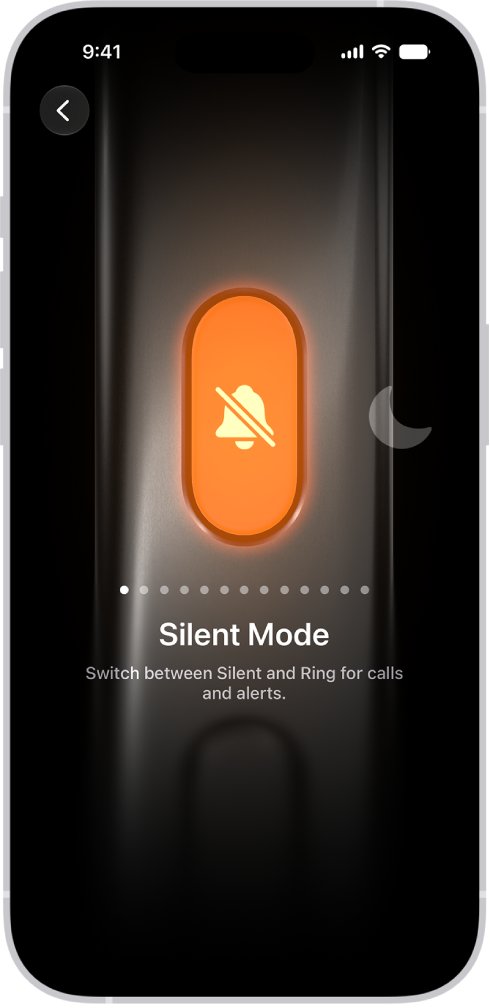
| Stop ringing but keep banners | Silent mode | Control Center, or the Action button or Ring/Silent switch |
Why silencing notifications on iPhone is more confusing than it should be
Apple spreads this job across several controls with similar names. Silent mode, for example, stops sound but not banners, and iPhone may still vibrate.
| Control | Stops sound | Stops banners and Lock Screen alerts | People can tell |
|---|---|---|---|
| Silent mode | Yes, for alerts and ringing | No | No |
| Do Not Disturb or another Focus | Yes, for silenced people and apps | Yes, for silenced people and apps | Yes, if Share Focus Status is on |
| Mute from Options | Yes, for that app | Yes, and alerts go to Notification Center | Apple does not say |
| Allow Notifications off | Yes, for that app | Yes, for that app | Yes, for Messages |
| Hide Alerts | Yes, for that conversation | Yes, for that conversation | Yes |
Clock alarms, audio apps such as Music, and many games still play through the speaker when Silent mode is on. Emergency Alerts have their own rules too, covered in the tips below.
How to silence notifications for specific apps
Start from a notification you already have. Muting sends that app's alerts straight to Notification Center, with no sound, banner or Lock Screen alert, and it ends on its own.
- Swipe left on the app's notification or notification group, on the Lock Screen or in Notification Center.
- Tap Options.
- Tap the option to mute the app for an hour or for a day.
- To silence the app for good, tap Turn Off instead.
- To undo a mute, swipe left on one of its notifications in Notification Center, tap Options, and tap Unmute.
You can do the same from Settings: go to Settings > Notifications, tap the app below Notification Style, and turn off Allow Notifications.
How to silence notifications on iPhone at night
A scheduled Focus turns on by itself, so you never have to remember it at bedtime. A Sleep Focus follows the sleep schedule set in the Health app, and any other Focus can run on its own times.
- Go to Settings > Focus.
- Tap Do Not Disturb or the Focus you want to schedule.
- Tap Add Schedule, or tap the time shown below Set a Schedule.
- Set the start and end times.
- For a Sleep Focus, tap Open Sleep in Health to add or edit your sleep schedule.
Your Sleep Focus turns on or off again at your next scheduled bedtime or wake-up time, even if you changed it by hand today.
Silence text notifications on iPhone for one person
Use this when one conversation is the problem. You still receive the messages, so you can catch up when you are ready, but senders see a note that you have notifications silenced.
- Open the Messages app.
- In the conversation list, swipe left on the conversation and tap the Hide Alerts button.
- Or tap the conversation, tap the contact or icon at the top, and turn on Hide Alerts.
- To silence that person everywhere during a Focus, go to Settings > Focus, tap a Focus, and tap People.
- Tap Silence Notifications From, tap the Add (plus) button, and select the contact.
Alternative ways to silence notifications
These suit narrower jobs than Do Not Disturb. Pick one when you want alerts to arrive later, or quiet only the sound.
| Option | How to turn it on | Best for |
|---|---|---|
| Silent mode | Open Control Center and tap the Silent mode button, or go to Settings > Sounds & Haptics | A meeting where banners are fine |
| Action button | Press and hold it on models that have one | A quick Silent mode change without looking |
| Ring/Silent switch | Flip it toward the back of the iPhone | A quick Silent mode change on models with the switch |
| Scheduled Summary | Settings > Notifications > Scheduled Summary | Getting several apps in a batch at set times |
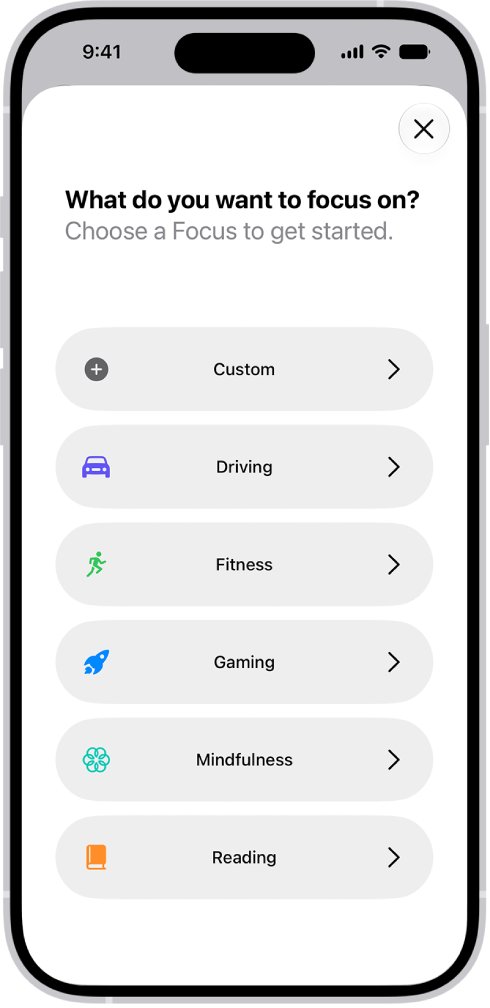
| Siri | Ask Siri to turn on the Work Focus | Starting a Focus hands-free |
| Messages sounds | Settings > Notifications > Messages > Sounds > None | Stopping message tones and the sent-message swoosh |
Customize notifications instead of turning them off
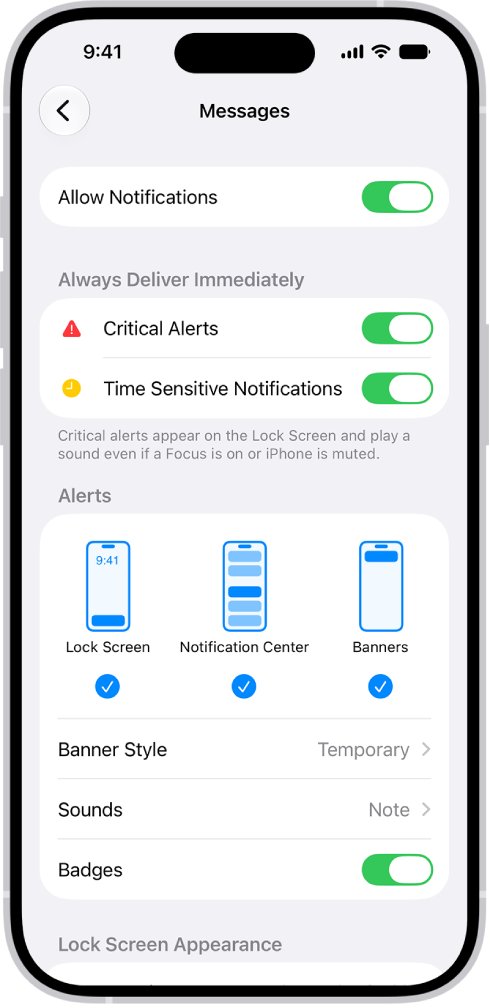
You can keep an app's alerts and only change where they appear. That suits apps you check often but do not want lighting up the Lock Screen.
- Go to Settings > Notifications, then tap an app below Notification Style.
- Under Alerts, choose Lock Screen, Notification Center, Banners or any mix of them.
- If the app supports it, tap Sounds and select a quieter sound.
- Turn Badges on or off.
- Under Notification Delivery, choose Immediate Delivery or Scheduled Summary.
- Tap Customize Notifications, if shown, to choose which types of alert the app may send.
To hide message text from people nearby, tap Show Previews and choose When Unlocked or Never. Previews stay hidden on a locked screen, while the alert still arrives.
Tips for silencing notifications on iPhone
A few small settings make silencing easier to live with and easier to undo. Each one below applies to current iOS.
| Tip | Why it helps |
|---|---|
| Set an end point on Do Not Disturb, such as For 1 hour | The quick route ends on its own, so you do not stay silenced by accident |
| Use a Scheduled Summary for busy apps | Alerts arrive in a batch at the times you choose |
| Mute before you turn off | A mute lasts an hour or a day, so you are less likely to miss alerts for good |
| Create a custom Focus for a repeat activity | Settings > Focus > Add lets you name one and pick its allowed people and apps |
| Pinch the Lock Screen notification list | It switches between list, stack and count views for a less busy screen |
| Leave government alerts as they are | AMBER, Public Safety and Emergency Alerts are on by default in the US |
Tips I use to stay quiet without missing anything important
A Focus does not have to be all or nothing. These settings let urgent calls and chosen people through while everything else stays silent.
| Setting | Where to find it | What it lets through |
|---|---|---|
| Allow Notifications From | Settings > Focus > a Focus > People or Apps | Only the people or apps you add |
| Time Sensitive Notifications | Settings > Focus > a Focus > Apps | Time-sensitive alerts from all apps, immediately |
| Allow Calls From Silenced People | Settings > Focus > a Focus > People > Silence Notifications From | Calls from people you silenced |
| Repeated calls | Settings > Focus > a Focus > People > Allow Notifications From | A second call from one person within 3 minutes |
| Emergency Bypass | Contacts > a contact > Edit > Ringtone or Text Tone | Sounds and vibrations from that contact, even when silenced |
| Show silenced notifications on the Lock Screen | Settings > Focus > a Focus > Options | A view of what arrived, without an interruption |
How to turn off silence notifications on iPhone
A notifications silenced label means a Focus is on, or one app or conversation is set to stay quiet. Work down this list until alerts return.
- Open Control Center, tap Focus, and tap the Focus that is on to turn it off.
- Go to Settings > Focus, tap each Focus, and remove any schedule you no longer want.
- Go to Settings > Notifications, tap the app, and turn on Allow Notifications.
- In Messages, tap the conversation, tap the contact or icon at the top, and turn off Hide Alerts.
- Turn off Silent mode in Control Center or with your iPhone's Action button or Ring/Silent switch.
- To stop showing your status in Messages, go to Settings > Focus > Focus Status and turn off Share Focus Status.
Still getting notifications? Try this
Alerts still arrive with Do Not Disturb on
The Focus allows those people or apps, or lets time-sensitive alerts through.
- Go to Settings > Focus and tap the Focus.
- Tap People and Apps, and check who is under Allow Notifications From.
- Remove anyone or any app you do not want to hear from.
- On the Apps screen, turn off Time Sensitive Notifications.
iPhone still vibrates in Silent mode
Silent mode stops sounds, but iPhone may still vibrate.
- Use Do Not Disturb when you need alerts fully silent.
- For Messages, go to Settings > Notifications > Messages > Sounds.
- Tap Haptics and select None.
A silenced app shows up again after a Focus ends
A Focus or a mute ends on its schedule, and the app's normal settings then apply.
- Go to Settings > Notifications and tap the app.
- Turn off Allow Notifications if you never want its alerts.
- Or schedule the Focus to run longer through Add Schedule.
An emergency alert still sounds
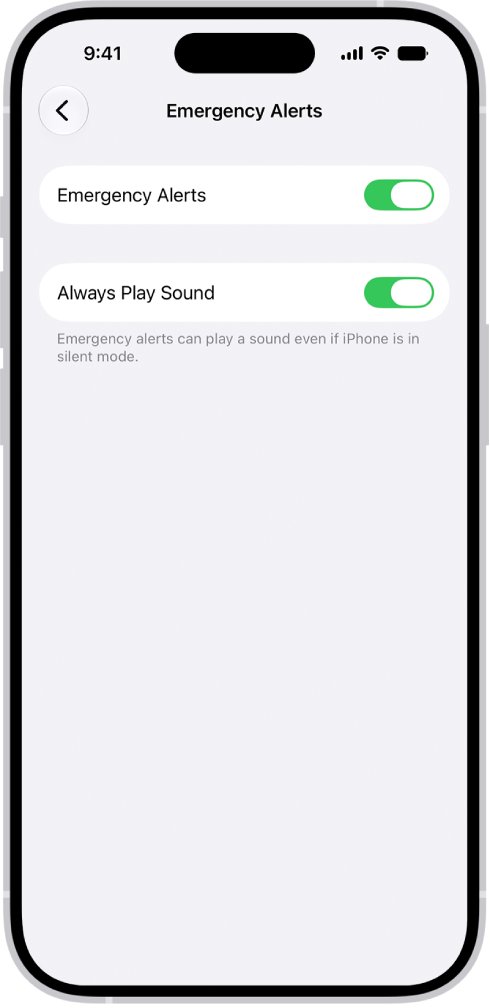
Government alerts have their own settings, and Emergency Alerts can be set to play even in Silent mode.
- Go to Settings > Notifications and scroll to Government Alerts.
- Tap Emergency Alerts and review Always Play Sound.
- Keep the alerts you want for safety, since they are on by default in the US.
If your problem is the opposite, you can fix iPhone notifications not popping up with a separate set of checks, and you can also remove a persistent weather alert that keeps returning.
iPhone silence notifications FAQ
How do I silence notifications on iPhone 13, 14, 15 or 16?
Open Control Center, tap Focus, and turn on Do Not Disturb. The steps are the same on iPhone 11 through iPhone 17 on current iOS. Only Silent mode differs by model, using either an Action button or a Ring/Silent switch.
How do I temporarily silence notifications on iPhone?
Turn on Do Not Disturb, tap the More button beside it, and choose an end point such as For 1 hour. For one app, swipe left on its notification, tap Options, and mute it for an hour or a day.
How do I silence all notifications on iPhone?
Turn on Do Not Disturb from Control Center. It silences notifications from apps and people you have not allowed. Check Settings > Focus > Do Not Disturb to see who is allowed through, since those exceptions still reach you.
How do I silence notifications on iPhone at night?
Go to Settings > Focus, tap Do Not Disturb, and tap Add Schedule to set start and end times. A Sleep Focus works too, and it follows the sleep schedule set in the Health app.
Can I silence notifications from one person on iPhone?
Yes. In Messages, swipe left on the conversation and tap the Hide Alerts button. To silence that person across a Focus, go to Settings > Focus, tap a Focus, tap People, and add them under Silence Notifications From.
Why does my iPhone say notifications silenced?
A Focus is on and Share Focus Status is on, so Messages shows your status to people who text you. Turn off the Focus in Control Center, or turn off Share Focus Status under Settings > Focus > Focus Status.
Why do people silence notifications on iPhone?
People use it to avoid interruptions during work, meetings or sleep. A Focus can allow only chosen people and apps, and the silenced alerts can still be read later, so nothing important has to be lost.
Will I still see silenced notifications later?
Yes. Muted app alerts go straight to Notification Center, where you can read them later. To open it, swipe up from the middle of the Lock Screen, or swipe down from the top-left corner on other screens.
How do I turn off silence notifications on iPhone?
Open Control Center, tap Focus, and tap the Focus that is on. If alerts still stay quiet, check Allow Notifications for that app in Settings > Notifications, and Hide Alerts for that conversation in Messages.
Does Silent mode silence notifications on iPhone?
It silences alert sounds and ringing, but banners still appear and iPhone may still vibrate. Clock alarms, audio apps such as Music and many games also keep playing through the speaker while Silent mode is on.