Reseat the dock's USB-C cable, press Windows logo key + P and select Extend, then select Detect under Settings > System > Display > Multiple displays to make Windows find monitors on a USB-C dock.
If the monitors stay dark, the cause is usually the PC's USB-C port, the cable, the dock's power or a driver, and each one has its own test below.
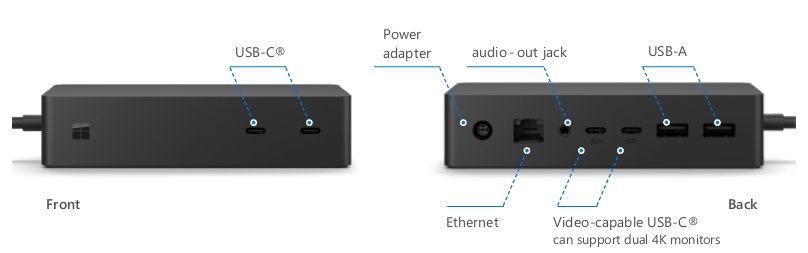
Troubleshoot USB-C dock not detecting monitors in Windows 10/11: step-by-step
Start with these steps because they change nothing permanent. They work the same way in Windows 11 and Windows 10.
- Turn on each monitor and set its input to the port the dock uses, such as USB-C, DisplayPort or HDMI.
- Unplug the dock's USB-C cable from the PC and push it back in firmly.
- Press Windows logo key + P and select Extend.
- Open Settings, go to System > Display, expand Multiple displays and select Detect.
- Press Windows logo key + Ctrl + Shift + B to reset the graphics driver.
- Select Start > Power > Restart if the monitors are still missing.
If a monitor still does not appear, the next job is finding which link has failed: the port, the cable, the dock or the monitor.
USB-C vs Thunderbolt vs DisplayLink dock for external monitors
Docks that look identical can send video in different ways. Match your dock to a row, because each type needs something different from the PC.
| Dock type | What the PC must have | What carries the video | Why monitors go undetected |
|---|---|---|---|
| USB-C dock using DisplayPort Alternate Mode | A USB-C port that supports DisplayPort Alternate Mode | The PC's integrated graphics, such as Intel Iris Xe or AMD Radeon | The port only handles data or charging, or the cable lacks the feature |
| Thunderbolt dock | A Thunderbolt-capable USB-C port | The PC's integrated graphics | The dock is plugged into a standard data-only USB-C port |
| DisplayLink dock, such as the Dell D3100 or D6000 | A USB connection and the DisplayLink driver | DisplayLink USB graphics, which do not depend on specific graphics hardware | The driver is missing or out of date |
| Surface Dock 2 | A supported Surface device | The Surface's graphics through Surface Connect | Non-Surface PCs are not supported hosts |
Prerequisites
Gather these items first, so a bad cable or weak charger does not send you chasing a driver problem.
| Item | Why it matters |
|---|---|
| The dock's own power adapter | Dell's dock troubleshooting starts by checking that you are using the original adapter. |
| The USB-C cable supplied with the dock | Not all USB-C cables support every feature, so a charging cable can leave the monitors dark. |
| A second video cable that you know works | Swapping the cable rules out a damaged or underspecified video cable. |
| One monitor to test with | Testing one screen at a time removes the dock's multi-monitor limits from the picture. |
| The PC and dock model numbers | The PC's specifications confirm which USB-C port carries video, and the dock's user guide lists its display limits. |
| Current Windows updates | Microsoft lists Settings > Windows Update as the first check for an external monitor problem. |

Step-by-step instructions
Work in this order to isolate the failing part. Stop as soon as a monitor appears, then add things back one at a time.
- Disconnect every accessory, dongle and adapter from the dock, because Microsoft notes these can cause conflicts.
- Connect the dock's power adapter, then plug the dock's cable directly into the PC's video-capable USB-C port, with no hub in between.
- Connect one monitor to the dock with your known-good video cable and select Detect again.
- Move the video cable to another video port on the dock if the monitor stays dark.
- Connect the same monitor directly to a video port on the PC, or test it on another PC.
- Plug the dock's cable into a different USB-C port on the PC, if there is one.
- Save your work, disconnect the dock, restart the PC, and reconnect the dock after the desktop appears.
- Add the other monitors and accessories one at a time, checking the display after each.
A monitor that works directly but not through the dock points to the dock, its cable or the PC's USB-C port. A monitor that stays dark when plugged directly into the PC needs the wider second monitor detection fixes.
How to reset a USB-C docking station
A power cycle clears a dock that has stopped responding. Dock makers give slightly different timings, so use the longer wait when the dock's manual gives no figure.
- Unplug the dock's USB-C cable from the PC.
- Unplug the dock's power cable and pull its power supply from the wall outlet.
- Wait at least 10 seconds. Microsoft asks for 5 seconds on a Surface Dock, and Dell asks for 10 on its docks.
- On a Dell dock that still fails, keep the power disconnected and hold the power button for at least 30 seconds.
- Reconnect the power, then reconnect the dock to the PC after the desktop appears.
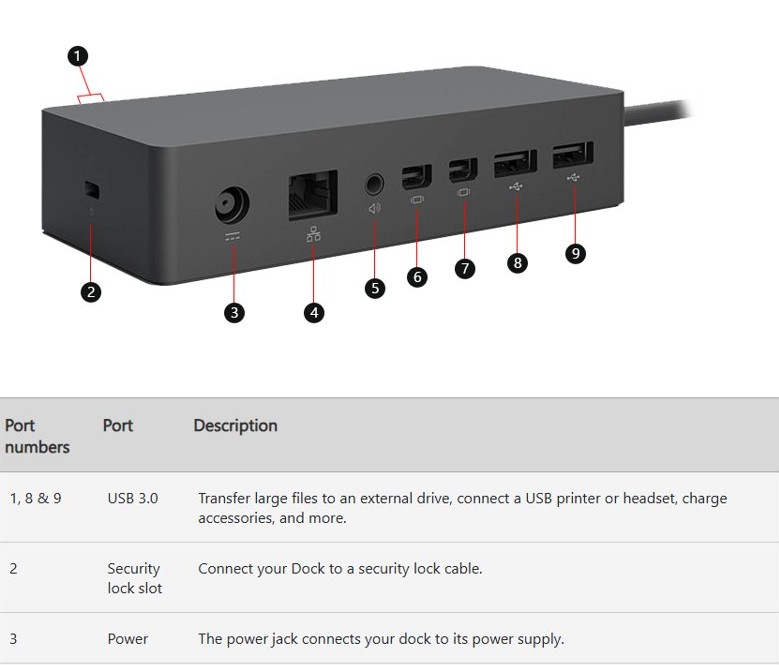
USB-C port charging but not displaying
A USB-C port can charge a laptop without carrying any video. Not all USB-C ports support video, and Windows has no setting that turns it on.
Alternate Mode works automatically only when the PC hardware, PC software, dock and cable all support it.
- Look beside each USB-C port for a display icon or a DP label.
- Confirm in the PC's specifications that the port supports DisplayPort Alternate Mode or Thunderbolt.
- Move the dock's cable to the port that supports video.
- Replace the cable with the one supplied by the dock maker, or with a cable rated for the same features.
- Remove any hub between the dock and the PC, then select Detect again.
If no port on the PC carries video, a USB-C Alternate Mode dock cannot drive a monitor from it. A DisplayLink dock does not depend on specific graphics hardware, so it is the type to consider for that PC.
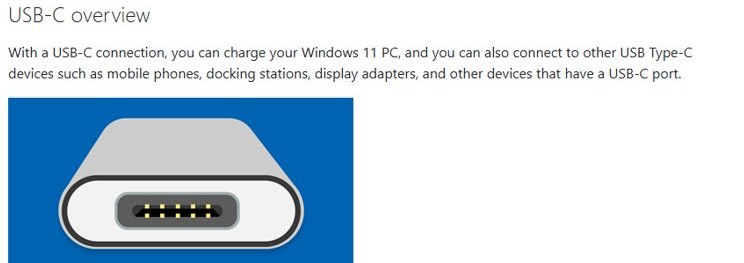
Display connection might be limited on a USB-C dock
Windows raises these notifications when it spots a USB-C mismatch. Microsoft gives one cause and fix for each message.
"Display connection might be limited"
The PC, cable or display lacks DisplayPort or MHL Alternate Mode, the dock is on the wrong port, or too many USB-C devices are connected.
- Confirm that the PC, display and cable all support DisplayPort Alternate Mode.
- Connect the adapter or dock directly to the PC.
- Use the USB-C port that supports DisplayPort Alternate Mode.
- Unplug other USB-C devices and test again.
"Thunderbolt device functionality might be limited"
The PC or cable does not support the dock's features, the port is wrong, or too many Alternate Mode devices are connected.
- Connect the dock directly to a Thunderbolt-capable USB-C port.
- Make sure the PC and cable support the same features as the dock.
- Remove any hub in the path and test again.
"Use different USB port"
The current port does not support DisplayPort or Thunderbolt, or a hub sits in the path.
- Move the dock to another USB-C port on the PC.
- Connect it directly, and pick a Thunderbolt port for a Thunderbolt dock.
"USB device might need more power"
The PC is on low battery, is powering other devices, or cannot supply what the device asks for.
- Connect the dock's own power supply.
- Plug the PC into wall power.
- Unplug unused USB devices.
"USB device not recognized"
The dock reported a problem or its driver is faulty.
- Open Device Manager and note the error code on the device.
- Look up that code in Microsoft's Error codes in Device Manager in Windows article, apply its fix, then reconnect the dock.
Thunderbolt dock not detecting monitors in Windows 11
Thunderbolt and USB-C docks have two extra failure modes on some PCs. Both are about how the PC treats the dock, not about the monitors.
Dock has a yellow exclamation mark in Device Manager
Dell traces this on managed PCs to a custom Windows image with a group policy that blocks Thunderbolt and USB-C devices.
- Open Device Manager and find the entry with the yellow mark.
- Ask your IT administrator to review the policy, because a domain PC needs the change made centrally.
Dock stays off until you sign in
Dell describes this as working as designed when Kernel DMA Protection is on, because the dock does not initialize before Windows boots.
- Sign in to Windows.
- Check the monitors again once the desktop appears.
How to install DisplayLink drivers for a USB-C dock on Windows 11/10
DisplayLink is Synaptics' USB display technology, and Windows PCs need its driver to use it. Dell's D3100 and D6000 are examples of docks built on it.
- Check the dock maker's support site first, because it may publish its own version of the software.
- If it does not, open the DisplayLink downloads page for Windows.
- Choose the newest release. Release 12.3, dated September 4, 2026, lists Windows 11 and Windows 10.
- Run the installer and follow its prompts.
- Reconnect the dock and select Detect in Settings > System > Display.
- Install DisplayLink Manager from the Microsoft Store if you want its display and audio settings.
Windows 10 S gets the driver through Windows Update or the PC maker's preinstalled software, not through the normal installer.
How to update USB-C dock firmware
Dell lists firmware and driver updates among its dock checks, and the route depends on the brand. Keep the dock connected to the PC during the update, so the tool can find it.
| Dock | Where the firmware update comes from | What to do after |
|---|---|---|
| Surface Dock 2 | Windows Update, or the Surface Dock 2 firmware package from Microsoft | Nothing, because Windows Update installs it silently |
| Dell USB-C or Thunderbolt dock | Dell Dock Firmware Update Utility on Dell Drivers & Downloads, found by Service Tag, Express Service Code or model number | Power cycle the dock |
| Dell PC with SupportAssist or Dell Command | Update | SupportAssist on all models, or Dell Command | Update on Precision, XPS and Latitude | Keep the BIOS current as well |
| Any other brand | The firmware tool listed on the dock maker's support page for your model | Follow the maker's instructions |
USB-C dock monitors stopped working after a Windows update
USB-C and Thunderbolt docks route video through the PC's integrated graphics. That makes the integrated graphics driver the one to roll back when a working setup breaks after an update.
- Search the taskbar for device manager and open it.
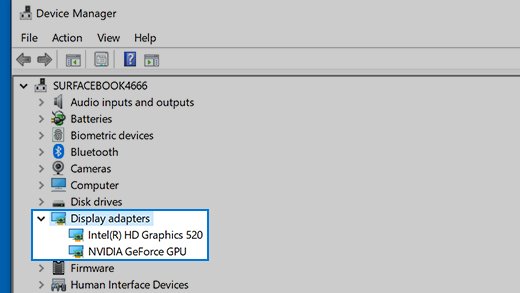
- Expand Display adapters, right-click the integrated graphics adapter and select Properties.
- Open the Driver tab and select Roll Back Driver, if it is available.
- If rollback is unavailable or does not help, right-click the adapter and select Uninstall device.
- Check Attempt to remove the driver for this device, select Uninstall and restart when prompted.
- Open Device Manager again, right-click the adapter and select Update driver.
- Select Search automatically for updated driver software and finish the installation.
- Reconnect the dock and select Detect in Settings > System > Display.
Keep these steps handy on your phone before you start, because you need them again after the restart. On Windows 11 26H2, USB drives that stop appearing have separate fixes if the dock's USB ports fail too.
How many monitors can a USB-C dock support?
A dock that shows one monitor but not the second may simply be at its limit. Dell says the count depends on the dock model, the laptop's graphics and each display's resolution.
| Dock | Published monitor support | Host limit |
|---|---|---|
| Surface Dock 2 | 2 x 4K at 60 Hz, or 1 x 4K at 120 Hz | Newer Surface models such as Surface Laptop 3 and later, and Surface Pro 7 and later |
| Surface Dock 2 on older Surface models | 2 x 4K at 30 Hz | Surface Pro 6, Surface Pro (5th Gen), Surface Laptop 2, Surface Laptop (1st Gen), Surface Go, Surface Go 2, Surface Go 3 and Surface Book 2 |
| Surface Dock | 2 x 4K at 30 Hz, or 1 x 4K at 60 Hz | Surface devices |
| Surface USB-C Travel Hub | 1 x 4K at 60 Hz | Surface devices |
| Dell and other docks | Listed in each dock's user guide | Also limited by the PC's graphics and the display resolution |
A display splitter does not add a second extended desktop, because it only duplicates one signal. Your graphics adapter may also limit how many monitors you can run, so check with its maker.
How to tell if Windows sees a monitor through the dock
A dark screen does not always mean Windows has missed the monitor. Check what Windows reports before you replace any hardware.
- Open Settings and go to System > Display.
- Select Identify. In Windows 10, it sits under Rearrange your displays.
- Match the number on each screen to the layout in Settings.
- Drag the screens into the right order and select Apply.
- Open Advanced display in Windows 11 to read the resolution and refresh rate of each monitor.
A numbered monitor that stays black means Windows sees it, so check the monitor's input and the display mode next. A monitor with no number in Settings has not been detected at all.
How to use a USB-C dock with the laptop lid closed
Monitors can go dark the moment you close the lid, because the default action is sleep. That looks like a detection failure, but it is a power setting.
- Open Control Panel and go to Hardware and Sound > Power Options.
- Select Choose what closing a lid does.
- Set When I close the lid to Do nothing for both On battery and Plugged in.
- Save the change.
- To turn off the laptop screen with the lid open, select it in Settings > System > Display and choose Disconnect this display.
Tips and troubleshooting notes
| If you see this | Try this |
|---|---|
| The monitor has its own port version setting | Open the monitor's on-screen menu and change the DisplayPort version setting, then test again. |
| The monitor still ignores the dock | Unplug the monitor from the outlet, plug it back in, and select Detect. |
| You are daisy-chaining two DisplayPort monitors | Set both monitors to DisplayPort 1.2, which some menus call Multi-Stream Transport (MST). |
| Your PC has two graphics adapters | Switch the default adapter using the method in the PC maker's documentation. |
| A USB-C adapter stops responding | Remove it and restart the PC, because adapters have no reset switch or status light. |
| The dock worked yesterday and nothing has changed | Run Windows logo key + Ctrl + Shift + B, then use Start > Power > Shut Down, not just Restart. |
| You have tried everything on this page | Report the bug in Feedback Hub with the exact steps, and contact the dock maker about a replacement. |
USB-C dock not detecting monitors FAQ
Why is my docking station not detecting my monitors?
The usual causes are a USB-C port that does not carry video, a cable without the right features, a dock without power, a missing DisplayLink driver, or a graphics driver fault. Test one monitor on one cable to find which part has failed.
Does every USB-C port support video output?
No. Not all USB-C ports support video, and some only handle data or charging. Look for a display icon or a DP label beside the port, and confirm DisplayPort Alternate Mode or Thunderbolt support in the PC's specifications.
Can a USB-C hub stop a dock from detecting monitors?
Yes. Microsoft lists a hub or dock in the path as a cause of the limited display notification. Connect the dock directly to the PC, and unplug other USB-C devices, to see whether the monitors come back.
Do USB-C docks need drivers in Windows?
It depends on the type. USB-C and Thunderbolt docks send video through the PC's integrated graphics, so that driver matters most. DisplayLink docks need the DisplayLink driver from the dock maker or from the Synaptics download page.
Why does only one monitor work on my USB-C dock?
The dock, the PC's graphics or the resolution may have reached its limit. Dell says the monitor count depends on all three. Test each monitor alone, then check the dock's user guide for its supported number of displays.
Can I use a Surface Dock 2 with a non-Surface laptop?
No. Microsoft states that Surface Dock 2 has no support for non-Surface host devices. It requires Windows 10 version 1809 or later on a supported Surface, and it connects through Surface Connect, not a standard USB-C laptop port.
Can a USB-C dock run monitors with the laptop lid closed?
Yes, after you change the lid action. Open Control Panel, go to Power Options, select Choose what closing a lid does, and set When I close the lid to Do nothing. The default action puts the laptop to sleep.
Why does my monitor stay blank even though Windows detects it?
The monitor may be set to the wrong input, or Windows may be in the wrong display mode. Set the input to the port the dock uses, press Windows logo key + P, select Extend, and test a different video cable.