Open Apps & Purchase History in the App Store and look for the app under Your Apps: if it is listed, the signed-in Apple ID got it, and if it is not, check your other Apple IDs the same way.
Apple ID is now called Apple Account, and the same sign-in still works. The steps below cover iPhone, iPad, Mac and the web, plus old receipts, forgotten accounts and moving apps to your current Apple ID.
How to see which Apple ID purchased an app on iPhone
Purchases belong to an account, not to a device, so you test one Apple ID at a time. The iPad steps are the same.
- Open the App Store and tap the My Account button or your photo at the top of the screen.
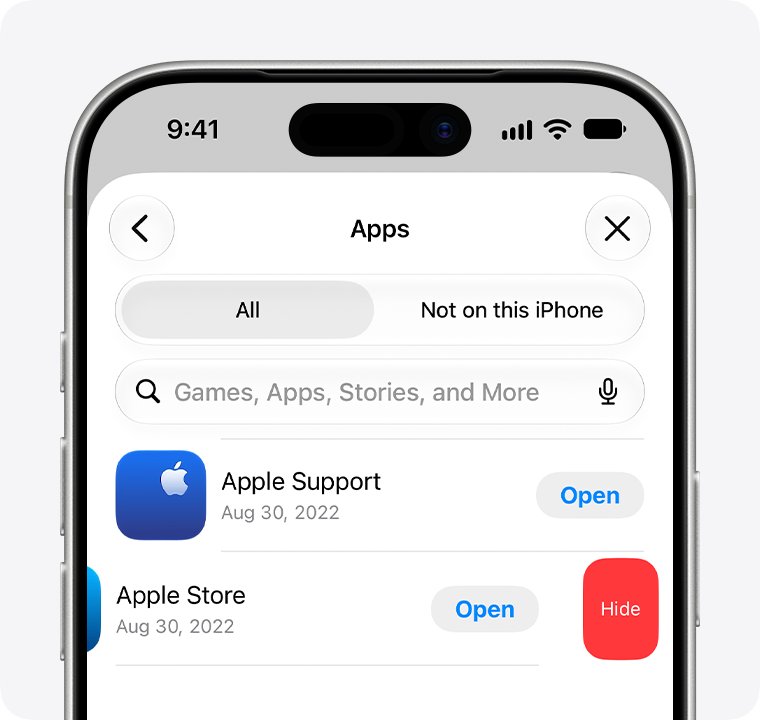
- Tap Apps & Purchase History, then tap Your Apps. If you use Family Sharing, tap My Apps to see only your own.
- Look for the app, and tap Not on this iPhone if it is no longer installed. An app in this list was downloaded with the signed-in Apple ID.
- If the app isn't listed, go back to the account page, tap your name, then tap Hidden Purchases and look there.
- If it still isn't listed, repeat the check with your next Apple ID. The web route further down lets you do that without changing anything on the iPhone.
Check every Apple ID you have used before you delete an app, because the result decides whether you need to pay for it again.
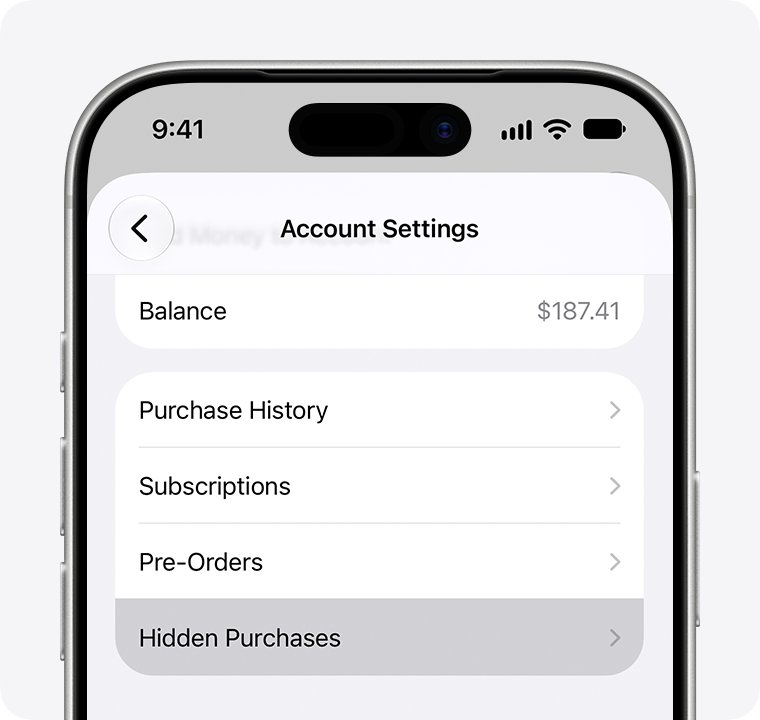
Where to look up the Apple ID that bought an app
| Your situation | Look here | What it tells you |
|---|---|---|
| You have the iPhone or iPad in your hand | App Store > your photo > Apps & Purchase History > Your Apps | Whether the signed-in Apple ID downloaded the app |
| You know several Apple IDs and their passwords | reportaproblem.apple.com, signing in with each one | The purchases charged to each account, with no change to your device |
| You paid for the app and still have old email | Search your inbox for "receipt from Apple" or "invoice from Apple" | The Apple ID shown on that receipt |
| The iPhone asks for a password during a restore | Read the sign-in prompt | Content from another Apple ID needs that account's password |
| The app might be a family member's | Your Apps, then tap the family member's name | Whether the app came from their purchases |
| You no longer remember the old Apple ID | Sign-In & Security, old Apple emails, or family settings | The email address or phone number to test |
Check Apple ID purchase history at reportaproblem.apple.com
This route suits anyone with several old accounts, because a browser sign-in doesn't touch the Apple ID on your iPhone. It also works on a Windows PC.
- Open a web browser and go to reportaproblem.apple.com.
- Sign in with the first Apple ID you want to test.
- Look through the list for the app. If you know the amount you paid but not the item, search for the amount.
- Sign out, then sign in with your next Apple ID and repeat.
The App Store route shows more detail. Under Purchase History, tap Last 90 Days, Paid to change the date range and cost, so free apps and older purchases appear too. You can also view all your Apple ID purchases on Mac and Windows.
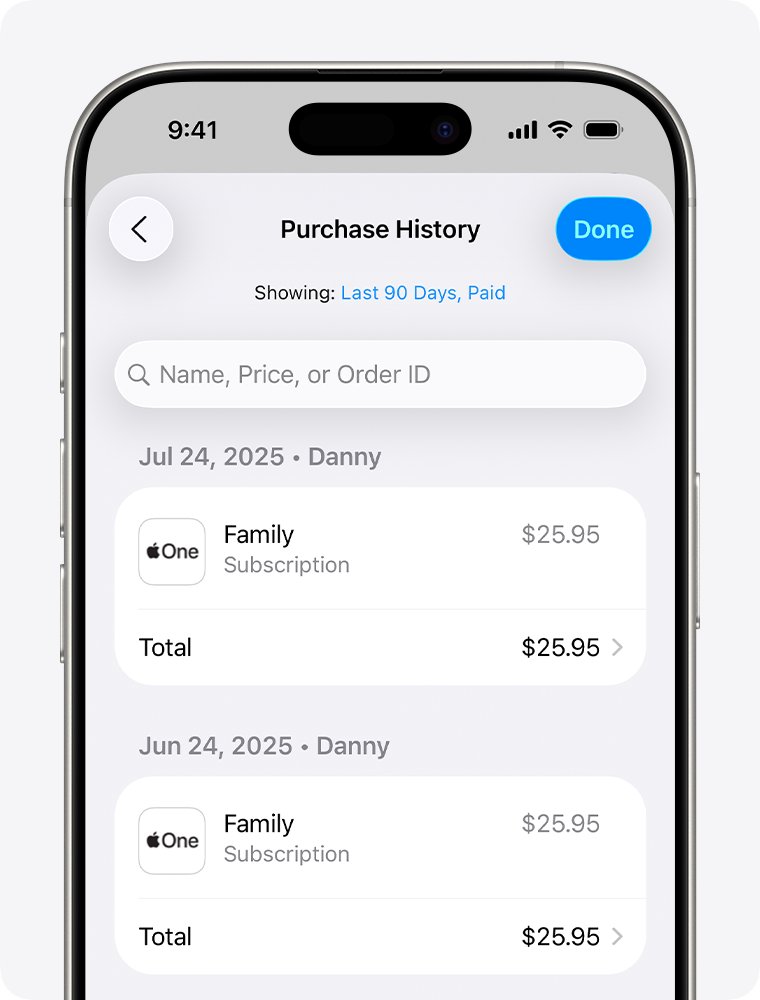
Find the Apple ID on an App Store receipt email
Apple's receipts are the most direct record for something you paid for, because the receipt itself shows the account.
- Open each email account you have used with Apple.
- Search for the words receipt from Apple or invoice from Apple.
- Add the app's name to the search if the results are long.
- Open the receipt and check which Apple ID it shows.
- Also search for repair, support or billing emails from Apple, because they can include your primary email address.
A masked address such as j*@icloud.com is still useful, but the number of asterisks might not match the number of characters in the address.
See which Apple ID an iPhone uses for App Store purchases
An iPhone can use one account for iCloud and another for purchases, which is why iCloud and your Apple ID can differ. Switch the purchase account here to test a second Apple ID on the device.
- Open Settings and tap your name. A different Apple ID appears under Media & Purchases if another account is signed in for purchases.
- To test another account, tap Media & Purchases, then tap Sign Out.
- Tap Media & Purchases again and choose Not [your name]?.
- Sign in with the other Apple ID.
- Open the App Store, tap your photo, tap Apps & Purchase History, then tap Your Apps and look for the app.
Sign back in with your usual Apple ID when you finish. Your iCloud account stays as it was throughout.
Don't buy or download anything during the test. A purchase associates the device with that account, and a later switch can bring a wait of up to 90 days.
Check which Apple ID bought an app on Mac
The Mac App Store tracks updates for apps bought with the signed-in Apple ID, and its purchase list works the same way as the iPhone's.
- Open the App Store and check the name at the bottom of the sidebar. That is the signed-in account.
- Click your name, click Apps & Purchase History, then click Your Apps.
- Look for the app in the list.
- If it is missing, go back to the account page, click your name or Apple Account, then click Hidden Purchases.
- To test another account, choose Store > Sign Out, click Sign In at the bottom-left of the window, and sign in with that Apple ID.
An app you didn't get from the App Store won't appear in any of these lists. Contact its developer for help with updates.
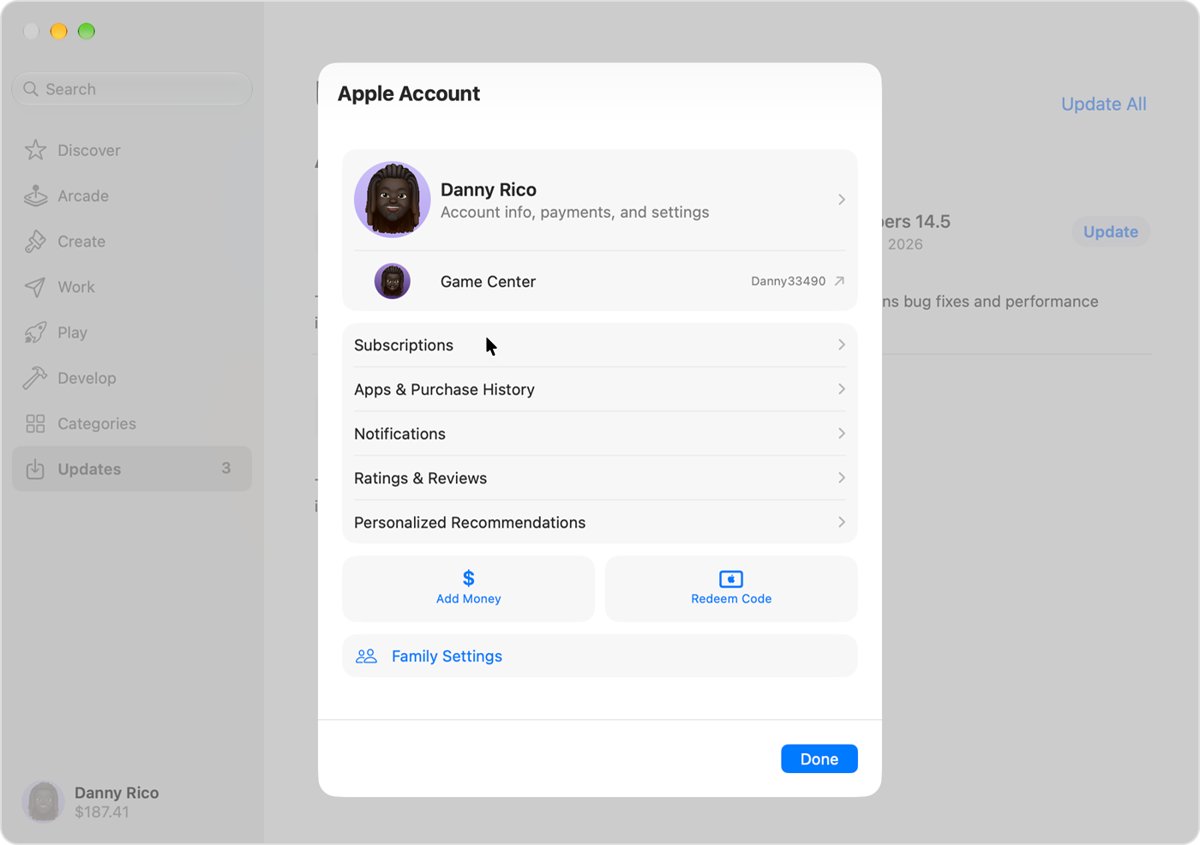
Check if a family member's Apple ID purchased the app
With Family Sharing, an app on your device can come from someone else's purchases. You can also find purchases made by family members from other Apple apps.
- Open the App Store and tap the My Account button or your photo.
- Tap Apps & Purchase History, then tap Your Apps.
- Tap a family member's name to see the apps they have shared.
- If you are the family organizer, tap Purchase History, tap Last 90 Days, Paid, then set the Family member filter.
A family member who hides an app also stops sharing it, so ask them directly if you can't find it in the list.
How to find an old Apple ID you forgot
You can't test an account you can't name. Any email address or phone number on file works for sign-in, so start with the addresses you have used for Apple services.
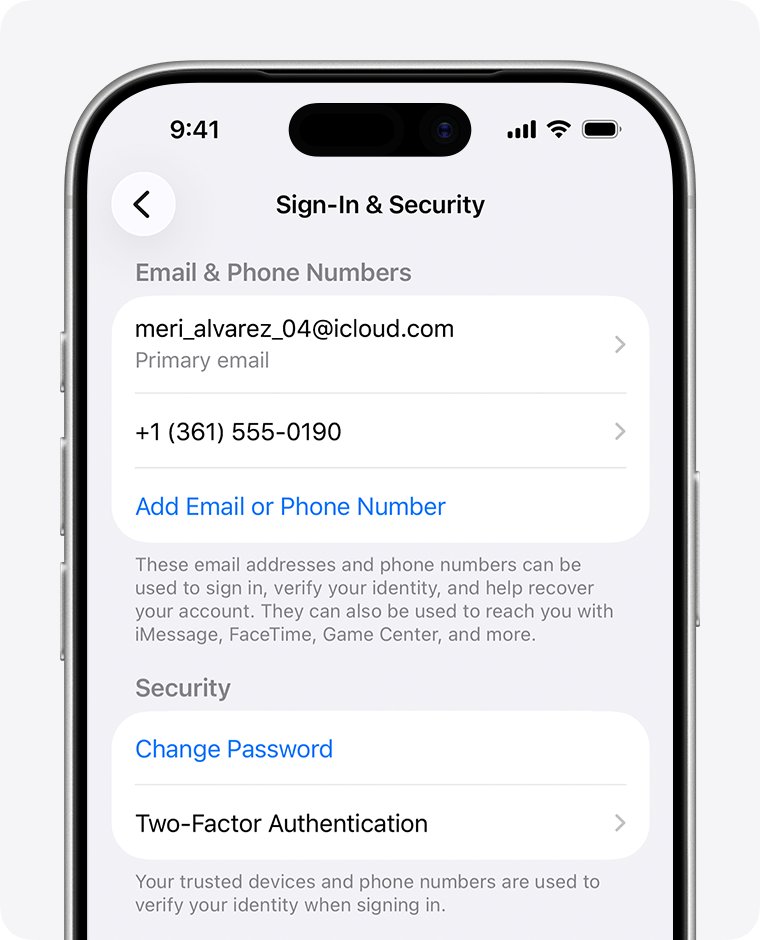
- On a signed-in iPhone or iPad, open Settings, tap your name, then tap Sign-In & Security to see the emails and phone numbers on that account.
- On a Mac, choose Apple menu > System Settings, click your name, then click Sign-In & Security.
- On a Windows PC, open iCloud for Windows and read the address under your name.
- Check whether the App Store, FaceTime or Messages on any older Apple device is still signed in with another account.
- Go to account.apple.com and see whether the sign-in screen remembers an address.
- If you are in a Family Sharing group, ask a family member to check their Family Sharing settings for your account.
Once you have the address, you can reset the Apple Account password with Forgot password? on the sign-in screen, then test that account.
Why an app is missing from Apple ID purchase history
A missing entry doesn't always mean another Apple ID bought the app. Rule these out first.
| Reason | How to check | What to do |
|---|---|---|
| It was bought with a different Apple ID | Sign in to the other account and look at its purchase history | Use that account to redownload or update the app |
| The app is hidden | Account page > your name > Hidden Purchases | Tap Unhide, then redownload the app from the App Store |
| It doesn't run on this device | Check the list on the device type it was bought for, such as a Mac | A Mac app can be missing on iPhone or Apple Watch |
| A family member bought it | Your Apps > the family member's name | Download it from their shared purchases |
| It is an Apple Arcade game | Arcade games don't appear in purchases | Search for the game in the App Store and download it again |
| It is no longer in the App Store | Your Apps only offers apps that are still available | A past purchase might not be available to redownload |
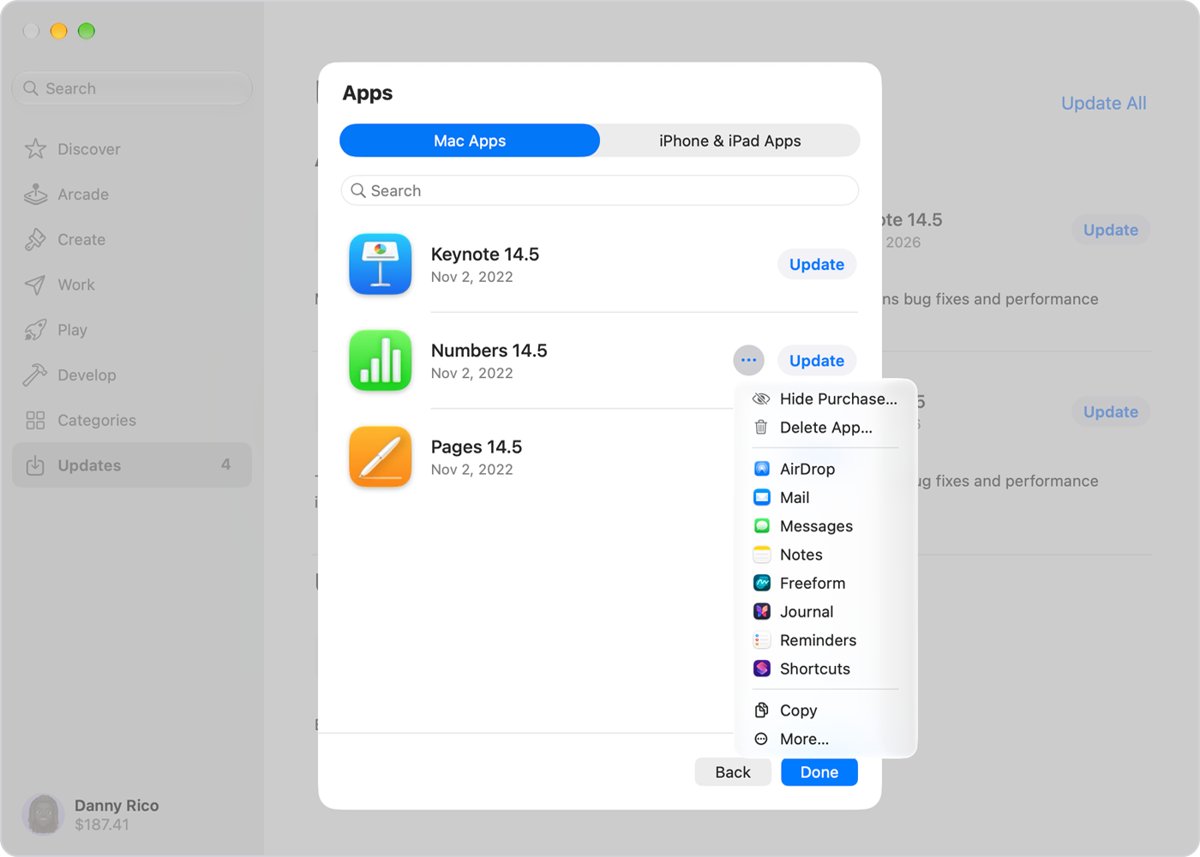
Why the App Store asks for another Apple ID password
The prompt is a clue to who owns the app. The App Store tracks updates for apps purchased with your Apple ID, and restored content needs the account that bought it. You can fix a wrong Apple ID in App Store updates by deleting and redownloading the apps.
| When it appears | What it means | What to do |
|---|---|---|
| During an iCloud Backup restore | The backup holds content bought with more than one Apple ID | Enter the password for each Apple ID when prompted |
| While a restore or redownload is waiting on an app | The App Store needs a password before it can restore purchased content | Read the prompt; an address shown there is the account to note |
| When you recover older content | The purchase belongs to another account | Sign in with the Apple ID associated with that purchase |
How to move apps from an old Apple ID to your current Apple ID
Once you know which account owns the apps, choose a route. Apple's Migrate Purchases tool moves apps, music and other content between two accounts that are both yours.
| Your situation | What to do | What to expect |
|---|---|---|
| Both Apple IDs are yours and you know both passwords | Settings > your name > Media & Purchases > View Account > Migrate Purchases | Purchases move to the primary account, and the old one can no longer be used for Media & Purchases |
| You only want a few free apps under your current Apple ID | Delete each app, then download it again while signed in to your current Apple ID | The app's on-device data is removed with it |
| You want to keep the paid app under your current Apple ID without migrating | Delete the app and buy it again with your current Apple ID | You pay again, because purchases stay with the account that made them |
| The app belongs to someone else's Apple ID | Ask them to enter the password, or download your own copy | You can't move an app out of an account that isn't yours |
Before you migrate, turn on two-factor authentication for both accounts, set both to the same country or region, spend any balance on the old account, and take that account out of any Family Sharing group.
Apple ID purchase history not showing apps or accounts
You can't sign in to the old Apple ID to check it
The password is forgotten, or the old account is locked.
- Select Forgot password? on the sign-in screen and follow the onscreen instructions.
- If you still have a trusted device signed in, change the password there instead.
- If you have no trusted device or recovery details, start account recovery at iforgot.apple.com in Safari on a device with iOS 17 or later, or with the Apple Support app.
"This device is associated with another Apple Account"
The device was linked to a different Apple ID for purchases, and Apple applies a waiting period.
- Read the number of days shown in the message.
- Run the check at reportaproblem.apple.com in a browser instead, which needs no change on the device.
- On the other account, open Settings, tap your name, tap Media & Purchases, scroll down and tap Remove This Device.
- If that doesn't clear it, wait out the period, which can last up to 90 days.
Migrate Purchases doesn't appear in View Account
One of the accounts isn't eligible yet.
- Update the iPhone or iPad to the latest iOS or iPadOS.
- Check that iCloud and Media & Purchases are signed in with two different accounts.
- Remove the old Apple ID from any Family Sharing group and wait for rentals or pre-orders to finish.
- Open TestFlight and select Stop Testing for each app if the old account tests beta apps.
- Check that neither account is a child account and that only one of them holds a music library.
A receipt or charge doesn't match any account you checked
The email might not be from Apple, or the charge might belong to a family member.
- Don't use links in the message. Go to reportaproblem.apple.com directly and sign in.
- Search your purchase history for the amount charged.
- Ask family members whether they bought the item.
Apple ID app purchases FAQ
How do I find out which Apple ID was used to purchase an app?
In the App Store, tap your photo, tap Apps & Purchase History, then tap Your Apps and look for the app. If it isn't listed or under Hidden Purchases, sign in with your next Apple ID at reportaproblem.apple.com and check there.
How do I see all the apps I have ever purchased?
Open the App Store, tap your photo, tap Apps & Purchase History, then tap Purchase History and change the date range. The history includes free and paid apps, in-app purchases, subscriptions, music, videos and books for that one Apple ID.
Do free apps show up in Apple ID purchase history?
Yes. Apple's purchase history includes free and paid App Store apps. Tap Last 90 Days, Paid at the top of the list, then set the cost filter so free downloads appear. Your Apps also lists the apps tied to the account.
Do deleted apps still show under my Apple ID?
Yes, while they are still available in the App Store. Open Apps & Purchase History, tap Your Apps, then tap Not on this iPhone. You can redownload a listed app from there without buying it again.
Can I transfer apps from one Apple ID to another?
Yes, if both accounts are yours and neither is shared. Open Settings, tap your name, tap Media & Purchases, tap View Account, then tap Migrate Purchases. The old account can no longer be used for Media & Purchases after that.
Do I have to buy an app again to use my current Apple ID?
Only if you skip migration and the app is paid. A paid app stays with the Apple ID that bought it, so your current account has to buy it before it can download it. Migrate Purchases moves the app to your current account instead when both accounts are yours.
How can I find my old Apple ID?
Open Sign-In & Security on a signed-in device to see the addresses on that account, check older devices that are still signed in, and search your email for Apple receipts. Any address or phone number on file works for sign-in.
Is Apple ID the same as Apple Account?
Yes. Apple renamed Apple ID to Apple Account, and you still sign in with the same email address or phone number and password. Your purchases stay with the account, so nothing changes in your purchase history.