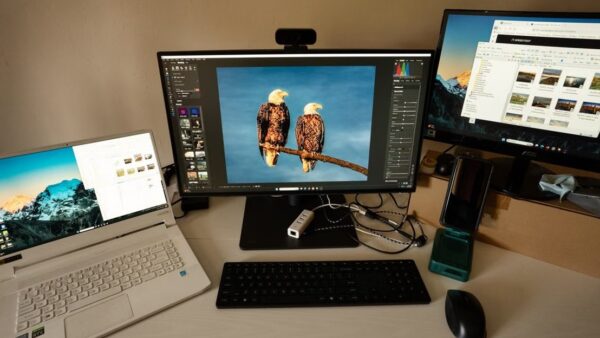
Open a picture in the Microsoft Photos app and start its slideshow from the viewer toolbar to play your photos full screen on Windows 11 or Windows 10.
This guide also covers a slideshow desktop background, the Photos screen saver, and what to do when photos will not show.
View photos as a slideshow on Windows 11/10
The Photos app is the built-in viewer on both versions, and the new app on Windows 11 includes an enhanced slideshow feature.
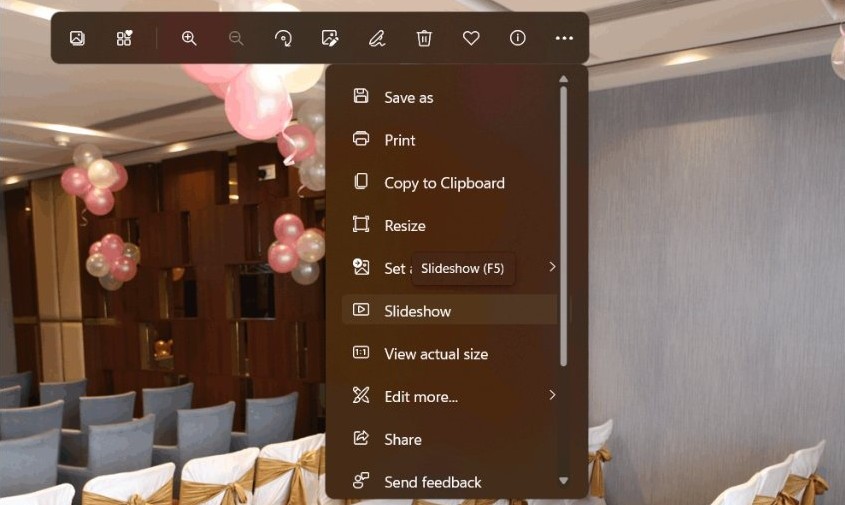
- Open the Photos app from the Start menu.
- Select the folder that holds your pictures in the left sidebar.
- Select the first photo you want in the slideshow to open it in the viewer.
- Select the slideshow button in the toolbar at the top of the viewer.
- Press Esc to end the slideshow and return to the photo.
The slideshow plays the photos in the folder you started from, so put the pictures you want into one folder first.
Ways to view photos as a slideshow on PC
| You want to | Use this | Why |
|---|---|---|
| Watch photos full screen now | Photos app slideshow | Built in, starts from any open photo |
| See photos change behind your windows all day | Desktop background slideshow | Cycles a folder as the wallpaper |
| Show photos when the PC sits idle | Photos screen saver | Starts after a set number of idle minutes |
| Build a slideshow to share or present | Photos Legacy or a PowerPoint photo album | Adds music, titles or slides you can send |
Add a folder to the Photos app for a slideshow
Photos shows the Pictures folder by default. Add any other folder before you start a slideshow from it.
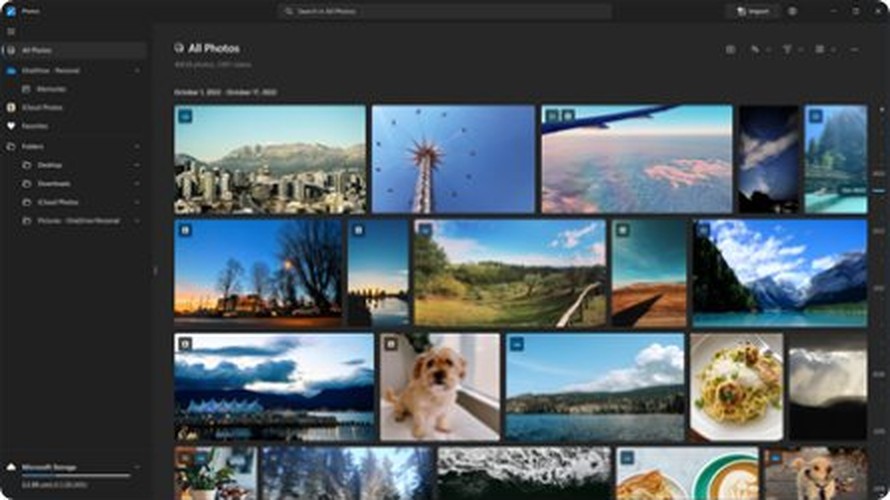
- Open the Photos app.
- Select Gallery in the folders area of the left sidebar.
- Choose the Add folder option.
- Pick the folder with your photos and confirm.
To make a slideshow from a few photos only, right-click an added folder, choose Create a folder, name it and drag those photos into it.
View pictures as a slide show on your desktop
A slideshow background turns a folder of photos into a wallpaper that changes on a timer.
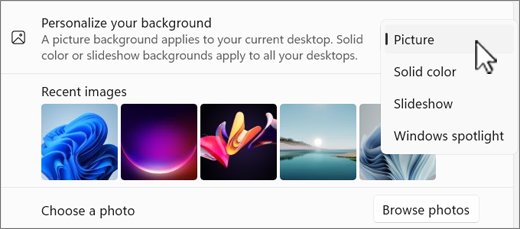
- Right-click an empty area of the desktop and select Personalize.
- Select Background.
- Under Personalize your background, choose Slideshow.
- Select the folder of images to cycle through.
- Set how often the picture changes.
- Turn shuffle on if you want a random order.
To jump to the next picture early, right-click the desktop and select Next desktop background.
Use the Photos screen saver as a slideshow
- Open Settings and go to Personalization > Lock screen.
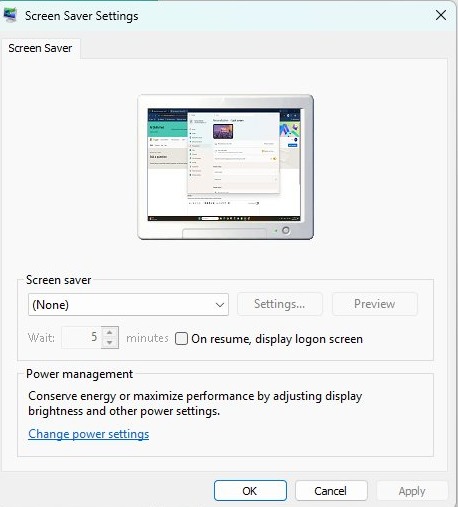
- Under Related settings, select Screen saver.
- In Screen Saver Settings, choose Photos from the list.
- Select Settings… and choose the pictures to show.
- Set Wait to the number of idle minutes before it starts.
- Select OK.
Tick On resume, display logon screen if the PC should ask for your password when you come back.
Use other apps to view slideshows
The new Photos app focuses on viewing. For a slideshow with music or titles, use an app built for creating one.
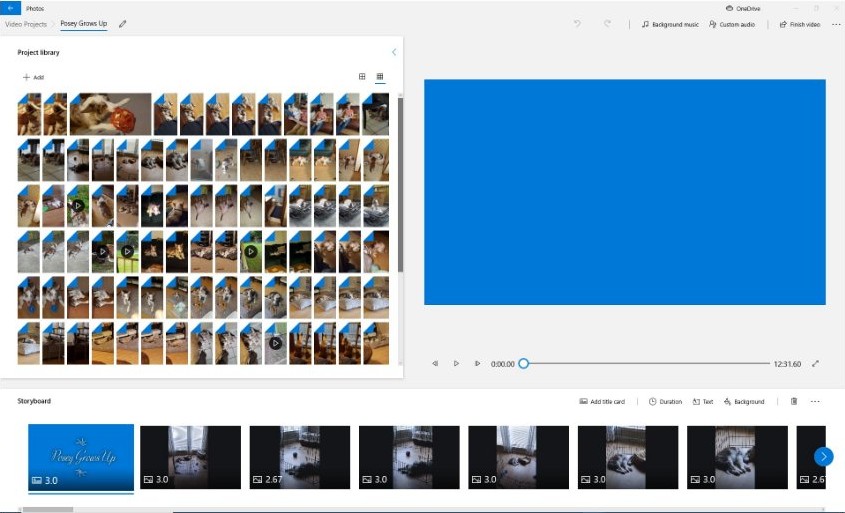
- Install Photos Legacy from the Microsoft Store if you prefer the older app, which includes a slideshow creator.
- Or open PowerPoint and create a photo album from your pictures to present them as slides.
- Play the finished slideshow full screen from that app.
Slideshow playing correctly on Windows 11
- Start the slideshow and confirm the photo fills the screen with no app window around it.
- Wait a few seconds and confirm the next photo appears without input.
- Press Esc and confirm you return to the Photos viewer.
- For a desktop slideshow, wait for the interval you set and confirm the wallpaper changes.
Why can't I view my photos on Windows 11?
Photos are missing from the Photos app
They are in a folder the app is not watching.

- Open Photos and select Gallery.
- Use Add folder to add the folder that holds them.
OneDrive photos outside the Pictures folder do not show
Photos syncs only the OneDrive Pictures library automatically.
- Confirm you are signed in to OneDrive.
- Add the other OneDrive folders to Photos manually with Add folder.
iPhone photos stored in iCloud do not appear
iCloud Photos is not connected to the Photos app.
- On Windows 11, add your iCloud photos to the Photos app so they show beside your local pictures.
- Start the slideshow again from the iCloud folder.
Desktop slideshow shows the same picture
The slideshow folder holds one image or the interval is long.
- Go to Personalization > Background and pick a folder with several images.
- Shorten the change interval, or right-click the desktop and select Next desktop background.
Windows photo slideshow FAQ
How do I view photos as a slideshow on Windows 11?
Open the Photos app, select a folder, open the first photo and start the slideshow from the viewer toolbar. Press Esc to stop. The slideshow runs through the photos in that folder.
How do I view photos as a slideshow on PC with Windows 10?
Use the Photos app the same way: open a photo and start the slideshow from the toolbar. You can also set a slideshow desktop background under Personalization > Background, which works on both Windows 10 and 11.
How do I view photos in Windows 11?
Open the Photos app. It shows the photos in your Pictures folder by default, and you can add other folders from Gallery with Add folder. Scroll, sort or search by name, date, type or location to find a picture.
How do I view iPhone photos on PC?
On Windows 11, add your iCloud photos to the Photos app to see them with your other pictures. You can also import photos from the phone to the PC and then play them as a slideshow.
How do I view photos saved in iCloud on Windows?
Connect iCloud Photos to the Photos app on Windows 11. The iCloud pictures then appear in Photos, where you can open them and start a slideshow like any local folder.
Why can't I view my photos on my laptop?
The usual reason is that the folder is not added to the Photos app or the files sit in a OneDrive folder outside Pictures. Add the folder from Gallery with Add folder and the photos appear.
Can I make a photo slideshow my desktop background?
Yes. Right-click the desktop, select Personalize, then Background, choose Slideshow and pick a folder. Set how often the picture changes and whether to shuffle.
Best way to view photos as a slideshow on Windows
Use the Photos app slideshow for viewing, and a slideshow desktop background when you want your pictures on screen all day. Both are built into Windows 11 and Windows 10, need no extra software, and work from any folder you add.