To set up Night light in Windows 11, press Windows key + A, select the Night light tile, then tune its strength and schedule under Settings > System > Display > Night light.
This guide covers the quick toggle, the strength slider, sunset-to-sunrise and custom schedules, fixes for a missing or grayed-out toggle, and the built-in alternatives when Night light is not enough.
Quick steps: turn Night light on (the shortest method)
Quick Settings is the shortest route, and it works the same on laptops and desktops.
- Press Windows key + A, or select the Network or Speakers icon on the right side of the taskbar.
- Use the down arrow on the right of the panel to scroll until you see Night light.
- Select Night light so the tile is highlighted.
- Look at the screen: whites turn warmer straight away.
Select the same tile again to turn Night light off.
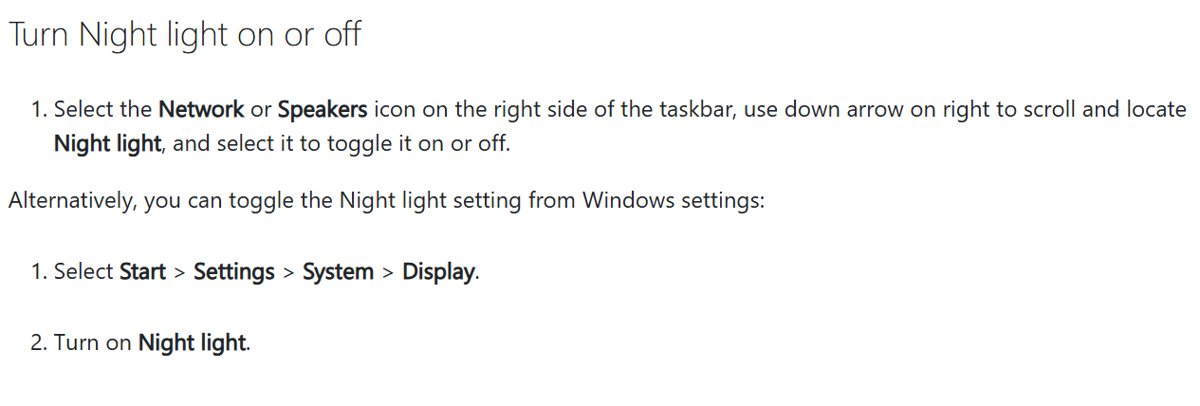
Instant toggle alternative
If the tile is missing from Quick Settings, you can customize the Quick Settings panel to add it back, or open the Night light page directly instead.
- Press Windows key + R to open Run.
- Type
ms-settings:nightlightand press Enter. - Turn the Night light toggle on or off at the top of the page.
- Or go to Start > Settings > System > Display and use the Night light toggle there.
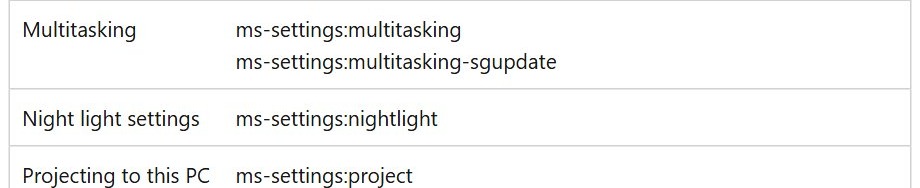
Background / overview
Night light is the blue light filter built into Windows 11 and Windows 10. It lives on the Display settings page and needs no extra app.
| Item | Detail |
|---|---|
| Where it lives | Settings > System > Display > Night light |
| What it changes | Shifts screen colors toward warm tones to cut blue light |
| Controls | On/off toggle, Strength slider, Schedule night light |
| Schedule options | Sunset to sunrise, or Set hours |
| Not available with | DisplayLink or Microsoft Basic Display drivers |
| Windows 10 | Same feature under Settings > System > Display > Night light settings; support ended October 14, 2025 |
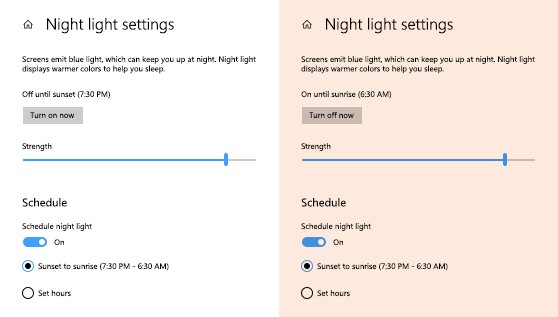
How Night light works and when to use it
Your display emits blue light, the kind you see during the day. Microsoft says that light can keep you up at night, so Night light shows warmer colors that are easier on your eyes after dark.
| Situation | Use Night light? | Why |
|---|---|---|
| Reading or browsing in the evening | Yes | Warmer colors are easier on the eyes at night |
| Working late most nights | Yes, on a schedule | It turns on without you remembering |
| Daytime work in a bright room | No | There is no night-time benefit and colors look off |
| Photo, video or design work | No | The tint changes every color you see |
Adjusting strength and scheduling Night light
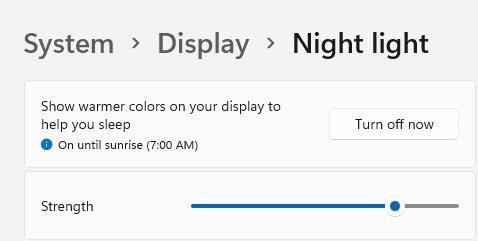
Both controls sit on one page. Open it with Start > Settings > System > Display > Night light.
| What you want | Control to use | Setting |
|---|---|---|
| A softer or stronger tint | Strength slider | Drag left for lighter, right for warmer |
| On every evening automatically | Schedule night light | Sunset to sunrise |
| On at fixed times | Schedule night light | Set hours |
| Only when you ask for it | Night light toggle | Leave Schedule night light off |
Strength slider
Strength sets how much blue light Windows removes. Turn Night light on first so you can see the effect while you drag.
- Select Start, type settings, and open Settings.
- Go to System > Display > Night light.
- Turn Night light on.
- Move the Strength slider until white areas look comfortable.
- Close Settings; the value saves automatically.
Scheduling
A schedule turns Night light on in the evening and off in the morning.
- Open Settings > System > Display > Night light.
- Turn on Schedule night light.
- Select Sunset to sunrise to follow local sunset and sunrise times.
- Or select Set hours and enter the times Night light should turn on and off.
- Close Settings; the schedule runs from now on.
You can still switch Night light by hand from Quick Settings while a schedule is active.
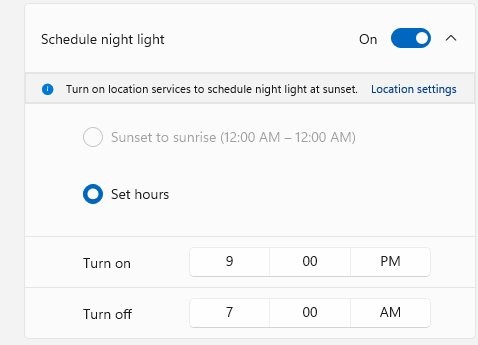
Test Night light is working in Windows 11
This practical step-by-step pass doubles as a setup checklist: run it once after any change.
- Open a blank white page; it should look warm or orange, not pure white.
- Open Quick Settings and confirm the Night light tile is highlighted.
- Open Settings > System > Display and confirm Night light shows On.
- On the Night light page, drag Strength and confirm the tint changes as you move it.
- If you use a schedule, confirm Schedule night light is on and the times are right.
Troubleshooting: Night light missing, grayed out, or unstable
The Night light toggle is grayed out
The display driver is outdated or not fully installed.
- Open Settings > Windows Update > Advanced options.
- Turn on Receive updates for other Microsoft products.
- Select Optional updates and check any display driver listed.
- Select Download and install.
- Restart the PC and check the toggle again.
Night light is missing or not available
Night light does not work with DisplayLink or Microsoft Basic Display drivers.
- If the monitor runs through a DisplayLink dock or adapter, connect it straight to the PC's video port.
- Install the proper graphics driver through Optional updates so Windows stops using the basic driver.
- Restart and open Settings > System > Display again.
Night light turns on at the wrong time or not at all
The schedule is off, or Sunset to sunrise does not match the hours you want.
- Open Settings > System > Display > Night light.
- Confirm Schedule night light is on.
- Switch to Set hours and enter exact start and stop times.
The Night light tile is missing from Quick Settings
The tile sits on another page of the panel.
- Open Quick Settings and scroll with the down arrow through every page.
- Use
ms-settings:nightlightin Run to reach the toggle directly.
Common causes and fixes
| Cause | What you see | Fix |
|---|---|---|
| Outdated display driver | Toggle grayed out | Install the driver from Optional updates, then restart |
| DisplayLink or Basic Display driver | Night light unavailable | Connect directly or install the real graphics driver |
| Schedule turned off | Never comes on in the evening | Turn on Schedule night light |
| Color filters also on | Screen still tinted with Night light off | Press Windows key + Ctrl + C if the shortcut is enabled |
When Night light isn’t enough: alternatives and advanced options
Windows has other display tools for comfort and readability, from display appearance settings to color tools. Each does a different job from Night light.
| Need | Built-in option | Where |
|---|---|---|
| Screen still too bright at night | Brightness slider | Network icon on the taskbar, or Settings > System > Display |
| Brightness that follows the room | Change brightness automatically when lighting changes | Settings > System > Display > Brightness |
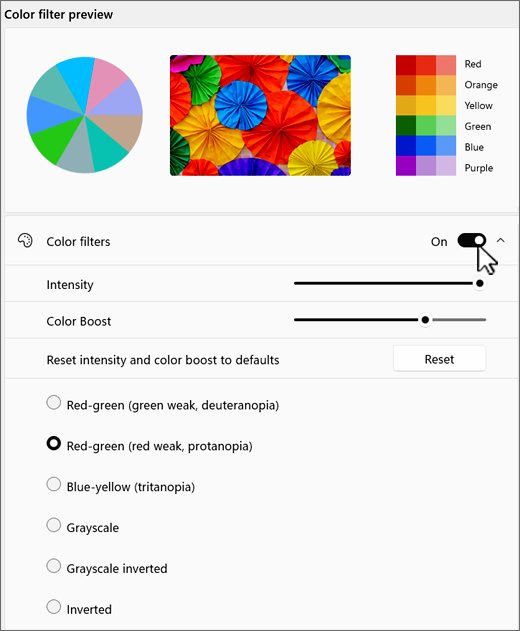
| Colors changed for color blindness or readability | Color filters | ms-settings:easeofaccess-colorfilter, toggle with Windows key + Ctrl + C |
| Accurate, consistent colors | Automatically manage color for apps | Settings > System > Display > Color profile |
| A calibrated display | Calibrate display | Settings > System > Display > Color profile |
Interactions, trade‑offs, and risks
| Interaction | Trade-off | What to do |
|---|---|---|
| Color-critical work | Every color you see is shifted warm | Turn Night light off while editing |
| Color filters | Two tints can stack and look odd | Use one at a time |
| Color profile and calibration | Calibrating with Night light on skews the result | Turn Night light off before you calibrate |
| External DisplayLink monitors | Night light is not available | Use a direct video connection |
Best practices for comfortable, safe evening use
- Turn on Schedule night light with Sunset to sunrise so it starts on its own.
- Set Strength high enough that whites look warm but text stays easy to read.
- Lower the Brightness slider in the evening as well; Night light changes color, not brightness.
- Turn Night light off for any task where true color matters.
- Recheck the toggle after a display driver update.
Quick reference: useful shortcuts and commands
| Action | Shortcut or command |
|---|---|
| Open Quick Settings | Windows key + A |
| Open Night light settings | ms-settings:nightlight in Run (Windows key + R) |
| Open Display settings | ms-settings:display |
| Open Color filters | ms-settings:easeofaccess-colorfilter |
| Toggle color filters | Windows key + Ctrl + C, when enabled in settings |
| Windows 11 path | Settings > System > Display > Night light |
| Windows 10 path | Settings > System > Display > Night light settings |
Practical scenarios and recommendations
| Scenario | Recommended setup | Why |
|---|---|---|
| For the evening worker | Schedule night light on Sunset to sunrise, medium strength | It switches on every evening without effort |
| For photographers and designers | Set hours that end before editing, or toggle off by hand; keep a color profile | The warm tint hides true color |
| For laptop users on battery | Night light on a schedule plus lower brightness or On Battery Only content brightness | Brightness, not tint, is the setting tied to battery life |
Final analysis 2014 strengths, weaknesses, and what to watch for
Use Night light on a Sunset to sunrise schedule for evening comfort, and turn it off for color-accurate work. It is free, built in and quick to tune, but it shifts every color, needs a proper display driver, and does not work over DisplayLink or the Basic Display driver. Watch the toggle after driver updates.
Windows 11 Night light setup FAQ
How do I turn on Night light in Windows 11?
Press Windows key + A, scroll the Quick Settings panel and select Night light. You can also go to Settings > System > Display and turn on the Night light toggle.
How do I change Night light strength?
Open Settings > System > Display > Night light and move the Strength slider. Dragging right makes the screen warmer; dragging left makes the tint lighter. The change saves automatically.
How do I schedule Night light in Windows 11?
Open Settings > System > Display > Night light and turn on Schedule night light. Choose Sunset to sunrise, or choose Set hours and enter the times you want it to start and stop.
Why is Night light grayed out?
A grayed-out Night light toggle usually means the display driver needs updating. Install display drivers from Settings > Windows Update > Advanced options > Optional updates, then restart the PC.
Why is Night light not available on my monitor?
Night light is not available when the display uses certain drivers, such as DisplayLink or Microsoft Basic Display. Connect the monitor directly to the PC and install the proper graphics driver.
Is Night light the same as color filters?
No. Night light warms the screen to reduce blue light. Color filters are an accessibility feature that change screen colors for color blindness or readability, toggled with Windows key + Ctrl + C when enabled.
Is there a shortcut for Night light settings?
Yes. Press Windows key + R, type ms-settings:nightlight and press Enter to open the Night light page. Windows key + A opens Quick Settings, where the Night light tile lives.