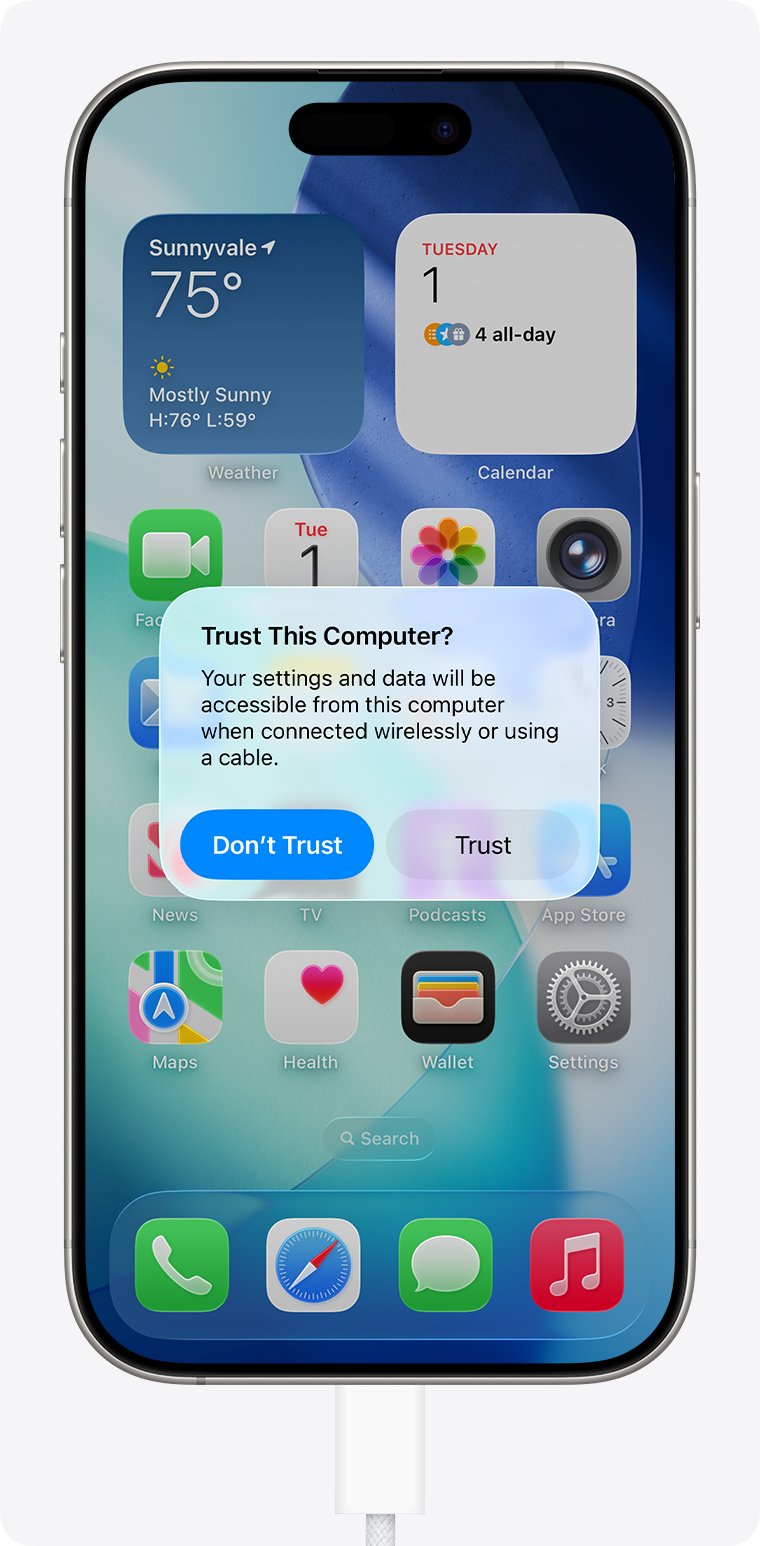
Error 0xE800000A means iTunes could not connect to your iPhone, iPad or iPod touch, and the quickest fix is to unlock the device, reconnect it with a data cable and tap Trust when asked.
This guide covers the Trust alert, iTunes and Apple Devices updates, the Apple Mobile Device Service, the USB driver, security software and the Finder checks on a Mac.
How to fix error 0xE800000A in iTunes
Most 0xE800000A errors clear once the device trusts the computer again. Work through these steps in order, then retry the sync, backup or update that failed.
- Close iTunes or the Apple Devices app and unplug the iPhone or iPad.
- Unlock the device with your passcode and leave the Home Screen showing.
- Connect it with a USB cable that supports both data and charging.
- Open iTunes or the Apple Devices app again.
- When Trust This Computer? appears on the device, tap Trust and enter your passcode.
- If iTunes asks whether to allow access, click Continue. In Apple Devices, select Trust This [device] if that dialog appears.
The device should now appear in the sidebar. If no Trust alert showed up at all, reset Location & Privacy on the device and connect again.
What does error 0xE800000A mean?
Apple does not publish a description of 0xE800000A. It appears when iTunes on a computer fails to open a connection to a connected iPhone, iPad or iPod touch, so Apple's device recognition fixes are the ones that apply.
| Question | Answer |
|---|---|
| Where does 0xE800000A appear? | In iTunes, when it tries to connect to a plugged-in iPhone, iPad or iPod touch |
| Does Apple document the code? | No. Apple's support pages do not list 0xE800000A |
| Does it erase anything on the device? | No. The error stops the connection; it does not change the content on the iPhone |
| What does Apple tell you to check? | The Trust alert, cable and port, Apple Mobile Device Service, software updates and security software |
| Which app manages an iPhone on Windows now? | The free Apple Devices app from the Microsoft Store. iTunes stays for podcasts and audiobooks |
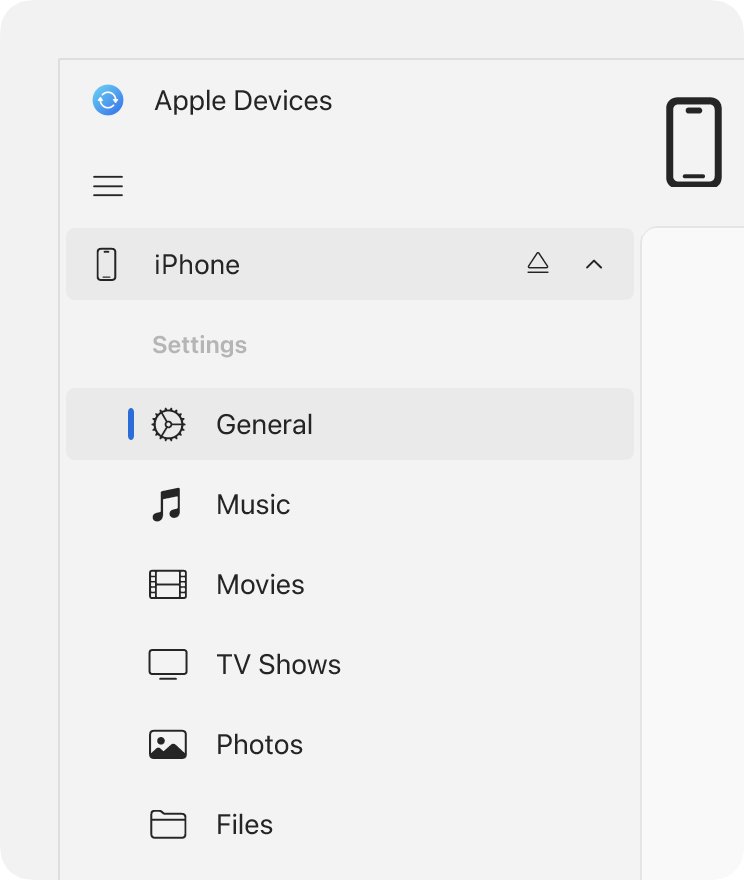
| Which app manages an iPhone on a Mac? | Finder shows the connected device in its sidebar |
Error 0xE800000A causes and fixes
| What you see | Do this | Why |
|---|---|---|
| No Trust alert on the iPhone, or you tapped Don't Trust | Reset Location & Privacy | The device remembers every computer it trusted or refused |
| The iPhone does not chime, vibrate or charge when connected | Check the port, cable and USB port | The computer never sees the device |
| "Apple Mobile Device Service is not started" | Restart the Apple Mobile Device Service | iTunes needs that service to talk to the device |
| iTunes came from the Microsoft Store | Turn on iTunes Mobile Device Helper at startup | Apple lists it as needed for the Trust prompt |
| The error started after a Windows reinstall or driver change | Reinstall the iPhone driver in Device Manager | A broken USB driver blocks the connection |
| The error started after a new antivirus, firewall or VPN | Check the security software | Apple says it can stop iTunes connecting to devices |
| You use a Mac | Check Finder and macOS | Current Macs manage iPhones in Finder, not iTunes |
How to reset Location and Privacy on iPhone
Your device remembers which computers you trusted or refused. Resetting Location & Privacy clears that list, so the Trust alert appears again on the next connection.
- Unplug the iPhone or iPad from the computer.
- Open Settings and tap General.
- Tap Transfer or Reset iPhone (or Transfer or Reset iPad).
- Tap Reset, then tap Reset Location & Privacy.
- Connect the device to the computer again and unlock it.
- Tap Trust on the alert and enter your passcode.
If the alert still never appears, restart both the computer and the device, then try again.
Update iTunes and the Apple Devices app on Windows
Apple asks for the latest iTunes or Apple Devices app before other connection fixes. On Windows both update from the Microsoft Store, not from inside the apps.
- Open the Microsoft Store app.
- Select Check for Updates.
- Install any update listed for iTunes or Apple Devices.
- If Apple Devices is not installed, search the Store for Apple Devices, select it, then select Get.
- Restart the PC and connect the unlocked iPhone again.
The Apple Devices app and iTunes are separate programs. Apple Devices handles backups, software updates, restores and sync for iPhone and iPad on Windows.
Update Windows and iOS when iPhone won't connect to the PC
Apple's recognition checklist asks for the latest Windows and the latest iOS or iPadOS on the device.
- On the PC, open Start > Settings > Windows Update.
- Check for updates, then select Download & install if any are listed.
- Restart the PC if Windows asks.
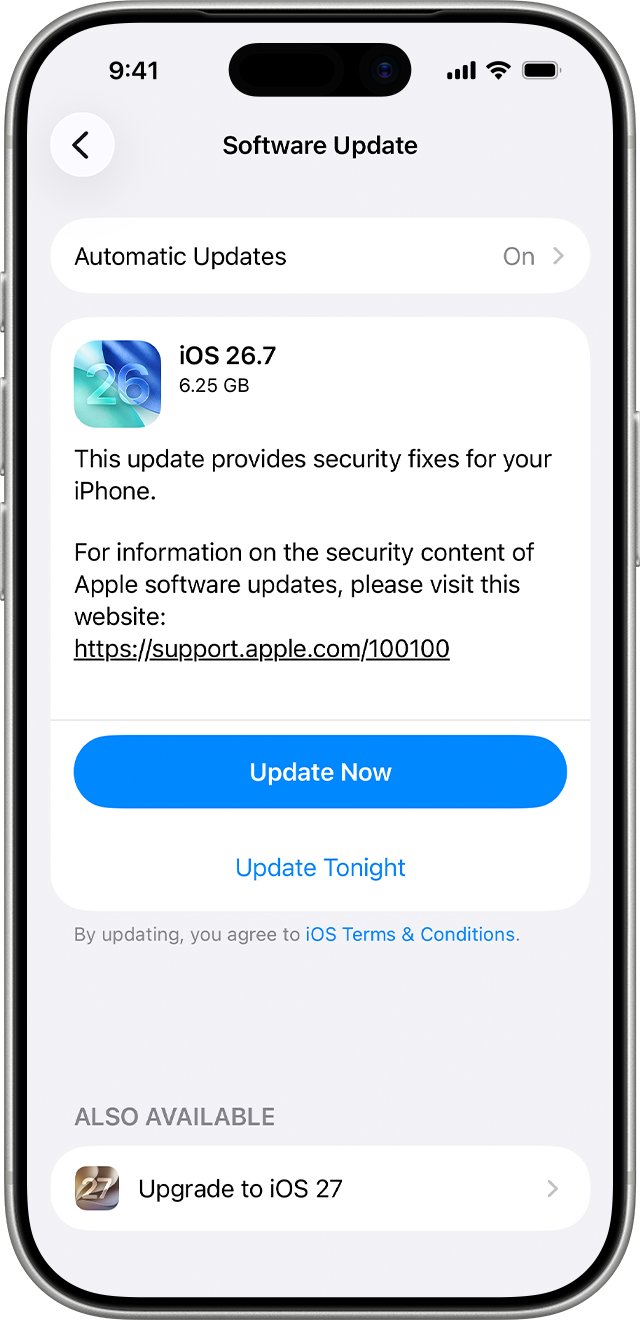
- On the iPhone, open Settings > General > Software Update.
- If an update is available, tap Download and Install and follow the onscreen steps.
- Reconnect the device to the computer and unlock it.
A VPN or proxy on the iPhone can stop it reaching Apple's update servers, so disconnect it before updating.
Restart Apple Mobile Device Service on Windows
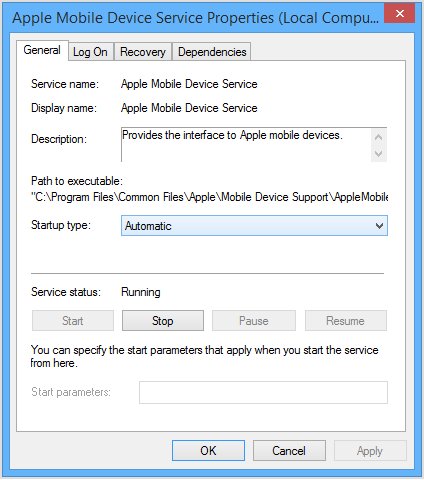
The Apple Mobile Device Service (AMDS) lets iTunes on Windows recognise a connected iPhone. Apple's fix for recognition errors is to set it to start automatically and restart it.
- Close iTunes and disconnect any iPhone, iPad or iPod.
- Press Windows logo key + R to open Run.
- Type
services.mscand click OK. - Right-click Apple Mobile Device Service and click Properties.
- Set Startup type to Automatic.
- Click Stop, wait for the service to stop, then click Start.
- Click OK, restart the computer, then open iTunes and connect the device.
If the service will not start or stops on its own, third-party security software is the usual cause.
Turn on iTunes Mobile Device Helper in Windows startup apps
If you installed iTunes from the Microsoft Store, Apple says iTunes Mobile Device Helper must be enabled as a startup item for the Trust prompt to work.
- Select Start > Settings > Apps > Startup.
- Find iTunes Mobile Device Helper in the list.
- Set its toggle to On.
- Restart the PC.
- Open iTunes and connect the unlocked iPhone again.
You can also press Windows logo key + R, type ms-settings:startupapps and press Enter to open the same page.
Reinstall the iPhone USB driver in Device Manager
A damaged Apple USB driver stops Windows from passing the device to iTunes. Removing the device in Device Manager makes Windows reinstall the driver on restart.
- Connect the unlocked iPhone to the PC.
- Right-click Start and select Device Manager.
- Expand the category that lists your iPhone or Apple device.
- Right-click the device and select Uninstall device, then select Uninstall.
- Save your work and restart the PC.
- Connect the iPhone again and let Windows reinstall the driver.
- If nothing installs, right-click the device, select Update driver, then Search automatically for updated driver software.
If Windows reports that usbaapl64.inf will not install, install the Apple USB driver manually from the iTunes folder.
Repair or reset iTunes in Windows 11 settings
Windows can repair a Microsoft Store copy of iTunes or Apple Devices without a full reinstall.
- Open Settings from the Start menu and go to Apps > Installed apps.
- Find iTunes (or Apple Devices) and select the More icon next to it.
- Select Advanced options.
- Select Repair and wait for it to finish.
- If the error returns, select Reset, then open the app and sign in again.
Try Repair first. Reset clears the app's data on this PC, which is why you sign in again afterwards.
Antivirus blocking iTunes from recognizing iPhone
Apple says third-party security software can stop iTunes from connecting to devices, and the result is a device that iTunes will not recognise. Leave your protection on and fix the rules instead.
- Sign in to Windows with an administrator account, not a guest account.
- Confirm the PC's date, time and time zone are correct.
- Keep only one security product installed, as Apple advises.
- Disconnect any VPN on the PC and on the iPhone, then reconnect the device.
- Ask your security software vendor to allow the ports and services Apple products use.
- Restart the PC and connect the iPhone again.
iPhone not showing up in Finder on Mac
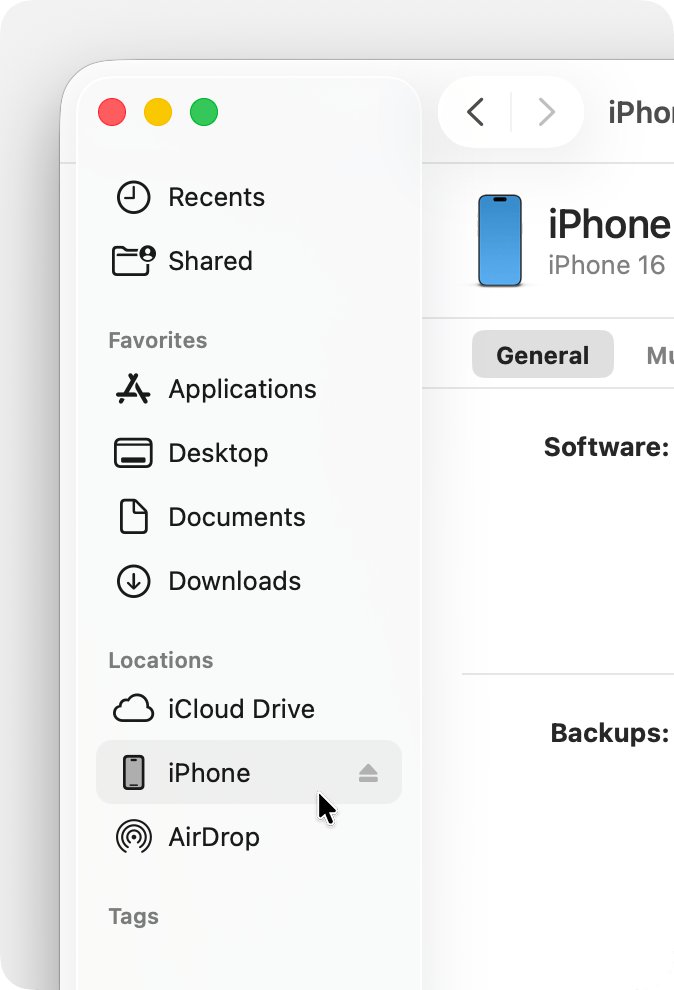
On a current Mac, iPhones appear in Finder rather than iTunes, and the same Trust and cable checks apply.
- Connect the iPhone or iPad to the Mac with a USB cable.
- If the Mac shows Allow accessory to connect?, click Allow.
- On the device, tap Trust when Trust This Computer? appears.
- Open a Finder window and look for the device in the sidebar.
- If there is no sidebar, choose View > Show Sidebar from the menu bar.
- Still missing? Try another cable and port, check VPN or security software, and update macOS and iOS.
How to tell if iTunes recognizes your iPhone
- Connect the unlocked device and wait a few seconds.
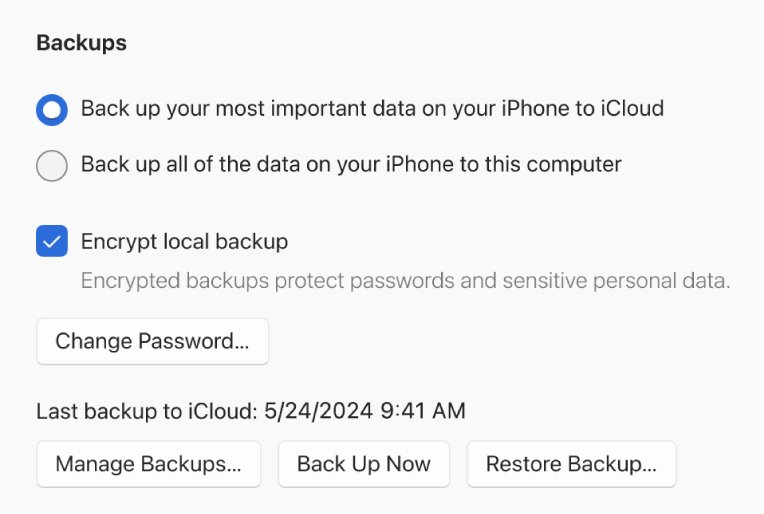
- In the Apple Devices app, confirm the iPhone appears in the sidebar. In iTunes, confirm the device shows up without an error.
- Select the device, select General, then select Backup Now.
- Wait for the backup to finish without an error, then select Manage Backups to see the new backup.
- In Device Manager, confirm the device shows without a yellow warning icon.
A finished iPhone backup to the PC proves the connection works both ways, which is exactly what 0xE800000A interrupts.
iPhone not recognized by iTunes on Windows 11
"This iPhone cannot be used because the Apple Mobile Device Service is not started"
AMDS is stopped, set to manual, or blocked by security software.
- Open
services.msc, set Apple Mobile Device Service to Automatic and restart it. - Restart the PC.
- If it stops again, check your security software rules.
The Trust alert appears every time you connect
You tapped Don't Trust, or automatic backups are on with iOS 16 or later.
- Tap Trust and enter your passcode.
- With automatic backups on, expect the alert on every connection; that is normal.
- If you tapped Don't Trust by mistake, reset Location & Privacy and connect again.
The iPhone does not charge or make a sound when plugged in
The cable, the port or debris in the charging port blocks the connection.
- Unplug the cable and check the device's charging port for debris.
- Try a different cable that supports data as well as charging.
- Try another USB port, or another computer.
You tap Trust, but the computer does not accept it
iTunes, the device or the computer is holding an old connection state.
- Update iTunes or the Apple Devices app, then disconnect and reconnect the device.
- Restart the computer, then restart the iPhone.
- Reset Location & Privacy on the iPhone and connect again.
- If that fails, go to Settings > General > Transfer or Reset iPhone > Reset and tap Reset Network Settings. This also clears saved Wi-Fi passwords, cellular and VPN settings.
The error appears on one PC but not on another
The problem sits with that PC's apps, driver or security software.
- Update Windows, iTunes and Apple Devices on that PC.
- Repair iTunes in Settings > Apps > Installed apps.
- Reinstall the iPhone driver in Device Manager.
- If nothing works, contact Apple Support for service.
iTunes error 0xE800000A FAQ
What is error 0xE800000A in iTunes?
Error 0xE800000A appears when iTunes cannot open a connection to a connected iPhone, iPad or iPod touch. Apple does not document the code, so fix it with Apple's device recognition steps: the Trust alert, cable and port, Apple Mobile Device Service and software updates.
Does error 0xE800000A mean my iPhone is broken?
Usually not. The code points to a connection problem between the computer and the device. If the iPhone does not charge or make a sound with any cable, port or computer, Apple says it may need service.
Will fixing 0xE800000A delete data on my iPhone?
No. None of the fixes erase the device. Reset Location & Privacy only clears which computers are trusted, and Reset Network Settings clears saved Wi-Fi networks, passwords and VPN settings, not your photos or apps.
Why does the Trust This Computer alert not appear?
The device may remember an earlier Don't Trust choice, or iTunes may be out of date. Update iTunes or Apple Devices, turn on iTunes Mobile Device Helper at startup for the Microsoft Store version, restart both devices, then reset Location & Privacy.
Should I use iTunes or the Apple Devices app on Windows?
Use the Apple Devices app to back up, update, restore and sync an iPhone or iPad on Windows. Apple now keeps iTunes for Windows for podcasts and audiobooks, and both install from the Microsoft Store.
How do I restart the Apple Mobile Device Service?
Close iTunes, press Windows logo key + R, type services.msc and click OK. Open Apple Mobile Device Service properties, set Startup type to Automatic, click Stop, then Start, click OK and restart the computer.
Can a VPN cause error 0xE800000A?
Apple lists VPN and other third-party security software among the things to check when a computer does not recognize an iPhone. Disconnect the VPN on the PC and the device, then reconnect the iPhone and try again.
Does error 0xE800000A happen on a Mac?
Current Macs manage iPhones in Finder, not iTunes. If Finder does not show the device, click Allow on the accessory alert, tap Trust on the iPhone, choose View > Show Sidebar, and update macOS and iOS.